How to Save PDFs as PDF/A With Headless Chrome
Headless Chrome prints web pages to ordinary PDFs, not a documented PDF/A profile. Learn how to create the PDF, convert it with a suitable workflow, and validate the required conformance.

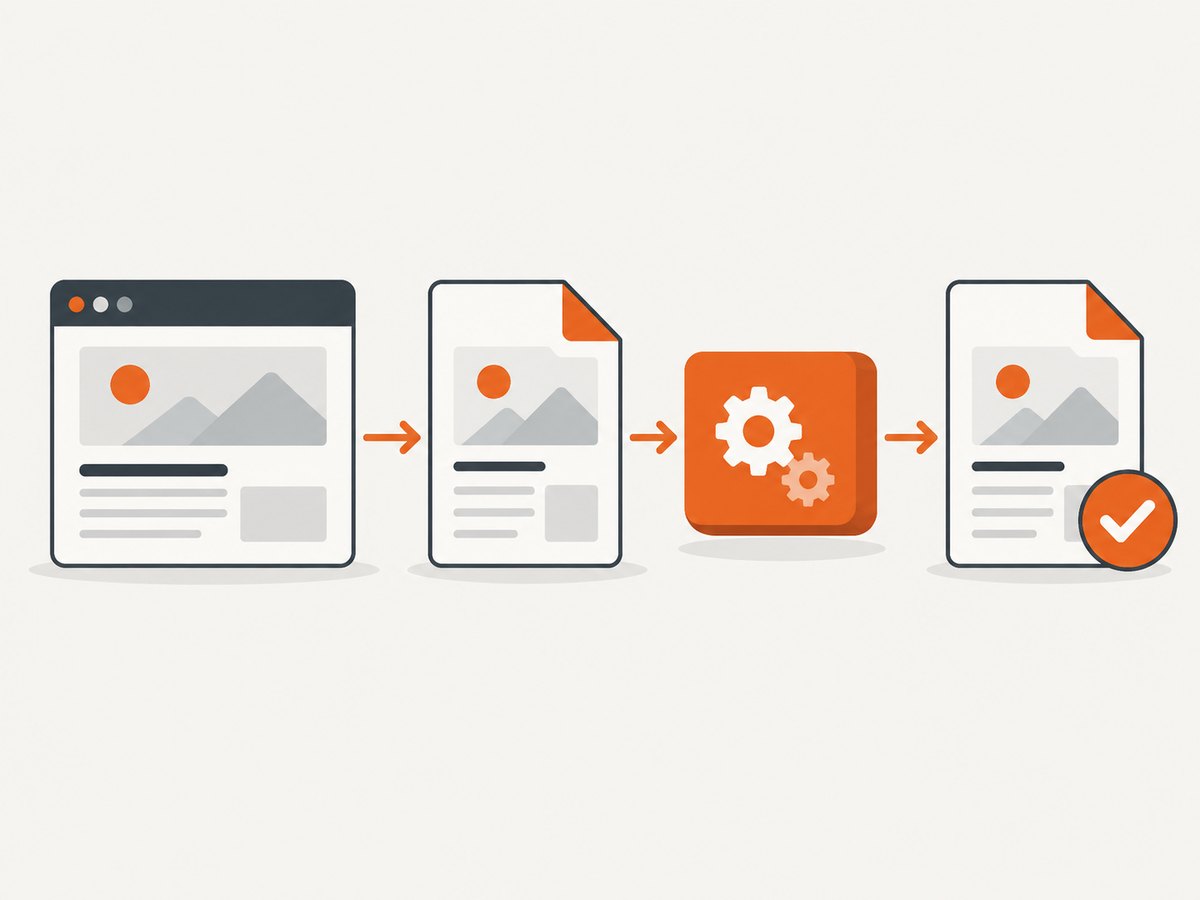
Short answer: Headless Chrome’s documented --print-to-pdf command saves a web page as an ordinary PDF. The documentation does not specify a PDF/A output mode, so creating a PDF with Chrome does not establish PDF/A conformance. If you need an archival PDF, print the page, convert it with a PDF/A-capable workflow, and validate the result against the exact profile required by the recipient.
This distinction matters for automated reports, records, and submissions: PDF/A is a family of file-format profiles, not a filename extension or a metadata label. A file named report.pdfa, or one carrying a PDF/A declaration in its metadata, is not proven conforming until its requirements have been checked. PDF/A defines characteristics intended to preserve a document’s static visual appearance over time; it does not by itself provide backups, fixity checks, or an institutional preservation process. PDF Association’s ISO 19005 overview explains the format’s purpose and its different parts.
1. Print the page with Headless Chrome
Install Chrome or Chromium in the environment where the job will run, then invoke the browser with the target URL and an output path. Chrome’s documented command is:
chrome --headless --print-to-pdf https://example.com/This writes output.pdf in the current working directory. To choose a different output path, use the output option supported by your installed Chrome version and verify it in that version’s command-line reference. The following shell example changes to a known output directory before running Chrome:
mkdir -p output
cd output
chrome --headless --print-to-pdf https://example.com/
On a Linux installation where the executable is named google-chrome, substitute that executable name. If your environment supplies Chromium as chromium, use that instead. The executable name and packaging depend on how Chrome was installed.
Chrome’s command-line reference also documents print and timing options. To omit the date, URL, and page-number header and footer, use:
chrome --headless --no-pdf-header-footer --print-to-pdf https://example.com/The current flag is --no-pdf-header-footer; older releases exposed this as --print-to-pdf-no-header. If Chrome reports an unknown option, check the documentation for your installed release before changing flags. The --timeout option sets a maximum wait before capture. --virtual-time-budget can fast-forward time-dependent page code. Neither option selects or creates a PDF/A profile. See the Chrome Headless command-line reference for supported syntax.
2. Make the browser capture predictable
Before converting the PDF, make sure the browser has rendered the content you intend to preserve. A successful command only shows that Chrome wrote a PDF; it does not prove that every dynamic component was ready or that the document is complete.
- Use a stable source URL. Prefer a page with deterministic content and access that works from the capture environment. If authentication is needed, arrange access in the browser environment securely rather than putting credentials in a public script or URL.
- Allow time for rendering. Pages that load data asynchronously, animate, or populate charts after navigation may need an appropriate timeout. A virtual-time budget can help with time-dependent page code, but test whether it produces the content your page needs.
- Inspect pagination and margins. Web pages can use print-specific CSS. Check page breaks, headers, footers, clipped content, and background colors in the resulting PDF. A valid PDF/A conversion cannot restore content missing from the source PDF.
- Keep browser output separate from archival output. Use a clear pipeline such as
capture/report.pdf,converted/report-pdfa.pdf, andvalidation/report.txt. Avoid replacing the source file before you have inspected and validated the converted one. - Record the environment. For repeatable jobs, keep track of the Chrome version, conversion settings, target PDF/A profile, and validator version. Browser rendering can change when the browser or source page changes.
Chrome’s Headless and headful modes now share the browser implementation. From Chrome 132, the previous Headless implementation is available separately as chrome-headless-shell; consult the Headless mode documentation if you rely on that older implementation or need to understand which binary your environment runs.
3. Choose the PDF/A profile before conversion
Ask the receiving organization which part and conformance level it accepts. Do not choose a profile by guessing that the newest number is always right: the source document’s features and the recipient’s policy both matter.

| Profile family | What the research supports | Decision point |
|---|---|---|
| PDF/A-1 | Based on PDF 1.4; defines levels A and B; does not support transparency. Level A adds accessibility and reliable text-extraction features beyond level B’s basic visual reproduction requirements. | Check whether the document uses transparency and whether the recipient requires level A or accepts level B. |
| PDF/A-2 | Based on PDF 1.7 and extends the format to newer PDF features. | Confirm that the recipient accepts this part and that the conversion supports the source features you need. |
| PDF/A-3 | Similar to PDF/A-2, but permits arbitrary embedded files. Attachments in PDF/A-2 must themselves be PDF/A or plain text. | Use it only when the recipient’s policy allows the embedded-file model and the attachments are part of the requirement. |
| PDF/A-4 | Based on PDF 2.0; includes PDF/A-4e for engineering workflows with interactive 3D models. | Confirm recipient support and whether an engineering-specific profile is needed. |
These are format distinctions, not a recommendation for one profile. Refer to the PDF Association overview and follow the receiving organization’s instructions. If the recipient names a profile such as PDF/A-2b, pass that exact target to the conversion and validation stages.
4. Convert the ordinary PDF to PDF/A
Use software or a controlled workflow that explicitly supports creating or converting to the required PDF/A part and level. This research does not compare or verify a particular commercial converter, so select a tool based on documented profile support, support for the source PDF’s features, and whether its output passes validation.
A general pipeline looks like this:
# 1. Render the page with Headless Chrome
chrome --headless --print-to-pdf capture.pdf https://example.com/

# 2. Convert capture.pdf with a PDF/A-capable tool
# Supply the exact profile required by your recipient.
# The conversion command depends on the tool you choose.

# 3. Validate the converted file against that same profile
verapdf --flavour 2b converted.pdf
The conversion line is intentionally a placeholder: converter syntax and capabilities vary, and no specific creation product was verified in the research. Do not copy a made-up command into a production pipeline. Consult the selected tool’s official documentation for its PDF/A conversion command, embedding behavior, color handling, and supported profiles. Preserve the input PDF and conversion logs so you can investigate failures.
Conversion may expose problems that were invisible in the browser’s PDF, such as missing fonts or unsupported features. PDF/A requirements can require fonts and color information to be handled differently from an ordinary PDF. Ask the converter to report warnings and errors, and inspect the output visually when the document’s appearance matters. A conversion tool can produce a file that needs correction or fails validation; conversion success alone is not a conformance result.
5. Validate the output with veraPDF
veraPDF provides a validator with profiles for PDF/A-1, -2, -3, and -4 and applicable conformance levels. Its CLI can list built-in profiles or select a profile based on a conformance declaration embedded in the file. For a controlled process, validate against the recipient’s specified profile and retain the report.
First inspect the available CLI options and profiles for your installed version:
verapdf --help
verapdf --list
Then select the exact profile. For example, if the recipient specifies PDF/A-2b and your veraPDF version lists that flavour:
verapdf --flavour 2b converted.pdfCLI options can vary by veraPDF release, so use its CLI validation documentation to confirm profile identifiers, report formats, and exit behavior. Do not assume the example profile is right for your document. You can also let the validator use an embedded conformance declaration where appropriate, but that declaration is a claim to check, not proof that the file passes every requirement.
The report identifies failed checks, including the object type, test condition, applicable specification, and conformance level. Treat a failed check as actionable evidence: use it to locate the source object, correct the source or conversion settings, regenerate the file, and validate again. A successful report is useful evidence for machine-verifiable requirements. It does not decide which profile your organization requires or replace review of broader records and preservation policies.
6. Automate the pipeline safely
For scheduled or server-side jobs, keep capture, conversion, and validation as separate steps with explicit outputs and failure handling. A job should stop before publishing or archiving the file if conversion fails or validation reports nonconformance.
- Write the Chrome result to a temporary or staging path.
- Check that the command completed successfully and that an output PDF was created.
- Run the selected PDF/A conversion tool with the profile supplied from configuration.
- Run veraPDF against the same explicit profile.
- Store the original PDF, converted PDF, conversion diagnostics, validator report, and job metadata according to your retention policy.
- Promote the converted file only after the required checks pass.
Use a timeout at the job-runner level as well as any browser timeout, so a stalled conversion or validator cannot occupy a worker indefinitely. Make retries bounded: retry transient page-load failures when appropriate, but do not repeatedly retry a deterministic profile failure without changing the input or configuration. Avoid concurrent jobs writing the same destination filename; use unique job paths and promote completed output atomically where your storage system supports it.
Reliability has several independent parts: the page must render fully, conversion must preserve required content, validation must check the intended profile, and storage must protect the accepted artifact. PDF/A addresses file-format characteristics. Backups, fixity checks, access controls, and preservation procedures remain operational responsibilities.
7. Troubleshooting common failures
| Symptom | Likely cause | What to do |
|---|---|---|
| Chrome exits without producing the expected file | Wrong executable, incorrect working directory, unsupported option, or navigation failure. | Confirm the executable and version, check the command’s exit status and current directory, and consult the installed version’s CLI documentation. |
| Header or footer still appears | The installed version may use a different flag name, or the option was not passed as expected. | Try the documented --no-pdf-header-footer; on older releases check whether --print-to-pdf-no-header applies. |
| Some content is missing or stale | Page scripts or network requests had not completed when capture occurred. | Adjust the browser wait strategy, timeout, or virtual-time budget; inspect the page and rerun until the required content appears. |
| Output is clipped or pagination is poor | Print CSS, page breaks, or margins do not fit the content. | Review the PDF and adjust the source page’s print stylesheet or layout before conversion. |
| Converter reports unsupported content | The source uses a feature the selected profile or converter cannot represent as configured. | Confirm the required profile, consult converter documentation, and revise the source or conversion settings. Do not switch profiles without recipient approval. |
| veraPDF reports a failed rule | The file violates a requirement in the selected profile, or the wrong flavour was chosen. | Read the report’s object and failed condition, verify the required profile, correct the document or conversion, then regenerate and validate. |
| Metadata says PDF/A but validation fails | The embedded declaration is present but the document does not meet all profile requirements. | Treat the declaration as a claim. Correct the file and validate against the recipient’s explicit target. |
| PDF/A-1 conversion loses transparency | PDF/A-1 does not support transparency. | Ask whether the recipient accepts a later part that supports the needed features; otherwise revise the source to meet the required profile. |
8. Performance, reliability, and cost
Capture time depends on the page, browser startup, network, scripts, and wait settings; conversion and validation add separate work. The research provides no benchmark figures, so measure the full pipeline using representative pages from your own workload. Track capture, conversion, and validation durations separately, along with failures and output sizes. This helps identify whether a slow job is waiting for the page, processing a complex document, or validating a large file.
For throughput, reuse a managed browser process only if your chosen automation setup supports it safely, cap concurrent work to the resources available, and isolate outputs per job. Cache or reuse a document only when the source version and capture requirements make that safe; a URL alone may not identify a stable page state. Keep timeouts explicit and ensure a timeout is recorded as a failed job rather than mistaken for a valid empty document.
Cost includes browser compute, any PDF/A-capable creation or conversion software, validator operations, storage, and the engineering effort required to monitor and preserve files. This research does not establish prices for conversion tools. Compare tools against the exact profiles and features your workflow requires, and include validation in the operating design rather than treating it as an optional final check.
9. Capture the page without managing a browser
If the task is to capture a web page and the output you need is an image or ordinary PDF, ScreenshotNeo can return a screenshot or PDF from one API request. It does not claim to create a PDF/A file: use a PDF/A-capable conversion workflow and validate separately when archival conformance is required.
Or skip the browser setup
One GET request captures a page as PDF; see the ScreenshotNeo API documentation for request options and response details.
curl -G "https://api.screenshotneo.com/v1/shot" -d access_key=YOUR_API_KEY --data-urlencode url=https://example.com -o page.pdfCookie banners, newsletter popups, and chat widgets are removed before the shot. Bot checks, blank pages, failed loads, timeouts, and cache hits are never billed, and response headers identify the page verdict and billing status. An MCP server lets AI agents use take_screenshot, get_page_info, and capture_pdf. The free plan includes 1,000 screenshots a month with no card; paid plans start at $5 for 3,000.
Create a free ScreenshotNeo account to get 1,000 screenshots a month with no card.
10. FAQ
Can Chrome save directly as PDF/A?
The documented Headless Chrome --print-to-pdf workflow specifies PDF output, not a PDF/A profile. Treat its output as an ordinary PDF unless a separate creation workflow and validation establish the required conformance.
Does setting PDF/A metadata make the file conforming?
No. Metadata can declare a profile, but it does not demonstrate that the document meets the profile’s requirements. Validate the file.
Which PDF/A version should I use?
Use the part and conformance level required by the recipient. Consider source features such as transparency and embedded files when choosing a compatible conversion workflow.
Does a valid PDF/A file guarantee long-term preservation?
No. PDF/A describes file-format characteristics. Long-term preservation also depends on storage, fixity, backups, and the organization’s preservation process.


