How to Save a Playwright Screenshot as a PDF
Use Playwright’s Chromium PDF API for selectable text, or turn a screenshot into an image-based PDF when you need visual fidelity. Includes runnable code, options, and fixes for common export problems.
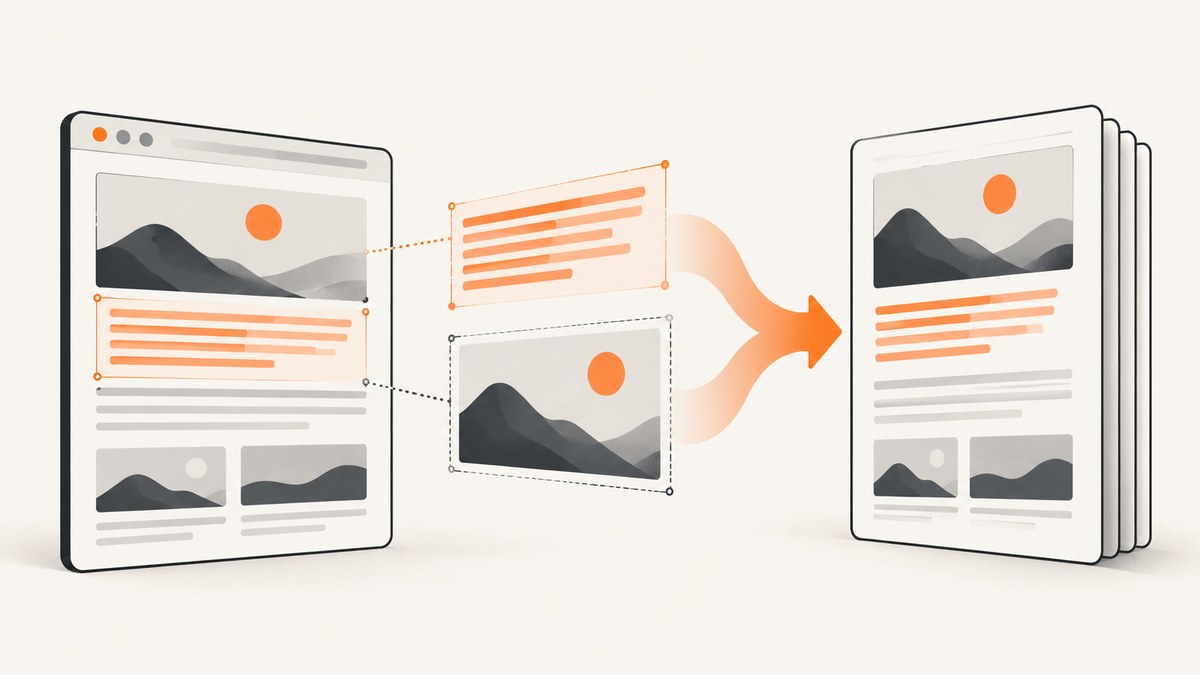
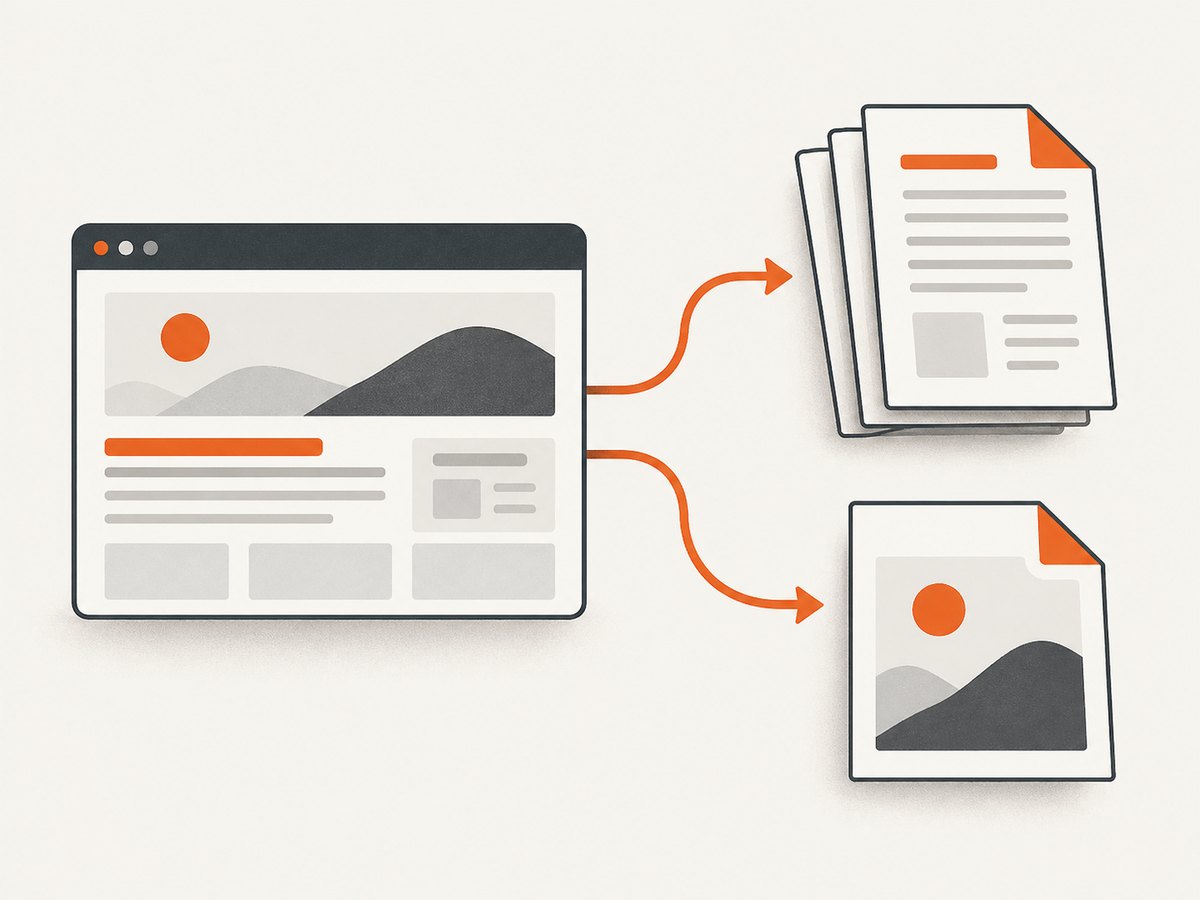
For a PDF with selectable text, use Playwright’s page.pdf() in Chromium. It uses print CSS by default and can save directly to a file. If you need a PDF that looks exactly like a screenshot, capture a PNG and place that image into a PDF with a separate PDF library; Playwright documents PDF export and screenshot capture as separate APIs.
This distinction matters: page.pdf() lays out page content for printing, while an image-based PDF contains a visual snapshot and generally does not preserve the page’s text as selectable text. For a regular web page export, start with page.pdf(). For a fixed visual record, use the screenshot-to-image route.
1. Export a page to a text-based PDF with Playwright
Install Playwright and its Chromium browser, then run this complete Node.js example. It navigates to a page, waits for the load event, writes page.pdf in the current working directory, and closes the browser even if the export fails.
const { chromium } = require('playwright');

(async () => {
  const browser = await chromium.launch();
  try {
    const page = await browser.newPage();
    await page.goto('https://example.com', { waitUntil: 'networkidle' });

    await page.pdf({ path: 'page.pdf' });
    console.log('Saved page.pdf');
  } finally {
    await browser.close();
  }
})();
The essential call is await page.pdf({ path: 'page.pdf' }). The API returns a PDF buffer as well; supplying path writes the file, and a relative path is resolved from the process’s current working directory. See the Playwright Page API documentation for the complete option reference.
Install and run
In an existing Node project, install Playwright and its browser binaries:
npm install playwright
npx playwright install chromium
Save the script as export-pdf.js and run:
node export-pdf.jsPlaywright’s PDF generation is a Chromium workflow. If Chromium is missing in a clean machine or deployment container, install it as part of setup rather than expecting it to be present on the host.
2. Choose print or screen styling
By default, page.pdf() renders with the page’s print CSS media. That is usually appropriate for documents because sites can define print-specific page breaks, hide navigation, or simplify layouts. If the PDF should resemble the screen rendering, switch media before generating the PDF:
await page.emulateMedia({ media: 'screen' });
await page.pdf({ path: 'page-screen-style.pdf', printBackground: true });
Set printBackground: true when background colors or images are part of the design. Its default is false, so otherwise background graphics may be omitted. This setting does not change the media stylesheet; choose print or screen separately.
Full runnable screen-style example
const { chromium } = require('playwright');

(async () => {
  const browser = await chromium.launch();
  try {
    const page = await browser.newPage({ viewport: { width: 1440, height: 900 } });
    await page.goto('https://example.com', { waitUntil: 'networkidle' });
    await page.emulateMedia({ media: 'screen' });
    await page.pdf({
      path: 'screen-style.pdf',
      printBackground: true,
      format: 'A4'
    });
  } finally {
    await browser.close();
  }
})();
For print-oriented output, omit emulateMedia or explicitly select print. For screen styling, use screen and usually enable backgrounds if the page depends on them.
3. Set paper size, margins, orientation, and page ranges
Playwright accepts standard paper formats such as A4 and Letter, as well as explicit width and height values. Dimensions can use units including px, in, cm, and mm. PDF options also cover margins, landscape orientation, and page ranges. Example:
await page.pdf({
  path: 'report.pdf',
  format: 'A4',
  landscape: false,
  printBackground: true,
  margin: {
    top: '12mm',
    right: '10mm',
    bottom: '12mm',
    left: '10mm'
  },
  pageRanges: '1-3'
});
Use format for a familiar paper size, or explicit dimensions when the output has a known custom layout. Keep margins in units that make sense for the destination. A page range can reduce a long document to selected pages; check the resulting PDF when the document has dynamic content or its pagination changes.
4. Save a screenshot as an image-based PDF
If the requirement is specifically a PDF made from a screenshot, first capture the page as an image, then use a separate image-to-PDF library. Playwright’s screenshot API saves a viewport capture by default; fullPage: true captures the full scrollable page. The screenshot API can also return image bytes in memory. See the Playwright screenshots guide.
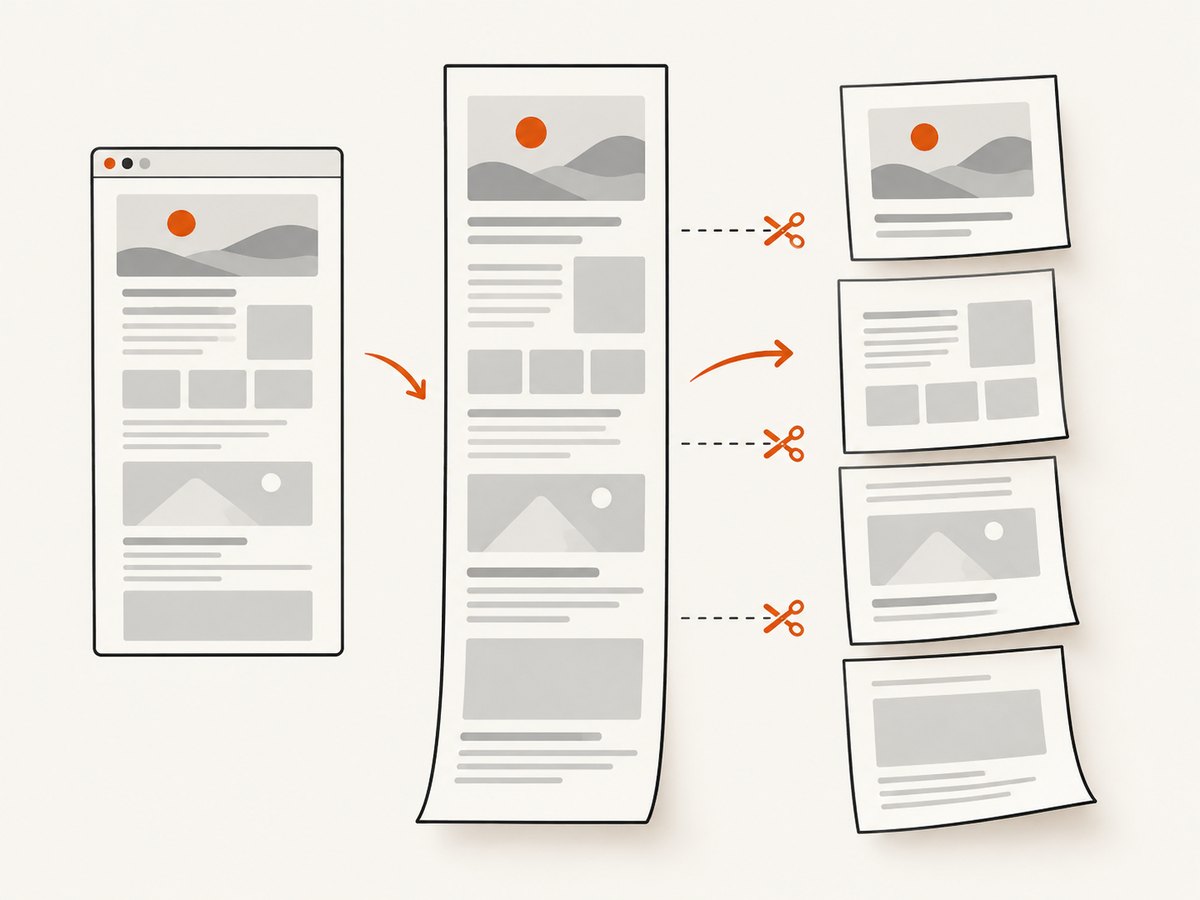
The following example uses the pdfkit package to put a PNG on a PDF page. The output is a visual image of the web page, not a document reflowed for printing.
const { chromium } = require('playwright');
const PDFDocument = require('pdfkit');
const fs = require('node:fs');

(async () => {
  const browser = await chromium.launch();
  try {
    const page = await browser.newPage();
    await page.goto('https://example.com', { waitUntil: 'networkidle' });
    await page.screenshot({ path: 'capture.png', fullPage: true });

    const pdf = new PDFDocument({ autoFirstPage: false });
    pdf.pipe(fs.createWriteStream('screenshot.pdf'));
    pdf.addPage({ size: 'A4', margin: 0 });
    pdf.image('capture.png', 0, 0, { fit: [595.28, 841.89] });
    pdf.end();
  } finally {
    await browser.close();
  }
})();
Install the additional PDF package with npm install pdfkit. This example scales the captured image to fit one A4 page, so a very tall full-page capture becomes smaller. To preserve more readable detail, split the image into page-sized slices or choose a custom PDF page size matching the image dimensions. The appropriate choice depends on whether the recipient needs a convenient document or a near-pixel representation.
Viewport versus full-page capture
| Goal | Playwright option | Result |
|---|---|---|
| Capture only the visible area | page.screenshot({ path: 'view.png' }) |
Image of the current viewport |
| Capture the full scrollable page | page.screenshot({ path: 'full.png', fullPage: true }) |
Tall image covering the page |
| Export document content | page.pdf({ path: 'page.pdf' }) |
PDF laid out with print media by default |
Full-page screenshot capture and PDF pagination solve different problems. A long-page screenshot can be unwieldy as a single image, while PDF output can flow content across pages according to print layout rules.
5. Use the Playwright CLI
For a quick manual export, the official Playwright CLI provides PDF and screenshot commands:
playwright-cli pdf --filename=page.pdf
playwright-cli screenshot --full-page --filename=full-page.png
Without a filename, the CLI generates a timestamped file. The CLI is useful for an interactive one-off capture; use the JavaScript API when you need repeatable navigation, custom waits, options, or integration into a script. Refer to the Playwright CLI documentation for command details.
6. Make captures reliable
Capture quality depends on page state. A page can finish its initial navigation while images, fonts, or client-side content are still changing. Choose a readiness condition that reflects the target site rather than using an arbitrary delay everywhere.
- Navigate to the right URL. Use the final page URL, including any required query parameters.
- Wait for a meaningful state. Use a load condition or wait for a known selector when the content is rendered asynchronously.
- Set media before export. Pick print or screen styling before calling
pdf(). - Set PDF geometry intentionally. Choose paper size, margins, and orientation based on the document.
- Inspect representative output. Check page breaks, clipped content, backgrounds, and image scale.
For example, a site-specific selector wait can be used after navigation:
await page.goto('https://example.com/report');
await page.locator('[data-report-ready="true"]').waitFor();
await page.pdf({ path: 'report.pdf', format: 'A4' });
Replace the selector with a condition that actually indicates readiness on your page. If a selector never appears, the wait will fail instead of producing a misleadingly incomplete document; handle that failure and log the URL and stage in production jobs.
7. Troubleshooting common PDF problems
| Symptom | Likely cause | Fix |
|---|---|---|
| PDF looks like a printout, not the browser | page.pdf() uses print media by default |
Call page.emulateMedia({ media: 'screen' }) before exporting. |
| Colored backgrounds are missing | printBackground defaults to false |
Set printBackground: true. |
| The PDF file is not where expected | A relative path is based on the process working directory |
Use an absolute path or log the working directory and output path. |
| Export reports that the browser executable is missing | Chromium was not installed in that environment | Install Playwright’s Chromium browser during environment setup. |
| Content is absent or stale | Capture started before client-rendered content was ready | Wait for the relevant selector or page state before calling pdf(). |
| Text or images are clipped | Paper size, margins, or print CSS do not fit the content | Review print styles, orientation, margins, and explicit dimensions. |
| Image PDF is unreadably small | A tall full-page screenshot was scaled onto one paper page | Split it across multiple pages or use a larger/custom page size. |
| PDF output is unexpectedly large | Large images or a very long page create substantial output | Capture only the required area, reduce image dimensions before embedding, or export the document with page.pdf(). |
8. Performance, reliability, and cost considerations
PDF export requires launching or reusing a Chromium browser, navigating to the page, waiting for the necessary content, and generating the document. For repeated jobs, avoid launching a new browser for every URL if your application can safely reuse a browser process; create an isolated page or context for each job and close it when finished. Keep concurrency within the memory and CPU limits of your host, especially for long pages and image-heavy reports.
Reliability improves when the script sets explicit timeouts and handles failures at navigation, readiness, and export stages. Always close the browser in a finally block. In a queue worker, record the URL, output path, and failing stage, and make retries bounded: retry transient navigation failures, but do not loop indefinitely on a broken selector or invalid destination.
Self-hosted Playwright has no per-capture API charge in this workflow, but browser execution consumes your machine’s CPU, memory, storage, and engineering time. Account for browser installation, patching, concurrency, cleanup of generated files, and operational monitoring. An API can reduce browser infrastructure work, but usage pricing and output features vary by provider; confirm current plan terms before adopting one.
9. Or skip the browser setup
ScreenshotNeo is a website screenshot API and MCP server from ScreenshotNeo. One GET request returns an image or PDF. For a PDF, use the documented PDF options; this minimal call demonstrates the API request shape, and the docs describe its output configuration. See the ScreenshotNeo API documentation.
curl -G "https://api.screenshotneo.com/v1/shot" \
  -d access_key=YOUR_API_KEY \
  --data-urlencode url=https://stripe.com \
  -o shot.webp
import requests
r = requests.get(
"https://api.screenshotneo.com/v1/shot",
params={"access_key": "YOUR_API_KEY", "url": "https://stripe.com"},
timeout=90,
)
open("shot.webp", "wb").write(r.content)const q = new URLSearchParams({
access_key: 'YOUR_API_KEY',
url: 'https://stripe.com'
});
const res = await fetch(`https://api.screenshotneo.com/v1/shot?${q}`);
ScreenshotNeo removes cookie banners, newsletter popups, and chat widgets before the capture; bot checks, blank pages, and failed loads are never billed. Its MCP server lets AI agents take screenshots. The free plan includes 1,000 screenshots per month with no card, and paid plans start at $5 for 3,000.
Sign up free for 1,000 screenshots a month, with no card required.
10. FAQ
Does a Playwright PDF preserve selectable text?
Use page.pdf() for document-style output. A PDF built by placing a screenshot image on a page is a visual capture and does not provide the same text behavior.
Can I make the PDF match the screen?
Yes. Call page.emulateMedia({ media: 'screen' }) before page.pdf(), and enable printBackground if the design uses backgrounds.
Can Playwright save a full-page screenshot directly as a PDF?
Playwright documents full-page screenshot capture and PDF export as separate operations. For a PDF containing the screenshot as an image, capture it first and use a separate PDF-generation workflow.
Which Playwright browser should I use for PDF export?
The Page API’s PDF export is a Chromium workflow. Screenshot capture is a separate API and is documented across Playwright browser contexts.
Can I get the PDF without writing a file?
page.pdf() returns a buffer. Omit path when you want to handle the PDF bytes in memory, such as returning them from a service endpoint or storing them through another library.


