How to Save Playwright Screenshots as JPG
Save Playwright screenshots as JPG with the right API options, quality settings, buffers, full-page captures, troubleshooting, and production tips.
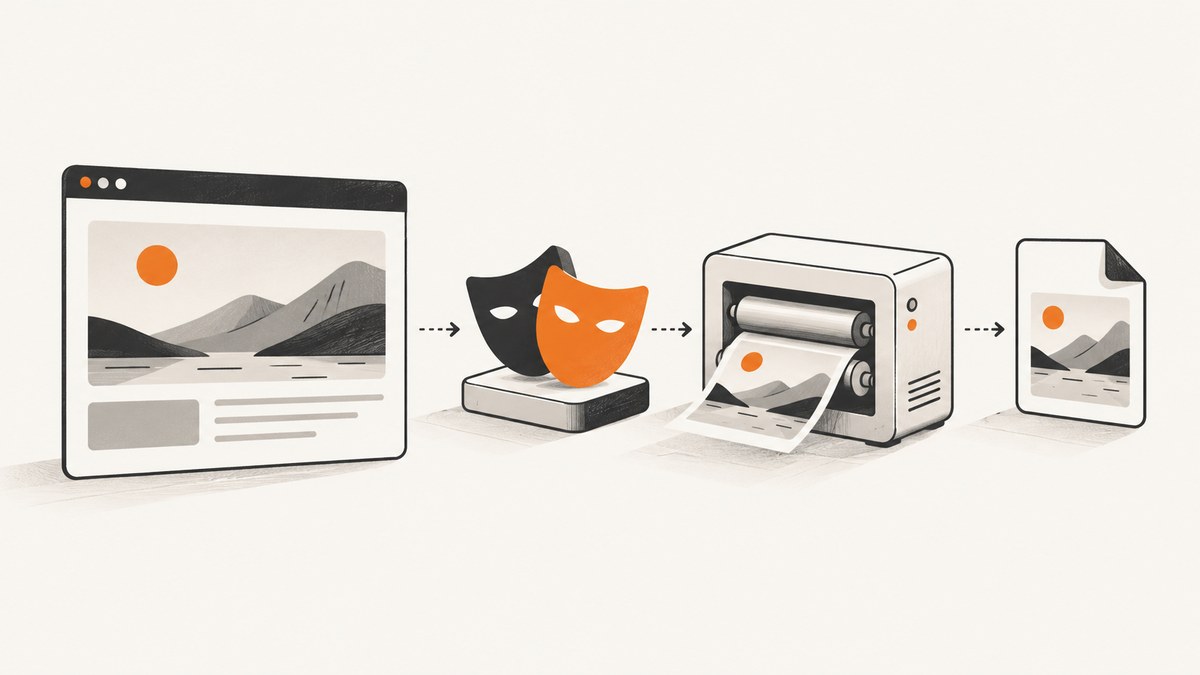
Use Playwright’s jpeg screenshot type and give the output a .jpg filename:
import { chromium } from 'playwright';

const browser = await chromium.launch();
const page = await browser.newPage();

await page.goto('https://example.com', { waitUntil: 'networkidle' });
await page.screenshot({
  path: 'screenshot.jpg',
  type: 'jpeg'
});

await browser.close();
The API value is spelled jpeg, while .jpg is a suitable file extension. When you provide a path, Playwright can infer the image type from the extension, but setting type: 'jpeg' explicitly makes the encoding choice clear. The Page screenshot API documents the available options.
1. Install Playwright and create a complete JPG example
Install Playwright in a new Node.js project:
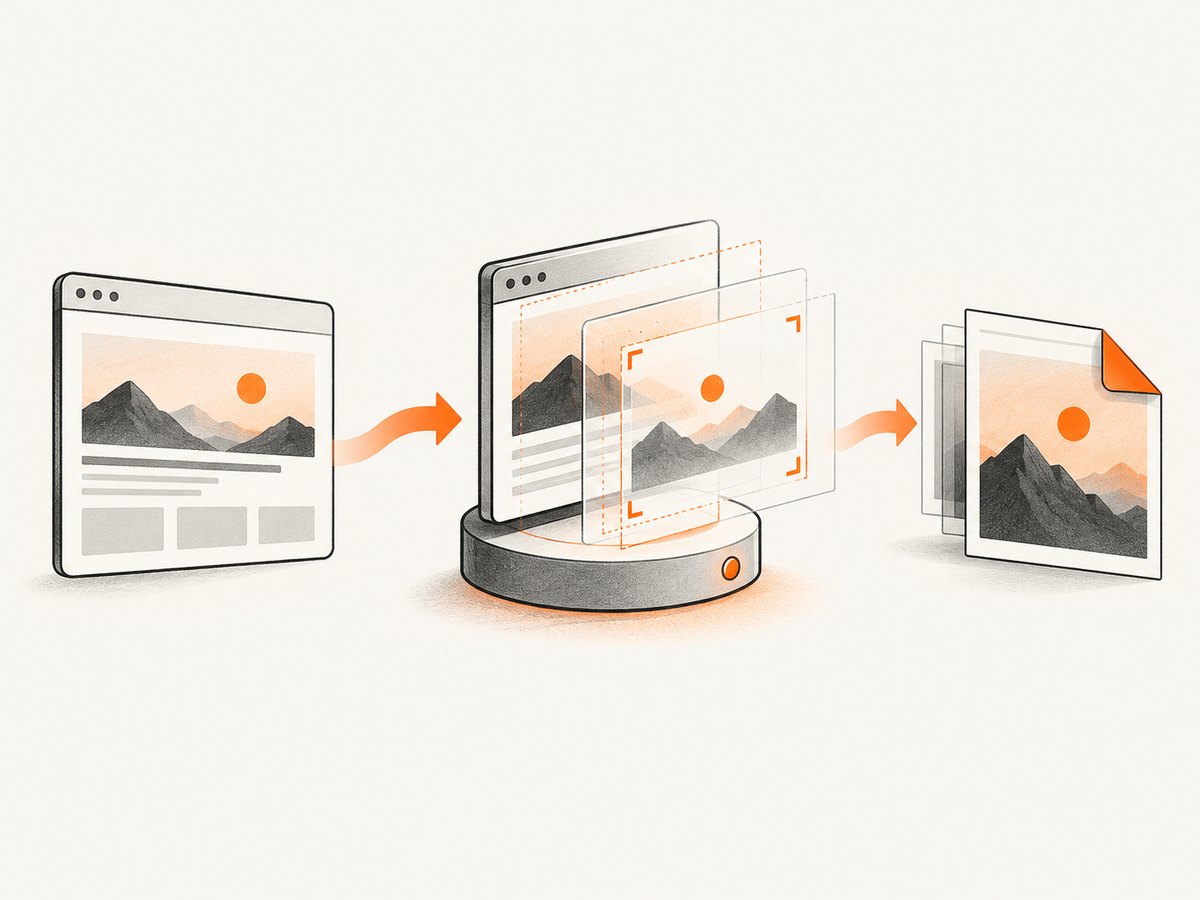
npm init -y
npm install playwright
npx playwright install chromium
Save this as save-jpg.mjs:
import { chromium } from 'playwright';

const browser = await chromium.launch();
const context = await browser.newContext({
  viewport: { width: 1440, height: 900 },
  deviceScaleFactor: 1
});
const page = await context.newPage();

try {
  await page.goto('https://example.com', {
    waitUntil: 'networkidle',
    timeout: 30_000
  });

  await page.screenshot({
    path: 'example.jpg',
    type: 'jpeg',
    quality: 85
  });
} finally {
  await browser.close();
}
Run it with:
node save-jpg.mjsThe resulting file is written to the current working directory. The quality value is optional. JPEG quality accepts integers from 0 through 100, and Playwright documents 80 as the default.
2. Understand the screenshot options
| Option | Purpose | JPG considerations |
|---|---|---|
path |
Writes the screenshot to disk. | Use a .jpg or .jpeg filename. |
type |
Selects png or jpeg. |
Use jpeg; this is the API spelling. |
quality |
Controls JPEG encoding quality. | Valid range is 0–100; the documented default is 80. |
fullPage |
Captures the full scrollable page. | Long pages can produce large files and take longer. |
omitBackground |
Allows transparent backgrounds where supported. | It does not apply to JPEG because JPEG has no transparency channel. |
clip |
Captures a rectangular region. | Useful when you need a specific area rather than the viewport. |
animations |
Controls animation handling in supported Playwright versions. | Disabling animations can make repeated captures more stable. |
Only use options your installed Playwright version supports. If an option is rejected, check the version-specific API reference and update the package when appropriate.
3. Choose a JPEG quality value
JPEG quality is an integer from 0 to 100. Higher values generally preserve more visual detail, while lower values apply stronger lossy compression. The documentation does not promise a fixed file-size reduction for any particular value, so inspect the actual output for your pages.
await page.screenshot({
  path: 'quality-60.jpg',
  type: 'jpeg',
  quality: 60
});

await page.screenshot({
  path: 'quality-90.jpg',
  type: 'jpeg',
  quality: 90
});
Pick a value based on the destination:
- Use a higher value when text, diagrams, screenshots inside the page, or fine UI details must remain clear.
- Use a middle value for ordinary web previews and documentation thumbnails.
- Use a lower value only after checking that text and thin borders remain readable.
Keep the value explicit in production code so a future Playwright default or refactor does not silently change your output.
4. Save a screenshot as a JPG buffer
Omit path when another part of your program needs the image bytes. Playwright returns a Buffer:
const imageBuffer = await page.screenshot({
  type: 'jpeg',
  quality: 85
});

// Example: write it yourself.
import { writeFile } from 'node:fs/promises';
await writeFile('buffer-output.jpg', imageBuffer);
This is useful for uploading the image to object storage, attaching it to a test report, passing it to an image-processing library, or returning it from an HTTP endpoint. A screenshot without path is not saved automatically; your code owns the returned bytes.
5. Capture an element as JPG
Use a Locator screenshot when you need one component instead of the whole viewport:
const card = page.locator('.card').first();
await card.screenshot({
  path: 'card.jpg',
  type: 'jpeg',
  quality: 85
});
The locator must resolve to an element that can be captured. If a selector matches multiple elements, use .first(), .nth(index), or a more specific selector. Wait for the component to be visible and populated before capturing:
const card = page.locator('[data-testid="pricing-card"]').first();
await card.waitFor({ state: 'visible' });
await expect(card).toContainText('Pro');
await card.screenshot({ path: 'pricing-card.jpg', type: 'jpeg' });
If the target is outside the viewport, Playwright scrolls the element into view as part of the locator screenshot operation. A very large element can still create a large output.
6. Capture a full-page JPG
Set fullPage: true on the Page screenshot:
await page.screenshot({
  path: 'full-page.jpg',
  type: 'jpeg',
  quality: 82,
  fullPage: true
});
Full-page capture covers the full scrollable page rather than only the current viewport. Make the page deterministic first: wait for the main content, allow critical images to finish loading, and disable or pause content that changes while the page is being stitched.
await page.goto('https://example.com/article', { waitUntil: 'domcontentloaded' });
await page.locator('main').waitFor({ state: 'visible' });
await page.evaluate(() => document.fonts.ready);
await page.screenshot({
  path: 'article.jpg',
  type: 'jpeg',
  quality: 85,
  fullPage: true
});
7. Control viewport, scale, and page state
The screenshot dimensions depend on the browser context and page state. Set them explicitly when output must be repeatable:
const context = await browser.newContext({
  viewport: { width: 1280, height: 800 },
  deviceScaleFactor: 2,
  colorScheme: 'light'
});
A larger device scale factor produces more physical pixels for the same CSS viewport. That can improve sharpness but also increases memory use and output size. Use a consistent viewport and scale for visual regression tests; otherwise a change in the machine or context can look like a page change.
Set the color scheme before navigation when the site has dark and light themes:
const context = await browser.newContext({
  viewport: { width: 1440, height: 900 },
  colorScheme: 'dark'
});
For content that depends on a cookie, locale, timezone, or authentication state, configure the context before visiting the page. Capture only after the application has reached the state you want to preserve.
8. Playwright Test screenshots
In Playwright Test, automatic screenshots can be configured for test artifacts, including modes such as only-on-failure and on-first-failure. For an explicit JPG, call the Page screenshot method in the test:
import { test } from '@playwright/test';

test('checkout summary', async ({ page }) => {
  await page.goto('https://example.com/checkout');
  await page.locator('[data-testid="summary"]').screenshot({
    path: 'artifacts/checkout-summary.jpg',
    type: 'jpeg',
    quality: 85
  });
});
Automatic test-runner configuration is convenient for failure diagnostics, while an explicit call gives you control over the filename, format, quality, and exact capture point.
9. Common errors and fixes
“Unknown type” or a validation error
Use type: 'jpeg', not type: 'jpg'. The filename extension may be .jpg, but the API option is jpeg.
The file is PNG even though the name ends in JPG
Set the type explicitly and check the file signature. A name alone is not a substitute for the screenshot option when code, wrappers, or post-processing can alter the output.
Transparency is missing
JPEG cannot preserve transparency, and omitBackground does not apply to JPEG. Choose PNG when an alpha channel is required.
The screenshot is blank or incomplete
Capture after navigation and application rendering have finished. Wait for a stable selector, wait for fonts, and wait for data that the page loads after the initial document. A networkidle event can help, but pages with analytics, polling, or open connections may never become idle; a targeted selector wait is often more reliable.
The element screenshot fails
Verify that the locator matches one intended element, that it is visible, and that it has a usable bounding box. Use a specific selector and call locator.waitFor({ state: 'visible' }).
The full-page image is unexpectedly tall
Inspect the page for an oversized element, an unbounded canvas, or content that expands while scrolling. Wait for lazy-loaded content to settle and remove test-only overlays before capturing.
Text or images look soft
Increase quality, use a suitable device scale factor, and avoid repeatedly recompressing the JPG. If the content contains small text or sharp line art, PNG may be a better format.
The capture times out
Separate navigation timeout problems from screenshot problems. Increase the navigation timeout only when the page is expected to be slow, and wait for a concrete readiness condition instead of relying on a long arbitrary delay.
10. Reliable and fast JPG capture
- Reuse a browser process for multiple pages instead of launching a new browser for every image.
- Create contexts with the exact viewport, scale, locale, and color scheme required by the output.
- Use stable selectors and targeted waits for application readiness.
- Disable animations or freeze changing content when visual consistency matters.
- Capture only the element or viewport you need; full-page images require more scrolling and memory.
- Choose JPEG quality deliberately and avoid an unnecessary second compression step.
- Close pages, contexts, and browsers in
finallyblocks so failures do not leak resources.
For high-volume jobs, limit concurrency to what the host can sustain. Each browser page consumes CPU and memory, and high device scale factors increase the pixel workload. Measure your own pages because output dimensions, fonts, animations, and network behavior vary.
11. A reusable capture function
import { chromium } from 'playwright';

export async function saveJpeg({
  url,
  output,
  quality = 85,
  fullPage = false,
  width = 1440,
  height = 900
}) {
  const browser = await chromium.launch();
  try {
    const context = await browser.newContext({
      viewport: { width, height }
    });
    const page = await context.newPage();
    await page.goto(url, {
      waitUntil: 'domcontentloaded',
      timeout: 30_000
    });
    await page.locator('body').waitFor({ state: 'visible' });
    await page.evaluate(() => document.fonts.ready);
    await page.screenshot({
      path: output,
      type: 'jpeg',
      quality,
      fullPage
    });
  } finally {
    await browser.close();
  }
}

await saveJpeg({
  url: 'https://example.com',
  output: 'example.jpg',
  quality: 85,
  fullPage: true
});
12. Or skip the browser setup
ScreenshotNeo provides a website screenshot API when you want an image without managing Playwright, browser binaries, navigation waits, and capture infrastructure. Its API can return PNG, JPEG, WebP, or PDF. For a JPG-compatible response, request the JPEG output option documented in the ScreenshotNeo API documentation.

curl -G "https://api.screenshotneo.com/v1/shot" -d access_key=YOUR_API_KEY --data-urlencode url=https://stripe.com -o shot.webpimport requests
r = requests.get(
"https://api.screenshotneo.com/v1/shot",
params={"access_key": "YOUR_API_KEY", "url": "https://stripe.com"},
timeout=90
)
r.raise_for_status()
open("shot.webp", "wb").write(r.content)const q = new URLSearchParams({ access_key: 'YOUR_API_KEY', url: 'https://stripe.com' });
const res = await fetch(`https://api.screenshotneo.com/v1/shot?${q}`);ScreenshotNeo accepts cookie and consent banners before capture and removes more than 60 known consent platforms, newsletter popups, and chat widgets; each cleanup step can be turned off. Bot checks, blank pages, timeouts, failed loads, and cache hits are not billed, and the response identifies the result with X-Page-Verdict and X-Billed headers. Its MCP server provides take_screenshot, get_page_info, and capture_pdf tools for Claude, Cursor, and other MCP clients.
The Free plan includes 1,000 screenshots per month with no card. Paid plans start at $5 for 3,000 shots, and every feature is available on every plan. Create a free ScreenshotNeo account.
13. cURL, Python, and Node.js response handling
For production integrations, check the HTTP status and response headers before storing the bytes. The simple examples above show the required request shape; add your own error handling, retries, and output naming around them.
curl --fail-with-body -G "https://api.screenshotneo.com/v1/shot" \
  -d access_key=YOUR_API_KEY \
  --data-urlencode url=https://stripe.com \
  -o shot.jpg
import requests
response = requests.get(
"https://api.screenshotneo.com/v1/shot",
params={"access_key": "YOUR_API_KEY", "url": "https://stripe.com"},
timeout=90
)
response.raise_for_status()
with open("shot.jpg", "wb") as file:
file.write(response.content)
print(response.headers.get("X-Page-Verdict"))
print(response.headers.get("X-Billed"))const q = new URLSearchParams({
access_key: 'YOUR_API_KEY',
url: 'https://stripe.com'
});
const res = await fetch(`https://api.screenshotneo.com/v1/shot?${q}`);
if (!res.ok) throw new Error(`Screenshot request failed: ${res.status}`);
const bytes = Buffer.from(await res.arrayBuffer());
await import('node:fs/promises').then(fs => fs.writeFile('shot.jpg', bytes));14. FAQ
Is JPG or JPEG the correct Playwright value?
Use type: 'jpeg'. Either .jpg or .jpeg is a suitable filename extension.
What is the default JPEG quality?
Playwright documents a default quality of 80 and accepts values from 0 through 100.
Can a Playwright JPG have a transparent background?
No. JPEG does not support transparency. Use PNG when the alpha channel matters.
Can I capture only one element?
Yes. Use locator.screenshot() with type: 'jpeg'.
Can I get bytes instead of writing a file?
Yes. Leave out path; page.screenshot() returns a Buffer.
Should I use full-page capture for every page?
No. Use it when you need the complete scrollable document. A viewport or element capture is faster and produces a smaller artifact.


