How to Save a Screenshot as a PDF
Convert a screenshot image to PDF on Windows, Mac, iPhone, or Android, or capture a full webpage as a PDF where supported.
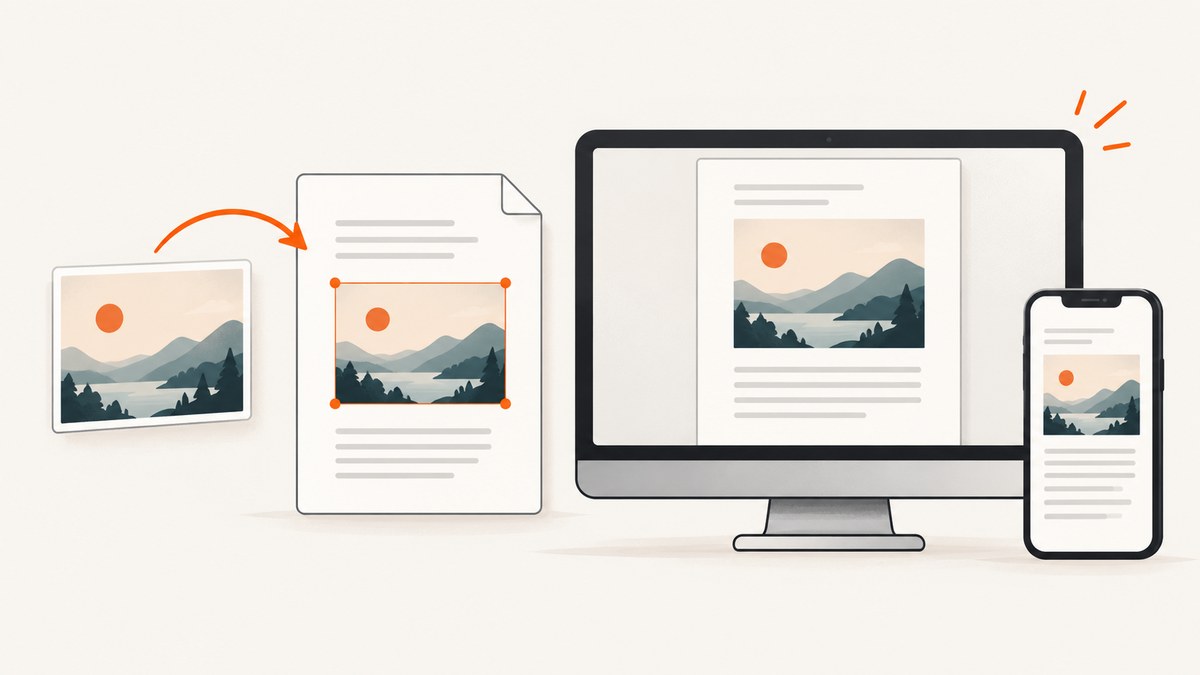
Quick answer: If you already have a PNG or JPG screenshot, open it in an image app and use Print or Export to save it as a PDF. On Windows, print the image to Microsoft Print to PDF; on Mac, export it from Preview or use the print dialog; on Android, use Chrome’s print preview and choose Save as PDF. On iPhone, use Full Page and Save PDF to Files when you want a supported webpage captured beyond the visible screen.
These are two different jobs: converting an existing image keeps the screenshot’s pixels inside a PDF page, while a full-page capture records more of a webpage than fits on screen. Pick the workflow that matches your source.
1. Choose the right PDF workflow
| Your source | Recommended route | What you get |
|---|---|---|
| PNG, JPG, or another saved screenshot | Open it and print/export to PDF | A PDF page containing the image |
| A webpage on iPhone | Take a screenshot, choose Full Page, then Save PDF to Files | A full-page PDF where the option is available |
| A webpage on desktop or Android | Use the browser’s print dialog and select a PDF destination | A printed page layout, which may differ from a pixel-for-pixel screenshot |
| A webpage that needs a consistent image or PDF capture from code | Use a browser automation workflow or a screenshot API | A generated capture, subject to the tool’s output options |
A PDF can contain a raster image; converting does not automatically make screenshot text selectable or searchable. If you need selectable text, use OCR separately. Review the page preview before saving because paper size, scaling, orientation, and margins can change how the image fits.
2. Windows 10 and Windows 11
Capture and save the screenshot
- Press Windows logo key + Shift + S to open the Snipping Tool overlay.
- Choose a rectangular, freeform, window, or full-screen capture and select the area or window.
- Open the notification or Snipping Tool window, make any needed crop or annotation, and save the snip as an image.
Microsoft documents Snipping Tool for Windows 10 and 11, including capture, editing, and saving. The shortcut opens the capture overlay; the Print Screen key can also capture the screen depending on your settings. Microsoft’s Snipping Tool instructions.
Print the image to PDF
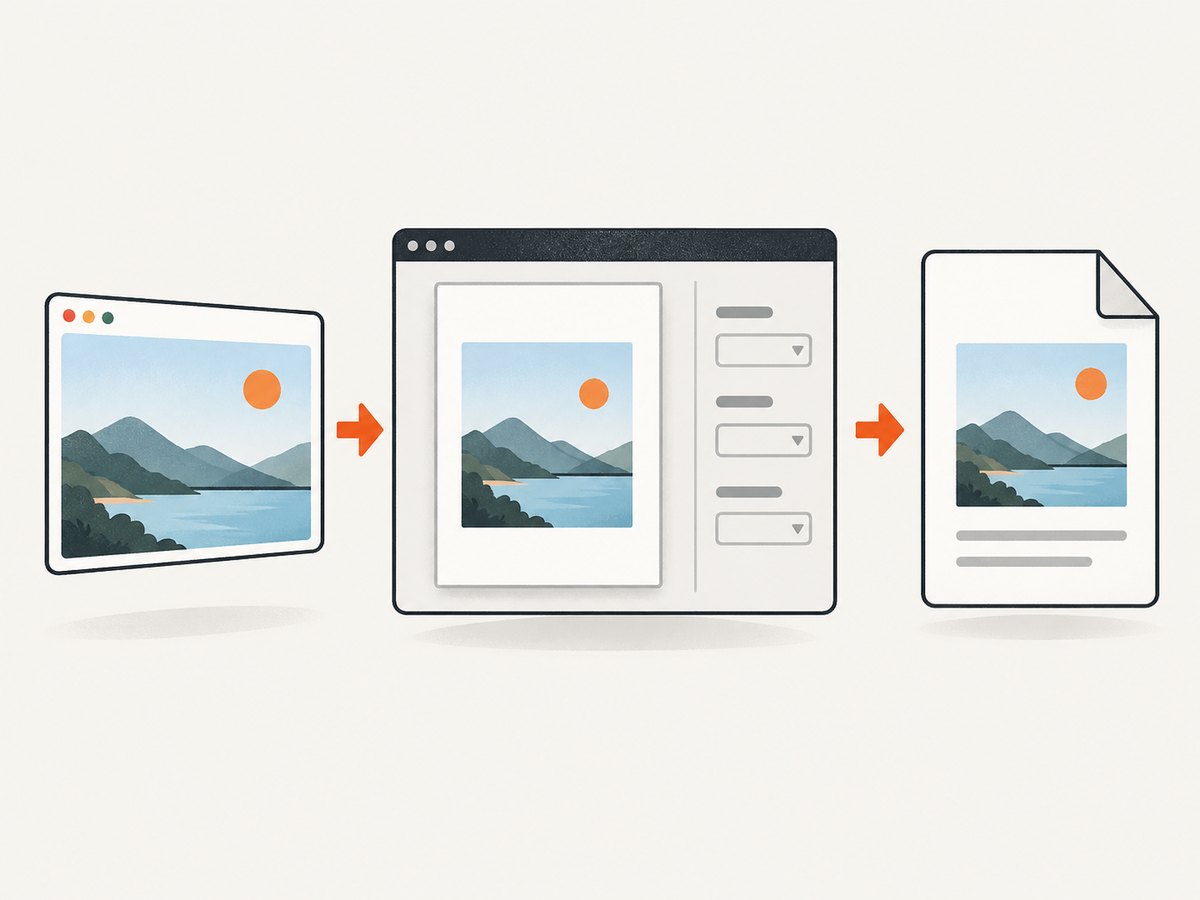
- In File Explorer, locate the saved screenshot and right-click it.
- Choose Print. If the menu does not offer Print, open the image in Photos or another viewer and use its print command.
- In the printer/destination list, choose Microsoft Print to PDF.
- Check paper size, orientation, and layout. Choose a fit option that keeps the whole image visible if cropping is unacceptable.
- Select Print, then enter a PDF filename and destination.
- Open the PDF and verify it before sharing.
The wording and controls depend on the image app and Windows version. Microsoft documents saving and printing snips; if Microsoft Print to PDF is missing from the printer list, use another installed PDF printer or an app with PDF export rather than saving another PNG by mistake.
3. Mac
Export from Preview
- Find the screenshot and open it in Preview. If another app opens by default, Control-click the file and choose Open With > Preview.
- Choose File > Export.
- In the Format menu, select PDF.
- Choose the filename and destination, then save.
Apple’s Preview guide documents exporting an image to a different file type through File > Export. Export PDFs and images in Preview.
Save from the print dialog
- Open the image in Preview and choose File > Print.
- Inspect the preview and layout controls. Choose a scale and orientation that preserve the image.
- Open the PDF menu or button in the print dialog and choose Save as PDF.
- Name the file, choose a location, and save.
Apple documents saving a document as a PDF from the Mac print dialog without a physical printer. In Preview, Print Entire Image can preserve the complete image; a fill-the-paper layout can crop edges if the image and page have different proportions. See Apple’s Save as PDF instructions and review the actual preview before saving.
4. iPhone
Save a full webpage as a PDF
- Open the webpage you want to capture, such as in Safari.
- Take a screenshot. On Face ID models, quickly press and release the side button and volume-up button together; on models with a Home button, press and release Home and the side button together.
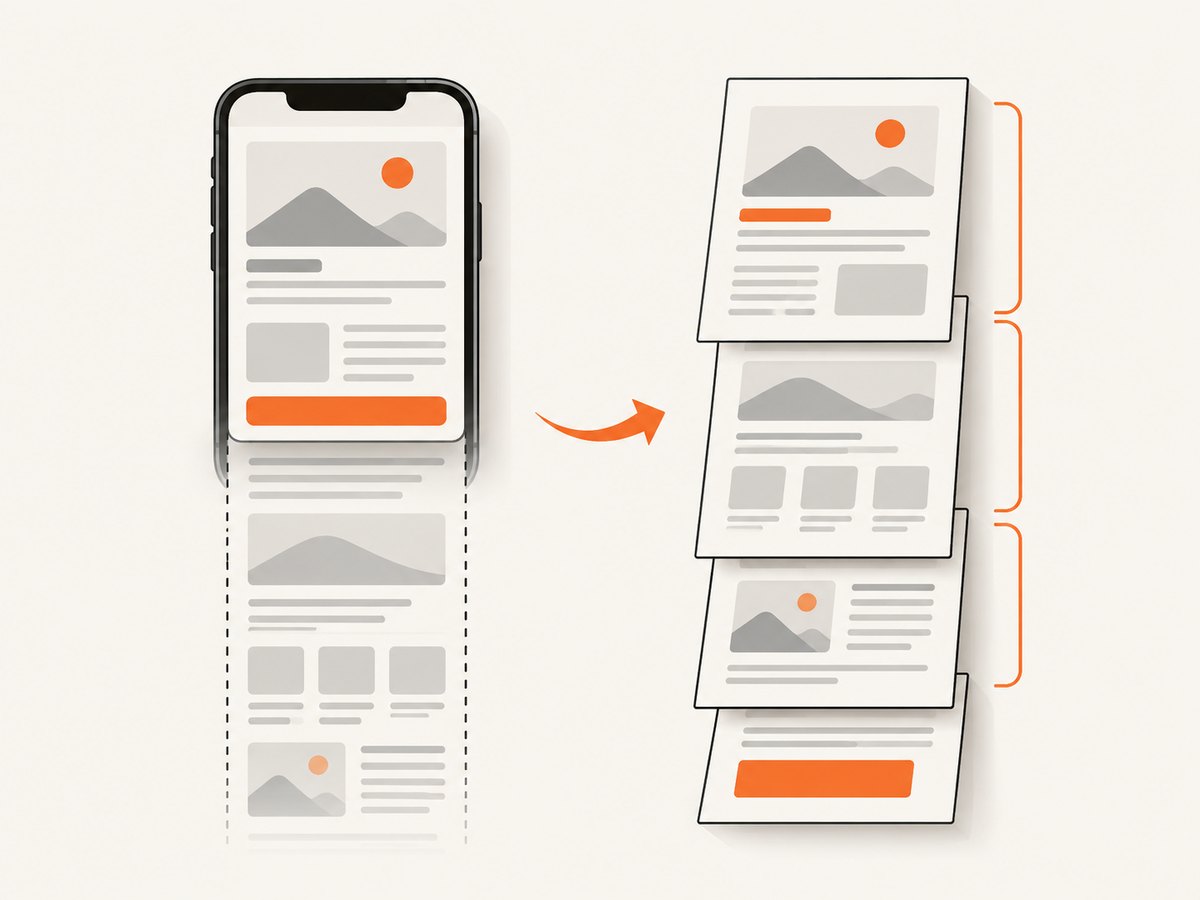
- Tap the screenshot preview if it appears, then choose Full Page.
- Review the long-page preview and crop it if needed.
- Choose Save PDF to Files when that destination is offered, then select a folder in Files.
Apple describes full-page capture for content extending beyond the screen, including webpages, and the Save PDF to Files destination. Availability depends on the content and iOS interface. Apple’s iPhone screenshot guide.
Convert an ordinary screenshot image
A regular screenshot is saved as an image in Photos; it does not become a PDF just because you took a screenshot. To make a PDF, open or share that image into an app or print workflow that offers PDF output. If you use a print preview, inspect the preview and choose a file-saving PDF destination if shown. The exact controls vary by iOS release and app. Confirm that the result is in Files as a PDF, rather than assuming the original item in Photos changed format.
5. Android
- Open the screenshot in Chrome. If it is in another app, use Share or Open with to make it available in Chrome, or use an image app with a Print action.
- Tap More > Share > Print.
- In the print screen, open the printer/destination menu and choose Save as PDF.
- Review the preview and print settings, then tap the save/print control and choose a location on your device.
- Open the saved file from Downloads or the chosen folder to confirm it is a PDF.
Google’s Chrome instructions cover printing a page, image, or file on Android and saving the print preview as a PDF. Menu labels can vary by Android version and device manufacturer. Print from Chrome on Android.
6. Browser and developer workflows
For a webpage, printing to PDF and taking a screenshot are not identical. Browser print output can paginate, omit backgrounds, apply print styles, or reflow content; an image capture represents rendered pixels at a viewport or full-page dimension. Choose based on whether you need a printable document or a visual record. For code-driven capture, a browser automation tool can open a URL and produce a screenshot or PDF, but you must manage browser installation, waits, authentication, and output storage. For a one-off local screenshot image, the platform steps above are usually shorter.
For repeatable website captures, ScreenshotNeo is a website screenshot API and MCP server. It can return a screenshot or PDF from a URL. The following minimal examples show the supplied screenshot request; consult the ScreenshotNeo API documentation for PDF and other request options. This is for capturing a webpage by URL, not uploading an existing local PNG/JPG for conversion.
7. Or skip the browser setup
For a URL-based website capture, make one request:
curl -G "https://api.screenshotneo.com/v1/shot" -d access_key=YOUR_API_KEY --data-urlencode url=https://stripe.com -o shot.webpimport requests
r = requests.get("https://api.screenshotneo.com/v1/shot", params={"access_key": "YOUR_API_KEY", "url": "https://stripe.com"}, timeout=90)
open("shot.webp", "wb").write(r.content)const q = new URLSearchParams({ access_key: 'YOUR_API_KEY', url: 'https://stripe.com' });
const res = await fetch(`https://api.screenshotneo.com/v1/shot?${q}`);ScreenshotNeo accepts cookie/consent banners and removes more than 60 known consent platforms, newsletter popups, and chat widgets before capture; each step can be turned off. Bot checks/CAPTCHAs, blank pages, timeouts, failed loads, and cache hits cost nothing, and response headers identify the page verdict and billing status. Its MCP server offers take_screenshot, get_page_info, and capture_pdf tools for Claude, Cursor, and other MCP clients. The Free plan includes 1,000 shots a month without a card; paid plans start at $5 for 3,000 shots. All features are on every plan. Learn more in the docs, then sign up free for 1,000 screenshots a month, with no card.
8. Check the PDF before you send it
- Correct content: the intended screen or page appears, and no unrelated windows, browser tabs, or private details are visible.
- Complete edges: the screenshot is not clipped at the sides or bottom.
- Readable size: text remains legible at normal zoom; an image cannot gain detail that was absent from the original capture.
- Page layout: orientation, paper size, margins, and scaling suit the intended use.
- File and destination: the filename ends in .pdf and the file opens from the folder you selected.
- Privacy: screenshots may include account details, notifications, or personal information. Crop or redact them before sharing.
9. Troubleshooting
| Symptom | Likely cause | Fix |
|---|---|---|
| The result is still .png or .jpg | You saved the image but skipped the PDF export/print destination. | Repeat the print/export step and explicitly choose PDF. |
| Print is missing on Windows | The image viewer has no print command, or the PDF printer is unavailable. | Open the file in a viewer with Print; select Microsoft Print to PDF if it appears, or use another PDF export route. |
| Image is cropped | The image ratio differs from the paper ratio, or the layout fills the page. | Choose fit/entire image, adjust orientation, or use a larger paper size; inspect preview. Apple documents that fill-paper options can crop. |
| Huge margins or tiny screenshot | Fit and scale settings shrink the image to preserve all edges. | Change paper size/orientation or scale, balancing legibility against clipping. |
| iPhone has no Full Page option | The app or content does not expose a supported full-page capture. | Try the webpage in Safari or use the app’s own print/share-to-PDF option. A normal screenshot can still be converted as an image. |
| Android Chrome does not show Save as PDF | The print destination menu has not been opened, or the app/device uses a different print service. | Open the destination selector at the top of print preview; otherwise use an app with PDF export. |
| The PDF looks blurry | The source screenshot was low resolution or scaled up. | Retake at the needed display scale or use a higher-resolution capture. PDF conversion cannot restore missing pixels. |
| PDF is unexpectedly many pages | The print workflow paginated a webpage or placed a large image across sheets. | For a single image, export from Preview or adjust scaling. For a long webpage, use full-page capture where supported or a PDF capture workflow. |
| The saved file cannot be found | The destination was not confirmed or a default folder was used. | Check the location chosen in the save dialog, Files/Downloads on mobile, and confirm the filename extension. |
10. Performance, reliability, and cost
For a single screenshot, built-in tools avoid installing software and do not require a paid conversion product. PDF file size depends on the source image dimensions and compression; a large image can produce a large PDF, while aggressive resizing can make text harder to read. If the result is for printing, check its page fit; if it is for sharing onscreen, prioritize readable resolution and a sensible file size.
For repeated or automated webpage captures, reliability depends on page load behavior, dynamic content, network access, and authentication. Wait for the content you need before capture, and verify the output rather than treating every generated file as a successful capture. ScreenshotNeo’s billing headers distinguish clean shots from bot checks, blank pages, failed loads, and cache hits; those listed non-clean outcomes are not billed. Its plans are Free: 1,000 shots/month; Starter: $5 for 3,000; Growth: $15 for 15,000; Pro: $39 for 60,000; Scale: $99 for 250,000; Business: $249 for 1,000,000. Yearly billing gives two months free. Check the current plan details on the product site before choosing a plan.
11. Frequently asked questions
Does converting a screenshot to PDF improve its quality?
No. A PDF can package the image conveniently, but it does not add detail or make text searchable by itself.
Can one PDF contain several screenshots?
Yes. Add each image as a page using a document or PDF app that supports combining pages, then save or export the document as PDF.
Will the PDF look exactly like my screen?
An image-to-PDF export can preserve the screenshot’s appearance, subject to scaling. Browser print-to-PDF may change layout because it produces printable pages.
Can I make a PDF of a local screenshot with ScreenshotNeo?
The API workflow shown here captures a webpage from a URL. Use your device’s image export or print-to-PDF workflow to convert a local screenshot file.
Where did my iPhone full-page PDF go?
It is saved to the Files location you selected in the Save PDF to Files flow, rather than replacing the screenshot in Photos.


