How to Save a Screenshot as a PNG File
Save a screenshot as PNG on Windows, Mac, or Chromebook. Find the right capture shortcut, choose a folder, and check that the file is really PNG.
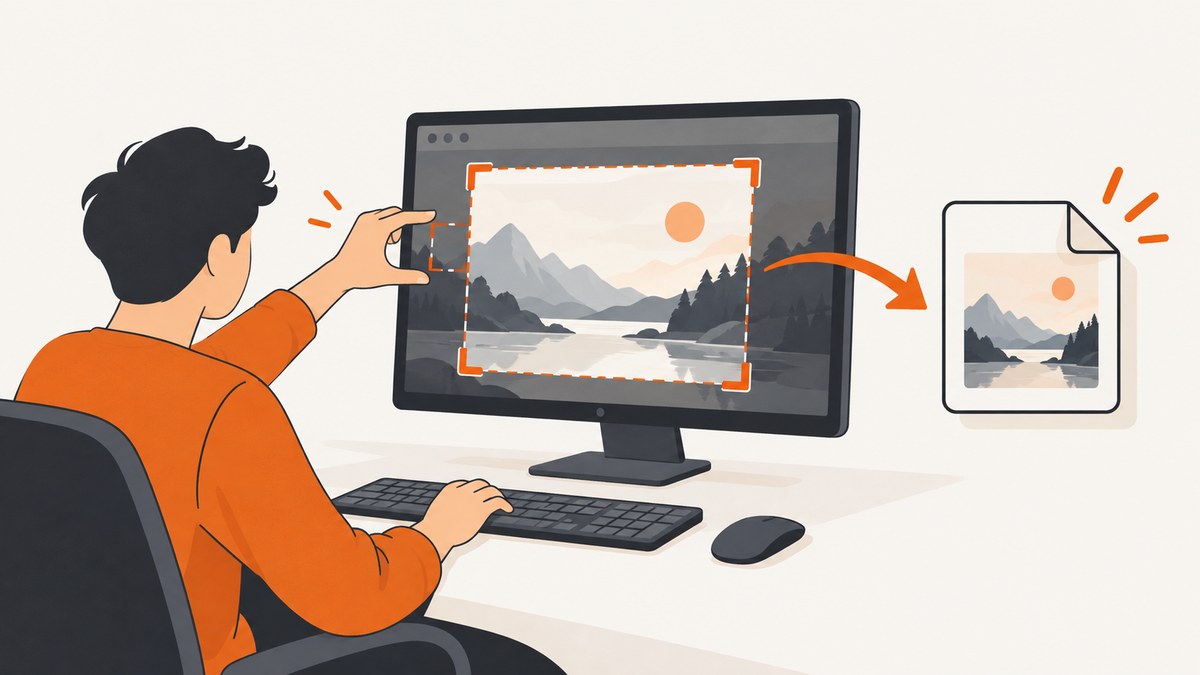
To save a screenshot as a PNG, capture it with your computer’s built-in screenshot tool, then save or export the image as .png if a format choice is available. On Windows, use Snipping Tool and its Save or Save As command. On a Mac, use Screenshot controls and, on supported Macs running macOS Tahoe 26 or later, choose SDR (Most Compatible) for PNG. On a Chromebook, use Screen Capture; screenshots are saved to Downloads by default. If your screenshot is only on the clipboard, paste it into an image editor and choose PNG in Save As.
This guide covers the steps on Windows 10 and 11, macOS, and Chromebook, how to check the resulting file, and what to do when the shortcut or format does not behave as expected.
1. Save a screenshot as PNG on Windows 10 or 11
Snipping Tool is the simplest built-in option when you want to choose exactly what to capture. It supports freeform, rectangular, window, and full-screen snips. Microsoft says a captured snip is copied into the Snipping Tool window, where you can edit, save, and share it. See Microsoft’s Snipping Tool instructions.
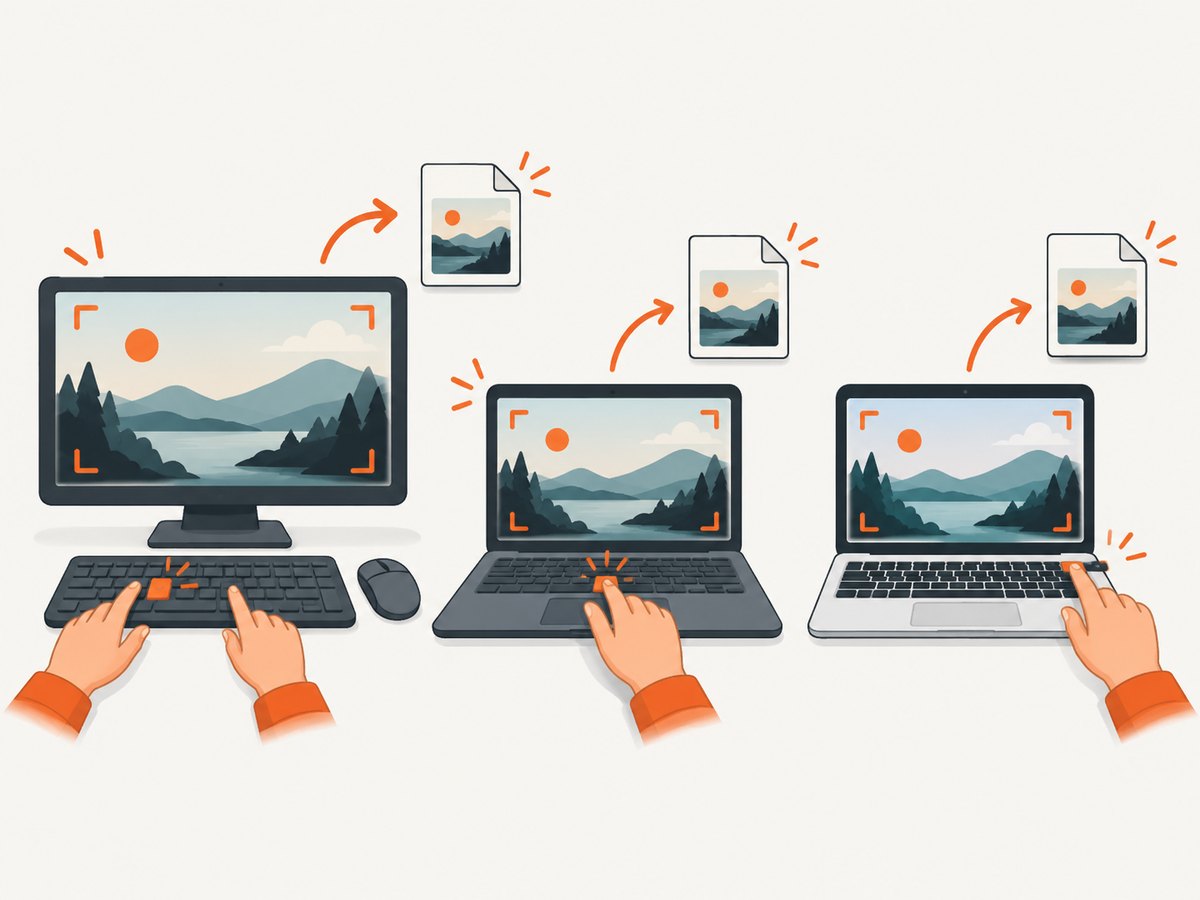
- Press Windows + Shift + S. The screen dims and the capture controls appear.
- Choose a mode: rectangular, freeform, window, or full screen. Drag or select the target, depending on the mode.
- Open the notification that appears after capture to bring the image into Snipping Tool. If you miss it, open Snipping Tool and look for the captured snip.
- Select Save or Save as (the control can vary by version). Choose a folder and enter a filename.
- If the save dialog offers a file type, choose PNG or PNG image, then save.
Depending on the Snipping Tool version and settings, a capture may also be saved automatically in the Screenshots folder. Use Save As to pick a specific folder or create another copy. The Windows + Shift + S shortcut can place the capture in the snipping workflow without immediately showing a conventional Save As dialog, so check the notification and Snipping Tool window if you cannot find a file.
Use the Print Screen key and Paint
If you used Print Screen (sometimes marked PrtSc), the screenshot may be in the clipboard rather than saved as a file. Open Paint, press Ctrl + V, then choose File → Save as → PNG picture. Pick a destination and filename. This is also a practical way to save a clipboard capture made by another app.
In Save As, choose the actual PNG file type where available. Renaming capture.jpg to capture.png does not convert the image; it only changes the name. If you only have another format, open it in Paint and save a PNG copy.
2. Save a screenshot as PNG on a Mac
Mac screenshot shortcuts capture the whole screen, a selected area, or a window. Press Shift + Command + 3 for the whole screen. Press Shift + Command + 4 and drag to capture an area. For capture controls and destination settings, press Shift + Command + 5.
- Open Screenshot controls with Shift + Command + 5.
- Choose full screen, selected window, or selected portion from the toolbar.
- Open Options to choose where the screenshot is saved. The default destination is the desktop.
- On supported Mac models running macOS Tahoe 26 or later, open the capture format setting and choose SDR (Most Compatible) to save in PNG. HDR uses HEIF.
- Capture the screen. Open the saved file from the selected destination and check its extension if the format matters to a downstream tool.
Apple documents the shortcuts, default desktop destination, and Tahoe capture formats in Take a screenshot on Mac. The SDR/PNG and HDR/HEIF format control applies only to supported Macs running Tahoe 26 or later. If your Mac does not show that control, use the format your macOS version provides or open the screenshot in an image editor and export a PNG copy.
A floating thumbnail appears briefly after many captures. Click it to edit or annotate, or wait for the file to save. If you want a specific folder, set it in Screenshot’s Options before capturing rather than hunting for the file afterward. Some apps restrict screenshots of their windows; if one app’s window cannot be captured, try capturing a permitted region or consult the app’s rules.
3. Save a screenshot as PNG on a Chromebook
Press the Chromebook’s Screenshot key if it has one. Otherwise press Shift + Ctrl + Show windows. With an external keyboard that has no Show windows key, Google documents Ctrl + Shift + F5 as the alternative.
- Open Screen Capture using the key combination or Screenshot key.
- Select Screenshot, then choose full screen, partial screen, or window capture.
- Capture the screen or selected target.
- Open the notification or the Files app to locate the result. Screenshots are saved to Downloads by default.
- Use the capture settings to select a different folder if desired. If you need a specific PNG export, open the image in an editor that offers PNG and save a copy.
Google’s Chromebook screenshot instructions cover the capture key, screen modes, and save location. The screenshot controls can select another destination. Downloads is a convenient default, but Google notes that files there may be removed if the Chromebook runs out of storage. Move important captures to another folder or cloud location for longer-term keeping.
4. Confirm the file is really PNG
A filename ending in .png is a useful first check, but extensions can be renamed without converting image data. To confirm the format, inspect the file’s details or open it in an image editor and check the document or export format.
| What you see | Likely meaning | What to do |
|---|---|---|
name.png |
Likely PNG, but the extension alone is not proof. | Check file information or reopen and export as PNG if required. |
name.jpg or name.jpeg |
JPEG image. | Open in an editor and use Save As or Export to create PNG. |
name.heic or name.heif |
HEIF image, which may be the Mac HDR capture format. | On supported Tahoe Macs choose SDR (Most Compatible), or convert/export a PNG copy. |
| No file appears | The capture may be on the clipboard, saved elsewhere, or still awaiting a save action. | Check notifications, Snipping Tool, desktop, Downloads, chosen destination, and clipboard. |
PNG is commonly useful when you need a lossless image or transparency support. Converting an image already saved as JPEG to PNG does not restore detail discarded by JPEG compression; it only places the existing pixels in a PNG file. For a screenshot intended for a website, chat, or issue tracker, also consider pixel dimensions and file size.
5. Troubleshooting common screenshot problems
| Problem | Cause | Fix |
|---|---|---|
| Windows + Shift + S appears to do nothing. | The shortcut may be intercepted, the capture UI may be behind another window, or the tool may need to be opened directly. | Open Snipping Tool from Start and choose a capture mode. If using a keyboard with alternate function keys, check how its Windows and function keys behave. |
| There is no Save As window on Windows. | The shortcut starts a snip workflow; it does not necessarily open a save dialog immediately. | Open the notification or Snipping Tool, then use Save or Save As. Check the Screenshots folder if automatic saving is enabled. |
| The screenshot seems missing on Mac. | The save destination may have been changed from the desktop, or the floating thumbnail may still be awaiting action. | Open Shift + Command + 5 → Options and inspect the destination. Search the selected folder for the newest screenshot. |
| Mac screenshot is HEIF instead of PNG. | On supported Macs with Tahoe 26 or later, HDR captures use HEIF. | Choose SDR (Most Compatible) for PNG, or export the HEIF image as PNG in an image editor. |
| Chromebook screenshot is not in Downloads. | A different save folder may have been selected in Screen Capture settings. | Open Files and check the selected destination; adjust the folder from the Screen Capture settings if needed. |
| The capture is in the clipboard but not a file. | Some capture methods copy the image for pasting instead of writing a file. | Paste it into Paint or another image editor, then save/export as PNG. |
| A protected video or app window is black or unavailable. | Some apps restrict screenshots or protected content capture. | Use an allowed capture method, consult the app’s documentation, or request an approved image from the content owner. |
| File is too large to upload. | Large screen dimensions and lossless PNG encoding can produce sizable files. | Crop to the relevant area or resize a copy. Keep the original if you need full resolution. |
6. Choose the right capture method
| Platform | Best quick path | Default destination | PNG control |
|---|---|---|---|
| Windows 10/11 | Windows + Shift + S, then save from Snipping Tool | Depends on save/automatic-save settings | Select PNG in Save As when offered |
| Mac | Shift + Command + 5 for controls; 3 or 4 for quick capture | Desktop by default | Tahoe 26+ on supported Macs: SDR (Most Compatible) |
| Chromebook | Screenshot key or Shift + Ctrl + Show windows | Downloads by default | Use an image editor’s PNG export if an explicit choice is needed |
Use a built-in tool for a one-off capture of your own screen. If you need a repeatable screenshot of a live website for documentation, monitoring, or an automated workflow, a browser-based capture tool can avoid manual crop-and-save steps.
7. Automate website screenshots with an API
ScreenshotNeo is a website screenshot API and MCP server from Yorker Media. It accepts a URL and returns an image or PDF. Its API can return PNG, JPEG, or WebP; the examples below use the supplied WebP-style filename, so choose PNG when configuring the API request for a PNG output. See the ScreenshotNeo API documentation for request parameters. The call captures a website page, not the current contents of your desktop.
cURL
curl -G "https://api.screenshotneo.com/v1/shot" \
  -d access_key=YOUR_API_KEY \
  --data-urlencode url=https://stripe.com \
  -o shot.webp
Python
import requests

r = requests.get(
    "https://api.screenshotneo.com/v1/shot",
    params={"access_key": "YOUR_API_KEY", "url": "https://stripe.com"},
    timeout=90,
)
r.raise_for_status()
open("shot.webp", "wb").write(r.content)
Node.js
const q = new URLSearchParams({
  access_key: 'YOUR_API_KEY',
  url: 'https://stripe.com'
});
const res = await fetch(`https://api.screenshotneo.com/v1/shot?${q}`);
if (!res.ok) throw new Error(`Screenshot request failed: ${res.status}`);
const data = Buffer.from(await res.arrayBuffer());
await import('node:fs/promises').then(fs => fs.writeFile('shot.webp', data));
Keep the access key on a server or in a secret store; do not put it in browser JavaScript or a public repository. For a browser-facing <img>, use ScreenshotNeo’s signed links for public image tags rather than exposing a private key. The request can be extended with options such as full-page capture, element selection, viewport or device preset, retina scale, dark mode, custom CSS or JavaScript, wait conditions, cookies, headers, geolocation, timezone, image resizing, and caching. It also supports PDF settings, asynchronous jobs with signed webhooks, and bulk capture of up to 100 URLs per call. Consult the docs for exact parameter names and combinations.
Or skip the browser setup
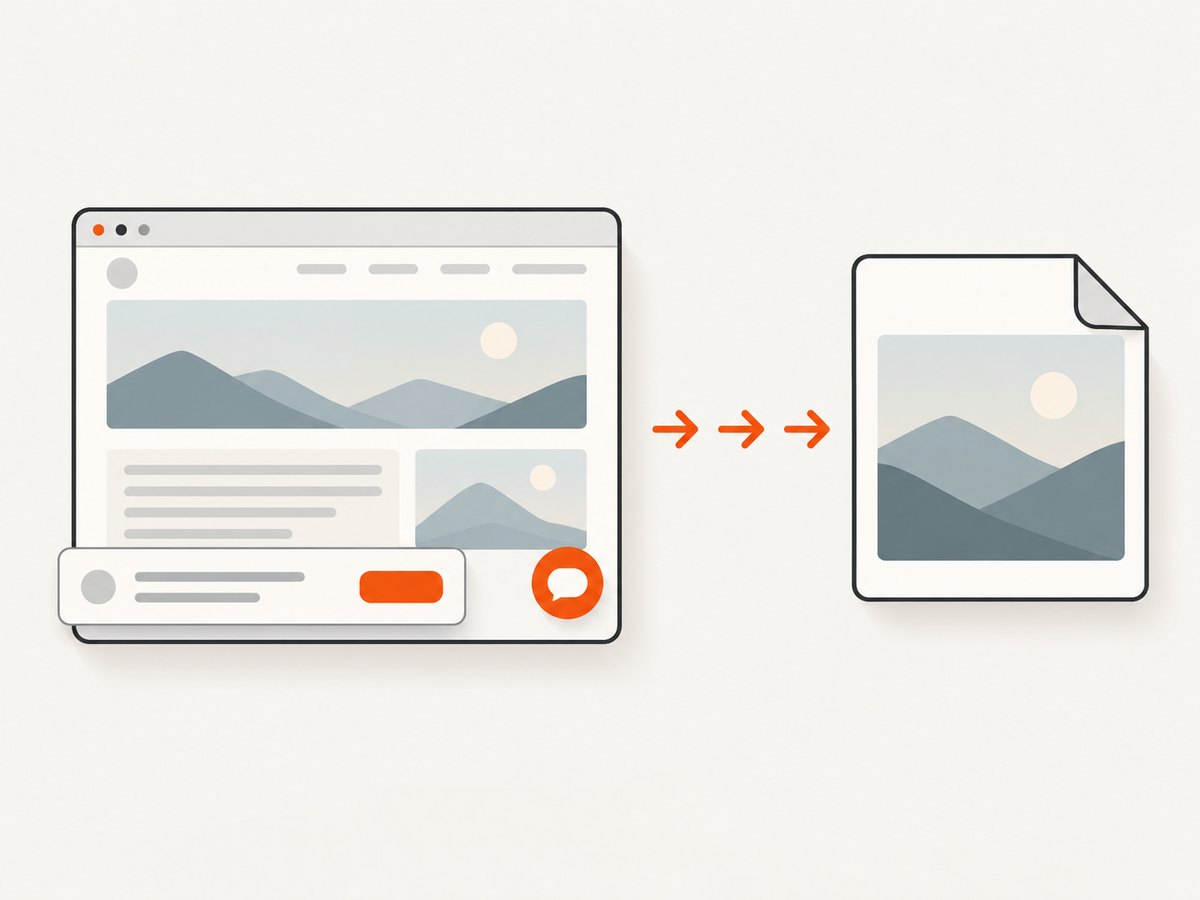
One API call can capture a website without setting up and maintaining a local browser. ScreenshotNeo accepts cookie banners like a visitor and removes more than 60 known consent platforms, newsletter popups, and chat widgets before capture; each step can be turned off. Bot checks, blank pages, failed loads, timeouts, and cache hits cost nothing, and response headers report the page verdict and billing status. An MCP server exposes take_screenshot, get_page_info, and capture_pdf for Claude, Cursor, and other MCP clients. The free plan includes 1,000 screenshots a month with no card; paid plans start at $5 for 3,000.
curl -G "https://api.screenshotneo.com/v1/shot" \
  -d access_key=YOUR_API_KEY \
  --data-urlencode url=https://stripe.com \
  -o shot.webp
Read the API docs, then sign up for 1,000 free screenshots a month with no card.
8. Reliability, speed, and cost considerations
For manual captures, reliability mostly means confirming the right screen, destination, and file type before sharing. Capture only the region you need when resolution or upload size is a concern. If the screenshot contains sensitive information, crop or redact it before sending; screenshots preserve visible on-screen content.
For automated website capture, a failure may come from the target site, a slow load, a bot challenge, or an incorrect wait condition. A stable workflow should decide whether it needs the full page or viewport, wait for a specific selector when content is dynamic, and record the returned file and response status. For many URLs, batch capture can reduce request orchestration; async jobs and webhooks are available when a caller should not wait on a single request. Caching with a chosen TTL can reduce repeated captures of unchanged pages. Costs depend on plan and successful billed captures; ScreenshotNeo says only clean shots are billed and reports verdict and billing headers per response. Plans range from Free at 1,000 per month to Business at 1,000,000 per month, with yearly billing giving two months free; every feature is on every plan.
FAQ
Does changing the filename extension make a screenshot PNG?
No. Save or export through an image tool that writes PNG; changing the suffix alone does not convert the image data.
Why should I use PNG instead of JPEG for a screenshot?
PNG is lossless and can support transparency, making it a useful choice for interface details and crisp text. JPEG may be smaller for photographic imagery but uses lossy compression.
Can I save a screenshot directly to a folder I choose?
Yes. Windows Save As lets you choose a location, Mac Screenshot Options changes its destination, and Chromebook Screen Capture settings can select another folder.
Can ScreenshotNeo capture my computer screen?
No. ScreenshotNeo captures web pages from a URL. Use the operating system steps above to capture your desktop or application window.


