How to Save a Screenshot with Playwright
Save Playwright screenshots to a file or memory, capture full pages and elements, and control format, stability, and output size.
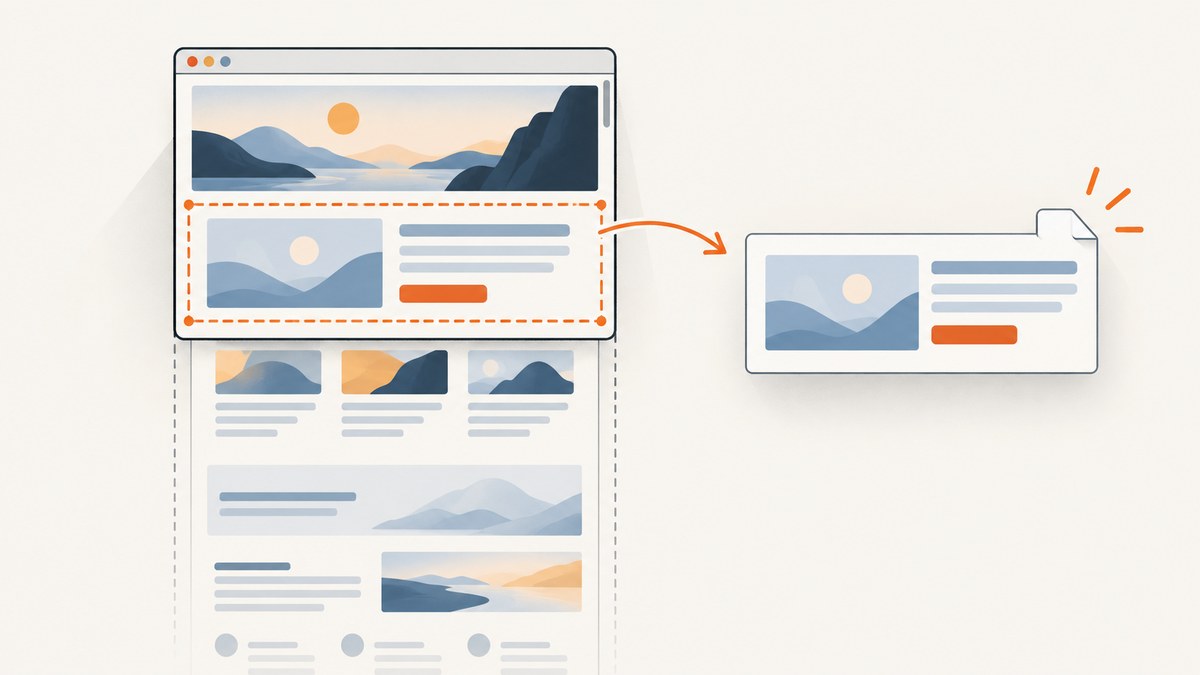
In Playwright for JavaScript or TypeScript, save the current viewport with await page.screenshot({ path: 'screenshot.png' }). Set fullPage: true to capture the scrollable page, or call locator.screenshot() to capture one element. Omit path when you want the screenshot bytes in memory. This guide covers runnable examples, output options, reliable capture patterns, troubleshooting, and an API alternative when you do not want to manage a browser.
1. Set up a minimal Playwright capture
Install Playwright and its browser binaries in a Node.js project. The following commands use the Playwright Test package, which includes the browser automation API and a test runner:
npm init -y
npm install --save-dev @playwright/test
npx playwright install chromium
Save this as screenshot.mjs. It launches Chromium, opens a page, captures a screenshot, and closes the browser even if navigation or capture fails:
import { chromium } from '@playwright/test';

const browser = await chromium.launch();
try {
  const page = await browser.newPage({ viewport: { width: 1440, height: 900 } });
  await page.goto('https://example.com', { waitUntil: 'load' });
  await page.screenshot({ path: 'screenshot.png' });
} finally {
  await browser.close();
}
Run it with node screenshot.mjs. The path option writes the image to that path relative to the current working directory. Use an absolute path when a script may be launched from different directories. The official [Playwright screenshot guide](https://playwright.dev/docs/screenshots) documents the API and examples in other languages.
2. Choose what to capture
Viewport screenshot
With no scope option, Playwright captures the page’s current viewport. Set viewport dimensions before navigation or capture so the layout is rendered at the intended size:
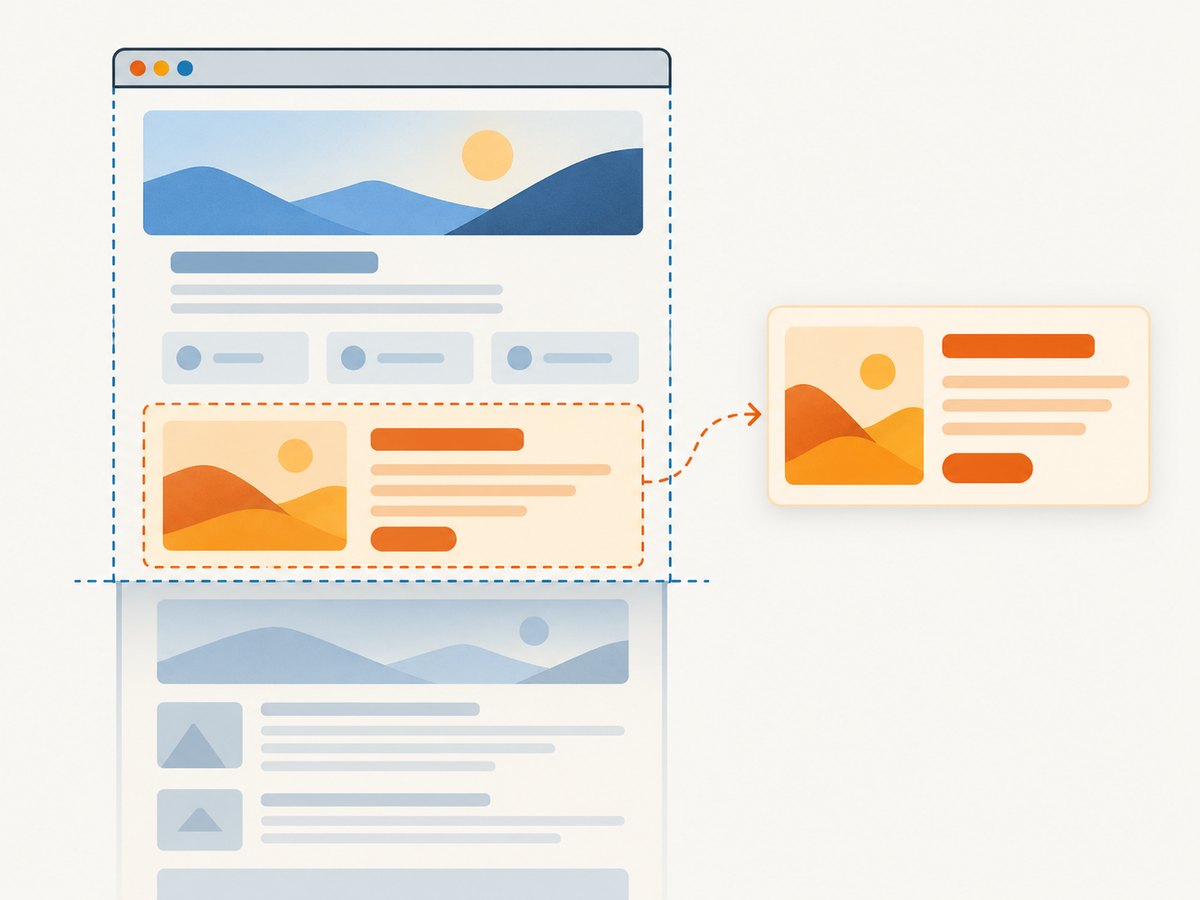
const page = await browser.newPage({ viewport: { width: 1280, height: 800 } });
await page.goto('https://example.com');
await page.screenshot({ path: 'viewport.png' });
Viewport dimensions are CSS pixels. Device scale affects output pixel dimensions; see the scale option below.
Full-page screenshot
For a full scrollable page, use fullPage: true:
await page.screenshot({ path: 'full-page.png', fullPage: true });A full-page image can be much taller and larger than a viewport image. Long feeds, pages with endless loading, or layouts that change as you scroll can produce very large captures or incomplete content. For those, consider capturing a defined region, waiting for specific content, or taking several viewport captures after scrolling.
One element
Use a locator to save just the element matched by a selector. Playwright waits for the locator and takes an element screenshot:
await page.locator('.header').screenshot({ path: 'header.png' });Use a specific selector where possible. If the selector matches multiple elements, narrow it (for example, with getByRole, getByTestId, or a parent locator) so the capture target is unambiguous. An element outside the visible area may be scrolled into view as part of the capture.
Rectangular clip
Use clip to capture a rectangle in page coordinates. Specify all four values:
await page.screenshot({
  path: 'chart-region.png',
  clip: { x: 120, y: 180, width: 900, height: 500 }
});
The rectangle must have positive width and height and fit the intended page capture region. For a semantic region that moves with layout, an element screenshot is usually easier to maintain than hard-coded coordinates.
3. Save to a file or get image bytes
Use path when you want Playwright to write the screenshot directly. Omit it to receive a buffer, which is useful for uploads, image processing, or visual comparisons:
const image = await page.screenshot();
console.log(image.length); // byte count
Write those bytes yourself with Node’s filesystem module if you need to choose the destination after capture:
import { writeFile } from 'node:fs/promises';
const image = await page.screenshot();
await writeFile('screenshot.png', image);
Choose one output flow: a path for direct file output, or returned bytes for your own pipeline. Keeping bytes in memory avoids an intermediate file but means your process holds the image data until it is uploaded, processed, or released.
4. Screenshot options that matter
The Page screenshot API accepts options for image type, crop, visual stability, and output dimensions. Check the documentation for the installed Playwright version when relying on an option, because APIs can evolve. The [Page API reference](https://playwright.dev/docs/api/class-page#page-screenshot) lists the current parameters.
| Option | Use | Practical note |
|---|---|---|
type |
Choose png or jpeg. |
PNG is lossless and often suits UI comparisons; JPEG is lossy and can reduce file size for photographic content. |
quality |
Set lossy image quality where supported. | Relevant to JPEG; test a representative page to balance size and visible artifacts. |
fullPage |
Capture the full scrollable page. | Can create very tall images and increase time and memory use. |
clip |
Capture a rectangle. | Provide x, y, width, and height. |
animations |
Control CSS and Web Animations. | Disabling animations can make repeated screenshots more stable. Confirm the installed API’s accepted values. |
caret |
Hide or preserve the text caret. | Hiding it avoids a blinking insertion point in captures of focused fields. |
mask, maskColor |
Cover matching locators. | Useful for dynamic or sensitive regions in visual checks; choose masks deliberately so they do not hide a defect. |
omitBackground |
Allow transparent output. | Useful for transparent image output where supported; the page’s visual result may depend on background styles. |
scale |
Select CSS-pixel or device-pixel output sizing. | Device-pixel output can be larger. Keep scale consistent across baseline and comparison captures. |
For example, this capture disables animation, hides the caret, and masks an element that changes on every run:
await page.screenshot({
  path: 'stable.png',
  animations: 'disabled',
  caret: 'hide',
  mask: [page.locator('[data-testid="live-clock"]')],
  maskColor: '#808080'
});
Screenshot controls also apply to locator screenshots where supported. A locator capture is often the better choice when you need a component rather than a viewport crop.
5. Make captures reliable
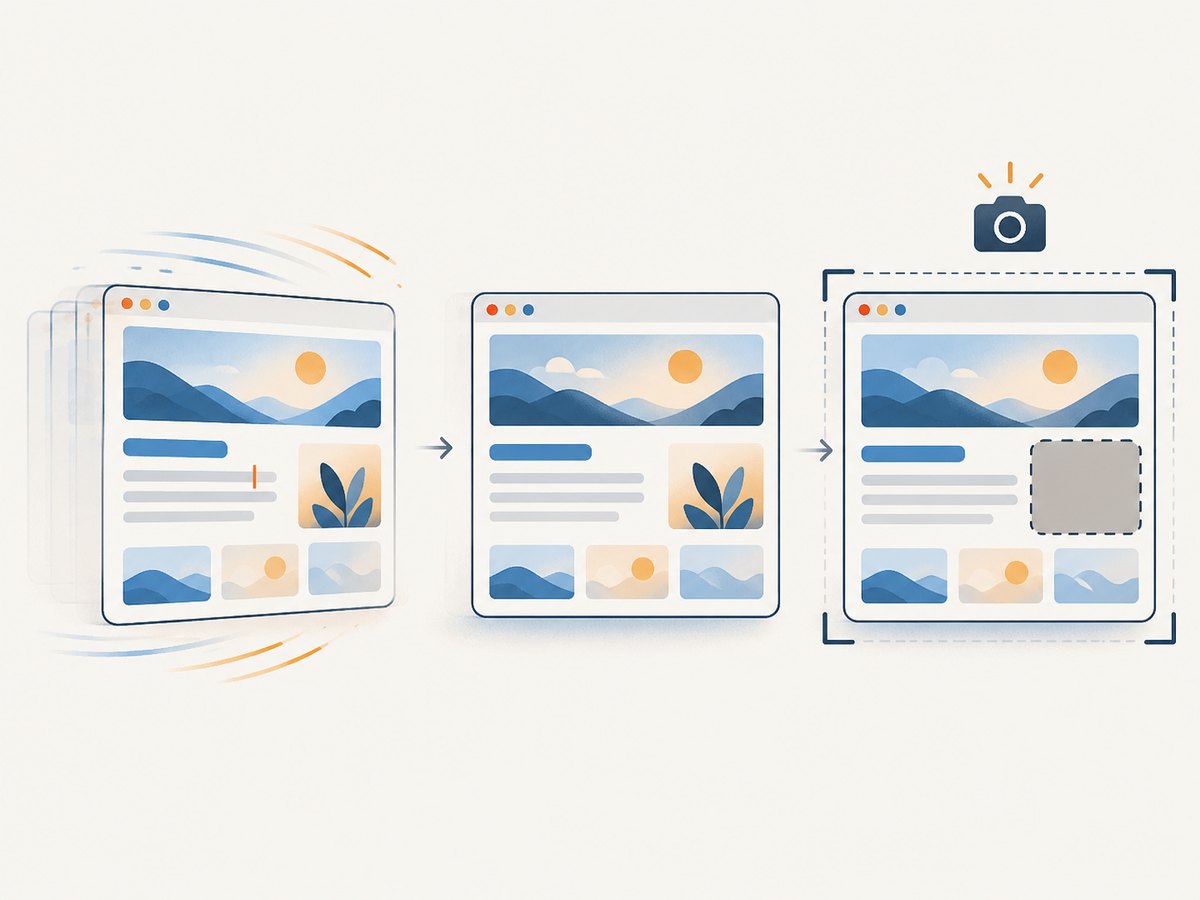
A page’s load event does not guarantee every image, chart, or asynchronous component is ready. Wait for the thing the screenshot depends on. For a known component, wait for its locator:
await page.goto('https://example.com/dashboard');
await page.getByTestId('report-chart').waitFor({ state: 'visible' });
await page.screenshot({ path: 'dashboard.png' });
For pages whose client-side content settles after navigation, a short bounded delay can help, but prefer waiting for an observable condition. An unbounded or arbitrary sleep slows every run and may still be too short under load.
For deterministic visual checks, control inputs that cause variation: viewport, locale, timezone, data fixtures, fonts, animation, and current time where your app permits. Mask genuinely volatile areas. Use the same browser version and capture settings for baseline and new screenshots.
When capturing a page that loads images lazily, full-page capture may not trigger every site’s lazy-loading logic in the same way as a human scrolling. If content is missing, scroll through the page in steps and wait for images or sections before capturing; for very long pages, split the capture into manageable sections.
6. Complete Python example
Install the Python package and Chromium browser:
python -m pip install playwright
python -m playwright install chromium
Save this as screenshot.py. Python uses snake_case for arguments such as full_page and omit_background:
from pathlib import Path
from playwright.sync_api import sync_playwright

with sync_playwright() as p:
    browser = p.chromium.launch()
    try:
        page = browser.new_page(viewport={"width": 1440, "height": 900})
        page.goto("https://example.com", wait_until="load")
        page.screenshot(path="screenshot.png")
        page.screenshot(path="full-page.png", full_page=True)
        page.locator("h1").screenshot(path="heading.png")
        image_bytes = page.screenshot()
        Path("memory-copy.png").write_bytes(image_bytes)
    finally:
        browser.close()
The synchronous API keeps a small script straightforward. Use Playwright’s async Python API if the surrounding application is already asynchronous. The screenshot guide linked above includes language-specific examples.
7. cURL and Node.js when you need a screenshot API
Playwright runs a browser that you manage. If your requirement is simply to request a page screenshot without installing and operating browser binaries, a screenshot API is another approach. ScreenshotNeo is a website screenshot API and MCP server from Yorker Media. Its one-call endpoint returns PNG, JPEG, WebP, or PDF output; see the [ScreenshotNeo documentation](https://screenshotneo.com/docs/) for request parameters and response details.
cURL
curl -G "https://api.screenshotneo.com/v1/shot" \
  -d access_key=YOUR_API_KEY \
  --data-urlencode url=https://example.com \
  -o shot.webp
Python requests
import requests

r = requests.get(
    "https://api.screenshotneo.com/v1/shot",
    params={"access_key": "YOUR_API_KEY", "url": "https://example.com"},
    timeout=90,
)
r.raise_for_status()
open("shot.webp", "wb").write(r.content)
Node.js fetch
const q = new URLSearchParams({
  access_key: 'YOUR_API_KEY',
  url: 'https://example.com'
});
const res = await fetch(`https://api.screenshotneo.com/v1/shot?${q}`);
if (!res.ok) throw new Error(`Screenshot request failed: ${res.status}`);
await import('node:fs/promises').then(({ writeFile }) =>
  writeFile('shot.webp', Buffer.from(await res.arrayBuffer()))
);
8. Or skip the browser setup
With [ScreenshotNeo](https://screenshotneo.com), one GET request takes a website URL and returns an image or PDF. Cookie banners and consent overlays, newsletter popups, and chat widgets are removed before the shot; each step can be turned off. Bot checks and CAPTCHAs, blank pages, timeouts, failed loads, and cache hits cost nothing, and response headers identify the page verdict and billing status. An MCP server provides take_screenshot, get_page_info, and capture_pdf tools for Claude, Cursor, and other MCP clients.
Free includes 1,000 screenshots per month with no card. Paid plans start at $5 for 3,000 screenshots; every feature is on every plan. Here is the one-call request:
curl -G "https://api.screenshotneo.com/v1/shot" \
  -d access_key=YOUR_API_KEY \
  --data-urlencode url=https://example.com \
  -o shot.webp
Create a free ScreenshotNeo account for 1,000 screenshots a month with no card.
9. Troubleshooting
| Symptom | Likely cause | Fix |
|---|---|---|
| Browser executable is missing | The Playwright package is installed but its browser binary is not. | Run npx playwright install chromium (or the matching Python install command) in the environment that runs the script. |
| Navigation times out | The site is slow, keeps connections open, or waits on resources beyond the selected navigation condition. | Choose an appropriate waitUntil condition, increase a bounded timeout if justified, and separately wait for the content needed in the image. |
| Screenshot is blank or missing content | The target has not rendered yet, content loads after interaction, or a page script failed. | Wait for a meaningful selector, inspect console and page errors, and confirm the same URL renders in the same browser environment. |
| Element screenshot fails | The locator does not match, is detached during rendering, or never becomes visible. | Check the selector and page state; wait for the locator and use a stable test id or role-based locator. |
| Clip dimensions are invalid | A required coordinate or dimension is missing, or width/height is zero or negative. | Supply all four numeric fields and ensure positive dimensions that fit the intended capture. |
| Output has unexpected dimensions | Viewport, device scale, full-page scope, or output scale differs from expectation. | Set viewport explicitly, choose the desired scale, and keep settings identical between runs. |
| Images differ on every run | Animations, timestamps, random content, caret, or live data change. | Disable animation, hide caret, use stable test data, and mask only unavoidable dynamic regions. |
| File cannot be written | The process lacks directory permissions or the relative path resolves elsewhere. | Use a writable directory and an absolute path; create parent directories before the screenshot call. |
10. Performance, reliability, and cost
For a self-hosted Playwright workflow, browser launch and page navigation are part of the work. Reusing a browser process for multiple pages can avoid repeated launches, while separate browser contexts keep page state isolated. Close pages, contexts, and browsers when finished so processes and memory are released. If captures run concurrently, set a limit based on available CPU and memory; full-page images and high device scale increase memory use.
Image format and dimensions affect disk, network, and comparison costs. Keep PNG for pixel-sensitive checks; use JPEG when lossy compression is acceptable. Avoid capturing more pixels than the downstream task needs. A small element screenshot can be faster to store and compare than a very tall page image.
For repeatable runs, pin the Playwright package and browser versions in your deployment workflow, ensure browser dependencies are installed, and retry only failures that are plausibly transient. A retry cannot fix a consistently bad selector or a blocked destination. In managed environments, include browser startup, navigation, and image processing in resource limits.
ScreenshotNeo’s stated plans are Free: 1,000 shots/month, Starter: $5 for 3,000, Growth: $15 for 15,000, Pro: $39 for 60,000, Scale: $99 for 250,000, and Business: $249 for 1,000,000; yearly billing gives two months free. All features are on every plan. Its billed-status headers can help distinguish clean captures from non-billable outcomes when tracking usage.
11. FAQ
Does Playwright save screenshots as PNG by default?
Yes. To request JPEG, set the documented type option and use a matching filename extension. Check the Page API reference for format and quality support in your installed version.
Can I take a screenshot without writing a file?
Yes. Omit path; the call returns image bytes (a Buffer in Node.js). You can pass those bytes to an upload or image-processing step.
Can Playwright capture a chart or canvas?
Yes, if it is rendered in the page. Wait until the chart or canvas is ready, then capture its locator or the page. For visual checks, keep data and rendering conditions stable.
Which method should I use for a component test?
Use locator.screenshot() for a component. It ties the capture to a semantic page element and avoids maintaining a coordinate rectangle as the layout changes.


