How to Save Screenshots and Other Files to Amazon S3
Upload screenshots and other files to S3 with the console, AWS CLI, SDKs, or presigned URLs. Choose the right method, protect credentials, and handle large uploads.
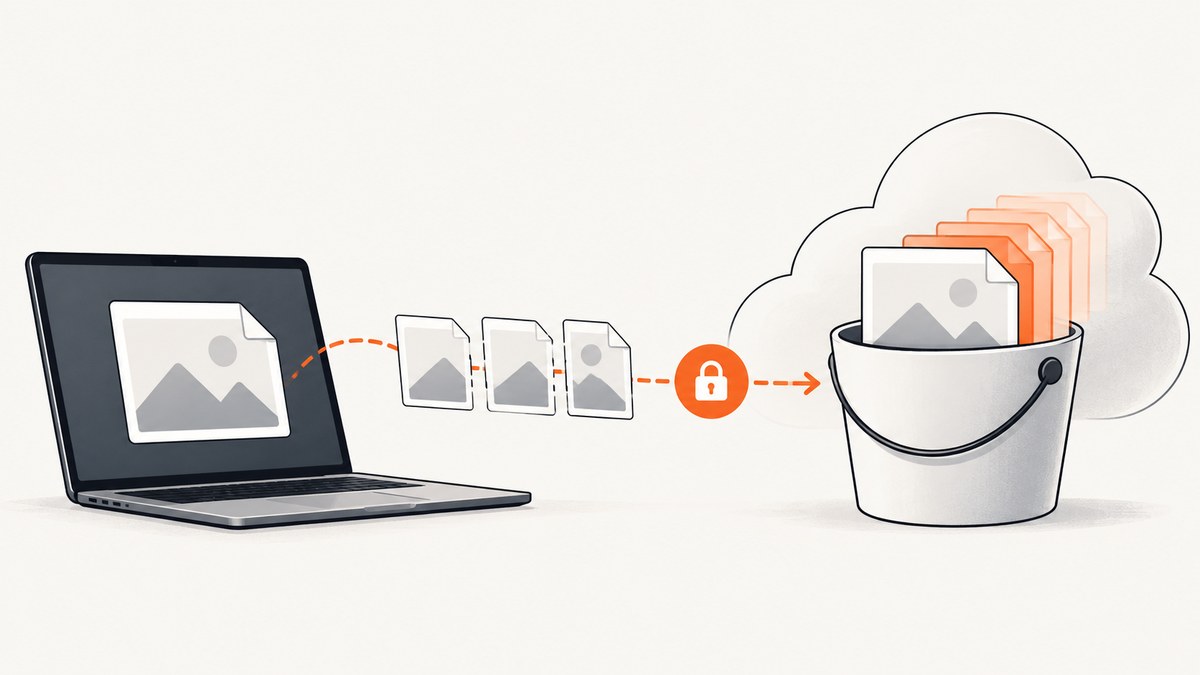
You can save a screenshot—or any other file—to Amazon S3 by uploading it as an object in a bucket. For one manual upload, use the S3 console. For a repeatable local workflow, use aws s3 cp screenshot.png s3://YOUR_BUCKET/screenshots/screenshot.png. For an application, use an AWS SDK or a presigned URL so a browser or mobile client can upload without receiving AWS credentials. Use multipart upload for large files or unreliable networks.
S3 accepts any file type. A single API PutObject operation supports up to 5 GB; the console supports a single object up to 160 GB; multipart upload supports objects up to 50 TB. AWS recommends multipart upload for objects of 100 MB or larger. See AWS’s upload options and limits and multipart upload guidance.
1. Choose the upload method
| Method | Best for | Credentials | Large or interrupted uploads |
|---|---|---|---|
| S3 console | Occasional manual uploads | Your AWS console identity | Console supports a single file up to 160 GB |
| AWS CLI | Local scripts and repeatable workflows | Configured AWS CLI identity | aws s3 cp uses multipart transfer for large files |
| SDK or REST API | Trusted application backend | Backend role or credentials | Use multipart for larger files |
| Presigned PUT URL | Browser or mobile uploads directly to S3 | Signing credentials stay on your server | Usually a single PUT; use presigned parts for multipart workflows |
A file becomes an S3 object with data and metadata. Its key is its name within the bucket, often written like a path: screenshots/2026/09/30/capture.png. S3 does not require a special screenshot format or a folder setup; prefixes are part of the object key. The upload identity needs permission to write the destination object. Keep the bucket private unless public delivery is an intentional requirement. AWS covers object uploads and permissions.

2. Upload a screenshot in the S3 console
- Open the Amazon S3 console and select the intended bucket.
- Open the destination prefix, or decide on a new key such as
screenshots/2026/09/30/homepage.png. - Choose Upload, add the screenshot, and review the destination and encryption settings.
- Start the upload, then verify the object appears at the expected key and has the expected size.
This is convenient for an occasional file, but it is not a good interface for unattended jobs or application uploads. The console supports objects up to 160 GB; beyond that use the CLI, SDK, or REST API. If another screenshot already uses the same key, uploading again can replace it unless bucket versioning is enabled. See AWS’s console upload documentation.
3. Upload a local file with the AWS CLI
Install and configure AWS CLI credentials for an identity with access to the bucket. Then run:
aws s3 cp screenshot.png s3://YOUR_BUCKET/screenshots/screenshot.pngReplace YOUR_BUCKET with the bucket name. The source may be any local file, not just a PNG. To upload a JPEG, for example:
aws s3 cp ./captures/page.jpg s3://YOUR_BUCKET/screenshots/page.jpgThe high-level aws s3 cp command automatically uses multipart upload for large files. This avoids having to manage part creation and completion yourself. AWS documents transfer tuning through default.s3.max_concurrent_requests; increasing concurrency can improve throughput when the network and machine can sustain it, but consumes more resources. See the AWS CLI S3 configuration.
For recurring captures, use a unique key or a date-based prefix. For example, an application can add a timestamp or generated identifier to the filename. A deterministic key is useful when the desired behavior is “keep the latest screenshot here”; a unique key is safer when every capture must be retained. Enable versioning if overwritten objects need to remain recoverable.
4. Upload from an application backend
A backend can use PutObject for files below the single-operation limit. Supply an intentional content type so browsers and downstream tools interpret the file correctly. Here is a runnable Python example using Boto3; install it with python -m pip install boto3 and configure AWS credentials using the standard AWS credential chain (for example, a role in AWS or a local profile).
import mimetypes
import os
import boto3

bucket = os.environ["S3_BUCKET"]
key = "screenshots/homepage.png"
path = "screenshot.png"

s3 = boto3.client("s3")
content_type = mimetypes.guess_type(path)[0] or "application/octet-stream"
s3.upload_file(
    path,
    bucket,
    key,
    ExtraArgs={"ContentType": content_type},
)
print(f"Uploaded s3://{bucket}/{key}")
upload_file is a managed transfer that can handle multipart uploads for larger files. A direct low-level put_object call is also suitable for a small in-memory byte string, but a single PUT is limited to 5 GB. Do not read a very large file entirely into memory just to call put_object. For objects larger than 5 GB, use multipart transfer via an SDK, CLI, or REST API.
Grant the application only the needed write permissions for its destination. If policy requires customer-controlled encryption keys, configure SSE-KMS and ensure the caller has the required KMS permissions. New S3 objects are encrypted at rest with SSE-S3 by default; SSE-KMS is available when controlled key management is needed. AWS describes SSE-KMS and server-side encryption.
5. Let a browser upload with a presigned URL
Do not put AWS access keys in browser or mobile code. Instead, your trusted server creates a presigned URL bound to a bucket, key, HTTP method, and expiration. The client receives permission to perform that specific upload for a limited time. AWS explains presigned URL behavior, including the fact that uploading to an existing key replaces that object.
Example server code in Python using Boto3:
import boto3

s3 = boto3.client("s3")
url = s3.generate_presigned_url(
    ClientMethod="put_object",
    Params={
        "Bucket": "YOUR_BUCKET",
        "Key": "incoming/generated-id.png",
        "ContentType": "image/png",
    },
    ExpiresIn=300,
)
print(url)
Run this on the server with credentials authorized to write the destination key. Return the URL to the client over your application’s authenticated channel. Since the URL is a bearer capability, anyone who obtains it can use it until it expires, subject to its signed operation. Keep expiration short and generate the key on the server instead of accepting an unsafe user-provided path.
The client must send the same content type used when signing if it was included in the signature. With the URL saved as PRESIGNED_PUT_URL, upload the file using cURL:
curl --fail --show-error --upload-file screenshot.png \
  -H "Content-Type: image/png" \
  "PRESIGNED_PUT_URL"
A browser can use fetch(url, {method: 'PUT', body: file, headers: {'Content-Type': file.type}}), but the bucket’s CORS configuration must allow the web origin and PUT request. Presigned URLs can be reused until expiration; repeated upload to the same key replaces the prior object. For integrity checks, use a supported checksum header with SigV4 and ensure that the header is included in the signed request. AWS lists supported algorithms in its presigned URL guide.
6. Use multipart upload for large or unreliable transfers
Multipart upload splits a file into parts. Parts upload independently, can be sent in parallel, and failed parts can be retried without retransmitting successful ones. After all parts are uploaded, a completion request assembles the object. AWS recommends multipart upload at 100 MB or larger; the multipart API supports objects up to 50 TB. The AWS CLI high-level command and SDK managed transfer can handle this complexity for common workflows.
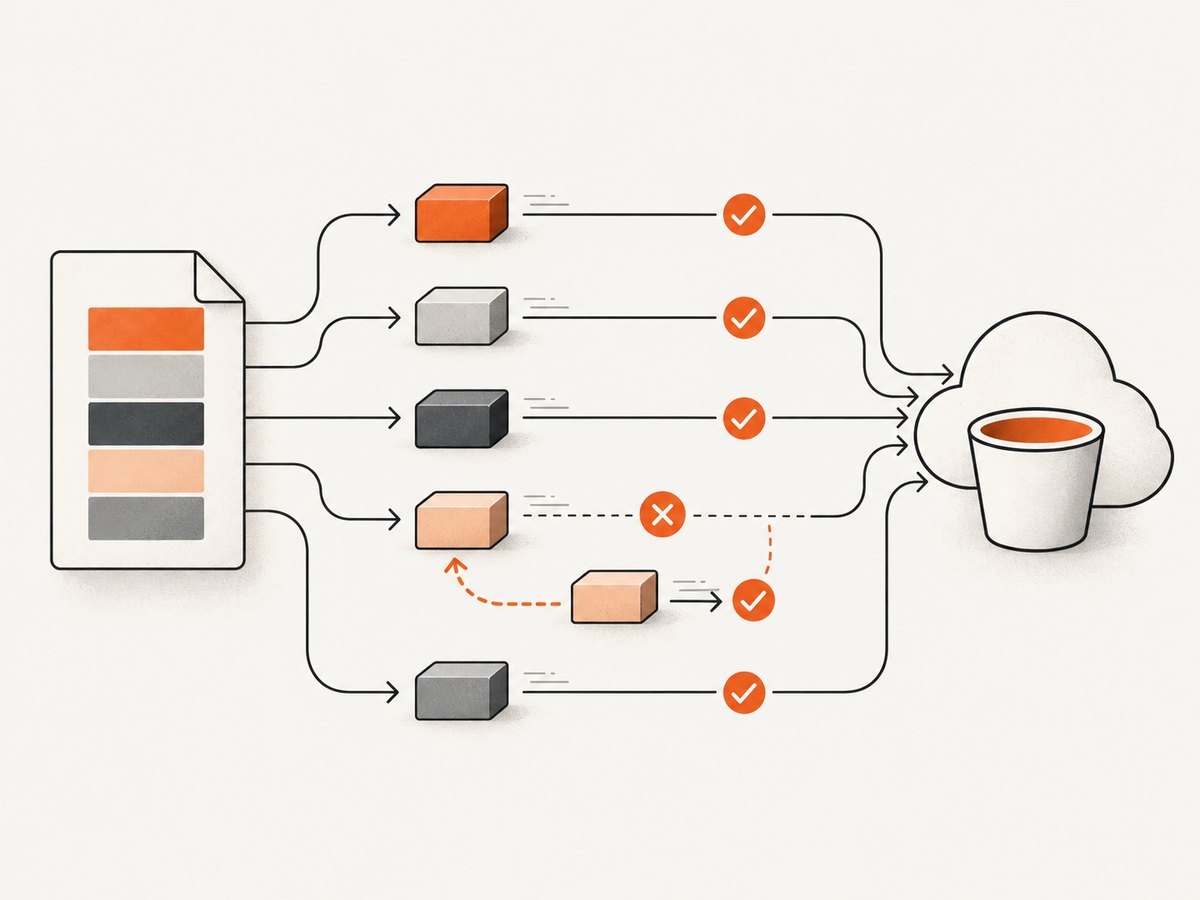
Use the multipart API directly when you need control over parallelism, progress, retries, or resumability. The flow is: initiate an upload and receive an upload ID; upload numbered parts and record their ETags; complete the upload with the ordered part list. If the process fails, resume by listing uploaded parts and retrying missing ones, or abort the upload if it will not be continued. An incomplete upload does not create the final object, but its stored parts can incur storage charges until you complete or abort it.
Add an S3 lifecycle rule with AbortIncompleteMultipartUpload so abandoned parts are eventually removed. For example, a rule can abort incomplete uploads after seven days; adjust the period to fit your recovery window. This does not delete completed screenshots. See AWS’s multipart overview and lifecycle cleanup instructions.
7. Make the object predictable and safe to use
- Choose a content type: Use
image/png,image/jpeg, or the correct type for the uploaded file. Avoid trusting a filename extension alone if the file comes from an untrusted user. - Choose overwrite behavior: Unique keys preserve each capture. A stable key provides a convenient latest copy. Enable versioning if replacement should remain recoverable.
- Verify integrity: Checksums can detect transfer corruption. SigV4 presigned uploads support checksum algorithms when the matching header is sent. See S3 object integrity.
- Keep access private: A successful upload does not mean the object should be public. Use authenticated access or presigned GET URLs for downloads.
- Review encryption and retention: SSE-S3 is the default for new objects; select SSE-KMS when key control is required. Configure version retention and lifecycle expiration deliberately to manage stored copies.
Uploading the same key in a versioned bucket creates a new version rather than simply replacing the prior version. Versioning and unique naming solve different needs: versioning preserves revisions under one key; unique keys make each capture independently addressable.
8. Troubleshoot common upload failures
| Symptom | Likely cause | Fix |
|---|---|---|
AccessDenied |
The caller lacks permission to write that object, or a bucket policy denies it. | Check the bucket, key, identity policy, bucket policy, and any required KMS permissions. Grant only the needed object-level access. |
SignatureDoesNotMatch on a presigned PUT |
The client used a different method, content type, checksum header, or URL than the one signed. | Use PUT and send the exact signed headers. Do not alter or re-encode the URL. |
| Presigned URL returns expired or access denied | The expiration passed, or the credentials used to sign it expired or lost access. | Request a fresh URL. Keep the URL lifetime aligned with expected upload duration. |
| Browser reports a CORS error | The bucket CORS rules do not allow the origin, method, or request headers. | Allow only the application origin and required PUT/headers in the bucket CORS configuration. CORS does not grant S3 authorization. |
| Upload succeeds but image displays as a download | The object metadata has a missing or incorrect content type. | Set the correct ContentType during upload and inspect the stored object metadata. |
| Large upload fails near the size limit | A single PUT exceeds 5 GB, or the selected method’s maximum was reached. | Use multipart through the CLI, SDK, or REST API. The console has its own 160 GB single-object limit. |
| Retry seems to replace an earlier screenshot | The same bucket and key were reused. | Generate unique keys or enable versioning if prior captures must be retained. |
| Multipart upload never produces an object | The completion step did not succeed; uploaded parts remain unassembled. | Retry completion with the correct part numbers and ETags, or abort the upload. Add a lifecycle cleanup rule. |
9. Performance, reliability, and cost
For small screenshots, the simplest working upload is usually the easiest to operate. For large transfers, multipart can improve throughput through parallel parts and reduce the amount retransmitted after a network failure. Tune concurrency only after considering client memory, CPU, network limits, and the number of simultaneous uploads. A retry policy should retry transient network or service failures with backoff, while surfacing persistent authorization and configuration errors promptly.
S3 charges depend on the storage class, amount stored, requests, data transfer, and other usage; check the Amazon S3 pricing page for current rates and region-specific details. Multipart uploads create multiple requests and can leave billable stored parts while in progress, so complete or abort them and configure lifecycle cleanup. Versioning retains prior versions, which can increase storage use; pair it with lifecycle rules if old captures have a retention limit. No universal per-screenshot cost can be stated without file sizes, region, access pattern, storage class, and retention period.
Or skip the browser setup
If your goal is to capture a webpage and save the resulting file, ScreenshotNeo can return a screenshot from one GET request; your app can then upload those bytes to S3 using the SDK or a presigned URL flow above. See the ScreenshotNeo API docs for request options.
curl -G "https://api.screenshotneo.com/v1/shot" \
  -d access_key=YOUR_API_KEY \
  --data-urlencode url=https://stripe.com \
  -o shot.webp
ScreenshotNeo removes cookie banners, newsletter popups, and chat widgets before the shot. Bot checks, blank pages, and failed loads are never billed. Its MCP server lets AI agents take screenshots. The free plan includes 1,000 screenshots a month with no card; paid plans start at $5 for 3,000. Create a free account and get 1,000 screenshots a month with no card.
FAQ
Can I store a PNG, JPEG, or PDF in S3?
Yes. S3 stores arbitrary file data as objects. Set an accurate content type if browsers or other systems need to recognize the format.
Can I make the uploaded screenshot public?
It is possible to design public delivery, but an upload does not require public access. Prefer authenticated retrieval or presigned GET URLs unless public access is a deliberate requirement.
Do I need multipart upload for an ordinary screenshot?
Usually not. A typical screenshot is far below the 100 MB point where AWS recommends multipart. The high-level CLI and managed SDK transfers can choose multipart for larger files.
Does the ETag always equal the file’s MD5 checksum?
Do not rely on ETag as a universal MD5 checksum, especially for multipart uploads. Use S3 checksum support when you need integrity verification.


