How to Save Screenshots with Selenium
Learn how to save Selenium screenshots to files, bytes, or base64, capture elements, troubleshoot failures, and automate reliable image capture.
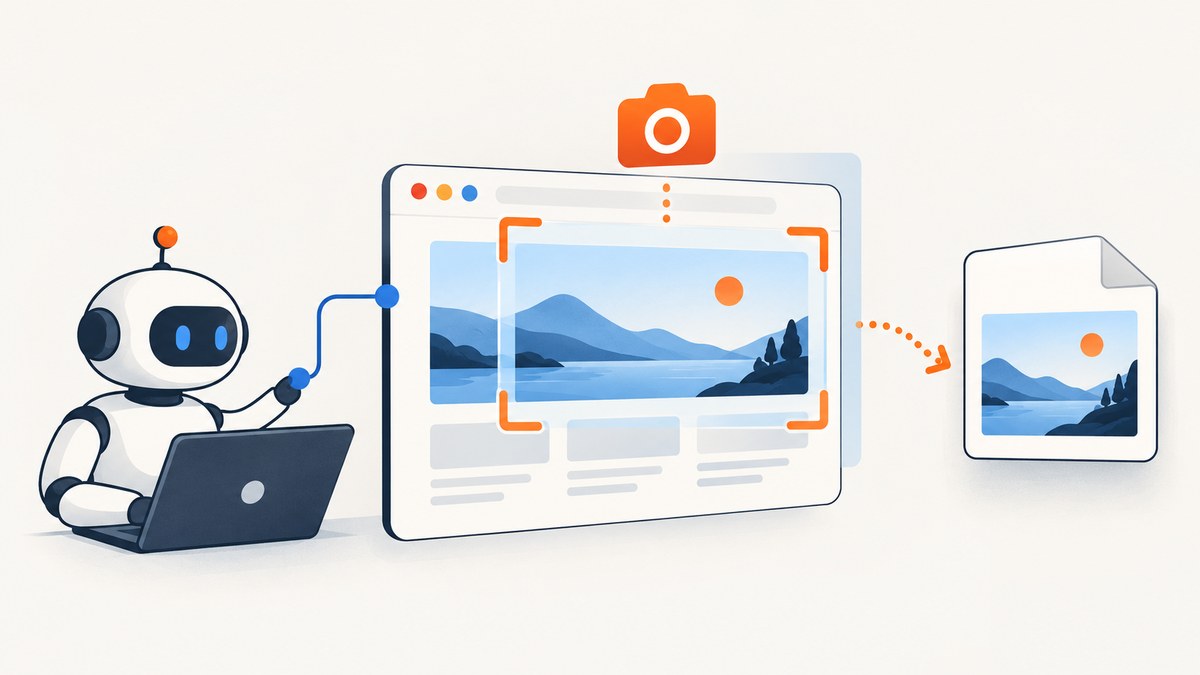
Selenium can save a screenshot of the browser’s current window with one Python call:
from selenium import webdriver

driver = webdriver.Chrome()
driver.get("https://example.com")
driver.save_screenshot("screenshot.png")
driver.quit()
The standard Python API saves a PNG file and returns True when the write succeeds or False when an IOError occurs. Use a filename ending in .png; an absolute path removes ambiguity about where the file is written. Selenium documents this as a screenshot of the current window, so do not assume it is a complete, full-page image in every browser or driver. See the Python WebDriver API and the official screenshots guide.
1. Install Selenium and a browser driver
Install the Python package in your virtual environment:
python -m venv .venv
source .venv/bin/activate       # Windows: .venv\\Scripts\\activate
python -m pip install -U selenium
Recent Selenium versions can manage compatible browser drivers through Selenium Manager. If your environment supplies its own driver, make sure the driver and browser versions are compatible and that the driver is on PATH.
2. Save the current window to a PNG
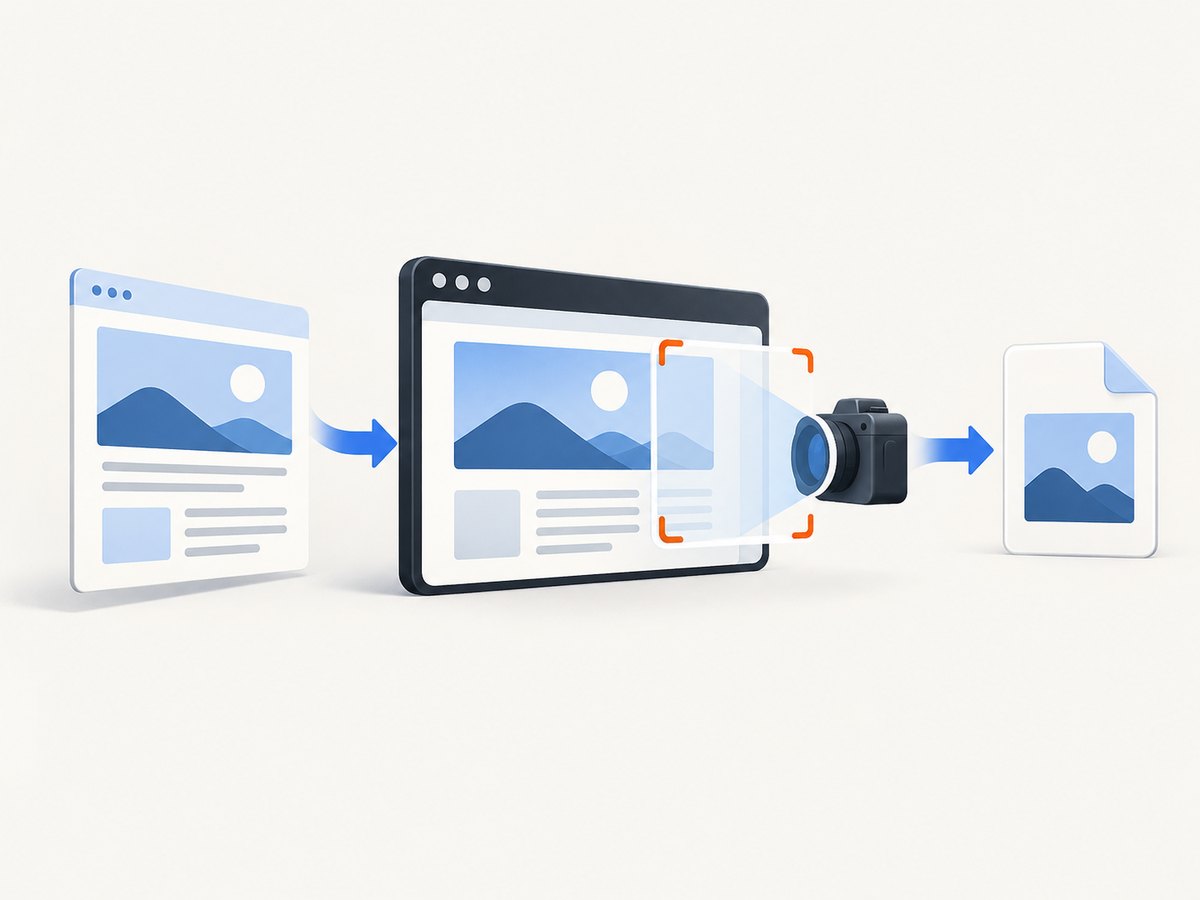
This complete example waits for a page to load, writes the image, checks the Boolean result, and always closes the browser:
from pathlib import Path
from selenium import webdriver
from selenium.webdriver.chrome.options import Options

output = Path("artifacts/home.png").resolve()
output.parent.mkdir(parents=True, exist_ok=True)

options = Options()
# options.add_argument("--headless")  # Enable in CI or on a server.

driver = webdriver.Chrome(options=options)
try:
    driver.get("https://example.com")
    ok = driver.save_screenshot(str(output))
    if not ok:
        raise OSError(f"Selenium could not write {output}")
    print(f"Saved {output} ({output.stat().st_size} bytes)")
finally:
    driver.quit()
save_screenshot() is the simplest file API. The documented alias get_screenshot_as_file() has the same file-saving behavior and Boolean return value:
if not driver.get_screenshot_as_file("screenshot.png"):
    raise RuntimeError("Screenshot write failed")
Choose a deterministic path
Relative paths are resolved against the process working directory, which may differ between a terminal, an IDE, and a CI runner. Build the path explicitly with pathlib.Path, create the parent directory, and log the final absolute path. Do not rename a PNG to a different format: Selenium’s Python method writes PNG data.
3. Capture an individual element
Find a WebElement and call its screenshot method when the full viewport contains irrelevant content:
from selenium import webdriver
from selenium.webdriver.common.by import By

browser = webdriver.Chrome()
try:
    browser.get("https://example.com")
    hero = browser.find_element(By.CSS_SELECTOR, "main")
    if not hero.screenshot("main-element.png"):
        raise OSError("Element screenshot was not saved")
finally:
    browser.quit()
The element must exist and be renderable. If it is below the fold, Selenium may scroll it into view as part of the element screenshot implementation, but layout, sticky headers, animations, and overflow can still affect the result. Wait for the element and its content before capturing.
from selenium.webdriver.support.ui import WebDriverWait

wait = WebDriverWait(browser, 15)
card = wait.until(lambda d: d.find_element(By.CSS_SELECTOR, ".product-card"))
wait.until(lambda d: card.is_displayed())
card.screenshot("product-card.png")
4. Get PNG bytes or base64 instead of writing a file
Use the output that matches the next step in your program:
| Method | Returns | Useful when |
|---|---|---|
save_screenshot(path) |
Boolean; writes PNG | You want a file artifact |
get_screenshot_as_file(path) |
Boolean; writes PNG | You prefer the alias |
get_screenshot_as_png() |
PNG bytes | You will upload or process in memory |
get_screenshot_as_base64() |
Base64 text | You need to embed or transport the image as text |
import base64

png_bytes = driver.get_screenshot_as_png()
with open("memory-result.png", "wb") as image_file:
    image_file.write(png_bytes)

encoded = driver.get_screenshot_as_base64()
html_img = f"<img src=\"data:image/png;base64,{encoded}\" alt=\"Screenshot\">"
print(len(png_bytes), len(encoded))
Bytes avoid a temporary file when sending the image to object storage, a test report, or another service. Base64 is larger than binary data, so use it when the receiving interface specifically expects text.
5. Control viewport, timing, and page state
Set a known viewport
driver.set_window_size(1440, 900)
# Or use a Chrome argument before startup:
# options.add_argument("--window-size=1440,900")
A fixed viewport makes visual comparisons repeatable. Browser chrome and operating-system window managers can still affect the outer window, so prefer CSS viewport dimensions in your test design and keep the runtime consistent.
Wait for the state you intend to capture
driver.get() returns after the document’s navigation reaches the driver’s normal readiness point, but JavaScript applications may render later. Wait for a meaningful selector, a URL condition, or a state attribute:
from selenium.webdriver.support import expected_conditions as EC
from selenium.webdriver.support.ui import WebDriverWait

wait = WebDriverWait(driver, 20)
wait.until(EC.visibility_of_element_located((By.CSS_SELECTOR, "[data-ready='true']")))
driver.save_screenshot("ready.png")
A short fixed sleep can be acceptable for a known animation, but selector-based waits are usually less flaky and finish sooner when the page is fast. Disable or finish animations in a test-only stylesheet when pixel stability matters.
Handle cookies, dialogs, and overlays
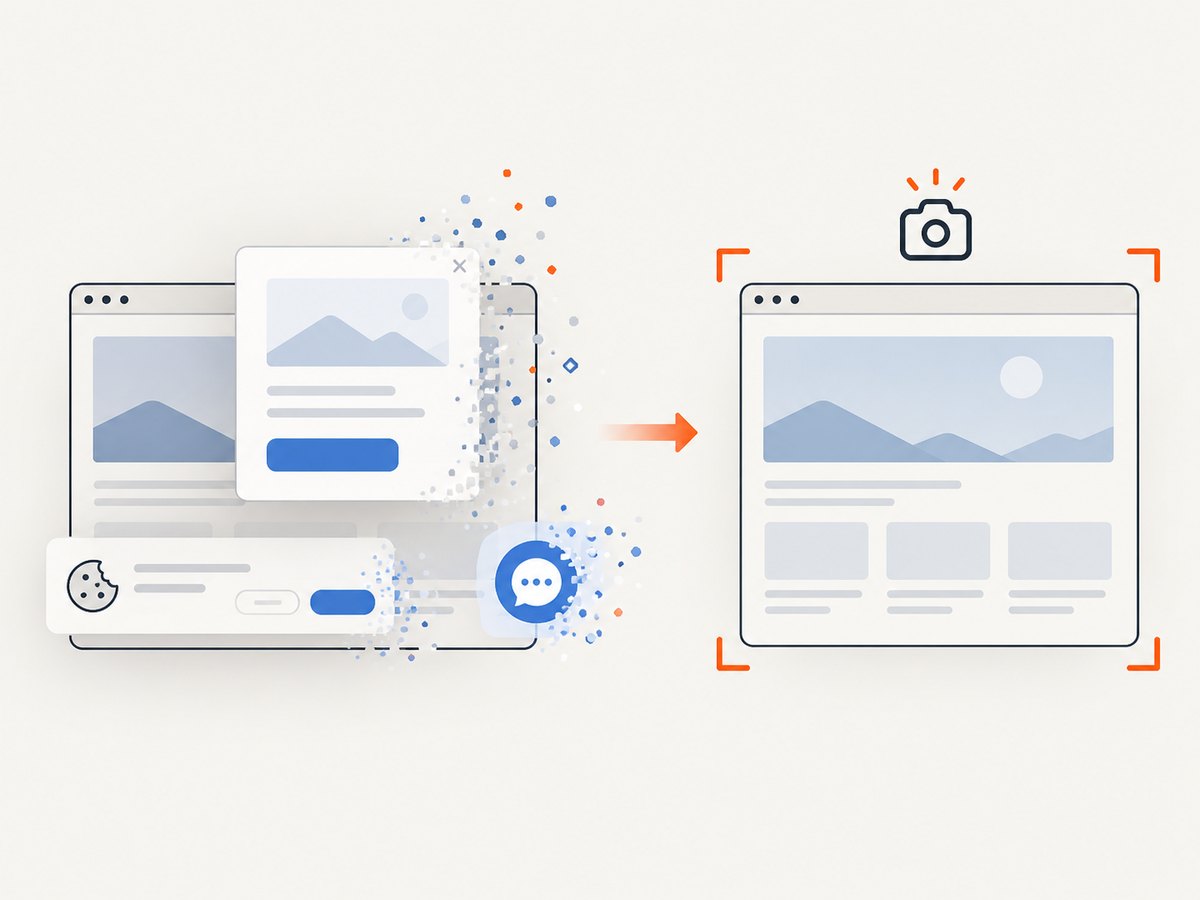
Consent banners, newsletter modals, and chat launchers can cover the page. Locate and click their close or accept controls before capture, then wait for the overlay to disappear. JavaScript browser alerts require driver.switch_to.alert; HTML dialogs require normal element interaction.
6. Full-page expectations and browser differences
The ordinary Python driver method is documented as the current-window screenshot. It should not be described as a universal full-page capture. Browser-specific full-page commands or stitching techniques exist, but their behavior depends on the browser and driver. If you need a reliable, server-side full-page image, use a screenshot API instead of building browser orchestration into every job.
Selenium’s Java TakesScreenshot API supports drivers and WebElements through getScreenshotAs(OutputType...). Its documentation notes that W3C-conformant implementations follow the WebDriver specification; non-conformant implementations are best effort and may return a page, window, frame portion, or display capture depending on the browser.
7. Complete examples in other Selenium languages
Java
import java.nio.file.Files;
import java.nio.file.Path;
import org.openqa.selenium.OutputType;
import org.openqa.selenium.TakesScreenshot;
import org.openqa.selenium.WebDriver;
import org.openqa.selenium.chrome.ChromeDriver;

public class Capture {
  public static void main(String[] args) throws Exception {
    WebDriver driver = new ChromeDriver();
    try {
      driver.get("https://example.com");
      byte[] png = ((TakesScreenshot) driver).getScreenshotAs(OutputType.BYTES);
      Files.write(Path.of("screenshot.png"), png);
    } finally {
      driver.quit();
    }
  }
}
JavaScript
const { Builder } = require('selenium-webdriver');
const fs = require('node:fs/promises');

(async () => {
  const driver = await new Builder().forBrowser('chrome').build();
  try {
    await driver.get('https://example.com');
    const base64 = await driver.takeScreenshot();
    await fs.writeFile('screenshot.png', Buffer.from(base64, 'base64'));
  } finally {
    await driver.quit();
  }
})();
8. Troubleshooting checklist
| Symptom | Likely cause | Fix |
|---|---|---|
False from the save method |
Filesystem IOError, missing directory, or permissions |
Create the parent directory, use an absolute path, and check write permissions. |
| File exists but is empty or tiny | Capture happened before rendering or the write was interrupted | Wait for a visible, page-specific selector; verify file size and keep the browser alive until the call returns. |
NoSuchElementException |
Selector is wrong or the element has not rendered | Use an explicit wait and confirm the selector in browser developer tools. |
TimeoutException |
Page, network, or application state never reached the condition | Check connectivity, increase the wait only when justified, and capture diagnostic HTML or logs. |
| Driver or browser startup error | Missing or incompatible browser/driver, or restricted CI environment | Install the browser, let Selenium Manager resolve the driver, or provide a compatible driver on PATH. |
| Screenshot shows a cookie banner or chat widget | The page requires interaction before capture | Find the consent/close control, click it, wait for disappearance, then capture. |
| Image differs between runs | Responsive viewport, fonts, animations, ads, or changing data | Fix the viewport, wait for stable content, disable animations, and control test data. |
| Only the visible area is present | Normal driver screenshot scope is the current window | Use a browser-specific full-page approach or a screenshot API designed for full-page capture. |
9. Performance, reliability, and cost considerations
- Reuse a session carefully: Starting Chrome is expensive; a worker can navigate multiple URLs in one session. Reset cookies, storage, viewport, and page state between jobs to avoid cross-test contamination.
- Wait for conditions, not arbitrary delays: Explicit waits reduce wasted time on fast pages and reduce flakiness on slow pages.
- Keep artifacts bounded: Save only failures or the states you need, and upload bytes directly when a file is unnecessary.
- Plan for failure: Put
quit()in afinallyblock, record the URL and selector, and retain a diagnostic screenshot when a test fails. - Budget the whole browser: Selenium itself has no screenshot purchase charge in this workflow, but your CI runner, browser processes, storage, and network time still consume resources.
10. Or skip the browser setup
ScreenshotNeo provides a website screenshot API when you need a clean image without maintaining browser drivers. It accepts one GET request and returns PNG, JPEG, WebP, or PDF. Cookie and consent banners, newsletter popups, and chat widgets are removed before the shot. Bot checks, blank pages, timeouts, failed loads, and cache hits are not billed, and response headers identify the page verdict and billing status. An MCP server provides take_screenshot, get_page_info, and capture_pdf tools for Claude, Cursor, and other MCP clients.
Read the ScreenshotNeo API documentation for all options, including full-page capture, element selectors, dark mode, device presets, retina scale, custom CSS and JavaScript, waits, request blocking, headers, cookies, geolocation, caching, signed links, asynchronous jobs, bulk capture, and PDF settings.
cURL
curl -G "https://api.screenshotneo.com/v1/shot" -d access_key=YOUR_API_KEY --data-urlencode url=https://stripe.com -o shot.webpPython
import requests
r = requests.get("https://api.screenshotneo.com/v1/shot", params={"access_key": "YOUR_API_KEY", "url": "https://stripe.com"}, timeout=90)
open("shot.webp", "wb").write(r.content)
Node.js
const q = new URLSearchParams({ access_key: 'YOUR_API_KEY', url: 'https://stripe.com' });
const res = await fetch(`https://api.screenshotneo.com/v1/shot?${q}`);
ScreenshotNeo includes 1,000 screenshots per month free with no card; paid plans start at $5 for 3,000 shots. Create a free ScreenshotNeo account.
11. FAQ
Does Selenium save JPEG or WebP?
The documented Python driver screenshot methods save PNG files or return PNG data. Convert the bytes with an image library if another format is required.
Can I screenshot an iframe?
Switch into the frame first with driver.switch_to.frame(...), capture the element or window state you need, then return with driver.switch_to.default_content().
Why is my screenshot black in headless mode?
Check browser and driver compatibility, set an explicit window size, and confirm that the page has rendered before capture. A startup or GPU issue can also be specific to the CI image.
Should I use a file, bytes, or base64?
Use a file for an artifact, bytes for uploads and image processing, and base64 only when the receiving interface expects text or a data URL.
Is Selenium suitable for scheduled URL screenshots?
It works when you control the runtime and need browser interaction. For recurring captures across many URLs, an API can remove driver maintenance and provide centralized billing, caching, and failure metadata.


