How to Save a Scrolling Webpage as PDF
Save an entire scrolling webpage as a PDF with browser print tools, Firefox full-page capture, Safari, extensions, or an API.
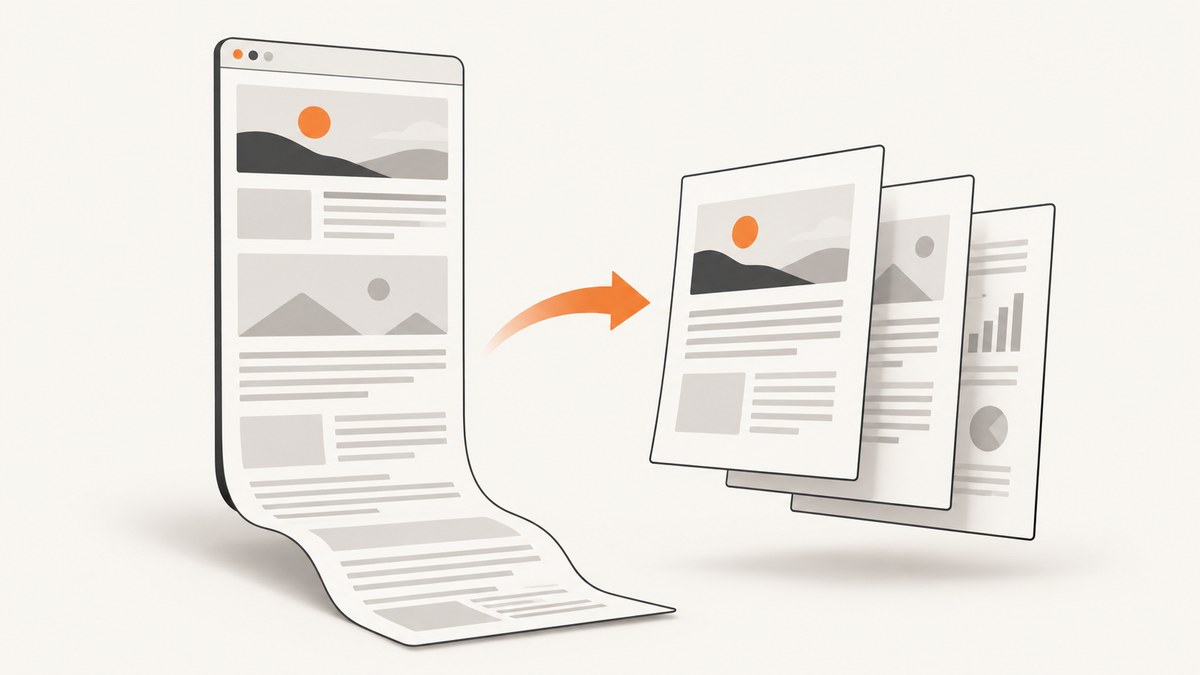
To save an entire scrolling webpage as a PDF, start with your browser’s Print command: open the page, wait for its content to load, press Ctrl+P (Windows/Linux) or Cmd+P (Mac), choose Save as PDF, select all pages, inspect the preview, and save. Print to PDF usually creates selectable, searchable text with normal pagination.
If print preview omits visual elements or cuts off an interactive layout, use Firefox’s Save full page screenshot, a full-page capture extension, or an automated PDF capture service. The right method depends on whether you need searchable text, a faithful visual copy, or repeatable automation.
1. Print a scrolling webpage to PDF
- Open the webpage on a desktop browser.
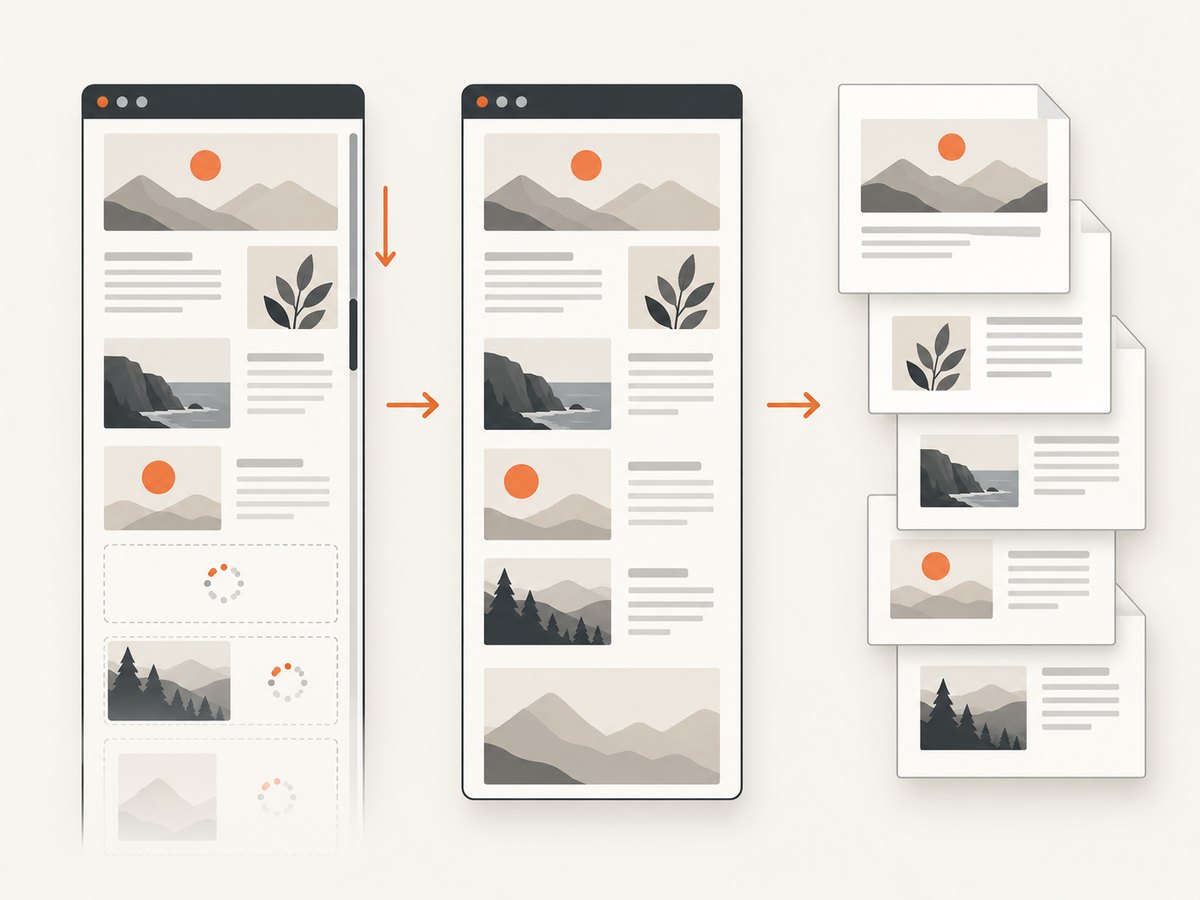
- Scroll through the page once so lazy-loaded images, comments, charts, and other on-demand sections have a chance to appear.
- Open the browser print command with Ctrl+P on Windows/Linux or Cmd+P on macOS.
- Choose Save as PDF (or your operating system’s PDF printer).
- Select all pages and review the preview from the first page to the last.
- Check for blank sections, missing images, cut-off columns, repeated sticky headers, and unexpected page breaks.
- Save the file.
Print to PDF is usually the best first choice for text-heavy articles, documentation, and reports because the output contains PDF text rather than one very tall image. Menus and output can vary with browser settings, CSS, pop-ups, and embedded viewers.
When print preview cuts off the rest of the page
A print stylesheet may hide sections, an element may have a fixed height, or content may not have loaded before printing. Scroll through the page first, close obstructing dialogs, and inspect every preview page. If the layout is still incomplete, switch to a full-page image capture and print that image to PDF.
2. Capture the entire page in Firefox
Firefox has a built-in screenshot option for the actual document instead of only the visible viewport.
- Open the page in Firefox.
- Open the page actions menu or right-click the page and choose the screenshot command.
- Select Save full page for the entire document. Save visible captures only the current viewport.
- Download the image.
- If you require a PDF container, open the downloaded image and print it to PDF.
Firefox Help describes the full-page choice as “Save full page” and the viewport choice as “Save visible.” A full-page screenshot is useful when print preview omits background elements or a web app is primarily visual, but it produces a flattened image rather than selectable PDF text.
Repeatable Firefox Developer Tools capture
Firefox Developer Tools support whole-page screenshots, including a --fullpage option in repeatable technical workflows. Use the Developer Tools screenshot workflow when you need a consistent capture process instead of a one-off manual save. Inspect the resulting image before printing it to PDF.
3. Save a webpage as PDF on iPhone Safari
- Open the webpage in Safari.
- Tap the page menu or Share button.
- Tap Markup.
- Optionally annotate the page, then tap Done.
- Choose Save File To, name the PDF, and select a destination.
This Safari workflow saves the webpage as a PDF through the Share/Markup flow. If the page has content that appears only after scrolling, scroll through it before starting the export and check the saved file afterward.
4. Understand Safari on Mac: Web Archive versus PDF
Safari for Mac’s File > Save As offers Web Archive and Page Source. A Web Archive can include graphics and may preserve links while their destinations remain available; Page Source saves HTML only. Neither option is Safari’s PDF export.
For a PDF in Safari on Mac, use File > Print (or Cmd+P) and choose the system PDF option. Review the preview for missing sections before saving.
5. Use a full-page capture extension when native tools fail
A full-page capture extension scrolls through a page, stitches the captures, and can export an image or PDF. The GoFullPage Chrome Web Store listing claims lossless PNG and JPG output plus continuous and paginated A4, Letter, and Legal PDF modes with smart page splitting. Those are vendor-listed capabilities and can change, so verify current availability, permissions, privacy terms, and output on your own page before relying on the extension.
Extensions are useful for visual pages, but they may require broad access to page contents. Avoid installing one for sensitive pages unless its permissions and data handling fit your requirements.
6. Choose the right method
| Method | Best for | Output | Watch for |
|---|---|---|---|
| Browser Print > Save as PDF | Articles, documentation, reports | Paginated, usually selectable text | Print CSS, pop-ups, missing lazy content |
| Firefox Save full page | Faithful visual capture | One full-page image | Flattened text; print the image if you need a PDF |
| iPhone Safari Share/Markup | Saving from iOS | Content that loads only after scrolling | |
| Mac Safari Print | PDF export on macOS | Paginated PDF | Do not confuse it with Web Archive or Page Source |
| Full-page extension | Visual pages and alternative pagination | Image or PDF | Permissions, privacy, changing vendor capabilities |
7. Troubleshooting common problems
Only the visible screen is saved
Cause: You used a viewport screenshot command. Fix: choose Firefox Save full page or use the browser’s Print command.
Print to PDF cuts off the rest of the page
Cause: print CSS, fixed-height containers, or content that never loaded. Fix: scroll through the page, wait for content, close overlays, retry print preview, then use a full-page capture if sections remain absent.
Images or charts are blank
Cause: lazy loading, blocked resources, or an embedded viewer. Fix: scroll through every section before capture, wait for images to render, and confirm the preview before saving.
Sticky navigation repeats on every page
Cause: a fixed header is being printed repeatedly. Fix: hide or collapse the header in the page if possible, or use a full-page image capture and print that image.
Columns are cut off
Cause: the page is wider than the selected paper. Fix: check print orientation and scaling, select landscape where appropriate, or capture the page visually and use a PDF workflow with explicit paper settings.
The PDF is an image and text cannot be selected
Cause: a screenshot was saved instead of printed HTML. Fix: use Print > Save as PDF for text-heavy content. If visual fidelity is more important, keep the image PDF and run OCR separately if your workflow supports it.
An embedded PDF viewer behaves differently
Cause: the viewer may have its own download and print controls. Fix: use the viewer’s download option when available, or print the rendered page after confirming the preview.
8. Or skip the browser setup
ScreenshotNeo can capture a full webpage as a PDF through one API request. Full-page capture loads lazy images; PDF options include paper size, margins, landscape mode, and page ranges. You can also wait for a selector, a delay, or network idle; set custom CSS or JavaScript; click an element before capture; hide selectors; block ads, trackers, requests, or resource types; and set headers, cookies, user agent, Authorization, timezone, or geolocation.
See the ScreenshotNeo API documentation for the complete option set.
cURL
curl -G "https://api.screenshotneo.com/v1/shot" -d access_key=YOUR_API_KEY --data-urlencode url=https://stripe.com -o shot.webpPython
import requests
r = requests.get("https://api.screenshotneo.com/v1/shot", params={"access_key": "YOUR_API_KEY", "url": "https://stripe.com"}, timeout=90)
open("shot.webp", "wb").write(r.content)
Node.js
const q = new URLSearchParams({ access_key: 'YOUR_API_KEY', url: 'https://stripe.com' });
const res = await fetch(`https://api.screenshotneo.com/v1/shot?${q}`);
Request PDF output and its paper, margin, orientation, and page-range settings using the documented parameters. The same API also supports PNG, JPEG, and WebP responses, element captures by CSS selector, dark mode, device presets, arbitrary viewports, retina scale, transparent backgrounds, image resizing, caching with a TTL you choose, signed links, asynchronous jobs with signed webhooks, bulk capture of up to 100 URLs per call, a usage API, and an OpenAPI specification.
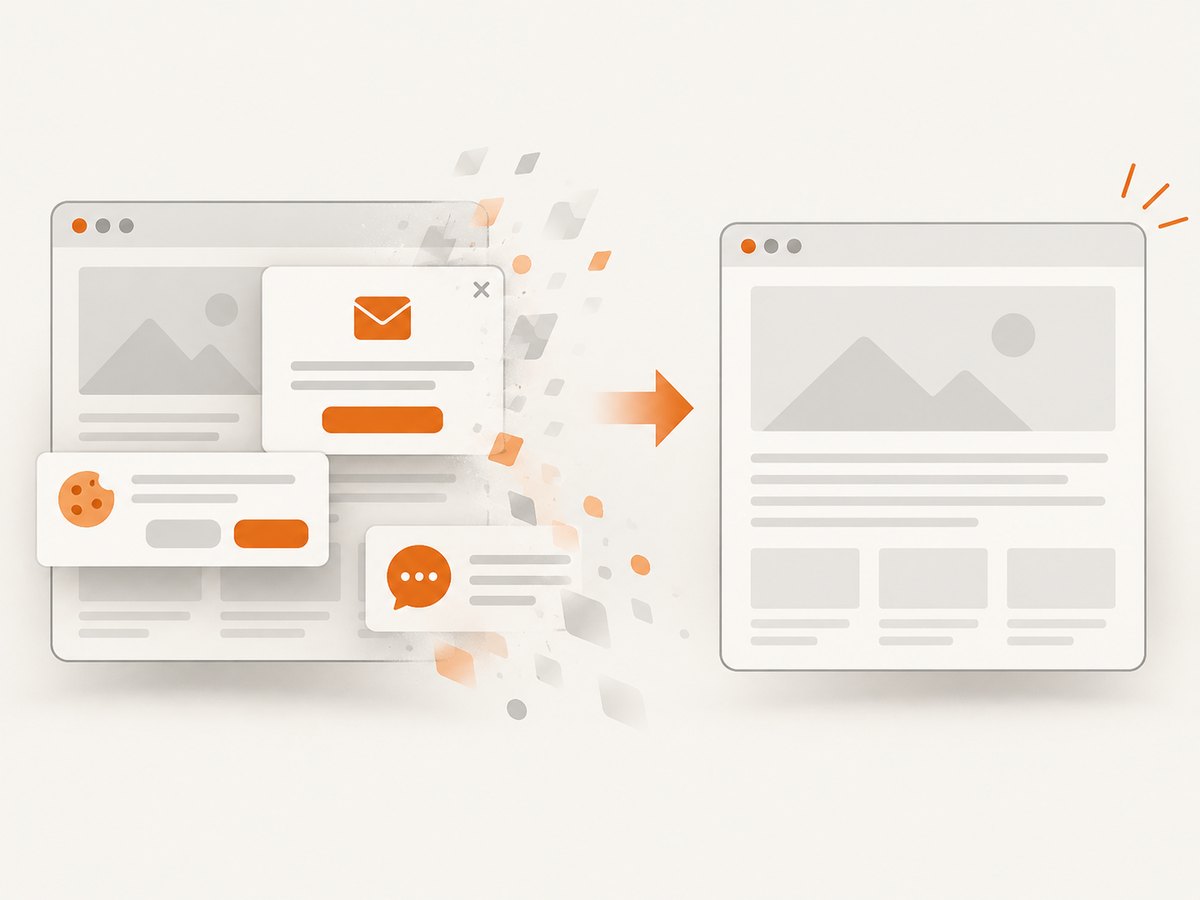
Before the capture, cookie and consent banners are accepted and more than 60 known consent platforms, newsletter popups, and chat widgets are removed; each cleanup step can be turned off. Bot checks/CAPTCHAs, blank pages, timeouts, failed loads, and cache hits cost nothing, and each response reports its verdict and billing status in X-Page-Verdict and X-Billed headers. An MCP server provides take_screenshot, get_page_info, and capture_pdf tools for Claude, Cursor, and other MCP clients.
The Free plan includes 1,000 shots per month with no card. Paid plans start at $5 for 3,000 shots; yearly billing gives two months free, and every feature is available on every plan. Create a free ScreenshotNeo account.
9. Performance, reliability, and cost considerations
- Load completeness: wait for lazy images and interactive sections before capture. A page that looks complete in the first viewport may still be missing content below it.
- Output type: printed HTML generally keeps selectable text; screenshot-based PDFs preserve visual layout but flatten the page into an image.
- File size: image-heavy full-page captures can be larger than text-oriented printed PDFs. Compare the saved file against your storage and delivery limits.
- Repeatability: manual browser workflows depend on the current browser, CSS, pop-ups, and page state. Automated capture is more suitable for scheduled or bulk jobs; use waits, custom headers, cookies, and caching when the page requires them.
- Privacy: review extension permissions before capturing private pages. For an API, avoid putting sensitive credentials in URLs unless the service’s documented authentication method requires it.
- Billing: ScreenshotNeo bills only clean shots; failed loads and cache hits are not billed. Check the response verdict and billing headers when monitoring usage.
10. FAQ
How do I save an entire scrolling webpage as a PDF?
Use Print > Save as PDF, select all pages, and verify the preview. If print omits content, use Firefox Save full page or an automated PDF capture.
How do I capture a full page instead of only what is visible?
Choose Firefox’s Save full page, use a full-page capture extension, or configure a full-page API capture. A normal viewport screenshot saves only what is currently visible.
Why does Print to PDF cut off the rest of the page?
Print CSS, fixed-height elements, blocked resources, or unloaded lazy content can cause cut-offs. Scroll first, wait for the page, inspect preview pages, and switch to a full-page visual capture when needed.
Is a Web Archive the same as a PDF in Safari?
No. Safari’s Web Archive saves page resources for later viewing; PDF requires the Print command and the system PDF option.
Can a full-page screenshot remain searchable?
No. A screenshot is an image. Use Print to PDF when selectable text matters.


