How to Save Selenium Failure Screenshots in Jenkins
Capture Selenium screenshots before teardown, save them in the Jenkins workspace, and archive them after every build with reliable Pipeline patterns.
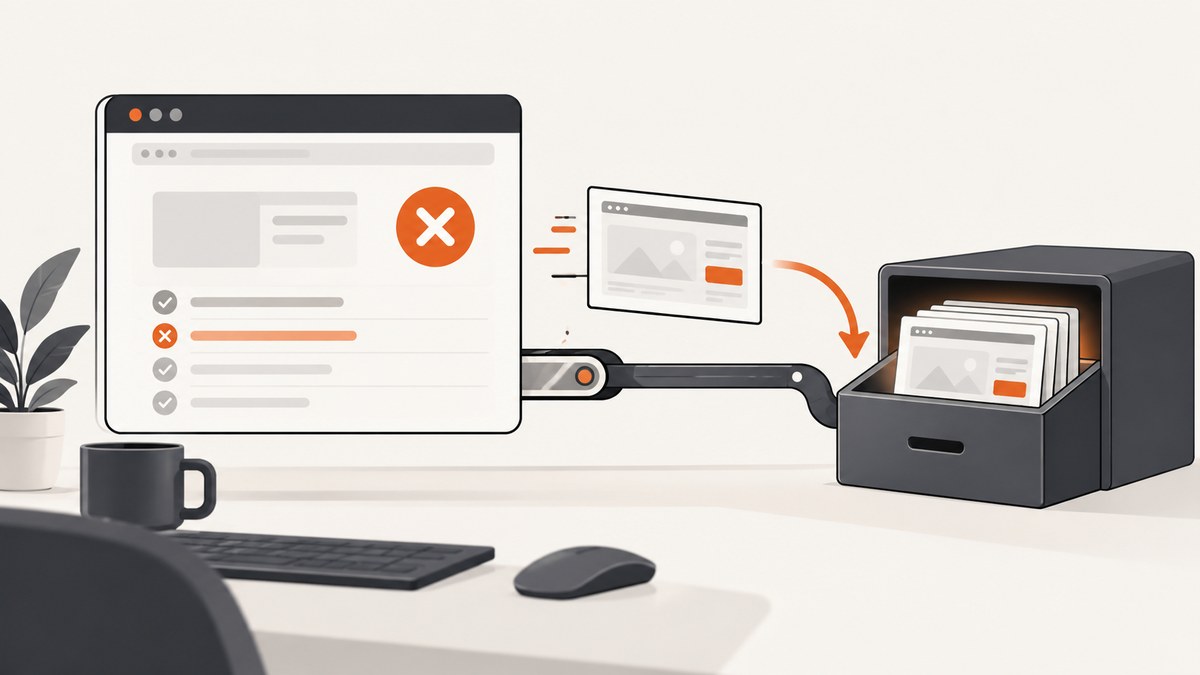
To save Selenium failure screenshots in Jenkins, do two things in order: capture the image while the WebDriver session is still alive, then archive the file from the Jenkins workspace in a Pipeline cleanup block. Selenium creates the screenshot; Jenkins stores the file. Jenkins does not call Selenium for you.
The dependable flow is:
- A test failure hook detects the failed test.
- The hook calls Selenium’s screenshot API before the driver is closed.
- The test writes a uniquely named image below the Jenkins workspace.
- A Declarative Pipeline archives matching files in
post { always { ... } }, or a Scripted Pipeline archives them infinally. - JUnit XML is published separately with the
junitstep.
1. Capture the screenshot before WebDriver quits
A screenshot taken after driver.quit() cannot describe the failed browser state. Put capture code in the failure callback, listener, rule, teardown hook, or fixture used by your test framework. The exact hook differs between JUnit, TestNG, pytest, NUnit, and other frameworks.
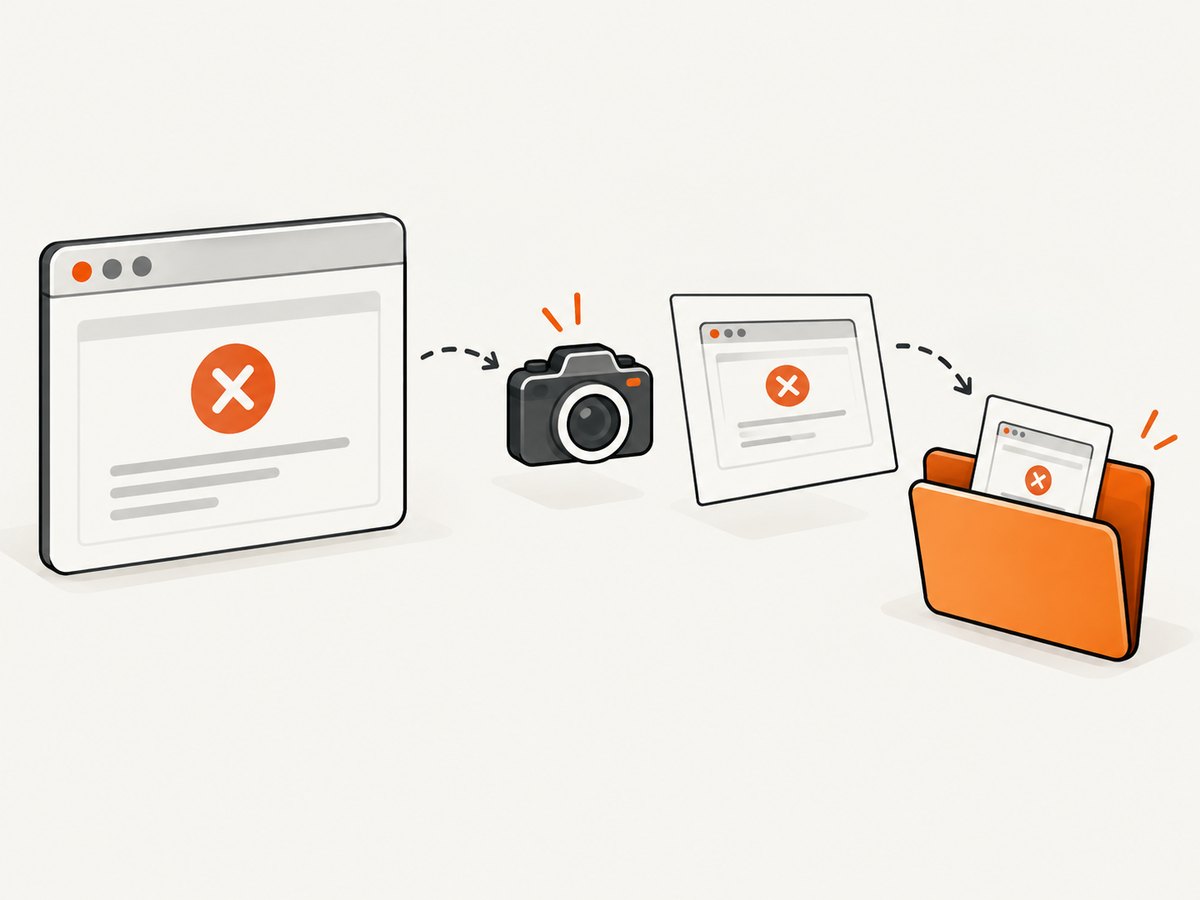
Java with JUnit 5
This example uses a JUnit 5 extension. It stores screenshots in build/screenshots and includes the test display name plus a timestamp. Register the extension on the test class or in your test configuration.
import org.junit.jupiter.api.extension.AfterTestExecutionCallback;
import org.junit.jupiter.api.extension.ExtensionContext;
import org.openqa.selenium.OutputType;
import org.openqa.selenium.TakesScreenshot;
import org.openqa.selenium.WebDriver;

import java.io.IOException;
import java.nio.file.Files;
import java.nio.file.Path;
import java.nio.file.StandardCopyOption;
import java.time.Instant;

public final class FailureScreenshotExtension
        implements AfterTestExecutionCallback {

    private final WebDriver driver;

    public FailureScreenshotExtension(WebDriver driver) {
        this.driver = driver;
    }

    @Override
    public void afterTestExecution(ExtensionContext context) throws Exception {
        if (context.getExecutionException().isEmpty()) {
            return;
        }

        String testName = context.getDisplayName()
                .replaceAll("[^a-zA-Z0-9._-]", "_");
        Path directory = Path.of("build", "screenshots");
        Files.createDirectories(directory);
        Path destination = directory.resolve(
                testName + "-" + Instant.now().toEpochMilli() + ".png");

        Path temporary = ((TakesScreenshot) driver)
                .getScreenshotAs(OutputType.FILE).toPath();
        Files.copy(temporary, destination,
                StandardCopyOption.REPLACE_EXISTING);
    }
}
In a real test suite, make the driver available to the extension through your existing fixture or dependency-injection setup. If your framework closes the driver in an afterEach method, ensure the screenshot callback runs first.
Java with a direct failure check
If you do not use an extension, the same operation can be placed around the test body:
try {
    checkoutPage.submitOrder();
} catch (Throwable failure) {
    Path dir = Path.of("build", "screenshots");
    Files.createDirectories(dir);
    String name = "CheckoutTest-" + System.currentTimeMillis() + ".png";
    File source = ((TakesScreenshot) driver)
            .getScreenshotAs(OutputType.FILE);
    Files.copy(source.toPath(), dir.resolve(name),
            StandardCopyOption.REPLACE_EXISTING);
    throw failure;
}
Python with pytest
pytest exposes the failed test through a hook. Keep the driver fixture alive until the hook has copied the image. One practical pattern stores the driver on the test item.
# conftest.py
from pathlib import Path
from datetime import datetime, timezone
import re
import pytest


def safe_name(value):
    return re.sub(r"[^A-Za-z0-9._-]+", "_", value)


@pytest.hookimpl(hookwrapper=True)
def pytest_runtest_makereport(item, call):
    outcome = yield
    report = outcome.get_result()
    if report.when != "call" or not report.failed:
        return

    driver = getattr(item, "selenium_driver", None)
    if driver is None:
        return

    directory = Path("build/screenshots")
    directory.mkdir(parents=True, exist_ok=True)
    stamp = datetime.now(timezone.utc).strftime("%Y%m%dT%H%M%SZ")
    path = directory / f"{safe_name(item.nodeid)}-{stamp}.png"
    driver.save_screenshot(str(path))
Attach the driver when creating it, for example with request.node.selenium_driver = driver in the fixture. If your fixture quits the browser during teardown, capture in a fixture finalizer that runs before quit(), or use a plugin designed for your test layout.
2. Save files inside the Jenkins workspace
archiveArtifacts searches workspace-relative paths. A screenshot written to a developer laptop, a host directory outside the agent workspace, or a container path that is not mounted into the workspace will not be found.
Use a predictable directory such as:
build/screenshots/**/*.pngfor Gradle or pytest projectstarget/screenshots/**/*.pngfor Maven projectsscreenshots/**/*.pngfor a repository-level output directory
The directory is a convention, not a Jenkins requirement. The glob and the test code must agree on the actual location and extension. Create the directory before writing so a failure in the screenshot copy is visible in test logs.
Use unique names for parallel tests
Parallel workers can overwrite a file called failure.png. Include the class, test method, retry number, shard, or worker identifier. Sanitize names so slashes and spaces do not create unintended directories. If two jobs share a workspace, isolate workspaces or include the build number in the path.
3. Archive screenshots in a Declarative Pipeline
Put artifact collection in post { always { ... } }. The always condition runs after the stage result is known, including failed tests. Jenkins documents this pattern for collecting test output and artifacts in its Pipeline post section.
pipeline {
    agent any

    stages {
        stage('Test') {
            steps {
                sh './gradlew test'
            }
        }
    }

    post {
        always {
            archiveArtifacts(
                artifacts: 'build/screenshots/**/*.png',
                allowEmptyArchive: true
            )
            junit 'build/test-results/**/*.xml'
        }
    }
}
Change the command and globs to match your project. allowEmptyArchive: true keeps a build from failing merely because no screenshot was produced, which is useful when screenshots exist only for failures. Omit it when the presence of an artifact is a required contract and a missing file should fail the build.
Scripted Pipeline
In Scripted Pipeline, use try/finally so archiving still runs after a test command throws an error:
node {
    try {
        stage('Test') {
            sh './gradlew test'
        }
    } finally {
        archiveArtifacts artifacts: 'build/screenshots/**/*.png',
                         allowEmptyArchive: true
        junit 'build/test-results/**/*.xml'
    }
}
Archive more than one image type
If your framework emits JPEG or WebP files, list the patterns explicitly or use a brace pattern supported by your Jenkins and Ant glob configuration:
archiveArtifacts artifacts: 'build/screenshots/**/*.{png,jpg,jpeg,webp}',
                 allowEmptyArchive: true
When portability matters, use separate patterns:
archiveArtifacts artifacts: 'build/screenshots/**/*.png,build/screenshots/**/*.jpg',
                 allowEmptyArchive: true
4. Publish JUnit results separately
Screenshots are binary build artifacts. JUnit XML is test-report data. Keep the patterns separate:
post {
    always {
        archiveArtifacts artifacts: 'target/screenshots/**/*.png',
                         allowEmptyArchive: true
        junit 'target/surefire-reports/**/*.xml'
    }
}
The junit step creates Jenkins test-result views and history from XML. Do not include image files in the JUnit glob; Jenkins’ JUnit documentation explains that the pattern should identify XML reports. If your test command produces no XML after an infrastructure failure, use allowEmptyResults: true only when that behavior is intentional and supported by the installed plugin version.
5. Make screenshots easy to find on the build page
After a run, open the build and inspect Artifacts. Confirm that the expected relative path and filename appear. A useful filename contains enough context to identify the failed test without opening every image.
Validate two cases:
- A passing build, proving that the
postblock executes even when no screenshot exists. - A deliberately failing test, proving that the failure hook runs before driver shutdown and that the archive glob matches the generated file.
This validation should be done in the same agent type, container image, browser mode, and workspace layout used by production builds.
6. Common problems and fixes
| Symptom | Likely cause | Fix |
|---|---|---|
| No artifact is listed | The failure hook did not run, the screenshot was saved outside the workspace, or the glob is wrong. | Print the working directory, list the output directory before archiving, and compare the real path with the archiveArtifacts pattern. |
| Capture works locally only | The local run writes to an absolute path or a different project directory. | Use a workspace-relative path such as build/screenshots and inspect the agent’s workspace mount. |
| Stage failure skips archiving | Archive code is inside the test stage after a command that throws. | Move it to Declarative post { always { ... } } or Scripted finally. |
| Screenshot is missing or invalid | The driver was closed before capture, or the copy failed. | Capture in the failure callback before quit(); log the destination and preserve the original exception. |
| Parallel tests replace images | Every test uses the same filename. | Add test identity, worker, retry, and build information to the filename. |
| Image is blank or incomplete | The page was captured before navigation or asynchronous rendering finished, or headless browser behavior differs. | Wait for a stable application state, verify the URL and key element, and capture before teardown. Timing and browser configuration are application-specific. |
| JUnit view is empty | The XML glob points at the wrong directory or includes non-report files. | Find the generated XML under the workspace and use a narrow XML-only pattern. |
| Archive step fails on passing builds | The archive is mandatory but passing tests produce no screenshots. | Set allowEmptyArchive: true, or deliberately generate a baseline image on every run. |
| Artifacts disappear later | Jenkins build retention or external artifact storage policy removed them. | Review job retention, artifact manager settings, and any cleanup policy. Screenshots are tied to the build that archived them. |
7. Framework and plugin options
The built-in Pipeline route is usually the simplest because it has no additional report UI and works with any framework that writes files. Plugin integrations can help when your team already uses that framework:
- The Robot Framework Jenkins plugin supports an
otherFilessetting with Ant-style globs; Selenium screenshots can be included there when saved in the configured location. - The UI Test Capture plugin documents a Java
TakesScreenshotexample and atarget/screenshots/convention. It is optional and plugin-specific. - Selenium HTML Report can copy generated HTML reports into a build subdirectory and add a report view. It complements screenshots; it does not replace the capture hook.
Check compatibility with the Jenkins and plugin versions installed in your controller. Plugin behavior and configuration names can change independently of Selenium.
8. Reliability, performance, and cost considerations
Reliability
- Capture before closing the browser and preserve the original test failure when screenshot capture itself fails.
- Use unique names and isolated workspaces for parallel jobs.
- Keep the archive block in cleanup code so collection is attempted after both success and failure.
- Write a small log line containing the final path; it makes glob problems easy to diagnose.
- Use a consistent browser viewport and device scale when visual comparisons depend on exact dimensions.
Performance
A screenshot adds image encoding and file I/O to the failure path. That cost is normally acceptable because failures are less frequent than passing tests. Avoid capturing every step unless you need that diagnostic history; capture on failure and, if needed, at selected checkpoints. Large full-page images increase archive size and transfer time. Crop to an element when the failing area is known.
Retention and storage cost
Jenkins stores archived files according to your build retention and artifact storage setup. Set retention deliberately for high-volume suites, and prefer external artifact storage when your Jenkins deployment provides an artifact manager. Compressing PNG files again rarely helps; choosing a reasonable viewport or JPEG for photographic pages can reduce size when image fidelity permits.
9. Or skip the browser setup
If the goal is a clean page image for a build report rather than a browser session tied to a Selenium test, ScreenshotNeo provides a website screenshot API. One GET request returns PNG, JPEG, WebP, or PDF. The API can wait for a selector, delay, or network idle, use a device preset or custom viewport, load lazy images for full-page captures, select one element, apply custom CSS or JavaScript, set headers, cookies, user agent, timezone, and geolocation, and block ads, trackers, requests, or resource types.
See the ScreenshotNeo API documentation for request options. A Jenkins shell step can download an image directly into the directory you archive:
curl -G "https://api.screenshotneo.com/v1/shot" \
  -d access_key=YOUR_API_KEY \
  --data-urlencode url=https://stripe.com \
  -o build/screenshots/stripe.webp
Python:
import requests

r = requests.get(
    "https://api.screenshotneo.com/v1/shot",
    params={"access_key": "YOUR_API_KEY", "url": "https://stripe.com"},
    timeout=90,
)
r.raise_for_status()
open("build/screenshots/stripe.webp", "wb").write(r.content)
Node.js:
const q = new URLSearchParams({ access_key: 'YOUR_API_KEY', url: 'https://stripe.com' });
const res = await fetch(`https://api.screenshotneo.com/v1/shot?${q}`);
if (!res.ok) throw new Error(`Screenshot failed: ${res.status}`);
require('fs').writeFileSync('build/screenshots/stripe.webp', Buffer.from(await res.arrayBuffer()));
For CI diagnostics, its response headers identify the page verdict and whether the request was billed. Bot checks or CAPTCHAs, blank pages, timeouts, failed loads, and cache hits are not billed; only clean shots are billed. Cookie and consent banners are accepted and more than 60 known consent platforms, newsletter popups, and chat widgets are removed before capture, with controls to turn each step off. ScreenshotNeo also offers an MCP server with take_screenshot, get_page_info, and capture_pdf tools for Claude, Cursor, and other MCP clients.
Plans include 1,000 shots per month free with no card, then $5 for 3,000, $15 for 15,000, $39 for 60,000, $99 for 250,000, and $249 for 1,000,000. Yearly billing gives two months free, and every feature is on every plan. Sign up for the free plan to try it in a Jenkins job.
10. FAQ
Does Jenkins take the screenshot?
No. Selenium or another capture service creates the image. Jenkins archives a file that already exists in its workspace.
Where should screenshots be saved?
Under the active agent workspace, in a predictable directory such as build/screenshots or target/screenshots. Use a workspace-relative archive glob.
Should screenshots be included in the JUnit glob?
No. Use archiveArtifacts for images and junit for XML test reports.
Why use post { always { ... } }?
It gives Jenkins a cleanup point that runs after the stage regardless of its success or failure result.
Can I archive screenshots from parallel stages?
Yes, provided each stage writes to an accessible workspace and uses unique filenames or isolated workspaces. Archive after the parallel work has completed, or archive per branch when that matches your retention design.
What if a screenshot is not produced for every failure?
Log capture exceptions separately, keep the original test failure, and verify that the driver remains alive at the callback point. Use allowEmptyArchive according to whether missing images should fail the build.


