How to Save a Selenium Screenshot to a Specific Directory in Python
Create the target folder, build a full path, and check Selenium’s save result so screenshots land where you expect.
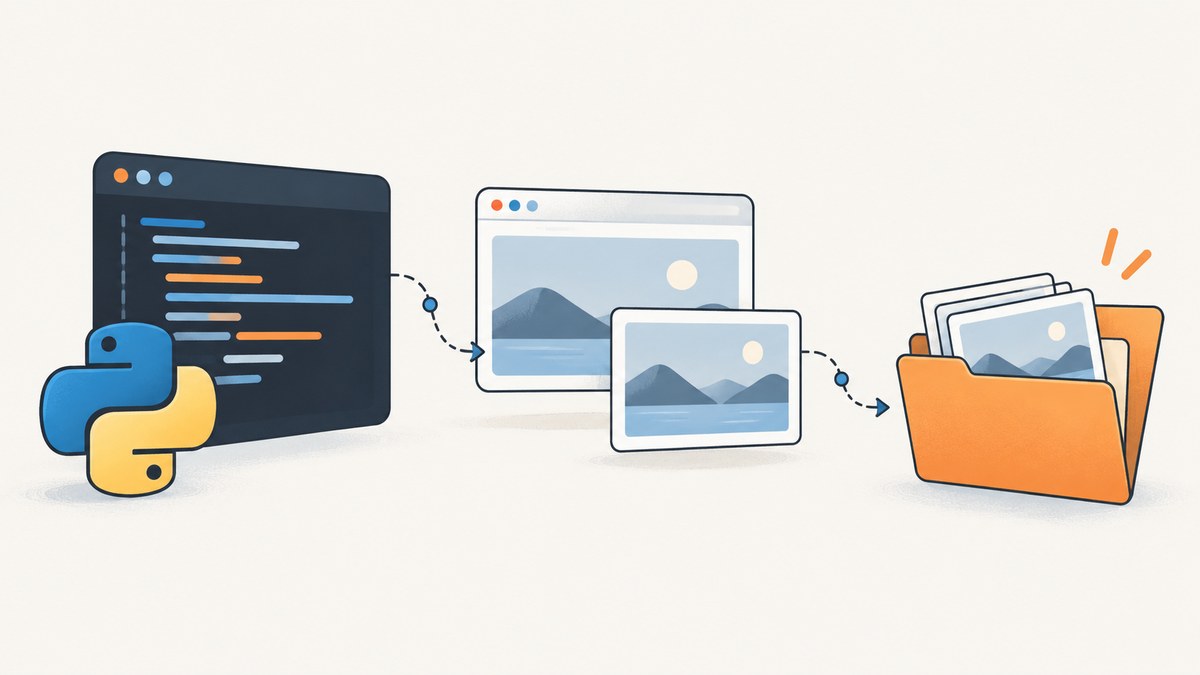
To save a Selenium screenshot in a specific directory, create that directory if it does not exist, build the screenshot filename inside it, then pass that path to driver.save_screenshot(). Check the method’s Boolean return value: True means Selenium wrote the PNG; False means the write failed.
from pathlib import Path
from selenium import webdriver

screenshot_dir = Path("screenshots")
screenshot_dir.mkdir(parents=True, exist_ok=True)
screenshot_path = screenshot_dir / "page.png"

driver = webdriver.Chrome()
try:
    driver.get("https://example.com")
    saved = driver.save_screenshot(str(screenshot_path))
    if not saved:
        raise OSError(f"Could not save screenshot to {screenshot_path}")
finally:
    driver.quit()
The key is that the directory belongs in the filename argument. Selenium does not select a screenshot folder through a separate setting, and it does not create missing parent folders for you. Selenium’s Python API documents save_screenshot(filename) as saving the current window to a PNG and recommends a full path for a specific location. Python’s pathlib provides the directory creation and path composition used above.
1. Build the destination path
Path("screenshots") describes a folder named screenshots. The / operator joins it to page.png using the correct separator for the current operating system. Then mkdir(parents=True, exist_ok=True) creates the folder and any missing parent folders. If the folder already exists, the call succeeds without raising an error.
Pass the completed path to Selenium. Converting it to str is a conservative choice that works across Selenium releases. The method writes PNG data; use a .png suffix. A different extension does not convert the image to JPEG or another format.
| Destination style | Example | Use it when |
|---|---|---|
| Relative | Path("screenshots") / "page.png" |
The folder should live beneath the process’s current working directory. |
| Absolute | Path("/tmp/project/screenshots") / "page.png" |
You need an explicit location that does not depend on the working directory. |
| Configured | Path(output_dir) / "page.png" |
The directory should come from a command-line option, environment variable, or configuration file. |
A relative path is resolved from the Python process’s current working directory. That may differ from the directory containing your script: IDEs, notebooks, test runners, and CI jobs can start Python from different locations. To make the output location visible while debugging, print both the current directory and the resolved target:
from pathlib import Path

print("Working directory:", Path.cwd())
print("Screenshot target:", screenshot_path.resolve())
For a fixed directory, make the path absolute. On Windows, a raw string avoids interpreting backslashes as escape sequences:
from pathlib import Path

screenshot_dir = Path(r"C:\project\screenshots")
screenshot_dir.mkdir(parents=True, exist_ok=True)
screenshot_path = screenshot_dir / "page.png"
You can also use the platform’s normal path components rather than hard-coding separators. For example, Path("output") / "screenshots" is portable between Windows, macOS, and Linux. The actual absolute root should be chosen for the machine or runtime where the script executes.
2. Save after the browser reaches the page state you need
The path only controls where bytes are written. It does not determine what the browser has rendered. Navigate to the page and wait for the state you intend to capture before saving. Selenium’s screenshot method captures the current browser window; it does not wait for application-specific content by itself.
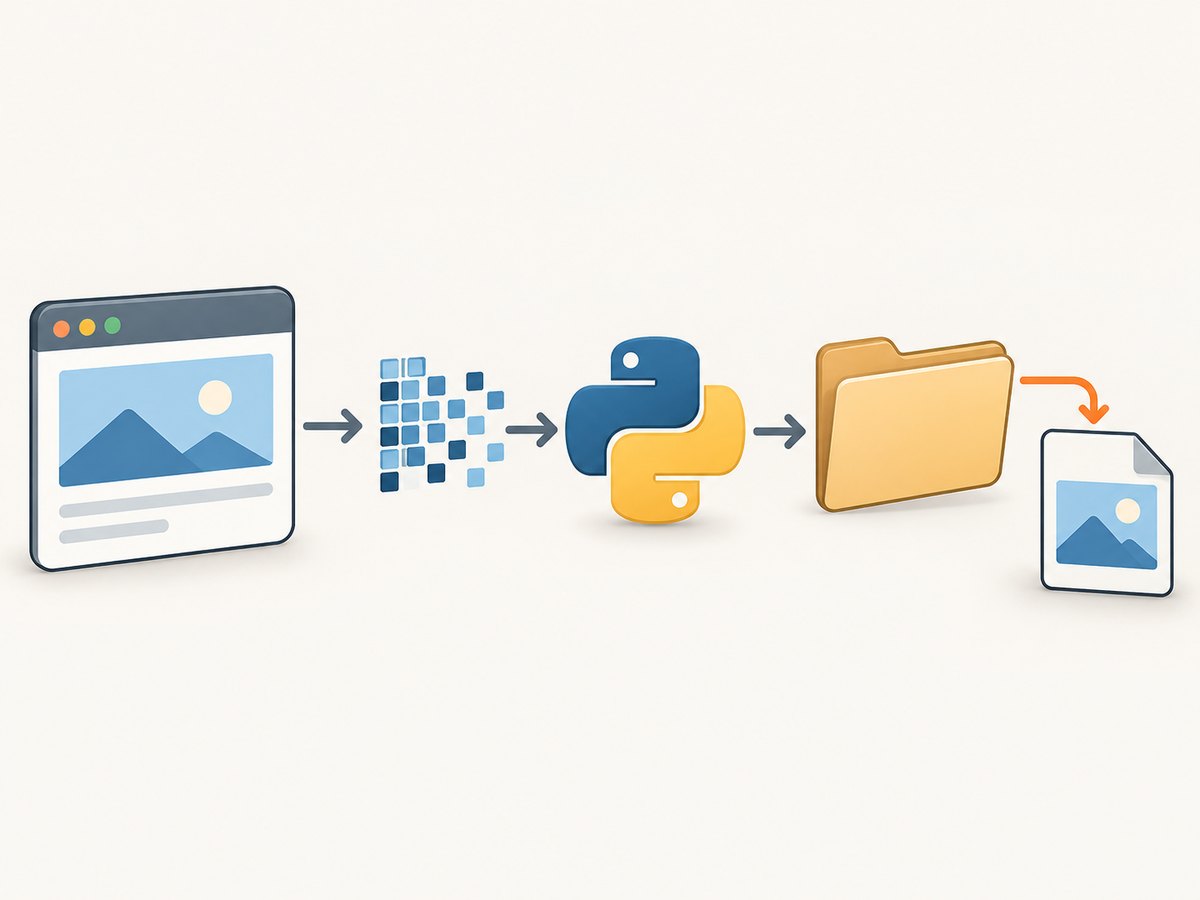
A robust script should create the output directory, save the screenshot, check the result, and close the browser even if navigation or the save fails. Here is a version using an explicit wait for a page element:
from pathlib import Path
from selenium import webdriver
from selenium.webdriver.common.by import By
from selenium.webdriver.support import expected_conditions as EC
from selenium.webdriver.support.ui import WebDriverWait

screenshot_dir = Path("artifacts") / "screenshots"
screenshot_dir.mkdir(parents=True, exist_ok=True)
screenshot_path = screenshot_dir / "example-home.png"

driver = webdriver.Chrome()
try:
    driver.get("https://example.com")
    WebDriverWait(driver, 15).until(
        EC.visibility_of_element_located((By.TAG_NAME, "h1"))
    )

    if not driver.save_screenshot(str(screenshot_path)):
        raise OSError(f"Screenshot write failed: {screenshot_path.resolve()}")

    print(f"Saved screenshot to {screenshot_path.resolve()}")
finally:
    driver.quit()
The wait in this example is a page-readiness choice, not a requirement for saving. Replace the heading locator with a condition meaningful to your page. If the page’s relevant content appears asynchronously, waiting only for navigation to finish can still capture an incomplete state.
Choose whether relative paths follow the launch directory or the script
For scripts that should save beside their own source file regardless of where they are launched, derive the directory from __file__:
from pathlib import Path

script_dir = Path(__file__).resolve().parent
screenshot_dir = script_dir / "screenshots"
screenshot_dir.mkdir(parents=True, exist_ok=True)
This pattern works for ordinary Python files. Interactive notebook environments do not necessarily define __file__; there, inspect Path.cwd() or provide an explicit output directory.
3. Save multiple screenshots without overwriting files
If a loop always saves to page.png, every iteration replaces the previous image. Include a stable identifier, sequence number, or timestamp in each filename. Avoid using raw page titles or URLs without sanitizing them: they may contain characters that are invalid in filenames, and long titles can make paths unwieldy.
from pathlib import Path
from selenium import webdriver

urls = [
    "https://example.com",
    "https://www.selenium.dev/",
]
screenshot_dir = Path("screenshots")
screenshot_dir.mkdir(parents=True, exist_ok=True)

driver = webdriver.Chrome()
try:
    for index, url in enumerate(urls, start=1):
        driver.get(url)
        screenshot_path = screenshot_dir / f"page-{index:03}.png"
        if not driver.save_screenshot(str(screenshot_path)):
            raise OSError(f"Could not save {screenshot_path.resolve()}")
finally:
    driver.quit()
This produces files such as page-001.png and page-002.png. If two workers may write into the same directory, use unique names or separate per-run subdirectories. Otherwise, concurrent runs can overwrite one another even when each individual save succeeds.
Using os.path instead of pathlib
pathlib is not required. The older os.path interfaces work as well. os.makedirs(..., exist_ok=True) creates missing parent directories, and os.path.join() composes the destination:
import os
from selenium import webdriver

screenshot_dir = os.path.join("artifacts", "screenshots")
os.makedirs(screenshot_dir, exist_ok=True)
screenshot_path = os.path.join(screenshot_dir, "page.png")

driver = webdriver.Chrome()
try:
    driver.get("https://example.com")
    if not driver.save_screenshot(screenshot_path):
        raise OSError(f"Could not save screenshot to {screenshot_path}")
finally:
    driver.quit()
4. Understand what “saved” means in local and remote runs
When Selenium runs locally, Python opens the supplied filename and writes the screenshot bytes there. In a container or CI runner, that path is inside the environment where the Python process runs. You may need to configure the runner to retain or upload the artifact before the job ends.
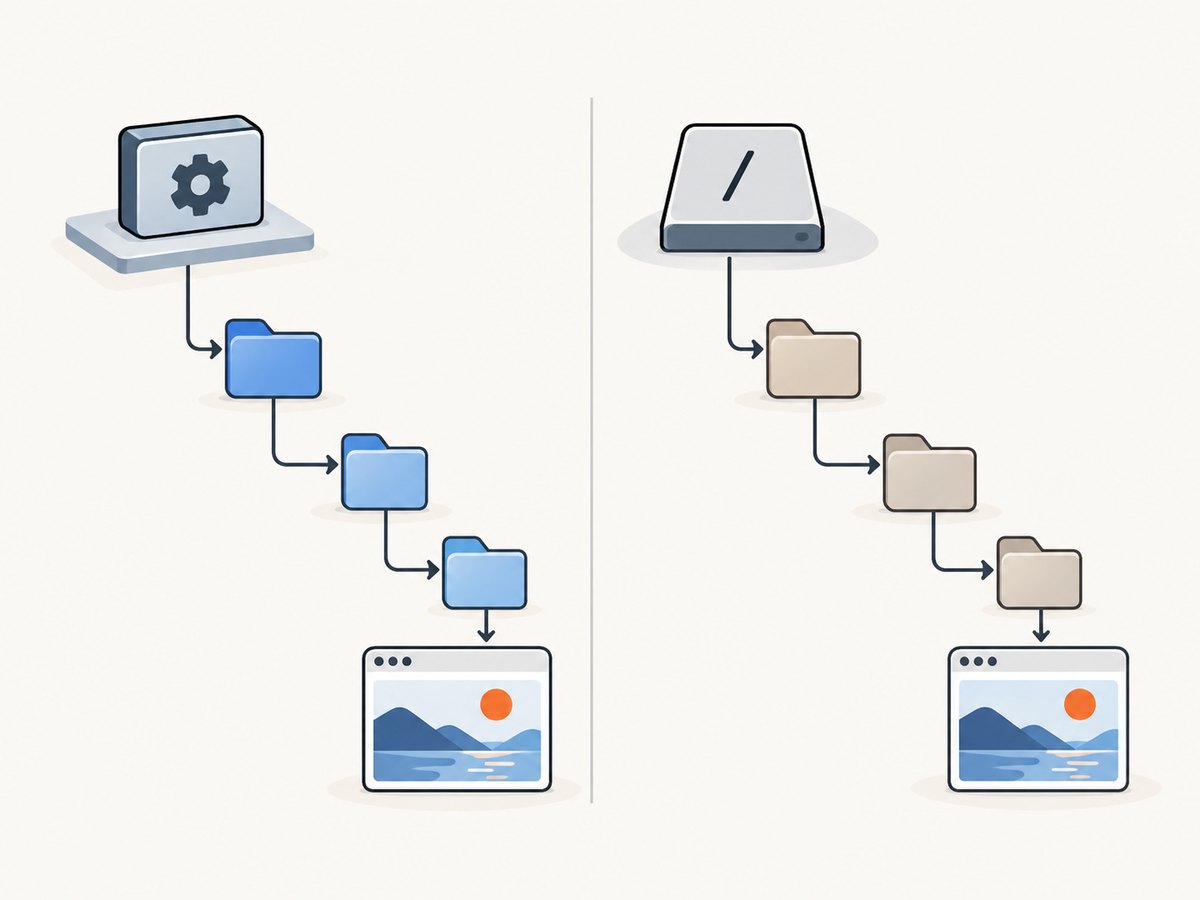
With a remote WebDriver setup, distinguish the machine running the Python client from the machine running the browser. The Python API method receives screenshot bytes from the WebDriver session and writes them through the Python-side file operation to the supplied path. Therefore, the destination is on the client process’s filesystem, not automatically a folder on the remote browser host. Confirm that you are inspecting the same container, VM, or mounted volume that runs Python.
File names should end in .png, because this Selenium method produces PNG output. The API’s Boolean result reports whether the write operation succeeded; it does not validate that you later opened the correct file or that the page content met your expectations.
5. Troubleshoot screenshots that do not appear
| Symptom | Likely cause | What to do |
|---|---|---|
| The screenshot appears in an unexpected folder | The path was relative to a different working directory than expected. | Print Path.cwd() and screenshot_path.resolve(). Use an absolute path or derive the folder from __file__. |
save_screenshot() returns False |
The write encountered an OSError, such as a missing directory or denied permission. |
Create parent directories first; check write permissions, available storage, and whether the destination path is a directory or otherwise blocked. |
A FileNotFoundError is raised |
The parent directory does not exist, or part of the path is invalid. | Call mkdir(parents=True, exist_ok=True) on the directory before saving, and check each path component. |
A PermissionError is raised |
The process cannot write to the chosen location. | Choose a writable directory or adjust the runtime’s filesystem permissions. In containers, verify that the mounted volume is writable. |
| The target filename has another extension but contains PNG bytes | The screenshot API produces PNG; the filename suffix does not request conversion. | Use .png. Convert separately with an image library if another format is required. |
The method returns True, but you cannot find the file |
You are inspecting a different working directory, filesystem, container, or job environment. | Log the absolute resolved path from the Python process and inspect that same environment. Ensure CI preserves the artifact. |
| The file exists but shows the wrong page state | The capture happened before the needed element or asynchronous content was ready. | Wait for a relevant element or application condition before calling save_screenshot(). |
| Repeated captures replace each other | Each call uses the same destination filename. | Add a sequence number, unique page key, or run-specific folder. |
For the “wrong place” case, log the full path immediately before saving:
print("cwd:", Path.cwd())
print("target:", screenshot_path.resolve())
saved = driver.save_screenshot(str(screenshot_path))
print("save result:", saved)
That separates a path-resolution problem from an actual write failure. Selenium’s implementation writes the returned screenshot bytes in binary mode and handles an OSError by returning False; the API source shows this behavior. A failed save is therefore a filesystem issue to investigate, while a screenshot that saved successfully but captured the wrong content is usually a browser timing or page-state issue.
6. Performance, reliability, and storage considerations
Saving one PNG locally is generally straightforward; operational problems tend to come from the surrounding workflow. Full-resolution screenshots can consume substantial disk space when captured at scale. Keep only the artifacts needed for debugging or records, use a retention policy for CI output, and avoid creating unbounded filenames in long-running jobs.
Use deterministic names when a run should replace the previous artifact, such as a single latest.png. Use unique names when you need to preserve every run. These goals conflict: overwriting controls directory growth, while unique names retain history. A practical compromise is one directory per test run and a known filename within it.
Make failures visible. Check the return value instead of assuming a call worked, and let a failure include the resolved destination in its exception message. If screenshots are important artifacts, write them to a directory that the environment retains, then verify the artifact upload separately. Selenium’s successful return indicates that the file write completed; it does not guarantee that an ephemeral CI directory will be preserved later.
For repeated capture workflows, be mindful of disk capacity and concurrent writes. A screenshot call also depends on the WebDriver session being alive and in the state you intend to record. If navigation or a wait fails, handle that browser failure separately from the screenshot write so logs identify which stage failed.
7. Or skip the browser setup
If you only need a screenshot and do not need Selenium to interact with the page, ScreenshotNeo provides a website screenshot API. One GET request supplies the URL and API key; see the ScreenshotNeo API documentation for options.
import requests

r = requests.get(
    "https://api.screenshotneo.com/v1/shot",
    params={"access_key": "YOUR_API_KEY", "url": "https://stripe.com"},
    timeout=90,
)
open("shot.webp", "wb").write(r.content)
ScreenshotNeo accepts cookie and consent banners like a visitor and removes more than 60 known consent platforms, newsletter popups, and chat widgets before capture; each step can be turned off. Bot checks, blank pages, timeouts, failed loads, and cache hits are not billed, and responses identify page verdict and billing status in headers. Its MCP server gives AI agents tools for screenshots, page information, and PDF capture. The Free plan includes 1,000 screenshots per month without a card; paid plans start at $5 for 3,000 screenshots.
Sign up free for 1,000 screenshots a month, no card required.
8. Frequently asked questions
Does Selenium save screenshots as JPEG?
driver.save_screenshot() writes PNG output. Use a .png filename. Renaming it to .jpg does not convert the image data.
Can I save a screenshot to a folder that does not exist yet?
Yes, after creating the folder first. Path.mkdir(parents=True, exist_ok=True) creates the directory tree and is safe when the directory already exists.
Does Selenium save the screenshot beside my Python file?
Not automatically. A relative path starts from the process’s current working directory. Use Path(__file__).resolve().parent when the output should be based on a script’s location.
What does a True return value prove?
It indicates the screenshot write succeeded at the path provided to the Python process. It does not prove that you are checking that same filesystem or that the captured page was fully ready.
Can I choose an arbitrary folder on the browser machine with remote WebDriver?
The Python method writes the screenshot bytes to the filename on the Python client side. Save to a client-visible directory or use an explicit shared storage workflow if another machine needs the result.


