How to Save Selenium Screenshots to a Destination File
Save Selenium screenshots to reliable PNG paths in Python, Java, JavaScript, Ruby and C#, with error handling, troubleshooting and a no-browser API option.
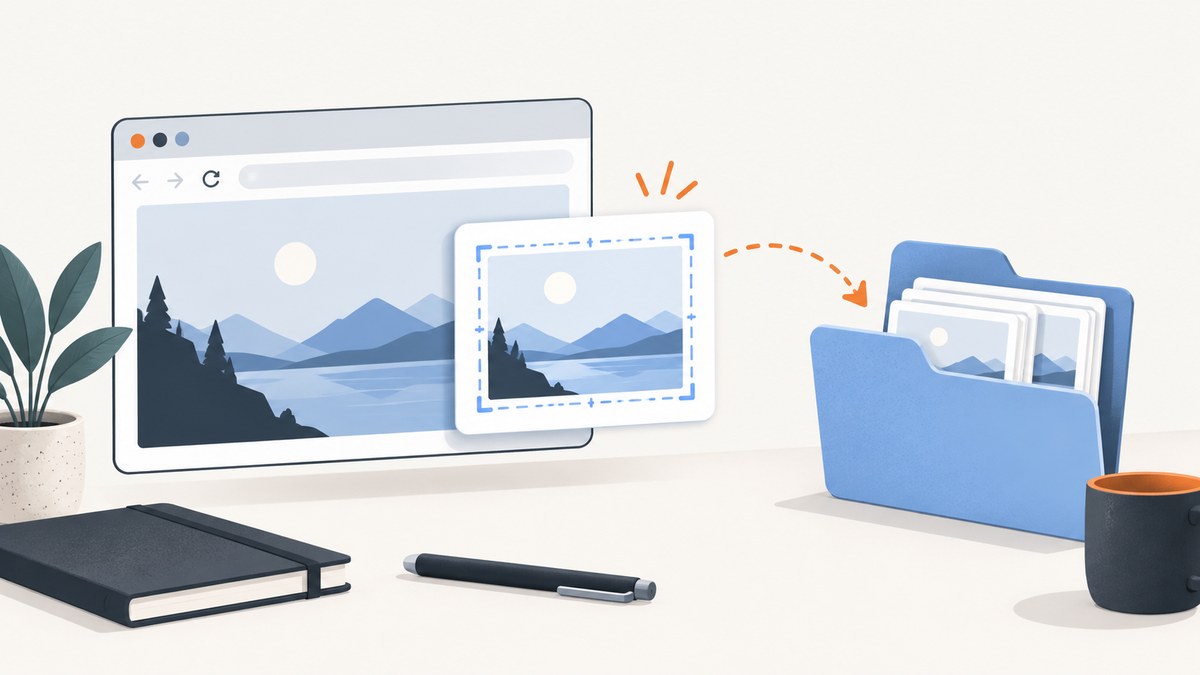
To save a Selenium screenshot to a destination file, call the binding’s screenshot method with a writable path. In Python, the direct solution is:
driver.save_screenshot('/absolute/path/to/screenshot.png')Use an existing, writable directory, prefer an absolute path, and check the Boolean return value. Selenium’s Python API documents this method as saving the current window to a PNG file and returning False when an I/O error prevents the save. See the official Python WebDriver API.
Python: save a screenshot to a destination file
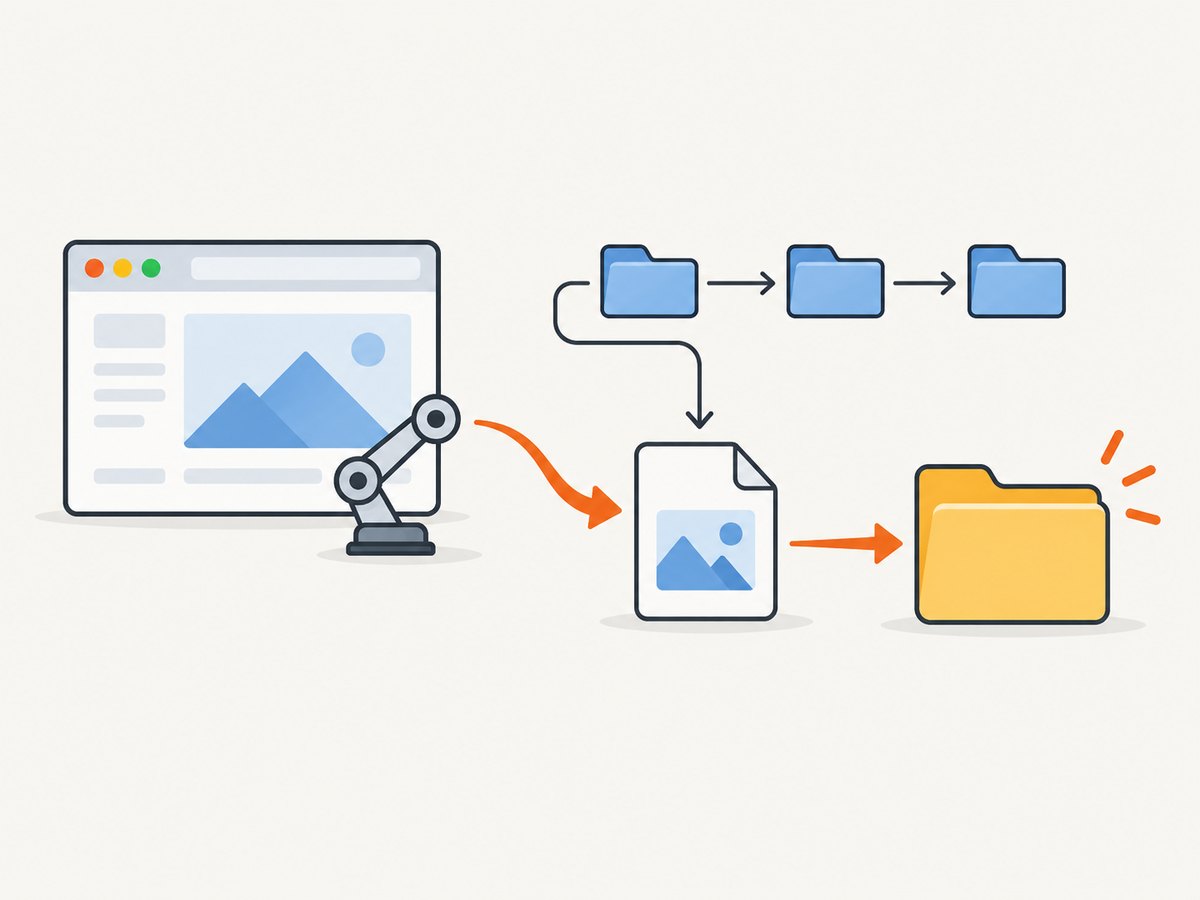
This complete example creates the destination directory, opens a page, saves the current browser window, checks the result, and always closes the driver:
from pathlib import Path
from selenium import webdriver

output = Path('/absolute/path/to/screenshots/page.png')
output.parent.mkdir(parents=True, exist_ok=True)

driver = webdriver.Chrome()
try:
    driver.get('https://example.com')
    saved = driver.save_screenshot(str(output))
    if not saved:
        raise OSError(f'Selenium could not write {output}')
    print(f'Screenshot saved to {output}')
finally:
    driver.quit()
Relative paths versus absolute paths
A relative path is resolved from the process’s current working directory, which may differ between a terminal, IDE, test runner and CI job. Use an absolute path when the destination matters:
from pathlib import Path

output = Path.cwd() / 'artifacts' / 'login.png'
output.parent.mkdir(parents=True, exist_ok=True)
driver.save_screenshot(str(output))
The filename should end in .png for Python’s file-saving methods. Selenium does not create missing parent directories, so create them yourself.
Save bytes or Base64 instead of writing directly
When an application uploads the image, stores it in object storage, or sends it elsewhere, use the byte or Base64 APIs:
png_bytes = driver.get_screenshot_as_png()
with open('/absolute/path/to/screenshots/page.png', 'wb') as file:
    file.write(png_bytes)

base64_png = driver.get_screenshot_as_base64()
get_screenshot_as_png() returns PNG bytes. get_screenshot_as_base64() returns a Base64 string. These alternatives avoid having Selenium perform the final file write, but your code must handle filesystem or storage errors.
Java: copy the temporary screenshot to your destination
In Java, OutputType.FILE returns a temporary file. Copy it to a durable destination before the JVM exits. Selenium’s examples use Apache Commons IO:
import java.io.File;
import org.apache.commons.io.FileUtils;
import org.openqa.selenium.OutputType;
import org.openqa.selenium.TakesScreenshot;
import org.openqa.selenium.WebDriver;
import org.openqa.selenium.chrome.ChromeDriver;

public class SaveScreenshot {
    public static void main(String[] args) throws Exception {
        WebDriver driver = new ChromeDriver();
        try {
            driver.get("https://example.com");
            File temporary = ((TakesScreenshot) driver)
                    .getScreenshotAs(OutputType.FILE);
            File destination = new File(
                    "/absolute/path/to/screenshots/page.png");
            FileUtils.copyFile(temporary, destination);
        } finally {
            driver.quit();
        }
    }
}
Create the parent directory before copying if it does not exist. The Java API also supports OutputType.BYTES and OutputType.BASE64. See the TakesScreenshot API and OutputType uses.
JavaScript and Node.js
Selenium’s JavaScript binding returns a Base64-encoded screenshot. Decode it and write the destination file with Node’s filesystem API:
const fs = require('node:fs/promises');
const { Builder } = require('selenium-webdriver');

(async () => {
  const output = '/absolute/path/to/screenshots/page.png';
  await fs.mkdir(require('node:path').dirname(output), { recursive: true });

  const driver = await new Builder().forBrowser('chrome').build();
  try {
    await driver.get('https://example.com');
    const base64 = await driver.takeScreenshot();
    await fs.writeFile(output, Buffer.from(base64, 'base64'));
    console.log(`Screenshot saved to ${output}`);
  } finally {
    await driver.quit();
  }
})();
Ruby and C#
The official Selenium browser-interactions examples use binding-specific destination methods:
driver.save_screenshot('./screenshots/page.png')((ITakesScreenshot)driver).GetScreenshot()
.SaveAsFile("screenshots/page.png", ScreenshotImageFormat.Png);For both bindings, make sure the directory exists and the process has write permission. The exact interface and image-format enum depend on the Selenium package version.
What Selenium captures
The ordinary screenshot call captures the current browsing context or window. It does not automatically promise a full-page image. Full-page behavior varies by browser, driver, Selenium version and binding. Element screenshots are a separate capability where supported:
element = driver.find_element('css selector', 'main')
element.screenshot('/absolute/path/to/screenshots/main.png')
If you need the entire document, verify the full-page support and semantics of your chosen browser and binding instead of assuming that a viewport screenshot includes content below the fold. Lazy-loaded content may also require scrolling or an explicit wait before capture.
Reliable destination-file checklist
- Choose a path with the intended extension, normally
.png. - Create the parent directory before calling the screenshot method.
- Use an absolute path in CI, containers and test runners.
- Confirm the process user can write to the directory.
- Wait for navigation and important page content before capture.
- Check Python’s Boolean return value, or catch the binding’s file and driver exceptions.
- Close the driver in a
finallyblock so browser processes do not accumulate. - Use unique names when parallel tests could write the same file.
Common errors and fixes
| Error or symptom | Cause | Fix |
|---|---|---|
Python returns False |
Filesystem I/O failed. | Check the parent directory, permissions, disk space and path. Raise an error instead of treating the save as successful. |
FileNotFoundError or missing output |
The destination directory does not exist, or a relative path resolved somewhere unexpected. | Create the directory and print or log the absolute path. |
PermissionError |
The account running the browser cannot write there. | Choose a writable workspace or adjust directory ownership and permissions. |
| Java file disappears | OutputType.FILE is temporary. |
Copy it to the final path immediately with FileUtils.copyFile or equivalent. |
| Image is blank or incomplete | Capture happened before navigation, rendering or lazy loading finished. | Wait for a specific element, document state, or an application-ready condition before saving. |
| Only the visible viewport appears | Current-window capture is not the same as full-page capture. | Use a supported full-page technique for your browser and binding, or capture and stitch deliberately. |
| Screenshot has the wrong tab | The driver is attached to another window handle. | Switch to the intended window before calling the screenshot method. |
| Parallel tests overwrite files | Workers use the same destination name. | Include a test ID, timestamp or worker ID in each filename. |
Timing, performance and reliability
Wait for the state you need
A screenshot records the state at the instant Selenium captures it. A page-load return does not guarantee that fonts, animations, API data or lazy images are ready. Prefer an explicit wait for the element or state that matters. Disable or finish animations when visual consistency is important.

Keep files manageable
PNG is lossless and is the expected format for Python’s direct save method. Large viewport dimensions and high device scale factors produce larger files and use more memory. Capture only the viewport or element you need, and compress or convert after the capture when your workflow permits.
Make writes atomic when consumers watch the directory
If another process immediately picks up new files, write to a temporary name and rename after the write completes. This prevents consumers from opening a partially written file.
from pathlib import Path
import os

final = Path('/absolute/path/to/screenshots/page.png')
temporary = final.with_suffix('.tmp.png')
driver.save_screenshot(str(temporary))
os.replace(temporary, final)
CI and containers
Use a known workspace path, create it at job startup, and publish that directory as an artifact. Headless browser configuration, sandbox settings and driver versions must match the environment; a successful local path does not prove that the CI user can write the same location.
Or skip the browser setup
ScreenshotNeo provides a GET-based screenshot API when you need a destination image without managing WebDriver, browser binaries and drivers. The API accepts a URL and returns PNG, JPEG, WebP or PDF. See the ScreenshotNeo API documentation.
curl -G "https://api.screenshotneo.com/v1/shot" -d access_key=YOUR_API_KEY --data-urlencode url=https://stripe.com -o shot.webpimport requests
r = requests.get("https://api.screenshotneo.com/v1/shot", params={"access_key": "YOUR_API_KEY", "url": "https://stripe.com"}, timeout=90)
open("shot.webp", "wb").write(r.content)const q = new URLSearchParams({ access_key: 'YOUR_API_KEY', url: 'https://stripe.com' });
const res = await fetch(`https://api.screenshotneo.com/v1/shot?${q}`);Before capture, ScreenshotNeo accepts cookie and consent banners and removes more than 60 known consent platforms, newsletter popups and chat widgets; each step can be turned off. Bot checks, blank pages, timeouts, failed loads and cache hits are not billed, and response headers identify the page verdict and billing status. Its MCP server provides take_screenshot, get_page_info and capture_pdf for Claude, Cursor and other MCP clients. The free plan includes 1,000 screenshots per month with no card; paid plans start at $5 for 3,000 shots. Create a free ScreenshotNeo account.
Cost and operational considerations
- Selenium itself does not charge per screenshot, but you operate browser processes, drivers, CPU, memory, storage and CI minutes.
- Persist only the files your workflow needs and clean up temporary artifacts.
- For an API workflow, account for request volume, response storage, retries and cache behavior. ScreenshotNeo lets you choose a cache TTL; cache hits are not billed.
- Use retries for transient navigation failures, but avoid blindly repeating a bad URL or authentication failure.
FAQ
Does save_screenshot save JPEG or WebP?
The Python file-saving method is documented for PNG. Convert the resulting bytes afterward if another format is required.
Why should I check the return value?
Python returns False when an I/O error prevents writing the file, so checking it distinguishes a completed capture from a failed save.
Can I save an element instead of the window?
Use the element screenshot method supported by your binding, such as Python’s element.screenshot(path). Its dimensions and browser support differ from a window screenshot.
Is a Java screenshot file permanent?
Not when it comes from OutputType.FILE. Copy the temporary file to your destination before the JVM exits.
When is an API preferable to Selenium?
An API is useful when you want a URL-to-image request without provisioning a browser and when built-in handling for consent banners, popups, failed loads, caching or agent workflows saves application code.


