How to Save JavaScript Selenium Screenshots to a Different Directory
Save JavaScript Selenium screenshots anywhere by creating the directory, decoding Selenium’s Base64 PNG, and writing it with Node.js.

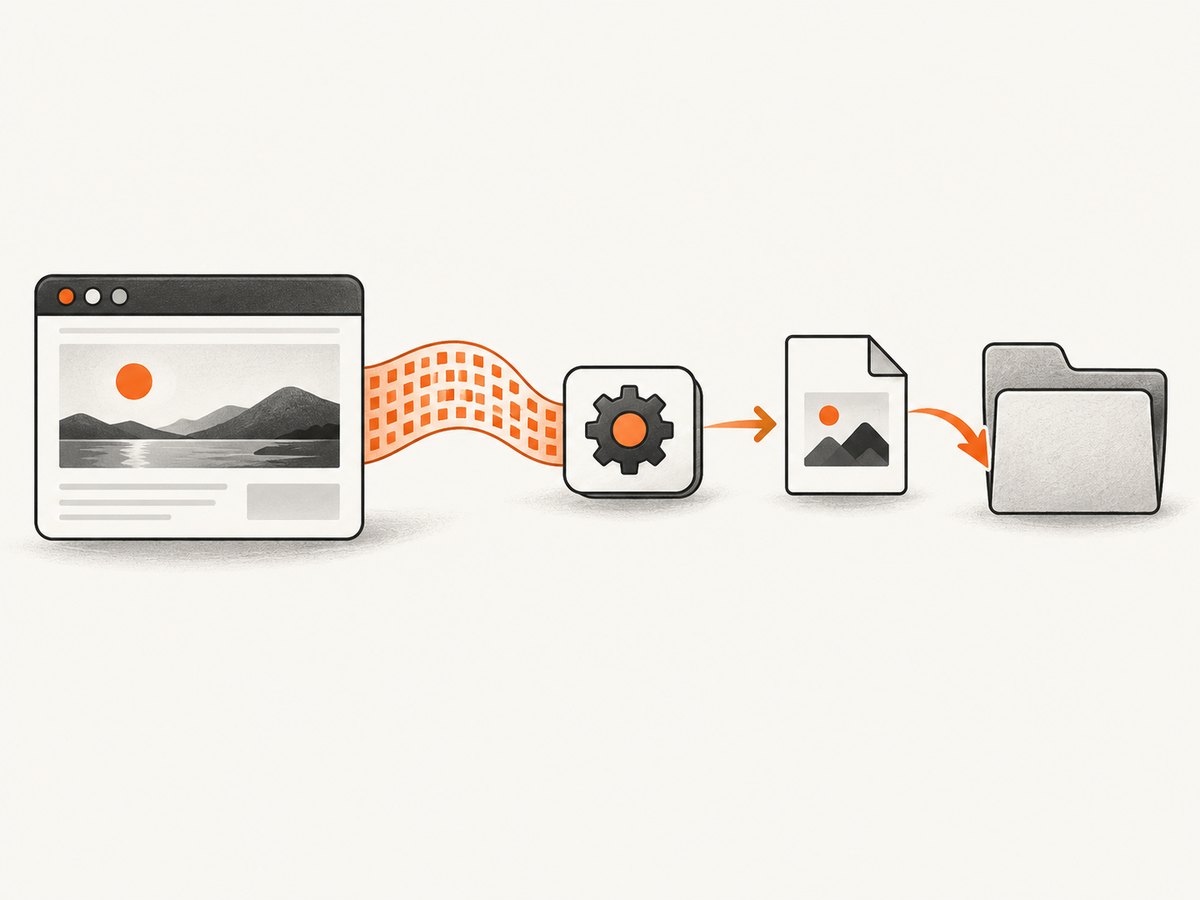
Direct answer: Selenium’s await driver.takeScreenshot() returns a Base64-encoded PNG string. Create the destination directory, then write that string to the desired path with Node.js using the 'base64' encoding.
const fs = require('node:fs/promises');
const path = require('node:path');
const { Builder } = require('selenium-webdriver');

async function capture() {
  const driver = await new Builder().forBrowser('chrome').build();
  const outputDir = path.resolve(process.cwd(), 'artifacts', 'screenshots');
  const outputFile = path.join(outputDir, 'page.png');

  try {
    await driver.get('https://example.com');
    const base64Png = await driver.takeScreenshot();
    await fs.mkdir(outputDir, { recursive: true });
    await fs.writeFile(outputFile, base64Png, 'base64');
    console.log(`Screenshot saved to ${outputFile}`);
  } finally {
    await driver.quit();
  }
}

capture().catch((error) => {
  console.error(error);
  process.exitCode = 1;
});
The important details are the destination path, directory creation, and Base64 decoding. Selenium documents the result as “the screenshot as a base-64 encoded PNG,” and its JavaScript example writes it with fs.writeFileSync('./image.png', encodedString, 'base64'). See the WebDriver API reference and Selenium screenshot examples.
1. Install Selenium and prepare the script
Create a project and install the JavaScript Selenium binding:
mkdir selenium-directory-shot
cd selenium-directory-shot
npm init -y
npm install selenium-webdriver
You also need a browser and its WebDriver support available to Selenium. The example uses Chrome. Change forBrowser('chrome') if your setup uses another supported browser.
2. Choose the output directory
There are two common approaches:
| Approach | Example | Best for |
|---|---|---|
| Relative path | ./screenshots/page.png |
Small scripts and local experiments |
| Resolved path | path.resolve(process.cwd(), 'artifacts', 'screenshots') |
Builds, CI jobs, and scripts where the base directory should be visible |
| Absolute path | /var/tmp/browser-shots/page.png |
Known deployment locations |
A relative path is resolved from Node’s current working directory, available as process.cwd(). That directory may differ from the folder containing your JavaScript file, especially when a task runner or CI system starts the process. Resolve the path deliberately when the location matters.
Create missing parent directories
File-writing APIs do not create every missing parent directory. Call mkdir with { recursive: true } first. Node’s filesystem documentation explains that recursive directory creation tolerates an existing directory; see the Node.js file-system documentation.
3. Complete asynchronous implementation
This version navigates, captures, creates the directory, writes the PNG, logs the resolved path, and always closes WebDriver:
const fs = require('node:fs/promises');
const path = require('node:path');
const { Builder } = require('selenium-webdriver');

async function saveScreenshot() {
  const driver = await new Builder().forBrowser('chrome').build();
  const outputDir = path.resolve(__dirname, 'artifacts', 'screenshots');
  const outputFile = path.join(outputDir, 'example-com.png');

  try {
    await driver.get('https://example.com');
    const encodedPng = await driver.takeScreenshot();

    await fs.mkdir(outputDir, { recursive: true });
    await fs.writeFile(outputFile, encodedPng, 'base64');

    return outputFile;
  } finally {
    await driver.quit();
  }
}

saveScreenshot()
  .then((file) => console.log(`Saved screenshot to ${file}`))
  .catch((error) => {
    console.error('Screenshot failed:', error);
    process.exitCode = 1;
  });
__dirname points to the directory of this CommonJS module. process.cwd() points to the directory from which Node was launched. Use whichever base matches your project’s artifact layout.
4. Synchronous version for a one-off script
Selenium’s documentation shows the synchronous filesystem form. Create the directory first, then decode the Base64 string while writing:
const fs = require('node:fs');
const path = require('node:path');
const { Builder } = require('selenium-webdriver');

(async () => {
  const driver = await new Builder().forBrowser('chrome').build();
  const outputDir = path.resolve(process.cwd(), 'screenshots');
  const outputFile = path.join(outputDir, 'image.png');

  try {
    await driver.get('https://example.com');
    const encodedString = await driver.takeScreenshot();
    fs.mkdirSync(outputDir, { recursive: true });
    fs.writeFileSync(outputFile, encodedString, 'base64');
    console.log(outputFile);
  } finally {
    await driver.quit();
  }
})();
Synchronous writing is concise, but it blocks the Node.js event loop while the file is written. Promise-based filesystem calls are generally a better fit for a larger asynchronous capture job.
5. Save screenshots with generated names
When capturing several pages, avoid overwriting the same file. Generate a safe name and keep the extension consistent with Selenium’s PNG output:
const safeName = 'example-com';
const outputFile = path.join(outputDir, `${safeName}-${Date.now()}.png`);
await fs.writeFile(outputFile, await driver.takeScreenshot(), 'base64');
For user-controlled URLs or titles, sanitize path separators, reserved names, and characters that your operating system does not allow. Keeping the URL in metadata or a manifest is safer than placing the raw URL in a filename.
6. Capture one element instead of the whole page
To save an element screenshot, locate the element and call its screenshot method:

const header = await driver.findElement({ css: 'header' });
const encodedPng = await header.takeScreenshot(true);
await fs.mkdir(outputDir, { recursive: true });
await fs.writeFile(path.join(outputDir, 'header.png'), encodedPng, 'base64');
The same Base64 decoding and directory rules apply. The boolean argument in Selenium’s JavaScript example requests an element screenshot. A full-page screenshot and an element screenshot are different operations: the latter is bounded by the rendered element.
7. Wait for the browser state you need
driver.get() waits for navigation according to the WebDriver page-load strategy, but applications can continue rendering after navigation. If a screenshot is blank or incomplete, wait for a condition that represents readiness, such as a visible selector:
const { until } = require('selenium-webdriver');

await driver.get('https://example.com');
const app = await driver.wait(
  until.elementLocated({ css: '#app' }),
  10000,
  'The application root did not appear'
);
await driver.wait(until.elementIsVisible(app), 10000);
const encodedPng = await driver.takeScreenshot();
Use a condition tied to the page rather than an arbitrary delay where possible. If a page has animations, fonts, lazy images, or data loaded after the main document, wait for the specific state your screenshot requires.
8. Troubleshooting
| Symptom | Cause | Fix |
|---|---|---|
| Image is corrupted or contains unreadable data | The Base64 string was written as UTF-8 text | Pass 'base64' to writeFile or writeFileSync. |
ENOENT or “no such file or directory” |
A parent directory does not exist | Run await fs.mkdir(outputDir, { recursive: true }) before writing. |
| File appears in the wrong folder | A relative path is based on the process working directory | Log process.cwd() and the resolved output path, or use path.resolve(). |
| Screenshot shows the old page or a loading state | Capture ran before the application finished rendering | Wait for a meaningful selector, state change, or other page-specific readiness condition. |
| Only part of the page is captured | The browser viewport screenshot is not the same as a full-page capture | Use the browser and Selenium capabilities available in your setup, or capture the relevant element separately. |
| WebDriver remains running after failure | An exception occurred before cleanup | Put capture and file operations inside try and call driver.quit() in finally. |
| Two captures overwrite each other | Both writes use the same filename | Generate unique names or create a directory per job. |
| Permission denied | The destination is not writable by the Node process | Choose a writable directory and check its ownership and permissions. |
9. Reliability and performance checklist
- Create the output directory once before a batch of captures.
- Use promise-based filesystem calls when captures run concurrently.
- Limit concurrency so browser processes and disk writes do not overwhelm the host.
- Always close each driver in a
finallyblock. - Use deterministic filenames or a manifest when screenshots are build artifacts.
- Log the resolved output path and the URL associated with each image.
- Wait for application-specific readiness instead of relying only on a fixed sleep.
- Keep temporary screenshots on local storage and upload them after the write completes if another system consumes them.
The screenshot itself is PNG data returned by WebDriver, so file size and write time depend on the rendered image and destination storage. Selenium and Node do not provide a separate screenshot billing model; your costs come from the browser, compute, storage, and any remote WebDriver service you operate.
10. Or skip the browser setup
If you only need a clean website screenshot file, ScreenshotNeo provides a single HTTP request instead of a Selenium browser process. Before capture it accepts cookie or consent banners and removes more than 60 known consent platforms, newsletter popups, and chat widgets. Bot checks, CAPTCHAs, blank pages, timeouts, failed loads, and cache hits are not billed, and each response identifies the result with X-Page-Verdict and X-Billed headers. It also offers an MCP server with take_screenshot, get_page_info, and capture_pdf tools for Claude, Cursor, and other MCP clients.
See the ScreenshotNeo API documentation for all options. A minimal request looks like this:
curl -G "https://api.screenshotneo.com/v1/shot" -d access_key=YOUR_API_KEY --data-urlencode url=https://stripe.com -o shot.webpimport requests
r = requests.get(
"https://api.screenshotneo.com/v1/shot",
params={"access_key": "YOUR_API_KEY", "url": "https://stripe.com"},
timeout=90,
)
r.raise_for_status()
open("shot.webp", "wb").write(r.content)const q = new URLSearchParams({ access_key: 'YOUR_API_KEY', url: 'https://stripe.com' });
const res = await fetch(`https://api.screenshotneo.com/v1/shot?${q}`);
if (!res.ok) throw new Error(`Screenshot failed: ${res.status}`);
const image = Buffer.from(await res.arrayBuffer());
require('node:fs').writeFileSync('shot.webp', image);ScreenshotNeo supports full-page capture, CSS element selection, dark mode, device presets and custom viewports, retina scale, PDF output, custom CSS and JavaScript, click and wait actions, ad and tracker blocking, custom headers and cookies, timezone and geolocation, transparent backgrounds, resizing, selectable cache TTLs, signed image links, asynchronous jobs with signed webhooks, bulk capture for up to 100 URLs per call, and a usage API. Every feature is available on every plan. The Free plan includes 1,000 shots per month with no card; paid plans start at $5 for 3,000 shots. Create a free ScreenshotNeo account.
11. FAQ
Does Selenium return a file path?
No. takeScreenshot() returns a promise resolving to a Base64-encoded PNG string. Your code chooses the destination path.
Can I save as JPEG or WebP?
The Selenium API described here returns PNG data. Convert the resulting file with an image-processing tool if another format is required.
Why does my relative path change between commands?
Relative paths use the Node process’s current working directory. A shell, test runner, IDE, or CI job can start the process from a different directory.
Should I use fs/promises or synchronous fs?
Use promise-based calls for normal asynchronous automation and batches. Synchronous calls are convenient for a short one-off script.
Can I save an element screenshot to another directory?
Yes. Call the element’s takeScreenshot(), create the target directory, and write the returned Base64 string with the 'base64' encoding.


