How to Save Selenium Screenshots to a Folder in Python
Create a screenshots folder, save Selenium PNGs to predictable paths, and handle element captures, CI artifacts, and common file errors in Python.
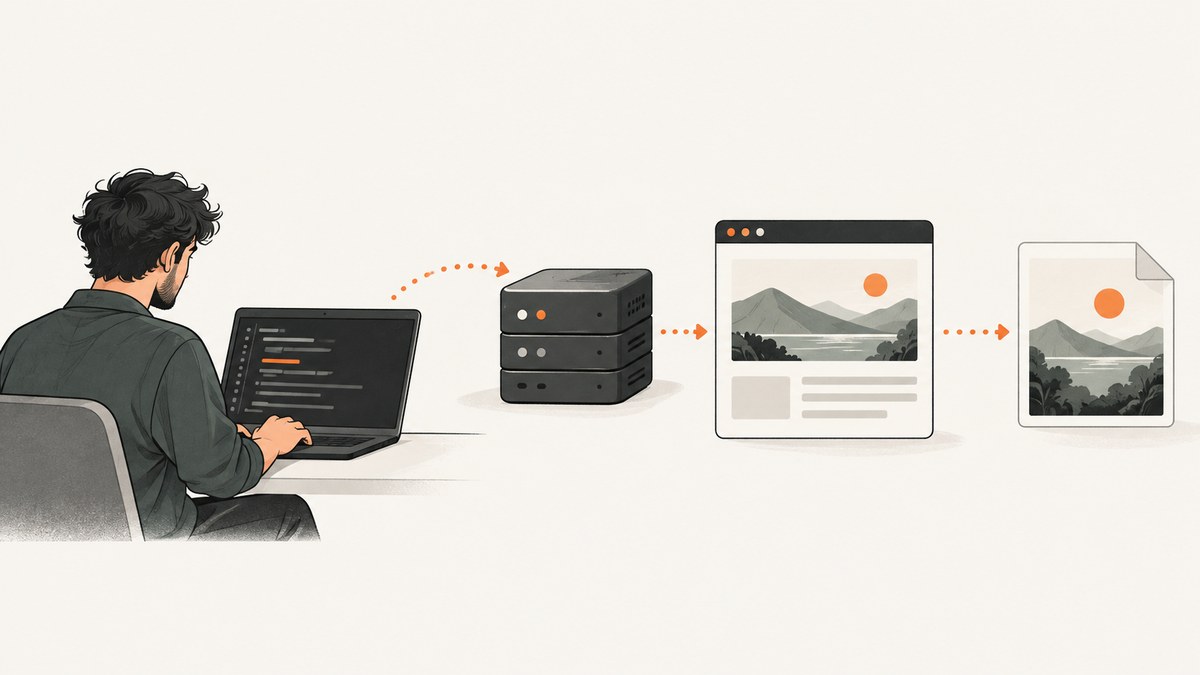
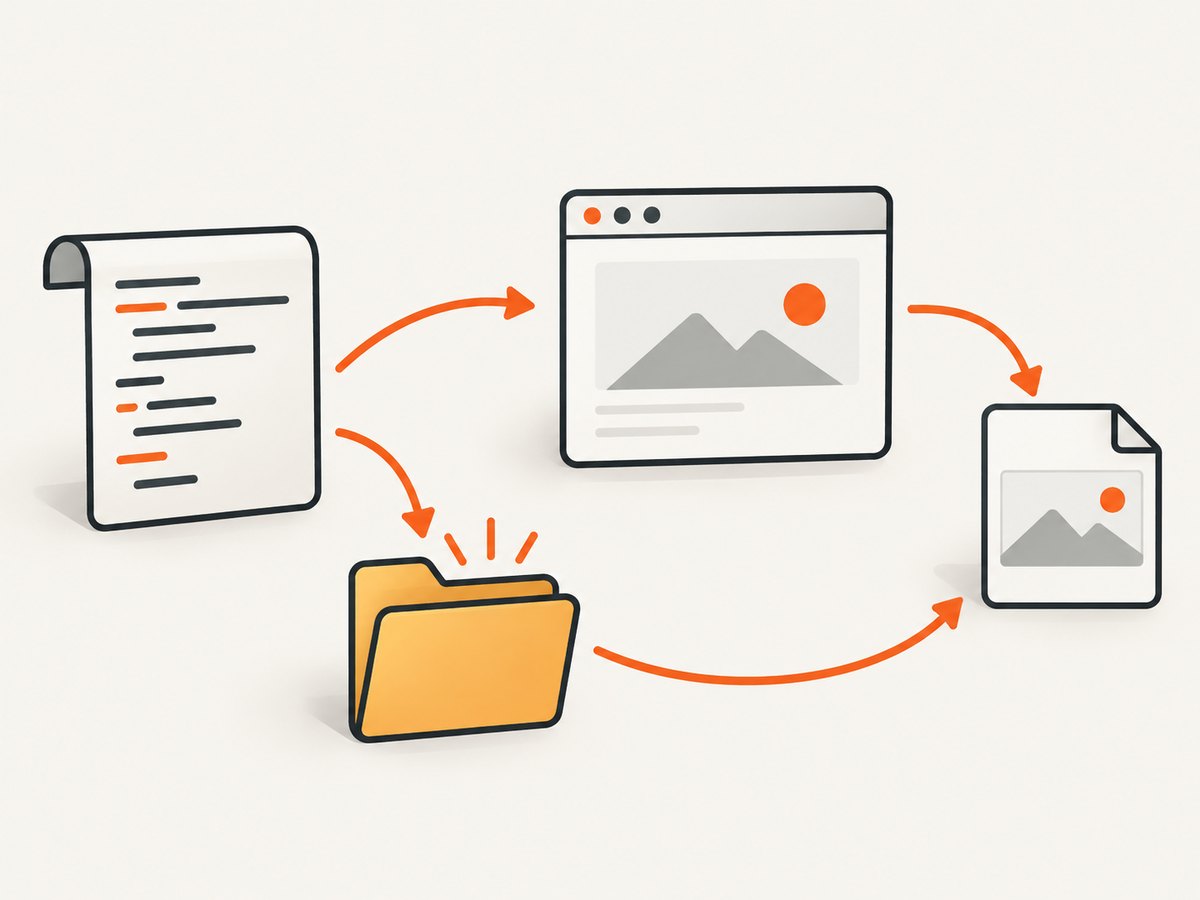
To save a Selenium screenshot in Python, create the destination directory, build a filename ending in .png, then pass its path to driver.save_screenshot(). The method captures the current browser window and returns True when the file is written or False when an I/O error prevents saving. It does not create missing parent folders for you. [Selenium WebDriver API]
from pathlib import Path
from selenium import webdriver

screenshot_dir = Path("screenshots")
screenshot_dir.mkdir(parents=True, exist_ok=True)

 driver = webdriver.Chrome()
try:
    driver.get("https://example.com")
    output = screenshot_dir / "example.png"
    saved = driver.save_screenshot(str(output))
    if not saved:
        raise OSError(f"Selenium could not save {output}")
finally:
    driver.quit()
There is one leading space before driver in that block? No: copy the code as shown below, where the driver line is aligned with the other top-level statements:
from pathlib import Path
from selenium import webdriver

screenshot_dir = Path("screenshots")
screenshot_dir.mkdir(parents=True, exist_ok=True)

driver = webdriver.Chrome()
try:
    driver.get("https://example.com")
    output = screenshot_dir / "example.png"
    saved = driver.save_screenshot(str(output))
    if not saved:
        raise OSError(f"Selenium could not save {output}")
finally:
    driver.quit()
Install Selenium and ensure a compatible browser and driver are available in your environment. For Selenium’s current setup and API details, see the official Selenium documentation. The destination here is relative to the process working directory, so a CI job may write the file somewhere other than the directory you expect.
1. Make the destination folder and save a PNG
Use pathlib.Path to compose paths without manually adding platform-specific separators. mkdir(parents=True, exist_ok=True) creates the directory and any missing parents, and does not fail if the directory already exists.

from pathlib import Path
from selenium import webdriver

folder = Path("artifacts") / "screenshots"
folder.mkdir(parents=True, exist_ok=True)

with webdriver.Chrome() as driver:
    driver.get("https://example.com")
    file_path = folder / "home.png"
    if not driver.save_screenshot(str(file_path)):
        raise OSError(f"Screenshot was not saved: {file_path.resolve()}")
    print(f"Saved: {file_path.resolve()}")
Passing str(file_path) works across Selenium versions that expect a string path. The filename should include the directory and end in .png; Selenium’s API describes the filename as the full path to a PNG file and its examples include ./screenshots/foo.png. [WebDriver API, Selenium screenshot example]
Know where a relative path points
A path like screenshots/home.png is interpreted from Python’s current working directory, not automatically from the directory containing the script. Print Path.cwd() to see that directory. If you need a stable location, construct an absolute path:
from pathlib import Path

output = Path.cwd() / "artifacts" / "screenshots" / "home.png"
output.parent.mkdir(parents=True, exist_ok=True)
print(output.resolve())
For a script whose output should live alongside the script, derive the root from __file__ instead of relying on how the command was launched:
from pathlib import Path

project_root = Path(__file__).resolve().parent
output = project_root / "artifacts" / "screenshots" / "home.png"
output.parent.mkdir(parents=True, exist_ok=True)
2. Choose the right screenshot scope
driver.save_screenshot() captures the current browser window. It should not be treated as a promise to capture the whole scrollable document; content below the viewport may be absent. Selenium also has element-level screenshot support, and its Python reference documents a separate full-document screenshot capability for Firefox. [WebDriver API, WebElement API]
| Need | Use | What to expect |
|---|---|---|
| Visible browser window | driver.save_screenshot(path) |
PNG of the current window |
| One rendered element | element.screenshot(path) |
PNG cropped to that element |
| Entire long page | Browser-specific full-document support or another capture approach | Behavior and browser support vary; verify against your browser and Selenium version |
Save one element
Locate the element first, wait until it is present and visible when the page is dynamic, and then call its screenshot method:
from pathlib import Path
from selenium import webdriver
from selenium.webdriver.common.by import By
from selenium.webdriver.support import expected_conditions as EC
from selenium.webdriver.support.ui import WebDriverWait

folder = Path("screenshots")
folder.mkdir(parents=True, exist_ok=True)

with webdriver.Chrome() as driver:
    driver.get("https://example.com")
    button = WebDriverWait(driver, 10).until(
        EC.visibility_of_element_located((By.CSS_SELECTOR, "button"))
    )
    if not button.screenshot(str(folder / "button.png")):
        raise OSError("Element screenshot could not be saved")
Element screenshots are useful for focused visual checks and documentation. If the element is offscreen, stale, covered, or not yet rendered, resolve that condition before capture. Selenium’s Python bindings document a separate screenshot method on WebElement. [WebElement API]
3. Save multiple captures without accidental overwrites
A fixed filename is convenient for a test that should replace its previous artifact. When keeping multiple runs, include a test identifier or a timestamp. Use UTC timestamps to make filenames predictable across machines:
from datetime import datetime, timezone
from pathlib import Path

folder = Path("artifacts/screenshots")
folder.mkdir(parents=True, exist_ok=True)
stamp = datetime.now(timezone.utc).strftime("%Y%m%dT%H%M%SZ")
file_path = folder / f"checkout-{stamp}.png"

if not driver.save_screenshot(str(file_path)):
    raise OSError(f"Screenshot write failed: {file_path.resolve()}")
In a parallel test suite, timestamps alone can still collide if captures occur within the same second. Add a test name, worker identifier, or unique run ID. Keep names descriptive enough to map an artifact back to its failing test. Decide whether repeated runs should overwrite output or preserve history; either behavior is reasonable when it is deliberate.
Check that capture actually succeeded
The WebDriver API returns a Boolean, and the Python implementation writes PNG bytes to a binary file and returns False when an OSError occurs. Always inspect the return value in automation that depends on the artifact. [WebDriver API, Selenium Python source]
saved = driver.save_screenshot(str(file_path))
if not saved:
    raise RuntimeError(f"Could not write screenshot to {file_path.resolve()}")
This makes a missing screenshot fail visibly instead of leaving a test report that points to an artifact that does not exist.
4. Wait for the page state you want to capture
Calling screenshot immediately after navigation can capture a loading state, a skeleton, or content before an asynchronous update. Wait for a page-specific condition rather than sleeping for an arbitrary long interval. For example, wait for a visible heading:
from selenium.webdriver.common.by import By
from selenium.webdriver.support import expected_conditions as EC
from selenium.webdriver.support.ui import WebDriverWait

with webdriver.Chrome() as driver:
    driver.get("https://example.com")
    WebDriverWait(driver, 15).until(
        EC.visibility_of_element_located((By.CSS_SELECTOR, "main h1"))
    )
    driver.save_screenshot("screenshots/ready.png")
Create the folder before this call, as in the earlier examples. A condition tied to the content you need is usually more reliable than assuming that a fixed delay always matches network and rendering time. If the site has animations, rotating content, or personalized content, use a consistent test account and state where possible, and consider disabling animations in the test environment.
5. Send screenshots to CI artifacts
In CI, store captures under the workspace or a configured artifact directory, then configure the CI system to collect that directory. Selenium only writes the file; artifact upload is handled by your CI provider. The exact upload configuration depends on the service and is outside Selenium’s screenshot API.
import os
from pathlib import Path
from selenium import webdriver

artifact_root = Path(os.environ.get("ARTIFACT_DIR", "artifacts"))
screenshot_dir = artifact_root / "screenshots"
screenshot_dir.mkdir(parents=True, exist_ok=True)

with webdriver.Chrome() as driver:
    driver.get("https://example.com")
    destination = screenshot_dir / "homepage.png"
    if not driver.save_screenshot(str(destination)):
        raise OSError(f"Failed to save {destination.resolve()}")
    print(destination.resolve())
When a CI job runs from a different directory than a local shell, the environment variable makes the destination explicit. Confirm that the directory is included in the job’s artifact collection and that it is retained after the job completes. Avoid storing secrets or sensitive user data in screenshots; browser captures can contain page content and account details.
Or skip the browser setup
If you need a screenshot from a URL without starting a Selenium browser, ScreenshotNeo provides a website screenshot API and MCP server. One GET request returns a PNG, JPEG, WebP, or PDF. Its capture flow accepts cookie and consent banners like a visitor, removes 60+ known consent platforms plus newsletter popups and chat widgets, and lets you turn each step off. Bot checks or CAPTCHAs, blank pages, timeouts, failed loads, and cache hits cost nothing; response headers report the page verdict and whether the request was billed. Its MCP server provides take_screenshot, get_page_info, and capture_pdf for Claude, Cursor, and other MCP clients. The free plan includes 1,000 shots per month with no card, and paid plans start at $5 for 3,000 shots.
cURL:
curl -G "https://api.screenshotneo.com/v1/shot" -d access_key=YOUR_API_KEY --data-urlencode url=https://stripe.com -o shot.webpPython:
import requests

r = requests.get(
    "https://api.screenshotneo.com/v1/shot",
    params={"access_key": "YOUR_API_KEY", "url": "https://stripe.com"},
    timeout=90,
)
open("shot.webp", "wb").write(r.content)
Node.js:
const q = new URLSearchParams({ access_key: 'YOUR_API_KEY', url: 'https://stripe.com' });
const res = await fetch(`https://api.screenshotneo.com/v1/shot?${q}`);
See the ScreenshotNeo API documentation for the full request options. [ScreenshotNeo docs]
Create a free ScreenshotNeo account for 1,000 screenshots a month with no card.
6. Troubleshooting: why the screenshot is missing or wrong
| Symptom | Likely cause | Fix |
|---|---|---|
| No file appears | Parent folder does not exist, path is wrong, or filesystem write failed | Create parents with mkdir(parents=True, exist_ok=True), print resolve(), and check the Boolean result |
| File is in an unexpected folder | Relative path is based on the process working directory | Print Path.cwd() and use an explicit absolute or configured artifact path |
| Old image remains | A deterministic filename was overwritten or the new save failed | Check the return value; include a run or test identifier if history is required |
| Image shows a loading screen | Capture happened before the desired content rendered | Wait for a relevant visible element or application state |
| Only the visible area appears | The driver method captures the current window, not necessarily the whole document | Use a browser-supported full-document method or another approach suited to full-page capture |
| Element file is empty or capture errors | Element is missing, stale, hidden, or not ready | Wait for visibility, locate again after page updates, and verify the selector |
| Permission or disk error | The process cannot write to the destination or the volume is full/read-only | Choose a writable directory and inspect the operating system error and available storage |
For diagnosis, log both the working directory and resolved target:
print("cwd:", Path.cwd())
print("target:", file_path.resolve())
print("parent exists:", file_path.parent.exists())
7. Performance, reliability, and storage considerations
A screenshot requires the browser to capture and encode pixels and the process to write image bytes. Keep captures to the cases where they help diagnose failures or verify appearance; collecting every state can increase CI runtime and artifact storage. There is no single reliable duration to quote: page rendering, image dimensions, browser execution, and filesystem speed all vary, and the research sources publish no numeric benchmark for this pattern.
For reliability, make the target page state explicit, create the output directory before capture, check the Boolean result, and always close the WebDriver session in a finally block or context manager. In a failure handler, take a screenshot before quitting the driver so the browser is still available. Keep deterministic names for one artifact per test, and use collision-resistant names for parallel or retained runs. On CI, upload only the paths you intend to keep and apply the retention policy configured for that system.
Local Selenium has no per-screenshot API charge in this code path; resource costs are the browser process, execution time, and stored artifacts. If you use a hosted screenshot API, review its current plan, request options, and billing indicators before relying on it. ScreenshotNeo’s stated pricing is Free for 1,000 shots/month, Starter $5 for 3,000, Growth $15 for 15,000, Pro $39 for 60,000, Scale $99 for 250,000, and Business $249 for 1,000,000; yearly billing gives two months free, and every feature is on every plan. Only clean shots are billed according to its stated product rules.
8. FAQ
Does save_screenshot create the folder?
No. Create the parent directory first with Path(...).mkdir(parents=True, exist_ok=True).
Can I save JPEG instead of PNG with this method?
The Selenium method expects a PNG filename. Keep the .png suffix; use an image conversion step if another format is required.
Can I save the screenshot as bytes instead of a file?
The WebDriver API also exposes screenshot bytes and base64 methods. Those are useful when another library or upload step should handle persistence; use the Selenium API documentation for the method names available in your installed version.
Will a full-page screenshot include lazy-loaded images?
The basic current-window method does not promise a full-document capture. A full-page workflow may need to scroll or use browser-specific support, and lazy content may require the page to bring it into view before capture.
What should I do if the save call returns False?
Treat the capture as failed. Resolve the target path, create its parent directory, check write access and available storage, then retry only after correcting the underlying I/O issue.
Sources: Selenium’s WebDriver API, WebElement API, Python implementation, and screenshot example.


