How to Save Selenium Screenshots Reliably in a For Loop
Save every Selenium screenshot without overwriting files, capturing too early, or hiding failed writes. Includes robust Python code, waits, retries, and alternatives.
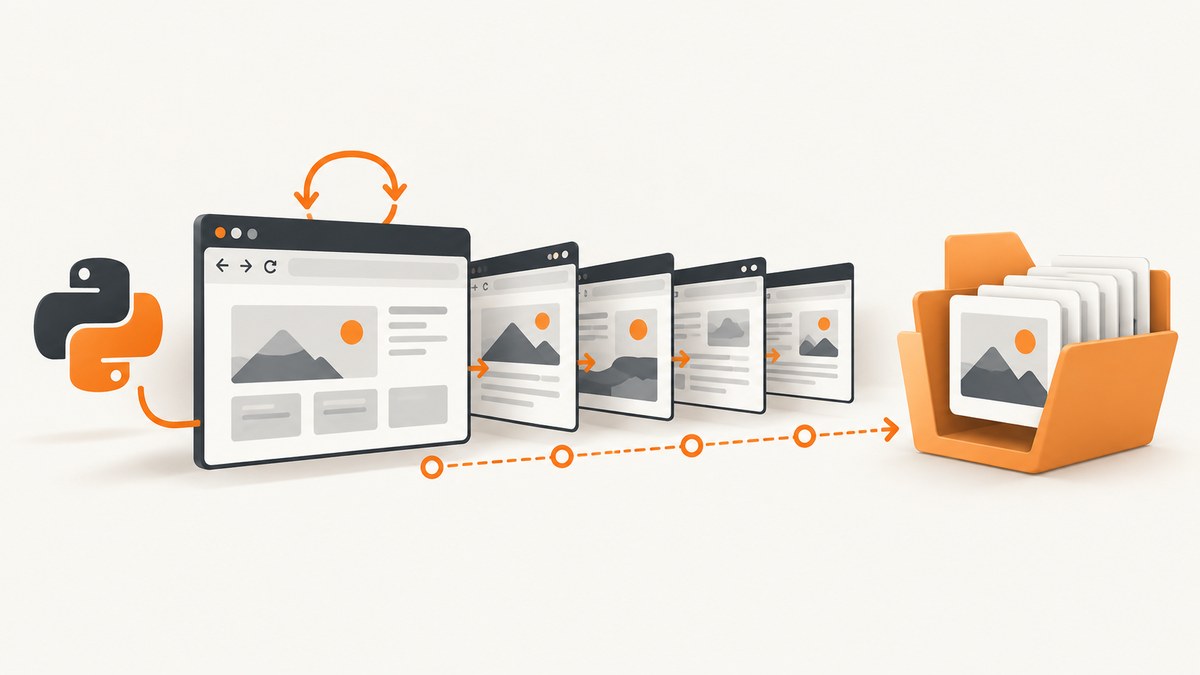
Saving a screenshot in a Selenium loop is simple: create the output directory, wait for the page state you actually need, generate a unique filename for each iteration, call driver.save_screenshot(), and check its Boolean result. The loop below follows that pattern and keeps going only when each file is written successfully.
from pathlib import Path
from selenium import webdriver
from selenium.webdriver.common.by import By
from selenium.webdriver.support.ui import WebDriverWait
from selenium.webdriver.support import expected_conditions as EC

urls = [
    'https://example.com/',
    'https://www.python.org/',
]

output_dir = Path('screenshots')
output_dir.mkdir(parents=True, exist_ok=True)

driver = webdriver.Chrome()
wait = WebDriverWait(driver, 15)

try:
    for index, url in enumerate(urls, start=1):
        driver.get(url)

        # Replace this with a condition that represents your real ready state.
        wait.until(EC.presence_of_element_located((By.TAG_NAME, 'body')))

        path = output_dir / f'page_{index:03}.png'
        saved = driver.save_screenshot(str(path))
        if not saved:
            raise OSError(f'Selenium could not save screenshot: {path}')
        print(f'Saved {path}')
finally:
    driver.quit()
Selenium documents save_screenshot(filename) as saving the current window to a PNG file and returning False on an I/O error and True otherwise. The filename should end in .png. A unique path prevents later iterations from overwriting earlier captures. See the Selenium Python WebDriver API and WebDriverWait API.
1. Prepare a deterministic output directory
A screenshot path is just a file path; Selenium does not create missing parent directories for you. Create the directory before navigation starts:
from pathlib import Path

run_id = 'run-001'
output_dir = Path('artifacts') / run_id
output_dir.mkdir(parents=True, exist_ok=True)
parents=True creates intermediate folders, while exist_ok=True lets you rerun the script without failing when the directory already exists. In CI, use a workspace path that the job can write to. If several jobs share a volume, include a run identifier so that parallel jobs do not target the same files.
Choose safe, useful names
An index is stable and easy to sort:
path = output_dir / f'page_{index:03}.png'For repeated runs, combine a sanitized label with the index. Never put a raw URL, query string, slash, or user supplied page title directly into a filename. A URL such as https://example.com/a?x=1 contains characters that can create unintended directories or invalid names on some systems.
import re

def safe_name(value: str, fallback: str = 'page') -> str:
    cleaned = re.sub(r'[^A-Za-z0-9._-]+', '_', value).strip('._')
    return cleaned or fallback

label = safe_name('product landing page')
path = output_dir / f'{label}_{index:03}.png'
2. Wait for the state you intend to capture
Finding a body element proves that the document has a body, not that asynchronous data, fonts, images, or a client-side route has finished rendering. Selenium’s WebDriverWait polls a condition until it succeeds or the timeout expires; its documented default polling interval is 0.5 seconds.
Wait for a page-specific element
wait.until(
    EC.visibility_of_element_located((By.CSS_SELECTOR, '[data-testid="report"]'))
)
Prefer a stable attribute that your application owns, such as data-testid. Waiting for visible text also works when the text is the meaningful completion signal:
wait.until(
    EC.text_to_be_present_in_element(
        (By.CSS_SELECTOR, '.status'),
        'Complete'
    )
)
Wait for an image or loading indicator
wait.until(EC.visibility_of_element_located((By.CSS_SELECTOR, 'main img.hero')))
wait.until(EC.invisibility_of_element_located((By.CSS_SELECTOR, '.loading-spinner')))
Do not replace a missing readiness signal with a large fixed sleep unless the page truly has a known animation duration. A condition with a timeout fails faster on broken pages and avoids unnecessary idle time on fast pages.
Wait for network idle carefully
Selenium’s basic Python API does not provide a universal “network idle” expected condition. Single-page applications may keep analytics or websocket requests open forever. In those cases, wait for the application element or state that matters. If you control the app, expose a deterministic readiness marker after data and layout are complete.
3. Save and verify every iteration
The Boolean return value is easy to ignore, but it is the difference between a run that reports success and a run that proves files were written.
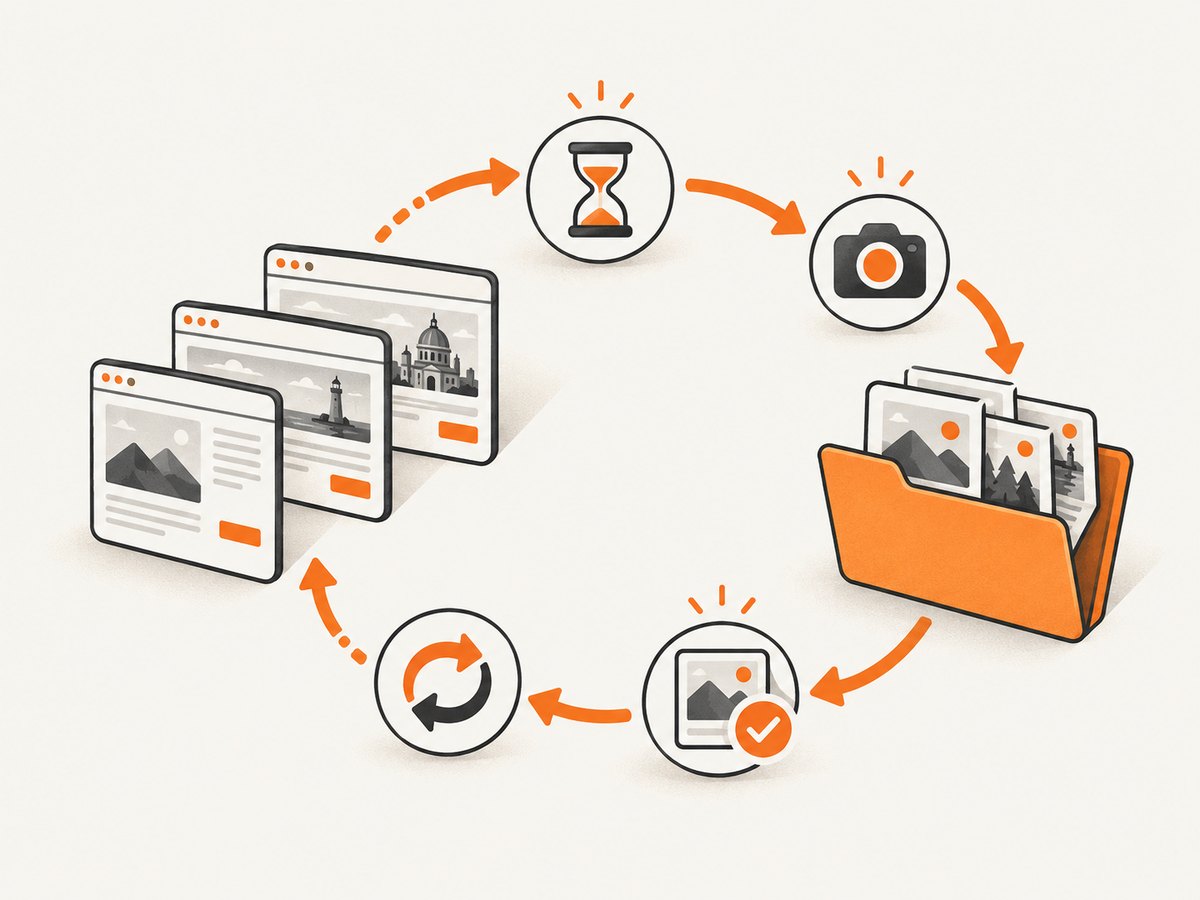
failures = []

for index, url in enumerate(urls, start=1):
    try:
        driver.get(url)
        wait.until(EC.presence_of_element_located((By.TAG_NAME, 'body')))
        path = output_dir / f'page_{index:03}.png'
        if not driver.save_screenshot(str(path)):
            raise OSError('save_screenshot returned False')
        if not path.is_file() or path.stat().st_size == 0:
            raise OSError(f'Empty or missing screenshot: {path}')
    except Exception as exc:
        failures.append({'index': index, 'url': url, 'error': str(exc)})

if failures:
    raise RuntimeError(f'{len(failures)} screenshot(s) failed: {failures}')
Checking file existence and size catches filesystem problems after a driver reports success. A nonzero file is not proof that the page was visually correct, so retain the URL and readiness condition in your run logs for diagnosis.
4. A production-ready loop with retries
Retries help with transient navigation failures, but they should not hide deterministic bugs. Give each attempt its own temporary path, then move the successful file into its final name.
import time
from pathlib import Path
from selenium import webdriver
from selenium.common.exceptions import TimeoutException, WebDriverException
from selenium.webdriver.common.by import By
from selenium.webdriver.support.ui import WebDriverWait
from selenium.webdriver.support import expected_conditions as EC

urls = ['https://example.com/', 'https://www.python.org/']
output_dir = Path('screenshots')
output_dir.mkdir(parents=True, exist_ok=True)

driver = webdriver.Chrome()
wait = WebDriverWait(driver, 15)
max_attempts = 3

try:
    for index, url in enumerate(urls, start=1):
        final_path = output_dir / f'page_{index:03}.png'
        last_error = None

        for attempt in range(1, max_attempts + 1):
            temporary_path = output_dir / f'.page_{index:03}.attempt{attempt}.png'
            try:
                driver.get(url)
                wait.until(EC.visibility_of_element_located((By.TAG_NAME, 'body')))
                if not driver.save_screenshot(str(temporary_path)):
                    raise OSError('save_screenshot returned False')
                if temporary_path.stat().st_size == 0:
                    raise OSError('Screenshot file is empty')
                temporary_path.replace(final_path)
                break
            except (TimeoutException, WebDriverException, OSError) as exc:
                last_error = exc
                if temporary_path.exists():
                    temporary_path.unlink()
                if attempt == max_attempts:
                    raise RuntimeError(f'Failed after {max_attempts} attempts: {url}') from last_error
                time.sleep(1.0 * attempt)
finally:
    driver.quit()
Use a fresh driver when the browser becomes unhealthy, rather than retrying indefinitely in the same broken session. Keep retry counts low and record the final exception.
5. Window screenshots, element screenshots, and in-memory output
driver.save_screenshot() captures the current window or browsing context. It is not automatically a full-page image. Selenium also supports capturing a particular element when the element is the scope you need; the official windows and tabs documentation explains browsing contexts and the distinction between driver and element interactions.
card = wait.until(EC.visibility_of_element_located((By.CSS_SELECTOR, '.invoice-card')))
card_path = output_dir / 'invoice-card.png'
if not card.screenshot(str(card_path)):
    raise OSError(f'Could not save {card_path}')
When another system needs bytes instead of a file, use the in-memory methods:
png_bytes = driver.get_screenshot_as_png()
with open(output_dir / 'page_bytes.png', 'wb') as file:
    file.write(png_bytes)

base64_png = driver.get_screenshot_as_base64()
In-memory output avoids an intermediate file, but you still need to handle memory use and downstream write errors. Large screenshots multiplied across a long loop can consume substantial RAM if you retain every byte.
6. Full-page expectations and browser differences
The ordinary Python driver screenshot describes the current window. If you need the entire document, define that requirement separately and verify it with the browser and driver version you run. Options include scrolling and stitching images, a browser-specific full-page command, or an element capture of a container whose height represents the page. Do not label a viewport screenshot as full page.
Scrolling can trigger lazy loading, so a full-page workflow may need to scroll through the document first, wait for images, then capture. That changes page state and can affect sticky headers, animations, and ads. For consistent visual regression, disable animations with CSS where appropriate and use a fixed viewport and device scale factor.
7. Handling navigation, tabs, cookies, and authentication
- Navigation: call
driver.get(url)for each iteration and wait for a condition tied to that URL’s content. - New tabs: after a click opens a tab, switch to its window handle before capturing; otherwise Selenium still captures the old context.
- Cookies: establish login or consent state before the loop, or explicitly clear and set cookies per URL when isolation matters.
- Authentication: use a dedicated test account and keep credentials out of filenames and logs.
- Alerts and overlays: dismiss required dialogs before the readiness wait; a modal can make an otherwise correct screenshot misleading.
- Cross-origin frames: switch into the frame before locating an element inside it. The top-level screenshot still includes the rendered frame, but element queries do not cross frames automatically.
8. Performance and reliability guidance
| Concern | Practical choice | Why |
|---|---|---|
| Startup cost | Reuse one driver for a compatible batch | Launching a browser for every URL adds avoidable overhead. |
| Isolation | Restart after a failed or polluted session | Cookies, service workers, memory, and open tabs can affect later captures. |
| Waiting | Use explicit conditions | Fixed sleeps are slow on fast pages and still too short on slow pages. |
| Disk I/O | Write to a local workspace, then upload artifacts | Network filesystems can add latency and permission failures. |
| Parallelism | One driver per worker and unique directories | WebDriver instances are not a shared, thread-safe screenshot queue. |
Keep the loop’s input and output manifest. A CSV or JSON record containing index, URL, attempt count, path, timestamp, and error makes reruns targeted instead of forcing a complete batch. For visual tests, compare images only after normalizing viewport, browser version, fonts, timezone, locale, and animation state.
9. Troubleshooting checklist
Every screenshot has the same content
Cause: navigation or an interaction did not complete before capture, or the loop kept the same tab state. Fix: call get() for the current URL, switch to the correct window handle, and wait for a page-specific element or text.
Only the last screenshot remains
Cause: every iteration used one constant filename. Fix: include the loop index, a run ID, or another sanitized unique component.
No files appear
Cause: the directory does not exist, the process lacks permission, or a remote driver writes in a different environment. Fix: create the directory, check permissions, inspect the Boolean return, and confirm where the remote browser exposes artifacts.
save_screenshot returns False
Cause: Selenium encountered an I/O error. Fix: use an absolute or verified writable path, ensure the extension is .png, check available disk space, and log the exception context.
The screenshot is blank or missing dynamic content
Cause: capture happened before the application rendered, a script failed, or a bot check replaced the page. Fix: wait for the intended element, inspect browser logs and page source, and handle authentication or bot checks in the test environment.
Timeouts make the loop too slow
Cause: one global timeout is being spent on pages that cannot satisfy it. Fix: choose a condition per page class, use a sensible timeout, and record timed-out URLs for a separate retry pass.
Remote runs cannot find local files
Cause: the browser and Python process may run in different containers or machines. Fix: consult the grid provider’s artifact mechanism, or use get_screenshot_as_png() and transfer the bytes through the test runner.
10. Or skip the browser setup
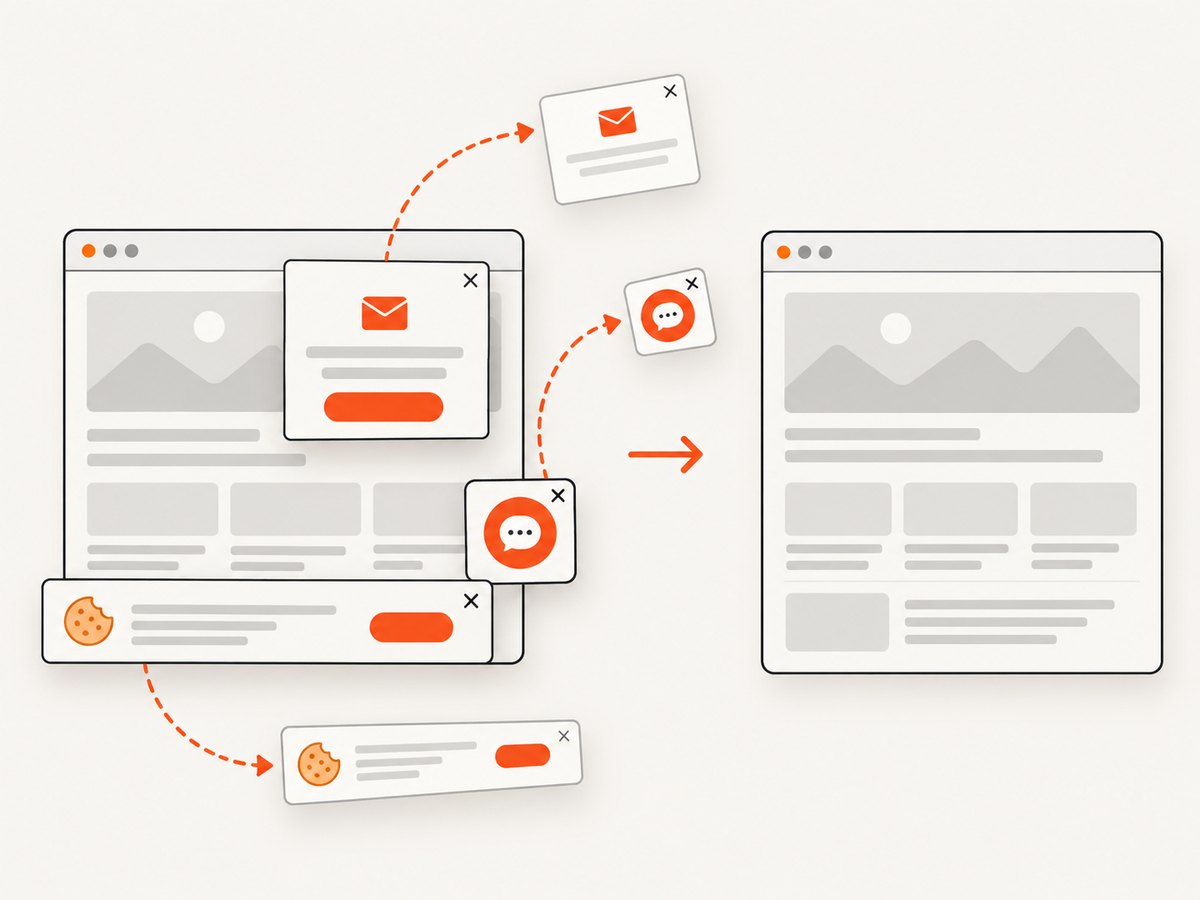
If the goal is a clean image or PDF for a URL rather than browser automation, ScreenshotNeo provides a GET endpoint and an MCP server for AI agents. The following examples use the documented API shape; see the ScreenshotNeo API documentation for options.
cURL
curl -G 'https://api.screenshotneo.com/v1/shot' \
  -d access_key=YOUR_API_KEY \
  --data-urlencode 'url=https://stripe.com' \
  -o shot.webp
Python
import requests

r = requests.get(
    'https://api.screenshotneo.com/v1/shot',
    params={'access_key': 'YOUR_API_KEY', 'url': 'https://stripe.com'},
    timeout=90,
)
r.raise_for_status()
open('shot.webp', 'wb').write(r.content)
Node.js
const q = new URLSearchParams({
  access_key: 'YOUR_API_KEY',
  url: 'https://stripe.com'
});
const res = await fetch(`https://api.screenshotneo.com/v1/shot?${q}`);
if (!res.ok) throw new Error(`HTTP ${res.status}`);
const fs = await import('node:fs/promises');
await fs.writeFile('shot.webp', Buffer.from(await res.arrayBuffer()));
ScreenshotNeo removes cookie and consent banners, newsletter popups, and chat widgets before capture. Bot checks, blank pages, timeouts, failed loads, and cache hits are not billed, and response headers identify the page verdict and whether the request was billed. It supports PNG, JPEG, WebP, and PDF; full-page capture with lazy images, CSS selector element capture, dark mode, device presets or custom viewports, retina scale, custom CSS and JavaScript, clicks, waits, request blocking, headers, cookies, user agents, Authorization, timezone, geolocation, transparent backgrounds, resizing, TTL caching, signed links, async jobs with signed webhooks, bulk capture of up to 100 URLs per call, a usage API, and an OpenAPI specification. Its MCP server exposes take_screenshot, get_page_info, and capture_pdf for Claude, Cursor, and other MCP clients.
The Free plan includes 1,000 shots each month with no card. Paid plans start at $5 for 3,000 shots; yearly billing gives two months free, and every feature is available on every plan. Create a free ScreenshotNeo account.
11. Cost and workflow decisions
Local Selenium has no per-screenshot API charge, but you operate browser processes, drivers, storage, CI minutes, and any grid infrastructure. An API can be simpler for URL-based capture, especially when you need consistent cleanup, signed delivery, asynchronous jobs, or bulk work. Compare the total workflow cost: engineering time, retries, artifact storage, and failures matter alongside the price of a request.
12. FAQ
What extension should a Selenium screenshot use?
Use .png with save_screenshot(), as documented by Selenium’s Python API.
Can I save screenshots with URL names?
Yes, after sanitizing the URL into a filename and adding a unique index. Do not use raw slashes or query strings.
Should I use one browser per URL?
Usually reuse a driver for a batch, but restart it after a failed or contaminated session and isolate parallel workers.
Does save_screenshot capture the whole page?
It captures the current window. Full-page output requires a separate, verified browser or stitching strategy.
How can I send screenshots to another service?
Use get_screenshot_as_png() for bytes or get_screenshot_as_base64() for a base64 representation, then handle the upload explicitly.


