How to Save Selenium WebDriver Screenshots to a Folder in Java
Capture a Selenium screenshot in Java, create its destination folder, and save it reliably with FILE, BYTES, or BASE64 output.
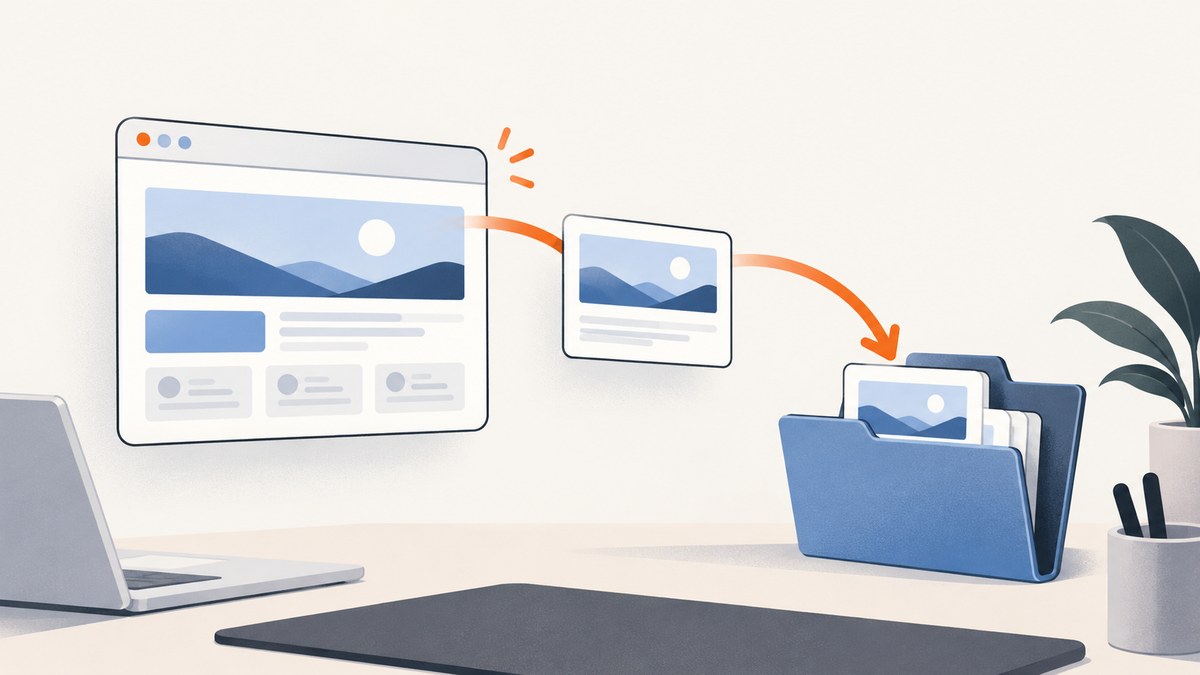
To save a Selenium WebDriver screenshot to a folder in Java, capture it with TakesScreenshot, create the destination directory if needed, and copy the temporary file to your chosen path. Selenium’s Java documentation demonstrates OutputType.FILE with Apache Commons IO’s FileUtils.copyFile. The temporary file is not your durable output: copy it before the JVM exits. Selenium TakesScreenshot API · Selenium documentation.
1. Add the required dependencies
You need Selenium’s Java bindings and, for the concise copy example below, Apache Commons IO. Use dependency versions already managed by your project or build; the cited Selenium example does not prescribe a specific version. With Maven, add dependencies like these, substituting versions compatible with your project:
<dependencies>
  <dependency>
    <groupId>org.seleniumhq.selenium</groupId>
    <artifactId>selenium-java</artifactId>
    <version>YOUR_SELENIUM_VERSION</version>
  </dependency>
  <dependency>
    <groupId>commons-io</groupId>
    <artifactId>commons-io</artifactId>
    <version>YOUR_COMMONS_IO_VERSION</version>
  </dependency>
</dependencies>
If your project already uses Selenium, keep its existing dependency rather than adding a second version. Commons IO is optional: Java’s standard library can copy files too, as shown later.
2. Capture and save a screenshot with Java
This helper creates parent directories, captures the current browsing context, and copies the result to the requested path. It throws IOException so the caller can handle filesystem problems explicitly.

import org.apache.commons.io.FileUtils;
import org.openqa.selenium.OutputType;
import org.openqa.selenium.TakesScreenshot;
import org.openqa.selenium.WebDriver;

import java.io.File;
import java.io.IOException;
import java.nio.file.Files;
import java.nio.file.Path;

public final class Screenshots {
    private Screenshots() {}

    public static Path save(WebDriver driver, Path destination) throws IOException {
        Path parent = destination.toAbsolutePath().getParent();
        if (parent != null) {
            Files.createDirectories(parent);
        }

        File temporaryScreenshot = ((TakesScreenshot) driver)
                .getScreenshotAs(OutputType.FILE);
        FileUtils.copyFile(temporaryScreenshot, destination.toFile());
        return destination;
    }
}
Call it after navigating to the page and waiting for the state you want to record:
Path saved = Screenshots.save(driver, Path.of("screenshots", "checkout.png"));
System.out.println("Saved screenshot to " + saved.toAbsolutePath());
The example uses Path.of (Java 11 or later). For older Java versions, use Paths.get("screenshots", "checkout.png"). Ensure that your WebDriver session is still open when capturing. Usually, close the driver in a finally block or try-with-resources pattern supported by your project’s driver wrapper.
Runnable end-to-end example
This example uses ChromeDriver. The driver executable and browser must be available according to your Selenium setup. The screenshot logic also applies to other drivers that implement TakesScreenshot.
import org.openqa.selenium.OutputType;
import org.openqa.selenium.TakesScreenshot;
import org.openqa.selenium.WebDriver;
import org.openqa.selenium.chrome.ChromeDriver;
import org.apache.commons.io.FileUtils;

import java.io.File;
import java.io.IOException;
import java.nio.file.Files;
import java.nio.file.Path;

public class ScreenshotExample {
    public static void main(String[] args) throws IOException {
        WebDriver driver = new ChromeDriver();
        try {
            driver.get("https://example.com");
            Path folder = Path.of("screenshots");
            Files.createDirectories(folder);

            File temporary = ((TakesScreenshot) driver)
                    .getScreenshotAs(OutputType.FILE);
            Path output = folder.resolve("example.png");
            FileUtils.copyFile(temporary, output.toFile());
            System.out.println("Wrote " + output.toAbsolutePath());
        } finally {
            driver.quit();
        }
    }
}
The capture call is the important part: ((TakesScreenshot) driver).getScreenshotAs(OutputType.FILE). The cast is needed because screenshot capture is exposed through the TakesScreenshot interface. Selenium’s API lists implementations including ChromeDriver, EdgeDriver, FirefoxDriver, SafariDriver, and RemoteWebDriver; actual screenshot extent and behavior depend on the conforming driver implementation.
3. Choose an output type
| Output type | Result | Use it when |
|---|---|---|
FILE |
A temporary file | You want to copy or move the capture to a filesystem path. |
BYTES |
Raw screenshot bytes | You want to write with Java NIO, upload bytes, or pass them to another API. |
BASE64 |
A Base64-encoded string | You need encoded image data for a text-based transport or embedding workflow. |
The Selenium API supports these output representations. Choose based on the next step in your application; there is no universally best format.
Save using BYTES and Java NIO
This avoids the temporary-file copy step and uses only standard Java file APIs:
import org.openqa.selenium.OutputType;
import org.openqa.selenium.TakesScreenshot;
import org.openqa.selenium.WebDriver;

import java.io.IOException;
import java.nio.file.Files;
import java.nio.file.Path;

public static Path saveBytes(WebDriver driver, Path destination) throws IOException {
    Path parent = destination.toAbsolutePath().getParent();
    if (parent != null) Files.createDirectories(parent);

    byte[] image = ((TakesScreenshot) driver).getScreenshotAs(OutputType.BYTES);
    Files.write(destination, image);
    return destination;
}
This is useful when the screenshot is already being handled as data. It still consumes memory for the returned byte array, so for very large images consider the memory profile of your workload.
Save BASE64 output
Base64 is an encoding, not an image file format. Decode it before writing a PNG file:
import org.openqa.selenium.OutputType;
import org.openqa.selenium.TakesScreenshot;
import org.openqa.selenium.WebDriver;

import java.io.IOException;
import java.nio.file.Files;
import java.nio.file.Path;
import java.util.Base64;

public static Path saveBase64(WebDriver driver, Path destination) throws IOException {
    Path parent = destination.toAbsolutePath().getParent();
    if (parent != null) Files.createDirectories(parent);

    String encoded = ((TakesScreenshot) driver).getScreenshotAs(OutputType.BASE64);
    byte[] image = Base64.getDecoder().decode(encoded);
    Files.write(destination, image);
    return destination;
}
Writing the Base64 characters directly as though they were PNG bytes creates an invalid image. Decode first. Prefer BYTES for a direct byte workflow unless another interface specifically requires Base64.
4. Pick a destination path that works in your environment
A relative path such as screenshots/result.png is resolved from the Java process’s current working directory, which may differ between an IDE, Maven, a CI runner, and a container. Print destination.toAbsolutePath() when diagnosing a file that appears to be missing.
- Create the directory. Use
Files.createDirectories(path); it creates missing parents and does not fail just because the directory already exists. - Use a deterministic name. For one capture, a fixed name is fine. For repeated captures, include a test name, timestamp, or unique identifier to avoid overwriting earlier files.
- Check write permissions and available storage. The Java process needs permission to create the directory and file.
- Keep the extension aligned with the bytes. Selenium screenshots are image output. Naming the file
.pngdoes not convert it to another format.
For a path supplied by a user or test parameter, validate that it points inside an allowed output directory if your application has a security boundary. Avoid treating untrusted path text as safe simply because it ends in .png.
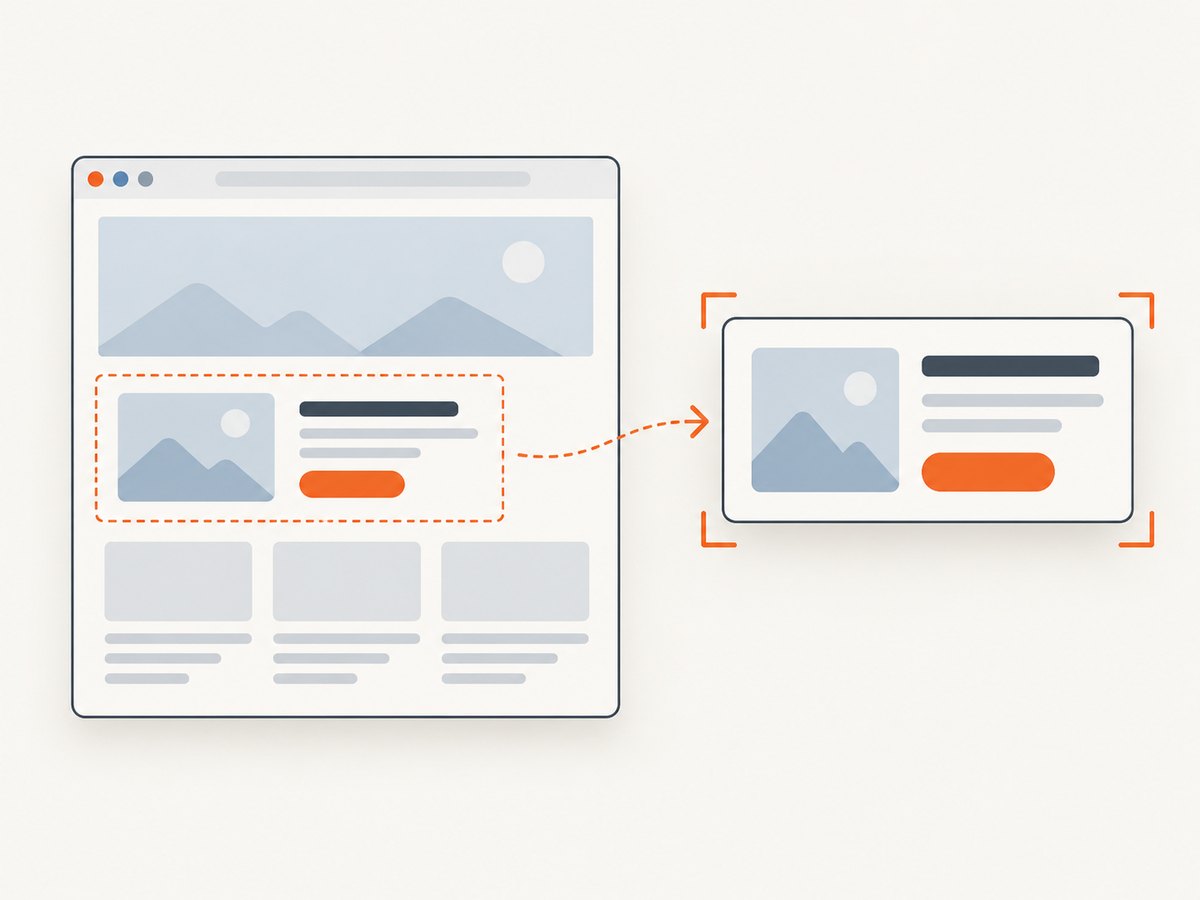
5. Capture an element instead of the whole context
If you need one element, call the screenshot method on a supported WebElement. This is distinct from taking a screenshot from the driver:
import org.apache.commons.io.FileUtils;
import org.openqa.selenium.OutputType;
import org.openqa.selenium.WebElement;

import java.io.File;
import java.io.IOException;
import java.nio.file.Files;
import java.nio.file.Path;

public static Path saveElement(WebElement element, Path destination) throws IOException {
    Path parent = destination.toAbsolutePath().getParent();
    if (parent != null) Files.createDirectories(parent);

    File temporary = element.getScreenshotAs(OutputType.FILE);
    FileUtils.copyFile(temporary, destination.toFile());
    return destination;
}
Find the element after the page reaches the desired state, preferably with an explicit wait when it loads asynchronously. A screenshot can only show what the implementation can capture at that moment. Element screenshot support and extent follow the WebDriver implementation and specification behavior; do not assume every driver has identical fallback behavior or page-capture extent.
6. Make captures reliable in tests and automation
- Wait for the right state. Navigation completing does not always mean an app’s asynchronous content has rendered. Wait for a relevant element or condition before capture.
- Capture before teardown. Calling
quit()ends the session. Take the screenshot before closing the driver. - Use unique output names in parallel runs. Parallel tests writing
result.pngto one shared directory can overwrite each other. Include a worker or test identifier. - Keep the temporary file short-lived. Copy it promptly.
OutputType.FILEreturns a temporary file that is deleted when the JVM exits. - Separate capture failure from persistence failure. A WebDriver exception points to the session or capture step;
IOExceptionusually indicates a filesystem or copy problem. - Review remote-runner storage. With RemoteWebDriver, the browser runs remotely. The returned screenshot is exposed through the driver API, but your local destination path is on the Java process’s machine. Ensure the test runner’s artifact collection includes that folder.
Selenium does not promise identical screenshot extents for every non-conformant implementation; the API describes best-effort fallback behavior. If a capture is clipped or differs between browsers, check the driver’s support and the screenshot method being used before assuming the copy step changed it.
7. Troubleshooting
| Symptom | Likely cause | Fix |
|---|---|---|
ClassCastException at the cast to TakesScreenshot |
The active driver implementation does not expose that interface, or the object is not the driver you expect. | Check the concrete WebDriver and its screenshot support. Selenium documents several conforming driver implementations, but custom wrappers may need to delegate the interface. |
NoSuchFileException or copy failure |
The parent folder does not exist. | Create it first with Files.createDirectories(parent). |
AccessDeniedException |
The process cannot write to the chosen directory. | Choose a writable path and check container or CI permissions. |
| Screenshot file is missing after JVM exit | The code kept the temporary FILE output instead of copying it. |
Copy it to the destination before the process exits, or write BYTES directly. |
| File exists but an image viewer cannot open it | Base64 text was written as bytes, or the output was truncated or overwritten. | Decode Base64 before writing; check the write completed and use distinct filenames. |
| Capture is blank, stale, or missing dynamic content | The page had not reached the desired application state when capture ran. | Wait for the content or selector that indicates readiness, then capture. |
| Screenshot appears in a different folder | The relative path resolved against a different working directory. | Log the absolute destination and use an explicit path where appropriate. |
| Parallel tests produce the wrong image | Several workers wrote the same destination filename. | Give each test or worker a unique directory or filename. |
8. Performance, reliability, and cost
Saving a screenshot adds browser capture work plus filesystem I/O. Keep captures at decision points where the image helps debugging, review, or documentation. In a large test suite, capturing every step can add runtime and consume artifact storage; capture on failure or at selected checkpoints if that matches the team’s debugging needs.
FILE is convenient when copying a temporary file. BYTES avoids the temporary-file copy but holds the image in memory. BASE64 adds encoding overhead and is best reserved for integrations that need encoded text. The appropriate choice depends on image size and where the data goes next.
The Selenium API does not supply a published cost per screenshot or a performance benchmark in the cited material. Your costs are generally those of running the browser infrastructure, storing artifacts, and transferring them through your test environment. Remote browsers, parallel workers, and long artifact retention can change those operational costs.
Or skip the browser setup
If you need a screenshot of a public page without maintaining a browser session and filesystem setup, ScreenshotNeo is a website screenshot API and MCP server. It returns an image or PDF from one GET request. See the ScreenshotNeo API documentation.
curl -G "https://api.screenshotneo.com/v1/shot" -d access_key=YOUR_API_KEY --data-urlencode url=https://stripe.com -o shot.webpimport requests
r = requests.get("https://api.screenshotneo.com/v1/shot", params={"access_key": "YOUR_API_KEY", "url": "https://stripe.com"}, timeout=90)
open("shot.webp", "wb").write(r.content)const q = new URLSearchParams({ access_key: 'YOUR_API_KEY', url: 'https://stripe.com' });
const res = await fetch(`https://api.screenshotneo.com/v1/shot?${q}`);Cookie banners, newsletter popups, and chat widgets are removed before the shot. Bot checks, blank pages, and failed loads are never billed. An MCP server lets AI agents take screenshots. The free plan includes 1,000 screenshots a month with no card; paid plans start at $5 for 3,000. Sign up for 1,000 free screenshots a month, no card required.
FAQ
Does WebDriver save the screenshot directly to my chosen folder?
The screenshot API returns a representation. With OutputType.FILE, Selenium returns a temporary file; your application copies it to the durable destination.
Can I save screenshots outside the project directory?
Yes. Use an absolute Path and ensure the process has permission to create and write there. In CI, confirm that the location is collected as an artifact.
Can Selenium take a full-page screenshot?
The documented API describes screenshots of a current browsing context and element capture. Exact extent depends on the conformant driver implementation; the research sources do not establish a universal full-page behavior across drivers.
Should I use PNG or JPEG?
The output type selects the representation (file, bytes, or Base64); it does not define an image conversion step. Keep a filename extension consistent with the actual screenshot data rather than using the extension as a conversion request.