How to Save Selenium Screenshots to a Newly Created Folder in Python
Create a folder safely, save Selenium PNGs reliably, avoid overwrites, troubleshoot paths, and compare browser capture with ScreenshotNeo.
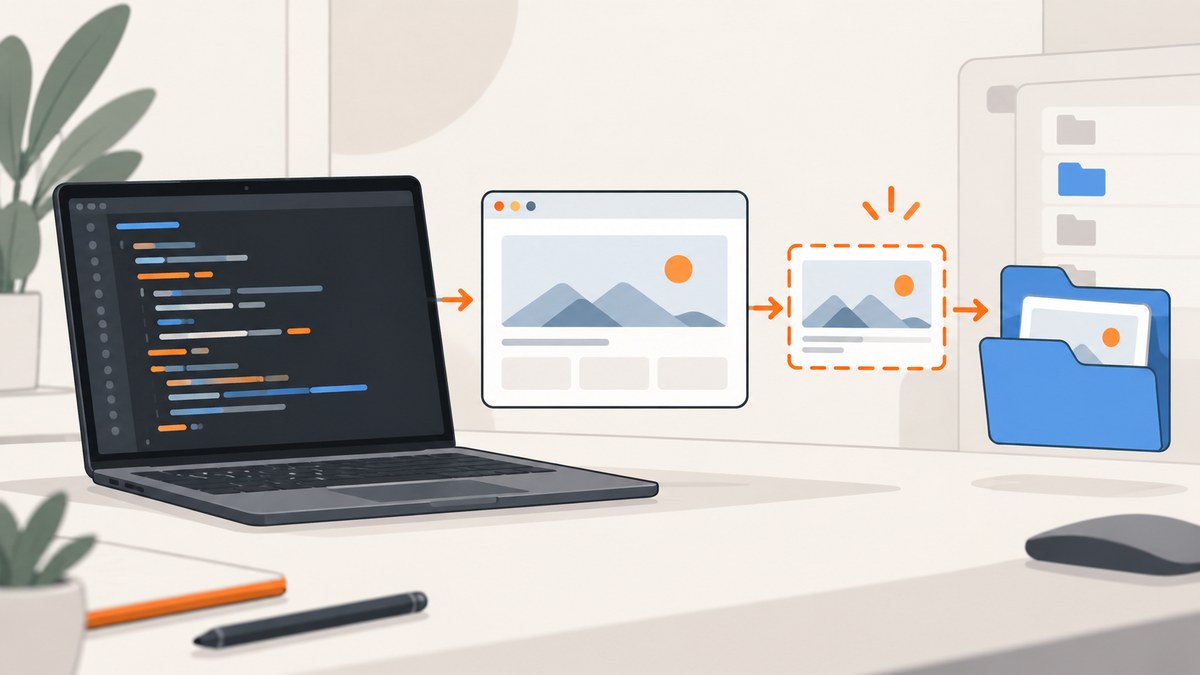
Direct answer: create the destination directory with Path.mkdir(parents=True, exist_ok=True), join the filename to that directory with pathlib, call Selenium’s driver.save_screenshot(), and check the Boolean result. This pattern creates missing parent directories and does not fail when the output folder already exists.
from pathlib import Path

screenshot_dir = Path('screenshots')
screenshot_dir.mkdir(parents=True, exist_ok=True)

screenshot_path = screenshot_dir / 'page.png'
saved = driver.save_screenshot(str(screenshot_path))

if not saved:
    raise OSError(f'Could not save screenshot to {screenshot_path}')
save_screenshot() captures the current browser window as a PNG. Selenium expects a full filename, including the .png extension, and returns False when an I/O error prevents the file from being written. See the Selenium Python WebDriver API and Python’s Path.mkdir documentation.
1. Complete runnable example
The following script starts a browser, opens a page, creates a nested output directory, saves a screenshot, verifies that the file exists, and closes the driver even if an exception occurs. Install Selenium first with python -m pip install selenium. Recent Selenium releases can manage a compatible browser driver automatically; otherwise, install and configure the driver required by your browser.
from pathlib import Path
from selenium import webdriver
from selenium.webdriver.chrome.options import Options

OUTPUT_DIR = Path('artifacts') / 'screenshots'
OUTPUT_DIR.mkdir(parents=True, exist_ok=True)

options = Options()
options.add_argument('--headless=new')
options.add_argument('--window-size=1440,1000')

driver = webdriver.Chrome(options=options)
try:
    driver.get('https://example.com')

    output_path = OUTPUT_DIR / 'example.png'
    saved = driver.save_screenshot(str(output_path))
    if not saved:
        raise OSError(f'Selenium could not write {output_path}')

    if not output_path.is_file():
        raise OSError(f'Screenshot was not found after saving: {output_path}')

    print(f'Saved {output_path.resolve()} ({output_path.stat().st_size} bytes)')
finally:
    driver.quit()
The finally block matters in test suites and batch jobs: it releases the browser process when navigation or file writing raises an exception. The absolute path printed by resolve() also makes it clear where a relative directory was created.
2. Why this folder pattern works
Create the directory before saving
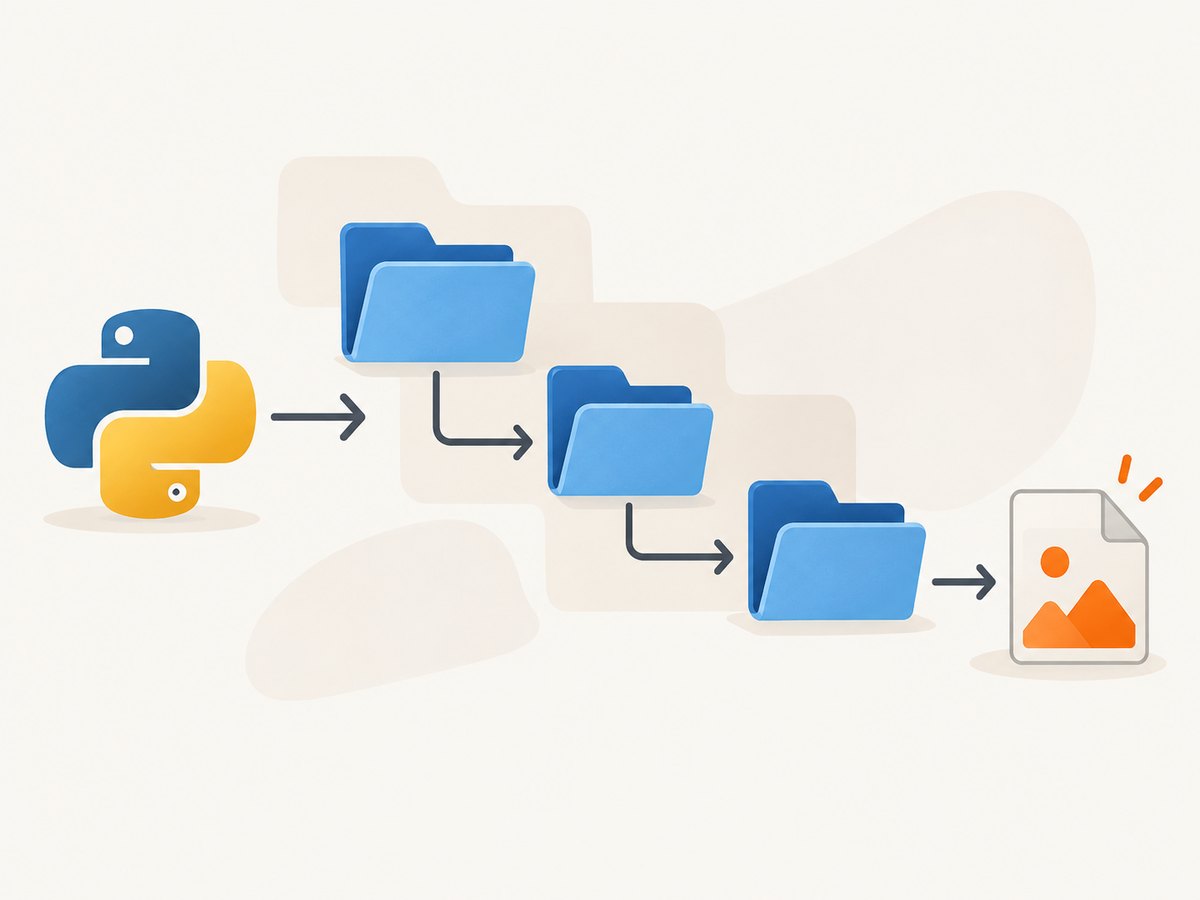
Path.mkdir(parents=True, exist_ok=True) has two useful properties. parents=True creates missing ancestors such as artifacts before creating artifacts/screenshots. exist_ok=True allows the target directory to exist already, so the same setup is safe on every run. Without it, a second run can raise FileExistsError.
Join paths instead of concatenating strings
screenshot_dir / 'page.png' uses the platform’s path rules. It avoids missing separators, accidental double separators, and hard-coded Windows or Unix syntax. Convert the resulting Path to str when passing it to WebDriver for broad compatibility with driver implementations.
Use a PNG filename
The ordinary Selenium Python screenshot method writes PNG output. Give it a complete path ending in .png; changing the extension does not convert the image to JPEG or WebP.
Check the return value
Selenium documents a Boolean result for the save operation. A true result indicates that Selenium did not report an I/O error; a false result should be treated as a failed artifact. Checking it prevents a test or pipeline from continuing with a missing screenshot.
3. Choose a stable output location
A relative path is resolved from the Python process’s current working directory, not necessarily the directory containing your script. An IDE, test runner, Docker container, or CI job can choose a different working directory. Print Path.cwd() when diagnosing an unexpected location.
from pathlib import Path

print('Process directory:', Path.cwd())
print('Relative output:', (Path('screenshots') / 'page.png').resolve())
For a project-relative location, derive the path from a known file instead of the launch directory:
from pathlib import Path

PROJECT_ROOT = Path(__file__).resolve().parent
SCREENSHOT_DIR = PROJECT_ROOT / 'test-artifacts' / 'screenshots'
SCREENSHOT_DIR.mkdir(parents=True, exist_ok=True)
In a deployed service, prefer an explicitly configured writable directory. Containers often have read-only application directories, and serverless environments may expose only a temporary directory. Do not assume that the user running the process has permission to write beside the source code.
4. Prevent accidental overwrites
Saving repeatedly to page.png replaces the previous capture. That is useful for a “latest state” artifact, but it is wrong when every run must be retained. Build names from a test identifier, URL-safe slug, timestamp, or unique ID.
from datetime import datetime, timezone
from pathlib import Path
import re

screenshot_dir = Path('screenshots')
screenshot_dir.mkdir(parents=True, exist_ok=True)

def safe_name(value: str) -> str:
    cleaned = re.sub(r'[^A-Za-z0-9._-]+', '-', value).strip('-')
    return cleaned or 'page'

stamp = datetime.now(timezone.utc).strftime('%Y%m%dT%H%M%SZ')
filename = f'{safe_name("checkout-page")}-{stamp}.png'
path = screenshot_dir / filename
if not driver.save_screenshot(str(path)):
    raise OSError(f'Could not save {path}')
If parallel workers can save at the same time, timestamps alone may collide. Add a UUID or the worker name:
from uuid import uuid4

path = screenshot_dir / f'checkout-{uuid4().hex}.png'
5. Capture scope: window, element, or full document
Current browser window
driver.save_screenshot(path) captures the current window viewport. Set the window size before navigation when repeatable dimensions matter. A responsive page can render different layouts at different widths.

One element
Use WebElement.screenshot() when you need a component rather than the viewport. It also writes PNG output and returns a Boolean result. Locate the element after the page has rendered:
from selenium.webdriver.common.by import By

card = driver.find_element(By.CSS_SELECTOR, '[data-testid="summary-card"]')
path = screenshot_dir / 'summary-card.png'
if not card.screenshot(str(path)):
    raise OSError(f'Could not save element screenshot to {path}')
An element can be outside the viewport, covered by another element, or not yet present. Wait for it before capturing and scroll it into view if your browser requires that for reliable rendering.
Full-page or full-document capture
The ordinary WebDriver method is not a portable full-document screenshot API. Firefox’s Python WebDriver exposes browser-specific full-page methods; support and behavior differ by browser and driver. Verify the API for the browser you operate before making a cross-browser promise. If a single long image is required, another option is to capture sections while scrolling and stitch them, but fixed headers, lazy loading, and sticky elements require extra handling.
6. Wait for the page you actually want to save
A screenshot can be successfully written while the page is still loading. Use an explicit wait for a meaningful condition instead of relying only on a fixed sleep.
from selenium.webdriver.common.by import By
from selenium.webdriver.support.ui import WebDriverWait
from selenium.webdriver.support import expected_conditions as EC

wait = WebDriverWait(driver, 20)
driver.get('https://example.com/dashboard')
wait.until(EC.visibility_of_element_located((By.CSS_SELECTOR, 'main.dashboard')))
wait.until(lambda current: current.execute_script('return document.readyState') == 'complete')

path = screenshot_dir / 'dashboard.png'
if not driver.save_screenshot(str(path)):
    raise OSError(f'Could not save {path}')
For images, wait for the relevant image elements to report a completed load, or wait for a page-specific “ready” marker. A network idle condition is application-specific because analytics, sockets, and advertisements can keep connections open indefinitely.
7. Useful production patterns
Write metadata beside the image
For visual regression or audit work, store the URL, viewport, browser, and capture time in a JSON file next to the PNG. This makes later comparisons explainable.
import json
from datetime import datetime, timezone

metadata = {
    'url': driver.current_url,
    'captured_at': datetime.now(timezone.utc).isoformat(),
    'viewport': driver.get_window_size(),
    'file': str(path),
}
path.with_suffix('.json').write_text(json.dumps(metadata, indent=2), encoding='utf-8')
Keep artifacts when a test fails
Put screenshot saving in a failure hook or exception handler, then re-raise the original exception. Avoid hiding the test failure behind a secondary file error; log the save error and preserve the original traceback.
Control file permissions
Use a directory with the correct ownership and permissions. In CI, publish the artifact directory through the runner’s artifact mechanism rather than assuming it remains available after the job ends.
8. Troubleshooting checklist
| Symptom | Likely cause | Fix |
|---|---|---|
FileNotFoundError |
The parent directory was never created. | Call mkdir(parents=True, exist_ok=True) before saving. |
save_screenshot() returns False |
An I/O error, invalid path, missing directory, or permission problem. | Log the absolute path, verify its parent and permissions, and check available disk space. |
| The file is in the wrong folder | The relative path uses the process working directory. | Print Path.cwd() and use an absolute project or configured output path. |
| Every run has only one image | The same filename is reused. | Add a timestamp, test name, worker ID, or UUID. |
| The page is blank or incomplete | Capture occurred before the required content rendered. | Use explicit waits for a visible selector or application-ready condition. |
| The screenshot is only the viewport | save_screenshot() captures the current window. |
Use element.screenshot() for one element or a browser-specific full-document API. |
| Element capture fails | The locator is wrong, the element is absent, or the page changed. | Wait for the element, verify the selector, and capture after the state transition. |
| Permission denied in CI or Docker | The process cannot write to the selected directory. | Configure a writable mounted or temporary directory and publish it afterward. |
| Images differ between runs | Viewport, fonts, animations, time, or remote content differ. | Set a fixed viewport, disable or wait for animations, load stable test data, and record environment metadata. |
9. Performance, reliability, and cost considerations
Creating a directory with exist_ok=True is cheap and idempotent, so it is safe to run once per test or job. Browser startup and page navigation usually dominate capture time. Reuse one driver for related pages when isolation requirements allow it, but create separate drivers when cookies, local storage, extensions, or browser state could contaminate results.
Large PNGs consume disk and artifact bandwidth. Keep the viewport no larger than necessary, remove obsolete artifacts, and compress or convert images after capture only if your comparison process permits it. Do not rename a PNG to another extension and expect a format conversion.
For reliable automation, treat the screenshot as an output with validation: check the Boolean result, confirm the file exists, verify a nonzero size, and retain enough metadata to reproduce the capture. If a screenshot is evidence of a failed test, save it before quitting the driver.
10. Or skip the browser setup
If you only need a clean image of a URL, ScreenshotNeo provides a one-request website screenshot API. It accepts the cookie or consent banner like a visitor, then removes more than 60 known consent platforms, newsletter popups, and chat widgets before the capture; each cleanup step can be turned off. Bot checks or CAPTCHAs, blank pages, timeouts, failed loads, and cache hits are not billed, and response headers identify the page verdict and whether the shot was billed.
See the ScreenshotNeo API documentation for the complete option list. The API supports full-page captures with lazy images loaded, CSS element capture, dark mode, device presets or custom viewports, retina scale, PDF output, custom CSS and JavaScript, clicks, selector waits, delays, network-idle waits, request blocking, headers, cookies, user agents, authorization, timezone, geolocation, transparent backgrounds, resizing, configurable caching, signed image links, asynchronous jobs with signed webhooks, bulk capture for up to 100 URLs per call, a usage API, and an OpenAPI specification.
cURL
curl -G 'https://api.screenshotneo.com/v1/shot' \
  -d access_key=YOUR_API_KEY \
  --data-urlencode url=https://stripe.com \
  -o shot.webp
Python
import requests

r = requests.get(
    'https://api.screenshotneo.com/v1/shot',
    params={'access_key': 'YOUR_API_KEY', 'url': 'https://stripe.com'},
    timeout=90,
)
r.raise_for_status()
open('shot.webp', 'wb').write(r.content)
Node.js
const q = new URLSearchParams({
  access_key: 'YOUR_API_KEY',
  url: 'https://stripe.com'
});
const res = await fetch(`https://api.screenshotneo.com/v1/shot?${q}`);
if (!res.ok) throw new Error(`Screenshot failed: ${res.status}`);
const body = Buffer.from(await res.arrayBuffer());
await import('node:fs/promises').then(fs => fs.writeFile('shot.webp', body));
ScreenshotNeo has an MCP server with take_screenshot, get_page_info, and capture_pdf tools for Claude, Cursor, and other MCP clients. The Free plan includes 1,000 screenshots per month without a card; paid plans start at $5 for 3,000 shots. Every feature is available on every plan, and yearly billing provides two months free. Start with a free ScreenshotNeo account.
11. Short FAQ
Can I pass a pathlib Path directly?
Python path objects implement the filesystem path protocol, but converting with str(path) matches Selenium’s documented filename parameter and works broadly across WebDriver implementations.
Does Selenium save JPEG or WebP?
The standard Python WebDriver screenshot methods document PNG output. Use an image library or a service that supports another format when you need JPEG or WebP.
Does save_screenshot() capture the whole page?
It captures the current browser window. Element and full-document captures use separate APIs, and full-document support can be browser-specific.
Why does my folder appear beside the wrong project?
Relative paths follow the process working directory. Print Path.cwd() or construct the output path from __file__ or configuration.
Should I create the folder once or for every screenshot?
Both are safe with exist_ok=True. Creating it during setup makes the lifecycle obvious; repeating the idempotent call is useful in independent helper functions.


