How to Save Selenium Screenshots as PNG Files in Python
Save Selenium screenshots as PNG files in Python with viewport, element, in-memory, full-page, troubleshooting, and automation examples.

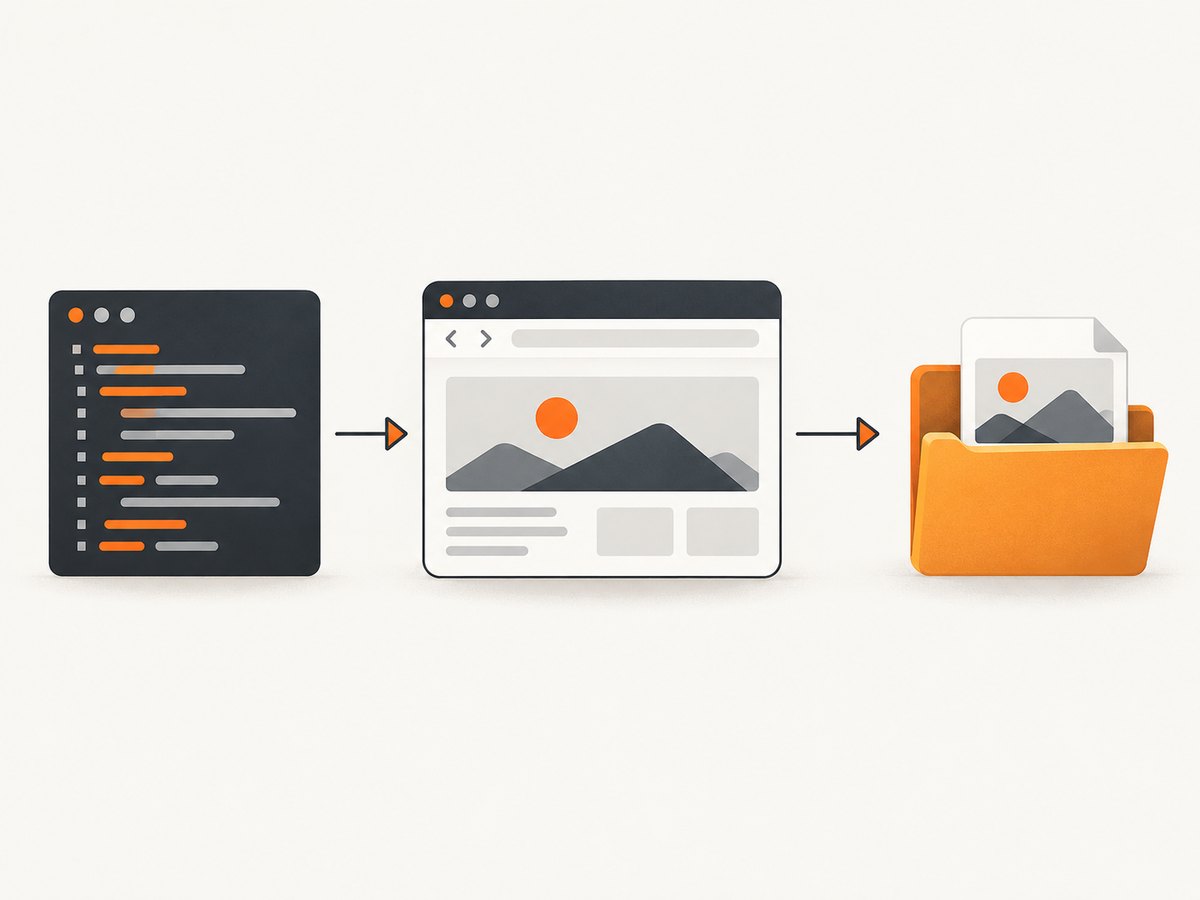
Use driver.save_screenshot("path/to/file.png") to save the current Selenium browser window as a PNG file. The method returns True when Selenium writes the file and False when an operating-system write error occurs. Use a writable path with a .png suffix, and check that return value when screenshot capture is part of a test or production workflow.
This guide covers the standard viewport screenshot, the equivalent get_screenshot_as_file method, PNG bytes in memory, element-only captures, full-page screenshots, browser setup, reliable file naming, troubleshooting, and ways to run captures in CI. It also shows how to avoid managing a browser when an API is a better fit.
1. Install Selenium and a browser driver
Install the Python package in the environment that will run your script:
python -m pip install seleniumRecent Selenium releases can manage compatible browser drivers through Selenium Manager. Install Chrome, Chromium, Firefox, or another supported browser on the machine, then verify that the browser can start in your environment. In a locked-down CI image, you may still need to install the browser and configure its driver manually.
A minimal import is:
from selenium import webdriver2. Save the current browser window as a PNG
The shortest standard workflow is to open a page, call save_screenshot, and check the result:
from pathlib import Path
from selenium import webdriver

out = Path("screenshots")
out.mkdir(parents=True, exist_ok=True)

with webdriver.Chrome() as driver:
    driver.get("https://example.com")
    ok = driver.save_screenshot(str(out / "example.png"))
    if not ok:
        raise OSError("Selenium could not write the screenshot")
Selenium’s Python API describes save_screenshot(filename) as saving a screenshot of the current window to a PNG image file. The filename should be a full path ending in .png. The equivalent get_screenshot_as_file(filename) method has the same file-oriented behavior. Selenium’s implementation writes PNG bytes in binary mode and returns False if an OSError occurs.
Use an absolute path when a test runner changes the working directory. Path.resolve() makes the destination visible in logs:
target = (Path("artifacts") / "home.png").resolve()
target.parent.mkdir(parents=True, exist_ok=True)

with webdriver.Chrome() as driver:
    driver.get("https://example.com")
    if not driver.save_screenshot(str(target)):
        raise OSError(f"Could not save {target}")
    print(f"Saved {target}")
3. save_screenshot versus get_screenshot_as_file
| Method | Output | Typical use | Failure signal |
|---|---|---|---|
save_screenshot(path) |
PNG file | Readable, concise test code | Returns a boolean |
get_screenshot_as_file(path) |
PNG file | Code using the older or equivalent name | Returns a boolean |
get_screenshot_as_png() |
PNG bytes | Inspect, transform, upload, or choose a destination later | Raises errors from the WebDriver operation |
The two file methods delegate to the same underlying behavior. Selenium warns if the filename does not end in .png; it does not convert a JPEG or another extension for you. Keep the suffix and the actual image format aligned.
4. Capture PNG bytes before writing
Use get_screenshot_as_png() when the image must pass through another step, such as a hash, image library, object-storage upload, or test assertion:
from pathlib import Path
from selenium import webdriver

with webdriver.Chrome() as driver:
    driver.get("https://example.com")
    png_bytes = driver.get_screenshot_as_png()

Path("screenshots/example.png").write_bytes(png_bytes)
This separates browser capture from file I/O. It also lets you reject, resize, compare, or upload the bytes without creating a temporary file. The returned value is binary PNG data for the current window.
For a simple integrity check, inspect the PNG signature before storing it:
png_bytes = driver.get_screenshot_as_png()
if not png_bytes.startswith(b"\\x89PNG\\r\\n\\x1a\\n"):
    raise ValueError("WebDriver returned data that is not a PNG")
5. Wait for the page you intend to capture
driver.get() waits for the browser's page-load strategy, but JavaScript applications may render important content afterward. Capture only after the page state you need is present.
Wait for a visible element
from pathlib import Path
from selenium import webdriver
from selenium.webdriver.common.by import By
from selenium.webdriver.support.ui import WebDriverWait
from selenium.webdriver.support import expected_conditions as EC

with webdriver.Chrome() as driver:
    driver.get("https://example.com")
    WebDriverWait(driver, 20).until(
        EC.visibility_of_element_located((By.CSS_SELECTOR, "main"))
    )
    Path("screenshots/ready.png").parent.mkdir(exist_ok=True)
    if not driver.save_screenshot("screenshots/ready.png"):
        raise OSError("Screenshot write failed")
Wait for a known state
For a chart, table, or logged-in dashboard, wait for a selector that only appears after the data is ready. A fixed time.sleep can work for a quick script, but an explicit condition is usually faster and more reliable because it stops waiting as soon as the state is reached.
6. Save an element screenshot
Use the WebElement API when you need one button, card, chart, or other element rather than the entire viewport:
from selenium import webdriver

with webdriver.Chrome() as driver:
    driver.get("https://example.com")
    button = driver.find_element("css selector", "button.submit")
    button.screenshot("screenshots/submit-button.png")
To keep the image in memory, use element.screenshot_as_png:
from pathlib import Path

element_png = button.screenshot_as_png
Path("screenshots/submit-button.png").write_bytes(element_png)
An element must be present and generally visible. A selector that matches nothing raises NoSuchElementException. An element outside the current layout, covered by another layer, or not rendered yet can produce an unusable result; wait for visibility and scroll it into view when necessary.
7. Full-page screenshots and browser differences
A normal driver.save_screenshot captures the current browser window. It does not promise a full document image in every browser. Firefox's WebDriver API documents dedicated full-page methods:

from selenium import webdriver

with webdriver.Firefox() as driver:
    driver.get("https://example.com")
    driver.save_full_page_screenshot("screenshots/example-full.png")
Firefox also documents get_full_page_screenshot_as_file(path). Treat these as Firefox-specific capabilities from the cited API, rather than a universal cross-browser guarantee. For Chrome or Chromium, a common alternative is to measure the document and temporarily resize the window, but that changes the viewport and can affect responsive layouts:
from selenium import webdriver

options = webdriver.ChromeOptions()
options.add_argument("--headless=new")

with webdriver.Chrome(options=options) as driver:
    driver.get("https://example.com")
    width = driver.execute_script("return document.documentElement.scrollWidth")
    height = driver.execute_script("return document.documentElement.scrollHeight")
    driver.set_window_size(width, height)
    driver.save_screenshot("screenshots/document.png")
This resize technique can miss content loaded only after scrolling, sticky elements may appear differently, and very large documents can exceed practical browser or image dimensions. If the page uses lazy loading, scroll through it first and wait for images before capturing.
8. Make screenshots repeatable
- Set the viewport: use
driver.set_window_size(1440, 900)before navigation when pixel dimensions matter. - Use headless mode in CI:
options.add_argument("--headless=new")avoids a desktop display. - Freeze the test state: use stable test data, a fixed account, and deterministic content.
- Disable animation when appropriate: inject CSS that sets animation and transition durations to zero before capture.
- Use unique names: include a test name, browser, viewport, and timestamp or build identifier.
- Create directories first: Selenium can report a write failure when the parent directory does not exist.
from datetime import datetime, timezone
from pathlib import Path
from selenium import webdriver

stamp = datetime.now(timezone.utc).strftime("%Y%m%dT%H%M%SZ")
target = Path("artifacts") / f"homepage-chrome-1440x900-{stamp}.png"
target.parent.mkdir(parents=True, exist_ok=True)

options = webdriver.ChromeOptions()
options.add_argument("--headless=new")

with webdriver.Chrome(options=options) as driver:
    driver.set_window_size(1440, 900)
    driver.get("https://example.com")
    if not driver.save_screenshot(str(target)):
        raise OSError(f"Unable to save {target}")
9. Common errors and fixes
| Error or symptom | Likely cause | Fix |
|---|---|---|
| File is missing | Parent directory does not exist, path is relative to another working directory, or the process lacks permission. | Create the directory, log Path.resolve(), use an absolute path, and check the boolean return. |
| Screenshot is not PNG | Filename has a non-PNG suffix or another tool renamed the file. | Use a filename ending in .png; do not expect Selenium to convert formats. |
SessionNotCreatedException |
Browser and driver versions are incompatible, or the browser is absent. | Install a supported browser, update Selenium, and let Selenium Manager resolve the driver where possible. |
TimeoutException |
The selector or page state never became ready. | Verify the selector, increase the explicit wait carefully, and capture diagnostic HTML or a screenshot on failure. |
| Blank or partially rendered image | Capture occurred before JavaScript, fonts, images, or lazy content finished. | Wait for a meaningful selector, image completion, or application-specific ready state. |
| Element screenshot fails | Selector matched nothing, the element is hidden, or the page changed after lookup. | Wait for presence and visibility, locate the element again, and scroll it into view. |
| Full-page output is clipped | Viewport capture was mistaken for document capture, or the browser-specific method is unavailable. | Use Firefox's documented full-page method or a carefully tested browser-specific workflow. |
| Chrome fails in CI with display errors | No graphical display is available. | Use headless mode and ensure the CI image has the libraries required by the browser. |
10. Capture screenshots when a test fails
Keep failure evidence close to the test that produced it. A try/finally block ensures the driver closes, while a test framework hook can save a screenshot only after an assertion fails:
from pathlib import Path
from selenium import webdriver

out = Path("artifacts")
out.mkdir(parents=True, exist_ok=True)

driver = webdriver.Chrome()
try:
    driver.get("https://example.com")
    # Run assertions or other test steps here.
except Exception:
    driver.save_screenshot(str(out / "failure.png"))
    raise
finally:
    driver.quit()
If the page itself is unreachable, Selenium may still produce a browser error page. Record the exception, URL, browser version, viewport, and the screenshot path so a later investigation can distinguish an application failure from a file-writing failure.
11. Performance, reliability, and cost considerations
A local Selenium screenshot includes browser startup, navigation, page rendering, and PNG encoding. Reuse one driver for related captures instead of starting a new browser for every image. Keep explicit waits tied to real readiness conditions, because excessive fixed delays slow a suite while insufficient waits create flaky images.
Large full-page screenshots use more memory and take longer to encode and store. Element or viewport captures are usually smaller. In CI, save artifacts only for failed tests or selected checkpoints when storage is limited. PNG is lossless and suited to pixel comparisons, but it can be larger than JPEG or WebP for photographic pages.
Selenium itself does not charge per screenshot; your costs come from browser compute, CI minutes, storage, and maintenance. A hosted screenshot service can be simpler when you need many URLs, scheduled captures, or a service without browser installation.
12. Or skip the browser setup
ScreenshotNeo provides a website screenshot API and MCP server. One GET request returns a PNG, JPEG, WebP, or PDF. Before capture it accepts cookie or consent banners and removes more than 60 known consent platforms, newsletter popups, and chat widgets; each step can be turned off. Bot checks or CAPTCHAs, blank pages, timeouts, failed loads, and cache hits are not billed, and the response reports the result through X-Page-Verdict and X-Billed headers.
See the ScreenshotNeo documentation for the complete API. The basic call is:
curl -G "https://api.screenshotneo.com/v1/shot" -d access_key=YOUR_API_KEY --data-urlencode url=https://stripe.com -o shot.webpPython:
import requests

r = requests.get(
    "https://api.screenshotneo.com/v1/shot",
    params={"access_key": "YOUR_API_KEY", "url": "https://stripe.com"},
    timeout=90,
)
r.raise_for_status()
open("shot.webp", "wb").write(r.content)
Node.js:
const q = new URLSearchParams({ access_key: 'YOUR_API_KEY', url: 'https://stripe.com' });
const res = await fetch(`https://api.screenshotneo.com/v1/shot?${q}`);
if (!res.ok) throw new Error(`Screenshot failed: ${res.status}`);
const fs = await import('node:fs/promises');
await fs.writeFile('shot.webp', Buffer.from(await res.arrayBuffer()));
ScreenshotNeo also supports full-page capture with lazy images loaded, CSS-element capture, dark mode, device presets and custom viewports, retina scale, PDF paper and page options, custom CSS and JavaScript, clicks, selector waits, delays, network-idle waits, request blocking, headers, cookies, user agents, authorization, timezone, geolocation, transparent backgrounds, resizing, configurable caching, signed links, asynchronous jobs with signed webhooks, bulk capture for up to 100 URLs per call, a usage API, and an OpenAPI specification. Its MCP server exposes take_screenshot, get_page_info, and capture_pdf for Claude, Cursor, and other MCP clients.
There is a free plan with 1,000 screenshots per month and no card. Paid plans start at $5 for 3,000 shots; yearly billing gives two months free, and every feature is available on every plan. Create a free ScreenshotNeo account to try it.
13. FAQ
Does Selenium save screenshots as PNG by default?
Yes. The standard window screenshot methods write PNG data, and the filename should end in .png.
What does a False return value mean?
It means Selenium encountered an operating-system write error while saving the file. Check the path, directory, permissions, and available disk space.
Can I save a screenshot without writing a file first?
Yes. Call driver.get_screenshot_as_png() or use an element's screenshot_as_png property to obtain bytes.
Is a normal screenshot full page?
No. The usual method captures the current window. Full-document capture is a separate, browser-dependent capability.
How should I capture a single component?
Find the component as a WebElement and call its screenshot(path) method, after waiting until it is present and visible.
14. Quick checklist
- Install Selenium and a supported browser.
- Create the destination directory.
- Use a writable absolute path ending in
.png. - Set the viewport when dimensions must be repeatable.
- Wait for the page or element state that matters.
- Check the boolean result from file-based methods.
- Use PNG bytes when you need to transform or upload the image.
- Use browser-specific full-page APIs deliberately.
- Save failure screenshots with logs and test metadata.


