How to Save Selenium Screenshots Without Using Java Robot
Save Selenium screenshots directly in Java with TakesScreenshot, durable file paths, element capture, full-page options, and practical troubleshooting.
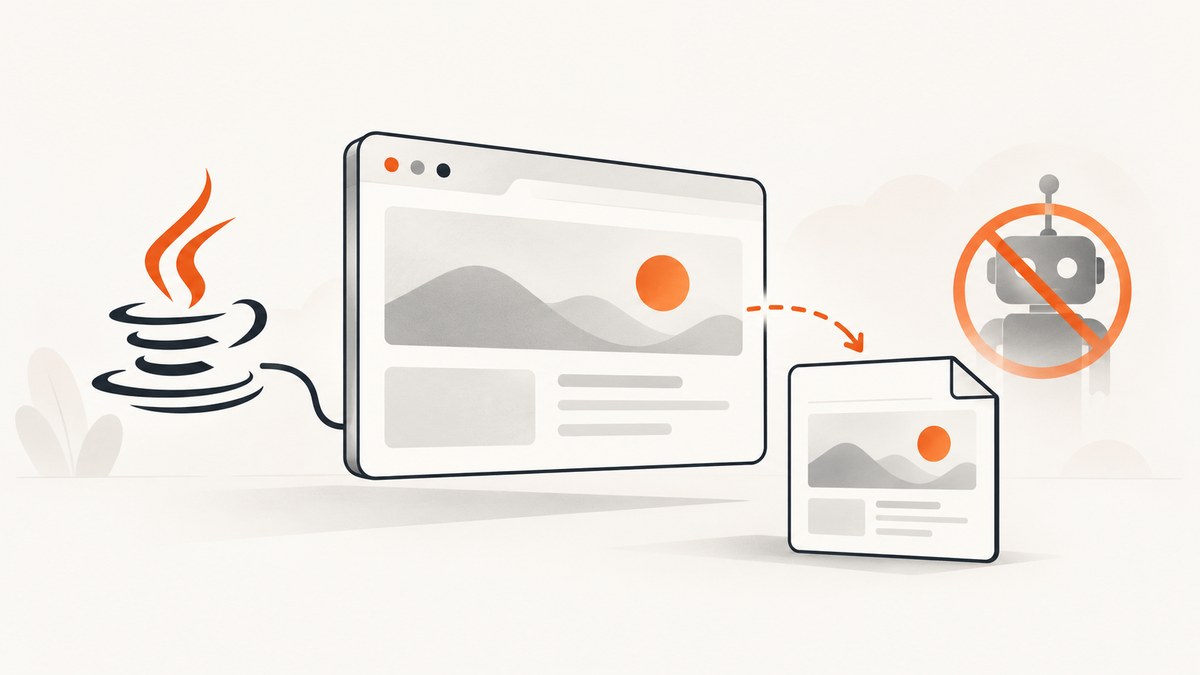
Use Selenium’s TakesScreenshot interface. Cast your WebDriver to TakesScreenshot, call getScreenshotAs(OutputType.FILE), and copy the temporary file to a permanent path. Java Robot is not required because Selenium captures the browser directly. Selenium describes the interface as supporting a driver or HTML element that can capture a screenshot in different formats: TakesScreenshot API.
Path destination = Paths.get("screenshots", "page.png");
Files.createDirectories(destination.getParent());

File temporary = ((TakesScreenshot) driver)
    .getScreenshotAs(OutputType.FILE);

Files.copy(
    temporary.toPath(),
    destination,
    StandardCopyOption.REPLACE_EXISTING
);
The returned FILE is temporary and can be deleted when the JVM exits, so copy it immediately. Selenium also supports raw PNG bytes and Base64 output through OutputType.
1. Capture and save a browser screenshot
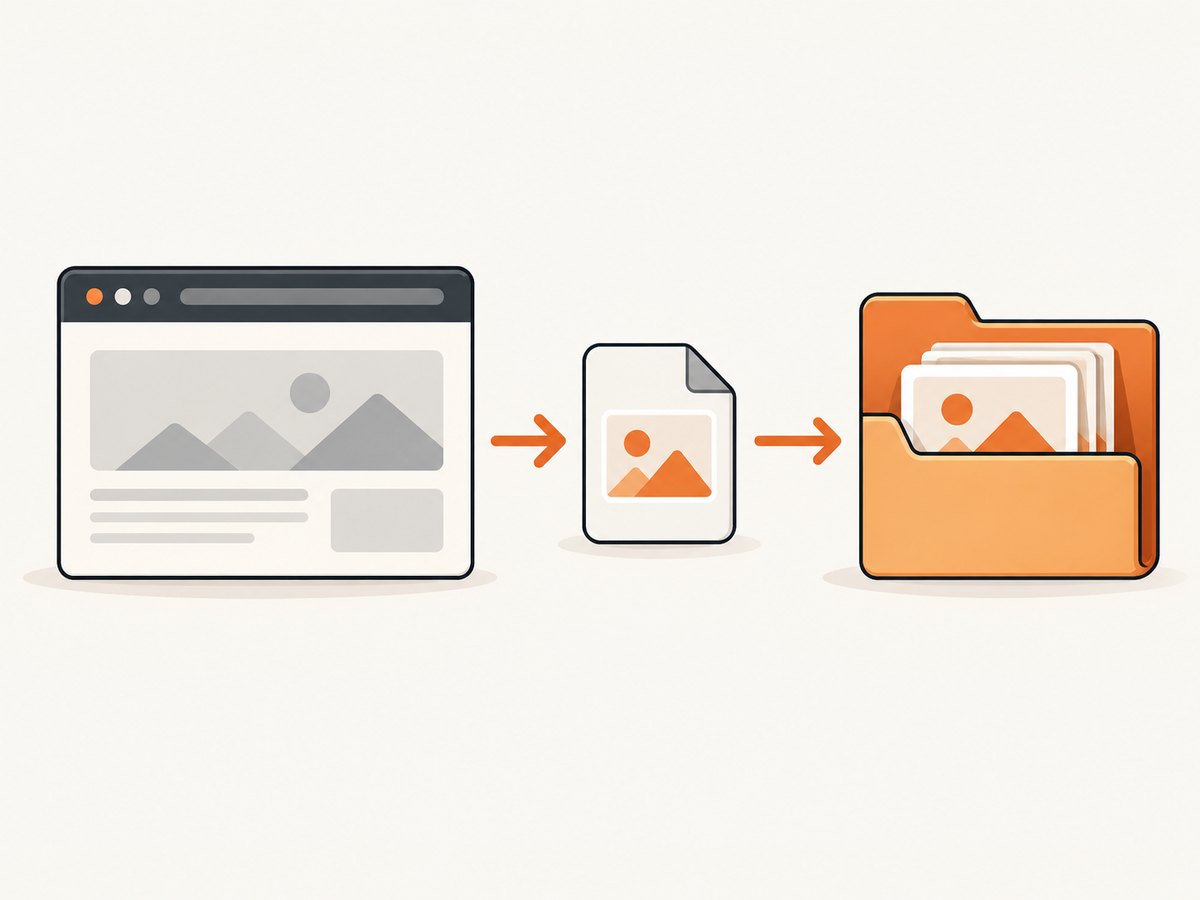
This complete example opens a page, captures the current browser viewport, creates the destination directory, and writes a durable PNG file.
import java.io.File;
import java.nio.file.Files;
import java.nio.file.Path;
import java.nio.file.Paths;
import java.nio.file.StandardCopyOption;

import org.openqa.selenium.WebDriver;
import org.openqa.selenium.chrome.ChromeDriver;
import org.openqa.selenium.OutputType;
import org.openqa.selenium.TakesScreenshot;

public class SaveSeleniumScreenshot {
    public static void main(String[] args) throws Exception {
        WebDriver driver = new ChromeDriver();

        try {
            driver.get("https://example.com");

            Path destination = Paths.get("screenshots", "example.png");
            Files.createDirectories(destination.getParent());

            File temporaryScreenshot = ((TakesScreenshot) driver)
                .getScreenshotAs(OutputType.FILE);

            Files.copy(
                temporaryScreenshot.toPath(),
                destination,
                StandardCopyOption.REPLACE_EXISTING
            );

            System.out.println("Saved: " + destination.toAbsolutePath());
        } finally {
            driver.quit();
        }
    }
}
Add Selenium’s Java dependency to your build and make sure the browser driver setup required by your environment is available. The screenshot part is the cast, getScreenshotAs call, and copy operation.
2. Choose the output type that fits your workflow
| Output | Use it when | What your code must do |
|---|---|---|
OutputType.FILE |
You want Selenium to create a temporary image file. | Copy it to durable storage before the JVM exits. |
OutputType.BYTES |
You want to control writing, hashing, uploading, or storage yourself. | Write the returned bytes to a path or stream. |
OutputType.BASE64 |
You need to embed or transport the image as text. | Keep it as Base64 or decode it at the destination. |
Save PNG bytes directly
import java.nio.file.Files;
import java.nio.file.Path;
import java.nio.file.Paths;
import org.openqa.selenium.OutputType;
import org.openqa.selenium.TakesScreenshot;

Path destination = Paths.get("screenshots", "page.png");
Files.createDirectories(destination.getParent());

byte[] png = ((TakesScreenshot) driver)
    .getScreenshotAs(OutputType.BYTES);

Files.write(destination, png);
This avoids handling Selenium’s temporary file. It is also convenient when the next step uploads the bytes to object storage or attaches them to a test report.
Get a Base64 screenshot
String base64Png = ((TakesScreenshot) driver)
    .getScreenshotAs(OutputType.BASE64);

String dataUri = "data:image/png;base64," + base64Png;
Base64 increases payload size compared with binary PNG data, so use bytes for ordinary file and upload workflows.
3. Save an element screenshot
If you need one component instead of the browser viewport, call the screenshot method on a WebElement. Selenium documents element screenshots, but the exact extent and support can depend on the driver implementation.
import java.nio.file.Files;
import java.nio.file.Path;
import java.nio.file.Paths;
import java.nio.file.StandardCopyOption;
import org.openqa.selenium.By;
import org.openqa.selenium.OutputType;
import org.openqa.selenium.WebElement;
import org.openqa.selenium.TakesScreenshot;

WebElement card = driver.findElement(By.cssSelector(".pricing-card"));
Path destination = Paths.get("screenshots", "pricing-card.png");
Files.createDirectories(destination.getParent());

File temporary = card.getScreenshotAs(OutputType.FILE);
Files.copy(
    temporary.toPath(),
    destination,
    StandardCopyOption.REPLACE_EXISTING
);
Wait for the element to be present and visible before capturing it. If the element is below the fold, Selenium may scroll it into view as part of the driver implementation; do not assume identical behavior across every browser and version.
4. Full-page screenshots
The basic driver screenshot generally represents the current browser viewport. Full-page capture is a separate capability. Selenium’s Java API exposes a Firefox-specific full-page method through HasFullPageScreenshot; check the API for the exact Selenium and driver versions in your project: Java OutputType API usages.
import java.io.File;
import java.nio.file.Files;
import java.nio.file.Path;
import java.nio.file.Paths;
import java.nio.file.StandardCopyOption;
import org.openqa.selenium.OutputType;
import org.openqa.selenium.firefox.FirefoxDriver;

FirefoxDriver driver = new FirefoxDriver();
try {
    driver.get("https://example.com");

    Path destination = Paths.get("screenshots", "full-page.png");
    Files.createDirectories(destination.getParent());

    File temporary = driver.getFullPageScreenshotAs(OutputType.FILE);
    Files.copy(
        temporary.toPath(),
        destination,
        StandardCopyOption.REPLACE_EXISTING
    );
} finally {
    driver.quit();
}
Do not assume that getScreenshotAs produces a full document for every browser. If full-page behavior matters, verify the installed browser, driver, and Selenium versions and use the browser-specific API that they support.
5. Make paths reliable in tests and CI
Create parent directories
Files.copy will not create missing parent directories. Call Files.createDirectories first, as in the examples.
Use unique names for parallel tests
String fileName = "checkout-" + System.currentTimeMillis() + ".png";
Path destination = Paths.get("artifacts", fileName);
Files.createDirectories(destination.getParent());
For a test framework, include the test class, method, browser, and a unique identifier in the name. Avoid two workers writing the same path.
Resolve paths explicitly
A relative path is resolved from the process working directory, which can differ between an IDE, Maven, Gradle, and CI. Log destination.toAbsolutePath() so failed builds show where the file was written.
Capture after the page reaches the required state
A screenshot records the current rendered state. Wait for a specific element, URL condition, or application state instead of relying only on a fixed sleep.
6. Common errors and fixes
| Symptom | Likely cause | Fix |
|---|---|---|
ClassCastException when casting to TakesScreenshot |
The current driver does not expose the capability, or the object is not the expected WebDriver. | Use a Selenium driver that implements TakesScreenshot and check the installed Selenium and driver versions. |
NoSuchFileException for the destination |
The parent directory does not exist. | Call Files.createDirectories(destination.getParent()) first. |
| The image disappears after the run | OutputType.FILE returned a temporary file. |
Copy it immediately, or request OutputType.BYTES and write the bytes yourself. |
| Permission denied | The test process cannot write to the selected directory. | Choose a writable workspace or CI artifact directory and check its permissions. |
| Screenshot is blank or stale | Capture happened before navigation, rendering, or an asynchronous update completed. | Wait for the relevant element or state, then capture. Confirm the driver is on the expected URL. |
| Only the viewport is captured | The generic screenshot method is not a full-page API. | Use a supported full-page method, such as the Firefox API, and verify version support. |
| Element screenshot fails | The element is missing, not visible, detached, or unsupported by the driver. | Locate it after the page loads, wait for visibility, scroll if needed, and check driver support. |
| Two screenshots overwrite each other | Parallel tests share one filename. | Generate unique, test-specific filenames or isolate each worker’s output directory. |
7. Performance and reliability considerations
- Capture only what you need. A viewport or element screenshot usually requires less image data and storage than a tall full-page image.
- Prefer bytes for pipelines.
OutputType.BYTESavoids an extra temporary-file copy when the next step uploads or processes the image. - Keep screenshots near failure artifacts. Store the URL, browser, viewport, timestamp, and test name beside the image so a screenshot remains diagnosable.
- Expect rendering differences. Fonts, device scale, browser versions, animations, network timing, and responsive breakpoints can change pixels. Set the required viewport and wait for stable content before capture.
- Handle cleanup in
finally. Always quit the driver, including when screenshot saving throws an exception. - Retry the right layer. If navigation failed, retry navigation or the test state. Repeatedly retrying a screenshot call will not fix a missing page or unsupported capability.
8. cURL, Python, and Node.js alternatives
The Java Selenium method is appropriate when the browser is already part of your test or automation. If you only need an image from a URL, an HTTP screenshot API can remove browser setup.
cURL
curl -G "https://api.screenshotneo.com/v1/shot" -d access_key=YOUR_API_KEY --data-urlencode url=https://stripe.com -o shot.webpPython
import requests

r = requests.get(
    "https://api.screenshotneo.com/v1/shot",
    params={"access_key": "YOUR_API_KEY", "url": "https://stripe.com"},
    timeout=90,
)
r.raise_for_status()
open("shot.webp", "wb").write(r.content)
Node.js
const q = new URLSearchParams({
  access_key: 'YOUR_API_KEY',
  url: 'https://stripe.com'
});

const res = await fetch(`https://api.screenshotneo.com/v1/shot?${q}`);
if (!res.ok) throw new Error(`Screenshot failed: ${res.status}`);
const bytes = Buffer.from(await res.arrayBuffer());
require('fs').writeFileSync('shot.webp', bytes);
Or skip the browser setup
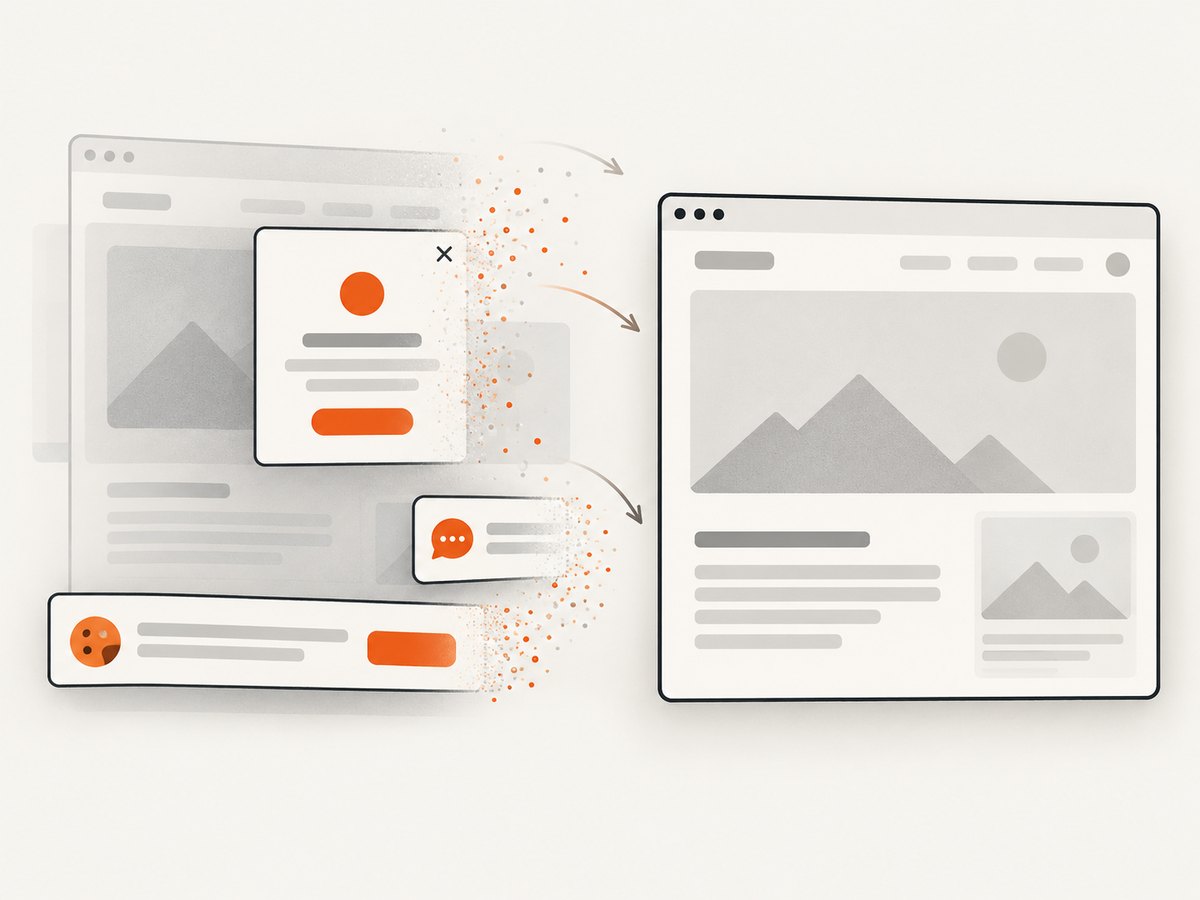
ScreenshotNeo returns a screenshot or PDF from one GET request. Cookie and consent banners, newsletter popups, and chat widgets are removed before the shot; bot checks, blank pages, failed loads, timeouts, and cache hits are not billed. Its response identifies the page verdict and billing status with X-Page-Verdict and X-Billed headers. An MCP server lets Claude, Cursor, and other MCP clients use take_screenshot, get_page_info, and capture_pdf.
See the ScreenshotNeo API documentation for the available options. The service supports full-page capture, CSS element capture, dark mode, device presets and custom viewports, retina scale, PDF settings, custom CSS and JavaScript, clicks, waits, blocking rules, headers, cookies, user agents, authorization, timezone, geolocation, transparent backgrounds, resizing, caching, signed links, asynchronous jobs, bulk capture, usage data, and an OpenAPI specification.
Free usage includes 1,000 screenshots each month with no card. Paid plans start at $5 for 3,000 shots, and every feature is available on every plan. Create a free ScreenshotNeo account.
9. Short FAQ
Do I need Java Robot for Selenium screenshots?
No. Use Selenium’s TakesScreenshot interface for browser or element screenshots.
Why must I copy the file returned by Selenium?
OutputType.FILE returns a temporary file. Copy it to your own path before the JVM exits.
Which output type is best for an upload?
Use OutputType.BYTES when your code can upload binary data directly. Use FILE when another tool expects a file path.
Can every browser driver capture a full page?
No universal guarantee applies to the basic screenshot call. Full-page support is driver-specific; verify the API for your browser and Selenium version.
Can Selenium save JPEG or WebP?
The documented Java output forms are a temporary file, bytes, and Base64. The browser driver determines the screenshot representation, so use the returned data as provided unless your own image-processing step converts it.


