How to Save and Access Server-Returned PDFs With Robot Framework Browser Library
Learn how to save downloaded PDFs, handle inline PDF responses, and generate page PDFs with Robot Framework Browser Library and Playwright.
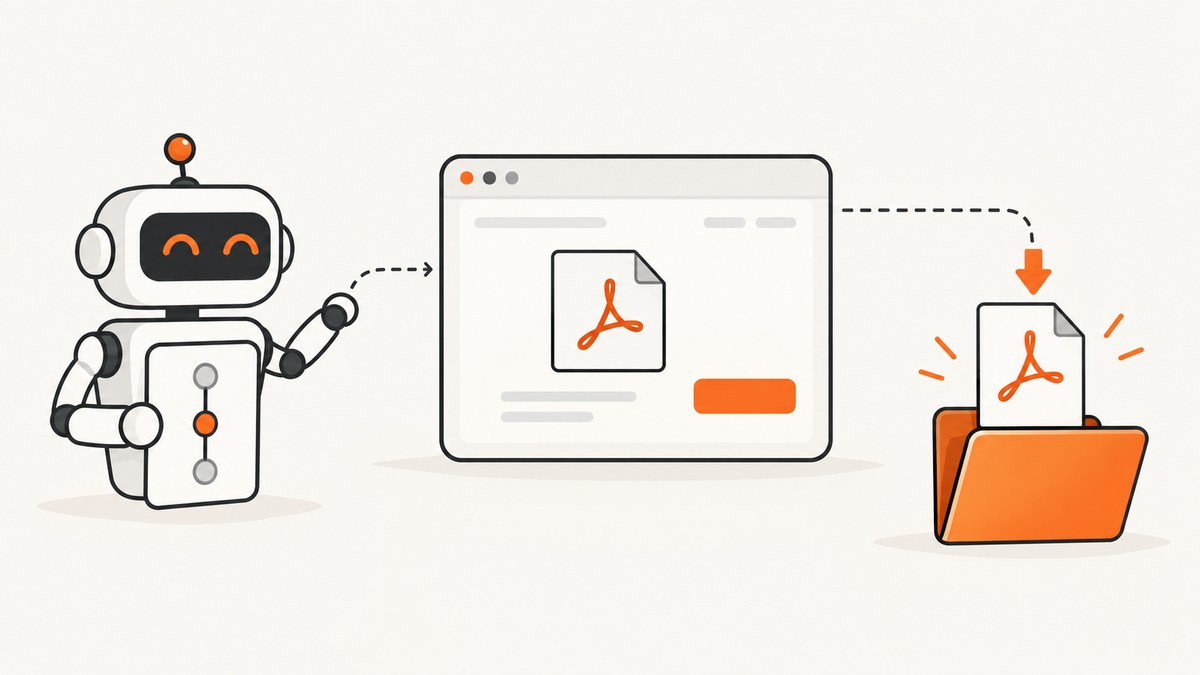
Saving a PDF in Robot Framework Browser depends on what the server and browser actually do. A click can trigger a download event, navigate to an inline PDF viewer, or leave an HTML page that you want to print as a new PDF. These are three different artifacts and require different techniques.
For a real browser download, subscribe to the download event before clicking, wait for the event, and save the file to a deterministic path before the browser context closes. For an inline PDF, the browser is displaying the server response; Browser Library documentation does not establish a single built-in keyword for extracting those raw response bytes, so retrieve the protected endpoint with an HTTP client or verify the response APIs in your installed version. Use Save Page As Pdf only when you want a PDF generated from rendered HTML.
1. Identify the PDF behavior first
| Case | What the file represents | Documented approach | Main constraint |
|---|---|---|---|
| Browser download | The file delivered by the server as an attachment | Wait for the download event, then save it | Persist it before the owning context closes |
| Inline PDF navigation | The server PDF displayed in the browser viewer | Use a version-appropriate response API or an authenticated HTTP/API request | Do not print the viewer as a substitute for the original bytes |
| Page print | A newly generated PDF of rendered HTML | Save Page As Pdf or Playwright page.pdf() |
Browser Library documents Chromium, headless support |
Ask these questions before writing a test:
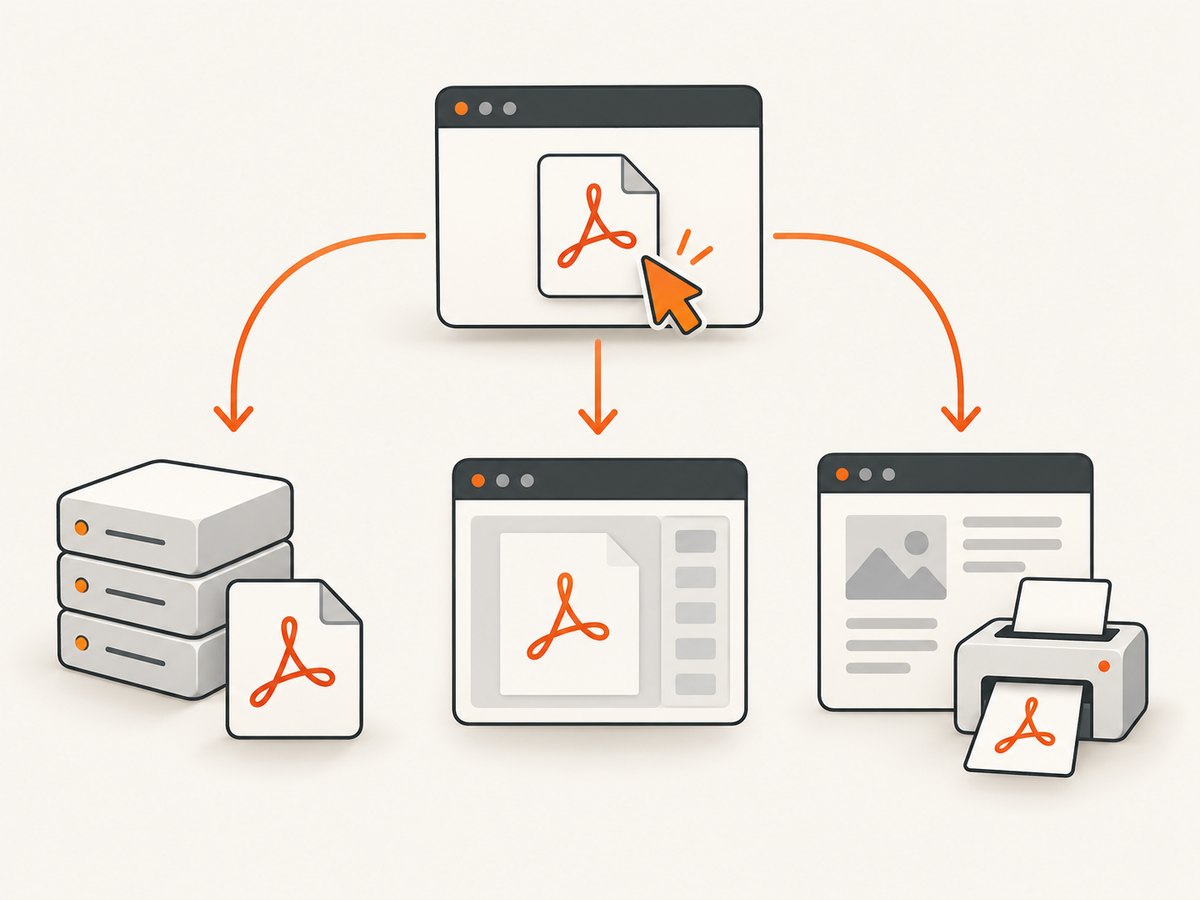
- Does the response include a download disposition and cause a download event?
- Does navigation open a PDF viewer inside the tab?
- Is the desired artifact actually a print of the HTML page?
- Does the endpoint require cookies, an Authorization header, or another session credential?
Browser Library is a Robot Framework library powered by Playwright. The current official setup guide describes installing the Python package, installing Node.js, and running rfbrowser init to install Node and browser dependencies. Check the Browser Library documentation for the version installed in your project.
2. Install and configure Browser Library
python -m pip install robotframework-browser
rfbrowser init
A minimal suite starts Chromium, creates a context that accepts downloads, and opens the page under test:
*** Settings ***
Library    Browser
Library    OperatingSystem

*** Test Cases ***
Open Reports Page
    New Browser    chromium    headless=True
    New Context    acceptDownloads=True
    New Page    https://example.test/reports
    [Teardown]    Close Browser
Use an explicit output directory in CI. Robot Framework’s ${OUTPUT_DIR} is useful for artifacts, but create a subdirectory when parallel workers could otherwise overwrite the same filename.
3. Save a browser-triggered PDF download
A download event must be registered before the action that starts it. Waiting after the click can miss a fast response. Playwright’s model is page.waitForEvent('download'), followed by download.saveAs(path). The temporary download belongs to the browser context and is deleted when that context closes, so save it while the context is alive.
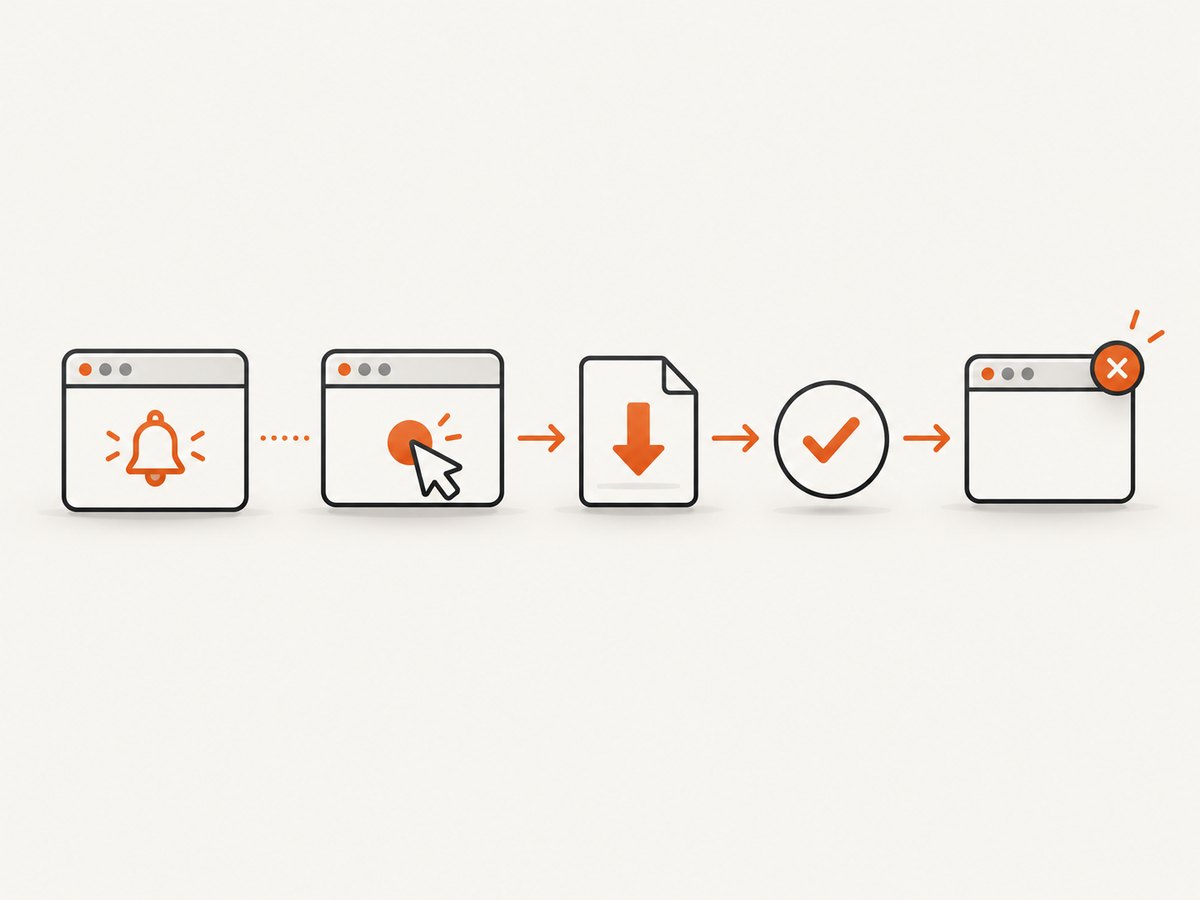
Browser Library keyword names and argument shapes can vary between releases. The following is intentionally Robot Framework-shaped pseudocode: verify the exact promise, wait, and save keywords against your installed Browser Library keyword reference before publishing it as executable suite code.
*** Settings ***
Library    Browser
Library    OperatingSystem

*** Variables ***
${REPORT_URL}    https://example.test/reports
${PDF_PATH}      ${OUTPUT_DIR}${/}report.pdf

*** Test Cases ***
Save A Downloaded PDF
    New Browser    chromium    headless=True
    New Context    acceptDownloads=True
    New Page    ${REPORT_URL}
    ${download_promise}=    Promise To Wait For Download
    Click    text=Download report
    ${download}=    Wait For    ${download_promise}
    ${saved_path}=    Save Download    ${download}    ${PDF_PATH}
    File Should Exist    ${saved_path}
    ${size}=    Get File Size    ${saved_path}
    Should Be True    ${size} > 1000
    [Teardown]    Close Browser
The assertions should check more than existence. A zero-byte file, an HTML error page named .pdf, or a truncated transfer can otherwise pass a weak test.
*** Test Cases ***
Validate PDF Artifact
    ${bytes}=    Get Binary File    ${PDF_PATH}
    Should Start With    ${bytes}    %PDF-
    ${size}=    Get File Size    ${PDF_PATH}
    Should Be True    ${size} > 1000
If your Browser Library version exposes lower-level Playwright objects, the equivalent JavaScript sequence is:
const downloadPromise = page.waitForEvent('download');
await page.getByText('Download report').click();
const download = await downloadPromise;
await download.saveAs('/tmp/report.pdf');
Choose a path that is unique per test or derive it from the report identifier. Keep the saved file as a CI artifact when a failure needs investigation. If the server supplies a useful filename, inspect the download’s suggested filename, but still save to a controlled location so later keywords know exactly where to find it.
Download edge cases
- Popup or new tab: wait for both the page event and download event when the click opens a separate target. Register listeners before the click.
- POST form: submit the form only after the download wait is armed.
- Multiple downloads: wait for each event and assign distinct paths; do not assume event order unless the application guarantees it.
- Authentication: create the Browser context after logging in, or configure the same cookies and headers on the context that performs the download.
- Filename collisions: use a run identifier or test variable. Parallel workers should never share a destination.
- Context teardown: save and validate before
Close ContextorClose Browser.
4. Save an inline PDF response
An inline response commonly has Content-Type: application/pdf and is rendered by the browser’s PDF viewer instead of emitted as a download. It is already the server’s document. Printing the current page usually prints the viewer shell or a reformatted rendering; it does not guarantee the original response bytes.
The reviewed Browser Library and Playwright references do not settle a Browser Library-native keyword for retrieving raw bytes from an inline PDF navigation. Treat this as an API boundary:
- Check the response and keyword APIs for your installed Browser Library version.
- If the endpoint is an API, request it with an HTTP client and write the response body directly.
- Preserve the browser session’s cookies, bearer token, CSRF token, and any required headers.
- Validate status, content type, and the
%PDF-signature before using the artifact.
A Python-side request illustrates the byte-saving part. Replace the URL and authentication method with your application’s contract:
import requests

url = "https://example.test/api/reports/42.pdf"
headers = {"Authorization": "Bearer YOUR_TOKEN"}
response = requests.get(url, headers=headers, timeout=60)
response.raise_for_status()
if not response.content.startswith(b"%PDF-"):
    raise ValueError("The endpoint did not return PDF bytes")
with open("report.pdf", "wb") as output:
    output.write(response.content)
When authentication exists only in the browser, export the required storage state or cookies according to your test’s security policy, then pass them to the HTTP client. Do not log bearer tokens or the complete cookie header in CI output.
5. Generate a PDF from rendered page content
Use page printing when the requirement is “make a PDF of this HTML page.” Browser Library’s Save Page As Pdf returns an output path and resolves relative paths under ${OUTPUT_DIR}. Its reference documents support only in Chromium while headless.
*** Test Cases ***
Print Rendered Report
    New Browser    chromium    headless=True
    New Context
    New Page    https://example.test/reports/42
    Wait For Load State    networkidle
    Save Page As Pdf    ${OUTPUT_DIR}${/}rendered-report.pdf
    File Should Exist    ${OUTPUT_DIR}${/}rendered-report.pdf
    [Teardown]    Close Browser
Playwright uses print CSS by default. If the screen layout is the intended output, emulate screen media before generating the PDF through the lower-level API:
await page.emulateMedia({ media: 'screen' });
await page.pdf({ path: 'rendered-report.pdf', printBackground: true });
Common PDF print settings include paper format or explicit width and height, margins, landscape orientation, background graphics, page ranges, scale, headers and footers, and CSS page sizing. Scale must be between 0.1 and 2. Defaults for printing backgrounds and tagged output are false. These settings affect the newly generated printout only; they cannot alter the bytes returned by a PDF endpoint.
6. Troubleshooting
| Symptom | Likely cause | Fix |
|---|---|---|
| No download event | The response is inline, the click was blocked, or the listener started too late | Register the wait first; inspect the response headers and browser behavior |
| File disappears after the test | The temporary path was used after context closure | Call the save operation before closing the context |
| PDF is zero bytes | Transfer was incomplete or the destination was reused | Use a unique path, wait for completion, and assert size and signature |
| File contains HTML | Authentication expired or the server returned an error page | Check status, content type, redirects, and session credentials |
Save Page As Pdf fails |
Non-Chromium browser or headed mode | Run Chromium headless as documented |
| Layout differs from the screen | Print CSS is active | Emulate screen media and set print backgrounds when appropriate |
| Protected inline PDF cannot be fetched | HTTP client lacks browser cookies or authorization | Transfer only the required session state securely |
| Parallel tests overwrite artifacts | All workers use one filename | Include worker and test identifiers in paths |
7. Reliability, performance, and cost considerations
Wait on the condition that proves the artifact is ready rather than using a long fixed sleep. For downloads, the event itself is the synchronization point. For page printing, wait for the page state and any application-specific selector that indicates data is rendered. Lazy images, fonts, and charts may need an explicit wait before printing.
Keep browser contexts short enough to avoid stale sessions, but do not close them until files are saved and validated. Store artifacts outside ephemeral containers when a later pipeline stage needs them. Retry only transient navigation or network failures; a deterministic authentication error will not be fixed by repeating the same request.
For large reports, stream or write the HTTP response in binary mode and monitor available disk space. Compressing or deleting artifacts can reduce storage, but retain the failing artifact long enough to diagnose the test. Avoid logging complete PDF bodies or secrets.
8. Or skip the browser setup
If the goal is a clean capture or PDF of a URL rather than a test of your application’s download mechanics, ScreenshotNeo provides a website capture API and an MCP server. Its capture flow removes cookie and consent banners, newsletter popups, and chat widgets before the shot; bot checks, blank pages, timeouts, failed loads, and cache hits are not billed. Responses identify the result with X-Page-Verdict and X-Billed headers. AI agents can use the MCP tools take_screenshot, get_page_info, and capture_pdf.
For a direct request, see the ScreenshotNeo API documentation:
curl -G "https://api.screenshotneo.com/v1/shot" -d access_key=YOUR_API_KEY --data-urlencode url=https://stripe.com -o shot.webpimport requests
r = requests.get("https://api.screenshotneo.com/v1/shot", params={"access_key": "YOUR_API_KEY", "url": "https://stripe.com"}, timeout=90)
open("shot.webp", "wb").write(r.content)const q = new URLSearchParams({ access_key: 'YOUR_API_KEY', url: 'https://stripe.com' });
const res = await fetch(`https://api.screenshotneo.com/v1/shot?${q}`);ScreenshotNeo supports PDF capture, full-page and element capture, custom CSS and JavaScript, waits, blocking rules, headers, cookies, user agents, geolocation, caching, signed links, asynchronous jobs, webhooks, bulk capture, and an OpenAPI specification. Every feature is on every plan. The Free plan includes 1,000 shots per month with no card; paid plans start at $5 for 3,000 shots. Create a free ScreenshotNeo account.
9. Practical checklist
- Classify the result as download, inline response, or page print.
- Arm the download wait before the triggering action.
- Save to a deterministic path before the context closes.
- Assert file existence, size, and the
%PDF-signature. - For inline PDFs, retrieve response bytes through a verified response API or HTTP client.
- For page PDFs, use Chromium headless and account for print CSS.
- Preserve authentication securely and isolate parallel artifact paths.
- Retain useful artifacts and diagnose status, headers, and timing before adding retries.
FAQ
Can I use Save Page As Pdf to save a downloaded PDF?
No. It generates a new PDF from rendered page content. Save a browser download or retrieve the server response bytes instead.
Why must I wait before clicking?
The download event can occur immediately. Registering first prevents a race in which the event has already happened when the test begins waiting.
Does an inline PDF count as a download?
Usually not. Inline navigation displays the response in a viewer, so use a verified response-body method or an authenticated HTTP request.
Which browser supports Browser Library PDF printing?
The Browser Library reference documents Save Page As Pdf for Chromium in headless mode.
How do I keep a PDF after CI cleanup?
Save it under the pipeline’s artifact directory and publish that directory after the test, before any container or workspace cleanup step.


