How to Save SVG Images with Html2canvas
Learn how html2canvas saves SVG-containing regions as PNG, how to preserve the original SVG source, and how to fix CORS and rendering problems.
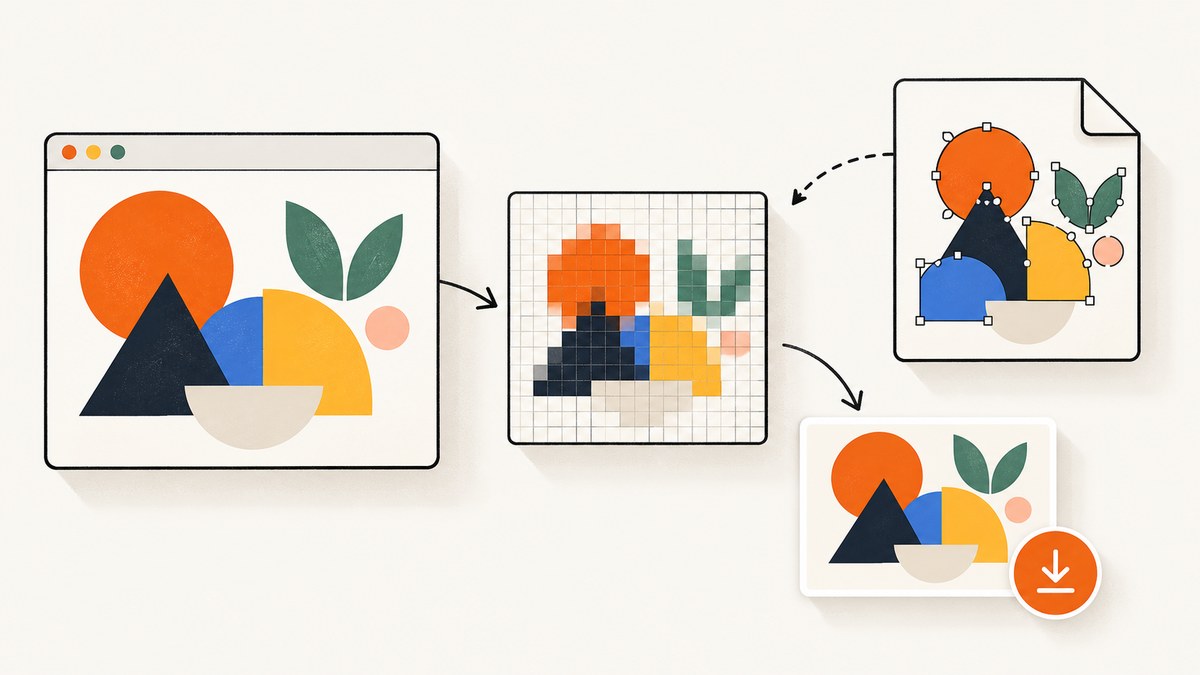
Short answer: html2canvas can save a page region that contains SVG as a raster PNG. It does this by reconstructing the DOM in a canvas; it does not provide a documented way to export the original, editable SVG source through canvas.toDataURL(). If you need an editable SVG file, download the SVG markup or resource itself. If you need a visual snapshot of the rendered page, use html2canvas and download the canvas as PNG.
This distinction determines which implementation you should use. The first example below captures an element and downloads screenshot.png. Later examples show how to download inline SVG, fetch an external SVG file, handle cross-origin assets, control dimensions, and diagnose blank or incomplete captures.
1. Decide whether you need PNG or SVG
| Goal | Correct approach | Output |
|---|---|---|
| Save what the user sees, including surrounding HTML and CSS | Capture the element with html2canvas | Raster PNG (or another canvas format) |
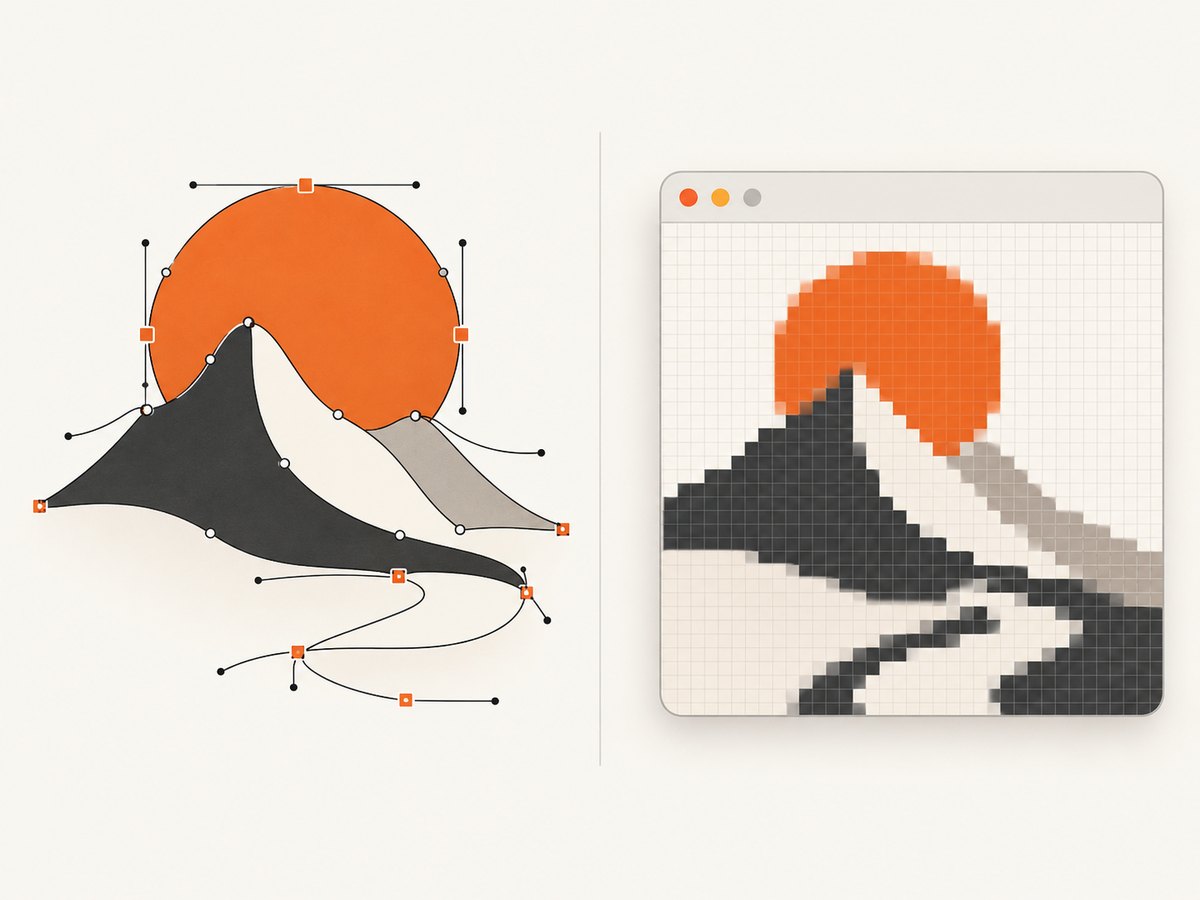
| Keep paths, text, and shapes editable | Download the original SVG markup or resource | Vector SVG source |
| Archive a complete page region for sharing | Capture with html2canvas, then store the PNG | Pixel image |
| Reuse an illustration in a design tool | Save the original SVG file | Editable vector file |
html2canvas reconstructs a view from the DOM and CSS properties it understands. It is not a literal screenshot of browser pixels, so some effects, filters, fonts, or SVG features can render differently from the live page. The official documentation describes the canvas workflow and supported browser targets in the html2canvas documentation.
2. Install and prepare html2canvas
You can load the library from a package manager or a script tag. With npm:
npm install html2canvasFor a browser module:
import html2canvas from 'html2canvas';Or load a browser bundle:
<script src="https://cdn.jsdelivr.net/npm/html2canvas@latest/dist/html2canvas.min.js"></script>Give the target a stable selector and make sure it is visible before capture:
<section id="capture">
  <h1>Monthly chart</h1>
  <svg viewBox="0 0 300 120" role="img" aria-label="Sales chart">
    <rect width="300" height="120" fill="#f5f7fb" />
    <path d="M10 100 L80 70 L150 82 L220 35 L290 20" fill="none" stroke="#2563eb" stroke-width="6" />
  </svg>
</section>
<button id="save" type="button">Save PNG</button>
3. Download an SVG-containing region as PNG
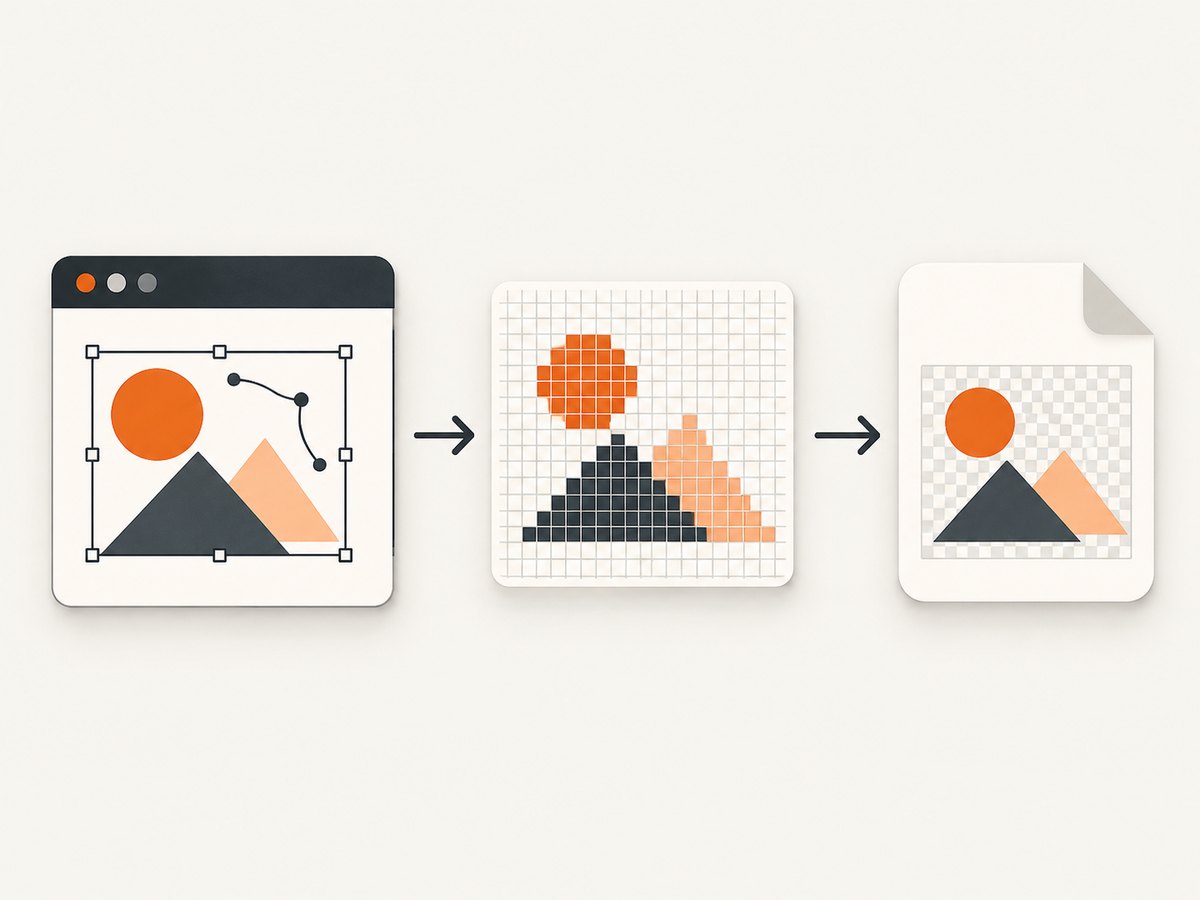
This is the documented save pattern: call html2canvas(element), convert the returned canvas with toDataURL('image/png'), set a download filename, and click an anchor.
import html2canvas from 'html2canvas';

const button = document.querySelector('#save');
const target = document.querySelector('#capture');

button.addEventListener('click', async () => {
  if (!target) throw new Error('Capture element was not found');

  const canvas = await html2canvas(target, {
    backgroundColor: '#ffffff',
    scale: window.devicePixelRatio,
    useCORS: true
  });

  const link = document.createElement('a');
  link.download = 'chart.png';
  link.href = canvas.toDataURL('image/png');
  link.click();
});
The file is a raster PNG. Increasing scale gives you more pixels, but also increases memory use and can hit browser canvas limits. A predictable export usually sets an explicit background color because transparent backgrounds can look different in image viewers.
Use a Blob for larger files
toBlob() avoids building a large base64 data URL in JavaScript memory. It is a better choice for large captures:
const canvas = await html2canvas(document.querySelector('#capture'), {
  backgroundColor: '#fff',
  useCORS: true
});

canvas.toBlob(blob => {
  if (!blob) throw new Error('Canvas could not be encoded');
  const url = URL.createObjectURL(blob);
  const link = document.createElement('a');
  link.download = 'chart.png';
  link.href = url;
  link.click();
  URL.revokeObjectURL(url);
}, 'image/png');
4. Download the original inline SVG as SVG
If editability matters, do not convert the canvas back into an SVG filename. Serialize the actual <svg> element and download that XML:
const svg = document.querySelector('#capture svg');
if (!svg) throw new Error('SVG element was not found');

const copy = svg.cloneNode(true);
copy.setAttribute('xmlns', 'http://www.w3.org/2000/svg');

const source = new XMLSerializer().serializeToString(copy);
const blob = new Blob([source], { type: 'image/svg+xml;charset=utf-8' });
const url = URL.createObjectURL(blob);
const link = document.createElement('a');
link.download = 'chart.svg';
link.href = url;
link.click();
URL.revokeObjectURL(url);
This preserves vector geometry in the inline markup. It may not preserve styles that come only from external CSS, runtime-generated data, or linked resources. For a portable SVG, move required presentation attributes or styles into the SVG and ensure referenced fonts and images remain available.
Fetch an external SVG file
When the image is an external resource such as /assets/logo.svg, download that URL directly:
const response = await fetch('/assets/logo.svg');
if (!response.ok) throw new Error(`SVG download failed: ${response.status}`);
const svgText = await response.text();
const blob = new Blob([svgText], { type: 'image/svg+xml;charset=utf-8' });
const url = URL.createObjectURL(blob);
const link = document.createElement('a');
link.download = 'logo.svg';
link.href = url;
link.click();
URL.revokeObjectURL(url);
A cross-origin URL must allow your origin through its CORS response headers for browser JavaScript to read it. If it does not, fetch it from your own server or use a server-side download endpoint that is authorized to access the asset.
5. Options that matter for SVG captures
| Option | Use | Practical note |
|---|---|---|
backgroundColor |
Choose the canvas background | Use null for transparency when supported by your design. |
scale |
Control output density | Higher values improve sharpness and increase memory use. |
useCORS |
Request cross-origin images with CORS | The asset server must send permission headers; this option cannot override the server. |
proxy |
Relay supported remote resources through a same-origin proxy | Configure a real proxy endpoint that you control and secure. |
windowWidth, windowHeight |
Set the virtual viewport used for layout | For clipped or empty output, match these to the element’s scroll dimensions as suggested in the FAQ. |
logging |
Enable diagnostic output | Useful while investigating missing resources or unsupported properties. |
allowTaint |
Permit tainted resources to be drawn | It does not make a tainted canvas readable; export can still fail. |
6. Cross-origin SVG and image assets
Canvas security is the most common reason an apparently correct export fails. A remote SVG, raster image, or an image URL that redirects to another origin can taint the canvas. Once tainted, browser security prevents toDataURL() and toBlob() from reading pixels.
- Check the asset’s final URL in the network panel, including redirects.
- Confirm the response includes an
Access-Control-Allow-Originvalue that permits your page. - Use
useCORS: trueonly when the server is configured for CORS. - If you control neither server, fetch the resource through a secure server-side proxy.
- Remove or replace blocked assets and capture again to isolate the failing resource.
A reported repository issue describes a redirect from a same-origin URL to a CDN where useCORS did not solve the case. Treat that as an edge case to investigate against your own URLs, not as proof that every redirect fails.
7. Make the capture complete and predictable
Wait for fonts, images, and application data
await document.fonts.ready;
await Promise.all([...document.images].map(image => {
  if (image.complete) return Promise.resolve();
  return new Promise(resolve => {
    image.addEventListener('load', resolve, { once: true });
    image.addEventListener('error', resolve, { once: true });
  });
}));

const canvas = await html2canvas(document.querySelector('#capture'), {
  useCORS: true,
  backgroundColor: '#fff'
});
For lazy-loaded SVG or images, scroll the target into view or trigger the application’s loading behavior before calling html2canvas. For charts rendered after an API request, wait for the request and the chart’s final DOM update rather than using an arbitrary short delay.
Capture a full scrollable element
const element = document.querySelector('#capture');
const canvas = await html2canvas(element, {
  width: element.scrollWidth,
  height: element.scrollHeight,
  windowWidth: element.scrollWidth,
  windowHeight: element.scrollHeight,
  backgroundColor: '#fff'
});
Very large dimensions can exceed browser canvas limits. Split long content into sections or capture at a lower scale when the browser reports an invalid canvas size or returns a blank result.
8. Common errors and fixes
| Symptom | Likely cause | Fix |
|---|---|---|
SecurityError: Tainted canvases may not be exported |
Cross-origin SVG or image without suitable CORS | Enable server CORS, use a proxy, or remove the resource. |
| SVG is missing from the PNG | Unsupported SVG feature, external stylesheet, or asset not loaded | Test the actual markup, inline critical styles, wait for resources, and simplify unsupported filters or masks. |
| PNG is blank | Target has zero size, is hidden, or dimensions exceed limits | Check getBoundingClientRect(), make it visible, set dimensions, and reduce the capture size. |
| Capture is clipped | Viewport dimensions are smaller than the scrollable content | Set width, height, windowWidth, and windowHeight from scroll dimensions. |
| Fonts differ from the page | Web fonts have not finished loading | Await document.fonts.ready and verify the font response is successful. |
| Images appear intermittently | Lazy loading or asynchronous rendering | Trigger loading and wait for each image’s load or error event. |
| Only part of an SVG line or shape appears | Renderer support or browser-specific SVG behavior | Reduce complex effects, test the real browser and markup, and keep the source SVG when fidelity is required. |
9. Performance, reliability, and security
- Limit the area. Capture the smallest useful element instead of the entire document.
- Choose scale deliberately. A device-pixel-ratio scale can create a large bitmap on high-density displays. Use a fixed scale for repeatable output.
- Reduce memory pressure. Prefer
toBlob(), release object URLs, and avoid retaining multiple large canvases. - Keep export actions user initiated. Browser download behavior and popup policies are more predictable when triggered by a click.
- Validate output. Check the blob type and size, and show a useful error when encoding returns null.
- Protect proxies. A proxy that accepts arbitrary URLs can become a server-side request forgery risk. Restrict destinations, schemes, redirects, and response size.
- Test target browsers. Official getting-started documentation lists evergreen Chrome or Chromium, Firefox, and Safari support; verify the exact browser versions your application ships.
10. Or skip the browser setup
If your goal is a dependable screenshot file rather than an editable SVG source, ScreenshotNeo provides a hosted website screenshot API. One GET request returns PNG, JPEG, WebP, or PDF. It handles the browser environment for you and includes options for full-page capture, a CSS selector, custom CSS and JavaScript, waiting for a selector or network idle, device presets, dark mode, cookies, headers, geolocation, and more. See the ScreenshotNeo API documentation for the complete option list.
curl -G "https://api.screenshotneo.com/v1/shot" -d access_key=YOUR_API_KEY --data-urlencode url=https://stripe.com -o shot.webpimport requests
r = requests.get(
"https://api.screenshotneo.com/v1/shot",
params={"access_key": "YOUR_API_KEY", "url": "https://stripe.com"},
timeout=90,
)
r.raise_for_status()
open("shot.webp", "wb").write(r.content)const q = new URLSearchParams({ access_key: 'YOUR_API_KEY', url: 'https://stripe.com' });
const res = await fetch(`https://api.screenshotneo.com/v1/shot?${q}`);
if (!res.ok) throw new Error(`Screenshot failed: ${res.status}`);
const image = Buffer.from(await res.arrayBuffer());
await fs.promises.writeFile('shot.webp', image);ScreenshotNeo removes cookie and consent banners, newsletter popups, and chat widgets before capture. Bot checks, blank pages, failed loads, timeouts, and cache hits are not billed, and the response identifies the page verdict and billing status in headers. Its MCP server gives AI agents tools named take_screenshot, get_page_info, and capture_pdf. The Free plan includes 1,000 screenshots per month with no card; paid plans start at $5 for 3,000 shots. Create a free ScreenshotNeo account.
11. FAQ
Can html2canvas create an SVG file?
Its documented workflow creates a canvas and exports PNG. Serialize or download the original SVG when you need vector output.
Will useCORS: true fix every remote SVG?
No. The remote server must send compatible CORS headers, and redirects can change the final origin. Otherwise use a controlled proxy or same-origin asset.
Does a PNG preserve SVG editability?
No. PNG stores pixels. Keep the SVG source alongside the PNG if users may need to edit or scale the artwork.
Why does the saved image differ from the browser?
html2canvas rebuilds the view from supported DOM and CSS properties. Unsupported SVG features, filters, fonts, and external resources can change the result.
Should I use a screenshot API for SVG downloads?
Use the original SVG URL for an editable source file. Use a screenshot API when you need a rendered page image without maintaining browser automation; ScreenshotNeo is a practical option when you also need cleaned pages and usage-aware billing.


