How to Save Twitter Threads: 2026 Guide
Save an X thread for quick reading, PDF export, or a durable archive. Compare bookmarks, Reader Mode, Thread Reader, account data, and screenshots.

Quick answer: To save a Twitter/X thread for later, open any post in the thread and bookmark it. Return to X’s Bookmarks tab to read it again. Bookmarks are private, but they keep a link inside your X account rather than creating an independent copy. If you need a portable or offline version, use Reader Mode for cleaner reading, Thread Reader App’s documented PDF workflow for eligible public threads, an X account archive for a broad backup, or a screenshot/PDF capture service.
This guide explains what each method actually saves, how to handle public and private threads, how to keep a copy when posts may disappear, and how to automate screenshots with code.
1. Bookmark a thread for quick private access
X’s native bookmark is the fastest method. It saves a post to your account so you can find it later. Bookmark the first post, or another post that clearly identifies the thread. X says bookmarks are private and viewable only to you within your account.
Web and Android
- Open the thread and choose a post.
- Open the post’s share menu.
- Select Add post to Bookmarks.
- Open the navigation menu and choose Bookmarks when you want to return.
iPhone and iPad
- Open the post details for a post in the thread.
- Tap the Bookmark icon.
- Later, open your profile navigation and choose Bookmarks.
See X’s [About Bookmarks help page](https://help.x.com/en/using-x/bookmarks) for the current platform-specific controls. To remove a saved post, open it from Bookmarks and tap its bookmark control again. X also documents a remove-all control for clearing bookmarks.
What a bookmark does—and does not do
A bookmark saves a reference to the post in X. It is not a downloaded copy of every post, image, video, reply, or link in the thread. If the author deletes a post, changes its visibility, or your access changes, the bookmark may no longer show the original content. That limitation follows from X’s documented account-based bookmark behavior; X does not describe bookmarks as an independent archive.
| Need | Best first choice | Why |
|---|---|---|
| Return to a thread inside X | Bookmark | Fast, private, and built in |
| Read a long thread with less visual clutter | Reader Mode | Turns the thread into readable text |
| Organize many saved posts | Bookmark folders | Available as an X Premium feature |
| Download a formatted PDF | Thread Reader App PDF workflow | Portable, but subject to eligibility and limits |
| Back up account-level data | X data archive | ZIP containing machine-readable HTML and JSON |
| Keep a visual record | Screenshot or PDF capture | Stores what was rendered at capture time |
2. Use Reader Mode for a cleaner reading view
X Premium’s Reader Mode reformats a thread into readable text so you can read the posts in sequence. Open the thread’s post details and tap the Reader Mode icon to turn it on or off. It is a presentation feature, not a documented export or backup format.
Reader Mode is useful when the goal is concentration rather than preservation. It can make a long thread easier to scan, but it does not promise a file you can open outside X. Premium bookmark folders can organize saved posts privately; they also do not turn a thread into a PDF.
Current instructions are in [X Premium’s help documentation](https://help.x.com/en/using-x/x-premium).
3. Save an entire thread as a PDF with Thread Reader App
Thread Reader App documents a workflow for public threads: ask its service to unroll the thread, open the unrolled version, and request a PDF archive if you are a Premium member. After connecting Google Drive or Dropbox, it says PDFs can be stored automatically in those services.
- Find the thread’s public post and use the service’s documented unroll request.
- Open the resulting unrolled thread on Thread Reader App.
- For Premium accounts, request a PDF archive.
- Optionally connect Google Drive or Dropbox for automatic storage.
- Open the PDF and check that the first and last posts are present before relying on it as your copy.
Limits to check before relying on this method
- Private-account threads cannot be unrolled.
- API limits, reply restrictions, private requester accounts, prior requests, and solo posts can prevent or delay an unroll.
- Threads longer than 100 posts may produce errors and cannot be saved as PDF according to the service’s help page.
- A thread can be incomplete if you unroll it while the author is still adding posts. The documented refresh process and delay before requesting a new PDF matter for live threads.
- If content is deleted on X, Thread Reader App says it is also deleted from its site and that it does not retain content forever. Use a PDF archive for material you need to keep.
- The service describes its web app as a Progressive Web App, rather than a native app downloaded from an app store.
Read the service’s [help documentation](https://threadreaderapp.com/help) before starting a paid archive workflow. Treat the PDF as a copy made at a particular time, not as a guarantee that every future edit, reply, image, or deleted post will remain available.
4. Request an X account archive
For a broad account-level snapshot, X provides an archive request. This is useful when you want more than one thread, but it is slower and less targeted than bookmarking or creating a PDF.
- Open Settings and privacy.
- Go to Account, then Your X data.
- Choose Request data and complete identity verification.
- Wait for X’s notification that the archive is ready.
- Download the ZIP and inspect its HTML and JSON files.
X says preparation may take a few days. The archive contains a broad set of account information, so it is better suited to account backup, migration, or investigation than to saving one thread for tomorrow’s reading.
5. Capture a thread as an image or PDF
A rendered capture is useful when layout, images, or visual context matter. It also gives you a file outside X. You can do this yourself with a browser, or use an API when you need repeatable captures.

DIY browser method
- Open the public thread in a desktop browser.
- Wait for all posts, images, and embedded media you need to load.
- Dismiss cookie banners, newsletter prompts, and chat widgets so they do not cover posts.
- Use the browser’s full-page screenshot command, or print the page to PDF.
- Review the output from the first post to the final post. Long feeds can lazy-load content only after you scroll.
- Store the file with the thread URL, author, and capture date in its filename or adjacent notes.
For a more repeatable workflow, use a screenshot API. ScreenshotNeo is the first option to try because it removes consent banners, newsletter popups, and chat widgets before capture, bills only clean shots, and has the lowest paid plan.
6. Or skip the browser setup
ScreenshotNeo captures a URL with one GET request and returns PNG, JPEG, WebP, or PDF. It can wait for lazy-loaded content, capture a full page or one CSS-selected element, set a viewport or device preset, use dark mode and retina scale, add custom CSS or JavaScript, click an element before capture, hide selectors, wait for a selector, delay, or network idle, and block ads, trackers, requests, or resource types.
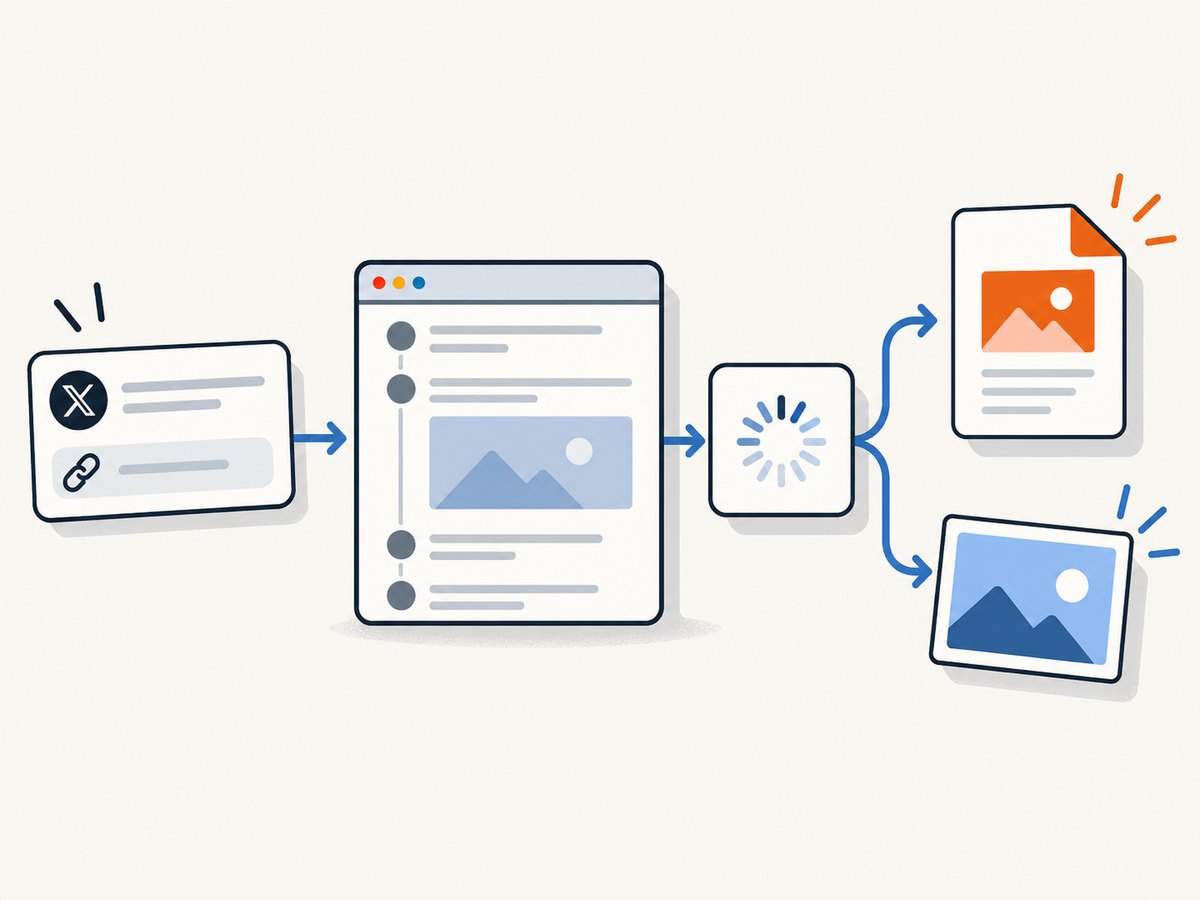
For a thread, pass its public URL and choose full-page capture. The service accepts custom headers, cookies, user agents, Authorization, timezone, and geolocation when a site requires them. You can also choose PDF paper size, margins, landscape mode, and page ranges. Caching with a TTL, signed links, asynchronous jobs with signed webhooks, bulk capture of up to 100 URLs per call, a usage API, and an OpenAPI specification support production workflows.
See the ScreenshotNeo API documentation for the complete parameter list.
cURL
curl -G "https://api.screenshotneo.com/v1/shot" \
  -d access_key=YOUR_API_KEY \
  --data-urlencode url=https://x.com/example/status/123456789 \
  -o thread.webp
Python
import requests

r = requests.get(
    "https://api.screenshotneo.com/v1/shot",
    params={
        "access_key": "YOUR_API_KEY",
        "url": "https://x.com/example/status/123456789",
    },
    timeout=90,
)
r.raise_for_status()
open("thread.webp", "wb").write(r.content)
Node.js
const q = new URLSearchParams({
  access_key: 'YOUR_API_KEY',
  url: 'https://x.com/example/status/123456789'
});

const res = await fetch(`https://api.screenshotneo.com/v1/shot?${q}`);
if (!res.ok) throw new Error(`Screenshot failed: ${res.status}`);
const bytes = Buffer.from(await res.arrayBuffer());
await import('node:fs/promises').then(fs => fs.writeFile('thread.webp', bytes));
Useful capture settings
| Requirement | Setting or approach |
|---|---|
| Capture the complete feed | Enable full-page capture and lazy-image loading |
| Capture only the thread column | Use an element CSS selector |
| Remove overlays | Enable consent handling and hide selectors |
| Wait for posts | Wait for a selector, network idle, or a delay |
| Readable print copy | Choose PDF, paper size, margins, and optional landscape mode |
| Repeat a capture cheaply | Set a cache TTL that matches how often the thread changes |
| Share publicly | Use a signed link for an <img> tag |
Before the shot, ScreenshotNeo accepts cookie and consent banners like a visitor and removes more than 60 known consent platforms, newsletter popups, and chat widgets. Each step can be disabled. Bot checks or CAPTCHAs, blank pages, timeouts, failed loads, and cache hits are not billed as clean shots; response headers report the result with X-Page-Verdict and X-Billed.
An MCP server provides take_screenshot, get_page_info, and capture_pdf tools for Claude, Cursor, and other MCP clients. That lets an AI agent save a thread or inspect a page without you wiring a browser into the agent.
The Free plan includes 1,000 screenshots per month with no card. Paid plans start at $5 for 3,000 shots; Growth is $15 for 15,000, Pro $39 for 60,000, Scale $99 for 250,000, and Business $249 for 1,000,000. Yearly billing gives two months free, and every feature is available on every plan. Create a free ScreenshotNeo account to start with 1,000 screenshots a month and no card.
7. Troubleshooting saved threads
The bookmark is missing
Confirm that you are signed into the same X account and open the Bookmarks tab rather than Likes or Lists. If the post was deleted or its visibility changed, the bookmark may no longer open the original content.
The thread is incomplete in a PDF or screenshot
The author may still be adding posts, the service may have hit an API or length limit, or the page may lazy-load content only after scrolling. Wait for the thread to finish, refresh the unrolled version where supported, enable full-page capture, and verify the first and final post manually.
A private thread cannot be saved by a third-party service
Thread Reader App documents that it cannot unroll private-account threads. Use X bookmarks for private access, request your own account archive, or capture the page only when your authenticated access and the service’s terms allow it.
A screenshot contains a consent dialog or chat bubble
In a DIY browser workflow, dismiss the overlay before capture or hide it with a browser extension or custom CSS. With ScreenshotNeo, consent handling and removal of known popups and chat widgets run before capture and can be turned off when you need the original page state.
The API returns an error or an unexpected page
Check that the URL is URL-encoded, the access key is valid, and the target is publicly reachable. Increase the timeout for slow pages, wait for a selector or network idle, and inspect X-Page-Verdict and X-Billed. A bot check, blank page, timeout, failed load, or cache hit is reported rather than silently treated as a clean capture.
8. Reliability, privacy, and cost decisions
- Reliability: A bookmark depends on continued access to X. A PDF or image is a point-in-time copy, so record the URL and capture date alongside it.
- Privacy: X bookmarks and folders are private within your account. A downloaded file, cloud drive, signed image URL, or shared PDF has the privacy rules of that storage destination.
- Portability: Reader Mode is easiest for reading inside X; PDF and image captures open without the X interface; an account archive is broad but takes longer.
- Cost: Native bookmarks and Reader Mode availability depend on X features. Thread Reader’s PDF workflow is documented for Premium members. ScreenshotNeo has 1,000 free shots monthly, and failed or non-clean results are not billed as clean shots.
- Repeat captures: Use caching for unchanged threads, asynchronous jobs and webhooks for slow pages, and bulk capture when archiving many URLs.
FAQ
Are Twitter/X bookmarks private?
Yes. X states that bookmarks are private and viewable only to you within your account.
Can I save a thread without an X account?
You need access to the public URL. A third-party unroller or screenshot/PDF capture can create a file when the page is publicly reachable, but private-account content still requires authorized access.
What is the best format for long-term storage?
Use a PDF or image for a readable point-in-time copy, and keep the original URL and capture date with it. Use the X account archive when you need a wider export of your own account.
Does Reader Mode create a PDF?
No. Reader Mode changes the reading presentation. It is not documented as a PDF export.
Can I archive a thread while it is still being written?
Yes, but the copy may be incomplete. Capture again after the author finishes and compare the last post before treating the archive as final.