How to Save Valid PNG Output from node-wkhtml on Windows
Fix corrupt PNG files from node-wkhtml on Windows by writing HTML to a temporary file and saving wkhtmltoimage output directly.
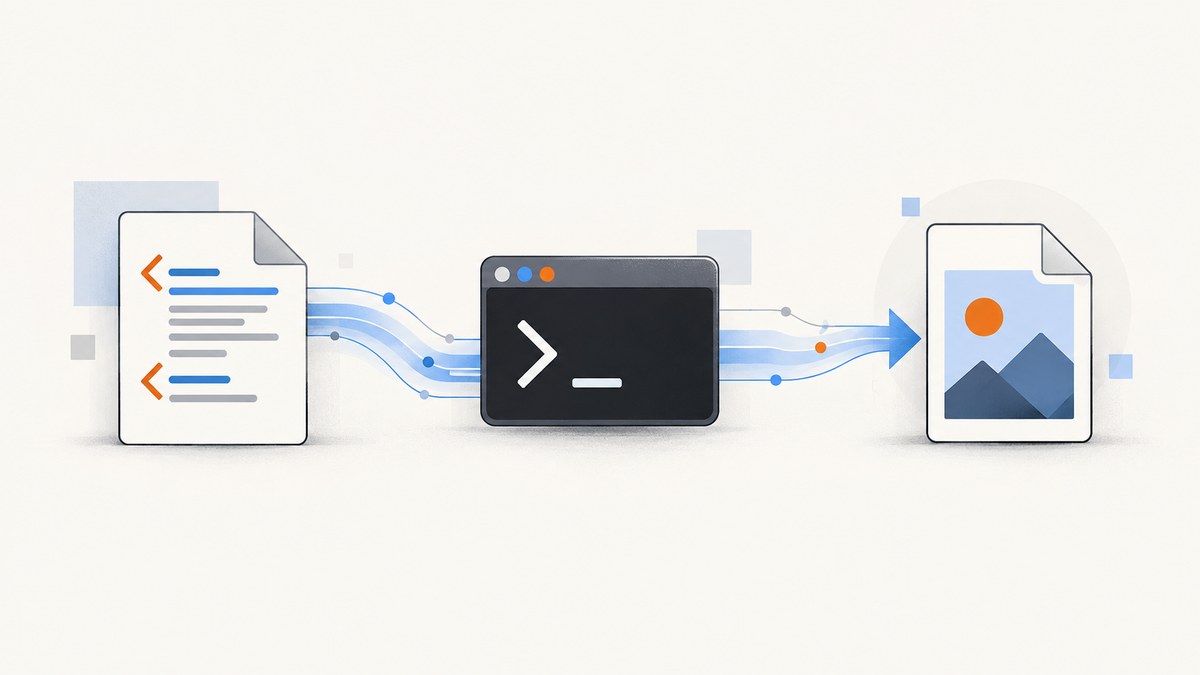
Direct answer: if node-wkhtml produces corrupt PNG data when you pipe its stdout into a file on Windows, bypass that stream. Save the HTML to a temporary file, run wkhtmltoimage input.html output.png, then verify the process exit code and the resulting file. This was the accepted workaround in a historical Stack Overflow report from 2012. It is useful evidence, but it is not proof that every current Windows build or node-wkhtml version has the same defect.
The node-wkhtml package wraps the wkhtmltopdf and wkhtmltoimage command-line utilities. Its examples show stream-oriented output, while wkhtmltoimage’s settings distinguish a named output path from - (stdout) and an internal buffer. A named PNG path removes the reported stdout path from the workflow.
What is going wrong
There are two separate pieces in this workflow:
- Rendering:
wkhtmltoimageloads an HTML document and rasterizes it. - Transport: your Node.js process receives bytes, commonly through stdout, and writes those bytes to a file.
The historical Windows report described a valid-looking rendering request that resulted in corrupt PNG data when the wrapper’s stdout output was redirected into a file. The available sources do not identify the mechanism. Do not assume that Windows universally corrupts binary stdout, or that every node-wkhtml release is affected. Treat it as an environment-specific failure and compare the stream path with direct file output.
Recommended workflow: temporary HTML plus direct PNG output
The reliable diagnostic sequence is:
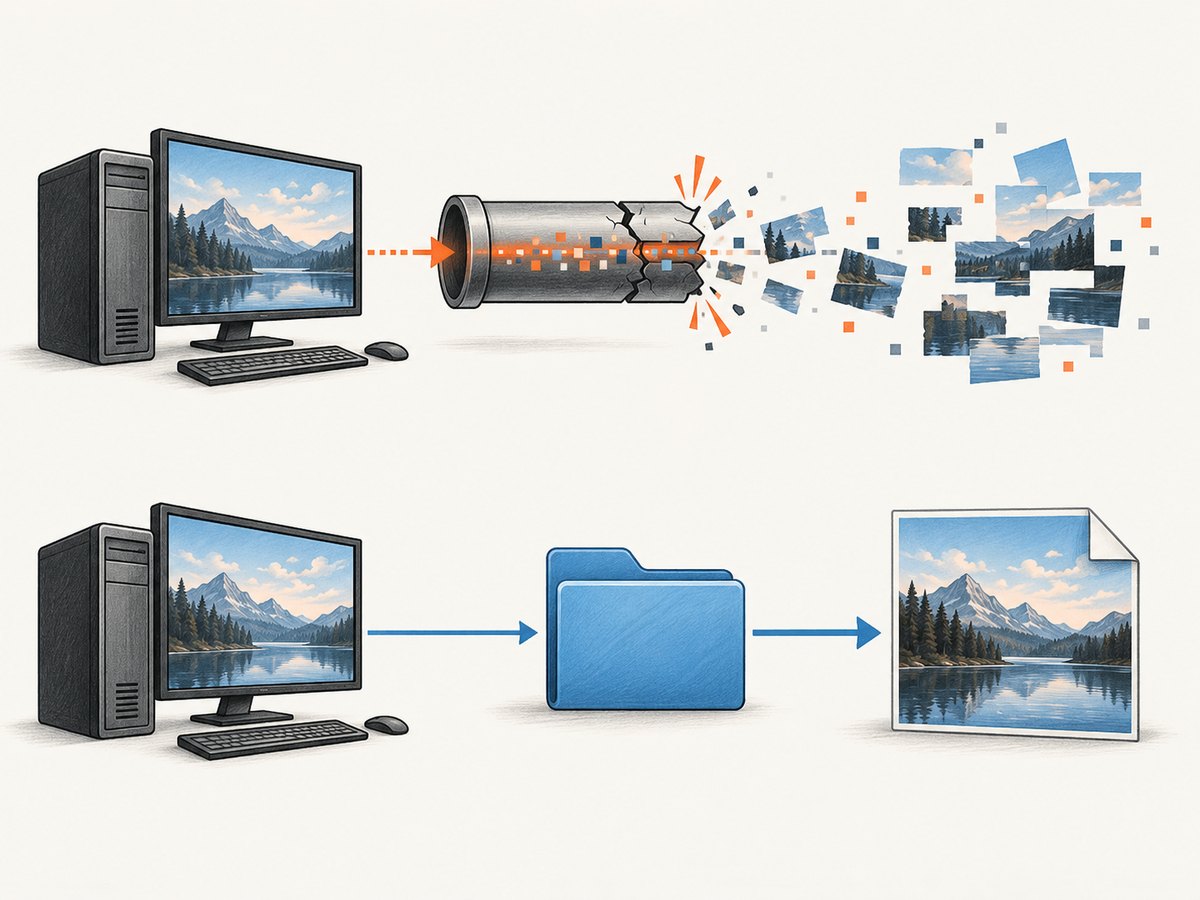
- Confirm that the executable you intend to run is
wkhtmltoimage, notwkhtmltopdf. - Confirm that PNG is the requested format.
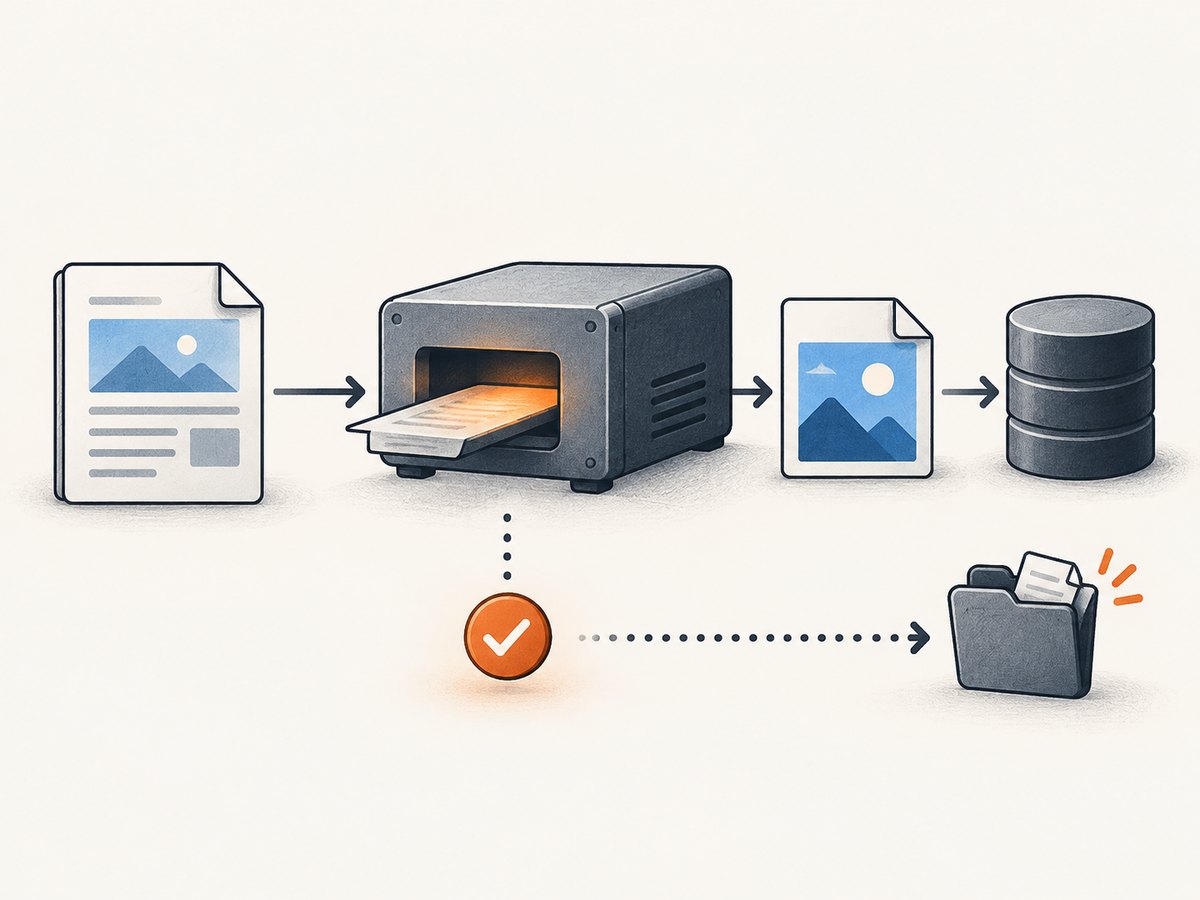
- Write the HTML to a temporary file.
- Invoke
wkhtmltoimagewith the temporary HTML path and a named.pngoutput path. - Capture startup errors and the exit code.
- Check that the output exists, is non-empty, and can be decoded as a PNG in your target environment.
- Delete temporary files in a
finallyblock.
Minimal command-line test
wkhtmltoimage --format png input.html output.pngThe exact option spelling can vary by build, so inspect the executable installed on the machine:
wkhtmltoimage --help
wkhtmltoimage --version
Some builds infer PNG from the .png extension. Supplying both the format option and the extension makes your intention clear, but use the syntax accepted by your local binary.
Complete Node.js implementation
This example creates a temporary directory, writes HTML with UTF-8 encoding, starts the executable with an explicit output path, reports errors, checks the exit status, and cleans up. It is an implementation pattern based on the documented command shape; validate it against your installed executable and package version.
const fs = require('node:fs/promises');
const os = require('node:os');
const path = require('node:path');
const { spawn } = require('node:child_process');

function runWkhtmltoimage(executable, args) {
  return new Promise((resolve, reject) => {
    const child = spawn(executable, args, {
      windowsHide: true,
      stdio: ['ignore', 'pipe', 'pipe']
    });

    let stdout = '';
    let stderr = '';

    child.stdout.setEncoding('utf8');
    child.stderr.setEncoding('utf8');
    child.stdout.on('data', chunk => { stdout += chunk; });
    child.stderr.on('data', chunk => { stderr += chunk; });

    child.once('error', reject);
    child.once('close', code => {
      resolve({ code, stdout, stderr });
    });
  });
}

async function savePng() {
  const html = `<!doctype html>
<html>
  <head>
    <meta charset="utf-8">
    <style>
      body { margin: 0; font-family: Arial, sans-serif; }
      .card { width: 640px; padding: 32px; background: white; }
    </style>
  </head>
  <body>
    <main class="card"><h1>PNG test</h1></main>
  </body>
</html>`;

  const temporaryDirectory = await fs.mkdtemp(
    path.join(os.tmpdir(), 'wkhtml-')
  );
  const htmlPath = path.join(temporaryDirectory, 'input.html');
  const pngPath = path.join(temporaryDirectory, 'output.png');

  // Replace this with the full path when wkhtmltoimage is not on PATH.
  const executable = 'wkhtmltoimage';

  try {
    await fs.writeFile(htmlPath, html, 'utf8');

    const result = await runWkhtmltoimage(executable, [
      '--format', 'png',
      htmlPath,
      pngPath
    ]);

    if (result.code !== 0) {
      throw new Error(
        `wkhtmltoimage exited with ${result.code}: ${result.stderr}`
      );
    }

    const stat = await fs.stat(pngPath);
    if (stat.size === 0) {
      throw new Error('wkhtmltoimage created an empty PNG file');
    }

    // Move or copy pngPath to your permanent destination here.
    await fs.copyFile(pngPath, path.resolve('output.png'));
    console.log(`Saved ${stat.size} bytes to output.png`);
  } finally {
    await fs.rm(temporaryDirectory, { recursive: true, force: true });
  }
}

savePng().catch(error => {
  console.error(error);
  process.exitCode = 1;
});
On a machine where the executable is installed outside PATH, replace wkhtmltoimage with an absolute path such as the path shown by your installer. Avoid adding untrusted user input directly to the executable path or argument list.
Keeping the node-wkhtml wrapper
If existing code depends on node-wkhtml, you can retain it for HTML preparation while using a direct child process for the final image. The historical workaround used the equivalent of:
const { spawn } = require('node:child_process');

const child = spawn('wkhtmltoimage', ['temp.html', 'output.png'], {
  stdio: 'inherit'
});

child.on('error', (error) => {
  console.error('Could not start wkhtmltoimage:', error);
});

child.on('close', (code) => {
  if (code !== 0) {
    console.error(`wkhtmltoimage exited with code ${code}`);
  }
});
For production, add temporary-file creation, unique paths, cleanup, a timeout, stderr capture, and output validation as shown in the complete example. Do not treat a process that merely starts successfully as a successful capture; the exit code and file contents both matter.
Output settings that affect PNG validity
| Setting | What to check | Typical action |
|---|---|---|
| Format | The request must produce PNG, not JPEG or PDF. | Use --format png where supported and a .png destination. |
| Output | A named path writes directly to disk; - means stdout. |
Use an absolute or temporary output path while diagnosing corruption. |
| Input | Relative asset paths may resolve differently from your Node process. | Use a file URL or absolute asset paths and test from the target working directory. |
| Executable | Different installations may expose different switches and rendering behavior. | Record --version and inspect --help. |
| Process status | A missing executable, rejected option, or failed load can still leave a partial file. | Fail the job when startup fails or the exit code is non-zero. |
When stdout is still appropriate
Keep stdout piping when it is already valid in your environment and you need a stream for another component. The node-wkhtml README demonstrates that style, and it can be convenient for HTTP responses or in-memory processing. The Windows report is a reason to test the path, not a reason to remove it everywhere.
Use direct file output when:
- the saved PNG fails to open while the renderer reports no obvious error;
- the problem occurs only on Windows;
- you need a simple artifact for inspection and retry;
- you want the renderer to own the binary file write rather than passing bytes through a Node stream.
Troubleshooting checklist
“spawn wkhtmltoimage ENOENT”
Cause: Windows cannot find the executable. Fix: install the image utility, add its directory to PATH, or pass the absolute executable path. Log the resolved path and run that same path manually in a terminal.
The process exits with a non-zero code
Cause: an unsupported option, unreadable input file, blocked resource, or renderer failure. Fix: capture stderr, run the exact command manually, remove optional switches, and verify the input HTML exists before starting the process.
The PNG exists but cannot be opened
Cause: the stdout transport may have produced incomplete or corrupted bytes, or the process may have been interrupted. Fix: switch to a named output path, wait for the close event, check the exit code, and confirm the file size before moving it.
The PNG is blank
Cause: the page may depend on JavaScript, remote assets, fonts, authentication, or a local working directory. Fix: open the HTML in the same environment, use absolute asset references, allow enough rendering time where your build supports it, and inspect stderr. A blank result is different from a transport-corrupted PNG.
Images or CSS are missing
Cause: relative URLs resolve from the temporary file’s location, not necessarily your project directory. Fix: use absolute paths or a controlled base URL and make sure the renderer can access local files and network resources required by the page.
It works locally but fails in a service
Cause: different executable versions, permissions, working directories, fonts, or environment variables. Fix: log the binary version, use a known executable path, set the working directory explicitly, and preserve stderr and exit-code diagnostics in the job record.
Reliability and performance considerations
Temporary files add disk I/O, but they also make failures inspectable and avoid ambiguity around binary stream handling. Use a unique temporary directory per job so concurrent captures cannot overwrite one another. Clean up on success, failure, timeout, and process-start errors.
For batches, avoid launching an unlimited number of renderer processes. A small worker pool prevents CPU and memory pressure, while a per-process timeout prevents a page that never finishes from consuming a worker indefinitely. Cache stable HTML inputs when appropriate, but invalidate the cache when assets, fonts, or data change.
Reliability depends on the local wkhtmltoimage executable and its versions. The dossier contains no current benchmark, Windows compatibility matrix, or success-rate measurement, so choose settings by observing the exact target environment. Keep a representative HTML fixture and validate the resulting PNG during deployment.
Or skip the browser setup
If your goal is a clean screenshot rather than maintaining a Windows renderer, ScreenshotNeo provides a single API request. Its capture service removes cookie and consent banners, newsletter popups, and chat widgets before the shot. Bot checks, blank pages, failed loads, timeouts, and cache hits are not billed, and the response identifies the result with X-Page-Verdict and X-Billed headers. It also provides an MCP server with take_screenshot, get_page_info, and capture_pdf tools for Claude, Cursor, and other MCP clients.
Read the parameter reference in the ScreenshotNeo API documentation. The basic call returns WebP by default in this example; request PNG when your workflow needs it by adding the supported output parameter for your account.
cURL
curl -G "https://api.screenshotneo.com/v1/shot" \
  -d access_key=YOUR_API_KEY \
  --data-urlencode url=https://stripe.com \
  -o shot.webp
Python
import requests

r = requests.get(
    "https://api.screenshotneo.com/v1/shot",
    params={"access_key": "YOUR_API_KEY", "url": "https://stripe.com"},
    timeout=90,
)
r.raise_for_status()
open("shot.webp", "wb").write(r.content)
Node.js
const q = new URLSearchParams({ access_key: 'YOUR_API_KEY', url: 'https://stripe.com' });
const res = await fetch(`https://api.screenshotneo.com/v1/shot?${q}`);
if (!res.ok) throw new Error(`Screenshot request failed: ${res.status}`);
const buffer = Buffer.from(await res.arrayBuffer());
require('node:fs').writeFileSync('shot.webp', buffer);
ScreenshotNeo includes full-page captures with lazy images loaded, CSS element capture, dark mode, device presets, custom viewports, retina scale, PDF output, custom CSS and JavaScript, click and wait controls, request blocking, headers, cookies, user agents, authorization, timezone, geolocation, transparent backgrounds, resizing, configurable caching, signed links, asynchronous jobs, webhooks, bulk capture for up to 100 URLs per call, usage reporting, and an OpenAPI specification. The parameter names used by other screenshot APIs also work, which can reduce migration changes.
There are 1,000 free screenshots each month with no card. Paid plans start at $5 for 3,000 shots; yearly billing provides two months free, and every feature is available on every plan. Create a free ScreenshotNeo account to try the API.
Cost notes
A local wkhtmltoimage process has no per-shot service charge, but you operate the Windows installation, workers, storage, fonts, updates, and failure handling. ScreenshotNeo charges only for clean shots; bot checks, blank pages, failed loads, timeouts, and cache hits are free. Compare the service price with the engineering time required to keep a renderer reliable in your deployment environment.
FAQ
Should I delete node-wkhtml?
No. Keep it if its wrapper API fits your application and stdout output is valid. Use direct file output for the affected Windows workflow or when you need clearer diagnostics.
Does a direct output path guarantee a valid PNG?
No. It avoids one reported transport path. You still need a valid executable, readable HTML, supported options, a successful exit code, and a file-content check.
Is the historical workaround a current Windows fix?
It is a practical workaround reported in a 2012 question. Verify it with your installed versions; the available evidence does not establish a current universal defect.
Can I send the PNG directly in an HTTP response?
Yes, after the process closes successfully and the file passes validation. Reading a completed named file is often easier to diagnose than forwarding renderer stdout.
What should I record for support?
Record Windows version, Node.js version, node-wkhtml version, wkhtmltoimage version, the exact arguments, executable path, exit code, stderr, output size, and a reproducible HTML fixture.


