How to Save a Web Page as JPEG
Save a complete web page as a JPEG with Firefox, Edge, Chrome extensions, image conversion, automation, and ScreenshotNeo.

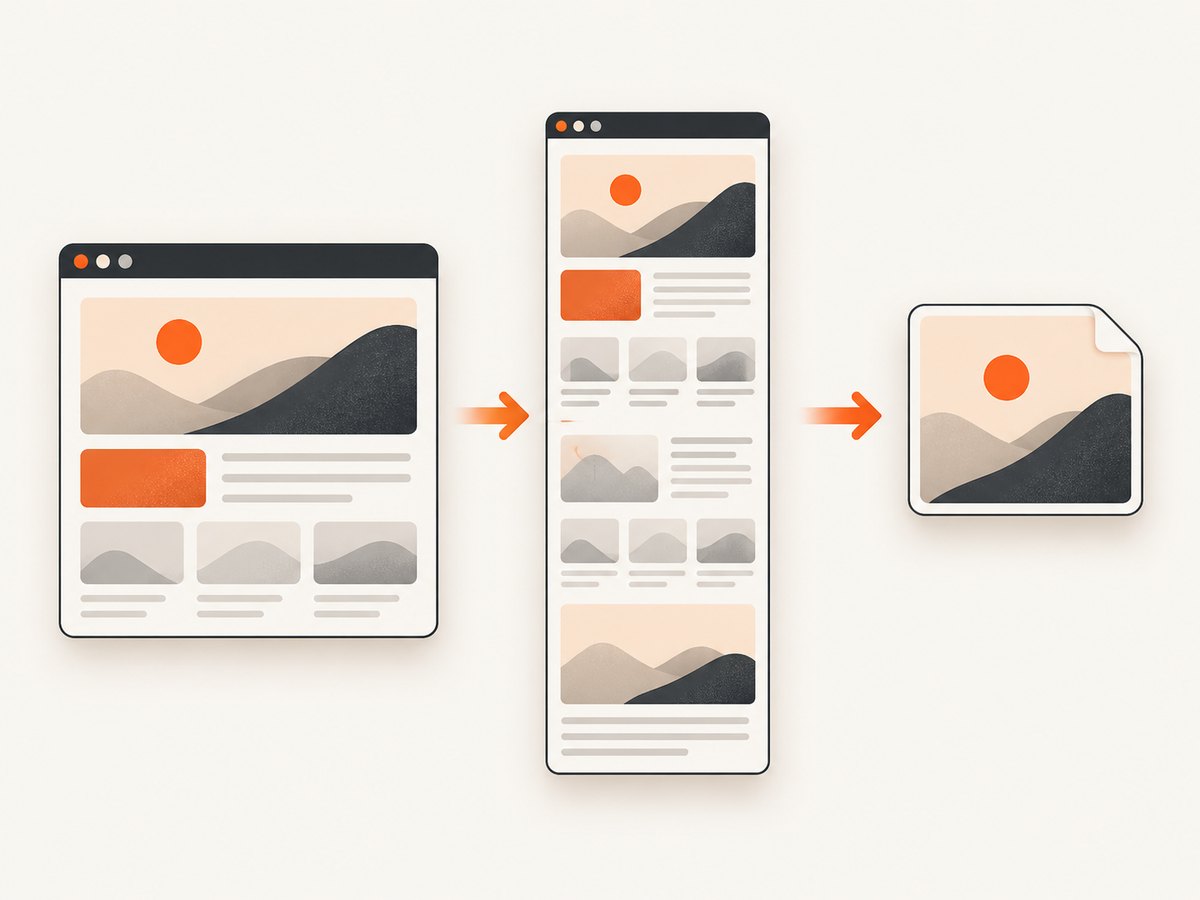
Short answer: use a full-page screenshot tool, then export the resulting image as JPEG. Firefox can capture an entire page but documents PNG output, so save the PNG and convert it to JPEG. Edge includes a full-page Web Capture workflow, while a Chrome extension such as GoFullPage can provide JPG export directly.
A screenshot is the right format when you need one image of the rendered page. Browser commands such as Save Page As preserve webpage files, and Print to PDF creates a document. Neither produces a JPEG image of the page.
1. Choose the right capture method
| Method | Full page? | JPEG output | Best use |
|---|---|---|---|
| Firefox built-in screenshot | Yes | PNG is documented; convert it | One-off captures without installing anything |
| Edge Web Capture | Yes | Format depends on the version and save dialog | Windows users who already use Edge |
| Chrome extension | Usually | Some extensions document JPG export | Repeated captures and direct JPG download |
| Browser automation | Yes | Convert the screenshot in code | Scheduled jobs, tests, and bulk work |
| ScreenshotNeo API | Yes | JPEG, PNG, WebP, or PDF | Production capture without managing a browser |
Exact menu names can vary by browser version and operating system. Check whether you need the visible viewport or the document from top to bottom before capturing.
2. Save a full web page as JPEG in Firefox
Firefox’s documented workflow captures a full page and downloads a PNG. Convert that PNG to JPEG as a second step.
- Open the page in Firefox and wait for the content you need to appear.
- Right-click an empty part of the page and choose Take Screenshot. The shortcut is Ctrl+Shift+S on Windows and Linux, or Command+Shift+S on macOS.
- Select Save full page. Choose Save visible when you only need the current viewport.
- Select Download. Firefox documents the downloaded screenshot as a
.pngfile. - Open the PNG in an image editor and choose Export or Save As, then select JPEG/JPG.
Firefox also has an optional Developer Tools screenshot button. Open Developer Tools settings, enable Take a screenshot of the entire page under Available Toolbox Buttons, then use that button. The Web Console :screenshot helper supports a --fullpage option and documents PNG output. See the Firefox screenshot help and Firefox Developer Tools documentation.
Convert the PNG to JPEG
In Preview on macOS, open the PNG, choose File → Export, select JPEG, and set the quality. In Windows Paint, open the PNG and choose Save as → JPEG picture. Most image editors provide an equivalent export command.
JPEG uses lossy compression. Use a high quality setting for screenshots containing small text, and keep the original PNG if you may need to crop or edit the image again.
3. Capture a full page in Microsoft Edge
- Open the page in Edge.
- Open the menu and choose Web capture, or press Ctrl+Shift+S.
- Choose Capture full page.
- Review the result and save it to your device.
Microsoft’s Web Capture guide describes saving an image but does not specify whether every version saves JPEG or PNG. Inspect the save dialog. If the file is PNG, export it as JPEG using an image editor.
4. Use a Chrome extension when you need JPG export
Chrome documents More → More tools → Save Page As, but that command saves webpage content rather than creating a JPEG screenshot. Chrome’s print flow can save a PDF, which is useful for documents but is not a JPEG image. See Chrome’s download help and Chrome’s print help.
For a full-page image in Chrome, install a screenshot extension from the Chrome Web Store, open its toolbar button, choose the full-page option, and select JPG if the extension offers that format. The GoFullPage listing documents PNG and JPG download options. Extension controls can change, so confirm the current export menu before relying on it.
5. Automate a webpage-to-JPEG conversion with Node.js
Automation is useful when you must capture the same pages repeatedly, run the job in CI, or process URLs from a queue. Playwright captures the rendered page; the sharp package converts the PNG buffer to JPEG.
npm install playwright sharp
npx playwright install chromium
const { chromium } = require('playwright');
const sharp = require('sharp');
(async () => {
const browser = await chromium.launch();
const page = await browser.newPage({ viewport: { width: 1440, height: 900 } });
await page.goto('https://example.com', {
waitUntil: 'networkidle',
timeout: 90000
});
const png = await page.screenshot({ fullPage: true, type: 'png' });
await sharp(png).jpeg({ quality: 90 }).toFile('page.jpg');
await browser.close();
})();Replace the URL and run the script with node capture.js. A full-page capture can be much taller than the viewport. For pages that load content only after scrolling, scroll through the document before taking the screenshot. If a page never reaches network idle because of analytics or live connections, use a selector wait or a bounded delay instead of waiting indefinitely.
6. Control the result before exporting
Full page versus visible area
Full-page mode stitches or renders the document from top to bottom. It is appropriate for an article, landing page, or audit. Visible mode captures only what is on screen and is usually smaller and faster.
Lazy-loaded images
Images may not exist in the page until they enter the viewport. Scroll the page in an automated workflow, or use a capture service that loads lazy images before taking a full-page shot.
Dynamic content and consent banners
Cookie dialogs, newsletter popups, chat widgets, and login prompts can obscure the result. Dismiss them manually in a browser. In automation, click the consent button, hide known selectors, or wait for the dialog to disappear before capture.
Dimensions and readability
Increase the viewport width when a responsive layout is wrapping unexpectedly. A very tall JPEG can be difficult to view and may be large; consider capturing sections or resizing after export. Keep the source PNG when exact text edges matter.
7. Or skip the browser setup
ScreenshotNeo returns a JPEG directly from one GET request. It can capture a full page, load lazy images, capture one CSS-selected element, emulate dark mode or device presets, set a custom viewport and retina scale, and apply custom CSS or JavaScript. You can also wait for a selector, a delay, or network idle; click an element before capture; hide selectors; block ads, trackers, requests, or resource types; and provide headers, cookies, a user agent, Authorization, timezone, or geolocation.

Before capture, ScreenshotNeo accepts cookie or consent banners like a visitor and removes more than 60 known consent platforms, newsletter popups, and chat widgets. Each cleanup step can be turned off. Bot checks or CAPTCHAs, blank pages, timeouts, failed loads, and cache hits are not billed. The response identifies the result with X-Page-Verdict and X-Billed headers.
Read the ScreenshotNeo API documentation for all options. This is a direct JPEG request:
curl -G "https://api.screenshotneo.com/v1/shot" \
  -d access_key=YOUR_API_KEY \
  --data-urlencode url=https://stripe.com \
  -o shot.jpg
Python:
import requests

r = requests.get(
    "https://api.screenshotneo.com/v1/shot",
    params={"access_key": "YOUR_API_KEY", "url": "https://stripe.com"},
    timeout=90,
)
r.raise_for_status()
open("shot.jpg", "wb").write(r.content)
Node.js:
const q = new URLSearchParams({
  access_key: 'YOUR_API_KEY',
  url: 'https://stripe.com'
});

const res = await fetch(`https://api.screenshotneo.com/v1/shot?${q}`);
if (!res.ok) throw new Error(`HTTP ${res.status}`);
const buffer = Buffer.from(await res.arrayBuffer());
require('fs').writeFileSync('shot.jpg', buffer);
ScreenshotNeo also supports PNG, WebP, and PDF; element captures; transparent backgrounds; image resizing; caching with a TTL you choose; signed links for public <img> tags; asynchronous jobs with signed webhooks; bulk capture of up to 100 URLs per call; a usage API; and an OpenAPI specification. Its MCP server provides take_screenshot, get_page_info, and capture_pdf tools for Claude, Cursor, and other MCP clients.
The Free plan includes 1,000 shots per month without a card. Paid plans start at $5 for 3,000 shots; Growth is $15 for 15,000, Pro is $39 for 60,000, Scale is $99 for 250,000, and Business is $249 for 1,000,000. Yearly billing gives two months free, and every feature is included on every plan. Create a free ScreenshotNeo account and start with 1,000 screenshots a month at no charge.
8. Troubleshooting
| Problem | Likely cause | Fix |
|---|---|---|
| The capture contains only the visible viewport | Visible-area mode was selected | Choose Save full page, Capture full page, or fullPage: true. |
| The downloaded file is PNG | Firefox documents PNG output | Export the PNG as JPEG in an image editor or use a JPG-capable extension/API. |
| Images are missing | Lazy loading or blocked resources | Scroll before capture, wait for the image selector, or allow the required resource types. |
| A popup covers the page | Consent, newsletter, or chat overlay | Dismiss it manually, hide its selector, or use ScreenshotNeo’s cleanup options. |
| Automation times out | Long-running connections or a slow page | Use a bounded timeout, wait for a specific selector, and avoid an unbounded network-idle wait. |
| Text looks soft after conversion | Low JPEG quality or excessive resizing | Export at a higher quality, keep the original PNG, and resize only once. |
| The output is unexpectedly narrow | Responsive breakpoint or small viewport | Set an explicit viewport width that matches the layout you want. |
| The API response is not an image | Invalid key, URL, or an error response | Check the HTTP status and response headers, then verify credentials and URL encoding. |
9. Performance, reliability, and cost considerations
- Browser work: full-page images take longer than viewport captures because the browser must render more content. Reuse a browser process for batches instead of launching one process per URL.
- Network stability: wait for the content that matters, not necessarily every third-party request. A page with live analytics may never become fully idle.
- File size: JPEG quality, page dimensions, and image count determine output size. Use resizing or a lower quality only after checking text readability.
- Repeatability: fix the viewport, device scale, timezone, locale, and authentication state when comparing captures over time.
- API billing: ScreenshotNeo bills clean shots only. Bot checks, CAPTCHAs, blank pages, timeouts, failed loads, and cache hits cost nothing, and the response reports billing status in headers.
- Caching: for unchanged pages, choose a cache TTL to reduce repeated rendering. Disable or shorten the TTL when freshness is more important than speed.
- Batch jobs: ScreenshotNeo supports bulk capture for 100 URLs per call and asynchronous jobs with signed webhooks when a synchronous request is not convenient.
10. FAQ
Can I save a webpage directly as JPEG from Firefox?
Firefox’s documented full-page screenshot download is PNG. Save it first, then export a JPEG copy.
Is a PDF the same as a JPEG screenshot?
No. A PDF is a document format with its own pagination and print settings. A JPEG is a raster image of the rendered page.
How do I capture only one part of a page?
Use an element-selection feature when available. ScreenshotNeo accepts a CSS selector for an element capture, while browser tools may require selecting a visible region manually.
Why does the full page look different from what I saw while scrolling?
Responsive breakpoints, lazy loading, animations, consent dialogs, and changing data can alter a capture. Set the viewport and wait for the required state before taking the image.
Which format should I keep as the master?
Keep PNG when you need lossless editing or very crisp text. Deliver JPEG when smaller files and broad image compatibility are more important.