How to Save a Web Page as WebP
Learn when to save a WebP image, capture a full web page, or archive HTML—and how to convert screenshots without losing quality.
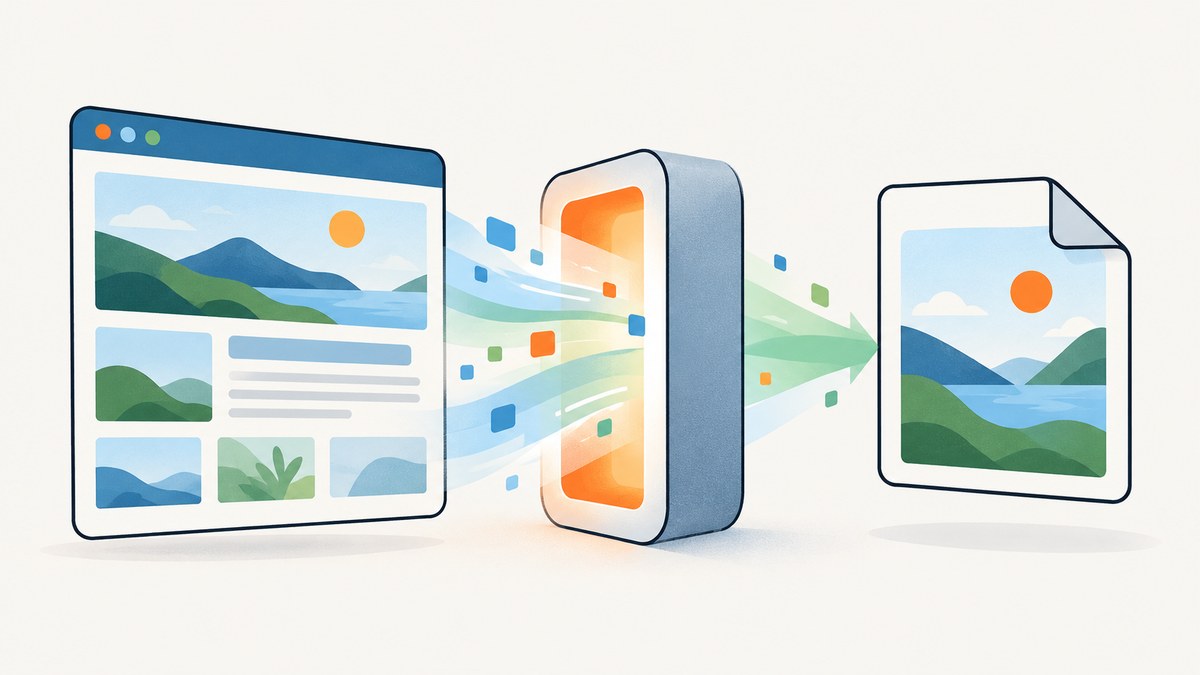
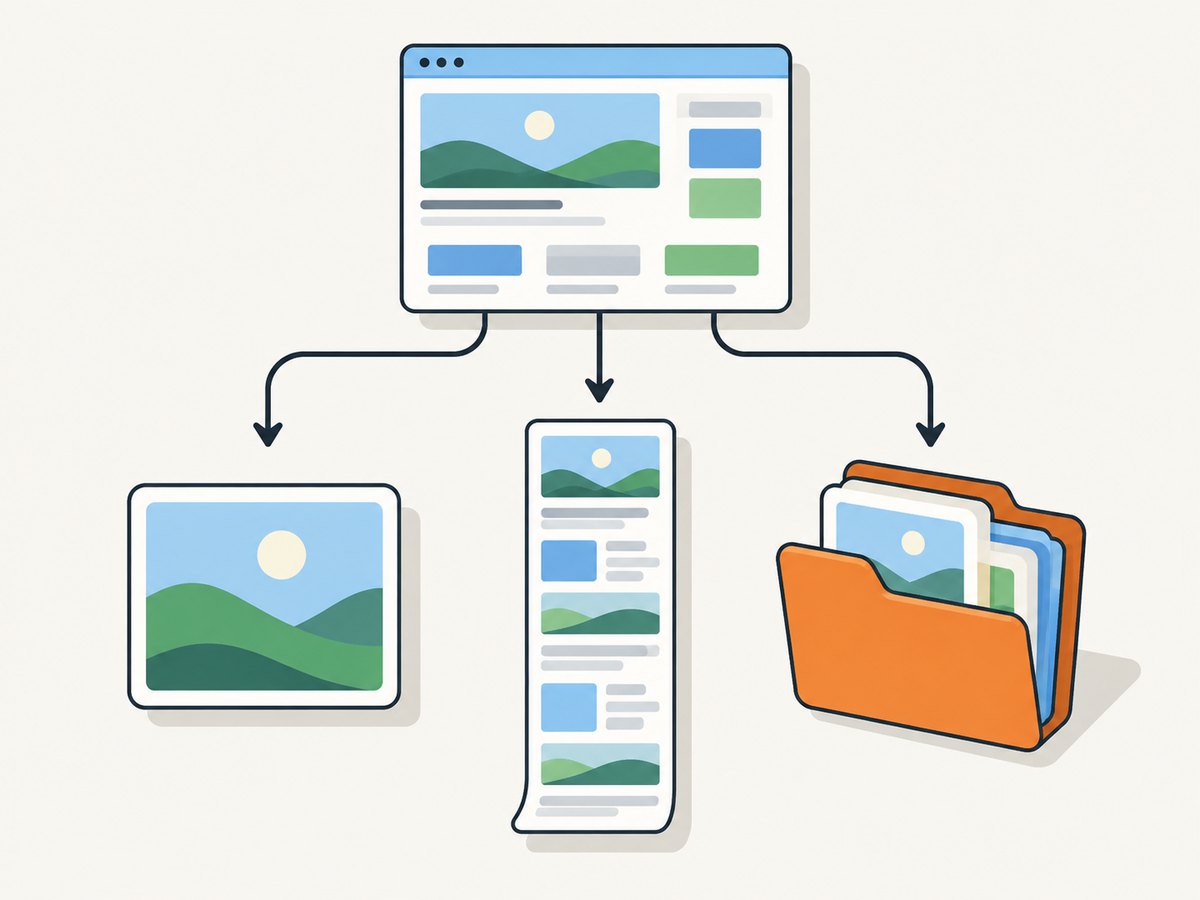
There are three different things people mean by “save a web page as WebP.” You may want to save an image the site already serves, capture the entire page as one image, or save an offline copy of the page. These produce different results:
- Save an image: downloads the original image resource. It may already be WebP.
- Capture the page: creates a fixed visual screenshot. Convert it to WebP if necessary.
- Save the page for offline use: creates HTML plus assets, not a single WebP file.
This guide covers each workflow, browser steps, command-line conversion, Python and Node.js automation, quality settings, HTTP content negotiation, troubleshooting, and a hosted option with ScreenshotNeo.
1. Decide which output you need
| Goal | Output | Editable structure? | Full scrollable page? | WebP control |
|---|---|---|---|---|
| Reuse one image from a page | Original image file | No | No | Depends on server response |
| Share a visual copy | Screenshot image | No | Yes, with full-page capture | Convert or request WebP |
| Keep a page for offline viewing | HTML and asset folder | Partly | Yes | Not applicable |
A WebP file is an encoded image. It cannot preserve links, scripts, selectable text, or the page’s layout as editable HTML. If you need those features, use an archive instead.
2. Save an image that the page already serves
When you only need a photograph, illustration, chart, or other image already present on a page, save that resource directly.
- Open the page in Firefox, Chrome, Edge, Safari, or another modern browser.
- Right-click the image.
- Select Save Image As (the wording can vary by browser).
- Choose a folder and save.
The downloaded format is determined by the resource delivered by the website. A URL or visible filename that appears to be PNG or JPEG can still result in a WebP file because browsers advertise accepted formats in the HTTP Accept header. If the browser sends image/webp, a server may return a WebP alternative. WebP is supported by current Chrome, Safari, Firefox, Edge, Opera, and many other tools. Google documents lossy support beginning with Chrome desktop 17+, Chrome for Android 25+, Edge 18+, Firefox 65+, Opera 11.10+, and Safari 14 (iOS 14 and macOS Big Sur).
Check the actual format instead of trusting the extension. On macOS or Linux, run:
file downloaded-image.webpFor a browser-independent check, inspect the first bytes with an image editor or metadata utility. Do not rename a WebP file to .jpg or .png; renaming changes only the filename, not the encoded data.
3. Capture a complete web page as an image
Use a screenshot when the desired result is one fixed visual of the rendered page.
Firefox desktop
- Open the page and wait for the content you need.
- Right-click an empty area and choose Take Screenshot. You can also press
Ctrl+Shift+Son Windows/Linux orCommand+Shift+Son macOS. - Choose a region, a highlighted page section, the visible portion, or Save full page.
- Download the screenshot.
If Firefox provides PNG, convert it to WebP with cwebp as shown below. Browser screenshot tools may capture only the current rendered state: expand accordions, dismiss overlays, scroll through lazy content, or wait for animations before capturing.
Other browser methods
Chromium-based browsers may offer a full-page capture through Developer Tools. Open DevTools, use the command menu, search for “Capture full size screenshot,” and save the result. Browser extensions can add capture formats and stitching, but verify that the extension has access to the page and that sensitive content is not exposed to a third party.
For a long page, a full-page capture can be very tall. Some pages use fixed headers, sticky navigation, canvas elements, or virtualized lists that behave differently while scrolling. Capture at the viewport width you need and inspect the result for repeated headers, missing lazy images, and clipped content.
4. Convert PNG or JPEG to WebP with cwebp
Google’s reference cwebp utility accepts PNG and JPEG input. Install the WebP tools for your operating system, then run:
cwebp -q 80 screenshot.png -o screenshot.webpThe -q value controls lossy quality from 0 to 100. Start around 75–85 for photographs and screenshots containing gradients, then compare the output at its actual display size. For a JPEG source:
cwebp -q 82 page.jpg -o page.webpLossless output is useful for diagrams, flat-color illustrations, text-heavy screenshots, and images where every pixel matters:
cwebp -lossless page.png -o page.webpWebP supports lossy and lossless compression, transparency, and animation. Google reports that lossless WebP images are about 26% smaller than comparable PNG files, while lossy WebP is about 25–34% smaller than comparable JPEG at equivalent quality. These are comparative figures from Google’s documentation, not a guarantee for every image.
Decode WebP back to PNG when a downstream tool cannot read WebP:
dwebp screenshot.webp -o screenshot.pngAlways compare dimensions, transparency, text edges, and file size. A conversion can produce a larger file if you convert a lossy source to lossless WebP, convert a lossless source to lossy WebP with an unsuitable setting, or choose a target quality higher than the source effectively contains.
5. Automate conversion in Python
The following script downloads a source image, saves it temporarily, and converts it with Pillow. It is useful when a page exposes a direct image URL. Install dependencies first:
python -m pip install requests Pillowfrom io import BytesIO
from pathlib import Path
import requests
from PIL import Image
source_url = "https://example.com/image.jpg"
output_path = Path("image.webp")
response = requests.get(source_url, timeout=30)
response.raise_for_status()
image = Image.open(BytesIO(response.content))
# Use RGB for JPEG-like images; preserve alpha for transparent PNGs.
if image.mode not in ("RGB", "RGBA"):
image = image.convert("RGBA" if "transparency" in image.info else "RGB")
image.save(output_path, "WEBP", quality=80, method=6)
print(f"Saved {output_path} ({output_path.stat().st_size} bytes)")For a transparent source, keep RGBA. For a page screenshot with text and flat colors, test lossless=True or a higher quality value and inspect edge sharpness.
6. Automate a page screenshot in Node.js
To render a page and capture the full scrollable document, use a browser automation library such as Playwright. Install it in a project, then install its browser:
npm install playwright
npx playwright install chromium
import { chromium } from 'playwright';
const browser = await chromium.launch();
const page = await browser.newPage({
viewport: { width: 1440, height: 900 },
deviceScaleFactor: 1
});
await page.goto('https://example.com', { waitUntil: 'networkidle' });
await page.screenshot({ path: 'page.png', fullPage: true });
await browser.close();Playwright writes PNG directly. Convert the result with cwebp, or use an image library in your build pipeline. For pages with lazy-loaded images, scroll before capturing:
await page.evaluate(async () => {
  await new Promise((resolve) => {
    let y = 0;
    const step = 700;
    const timer = setInterval(() => {
      window.scrollBy(0, step);
      y += step;
      if (y >= document.body.scrollHeight) {
        clearInterval(timer);
        window.scrollTo(0, 0);
        resolve();
      }
    }, 100);
  });
});
await page.screenshot({ path: 'page.png', fullPage: true });
Use a consent-aware test profile, wait for fonts and critical selectors, and disable animations if visual consistency matters. Respect the site’s access rules and do not automate pages you are not authorized to access.
7. Save an offline webpage instead
Firefox’s Save Page As menu includes Web page, complete, Web page, HTML only, Text files, and All files. Web page, complete creates an HTML file plus a directory containing images, stylesheets, and other assets. It is an offline archive, not a single WebP image. Scripts may fail offline, resources can be blocked by authentication or cross-origin rules, and dynamic content may not be preserved. Choose a screenshot when you need a fixed visual and an archive when you need source structure.
8. Or skip the browser setup
ScreenshotNeo provides a hosted website screenshot API. One GET request returns a PNG, JPEG, WebP, or PDF. See the ScreenshotNeo documentation for parameters and response details.
cURL
curl -G "https://api.screenshotneo.com/v1/shot" -d access_key=YOUR_API_KEY --data-urlencode url=https://stripe.com -o shot.webpPython
import requests
r = requests.get("https://api.screenshotneo.com/v1/shot", params={"access_key": "YOUR_API_KEY", "url": "https://stripe.com"}, timeout=90)
open("shot.webp", "wb").write(r.content)
Node.js
const q = new URLSearchParams({ access_key: 'YOUR_API_KEY', url: 'https://stripe.com' });
const res = await fetch(`https://api.screenshotneo.com/v1/shot?${q}`);
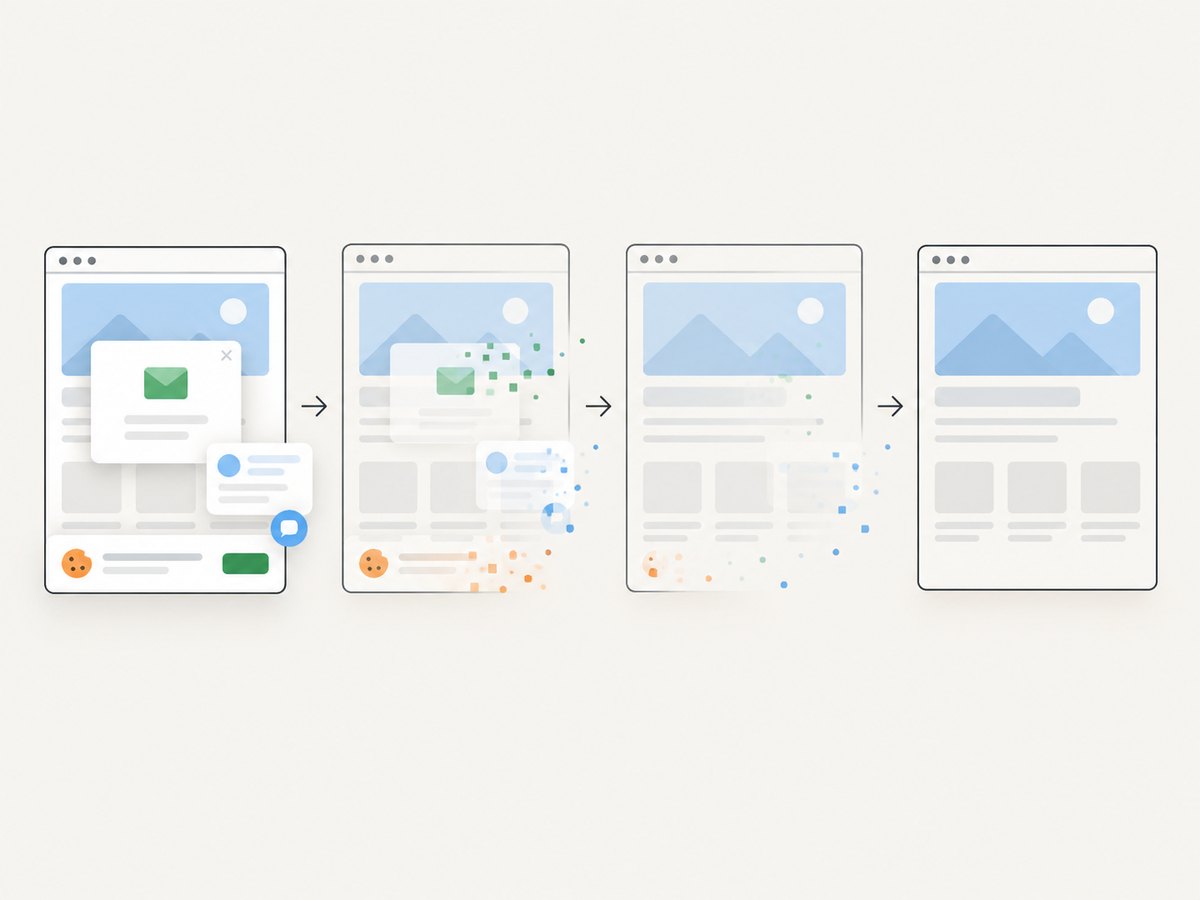
Cookie and consent banners are accepted before capture, and more than 60 known consent platforms, newsletter popups, and chat widgets can be removed. Each step can be turned off. Bot checks and CAPTCHAs, blank pages, timeouts, failed loads, and cache hits cost nothing; response headers report the page verdict and whether the shot was billed.
For production workflows, ScreenshotNeo also supports full-page captures with lazy images loaded, CSS element capture, dark mode, 12 device presets and custom viewports, retina scale, custom CSS and JavaScript, clicks, selector or network-idle waits, ad and tracker blocking, custom headers, cookies, user agents and Authorization, timezone and geolocation, transparent backgrounds, resizing, configurable caching TTL, signed image links, asynchronous jobs with signed webhooks, bulk capture of up to 100 URLs per call, a usage API, and an OpenAPI specification. An MCP server provides take_screenshot, get_page_info, and capture_pdf tools for Claude, Cursor, and other MCP clients.
Free usage includes 1,000 screenshots per month with no card. Paid plans start at $5 for 3,000 shots; every feature is on every plan. Create a free ScreenshotNeo account.
9. Troubleshooting
The downloaded file says .webp but will not open
Check the MIME type and file signature. A server or proxy may have returned an HTML error page with a misleading filename. Re-download, inspect the HTTP response, and confirm the status code before conversion.
The WebP file is larger than the PNG or JPEG
Try a lower lossy quality, or use lossless only for sources that benefit from it. Repeated conversions discard information and can make the result larger. Compare equivalent dimensions and quality rather than extensions.
The full-page screenshot is missing images
Lazy-loaded content may not load until its section enters the viewport. Scroll through the page before capture, wait for a known selector, and allow network activity to settle. Images requiring login, a signed URL, or a blocked origin may remain unavailable.
The screenshot contains a cookie banner, popup, or chat bubble
Dismiss the element manually, hide it with custom CSS in automation, or use a capture service that handles known consent and widget platforms before the shot. Also check whether the overlay appears after a delay.
Text looks blurry
Capture at a larger viewport or device scale, avoid repeatedly resizing raster images, and choose an appropriate quality setting. For diagrams and text-heavy graphics, test lossless WebP.
The page times out
Check DNS, TLS, authentication, robots or firewall rules, and third-party requests. Increase the automation timeout only after identifying the slow dependency. For a hosted capture, inspect the returned verdict and billing headers so failed loads are distinguishable from successful captures.
10. Performance, reliability, and cost considerations
- Choose the smallest useful image: set the viewport and scale to the display size; oversized screenshots cost more storage and take longer to transfer.
- Cache stable pages: a content hash or a chosen TTL prevents repeated rendering. Verify that cached pages are acceptable for your freshness requirements.
- Wait deliberately: network idle is useful for static pages, while a selector or explicit delay is safer for pages with long-polling analytics.
- Control variability: fix viewport, timezone, locale, user agent, color scheme, and fonts when comparing captures.
- Protect credentials: keep API keys and authenticated cookies on the server, never in public image URLs unless using a signed link.
- Measure billing: with ScreenshotNeo, clean successful shots are billed and response headers identify verdict and billing status; bot checks, blank pages, timeouts, failed loads, and cache hits are not billed.
11. FAQ
Can I save an entire web page as one WebP without taking a screenshot?
No. WebP is an image format. A complete page archive is HTML plus assets; one WebP is a rendered visual capture.
Why did a JPEG URL download as WebP?
The browser advertised WebP in its HTTP Accept header and the server selected a WebP representation.
Is WebP always better than PNG?
No. It often reduces size, but the best format depends on transparency, text, image complexity, quality requirements, and the source encoding.
Can WebP contain animation?
Yes. WebP supports animation, although a standard webpage screenshot is normally a single frame.
Does changing the extension convert the file?
No. Use cwebp, an image editor, or a library that encodes WebP.


