How to Save a Web Page as a PDF Using a Browser Extension
Save any webpage as a PDF with your browser’s print tools or an extension, while preserving content, layout, privacy and dynamic sections.
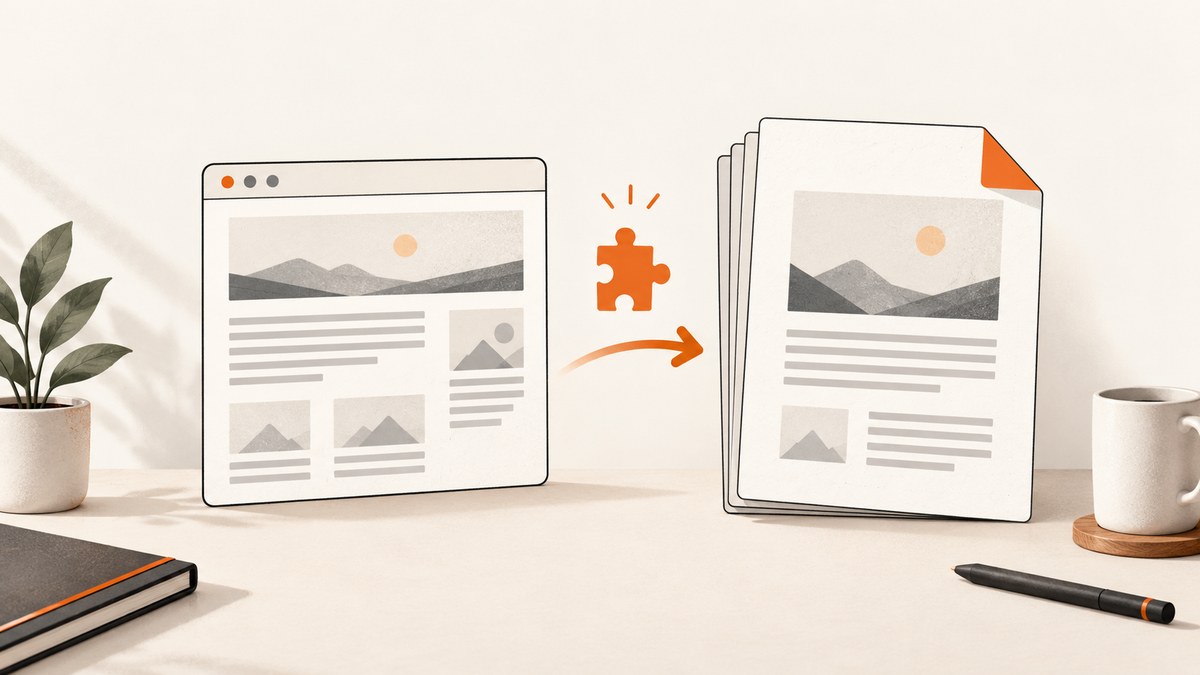
Short answer: You usually do not need an extension. Open your browser’s print dialog, choose Save to PDF, adjust the page settings, and save the file. Use an extension when you need article cleanup, selected-element export, or controls your browser does not provide.
1. Prepare the page before exporting
- Open the exact URL you want to archive.
- Wait until the main text, images and embedded content finish loading.
- For pages that reveal content while scrolling, scroll through every section you need. Lazy-loaded images and deferred text may not exist in the document until you do this.
- Close transient menus, tooltips and dialogs that you do not want in the PDF.
- If the page requires a login, confirm that you are allowed to save and share its content.
2. Save a webpage as PDF with Firefox’s built-in print dialog
Firefox desktop can create a PDF without an extension.
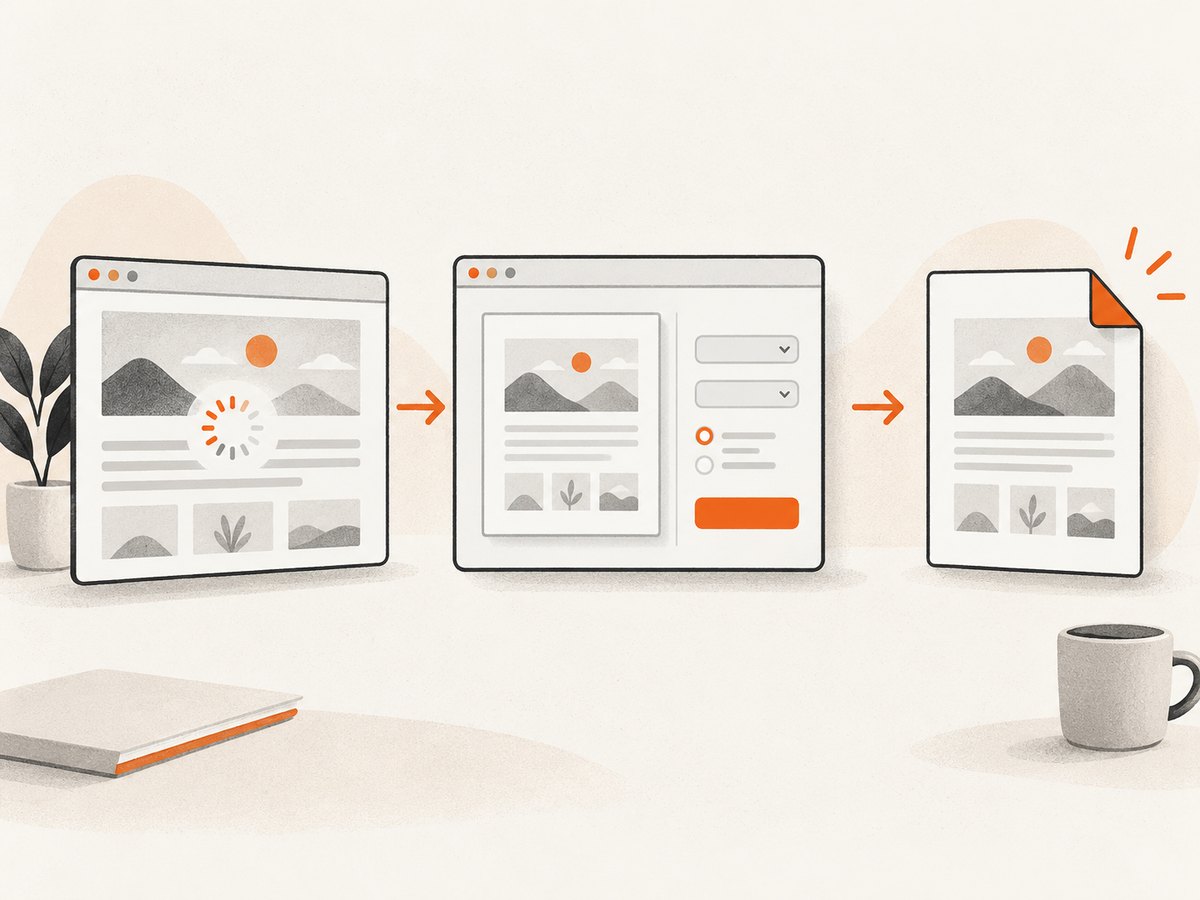
- Open the page.
- Open the browser menu and choose Print (or press
Ctrl+Pon Windows/Linux orCmd+Pon macOS). - In the destination or printer selector, choose Save to PDF.
- Set the paper size, orientation and scale.
- Choose page ranges if you need only part of the document.
- Enable background graphics when colors or images are part of the content.
- Adjust margins and headers or footers.
- Choose Print, select a filename and destination, then save.
Websites can provide print-specific styles, so the PDF may look different from the live page. Check print preview before saving.
Firefox settings that affect the result
| Setting | Use it when | Common trade-off |
|---|---|---|
| Orientation | The page is a wide table, chart or dashboard. | Landscape uses more width but may be harder to read on paper. |
| Scale | Text is clipped or page breaks are awkward. | Smaller scale fits more content but reduces legibility. |
| Margins | You need more room for text or annotations. | Very narrow margins can clip printer-safe content. |
| Background graphics | Colored panels, diagrams or highlighted code matter. | Backgrounds increase file size and use more ink when printed. |
| Headers and footers | You need the URL, title or date for provenance. | Disable them for a cleaner reading copy. |
| Simplified format | Navigation, advertising or sidebars obscure the article. | Site-specific layouts and interactive elements may be removed. |
3. Save a webpage as PDF in Chrome with an extension
Chrome’s print dialog can also save to PDF. Install an extension when you need features such as article mode, selected-element capture or additional layout controls.
- Open the Chrome Web Store and find an extension whose current listing describes the feature you need.
- Select Add to Chrome.
- Read the permission prompt. Install only when the requested access matches the extension’s purpose.
- Open the target webpage and let it finish loading.
- Select the extension’s toolbar button. Depending on the extension, choose full-page, article or selected-element mode.
- Choose paper size, orientation, margins and layout when those controls are available.
- Export the PDF, choose a filename and destination, then open the saved file for inspection.
Chrome does not allow extensions to be added while browsing as a guest or in Incognito mode, and an organization may block installation. Exact menus and capabilities vary by extension, browser version, operating system and locale.
What an extension may add
- Article or cleanup mode: removes some navigation and surrounding page elements.
- Selected-element export: saves one article, table, image or other element instead of the whole page.
- Full-page capture: attempts to include content below the visible viewport.
- Extra print controls: paper size, orientation, margins and layout options.
These capabilities are not universal. Verify them in the extension’s current listing and test the output on a non-sensitive page first.
4. Review extension permissions and privacy
A request to read or change data on all websites is broad access. It can allow an extension to inspect page contents, URLs, forms and other site data. Prefer permissions that match the export feature, and limit site access when your browser offers that choice.
- Use access limited to the current site or to when you select the extension when that is sufficient.
- Read the listing’s privacy disclosure and the publisher’s privacy policy.
- Remember that a marketplace disclosure is the publisher’s statement, not an independent security audit.
- Do not install an extension that asks for unrelated permissions, such as access to every site when it only needs a manually selected page.
- Recheck permissions after updates; listings and software behavior can change.
Chrome’s extension guidance recommends requesting only the permissions necessary for a feature and describes activeTab as temporary access granted after a user invokes an extension. That guidance does not prove that a particular PDF extension uses activeTab.
5. Verify the PDF before you rely on it
- Search for a distinctive sentence to confirm text was captured as text rather than as a missing image.
- Inspect images, diagrams, code blocks and tables at 100% zoom.
- Check page breaks for headings, rows and figures split across pages.
- Open hyperlinks if the PDF is intended for research or handoff.
- Confirm that the file contains the expected number of pages and that the filename identifies the source and date.
- For sensitive material, confirm where the extension processes the page and delete temporary files when finished.
6. Troubleshooting missing or incorrect content
| Problem | Likely cause | Fix |
|---|---|---|
| Colors or images are missing | Background printing is disabled or the page uses print-specific CSS. | Enable background graphics, check preview, and compare with the live page. |
| Navigation and advertising fill the PDF | The site’s print stylesheet keeps surrounding content. | Try simplified format or an extension with a clearly documented article mode. |
| Only the visible portion is exported | Content is lazy-loaded or the extension does not support full-page capture. | Scroll through the page first, wait, then retry; otherwise use a tool that explicitly supports full-page export. |
| A table is cut off | Portrait orientation, large scale or wide columns. | Use landscape, reduce scale, adjust margins or export the table’s selected element. |
| Fonts or spacing change | The site supplies print-specific styles or the font failed to load. | Wait for fonts, reload, inspect preview and compare simplified versus normal output. |
| Extension cannot be installed | Guest/Incognito mode or an organization policy blocks installation. | Use a normal browser profile or ask the administrator; use the native print dialog if permitted. |
| Dynamic content is absent | Scripts, login state, consent dialogs or network requests had not finished. | Complete required consent, wait for the content, scroll to reveal it and export again. |
| PDF is unexpectedly large | High-resolution images and printed backgrounds. | Disable unnecessary backgrounds, remove unrelated sections or compress the PDF after checking quality. |
| Links do not work | The exporter rasterized the page or the link was inside an unsupported element. | Try the browser’s native print flow or an exporter that preserves selectable text and links. |
7. Native print dialog or extension?
| Need | Best first choice |
|---|---|
| A one-off, complete page | Native print-to-PDF |
| Specific pages, paper size or margins | Native print-to-PDF |
| Cleaner article without surrounding navigation | Reader/simplified print mode or a documented cleanup extension |
| One selected element | An extension that explicitly supports selected-element export |
| Repeatable, automated captures | An API or scripted browser workflow |
| Strict privacy requirements | Native tools or an extension whose permissions and processing location you understand |
8. Performance, reliability and cost considerations
Native printing is usually the simplest choice for a single page because it requires no service account and no additional software. Large pages, embedded video, canvas graphics and many high-resolution images take longer to render and create larger files. Scrolling before export helps reveal lazy content but does not guarantee that every script-driven component can be printed.
Extensions add convenience but also add a dependency on a publisher, its permissions and its update behavior. For repeatable archives, record the source URL, capture date, browser and extension version. Re-run an export when a page changes rather than assuming a saved PDF represents the current page.
9. Or skip the browser setup
For automated PDF capture, ScreenshotNeo provides a website screenshot API and MCP server. One GET request returns a PDF or image; see the ScreenshotNeo API documentation for parameters and formats.
cURL
curl -G "https://api.screenshotneo.com/v1/shot" -d access_key=YOUR_API_KEY --data-urlencode url=https://stripe.com -d format=pdf -o page.pdfPython
import requests

r = requests.get(
    "https://api.screenshotneo.com/v1/shot",
    params={"access_key": "YOUR_API_KEY", "url": "https://stripe.com", "format": "pdf"},
    timeout=90,
)
r.raise_for_status()
open("page.pdf", "wb").write(r.content)
Node.js
const q = new URLSearchParams({
  access_key: 'YOUR_API_KEY',
  url: 'https://stripe.com',
  format: 'pdf'
});
const res = await fetch(`https://api.screenshotneo.com/v1/shot?${q}`);
if (!res.ok) throw new Error(`HTTP ${res.status}`);
const fs = await import('node:fs/promises');
await fs.writeFile('page.pdf', Buffer.from(await res.arrayBuffer()));
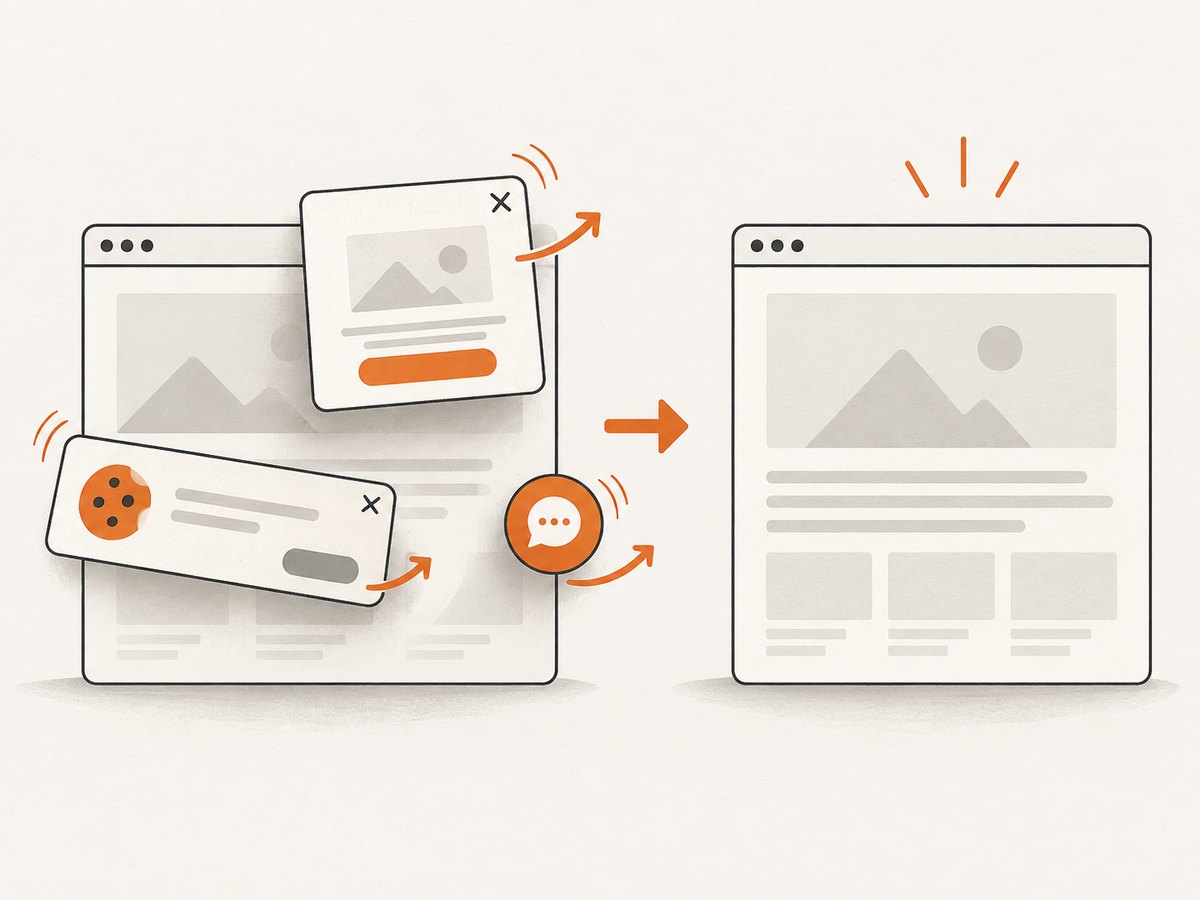
ScreenshotNeo removes cookie and consent banners, newsletter popups and chat widgets before capture. Bot checks, blank pages, timeouts, failed loads and cache hits are not billed, and the response identifies the result with X-Page-Verdict and X-Billed headers. Its MCP server lets Claude, Cursor and other MCP clients call take_screenshot, get_page_info and capture_pdf. You can use 1,000 screenshots per month free with no card; paid plans start at $5 for 3,000 shots. Create a free ScreenshotNeo account.
10. FAQ
Do I need an extension to save a webpage as a PDF?
No. Firefox, Chrome and other desktop browsers generally provide print-to-PDF. An extension is useful for cleanup, selection or additional controls.
Why does my PDF look different from the webpage?
Sites can provide print-specific CSS, and print settings can change scale, margins, backgrounds and orientation.
Can an extension save only one part of a page?
Some extensions support selected-element export. Check the current listing; this is not a universal feature.
Is a Chrome Web Store privacy disclosure a security guarantee?
No. It is a publisher disclosure. Compare the requested permissions, site-access controls and privacy policy before installing.
How do I archive pages that require a repeatable workflow?
Use a scripted browser process or an API such as ScreenshotNeo, then store the source URL and capture metadata with each PDF.


