How to Save a Web Page as PDF with HTML2Canvas and jsPDF
Capture a DOM element with html2canvas, paginate it with jsPDF, and handle fonts, images, long pages, CORS, errors, and production limits.
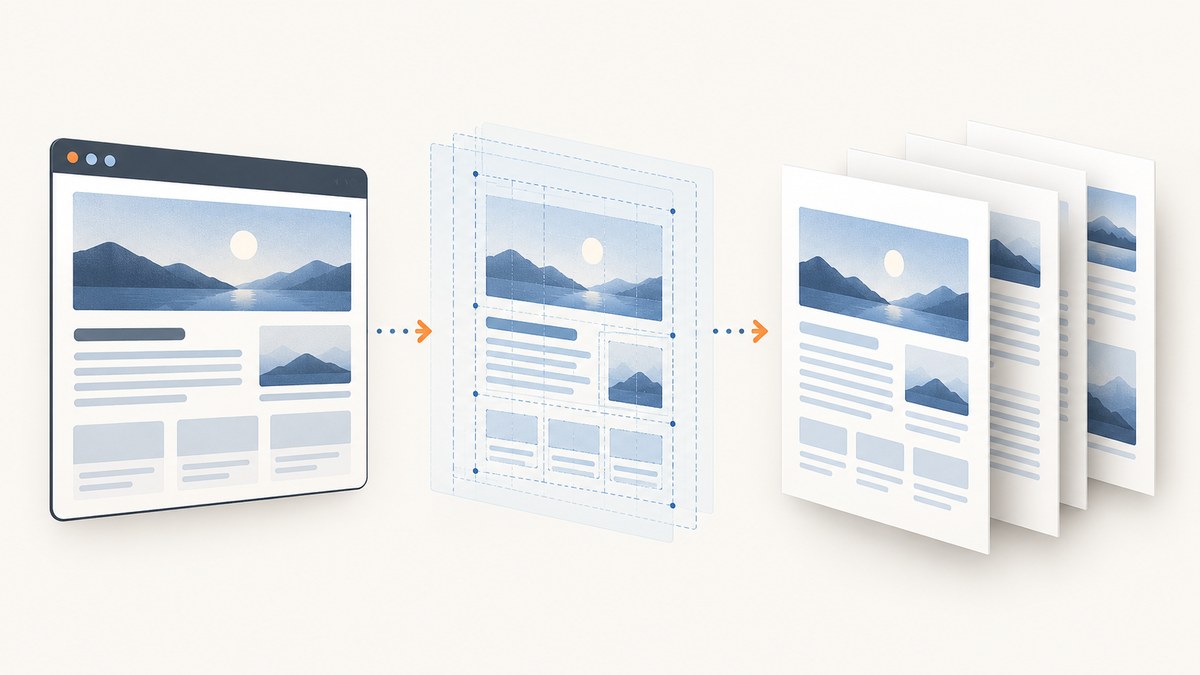
Use html2canvas to reconstruct a DOM element as a canvas, then place that image in a jsPDF document and save the file. The result is a visual PDF approximation of the rendered page. It is not a native browser screenshot, and it does not automatically create selectable, semantic text.
For a reliable export, capture the content container rather than the entire body, wait for images and fonts, choose a deliberate page size, preserve the image aspect ratio, and split long content into page-sized slices. Cross-origin images need CORS permission or a proxy, and very tall canvases can fail differently across browsers.
What html2canvas and jsPDF actually do
html2canvas walks the DOM and builds a canvas from the CSS and content it understands. The project documentation says: “The screenshot is based on the DOM and as such may not be 100% accurate to the real representation as it does not make an actual screenshot, but builds the screenshot based on the information available on the page.” Unsupported CSS, browser security rules, animations, and missing resources can therefore change the output.
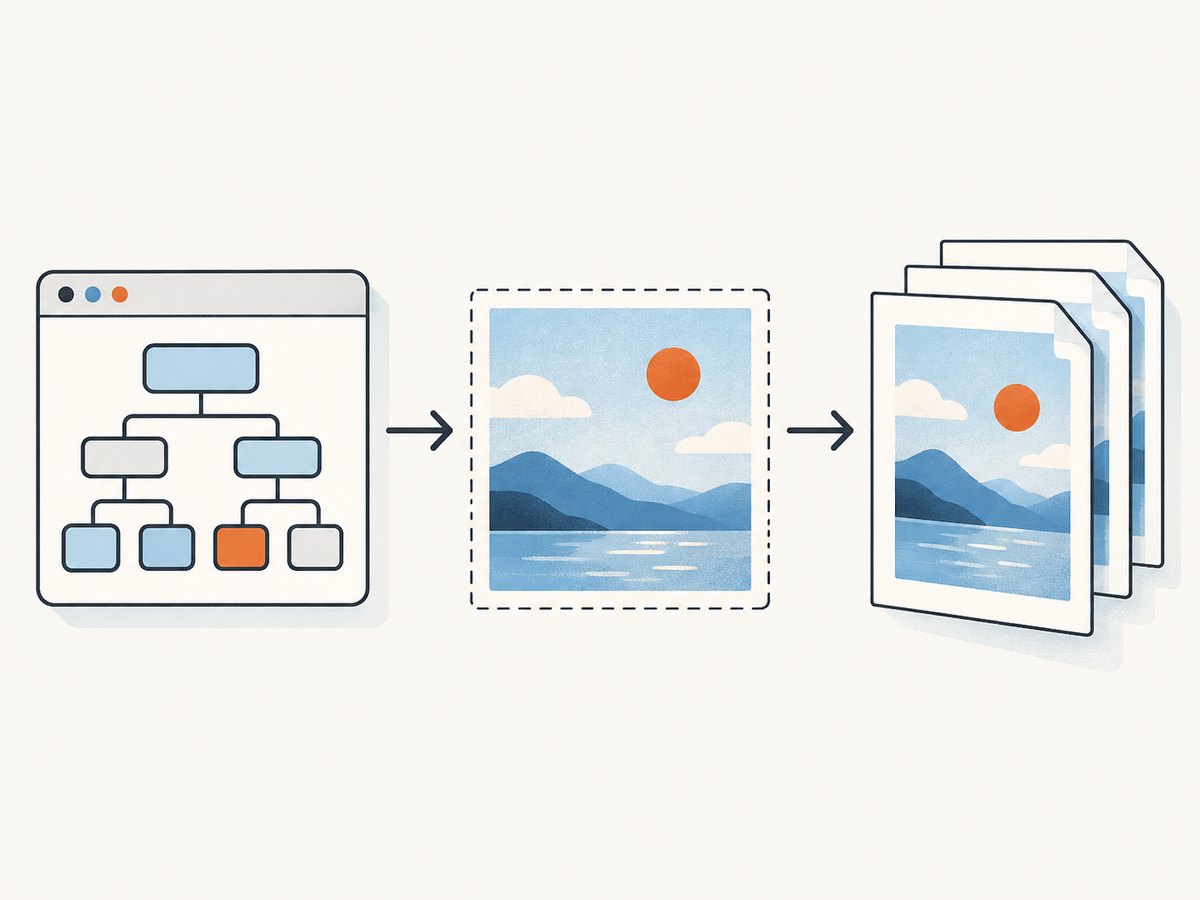
jsPDF creates the PDF container. You choose orientation, units, and format, add the canvas as an image, add pages when necessary, and call save(). Its documented default is A4 portrait with millimetre units, but specifying these values makes your intent clear.
| Requirement | Recommended approach |
|---|---|
| Export one report or card | Pass that element to html2canvas(). |
| Preserve page proportions | Calculate PDF width from the canvas aspect ratio. |
| Export a long report | Slice the canvas into page-height sections or capture smaller sections. |
| Use remote images | Serve them with suitable CORS headers or fetch them through a permitted proxy. |
| Support non-Latin text | Embed a TTF font in jsPDF with the required glyphs. |
Install the libraries
Install both packages with your project package manager:
npm install html2canvas jspdfThen import them in a browser bundle:
import html2canvas from 'html2canvas';
import { jsPDF } from 'jspdf';
If you are not using a bundler, load browser builds before your application code. Pin versions in production and verify the generated file in every browser you support.
Basic export: capture an element and save one PDF page
This complete example exports an element with the id invoice. The scale value improves detail on high-density screens; lower it if memory use is a problem.
import html2canvas from 'html2canvas';
import { jsPDF } from 'jspdf';

async function saveElementAsPdf() {
  const element = document.querySelector('#invoice');
  if (!element) throw new Error('The #invoice element was not found');

  // Let layout, images, and web fonts settle before capturing.
  if (document.fonts?.ready) {
    await document.fonts.ready;
  }
  await Promise.all(
    [...element.querySelectorAll('img')].map((img) => {
      if (img.complete) return Promise.resolve();
      return new Promise((resolve) => {
        img.addEventListener('load', resolve, { once: true });
        img.addEventListener('error', resolve, { once: true });
      });
    })
  );

  const canvas = await html2canvas(element, {
    backgroundColor: '#ffffff',
    scale: Math.min(window.devicePixelRatio || 1, 2),
    useCORS: true,
    logging: false
  });

  const pdf = new jsPDF({
    orientation: 'portrait',
    unit: 'mm',
    format: 'a4',
    compress: true
  });

  const margin = 12;
  const pageWidth = pdf.internal.pageSize.getWidth();
  const pageHeight = pdf.internal.pageSize.getHeight();
  const usableWidth = pageWidth - margin * 2;
  const imageHeight = (canvas.height * usableWidth) / canvas.width;
  const usableHeight = pageHeight - margin * 2;

  if (imageHeight <= usableHeight) {
    pdf.addImage(canvas, 'PNG', margin, margin, usableWidth, imageHeight);
  } else {
    throw new Error('Content is taller than one page; use the pagination example below.');
  }

  pdf.save('invoice.pdf');
}

document.querySelector('#save-pdf').addEventListener('click', saveElementAsPdf);
The canvas is converted directly by jsPDF. You can use 'JPEG' instead of 'PNG' when a smaller photographic file matters more than lossless text and line art. WebP support depends on the jsPDF build and browser path you use, so verify it before relying on it.
Export a long page with pagination
A single very tall canvas can exceed browser or device limits and produce a blank, truncated, or partially rendered PDF. The safer pattern is to render the element once, calculate how many source pixels fit on a PDF page, copy each slice into a temporary canvas, and add one PDF page per slice.
import html2canvas from 'html2canvas';
import { jsPDF } from 'jspdf';

async function saveLongElementAsPdf(element, filename = 'page.pdf') {
  const canvas = await html2canvas(element, {
    backgroundColor: '#ffffff',
    scale: Math.min(window.devicePixelRatio || 1, 2),
    useCORS: true,
    windowWidth: element.scrollWidth,
    windowHeight: element.scrollHeight,
    logging: false
  });

  const pdf = new jsPDF({
    orientation: 'portrait',
    unit: 'mm',
    format: 'a4',
    compress: true
  });

  const margin = 10;
  const pageWidth = pdf.internal.pageSize.getWidth();
  const pageHeight = pdf.internal.pageSize.getHeight();
  const targetWidth = pageWidth - margin * 2;
  const targetHeight = pageHeight - margin * 2;

  // Source pixels represented by one PDF page at the chosen width.
  const sourcePageHeight = Math.floor(canvas.width * targetHeight / targetWidth);
  let sourceY = 0;
  let pageNumber = 0;

  while (sourceY < canvas.height) {
    const sliceHeight = Math.min(sourcePageHeight, canvas.height - sourceY);
    const slice = document.createElement('canvas');
    slice.width = canvas.width;
    slice.height = sliceHeight;

    const context = slice.getContext('2d');
    context.fillStyle = '#ffffff';
    context.fillRect(0, 0, slice.width, slice.height);
    context.drawImage(
      canvas,
      0, sourceY, canvas.width, sliceHeight,
      0, 0, slice.width, slice.height
    );

    if (pageNumber > 0) pdf.addPage();
    const displayedHeight = sliceHeight * targetWidth / canvas.width;
    pdf.addImage(slice, 'PNG', margin, margin, targetWidth, displayedHeight);

    sourceY += sliceHeight;
    pageNumber += 1;
  }

  pdf.save(filename);
}

const report = document.querySelector('#report');
document.querySelector('#save-report').addEventListener('click', () => {
  saveLongElementAsPdf(report, 'report.pdf');
});
This preserves the image ratio on every page. A section may be split across two pages because the source is an image. If clean page breaks are required, divide the report into page-sized sections in your markup and capture each section separately.
Avoid awkward breaks
For invoices, dashboards, and reports, add a class to logical blocks and paginate those blocks instead of one giant element. CSS such as break-inside: avoid can help when you use a print-oriented workflow, but html2canvas does not implement a browser print engine. Inspect the actual PDF rather than assuming print CSS will control the canvas.
Useful html2canvas options
| Option | Purpose | Practical note |
|---|---|---|
backgroundColor |
Sets the canvas background. | Use '#ffffff' for predictable paper output or null for transparency. |
scale |
Controls source pixel density. | Higher values improve detail and increase memory use. |
useCORS |
Attempts CORS-enabled image loading. | It works only when the remote response permits it. |
allowTaint |
Allows drawing resources that taint a canvas. | A tainted canvas cannot be exported safely; this does not bypass browser security. |
ignoreElements |
Skips nodes during capture. | Use it to remove buttons, navigation, or print-only controls. |
onclone |
Edits the cloned document before rendering. | Hide transient UI or change styles without altering the live page. |
windowWidth, windowHeight |
Sets the virtual viewport. | For scrollable content, element dimensions can prevent responsive reflow. |
scrollX, scrollY |
Controls the capture scroll position. | Useful when capturing a viewport region. |
The supported CSS list is documented by the html2canvas project. Unsupported properties can differ from what the user sees in the browser.
Hide controls in the cloned page
const canvas = await html2canvas(document.querySelector('#report'), {
  backgroundColor: '#fff',
  onclone: (clonedDocument) => {
    clonedDocument.querySelectorAll('[data-pdf-ignore]').forEach((node) => {
      node.style.display = 'none';
    });
  }
});
Mark export-only or interactive controls in your HTML:
<button data-pdf-ignore>Delete</button>Images, fonts, iframes, and browser security
Why are images missing from my PDF? The most common reason is cross-origin content. A browser will not let html2canvas read pixels from an image unless the response supplies compatible CORS headers. Set useCORS: true only when the image host sends those headers. A controlled proxy that fetches permitted assets and returns them with your origin is another option.
allowTaint: true does not make a tainted canvas exportable. With the default setting, html2canvas skips resources that would taint the canvas. Do not use a proxy to retrieve resources your application is not authorized to access.
Same-origin iframes can be rendered recursively. Cross-origin frames and sandboxed frames without allow-same-origin cannot be inspected because of browser security boundaries.
Wait for fonts before capture. jsPDF's standard fonts cover only a limited ASCII codepage. For accented, Cyrillic, Arabic, CJK, or other glyphs, embed a TTF font containing the characters you need and register it with jsPDF. Missing glyphs otherwise appear as blank boxes or garbled text in any text you add directly to the PDF.
When html2pdf.js is a better wrapper
html2pdf.js wraps the same general pipeline: .from() -> .toContainer() -> .toCanvas() -> .toImg() -> .toPdf() -> .save(). It can reduce boilerplate for straightforward exports:
import html2pdf from 'html2pdf.js';

const element = document.querySelector('#report');
html2pdf()
  .set({
    margin: 10,
    filename: 'report.pdf',
    image: { type: 'jpeg', quality: 0.95 },
    html2canvas: { scale: 2, useCORS: true },
    jsPDF: { unit: 'mm', format: 'a4', orientation: 'portrait' }
  })
  .from(element)
  .save();
The wrapper's README warns that resizing the root element can cause content reflow. Use the direct API when you need precise slicing, custom page logic, or detailed error handling.
Common errors and fixes
| Symptom | Likely cause | Fix |
|---|---|---|
| PDF is blank | Canvas exceeded a browser limit, capture ran before layout, or the element had no dimensions. | Capture after fonts and images load, check element.getBoundingClientRect(), reduce scale, and paginate smaller sections. |
| PDF is cut off | One-page code used for a taller element. | Use the slicing example or capture page-sized sections. |
| Images are absent | Cross-origin response lacks CORS headers. | Enable CORS on the asset host, use a permitted proxy, or serve assets from the same origin. |
| Canvas is tainted | A resource was drawn without permission. | Fix CORS; allowTaint does not solve export security. |
| Text or icons look different | Unsupported CSS, web fonts not loaded, or a font lacks glyphs. | Wait for document.fonts.ready, embed a suitable TTF for jsPDF text, and simplify unsupported styles. |
| Layout wraps differently | The clone used a different viewport width. | Set windowWidth deliberately and capture a dedicated export container. |
| Browser freezes on mobile | High-resolution canvas consumes too much memory. | Lower scale, remove unnecessary content, and split the export into smaller sections. |
| PDF contains unsafe content | Untrusted markup, text, or resource URLs were passed through. | Sanitize input and enforce the application's authorization and URL access rules. The jsPDF README recommends sanitizing user input. |
Performance, reliability, and cost considerations
- Memory: Canvas memory grows with width × height × scale². A scale of 2 can require roughly four times the pixel storage of scale 1.
- Speed: Hide animations, video, cursors, chat controls, and other unnecessary nodes before capture. Reuse a prepared export container for repeated jobs.
- Reliability: Test Chromium, Firefox, Safari, and mobile devices you support. Canvas limits depend on browser, platform, and available memory; failures may be blank or partial rather than an explicit exception.
- Output size: PNG preserves sharp text and line art but can be large. JPEG usually reduces photographic output size at the cost of compression artifacts.
- Pagination: Smaller captures reduce peak memory and make it easier to retry one failed section.
- Accessibility: A canvas image in a PDF is not equivalent to selectable, searchable, semantic document text. If accessibility or text extraction is required, generate a structured PDF with a server-side or document-native renderer.

Or skip the browser setup
When you need a clean website capture rather than a DOM reconstruction inside the user's browser, ScreenshotNeo provides a website screenshot API and MCP server. One GET request returns PNG, JPEG, WebP, or PDF. It accepts cookie and consent banners before capture, removes more than 60 known consent platforms plus newsletter popups and chat widgets, and lets you turn each step off. Bot checks, blank pages, timeouts, failed loads, and cache hits are not billed; the response identifies the verdict and billing status with X-Page-Verdict and X-Billed headers.
See the ScreenshotNeo API documentation for all options. The simplest call is:
curl -G "https://api.screenshotneo.com/v1/shot" -d access_key=YOUR_API_KEY --data-urlencode url=https://stripe.com -o shot.webpimport requests
r = requests.get("https://api.screenshotneo.com/v1/shot", params={"access_key": "YOUR_API_KEY", "url": "https://stripe.com"}, timeout=90)
open("shot.webp", "wb").write(r.content)const q = new URLSearchParams({ access_key: 'YOUR_API_KEY', url: 'https://stripe.com' });
const res = await fetch(`https://api.screenshotneo.com/v1/shot?${q}`);You can request full-page captures with lazy images loaded, a CSS-selected element, dark mode, device presets or custom viewports, retina scale, PDF paper sizes and margins, custom CSS and JavaScript, clicks, waits, blocked requests, headers, cookies, user agents, authorization, timezone, geolocation, transparent backgrounds, resizing, caching, signed links, asynchronous jobs with signed webhooks, bulk capture of up to 100 URLs, and usage data. An MCP server exposes take_screenshot, get_page_info, and capture_pdf to Claude, Cursor, and other MCP clients.
There are 1,000 free screenshots each month with no card. Paid plans start at $5 for 3,000 screenshots; yearly billing provides two months free, and every feature is included on every plan. Create a free ScreenshotNeo account.
FAQ
Does html2canvas make a real screenshot?
No. It reconstructs a canvas from the DOM and supported CSS, so the result can differ from the browser's actual pixels.
Can I export the whole document with document.body?
Yes, but a dedicated content element is usually more predictable. It prevents navigation, controls, overlays, and unrelated page sections from entering the PDF.
Why is my generated PDF cut off?
The canvas or PDF page is too short for the content. Paginate the source canvas or capture smaller sections, then test on target devices.
Can the PDF text be selected?
Not when the page is inserted as one canvas image. Use a structured PDF generator when selectable and semantic text is a requirement.
How do I save a page with Arabic, CJK, or emoji?
Wait for the web font used by the DOM, and embed a TTF with the required glyphs for any text written directly through jsPDF. Verify the font license and glyph coverage.
Should I use html2pdf.js or the two libraries directly?
Use html2pdf.js for a short wrapper workflow. Use html2canvas and jsPDF directly when you need custom pagination, slicing, resource handling, or detailed control.


