How to Save a Web Page Screenshot as a PDF
Learn when to print a webpage to PDF, when to capture the full page as an image, and how to automate clean PDF captures with ScreenshotNeo.
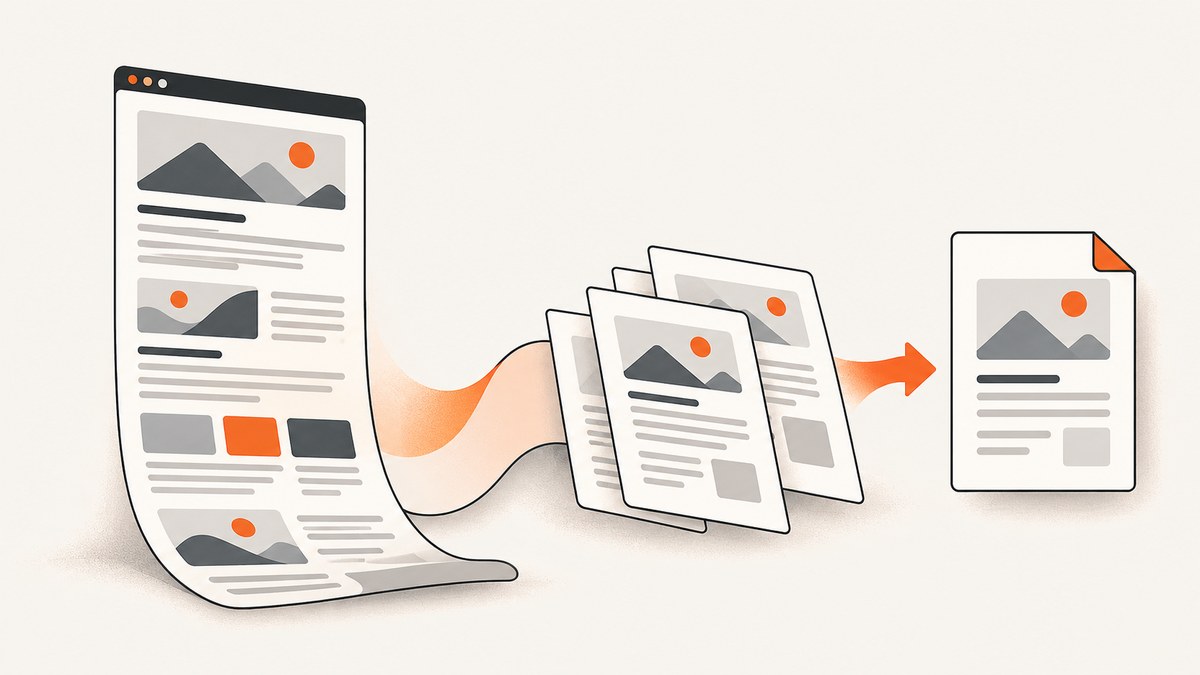
Short answer: For a normal article or document, open the browser’s Print dialog and choose Save as PDF. You get selectable text, page ranges, margins, and a smaller document. If the exact visual layout matters—such as a dashboard, landing page, infographic, or long design—capture the entire page as an image first, then place that image in a PDF. A screenshot PDF preserves appearance better, but it is usually image-based and less searchable.
This guide covers desktop browsers, phones and tablets, full-page capture, print settings, automation, troubleshooting, and production considerations. At the end, ScreenshotNeo provides a one-request option for developers who need repeatable captures without maintaining a browser.
1. Choose print-to-PDF or screenshot-to-PDF
| Need | Best method | What to expect |
|---|---|---|
| Selectable, searchable text | Print > Save as PDF | The browser may reflow columns, hide navigation, or omit interactive widgets. |
| Exact visual arrangement | Full-page screenshot, then PDF | Preserves layout and colors, but text may not be selectable and files can be larger. |
| Only a section or page range | Print with a page range | Useful for reports; inspect the preview because CSS pagination can change the result. |
| Repeated or automated captures | Screenshot API | Consistent viewport, waits, authentication, cookies, and output format without manual steps. |
Use print preview as the decision point. If the preview has the right structure, save it directly. If columns are clipped, lazy content is blank, or the page’s design changes substantially, switch to a full-page screenshot workflow.
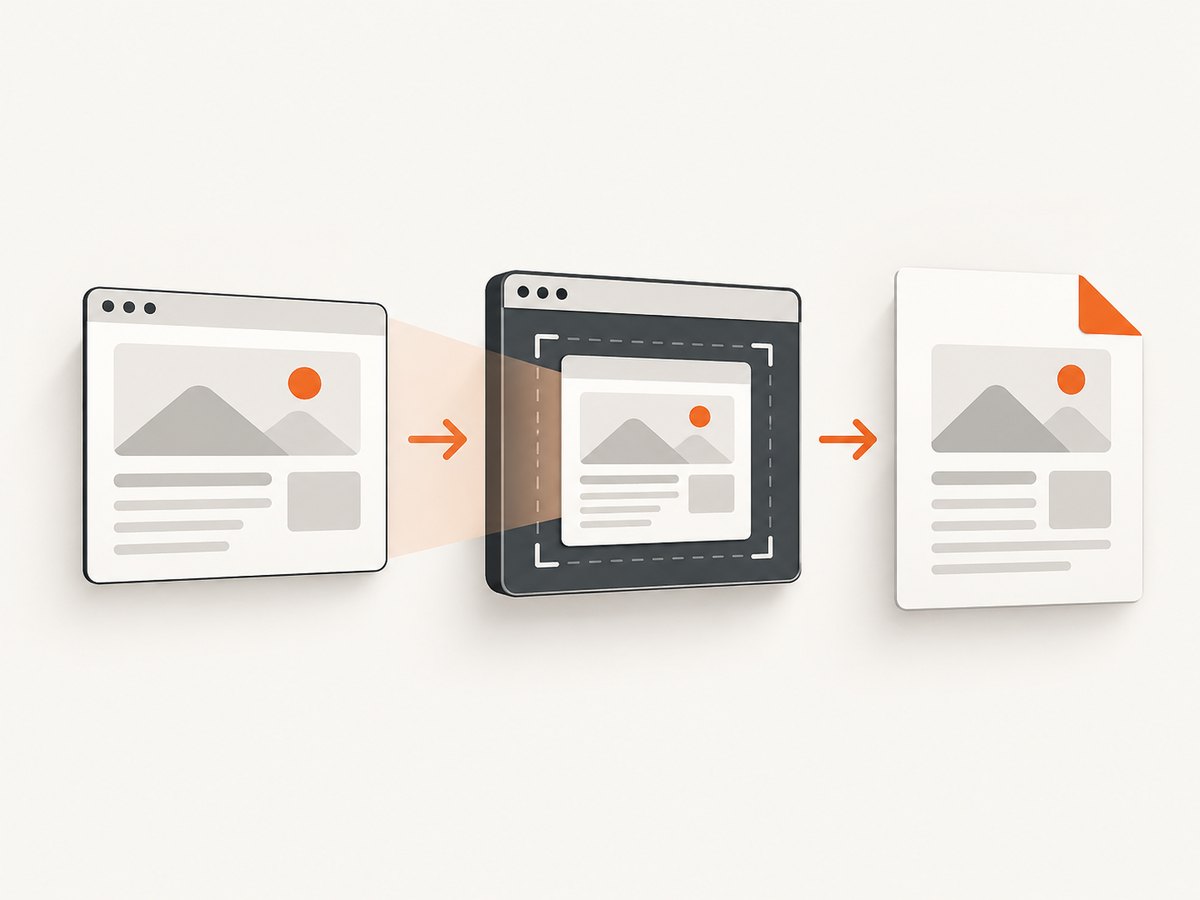
2. Save a webpage as a PDF in Chrome
- Open the page you want to save.
- Open File > Print, or press Ctrl+P on Windows/Linux or Command+P on macOS.
- Set the destination to Save to PDF.
- Choose the paper size, orientation, scale, margins, and page range.
- Turn on background graphics if the preview loses colored panels or branding.
- Click Save, choose a filename, and inspect the resulting PDF.
Chrome’s print route is best for text-heavy pages. Responsive navigation, advertisements, sticky controls, and interactive components can be hidden or rearranged during printing. Always inspect the preview before saving.
3. Save a webpage as a PDF in Firefox
- Open the page and choose Menu > Print.
- In print preview, set Destination to Save to PDF.
- Adjust orientation, paper size, scale, margins, headers and footers, and background colors or images.
- Set a page range if you need only selected pages.
- Save the file and check every page for clipping or missing sections.
Firefox may offer a simplified format for supported pages. That can remove navigation and clutter, but it also changes the visual design. Use it when readability matters more than visual fidelity.
4. Save a webpage as a PDF in Microsoft Edge
- Choose Settings and more > Print, press Ctrl+P on Windows or Command+P on macOS, or right-click the page and choose Print.
- Choose Save as PDF as the printer or destination.
- Open More settings and enable Background graphics when colors or design elements are missing.
- Set scale, paper size, margins, orientation, and page range.
- Save the PDF and verify the output.
Edge’s Immersive Reader can create a less cluttered version on supported sites. For a visual capture, press Ctrl+Shift+S, select Capture full page, save the image, and then use your system’s print-to-PDF command. Edge documents that Screenshot can capture content beyond the portion currently visible on screen.
5. Safari, iPhone, iPad, Android, and Firefox for iOS
Safari on macOS
Use File > Export as PDF, or choose File > Print and select Save as PDF in the print dialog. Export is convenient for document-like pages; print gives you more control over paper size, margins, and page ranges.
iPhone and iPad
In Safari, open the Share sheet and choose Create PDF or Save to Files, depending on the iOS version. This produces a document-style PDF. For a visual full-page capture, take a screenshot, tap its thumbnail, choose Full Page where available, and save or share the result as a PDF.
Android
Open the browser menu and choose Share or Print, then select Save as PDF. Device menus differ, so check the print preview for orientation, paper size, and scaling before saving.
Firefox for iOS
Take a screenshot, tap the thumbnail, choose Full Page, tap Done, and select the option to save as a PDF.
6. Capture the entire scrolling page as a screenshot
A browser print job lays content out again. A full-page screenshot instead renders the page and stitches the portions that are normally reached by scrolling. Use this for dashboards, design reviews, visual regression records, long infographics, and pages where exact spacing matters.
- Wait for the page to finish loading.
- Trigger the browser’s full-page capture feature. In Edge, use Ctrl+Shift+S and choose Capture full page. Other browsers may expose a full-page command in developer tools or a screenshot menu.
- Save the resulting PNG or JPEG.
- Open the image and choose your operating system’s print command.
- Set the image to fit the page or choose a paper size that avoids unwanted cropping.
- Save the print job as a PDF.
Very tall pages can produce large images. If the page contains sticky headers, the header may appear repeatedly or be captured at an unexpected position. Dynamic charts, animations, video, and content loaded only after scrolling can also differ from what you see in a print preview.
7. Print settings that prevent common defects
- Background graphics: Enable this when colored sections, gradients, or background images disappear.
- Orientation: Use landscape for wide tables and dashboards; use portrait for articles.
- Scale: Reduce scale when a column is clipped. Increase it when text is too small, then check the page count.
- Margins: Narrow margins create more usable width but can cut off content on some printers or PDF engines.
- Paper size: Match the intended reader’s paper size. A layout designed for A4 can paginate differently on Letter.
- Headers and footers: Disable them when you do not want the URL, title, or date added to every page.
- Page range: Use the preview’s page numbers, not the webpage’s visual sections, because CSS can create unexpected page breaks.
8. When the PDF looks different from the webpage
Print engines apply print CSS, reflow responsive layouts, and remove or replace interactive elements. A navigation bar may disappear, a two-column layout may become one column, and ads or chat widgets may be omitted. Lazy-loaded sections can remain blank if the print process begins before the page has been scrolled or hydrated.
First, inspect print preview and wait for all content to appear. Enable backgrounds, change orientation, adjust scale, and try a different paper size. If the design still changes, use a full-page screenshot and convert that image to PDF. This trades selectable text for visual fidelity.
9. Developer automation with ScreenshotNeo
Manual browser steps work for occasional files. For scheduled reports, documentation snapshots, QA evidence, or many URLs, ScreenshotNeo exposes a GET endpoint that returns PNG, JPEG, WebP, or PDF output. Its PDF options include paper size, margins, landscape mode, and page ranges. The service can also wait for a selector, a delay, or network idle; load lazy images for full-page captures; use a CSS selector for one element; apply custom CSS or JavaScript; set cookies, headers, user agents, authorization, timezone, and geolocation; and block ads, trackers, requests, or resource types.
See the ScreenshotNeo API documentation for the complete option list and OpenAPI specification. The examples below are runnable after replacing the access key and target URL.
cURL
curl -G "https://api.screenshotneo.com/v1/shot" \
  -d access_key=YOUR_API_KEY \
  --data-urlencode url=https://stripe.com \
  -o shot.webp
Python
import requests

r = requests.get(
    "https://api.screenshotneo.com/v1/shot",
    params={"access_key": "YOUR_API_KEY", "url": "https://stripe.com"},
    timeout=90,
)
r.raise_for_status()
open("shot.webp", "wb").write(r.content)
Node.js
const q = new URLSearchParams({
  access_key: 'YOUR_API_KEY',
  url: 'https://stripe.com'
});
const res = await fetch(`https://api.screenshotneo.com/v1/shot?${q}`);
if (!res.ok) throw new Error(`HTTP ${res.status}`);
const fs = await import('node:fs/promises');
await fs.writeFile('shot.webp', Buffer.from(await res.arrayBuffer()));
To request a PDF, add the PDF option described in the documentation, such as the output format and paper settings. For protected pages, send custom headers or cookies instead of embedding secrets in the URL. For public HTML <img> tags, signed links prevent the capture URL from being reused indefinitely. Async jobs with signed webhooks are useful when a capture may take longer than a request timeout, and bulk capture accepts up to 100 URLs per call.
10. “Or skip the browser setup”
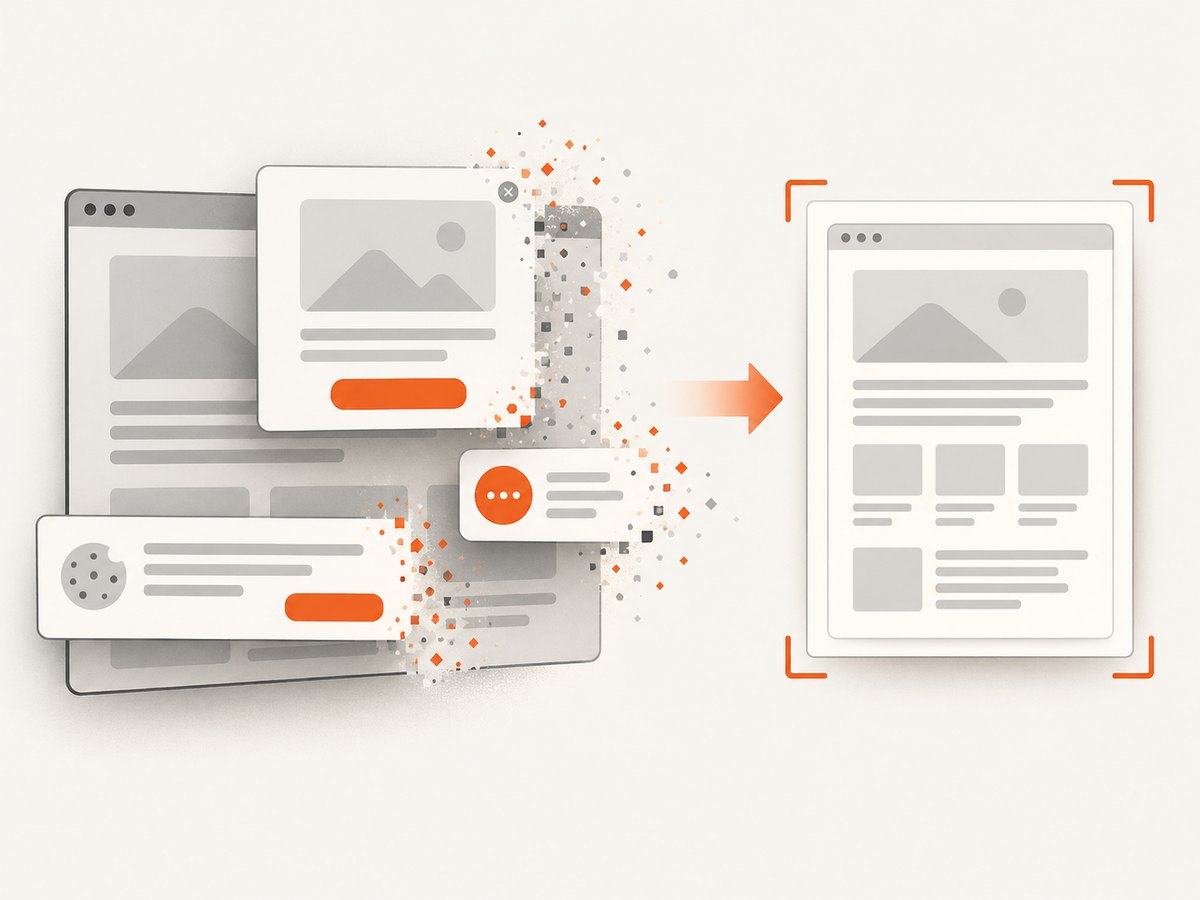
ScreenshotNeo removes cookie and consent banners, newsletter popups, and chat widgets before the shot. Bot checks, blank pages, failed loads, timeouts, and cache hits are not billed, and response headers report the page verdict and whether the capture was billed. Its MCP server gives Claude, Cursor, and other MCP clients tools named take_screenshot, get_page_info, and capture_pdf. Every plan includes the features; 1,000 screenshots per month are free with no card, and paid plans start at $5 for 3,000 shots. Create a free ScreenshotNeo account.
11. Reliability, performance, and cost notes
- Wait for the right state: Use a selector wait for a known component, a delay for predictable animation, or network idle for pages that finish loading asynchronously.
- Reduce page weight: Block ads, trackers, or unnecessary resource types when they are not part of the capture.
- Keep output deterministic: Set viewport or a device preset, timezone, geolocation, user agent, cookies, and custom headers explicitly.
- Use caching deliberately: Choose a TTL that matches how often the source changes. A cache hit costs nothing in ScreenshotNeo’s billing model.
- Handle failures: Inspect HTTP status and the
X-Page-VerdictandX-Billedheaders. Retry transient failures with backoff, but do not blindly retry a persistent bot check or invalid URL. - Control PDF size: Reduce image scale, choose a reasonable paper size, and avoid capturing hidden or duplicated sections.
12. Troubleshooting checklist
| Symptom | Likely cause | Fix |
|---|---|---|
| Colors or panels are missing | Background graphics are disabled | Enable background graphics in the print dialog. |
| Right side of a table is cut off | Portrait paper, large scale, or wide margins | Use landscape, reduce scale, narrow margins, or choose a wider paper size. |
| Sections are blank | Lazy loading or JavaScript has not finished | Wait longer, scroll through the page, or use a selector/network-idle wait in automation. |
| PDF layout differs from the screen | Print CSS and responsive reflow | Use full-page screenshot capture and convert the image to PDF. |
| Sticky header repeats oddly | Fixed-position element captured during stitching | Hide the selector with automation or use print output if exact pixels are unnecessary. |
| ScreenshotNeo response is not an image or PDF | Invalid key, URL, or page verdict | Check the HTTP status and response headers, then correct authentication or the target page. |
| Capture times out | Slow resources, never-ending requests, or a blocked page | Block unnecessary resources, set a finite wait, and inspect the verdict before retrying. |
13. FAQ
Is a screenshot PDF searchable?
Usually not. A screenshot PDF contains pixels. Use print-to-PDF when selectable text and search are requirements.
How do I save only part of a webpage?
Use a print page range for document output. For visual output, capture a specific element with a CSS selector through a tool that supports element capture.
Why is my PDF several pages when I expected one?
The image or printed layout is larger than the selected paper size. Choose a larger paper size, landscape orientation, or a smaller scale. Extremely tall screenshots may still be easier to read across multiple pages.
Can I capture a page that requires login?
Yes, when your capture method can supply the authenticated session. ScreenshotNeo supports custom cookies, headers, user agents, and Authorization values; keep credentials out of client-side URLs and logs.
Which method should a team standardize on?
Standardize on print-to-PDF for reports where text and pagination matter. Use full-page screenshots for visual review. Use an API when the process must run on a schedule, handle many URLs, or produce consistent results across machines.


