How to Save Web Pages with Selenium
Learn how to save a Selenium page as an image, full-page PNG, PDF, HTML source, or downloaded file—with runnable Python examples and fixes.
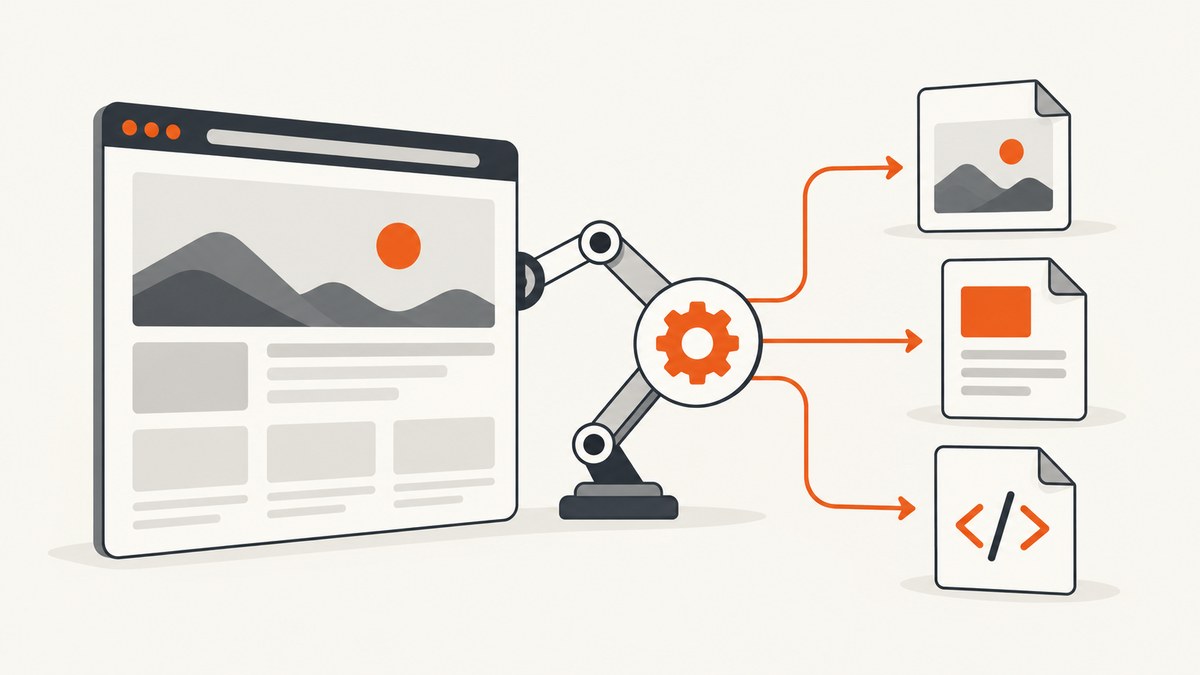
How do I save a web page with Selenium? First choose the artifact you need: a screenshot of the current viewport, a full-document image, a PDF, the page’s HTML source, or a file linked from the page. Selenium supports the first four directly, but each uses a different API and has different limits.
| What you need | Selenium approach | Main caveat |
|---|---|---|
| Visible page image | save_screenshot() |
Captures the current browsing context, usually the viewport. |
| Entire document image | Firefox Python save_full_page_screenshot() |
Documented for the Firefox Python API; do not assume identical support in every browser binding. |
print_page(), or Chromium CDP Page.printToPDF |
Selenium’s page-printing documentation requires Chromium in headless mode. | |
| HTML source | driver.page_source |
Returns markup, not a visual or self-contained archive. |
| Linked download | Browser download configuration | Behavior is browser- and version-specific; verify current vendor guidance. |
1. Save the current page as a screenshot
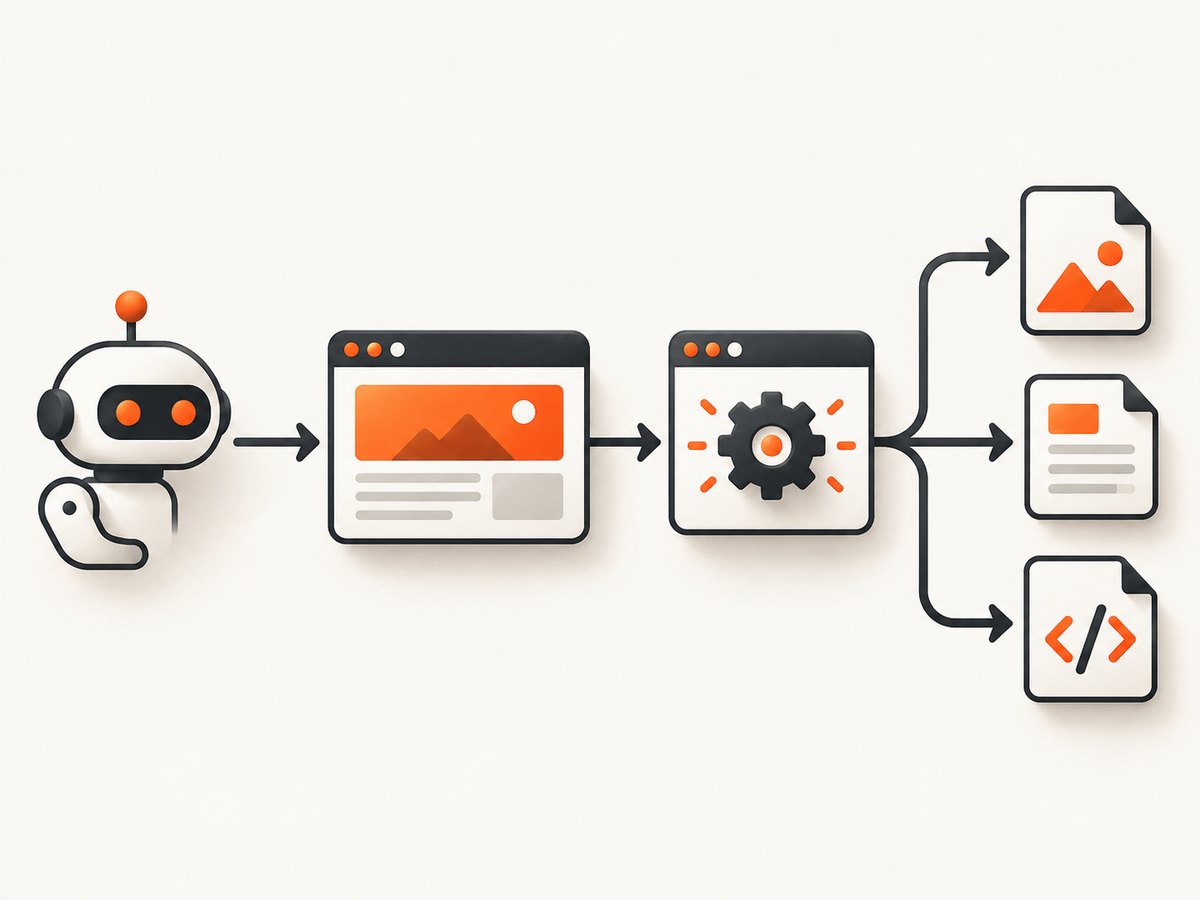
The standard WebDriver screenshot method saves an image of the current browsing context. Selenium’s documentation demonstrates Python’s driver.save_screenshot('./image.png'); the underlying WebDriver endpoint returns Base64-encoded image data that the language binding writes for you. See the official Selenium window and tab documentation.
Install Selenium
python -m pip install -U seleniumRecent Selenium versions can manage compatible drivers automatically in common setups. If your environment cannot locate a browser or driver, install a supported browser and follow the driver instructions for your Selenium version.
Complete Python example
from selenium import webdriver
from selenium.webdriver.chrome.options import Options

options = Options()
# Uncomment for CI or a server without a display.
# options.add_argument("--headless=new")

 driver = webdriver.Chrome(options=options)
try:
    driver.get("https://example.com")
    ok = driver.save_screenshot("page.png")
    if not ok:
        raise RuntimeError("WebDriver reported that the screenshot was not saved")
finally:
    driver.quit()
Call save_screenshot() after navigation and after any interaction that changes the page. The file extension should match the format produced by your driver, normally PNG.
Control the viewport
from selenium import webdriver

 driver = webdriver.Chrome()
try:
    driver.set_window_size(1440, 900)
    driver.get("https://example.com")
    driver.save_screenshot("desktop.png")
finally:
    driver.quit()
A viewport screenshot does not automatically include content below the fold. Scroll, click, or wait for application state before capturing when the page is dynamic:
from selenium.webdriver.common.by import By
from selenium.webdriver.support.ui import WebDriverWait

 driver.get("https://example.com/dashboard")
WebDriverWait(driver, 20).until(
    lambda d: d.find_element(By.CSS_SELECTOR, "main.ready")
)
driver.save_screenshot("dashboard.png")
2. Save a full-page screenshot
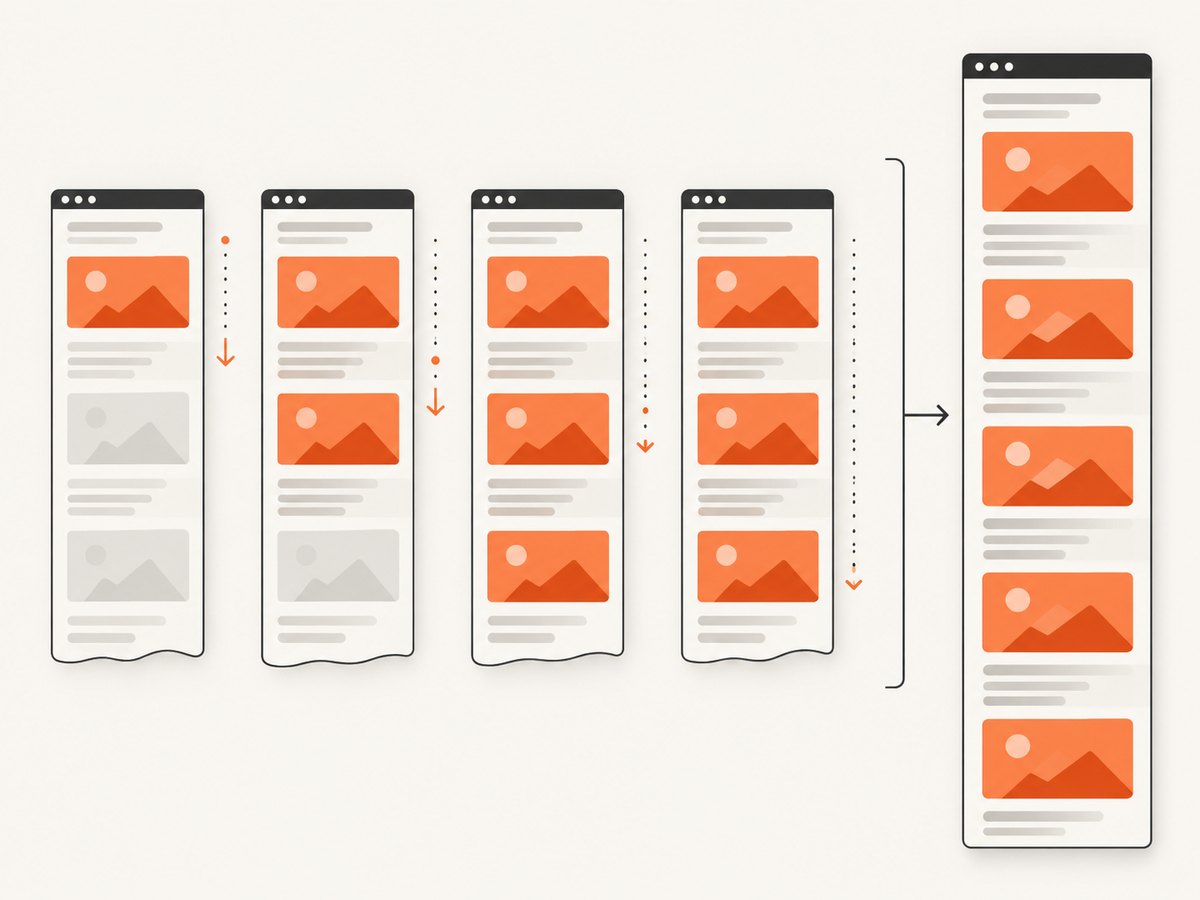
For a single PNG containing the whole document, the Python Firefox WebDriver API documents save_full_page_screenshot(filename) and related methods. This is browser API-specific. Check the reference for your exact binding and browser instead of assuming Chrome, Edge, and Firefox expose identical full-page behavior.
from selenium import webdriver

 driver = webdriver.Firefox()
try:
    driver.get("https://example.com/long-article")
    driver.save_full_page_screenshot("article-full.png")
finally:
    driver.quit()
Full-page capture can be expensive for very tall pages. Lazy-loaded images may not exist until their containers enter the viewport. If the result is missing images, scroll through the document first and wait for the image elements to report completion:
from selenium.webdriver.common.by import By
from selenium.webdriver.support.ui import WebDriverWait

 driver.get("https://example.com/gallery")
height = driver.execute_script("return document.body.scrollHeight")
step = 800
for y in range(0, height, step):
    driver.execute_script("window.scrollTo(0, arguments[0])", y)
    # Give the page a chance to request lazy resources.
    driver.implicitly_wait(0.1)

driver.execute_script("window.scrollTo(0, 0)")
WebDriverWait(driver, 20).until(
    lambda d: all(d.execute_script("return arguments[0].complete", img)
                  for img in d.find_elements(By.CSS_SELECTOR, "img"))
)
driver.save_full_page_screenshot("gallery-full.png")
3. Print the page to PDF
Selenium’s page-printing API returns encoded PDF content. The official documentation says page printing requires Chromium in headless mode and demonstrates decoding the returned Base64 value before writing test.pdf.
import base64
from selenium import webdriver
from selenium.webdriver.chrome.options import Options

options = Options()
options.add_argument("--headless=new")
 driver = webdriver.Chrome(options=options)
try:
    driver.get("https://example.com/invoice")
    pdf_base64 = driver.print_page()
    with open("invoice.pdf", "wb") as output:
        output.write(base64.b64decode(pdf_base64))
finally:
    driver.quit()
Printing uses the browser’s print layout, including CSS print rules. Add a print stylesheet when you control the page:
<style>
@media print {
  .navigation, .cookie-banner { display: none !important; }
  .page-break { break-before: page; }
}
</style>
Advanced Chromium PDF controls
For paper size, margins, headers, footers, landscape output, or page ranges, Chromium exposes the DevTools Protocol Page.printToPDF command. Selenium’s Chromium binding provides execute_cdp_cmd. The Chrome DevTools Protocol Page documentation lists the command’s parameters.
import base64
from selenium import webdriver
from selenium.webdriver.chrome.options import Options

options = Options()
options.add_argument("--headless=new")
 driver = webdriver.Chrome(options=options)
try:
    driver.get("https://example.com/report")
    result = driver.execute_cdp_cmd("Page.printToPDF", {
        "paperWidth": 8.27,
        "paperHeight": 11.69,
        "marginTop": 0.4,
        "marginBottom": 0.4,
        "marginLeft": 0.4,
        "marginRight": 0.4,
        "landscape": False,
        "printBackground": True,
        "preferCSSPageSize": True,
        "pageRanges": "1-3"
    })
    with open("report.pdf", "wb") as output:
        output.write(base64.b64decode(result["data"]))
finally:
    driver.quit()
4. Save the page’s HTML source
When you need markup rather than pixels, use Python Chrome’s page_source property. Selenium describes it as the source of the current page.
from selenium import webdriver

 driver = webdriver.Chrome()
try:
    driver.get("https://example.com")
    source = driver.page_source
    with open("page.html", "w", encoding="utf-8") as output:
        output.write(source)
finally:
    driver.quit()
This is not an offline copy. External stylesheets, scripts, fonts, images, and runtime data remain separate requests. JavaScript may also have changed the DOM after the original response arrived. If you need a reproducible archive, record the URL, timestamp, response assets, cookies, and relevant application state separately.
5. What about downloading a linked file?
Downloading a PDF, CSV, image, or other file triggered by a link is different from printing the page. Selenium drives the browser; the browser’s download preferences decide whether a file is saved automatically, where it goes, and whether a confirmation dialog appears. Those settings vary by browser and version. Use the current official guidance for the browser you run, then verify the resulting file and its name in a temporary directory. Avoid copying an old preference recipe without checking compatibility.
6. Wait for the page you actually want to save
Most incorrect captures are timing problems. A successful get() means navigation completed according to the selected page-load strategy; it does not mean charts, fonts, API data, or lazy images are ready.
from selenium.webdriver.common.by import By
from selenium.webdriver.support.ui import WebDriverWait

 driver.get("https://example.com/app")
wait = WebDriverWait(driver, 30)
wait.until(lambda d: d.execute_script("return document.readyState") == "complete")
wait.until(lambda d: d.find_element(By.CSS_SELECTOR, "[data-rendered='true']"))
# Optional fixed delay for a short animation or chart transition.
import time
time.sleep(0.5)
driver.save_screenshot("app.png")
Prefer a condition tied to the page’s state over a long fixed sleep. Useful conditions include a selector becoming visible, a loading element disappearing, a known number of rows appearing, or an image’s complete property becoming true.
7. Browser setup, options, and repeatability
- Headless mode: Use
--headless=newfor server and CI environments. PDF printing specifically requires Chromium headless according to Selenium’s documentation. - Window size: Set it explicitly so responsive breakpoints do not change between runs.
- Device emulation: Use browser-specific options when you need mobile layout; record the user agent and viewport with the artifact.
- Authentication: Log in through Selenium or add the required cookies before navigation. Treat saved screenshots, source, and PDFs as potentially sensitive.
- JavaScript: Leave it enabled for applications that render client-side. Source capture still returns the current DOM representation exposed by the driver, not necessarily the original server response.
- Cleanup: Always call
quit()in afinallyblock so browser processes do not accumulate.
8. Troubleshooting common errors
| Symptom | Likely cause | Fix |
|---|---|---|
SessionNotCreatedException |
Browser and driver versions or locations are incompatible. | Update Selenium and the browser, let Selenium Manager resolve the driver, or install a matching driver explicitly. |
| Screenshot is blank or shows a loader | Capture ran before client-side rendering finished, or a bot check blocked the page. | Wait for a page-specific ready selector, inspect the screenshot manually, and handle authentication or challenge pages. |
| Full-page image cuts off content | The selected browser binding does not support the method uniformly, or the page uses unusual nested scrolling. | Use the documented Firefox Python method, check your binding reference, or capture sections by scrolling. |
| PDF file cannot be opened | Base64 text was written directly instead of decoded. | Decode the returned value with base64.b64decode() before writing binary bytes. |
| PDF call fails in visible Chrome | Page printing requires Chromium headless in Selenium’s documented flow. | Add headless mode and retry. |
| Source lacks images and CSS | page_source is markup, not a packaged website. |
Fetch and store dependent resources separately if you need an offline copy. |
| Download never appears | Browser download preferences, permissions, or a confirmation dialog prevented automatic saving. | Use current browser-specific configuration and verify the download directory and file completion. |
9. Performance, reliability, and cost considerations
A browser session is heavier than an HTTP request because it starts a browser, executes JavaScript, lays out the page, and may load many resources. Reuse a driver for a batch of pages when isolation requirements allow it, but reset cookies and storage between tenants. Keep explicit timeouts, collect screenshots on failures, and record the URL, viewport, browser version, and wait condition with each artifact.
Full-page images and PDFs consume more memory and disk than viewport PNGs. Large documents can hit browser limits; split very long reports into sections or use PDF page ranges. Network-heavy pages benefit from blocking irrelevant resources only when doing so does not change the content you intend to save. For reproducible output, pin browser versions in CI and avoid animations through test-only CSS where possible.
Selenium itself has no per-screenshot service charge, but you pay in compute, browser operations, storage, and maintenance. If you run large batches, estimate concurrent browser memory, startup time, retries, and artifact storage rather than counting only successful captures.
Or skip the browser setup
If your goal is a clean website image or PDF rather than browser automation, ScreenshotNeo provides a single request API. It accepts options for full-page capture with lazy images loaded, CSS element capture, dark mode, device presets or custom viewports, retina scale, PDF paper size and margins, custom CSS and JavaScript, clicks, selector waits, delays, network idle, request blocking, headers, cookies, user agents, authorization, timezone, geolocation, transparent backgrounds, resizing, caching, signed links, asynchronous jobs, webhooks, bulk capture, usage reporting, and an OpenAPI specification. Its parameter names also match those used by other screenshot APIs, which can simplify migration.
Cookie and consent banners are accepted and removed before capture, along with more than 60 known consent platforms, newsletter popups, and chat widgets; each cleanup step can be disabled. Bot checks, CAPTCHAs, blank pages, timeouts, failed loads, and cache hits are not billed, and response headers identify the page verdict and billing result.
cURL
curl -G "https://api.screenshotneo.com/v1/shot" \
  -d access_key=YOUR_API_KEY \
  --data-urlencode url=https://stripe.com \
  -o shot.webp
Python
import requests

r = requests.get(
    "https://api.screenshotneo.com/v1/shot",
    params={"access_key": "YOUR_API_KEY", "url": "https://stripe.com"},
    timeout=90,
)
r.raise_for_status()
open("shot.webp", "wb").write(r.content)
Node.js
const q = new URLSearchParams({
  access_key: 'YOUR_API_KEY',
  url: 'https://stripe.com'
});
const res = await fetch(`https://api.screenshotneo.com/v1/shot?${q}`);
if (!res.ok) throw new Error(`HTTP ${res.status}`);
require('fs').writeFileSync('shot.webp', Buffer.from(await res.arrayBuffer()));
See the ScreenshotNeo API documentation for the complete option list and response headers. ScreenshotNeo also includes an MCP server with take_screenshot, get_page_info, and capture_pdf tools for Claude, Cursor, and other MCP clients. The Free plan includes 1,000 shots per month with no card; paid plans start at $5 for 3,000 shots, and every feature is available on every plan. Create a free ScreenshotNeo account.
FAQ
Does save_screenshot() capture the entire page?
Normally it captures the current browsing context, usually the viewport. Use the documented Firefox Python full-page method when you need one image of the whole document.
Can Selenium save a page as a JPEG?
The standard screenshot helper writes the image format supported by the driver, commonly PNG. Convert the resulting image with an image library if you need JPEG or WebP.
Is page_source the original HTML response?
It is the source exposed for the current page by the driver. Client-side changes may be present, and external assets are not bundled.
Why is my PDF missing background colors?
Print output follows print CSS and browser print settings. Use print styles or Chromium’s Page.printToPDF options such as printBackground.
When should I use Selenium instead of a screenshot API?
Use Selenium when you need custom browser interactions, assertions, or application workflows. Use an API when you want repeatable captures without maintaining browser drivers and sessions.


