How to Save a Webpage as a Document
Save a webpage as a PDF, an offline HTML copy, or plain text. Choose the right format, check the result, and automate captures when needed.
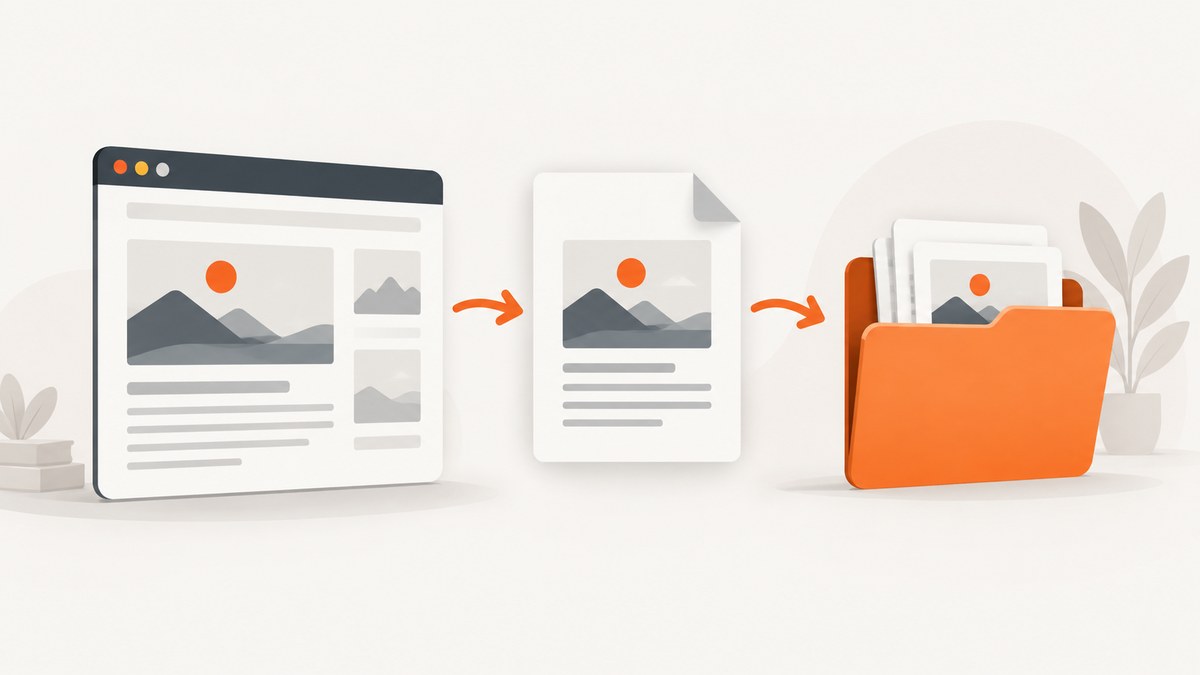
For a shareable document, open the webpage, choose Print, then select Save to PDF or your system’s PDF destination. Check the preview before saving: scale, margins, page range, orientation, headers and footers, and background graphics can change the result. If you need to reopen the page offline with its layout and assets, save a complete webpage instead. If you only need the words, choose a text copy.
This guide covers the browser workflow, format choices, print settings, offline copies, automation, and common failures. Browser labels can vary by version. The steps below use the documented Edge and Firefox options.
1. Choose the right document format
“Save a webpage” can mean several things. Decide what you need to do with the result before you save it.
| Format | Best for | Trade-off |
|---|---|---|
| Sharing, printing, archiving a visual snapshot, or reading offline | It is a fixed rendering. Print styles and responsive layouts can make it differ from the live page. | |
| Complete webpage / HTML | Reopening a page offline in a browser with its pictures and supporting files | The browser may create an HTML file plus an asset folder; keep them together. |
| Text | Keeping words for reference, search, or lightweight notes | Layout and images are not the point, and may not be preserved. |
Use PDF when a recipient should be able to open one portable file and see a stable page layout. Use complete-page save when offline browser viewing matters more than having a single file. Choose text when content matters and presentation does not.
2. Save a webpage as a PDF in a browser
- Open the exact page. Wait for the content you need to finish loading. Scroll through long pages if necessary; pages can load content as you move down.
- Reduce clutter if the browser offers it. Edge Immersive Reader or Firefox Simplified format can remove navigation and advertising from the reading view. Availability depends on the page.
- Open Print. Choose Print from the browser menu, or press Ctrl+P on Windows or Command+P on macOS where supported. Edge documents both shortcuts. Firefox provides a Print preview.
- Select a PDF destination. Choose Save to PDF or the operating system’s equivalent. Confirm that the destination is a PDF file rather than a physical printer.
- Set the page options. Choose the paper size, orientation, scale, margins, page range, and whether to include headers and footers. Enable background graphics if the design needs its colors or backgrounds.
- Review the preview. Check more than the first page. Inspect tables, code blocks, images, page breaks, and the last page in particular.
- Save and reopen it. Use a descriptive filename with the page title and capture date, such as
api-reference-2026-09-29.pdf. Reopen the saved file to make sure the important content survived.
In Edge, Microsoft documents Ctrl+P on Windows and Command+P on macOS, along with print controls for scale, headers and footers, and background graphics. Firefox’s Print preview offers a Save to PDF destination. Exact labels and available controls depend on browser version and operating system.
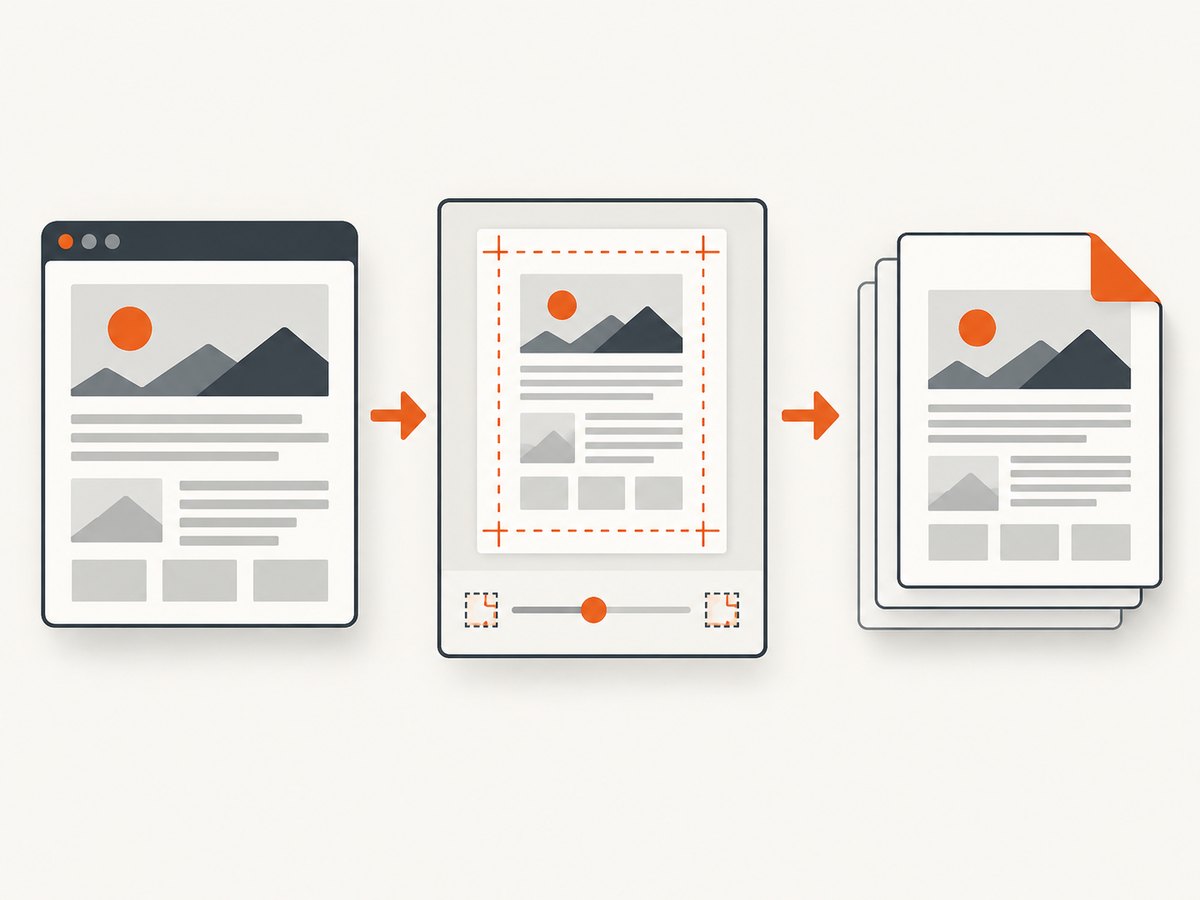
Settings that matter most
- Scale: Reduce it if content is clipped or a wide table runs off the page. Too much reduction can make text hard to read.
- Orientation: Try landscape for wide tables or diagrams. Portrait is usually easier to read for ordinary articles.
- Margins: Smaller margins can create more room, but leave enough space that text is not cut off when printed.
- Page range: Save only the relevant pages when you need a focused extract. Verify the range in the preview.
- Headers and footers: Turn them off if browser-added details crowd the content; leave them on if page numbers or source details help your use case.
- Background graphics: Turn them on when colored panels or backgrounds carry meaning. Backgrounds may otherwise be omitted.
3. Save a complete webpage or a text copy
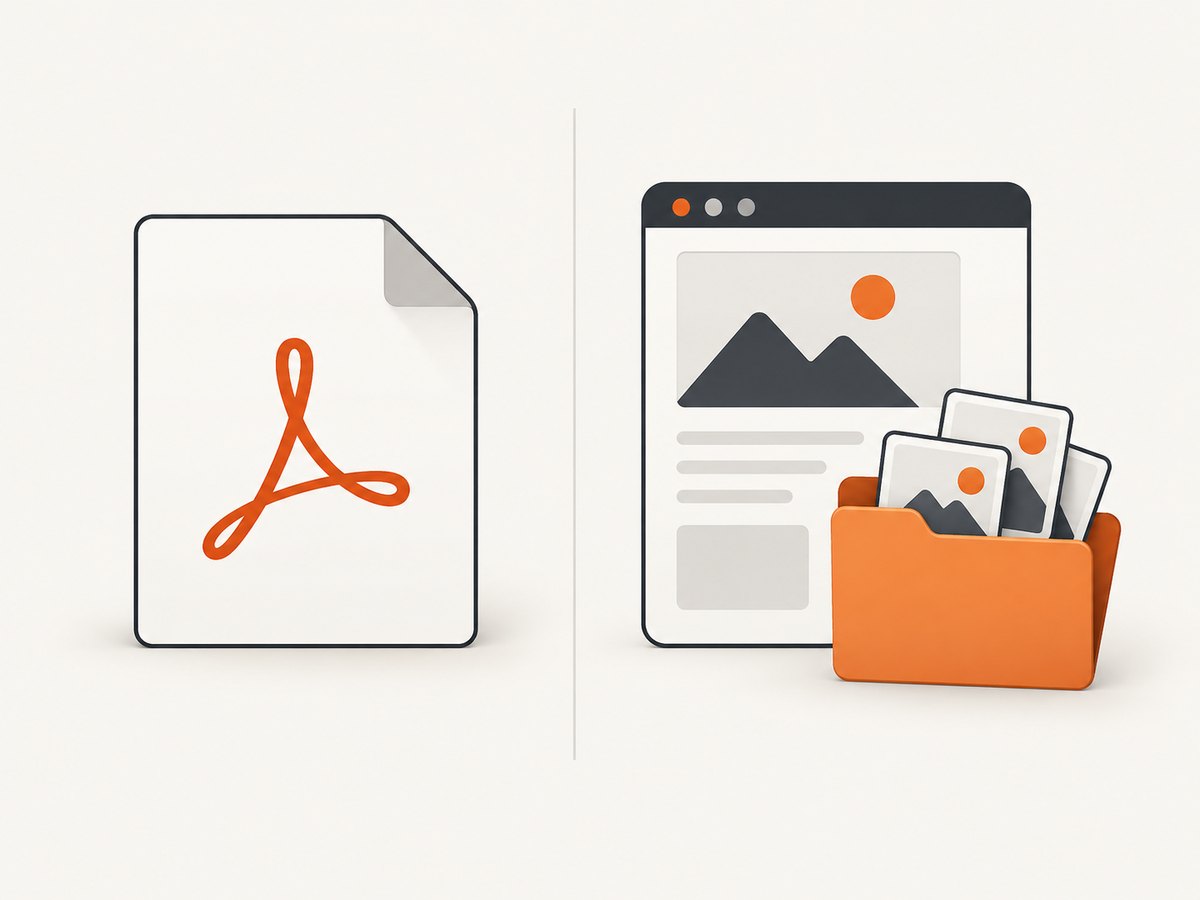
In Firefox, Save Page can create a complete webpage copy. The complete-page method creates an HTML file and a directory containing pictures and other files needed to display the page. Save both and keep the directory beside the HTML file. Moving only the HTML file can break images or other linked assets. Firefox also documents saving the original page as a text file when you need words without a full layout.
- Open the page and wait for the needed content to load.
- Use the browser’s Save Page option and choose the complete webpage option when offline reopening matters.
- Keep the resulting HTML file and its supporting directory together in the same location.
- Disconnect from the network or otherwise test the saved copy offline, then open the HTML file in a browser.
- If you need only the text, use the browser’s text save option instead and confirm that the saved words are complete.
A saved HTML copy is not the same as a live site. Login-protected pages, interactive content, and data that loads dynamically may not reproduce fully. Keep the source URL and capture date alongside the saved file so you know where and when the copy came from.
4. Why the saved document differs from the live page
A PDF is produced through a print view, not necessarily by freezing the pixels you see on screen. A webpage can define print styles, and its responsive layout can change with the available page width. The print rendering may therefore rearrange columns, hide elements, move page breaks, or omit backgrounds.
Dynamic, interactive, and login-protected content creates another limitation: a static PDF or offline HTML copy cannot preserve every behavior or necessarily capture information that was not loaded at save time. If an exact visual record matters, save the source URL and date and inspect the output immediately. A PDF is a snapshot, not a guarantee that the content will remain current.
5. Automate PDF output in an application
For a developer embedding browser-based printing in a Windows application, Microsoft WebView2 offers ShowPrintUI, Print, PrintToPdf, and PrintToPdfStream. The documented distinction is useful: PrintToPdf silently prints the current top-level document to a PDF file, while PrintToPdfStream returns a PDF stream for application handling. Use the stream form when your app needs to process or store the result itself; use the file form when writing a PDF file is sufficient.
The available research identifies these WebView2 operations but does not provide their method signatures, initialization steps, or package setup. Those details depend on the WebView2 SDK and application framework, so use the API reference for the version you are implementing rather than guessing a signature. In either workflow, make sure the intended top-level page has finished loading before printing, and handle a failed print operation in the app instead of treating an absent or incomplete file as success.
6. Or skip the browser setup
ScreenshotNeo is a website screenshot API and MCP server from Yorker Media. Its API can return a screenshot or PDF, and its documentation covers the available PDF settings. The following one-call example saves a screenshot image; use the API’s PDF options when your output needs to be a document.
curl -G "https://api.screenshotneo.com/v1/shot" -d access_key=YOUR_API_KEY --data-urlencode url=https://stripe.com -o shot.webpimport requests
r = requests.get(
"https://api.screenshotneo.com/v1/shot",
params={"access_key": "YOUR_API_KEY", "url": "https://stripe.com"},
timeout=90,
)
open("shot.webp", "wb").write(r.content)const q = new URLSearchParams({ access_key: 'YOUR_API_KEY', url: 'https://stripe.com' });
const res = await fetch(`https://api.screenshotneo.com/v1/shot?${q}`);ScreenshotNeo removes cookie and consent banners, newsletter popups, and chat widgets before the capture; each step can be turned off. Bot checks, blank pages, failed loads, timeouts, and cache hits are not billed, and response headers say which page verdict and billing outcome applied. Its MCP server lets AI agents using Claude, Cursor, or another MCP client take screenshots. The free plan includes 1,000 shots a month with no card; paid plans start at $5 for 3,000 shots. Every feature is on every plan.
Sign up for 1,000 free screenshots a month, with no card required.
7. Troubleshooting
| Problem | Likely cause | What to try |
|---|---|---|
| Background colors or images are missing in the PDF | The print settings omit background graphics. | Enable background graphics in print settings when available, then check the preview again. |
| Ads and navigation take up most of the pages | The regular page view includes clutter that is not useful in the document. | Try Immersive Reader in Edge or Simplified format in Firefox when the page offers it, then print that view. |
| Text, a table, or an image is cut off | The layout does not fit the chosen page dimensions or margins. | Reduce scale, try landscape orientation, adjust margins, or narrow the page range. Confirm each change in preview. |
| The PDF’s layout differs from the live page | The page uses print styles or a responsive layout that changes for print. | Review the print preview and adjust settings. If the precise visual page matters, use a screenshot or capture workflow instead of assuming print will match the screen. |
| The saved HTML page has broken pictures or styling offline | The supporting asset directory was separated from the HTML file. | Restore the directory beside the HTML file and reopen it. Firefox’s complete-page method relies on those assets. |
| The offline page is missing content or interactions | The content was dynamic, interactive, login-protected, or had not loaded when saved. | Load the required content before saving, record the source URL and date, and use a PDF or screenshot for a static record when appropriate. |
| The document contains stale information | A saved copy reflects the page at capture time, and some content may be cached or updated separately. | Record the capture date and source URL. Reopen the live page when current information is required. |
8. Quality, reliability, and storage checklist
- Confirm you are saving the exact page and that the required content has loaded.
- Check several pages of the preview, including dense tables, images, code, and the final page.
- Use a filename that includes a meaningful title and capture date.
- Reopen the PDF or HTML copy after saving; a completed save action alone does not confirm a usable result.
- For complete HTML, store its supporting assets with the page and verify the copy offline.
- Keep a source URL and capture date with static records, especially for dynamic or protected pages.
- For repeated captures, choose the format that fits the job: PDF for a portable document, HTML plus assets for offline browser viewing, and text for words alone.
PDF is usually the simplest option to share because it is one file. Complete webpage saves can require more storage and care because assets may be placed in a separate directory. Text copies are lightweight, but they sacrifice presentation. Check the result before relying on it; the browser’s print or save workflow does not make a changing website permanently current.
FAQ
Can I save only part of a webpage as a PDF?
Use the print page-range control to select the pages you want, then inspect the preview to confirm the selection.
Will a saved webpage keep working links?
A PDF can preserve links when they are included in the output, but a static copy does not preserve the live behavior of the website. A complete HTML copy may also depend on local assets.
Which format is best for long-term reference?
Use a PDF when a stable, shareable snapshot is the priority. Include the source URL and capture date so the document can be understood later.
Can I turn a saved PDF back into the original webpage?
No. A PDF is a rendered document, not the original page source and its interactive behavior. Save a complete webpage separately if you need an offline browser copy.


