How to Save a Webpage as an Image Online
Save a full webpage as a PNG with Firefox, use an online URL capture service, or capture a page from code. Choose the method that fits your page and privacy needs.
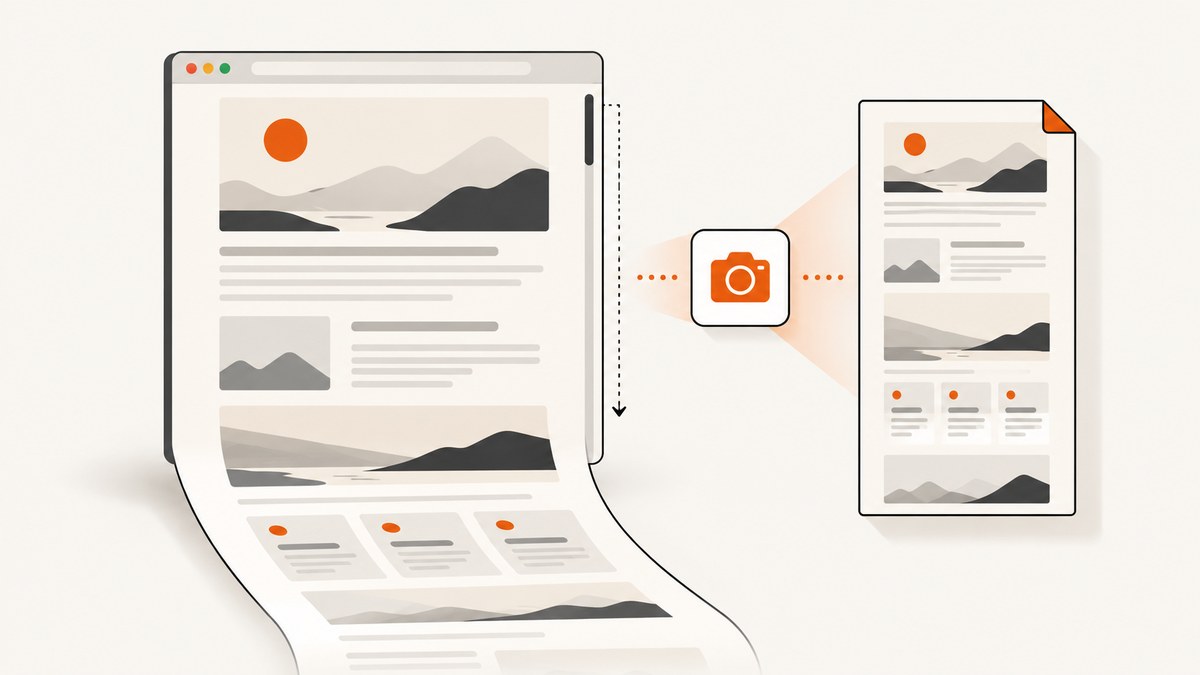
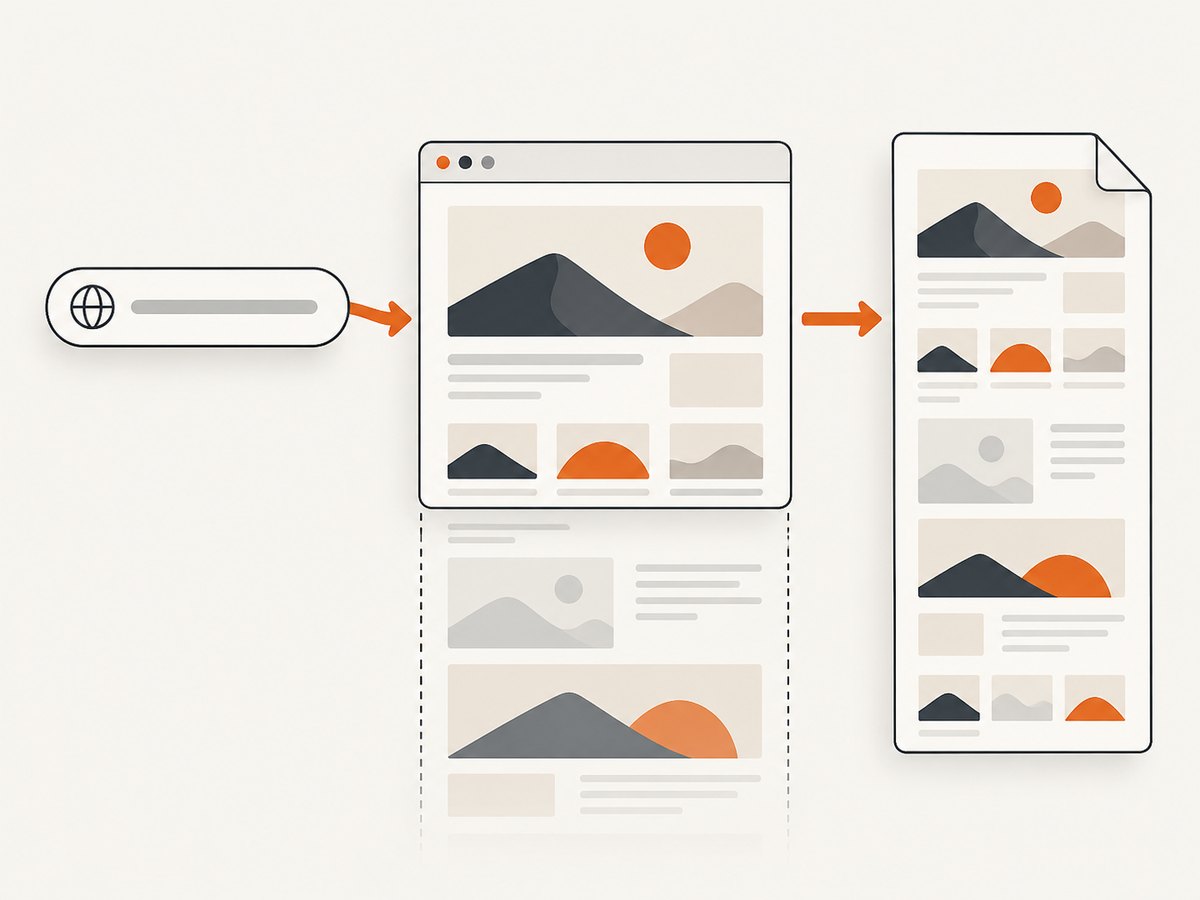
To save an entire webpage as an image without installing anything, open it in Firefox, right-click an empty area, choose Take Screenshot, select Save full page, then choose Download. Firefox saves the capture as a PNG. If you mean an online service that captures a URL remotely, enter the public webpage address in the service, choose an image format such as PNG or JPEG, and start the capture. The right method depends on whether you need the whole page, whether the page is private, and whether you need a repeatable developer workflow.
This guide covers Firefox’s built-in capture, its developer tools, remote URL capture, and practical choices for dynamic pages, image formats, privacy, and troubleshooting. Firefox’s instructions cited here are documented for Firefox; do not assume another browser has the same menu or behavior.
1. Choose the right way to capture the page
First decide what “save as an image” means for your situation. A screenshot is a rendered picture of a page at a particular time. It does not preserve working links, searchable page text, or the original HTML and CSS.
| Need | Good starting point | What to consider |
|---|---|---|
| One public page, no install | Firefox’s built-in screenshot | Captures locally in your browser; choose visible area or full page. |
| One public URL captured remotely | An online URL screenshot service | The service must be able to load the page; review its privacy terms before sending sensitive URLs. |
| Repeatable developer capture or CSS selector | Firefox Developer Tools or a screenshot API | Use a selector, delay, or automation only when the page needs it. |
| Long document for printing or sharing | PDF output | A PDF is a document, not an image file. |
| Logged-in or confidential page | Capture locally in the browser | A URL-only online service may not have your login session. Avoid sending private page content to a third party unless you have reviewed its privacy terms. |
A full-page screenshot includes content below the visible viewport. A visible-area screenshot records only what is currently on screen. Full-page output can be very tall, so check the result before sharing or embedding it.
2. Save a webpage as a PNG with Firefox
Firefox documents a built-in screenshot workflow that can capture the visible area, a selected region, an automatically highlighted page element, or the full page. The downloaded screenshot is a PNG saved to Firefox’s normal download location. See Mozilla’s Firefox screenshot instructions for the current interface and keyboard controls.
- Open the webpage in Firefox and wait for the content you want to capture to appear.
- Right-click an empty part of the page. On macOS, Control-click an empty area also opens the context menu.
- Select Take Screenshot. The documented shortcut is Ctrl+Shift+S on Windows and Linux, or Command+Shift+S on macOS.
- Choose Save full page for content above and below the fold. Choose Save visible for the current viewport. You can also select a region or click an automatically highlighted element.
- Choose Download to save the image, or Copy to place it on the clipboard for pasting into another app.
Firefox names downloaded images with the date, time, and page title, and saves them in its configured download folder. If the file is not where you expect, check Firefox’s download list and download settings. The screenshot interface also supports keyboard navigation of the selection, which can help when selecting a precise region.
Visible area, selected region, or full page?
- Visible area: Choose it when you need a quick record of the current screen, such as a particular dialog or page state.
- Selected region: Use it when only part of the viewport matters and you do not want to crop afterward.
- Highlighted element: Use it to capture one identifiable part of the page. Check that the highlight surrounds the intended content before saving.
- Full page: Use it for a page overview or a record of content below the fold. Scroll and inspect dynamic sections first; an image cannot include content that never loaded.
3. Use Firefox Developer Tools for repeatable captures
For developer work, Firefox Developer Tools can capture a whole page or a single element. The screenshot toolbar button may need to be enabled in Developer Tools settings under Available Toolbox Buttons. The Web Console also provides Firefox’s :screenshot helper. This is Firefox-specific syntax, not a universal browser command. Mozilla documents the available options in its Developer Tools screenshot guide.
Open Developer Tools, select the Web Console, and run a command like this:
:screenshot page.png --fullpageTo capture just one element, pass a CSS selector:
:screenshot card.png --selector "main article"The documented options include --fullpage for the whole webpage, --selector for one element and its descendants, --delay to wait before capturing, --dpr to set device pixel ratio, --filename to choose a name, and --clipboard to copy the output. The --file option forces file writing when another option, such as clipboard output, is used. Check the current Firefox documentation for exact syntax and behavior because developer tools can change.
For example, a delay can give a menu or hover state time to appear:
:screenshot menu.png --delay 1.5A larger device pixel ratio can produce a higher-resolution capture, but it also increases image dimensions and file size. A smaller ratio reduces them. Use a CSS selector only when you know which element should be captured; a selector that matches nothing cannot produce the intended image. When repeatedly capturing to the same filename, note that Firefox documents that a later capture can overwrite the earlier file.
4. Save a webpage as an image online from its URL
A URL-based screenshot service loads a webpage remotely and returns a capture. The basic process is usually:
- Copy the full address of the public webpage, including its
https://scheme. - Enter that URL in the capture service.
- Choose PNG or JPEG if you need an image. Choose PDF only if a document file is suitable.
- Set a capture delay if the service provides one and the page populates content after loading.
- Start the capture, then inspect the downloaded file for missing sections, overlays, or unexpected layout changes.
Online tools differ in supported formats, wait controls, page-length limits, privacy practices, and handling of scripts. Treat a vendor’s feature descriptions as claims about its own service, not as an independent guarantee that every webpage will render. A URL capture service should not be assumed to have access to pages that require your personal login. For authenticated pages, use a local browser capture unless the service explicitly supports the required authentication and its data handling is appropriate for the content.
PNG, JPEG, or PDF?
| Format | Choose it when | Trade-off |
|---|---|---|
| PNG | Text edges, diagrams, and visual fidelity matter. | Large or very tall captures can produce large files. |
| JPEG | You want a smaller image and can accept lossy compression. | Fine text and sharp boundaries can look less clean. |
| You want a document for printing or sharing a long page. | It is not an image file; pagination and layout may differ from one continuous screenshot. |
If the image will be reviewed closely or contains small text, start with PNG. If file size matters more, try JPEG and check that labels remain readable. For a very long page, compare the result with a PDF if the recipient needs to print or navigate it as a document.
5. Capture dynamic and lazy-loaded pages reliably
A screenshot records the rendered state at capture time. Pages that fetch data after initial load, animate into place, lazy-load images, or change after scrolling may not be ready when the capture begins. No capture method is guaranteed to reproduce every interactive page exactly.
- Wait for the page to settle. Allow content, fonts, and images to load. A remote service’s capture-delay option can help with delayed content, but a fixed delay is not proof that the page is ready.
- Scroll through long pages first. Some sites load below-the-fold images only as they approach the viewport. Scroll down in the browser, then return to the desired position or recapture the full page.
- Set the page state deliberately. Open the menu, expand the section, or select the desired tab before capture. If you need a hover state, keep the pointer over the relevant element or use a delay in a developer workflow.
- Check responsive layout. The viewport width can change line wrapping, navigation, and image placement. Use the viewport that matches the intended audience or use case.
- Repeat a capture when content changes. A timestamped image is a snapshot, not a live page. Record the page state and time if the screenshot will be used as evidence or compared later.
For an exceptionally long page, consider whether one tall image is useful. It can be hard to read, share, or open on a device with limited memory. A PDF or several section captures may be more practical, depending on the task.
6. Or skip the browser setup
For code that needs to capture a public URL repeatedly, ScreenshotNeo is a website screenshot API and MCP server from Yorker Media. One GET request can return PNG, JPEG, WebP, or PDF. Its parameter names used by other screenshot APIs also work, which can make a switch easier. The API options include full-page capture with lazy images loaded, element capture by CSS selector, viewport and device presets, custom CSS and JavaScript, click and wait controls, request blocking, headers and cookies, caching, signed image links, async jobs, bulk capture, and a usage API. See the ScreenshotNeo API documentation for request options and current usage details.
Here is a cURL request that saves a PNG response to a file:
curl -G "https://api.screenshotneo.com/v1/shot" -d access_key=YOUR_API_KEY --data-urlencode url=https://stripe.com -o shot.webpThe same request in Python:
import requests

r = requests.get(
    "https://api.screenshotneo.com/v1/shot",
    params={"access_key": "YOUR_API_KEY", "url": "https://stripe.com"},
    timeout=90,
)
open("shot.webp", "wb").write(r.content)
And Node.js using the built-in fetch API:
const q = new URLSearchParams({ access_key: 'YOUR_API_KEY', url: 'https://stripe.com' });
const res = await fetch(`https://api.screenshotneo.com/v1/shot?${q}`);
if (!res.ok) throw new Error(`Screenshot request failed: ${res.status}`);
const bytes = new Uint8Array(await res.arrayBuffer());
await import('node:fs/promises').then(fs => fs.writeFile('shot.webp', bytes));
Replace the sample target URL with the webpage you are authorized to capture. Protect the API key as a secret; do not put it in client-side code that visitors can inspect. Match the output filename and requested format when changing formats, and consult the docs for format parameters, full-page capture, selector capture, and wait behavior.
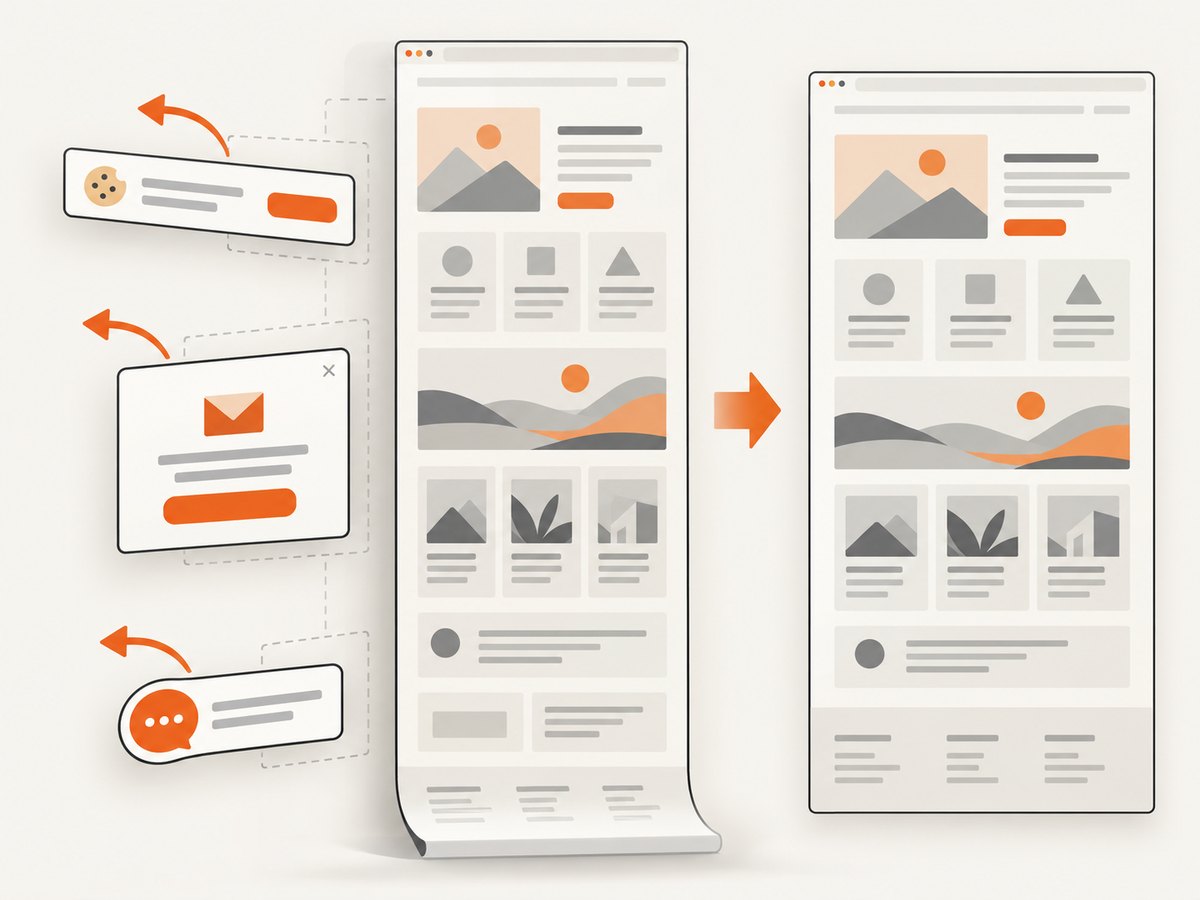
ScreenshotNeo removes cookie and consent banners, newsletter popups, and chat widgets before capture; each of those steps can be turned off. Bot checks or CAPTCHAs, blank pages, timeouts, failed loads, and cache hits are not billed, and responses identify page verdict and billing status with X-Page-Verdict and X-Billed headers. Its MCP server provides take_screenshot, get_page_info, and capture_pdf tools for Claude, Cursor, and other MCP clients. The Free plan includes 1,000 shots per month with no card; paid plans start at $5 for 3,000 shots. Yearly billing gives two months free, and every feature is available on every plan.
Sign up for ScreenshotNeo’s free plan to get 1,000 screenshots a month with no card.
7. Troubleshooting common screenshot problems
| Problem | Likely cause | What to try |
|---|---|---|
| Only the part on screen was saved | The capture used visible-area mode. | In Firefox, choose Save full page. In Developer Tools, use --fullpage. |
| Images or sections are missing | Lazy loading, delayed scripts, or network requests had not completed. | Wait, scroll through the page, trigger the content, and recapture. A remote capture delay may help, but inspect the result. |
| A page behind login is blank or shows a sign-in screen | The remote service has not received your authenticated browser session. | Capture locally in the browser, or use only a service whose documented authentication support meets your privacy requirements. |
| The capture is too tall or difficult to read | The page is exceptionally long or has repeating content. | Capture selected sections, use a PDF for document-style sharing, or reduce image dimensions if your tool supports resizing. |
| Text is blurry | The image was compressed, scaled, or captured at a low pixel ratio. | Use PNG, capture at a suitable device pixel ratio, and avoid enlarging a small screenshot after capture. |
| A developer console capture did not save | The filename, options, or file-writing behavior may not match the command. | Check Firefox’s current :screenshot documentation; use a PNG filename and the documented file option when combining clipboard behavior. |
| A repeated capture replaced the previous one | The same output filename was reused. | Choose a new filename for each capture or move the prior file first. |
| An online tool returns an error | The target may be inaccessible, malformed, blocked, or too slow for that service. | Check the URL, open it in a normal browser, and retry after the page is available. Check the service’s own limits and error guidance. |
8. Performance, reliability, privacy, and cost
Performance and file size
Full-page screenshots can contain many more pixels than a viewport capture. Greater page height and device pixel ratio increase the image dimensions and may increase memory use, transfer time, and storage. PNG favors fidelity; JPEG can reduce size at the cost of compression artifacts. If the image is for a small preview, a full-resolution full-page image may be unnecessary. If it is evidence or needs readable text, preserve adequate resolution and check the saved file at its intended display size.
Reliability
A capture depends on the page being reachable and rendering consistently. Ads, personalization, geolocation, cookie state, viewport width, and asynchronous content can change the result. For repeat captures, use a consistent viewport, URL, wait condition, and page state. Keep the result and the source URL together if the image will be used for review. Browser and service behavior can change, so verify critical captures visually rather than assuming a request completed correctly just because a file exists.
Privacy and access
A local browser screenshot uses the session already open in your browser and avoids submitting the page to a remote screenshot service. A remote service receives a URL to load, and may process page content as part of capture. Do not send confidential URLs or authenticated content unless you have checked the service’s privacy and security terms. Also remember that a screenshot can expose account names, personal data, internal URLs, or other information visible on screen. Redact sensitive details before sharing.
Cost
Firefox’s built-in screenshot is part of the browser workflow and does not require buying a screenshot API. Online services and extensions set their own prices, quotas, and feature limits; confirm current terms directly before relying on a service for recurring work. ScreenshotNeo’s stated plans are Free with 1,000 shots per month and no card, Starter at $5 for 3,000, Growth at $15 for 15,000, Pro at $39 for 60,000, Scale at $99 for 250,000, and Business at $249 for 1,000,000. Yearly billing gives two months free. Only clean shots are billed; the response includes verdict and billing headers, and cache hits are not billed.
9. Frequently asked questions
Can I save a webpage as a JPG instead of PNG?
Firefox’s documented screenshot download is PNG. A URL capture service may offer JPEG; otherwise, convert the PNG in an image editor if JPEG is required.
Does a screenshot save the webpage so I can edit it?
No. It saves a raster image of the rendered page. To preserve page structure or links, save the page in a suitable document or web format instead.
Can an online screenshot tool capture a page that only I can see?
Do not assume so. A service that accepts a URL may not have your browser’s login session. Use local capture for private pages unless authenticated capture is explicitly supported and appropriate.
Can I capture just one part of a page?
Yes. Firefox’s screenshot interface supports a selected region and automatically highlighted elements. Firefox Developer Tools also documents selector-based capture.
Should I use a screenshot or PDF for a long page?
Use an image when you need a visual snapshot. Use PDF when the recipient needs a document for printing or document-style sharing; it is not an image format.
Conclusion
For a one-off image, Firefox’s built-in screenshot is a straightforward way to save a visible area or a whole page as PNG. Use Developer Tools when you need Firefox-specific selector or delay controls. Use a remote URL capture service when you need an online workflow, and check access, privacy, dynamic-content handling, and output format before depending on it. For repeated URL captures in code, ScreenshotNeo provides an API and MCP server, with clean-shot billing rules and a free tier to start.


