How to Save a Webpage as an Image
Save an entire webpage as an image with Firefox, Edge, or iPhone Safari. Learn when to use a PDF, browser tools, or a screenshot API.

To save a webpage as an image, use your browser’s full-page screenshot feature. It captures content beyond the part currently visible on screen. Firefox and Microsoft Edge document full-page capture on desktop, and iPhone offers a Full Page option in the screenshot preview for webpages in Safari. If you need a portable document rather than an image, save as PDF instead.
A normal screenshot captures only the visible screen. A full-page screenshot aims to include the page from top to bottom. The exact controls and output options depend on your browser and device. This guide covers the documented routes, how to choose between image and PDF, and a browser-automation option for repeatable developer workflows.
1. Choose the right capture
Before capturing, decide how you will use the result:
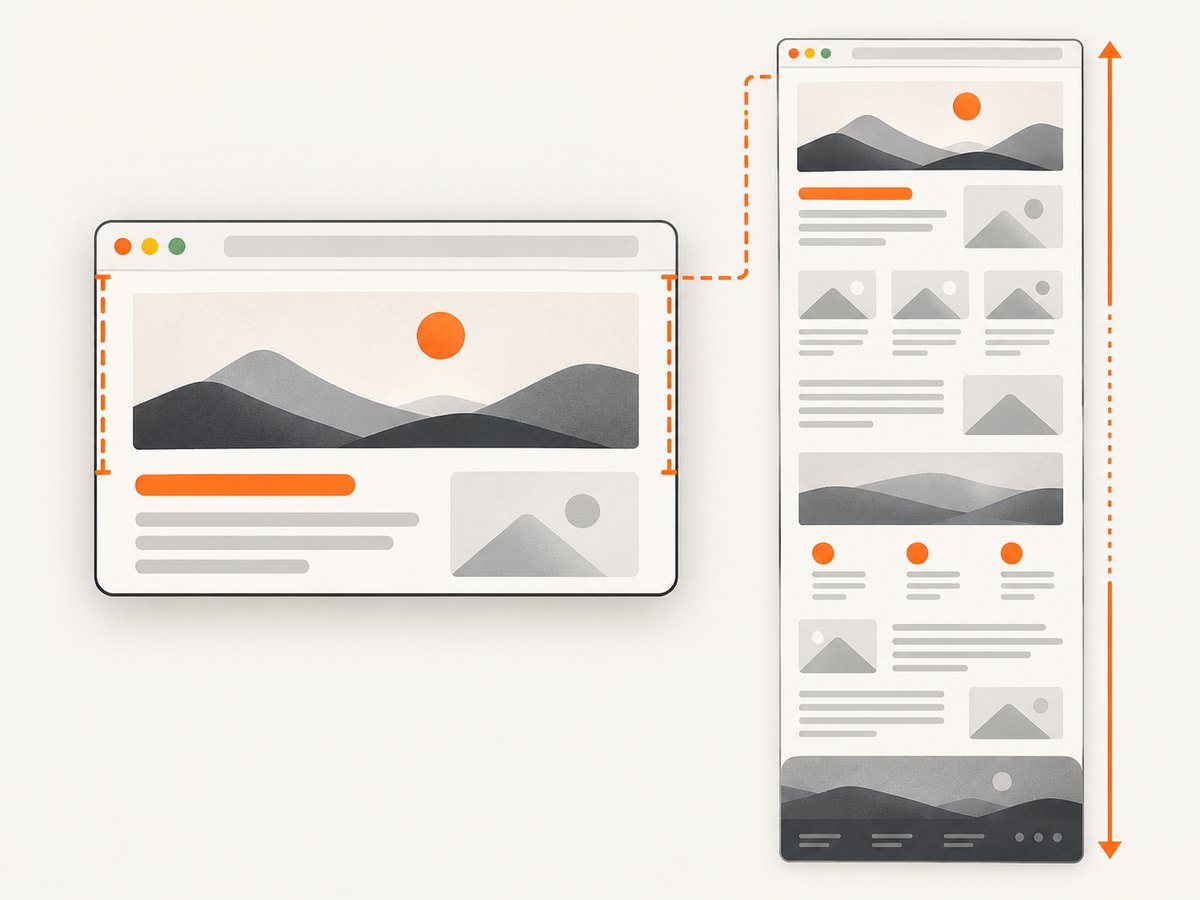
- Full-page image: useful for sharing a long page as one visual, archiving its appearance, or placing it in another image-based workflow.
- Visible-area screenshot: useful when you only need the current screen or a small portion of a page.
- Selected region or element: useful when surrounding browser content or page sections are irrelevant. The available selection controls differ by browser.
- PDF: better when the result should behave like a document for reading, printing, or keeping page-oriented content. A PDF is not the same output as a PNG or JPEG.
Full-page capture does not guarantee that every site will look identical in every browser or at every moment. Pages may contain changing or moving content, and browser controls can vary by version. If a precise record matters, keep the original page URL and capture date alongside the saved file.
2. Save a full webpage in Firefox on desktop
Firefox’s screenshot interface can capture the full page, the visible screen, or a selected area. Mozilla documents downloading the screenshot as an image or copying it to the clipboard. Mozilla’s Firefox screenshot guide describes the browser workflow.
- Open the webpage you want to save.
- Right-click an empty part of the page and choose Take Screenshot. You can also use Ctrl+Shift+S on Windows or Linux, or Command+Shift+S on macOS.
- Choose Save full page to capture beyond the visible window. Choose the visible-area or selection option if you do not need the whole page.
- Choose Download to save the image in your configured download folder, or choose Copy to put it on the clipboard.
If the shortcut does not open the screenshot interface, use the right-click menu and look for the command there. Browser shortcuts can be changed or intercepted by other software.
Firefox’s developer-tool route
Firefox also documents a developer-oriented method. Enable the screenshot button in the Developer Tools toolbox settings and use it to capture the page, or run the Web Console’s :screenshot --fullpage command. The console route saves a PNG by default and has options for such things as delay, device pixel ratio, filename, clipboard, and selecting an element. Consult Firefox’s screenshot developer documentation for the available command options and syntax.
Use the ordinary screenshot interface unless you need a console option or want to work inside developer tools. A console command can be convenient for a repeated task, but it still depends on the page being open in Firefox and on the browser’s own capture behavior.
3. Capture a whole page in Microsoft Edge
Microsoft Edge provides Screenshot from the page’s right-click menu, the Settings menu, or the Ctrl+Shift+S shortcut. It supports a whole-page capture or a selected area; its overlay offers save and copy options, along with markup tools. See Microsoft’s Edge Screenshot feature page for its documented feature overview.
- Open the page in Edge.
- Open Screenshot from the context menu or Settings, or press Ctrl+Shift+S.
- Choose the full-page option to include content beyond the current viewport, or select a region.
- Review the capture, optionally mark it up, then save it or copy it.
Microsoft notes that feature availability and functionality may vary by device type, market, and browser version. Its feature description also mentions capturing moving content such as GIFs or carousels; the result on any particular dynamic page can vary. If the command is absent, check Edge’s current menus and version rather than assuming the same interface is available everywhere.
4. Screenshot an entire webpage on iPhone
On iPhone, Apple documents using the screenshot preview’s Full Page option to capture beyond the screen, including an entire webpage in Safari. The screenshot guide describes saving screenshots to Photos. Follow Apple’s current instructions at Take a screenshot on iPhone.
- In Safari, open the webpage and let the portion you want to capture appear.
- Take a screenshot. On iPhones with Face ID, press and release the Side button and Volume Up button together. On iPhone models with a Home button, press Side and Home together.
- Tap the screenshot thumbnail when it appears.
- Select Full Page in the preview to capture content beyond the screen.
- Crop or annotate if needed, then save the screenshot.
Apple’s guide describes the full-page workflow and saving to Photos, but the output format details can depend on the iOS version and workflow. Do not assume that every full-page result is a particular image file type if you need a specific format; check the saved file on your device.
5. Save a webpage as a PDF on iPhone
If you want a document, Firefox for iOS documents a path from the iPhone full-page screenshot preview to Save as PDF. Mozilla’s instructions are at Save web pages as PDFs in Firefox for iOS.
- Open the webpage in Firefox for iOS.
- Take an iPhone screenshot and tap its thumbnail.
- Select Full Page, then tap Done.
- Choose Save as PDF.
This produces a PDF document, not a PNG or JPEG export. Mozilla’s help page dates from 2023, so names and placement of controls may differ in a newer Firefox or iOS interface. If you need an image specifically, use the image-saving workflow offered by your browser and device instead.
6. Browser capture versus an automated screenshot
Built-in capture is a good starting point when you are saving one page manually. Developers may need a different workflow when captures are generated repeatedly, need a consistent viewport, belong in a script, or need to be delivered in a particular image format. Browser automation can do that, but it adds a browser runtime, page-load timing decisions, output handling, and failure cases to maintain.
The research sources here document Firefox, Edge, and iPhone workflows. They do not establish current Google Chrome desktop or Android instructions, so this guide does not give version-specific steps for those platforms. Check the relevant browser’s official help for your installed version.
7. Automate capture with a browser you control
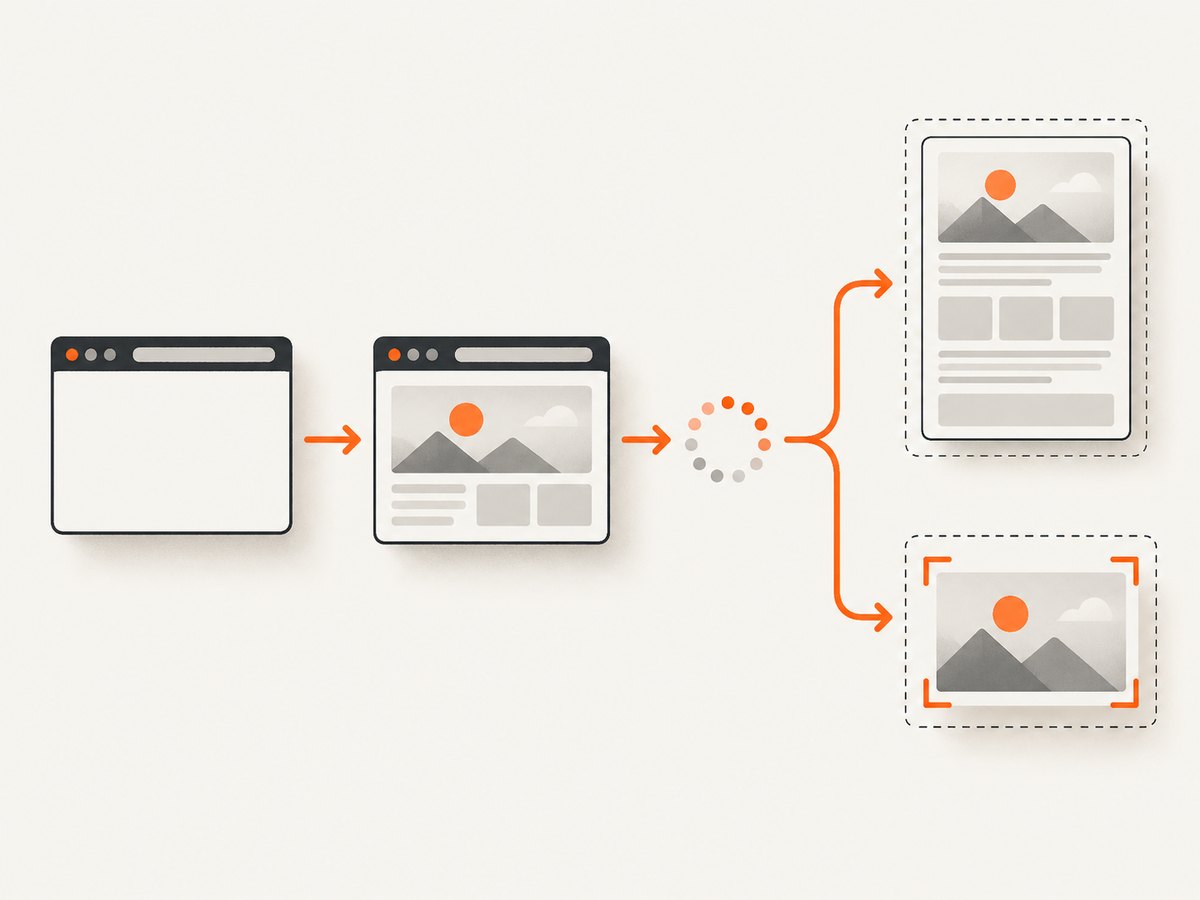
For a developer who needs the do-it-yourself route, a browser automation library can open a page and save a full-page screenshot. The example below uses Playwright with Node.js. Install it in a project with npm install playwright, then save this as capture.mjs and run node capture.mjs https://example.com. Install the browser binary with npx playwright install chromium if it is not already available.
import { chromium } from 'playwright';

const target = process.argv[2];
if (!target) {
  throw new Error('Usage: node capture.mjs https://example.com');
}

const browser = await chromium.launch({ headless: true });
try {
  const page = await browser.newPage({
    viewport: { width: 1440, height: 900 },
    deviceScaleFactor: 1,
  });
  const response = await page.goto(target, {
    waitUntil: 'networkidle',
    timeout: 60_000,
  });
  if (!response || !response.ok()) {
    throw new Error(`Navigation failed: ${response?.status() ?? 'no response'}`);
  }
  await page.screenshot({ path: 'page.png', fullPage: true });
} finally {
  await browser.close();
}
This is a starting point, not a promise that every site becomes a perfect static image. Some sites keep network requests open, personalize content, require authentication, or render content after a delay. For a site that never reaches network idle, try waiting for a meaningful selector or use a deliberate short delay after navigation. A selector should reflect the page content you need, for example await page.locator('main').waitFor(). Avoid arbitrary long waits when a stable page signal is available.
Capture only one element
If you want a chart, product card, or article section rather than the full document, locate the element and save its screenshot. Add this in place of the full-page call after the page is ready:
const card = page.locator('.product-card').first();
await card.waitFor({ state: 'visible', timeout: 15_000 });
await card.screenshot({ path: 'card.png' });
Replace .product-card with a selector that exists on the target page. If the selector matches multiple elements, choose the intended one explicitly. If it is hidden or absent, the wait will fail; inspect the page structure and use a selector tied to stable content.
Full-page capture options to consider
- Viewport: sets the browser window’s CSS dimensions and affects line wrapping and layout.
- Device scale factor: changes pixel density and can increase output dimensions and memory use.
- Readiness condition: choose navigation completion, a selector, or a bounded delay according to how the page renders.
- Output path and format: use a suitable filename extension and the screenshot options supported by your installed Playwright version. PNG is used in the example.
- Full page or element: full-page captures the document; an element screenshot narrows the artifact and may be easier to inspect or embed.
Or skip the browser setup
ScreenshotNeo is a website screenshot API and MCP server from Yorker Media. A GET request can return a screenshot or PDF. Its capture flow accepts cookie and consent banners like a visitor and removes more than 60 known consent platforms, newsletter popups, and chat widgets; each step can be turned off. Bot checks and CAPTCHAs, blank pages, timeouts, failed loads, and cache hits cost nothing, and response headers identify the page verdict and billing status. AI agents can use its MCP server tools take_screenshot, get_page_info, and capture_pdf.
Here is a one-call capture. Replace the placeholder with your API key. See the ScreenshotNeo API documentation for request options and configuration.
curl -G "https://api.screenshotneo.com/v1/shot" \
  -d access_key=YOUR_API_KEY \
  --data-urlencode url=https://example.com \
  -o shot.webp
import requests
r = requests.get(
"https://api.screenshotneo.com/v1/shot",
params={"access_key": "YOUR_API_KEY", "url": "https://example.com"},
timeout=90,
)
r.raise_for_status()
with open("shot.webp", "wb") as image:
image.write(r.content)const q = new URLSearchParams({
access_key: 'YOUR_API_KEY',
url: 'https://example.com',
});
const res = await fetch(`https://api.screenshotneo.com/v1/shot?${q}`);
if (!res.ok) throw new Error(`Screenshot request failed: ${res.status}`);
await Bun.write('shot.webp', res);The Node.js example uses Bun’s file writer to keep the response body handling short. In Node.js, save the response body with Buffer.from(await res.arrayBuffer()) and fs/promises.writeFile.
- Cookie banners, popups, and chat widgets are removed before the shot.
- Bot checks, blank pages, and failed loads are never billed.
- An MCP server lets AI agents take screenshots.
- 1,000 screenshots a month are free with no card; paid plans start at $5 for 3,000.
Sign up for 1,000 free screenshots a month, with no card required.
8. Troubleshooting full-page screenshots
| Problem | Likely cause | What to try |
|---|---|---|
| The browser only captures what is visible | The visible-area option was selected, or the full-page command is unavailable in that browser version. | Choose the full-page option explicitly. In Firefox, use Save full page; in Edge, choose the whole-page capture; on iPhone, choose Full Page in the preview. |
| The screenshot command or shortcut does not open | The shortcut may be different, intercepted, or the feature may not be present in that version or device. | Open the browser’s context or Settings menu and locate Screenshot. Check the browser’s current help if the control is missing. |
| The page appears incomplete | Some content may render only after a delay or interaction, or the page may change while it is captured. | Wait for the content before capturing. In automation, wait for a meaningful selector or a bounded delay, and inspect whether scrolling or interaction is needed. |
| The automated script times out at network idle | Some pages keep network activity open, for example through live connections or continuous requests. | Use a different navigation readiness condition and then wait for a page-specific selector. Keep an explicit timeout so a stalled page does not hang indefinitely. |
| The element screenshot fails | The selector does not match, matches a hidden element, or the element has not rendered. | Check the selector in the page, wait for the first intended match to become visible, and confirm the target is inside the active page frame. |
| The image is too large or awkward to share | A long page or high device scale factor produces a large image. | Capture only the relevant region or element, use a lower device scale factor, or choose PDF when a document is more useful than one tall image. |
| The result has the wrong appearance | Viewport width, device scale, browser, page state, or moving content differs from the intended capture. | Set a consistent viewport and scale in automation, wait for the desired state, and use the same browser and page setup for repeat captures. |
9. Performance, reliability, and cost
Manual browser capture has no separate API request to configure, but it requires opening the page and saving each result. Automation is repeatable, though each capture uses browser resources and may take longer while the page loads. Very tall pages and high pixel density create larger images, use more memory, and take longer to write or transfer. Capture only what you need when a full-page image is not necessary.
Reliability depends on the page as well as the capture method. Content can vary with login state, cookies, location, time, personalization, animation, and dynamic loading. A successful navigation response does not prove every visual element has finished rendering. For important captures, wait on a page-specific readiness signal and keep the source URL and capture time with the artifact.
The Playwright example has no per-shot service charge, but the browser must run somewhere and its setup and maintenance have a cost. An API trades browser management for a per-plan quota. ScreenshotNeo’s Free plan includes 1,000 shots per month with no card; Starter is $5 for 3,000, Growth $15 for 15,000, Pro $39 for 60,000, Scale $99 for 250,000, and Business $249 for 1,000,000. Yearly billing gives two months free, and every feature is on every plan. Choose based on expected volume and required options rather than assuming every URL will produce a useful image.
10. Frequently asked questions
Does a full-page screenshot save the whole website?
It captures a page, not an entire multi-page website. Repeat the process for each page you need.
Can I paste a screenshot without saving a file?
Firefox documents a Copy option in its screenshot interface, and Edge also offers copying from its capture overlay. Clipboard availability and paste behavior depend on the application you use next.
Should I save the result as PNG, JPEG, or PDF?
Use the image format your workflow needs; PNG is the default for Firefox’s documented developer console screenshot command. Use PDF when you need a document-oriented result rather than an image. Confirm the actual format produced by your browser and device.
Can I use a full-page screenshot as an accurate record?
It records the rendered appearance at capture time. It does not preserve the page’s source code or guarantee that dynamic content, animations, or personalized sections will be identical in another capture.
Where can I see ScreenshotNeo’s available capture settings?
See the ScreenshotNeo documentation for its API options, including viewport and output configuration.


