How to Save a Webpage as a JPEG Image
Save a webpage as a JPEG by capturing its rendered appearance and choosing a JPEG export option. Compare browser tools, extensions, and a screenshot API.
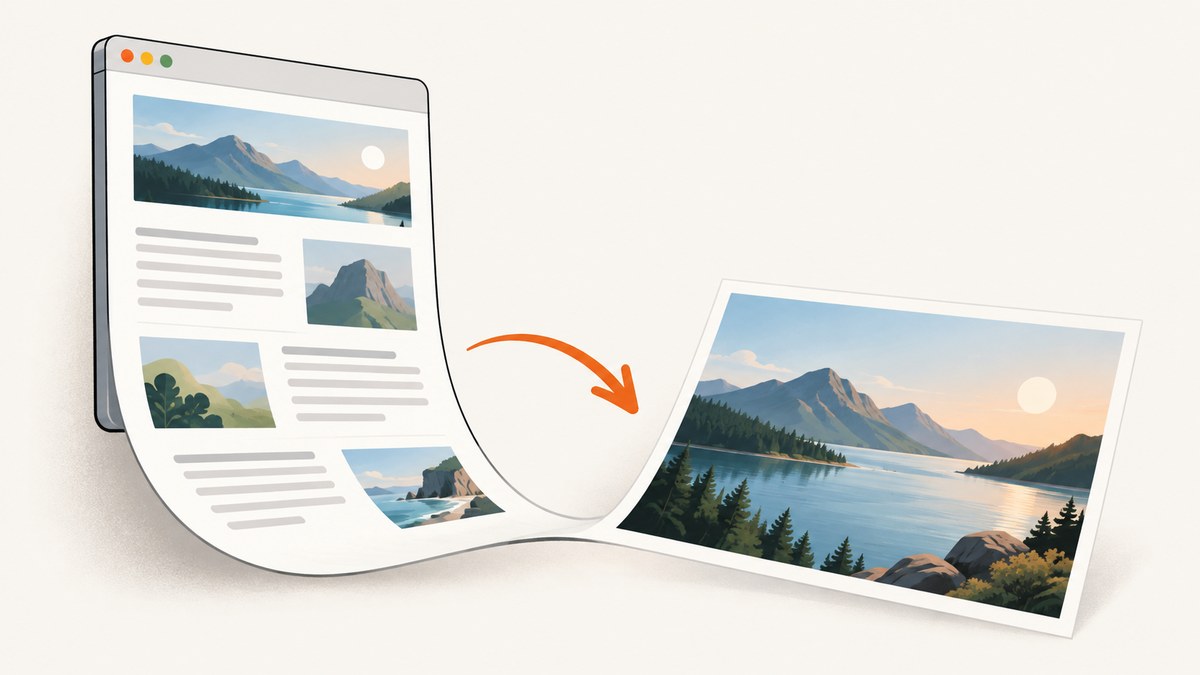
To save a webpage as a JPEG, capture the page as it appears in your browser, then use a save or export option that explicitly says JPEG or JPG. A webpage’s Save command usually saves HTML or an offline archive, not an image. And changing a PNG filename to end in .jpg does not convert it.
First decide whether you need the visible screen or the whole scrolling page. Then choose a browser capture, an extension with JPEG export, or a screenshot API. If the only available capture saves PNG, convert that image to JPEG with an image editor when JPEG is required.
1. Choose what to capture
A screenshot records rendered pixels: text, images, and layout as they appear after the browser displays the page. It is different from saving the page’s source code or a self-contained offline copy. Firefox documents options for saving a complete webpage with supporting files, HTML only, or text; Safari documents Web Archive and Page Source. Those save-page operations are not JPEG exports. Mozilla’s save-page guide and Apple’s Safari guide describe those distinctions.
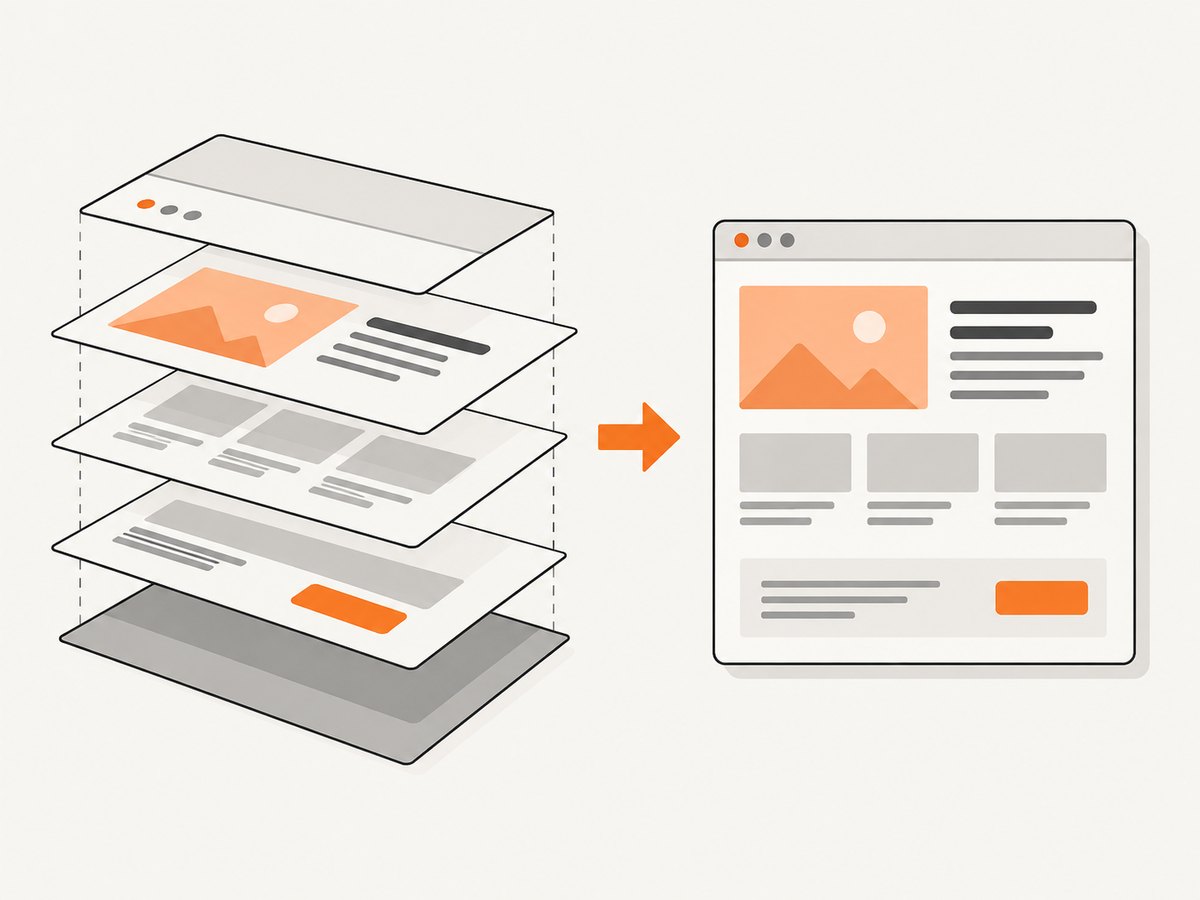
| Need | Choose |
|---|---|
| What is currently visible | Viewport screenshot |
| All content down the page | Full-page screenshot or scrolling capture |
| A file that explicitly must be JPEG | Capture/export path that offers JPEG, or convert the captured image |
| Offline reading or editable source | Save webpage, archive, or source; this is not a screenshot |
JPEG uses lossy compression. It can suit photographic content or situations where a smaller image is useful, but sharp text and interface details can show compression artifacts. For documentation, diagrams, and small text, PNG is often a better capture format if the recipient accepts it. Check dimensions and readability before sending either format.
2. Use your browser’s screenshot feature
Firefox: full-page image capture
- Open the webpage and wait for the content you need to appear.
- Open Firefox’s screenshot tool using the browser’s available screenshot command.
- Choose Save full page for content below the fold, or select the visible area if you only need the current viewport.
- Download the image and inspect its format. Mozilla’s documented download is an image file with a
.pngfilename; the documentation does not establish direct JPEG output. - If JPEG is mandatory, open the PNG in an image editor and use Export or Save As to choose JPEG. Keep the original until you have checked the converted result.
Mozilla Support describes the download action this way: “Download as image file: Click Download to save the screenshot as an image file”. The documented example uses PNG, so treat this as a full-page capture route, not a guaranteed JPEG exporter. Browser interface wording can change by version. See Mozilla’s screenshot instructions.
Microsoft Edge: capture a full webpage or selection
Microsoft’s Screenshot feature documentation describes capturing a full webpage, including content below the visible screen, or a selected area, then copying or saving the image. The cited feature page does not specify JPEG as an output format. After capture, inspect the actual save/export choices in your installed Edge version; availability and functionality can vary by device, market, and browser version. If it saves PNG only, convert with an image editor. Microsoft Edge Screenshot feature details.
Safari on Mac: distinguish page saving from image capture
Safari’s documented Save As choices include Web Archive and Page Source; these preserve page data or source rather than produce a screenshot JPEG. To create an image, use an available screenshot workflow. If it gives you a PDF or another image format, export or convert that output to JPEG in an editor that supports it. Confirm the resulting file opens as JPEG rather than relying on its extension. Apple’s Safari guide.
3. Use a browser extension that offers JPEG
If you want a direct JPEG export, an extension can provide an explicit JPEG option. The Chrome Web Store listing for Page to Image describes both visible-area and full-page capture with PNG or JPEG output. Its support page says it runs in Chrome and other Chromium-based browsers, including Edge, Brave, and Arc, and recommends 100% browser zoom for sharp output. These compatibility, privacy, and performance statements are from the extension developer; check the current listing, permissions, and supported browsers before installing because extension details can change.
- Review the listing’s current permissions and confirm the extension supports your browser.
- Install it from the browser’s official extension store, then open the target page.
- Choose visible-area capture or full-page capture, and select JPEG explicitly in the export choices.
- Save the file, then verify the format and dimensions. Open it in an image viewer or inspect its file details; do not infer the format from the filename alone.
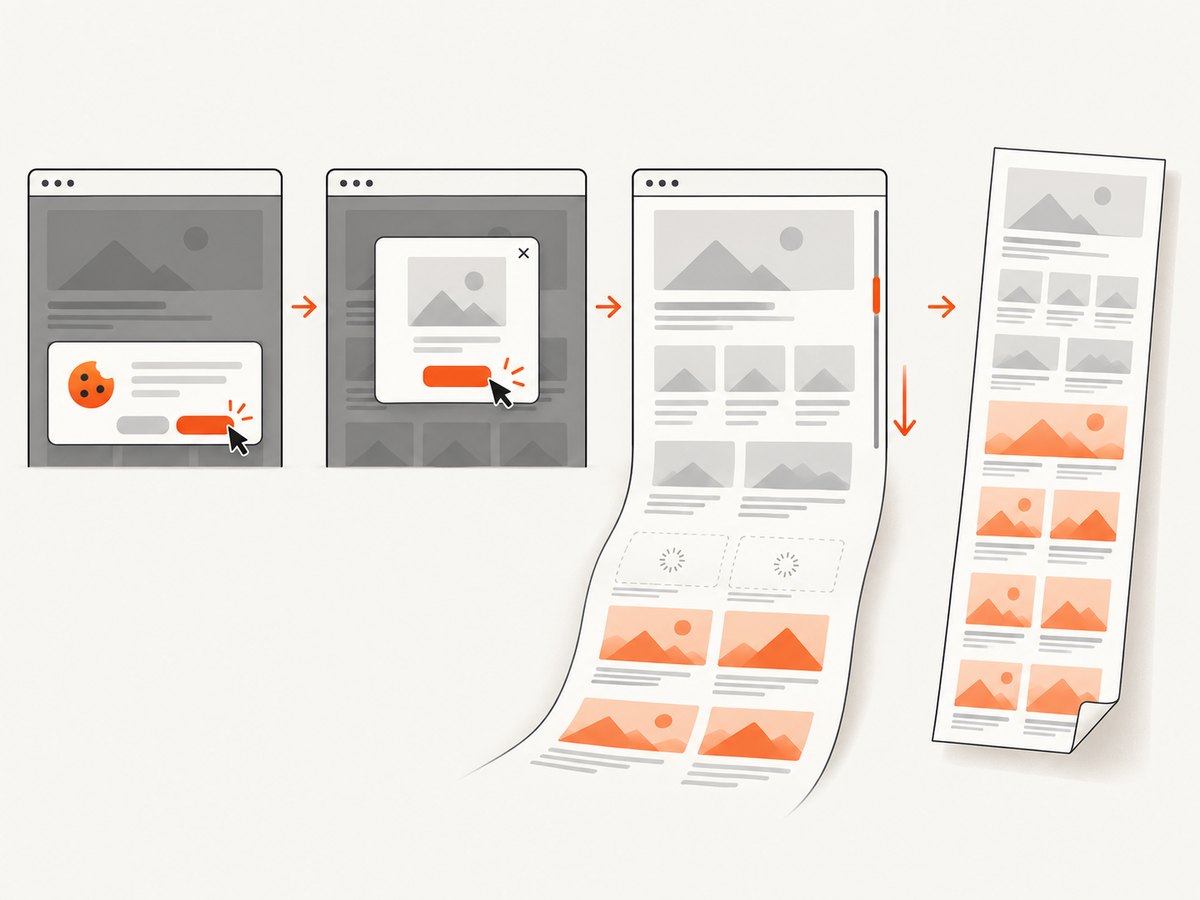
Full-page capture may need to scroll the page to reveal content that loads only on demand. Sticky headers can appear repeatedly, overlays may obscure content, and embedded scrolling panels may not be included as expected. Review the output before treating it as a complete record. The extension listing describes support for long captures and nested scroll areas as developer claims, not independent performance measurements.
4. Capture with code
For repeatable captures, automation can open a URL, wait for rendering, capture either the viewport or full page, then encode the result as JPEG. The following example uses Playwright with Node.js. It captures a full page and writes a JPEG. Run npm install playwright and npx playwright install chromium first.
const { chromium } = require('playwright');

(async () => {
  const browser = await chromium.launch({ headless: true });
  const page = await browser.newPage({
    viewport: { width: 1440, height: 1000 },
    deviceScaleFactor: 1,
  });

  try {
    await page.goto('https://example.com', {
      waitUntil: 'networkidle',
      timeout: 60000,
    });
    await page.screenshot({
      path: 'webpage.jpg',
      type: 'jpeg',
      quality: 85,
      fullPage: true,
    });
  } finally {
    await browser.close();
  }
})();
Save as save-page.js and run node save-page.js. Replace the example URL with a page you are authorized to capture. For the visible viewport, set fullPage: false or omit it. Playwright’s quality is a JPEG encoding setting; it trades file size against compression quality. Inspect small text at the intended display size before choosing a lower value.
Wait for the content you need
networkidle can be useful for pages whose initial content depends on network requests, but analytics, ads, or long polling can keep a page active. When it times out, use a page-specific readiness condition instead of waiting indefinitely:
await page.goto('https://example.com', { waitUntil: 'domcontentloaded' });
await page.locator('main').waitFor({ state: 'visible', timeout: 15000 });
await page.waitForTimeout(500); // Optional: allow a short visual transition to finish.
Prefer waiting for a meaningful selector when the page has a stable one. A fixed delay is simple but may be too short on a slow page and unnecessarily long on a fast one. If images are lazy-loaded, a full-page screenshot may not cause every site to load every image. Scroll through the page or trigger its own load behavior before capturing, then inspect the result.
Convert a PNG when your capture tool does not export JPEG
ImageMagick can convert an existing PNG to JPEG:
magick input.png -quality 85 output.jpgConversion encodes the pixels in JPEG format; merely renaming input.png to input.jpg does not. JPEG does not preserve transparency, so transparent areas are typically flattened against a background during conversion. If a transparent background matters, keep PNG or choose a deliberate background color before exporting.
5. Or skip the browser setup
ScreenshotNeo is a website screenshot API and MCP server. One GET request returns a PNG, JPEG, WebP, or PDF. Its clean-capture flow accepts cookie/consent banners like a visitor and removes 60+ known consent platforms, newsletter popups, and chat widgets before the shot; each step can be turned off. Bot checks/CAPTCHAs, blank pages, timeouts, failed loads, and cache hits cost nothing, and response headers identify the page verdict and billing status. Its MCP server offers take_screenshot, get_page_info, and capture_pdf to Claude, Cursor, and other MCP clients.
For a JPEG response, request it with the API’s format option as described in the ScreenshotNeo documentation. The basic request pattern is:
curl -G "https://api.screenshotneo.com/v1/shot" \
  -d access_key=YOUR_API_KEY \
  --data-urlencode url=https://stripe.com \
  -o shot.webp
The example saves the default response to shot.webp; set the documented format parameter to JPEG when the deliverable must be JPEG, and use a matching output filename. Do not assume a file extension changes the returned encoding. The same endpoint can be called from Python:
import requests

r = requests.get(
    "https://api.screenshotneo.com/v1/shot",
    params={"access_key": "YOUR_API_KEY", "url": "https://stripe.com"},
    timeout=90,
)
r.raise_for_status()
open("shot.webp", "wb").write(r.content)
And Node.js:
const q = new URLSearchParams({
  access_key: 'YOUR_API_KEY',
  url: 'https://stripe.com',
});
const res = await fetch(`https://api.screenshotneo.com/v1/shot?${q}`);
if (!res.ok) throw new Error(`Screenshot request failed: ${res.status}`);
await require('node:fs/promises').writeFile('shot.webp', Buffer.from(await res.arrayBuffer()));
Set the format option and output name according to the current API documentation. Protect your access key; do not put it in a public webpage or commit it to a repository. Other relevant capture options include full-page capture with lazy images loaded, CSS-selector element capture, dark mode, device and viewport presets, retina scale, custom CSS or JavaScript, clicking an element, hiding selectors, waits, request/resource blocking, custom headers and cookies, user agent, timezone and geolocation, transparent background, resizing, cache TTL, signed public image links, asynchronous jobs with signed webhooks, bulk capture up to 100 URLs per call, a usage API, and an OpenAPI spec. Parameter names used by other screenshot APIs also work, which can simplify migration.
ScreenshotNeo has 1,000 shots per month free with no card; paid plans start at $5 for 3,000 shots, and every feature is on every plan. Sign up for 1,000 free screenshots a month, with no card.
6. Troubleshooting and quality checks
| Symptom | Likely cause | Fix |
|---|---|---|
| The file says JPEG but will not open, or an editor identifies it as PNG | The extension was renamed without conversion | Re-export through an editor as JPEG, or use an explicit JPEG capture option. |
| Only the first screen appears | Viewport capture was selected instead of full-page | Choose full-page capture and verify the output height. |
| Images or sections are missing | Lazy loading, delayed rendering, or content loaded after scrolling | Wait for the relevant element, scroll through the page, and capture again. |
| A banner covers the page | A consent dialog, modal, newsletter prompt, or chat widget is open | Dismiss it when appropriate, use a capture option that removes overlays, or hide the relevant selector in an automated workflow. |
| Repeated headers or awkward seams in a long image | Sticky elements or dynamic layout changed during scrolling | Inspect the whole-page result; hide the sticky element when the tool allows it, or capture in sections. |
| Text looks soft or has halos | JPEG compression, scaling, or low-resolution capture | Capture at a larger viewport or scale and raise JPEG quality. Use PNG if exact text edges matter. |
| Some content inside a panel is absent | The panel scrolls independently from the page | Capture the panel separately, scroll it before capture, or use a tool that supports element or nested-scroll capture. |
| Browser capture feature is missing | Version, device, or market availability differs | Check the browser’s current help and update; use another capture path that explicitly supports the required format. |
7. Performance, reliability, and cost
A viewport screenshot is usually simpler to review and share than a very tall full-page image. Long captures can consume more memory and produce large files, especially at high device scale. JPEG quality, viewport dimensions, device scale, and page length all affect output size and legibility. Pick dimensions for the final use: a support ticket, archive, report, or image embedded on a site may need different sizes.
For a one-off capture, a built-in browser feature has no API setup. An extension adds installation and permission considerations, so check its current listing and use only a source you trust. For repeat jobs, browser automation needs a browser runtime, waits, failure handling, and maintenance when the site changes. A screenshot API removes that local browser setup but has usage limits and a plan cost after the free allowance. ScreenshotNeo’s stated plans are Free: 1,000/month; Starter: $5 for 3,000; Growth: $15 for 15,000; Pro: $39 for 60,000; Scale: $99 for 250,000; Business: $249 for 1,000,000. Yearly billing gives two months free. Prices and quotas here are ScreenshotNeo’s published facts supplied for this article; check its site for current details.
For dependable capture, use explicit readiness conditions, set timeouts, check that the output is nonempty and decodes as the expected format, and retain enough context to retry failures. Dynamic pages may differ between captures because of personalization, animation, or changing content. A screenshot is a visual record of one rendering, not a guarantee that every state or below-the-fold asset was loaded.
Frequently asked questions
Can I save a webpage as a JPEG on my phone?
Use the browser or operating system’s screenshot workflow, then check whether it can export JPEG. If it saves PNG, convert the image with an editor that supports JPEG. Mobile browser features vary, so do not assume full-page capture or JPEG export is available.
Does saving a webpage as an image save its links and forms?
No. A screenshot is a flat image of the rendered appearance. Links, form behavior, and page structure require saving the webpage or using another archival format.
Should I choose JPEG or PNG for a webpage screenshot?
Choose JPEG when JPEG is required or photographic content and file size are priorities. Choose PNG when crisp text, interface details, or transparency matter more. Always check how the image looks at its intended size.
Can I capture a page that requires sign-in?
A browser captures what its current session can access. For code or APIs, use only credentials and cookies you are authorized to use, keep secrets out of client-side code, and account for the site’s access rules.


