Save Webpage as PDF: Free HTML to PDF Converter
Save any open webpage as a PDF, convert local HTML, or render a public URL with clear steps, code, troubleshooting, and free options.
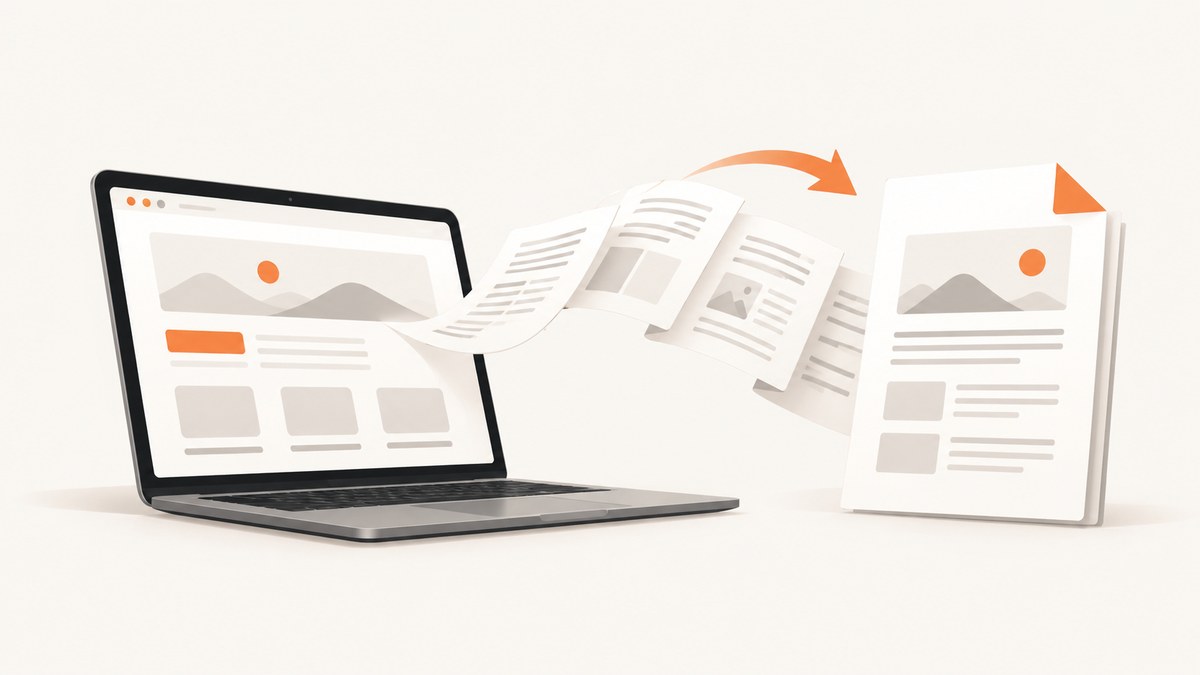
To save a webpage that is already open in Chrome, press Ctrl+P on Windows or Linux, or Command+P on macOS. Choose a PDF destination such as Save to PDF, adjust the print settings, and save the file. Google documents this Print workflow for pages, images, and files in Chrome: open Print with the keyboard shortcut, select a destination, choose settings, and print. See Chrome’s official printing instructions.
The right method depends on your input:
- Open webpage: use the browser print dialog.
- Saved .html file or pasted markup: open it locally and print, or use an HTML-to-PDF converter.
- Public URL: use a URL-to-PDF service that renders the page on a server.
- Automated screenshots or PDFs: use an API such as ScreenshotNeo.
1. Save the current webpage from Chrome
- Open the page you want to keep.
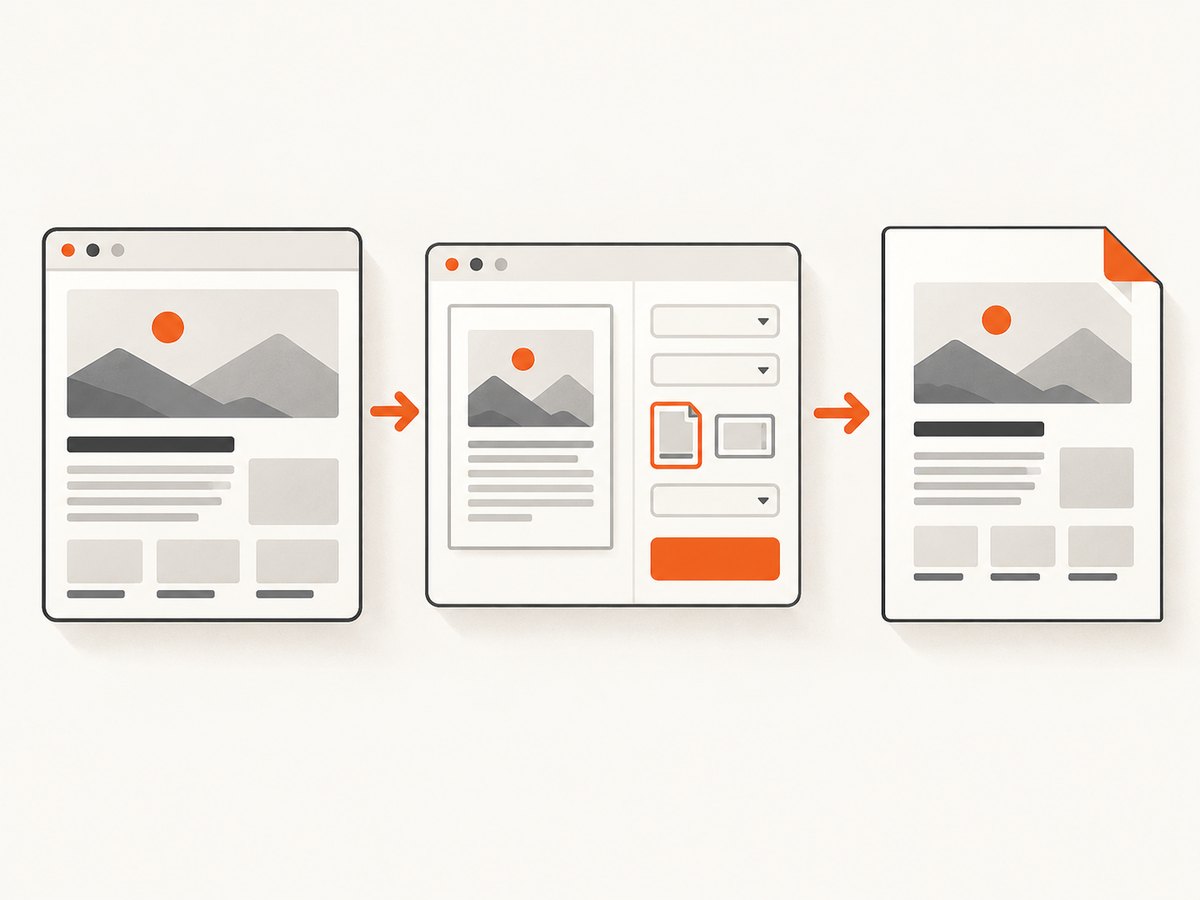
- Press Ctrl+P on Windows/Linux or Command+P on Mac.
- In Destination, select Save to PDF or the PDF destination shown on your device.
- Open More settings and choose paper size, orientation, margins, scale, headers and footers, and background graphics.
- Review the preview. If content is clipped, switch to landscape, reduce scale, or choose narrower margins.
- Click Save, choose a folder, name the file, and confirm.
Settings that change the result
| Setting | Use it when | Common trade-off |
|---|---|---|
| Paper size | The document must match A4, Letter, Legal, or another standard. | A layout designed for one size may reflow on another. |
| Portrait or landscape | Tables, dashboards, or wide pages need more horizontal room. | Landscape can create more whitespace on ordinary articles. |
| Margins | Text is too close to the edge or you need more content per page. | Small margins can still clip content designed for print. |
| Scale | Columns or images are being cut off. | Lower scale makes text smaller. |
| Background graphics | Colors, shaded sections, or background images are part of the design. | Backgrounds increase file size and may use more ink when printed. |
| Headers and footers | You want the URL, title, date, or page numbers. | Disable them for a clean archival copy. |
2. Convert a saved HTML file or pasted markup
An HTML converter is useful when your input is a local .html file or raw markup rather than a page currently open in a browser. The reviewed PDF Edit converter accepts a file or pasted HTML and exposes paper size, orientation, margins, and stylesheet controls. It states that its conversion runs in the browser, uses html2canvas and pdf-lib, and currently produces rasterized output that is not selectable. It also says it does not fetch arbitrary live URLs directly, so save the page first or use the browser print route.
Local-file workflow
- Save your document as
page.html, including any local CSS and images. - Open the file in Chrome, Edge, Firefox, or another browser.
- Check that fonts, images, and interactive content have loaded.
- Use the browser print dialog and save as PDF.
- Open the PDF in a viewer and test page breaks, links, selectable text, and image quality.
For a document you control, add print-specific CSS before converting:
<style>
@page { size: A4; margin: 16mm; }
@media print {
  nav, .cookie-banner, .chat-widget { display: none !important; }
  .page-break { break-before: page; }
  a { color: #000; text-decoration: none; }
}
</style>
Use break-inside: avoid on cards, table rows, and figures that should stay together. Remember that print CSS can hide elements that are visible on screen. If a converter offers a “screen CSS” option, compare both modes and keep the one that preserves the intended layout.
3. Convert a public URL without saving HTML
A URL-to-PDF service fetches and renders the page on its own server. This is convenient for recurring jobs, scheduled reports, and links that are not practical to save manually. The reviewed Papyrio service says it renders URLs with Chromium, accepts publicly accessible pages, cannot reach pages behind a login or paywall, and does not store URL and result files after conversion. Treat those as that service’s statements, not universal behavior. Check the provider’s retention, privacy, authentication, and JavaScript support before sending sensitive URLs.
URL conversion has important edge cases:
- Private dashboards usually require an authentication mechanism supported by the service; a normal browser session cookie is not automatically available to a remote renderer.
- Pages that build content after JavaScript runs may need a wait condition or a service that waits for network activity.
- Infinite scroll, lazy images, animations, and sticky headers can produce incomplete or repeated content.
- Robots rules, bot checks, consent dialogs, and rate limits can change what the renderer receives.
4. Or skip the browser setup
ScreenshotNeo’s API documentation covers one GET request that returns a PNG, JPEG, WebP, or PDF. The same endpoint supports full-page capture with lazy images loaded, CSS element capture, custom CSS and JavaScript, clicks, selector waits, delays, network-idle waits, cookies, headers, user agents, authorization, timezone and geolocation, PDF paper size, margins, landscape mode, and page ranges. You can also block ads, trackers, requests, or resource types; use caching with a chosen TTL; submit async jobs with signed webhooks; and capture up to 100 URLs in one bulk call.
cURL:
curl -G "https://api.screenshotneo.com/v1/shot" \
  -d access_key=YOUR_API_KEY \
  --data-urlencode url=https://stripe.com \
  -o page.pdf
Python:
import requests

r = requests.get(
    "https://api.screenshotneo.com/v1/shot",
    params={"access_key": "YOUR_API_KEY", "url": "https://stripe.com"},
    timeout=90,
)
r.raise_for_status()
open("page.pdf", "wb").write(r.content)
Node.js:
const q = new URLSearchParams({ access_key: 'YOUR_API_KEY', url: 'https://stripe.com' });
const res = await fetch(`https://api.screenshotneo.com/v1/shot?${q}`);
if (!res.ok) throw new Error(`HTTP ${res.status}`);
const data = Buffer.from(await res.arrayBuffer());
require('node:fs').writeFileSync('page.pdf', data);
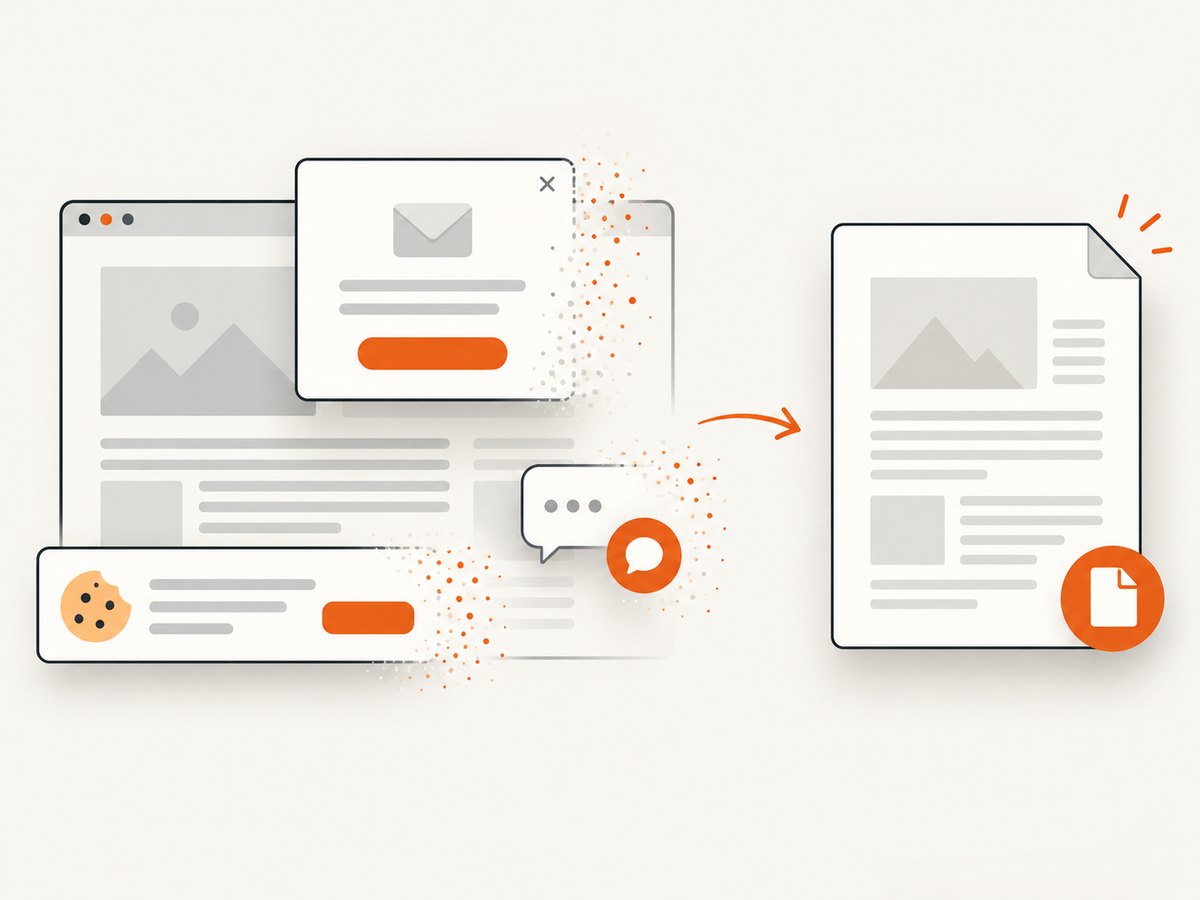
Set the output filename to .pdf when requesting a PDF. For an image, use .png, .jpg, or .webp. ScreenshotNeo accepts the parameter names used by other screenshot APIs, which can simplify migration. It removes more than 60 known consent platforms, newsletter popups, and chat widgets before capture; each cleanup step can be disabled. Bot checks, CAPTCHAs, blank pages, timeouts, failed loads, and cache hits are not billed. The response identifies the result with X-Page-Verdict and X-Billed headers.
There is also an MCP server with take_screenshot, get_page_info, and capture_pdf tools for Claude, Cursor, and other MCP clients. Pricing includes 1,000 shots per month free with no card, then Starter at $5 for 3,000, Growth at $15 for 15,000, Pro at $39 for 60,000, Scale at $99 for 250,000, and Business at $249 for 1,000,000. Yearly billing provides two months free, and every feature is available on every plan. Create a free ScreenshotNeo account.
5. Make PDFs complete and readable
Wait for dynamic content
Do not capture immediately when a page contains charts, data grids, or lazy images. Wait for a distinctive selector, a short delay, or network idle. A selector wait is usually more reliable than a fixed delay because it follows the page’s actual state.
Control page geometry
Choose paper size and margins deliberately. A wide table may need landscape orientation or a smaller scale. Long unbroken code lines can force overflow; add wrapping or a print-only style. Test the first, middle, and last pages rather than trusting the first preview page.
Remove obstructive UI
Cookie notices, newsletter forms, floating chat buttons, and sticky navigation can cover content. Hide known selectors with print CSS or a capture tool’s hide-selector option. If a consent dialog blocks the page, accept it before rendering or use a renderer that handles consent as part of capture.
Preserve accessibility and search
Not every converter creates a text layer. If readers need to search, copy, or select text, inspect the output rather than assuming it is selectable. Rasterized output, such as the reviewed PDF Edit converter describes, behaves like an image of the page. Browser print and server renderers can differ in link preservation, fonts, and selectable text.
6. Troubleshooting
| Symptom | Likely cause | Fix |
|---|---|---|
| Blank PDF | Content is rendered after the capture starts, or a bot check blocks the page. | Wait for a selector or network idle; inspect the page in a normal browser; check the renderer’s verdict. |
| Images missing | Lazy loading, blocked requests, or relative paths fail from a local file. | Scroll or wait for images; use absolute asset URLs; allow required resource types. |
| Right side clipped | Content is wider than the paper. | Use landscape, a larger paper size, narrower margins, or a lower scale. |
| Repeated sticky header | A fixed element appears on every printed page. | Disable it in print CSS or hide that selector during capture. |
| Text cannot be selected | The converter rasterized the page. | Use a text-preserving print path or an HTML-to-PDF engine that creates a text layer. |
| Private URL fails | The remote service cannot access your login session. | Use a supported cookie or authorization option, or generate the PDF inside your authenticated environment. |
| API request times out | Heavy scripts, slow assets, or an unreachable origin. | Retry with backoff, reduce unnecessary resources, wait on a stable selector, and record verdict headers. |
| PDF opens but pages are empty | A CSS print rule hides the main content. | Compare screen and print styles; remove broad display:none rules. |
7. Performance, reliability, and cost
For occasional personal use, browser Print is usually the lowest-cost and simplest path. It runs on your machine and avoids uploading the page to a third party, but the result depends on your browser state, extensions, fonts, network, and logged-in session.
Local HTML converters can be fast for small documents, yet browser-side rasterization may use substantial memory for very long pages and may not provide selectable text. A server renderer is easier to automate and standardize, but it introduces network latency, provider limits, and an external data-processing decision.
For recurring captures, make the workflow deterministic: set a viewport and timezone, wait for a known selector, disable animations, specify margins and paper size, and save response metadata with the file. Cache unchanged pages where appropriate. Use asynchronous jobs and signed webhooks for large batches instead of holding a request open. With ScreenshotNeo, failed loads, blank pages, bot checks, CAPTCHAs, timeouts, and cache hits cost nothing, and billing is visible in response headers.
8. A practical decision checklist
- Is the page already open? Use browser Print.
- Is the input a local HTML file or pasted markup? Open it locally, add print CSS, and print or use an HTML converter.
- Is the input a public URL that must be processed repeatedly? Choose a URL renderer and review its privacy and access rules.
- Does the page require login, custom headers, cookies, waits, or JavaScript? Confirm those options before building automation.
- Do you need searchable text? Verify that the output contains a text layer.
- Do you need clean automated captures? Try ScreenshotNeo with its consent, popup, wait, PDF, caching, and webhook controls.
FAQ
Can I save a webpage as a PDF for free?
Yes. Chrome and other browsers include a print-to-PDF destination on many systems. ScreenshotNeo also includes 1,000 free shots per month without a card.
Can I convert a URL directly to PDF?
Yes, with a URL rendering service. Public access is commonly required; login and paywall support depends on the provider and its authentication features.
Why does my PDF look different from the webpage?
Print CSS, paper dimensions, fonts, lazy loading, responsive breakpoints, and blocked resources can all change the rendered result.
How do I save only part of a webpage?
Use print selection where your browser provides it, create a print-only wrapper, or use an element capture option with a CSS selector.
Is a PDF always searchable?
No. Some converters rasterize every page. Open the result and test selecting or searching text before relying on it for accessibility or extraction.


