How to Save a Webpage as a PDF With Images
Use your browser’s Print preview to save a webpage as a PDF, check missing images and background artwork, and choose an image capture when layout matters most.
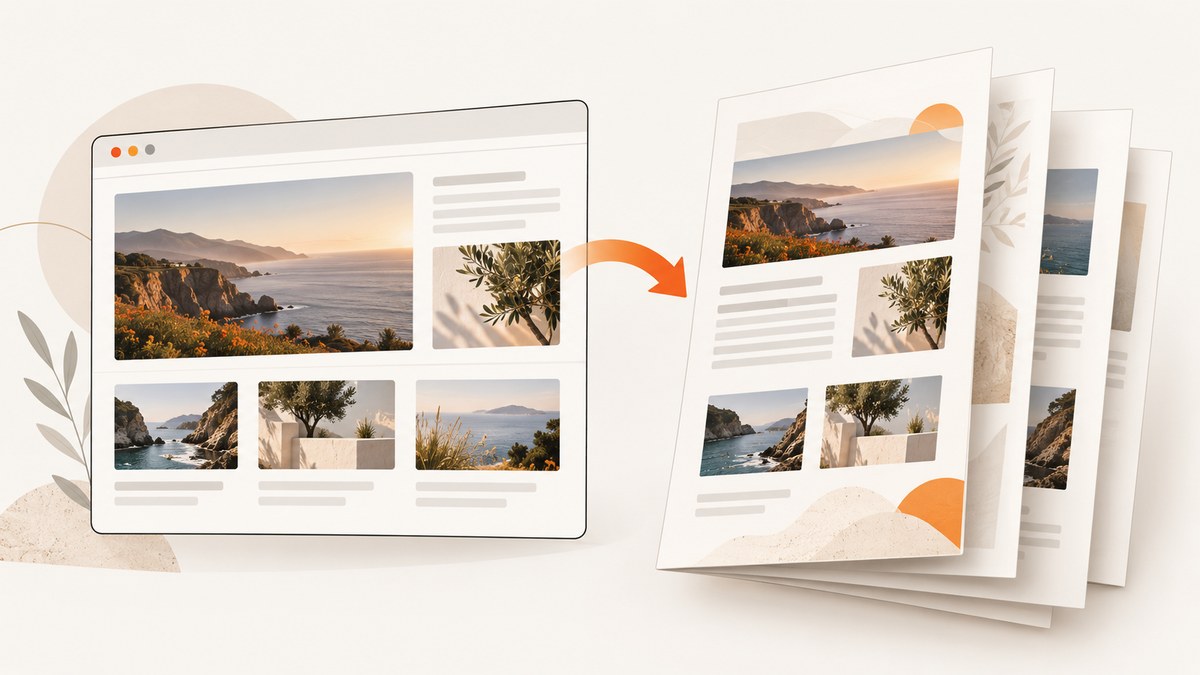
To save a webpage as a PDF with images, open the page in a desktop browser, choose Print, select a PDF destination, inspect the preview, then save. Wait for the page and its images to load before opening Print. In the preview, check that the images you need appear; if decorative background artwork is missing, enable the browser’s background-printing option when available.
A print-to-PDF file is a paginated document, not an exact copy of the browser window. Websites can reflow for paper, and page breaks, scale, margins, and print styles can change where content and images land. Review the preview before relying on the PDF. The steps below cover the documented Firefox and Microsoft Edge workflows, alternatives for visual capture and automation, and ways to diagnose missing images.
1. Save a webpage as PDF in Firefox
- Open the webpage and wait for its main content and images to load. Scroll through the page if needed; some sites load images only as you approach them.
- Open the Firefox menu and choose Print.
- In print preview, set Destination to Save to PDF.
- Review the preview, including pages with large images, and adjust the settings below if necessary.
- Choose Print, select a location and filename, then save.
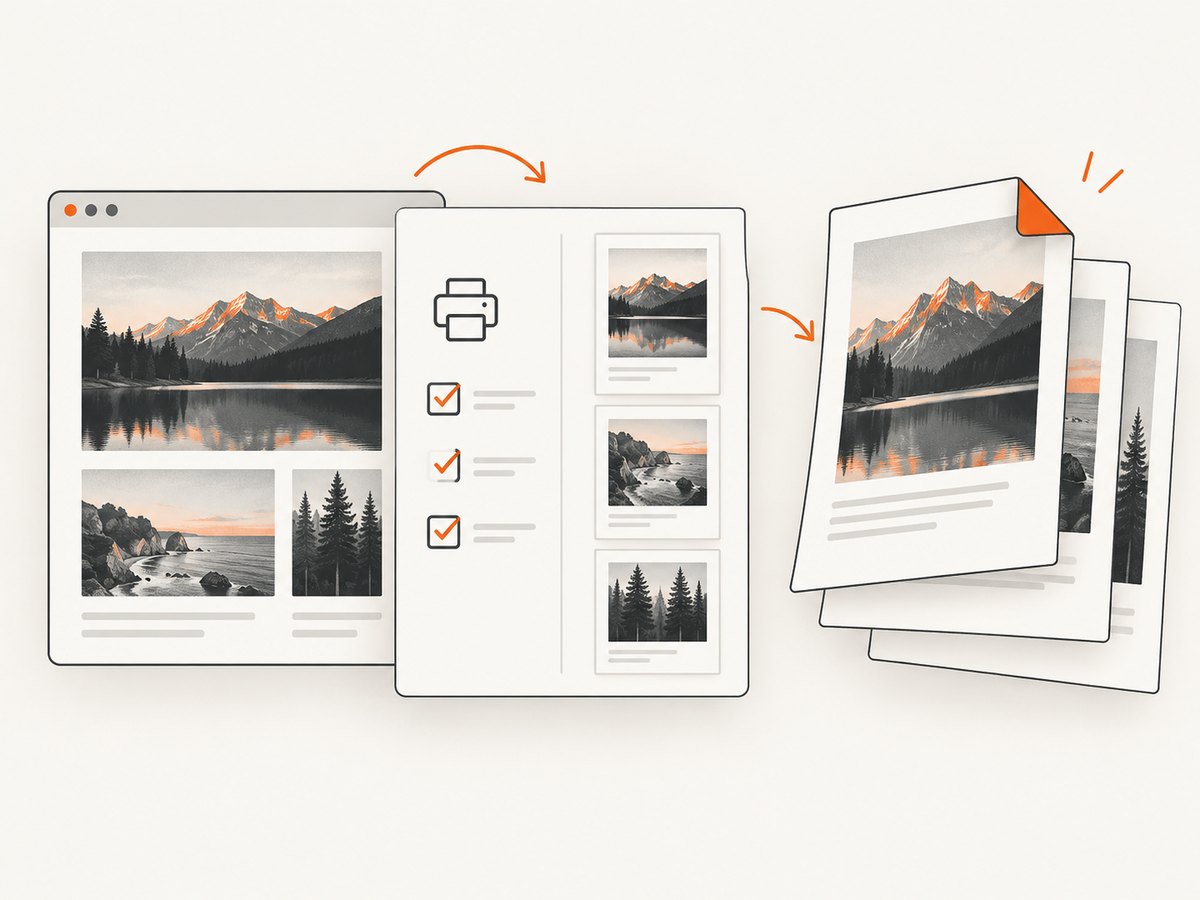
Firefox’s print controls include page selection, orientation, color mode, paper size, scale, margins, output format, headers and footers, and print backgrounds. Exact labels or available controls may vary by release or operating system. Firefox also notes that some websites present themselves differently on paper than on screen. Mozilla’s Firefox printing guide describes the print workflow and settings.
Firefox settings to check
- Pages: Select a page range if you need only part of a long article.
- Orientation and paper size: Try landscape for wide tables or images. A different paper size can change pagination.
- Scale and margins: Reduce scale or margins if content is clipped, but check that text and images remain readable.
- Headers and footers: Turn these off if browser-generated page information takes space or distracts from the document.
- Print backgrounds: Enable this when the preview omits background artwork that matters. It does not recover every missing image; ordinary page images and CSS backgrounds are different things.
2. Save a webpage as PDF in Microsoft Edge
- Open the webpage and let its content finish loading.
- Open Settings and more, then choose Print. You can also use Ctrl+P on Windows or Command+P on macOS.
- Choose the PDF destination offered by your system or Edge’s print dialog.
- Expand More settings and review options such as paper size, scale, margins, and headers and footers.
- Check the preview. If the webpage’s background artwork is missing, enable Background graphics when that option is available.
- Choose the print or save control and save the resulting PDF.
Microsoft’s Edge printing instructions describe the print entry point and background-graphics setting. Menu wording and PDF destinations can depend on operating system and browser release. Microsoft recommends enabling Background graphics if the preview or output looks different from the page.
3. Check images and layout before saving
There are two commonly confused kinds of visual content:
- Content images are images placed in the page content, such as photographs, diagrams, and product pictures.
- Background artwork is applied behind content, often through CSS. A browser’s background-printing control concerns this artwork in the documented Edge workflow; it is not a universal switch that forces every image to load.
Before saving, inspect the preview from beginning to end, especially image-heavy sections, tables, and page boundaries. Check whether an image is absent, cropped, scaled too small, or split awkwardly across pages. If you change scale, margins, paper size, orientation, or background printing, inspect the preview again because those changes can alter pagination.
No general browser print setting guarantees that every website image will appear. A site may load images dynamically, apply print-specific styles, restrict resources, or fail to finish loading. Official browser guidance does not promise perfect output across all pages. If an important image is missing in preview, return to the webpage, wait or scroll to load it, then reopen Print. If it still does not appear, consider saving a screenshot for visual reference or asking the site for a downloadable document.
4. Choose PDF, screenshot, or offline archive
| Format | Best when | Main tradeoff |
|---|---|---|
| Print-to-PDF | You want a paginated document that is convenient to read, share, or print. | Layout can reflow, and print styles or page breaks can differ from the browser view. |
| Full-page screenshot | You need a visual record of the page’s rendered appearance. | The result is an image, not a normal selectable-text PDF. |
| MHTML archive | You want an offline page package that can include resources such as CSS and images. | It is not a PDF, and Chrome documents constraints on where its captured file can be loaded. |
Firefox offers a full-page screenshot and a visible-area screenshot that can be saved as an image. See Mozilla’s screenshot instructions. Edge’s Screenshot feature can capture a full webpage or selected area as a shareable image; Microsoft lists Ctrl+Shift+S as its desktop shortcut. Those are image captures, not direct PDF generation. See Microsoft Edge Screenshot.
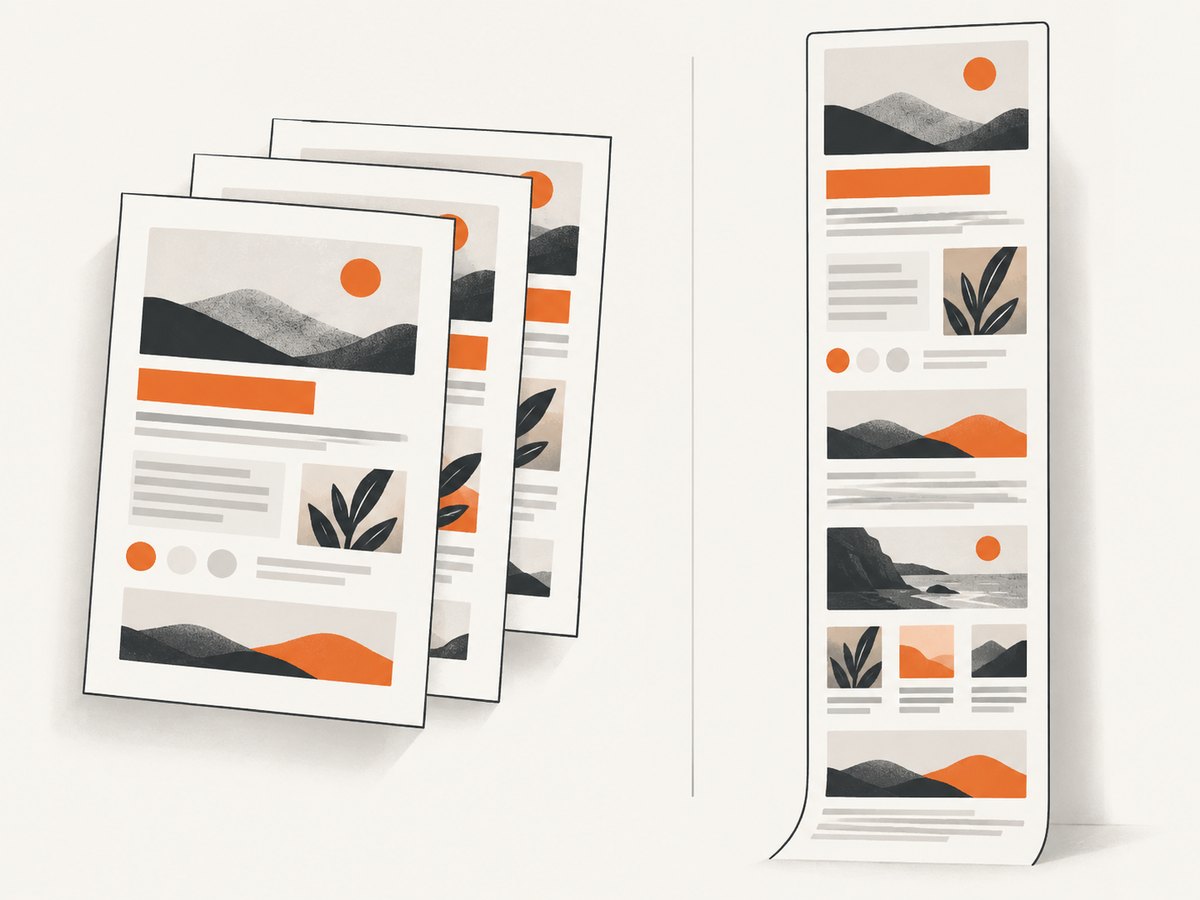
Chrome’s chrome.pageCapture extension API saves a tab as MHTML, a single file that encapsulates the page and resources such as CSS and images. It is an offline-page alternative, not PDF output; Chrome’s documentation says the file can be loaded only from the file system and in the main frame. See Chrome’s pageCapture API reference.
5. Automate PDF output with Chrome Headless
For scripted PDF generation, Chrome Headless supports --print-to-pdf. Run this from a terminal where Chrome is installed, replacing the example URL and output path as needed:
chrome --headless --print-to-pdf="page.pdf" "https://example.com"On systems where the executable is named differently or is not on PATH, use the installed Chrome binary’s full path. To omit the browser’s print header and footer, add --no-pdf-header-footer:
chrome --headless --no-pdf-header-footer --print-to-pdf="page.pdf" "https://example.com"Chrome documents --timeout as a maximum wait before capture commands run, even if a page is still loading. For example:
chrome --headless --timeout=5000 --print-to-pdf="page.pdf" "https://example.com"A timeout is a ceiling, not proof that the page is ready. A fixed wait may be too short for a slow image or unnecessarily long for a fast page. Check the resulting PDF, especially when pages depend on scripts or delayed resources. Chrome notes that the header/footer flag was previously named --print-to-pdf-no-header; check the flags supported by your installed Chrome version. See Chrome Headless documentation.
6. Troubleshoot missing images and PDF problems
| What you see | Likely cause | What to try |
|---|---|---|
| Background colors or artwork are missing | Background printing or graphics are disabled. | In the print settings, enable print backgrounds or Background graphics if offered, then recheck preview. |
| A content image is blank or absent | The image has not loaded, loads only on scroll, or is not included in the page’s print rendering. | Return to the page, wait, scroll to the image, and reopen Print. If it remains absent, use a screenshot for visual reference. |
| Image is cut off at a page edge | Page size, orientation, scale, or print layout does not fit the image. | Try landscape, a suitable paper size, lower scale, or smaller margins; inspect the affected page again. |
| Text or images are too small | The browser scaled a wide layout to fit paper. | Try landscape, a different paper size, or printing a smaller page range. Avoid reducing scale further. |
| Page breaks split an image or section | The webpage’s print styles or pagination divide content differently than the screen layout. | Review nearby pages and adjust scale or paper size. If preserving the full visual arrangement matters more than selectable text, capture the page as an image. |
| Headless PDF is incomplete | The page was still loading when the capture ran, or the chosen timeout was insufficient. | Increase the wait where appropriate, ensure the URL is reachable in that environment, and inspect the output. A timeout alone does not guarantee all dynamic content finished. |
| Chrome rejects a PDF flag | The installed version uses different command-line options. | Check the current Chrome Headless documentation and supported flags for that installed version. |
7. Or skip the browser setup
For a screenshot or PDF capture through an API, ScreenshotNeo takes a URL in one GET request and can return PNG, JPEG, WebP, or PDF. Its cookie/consent handling accepts the banner like a visitor and removes 60+ known consent platforms, newsletter popups, and chat widgets before capture; each step can be turned off. Bot checks or CAPTCHAs, blank pages, timeouts, failed loads, and cache hits are not billed, and response headers say which page verdict and billing status applied. An MCP server provides take_screenshot, get_page_info, and capture_pdf for Claude, Cursor, and other MCP clients.
Example cURL request, saving a PDF:
curl -G "https://api.screenshotneo.com/v1/shot" -d access_key=YOUR_API_KEY --data-urlencode url=https://stripe.com -d format=pdf -o page.pdfUse the same endpoint from Python:
import requests

r = requests.get(
    "https://api.screenshotneo.com/v1/shot",
    params={"access_key": "YOUR_API_KEY", "url": "https://stripe.com", "format": "pdf"},
    timeout=90,
)
r.raise_for_status()
open("page.pdf", "wb").write(r.content)
Or from Node.js:
const q = new URLSearchParams({
  access_key: 'YOUR_API_KEY',
  url: 'https://stripe.com',
  format: 'pdf',
});
const res = await fetch(`https://api.screenshotneo.com/v1/shot?${q}`);
if (!res.ok) throw new Error(`Screenshot request failed: ${res.status}`);
await Bun.write('page.pdf', res);
These examples use the API’s PDF format option. For a screenshot file instead, choose PNG, JPEG, or WebP and use the matching file extension. See the ScreenshotNeo API documentation for request parameters and setup.
The API also supports full-page capture with lazy images loaded, CSS selector element capture, custom CSS and JavaScript, waiting for a selector, delay or network idle, viewport and device settings, and caching with a chosen TTL. Those controls help tailor a capture, but a page can still have site-specific behavior. For PDFs, the API supports paper size, margins, landscape, and page ranges. See the docs for available options.
ScreenshotNeo includes 1,000 screenshots a month free with no card. Paid plans start at $5 for 3,000; higher listed tiers are Growth at $15 for 15,000, Pro at $39 for 60,000, Scale at $99 for 250,000, and Business at $249 for 1,000,000. Yearly billing gives two months free, and every feature is on every plan. Sign up for 1,000 free screenshots a month, with no card required.
8. Improve repeatability and control capture cost
For manual saving, the main reliability step is to inspect the preview every time the page or its print settings change. For automation, use consistent inputs: the same URL, paper size, margins, orientation, wait strategy, and header/footer setting. Save outputs under predictable names and retain enough context to reproduce a capture. Dynamic pages can change between runs, so a PDF should not be treated as a permanent snapshot of a site’s underlying data.
Performance depends on the page, its resources, and how long the browser or capture service waits. Waiting longer may allow delayed content to appear but increases capture time; a short wait can produce a smaller or incomplete document. For repeated captures, caching can reduce duplicate work when the captured page has not changed; ScreenshotNeo lets you choose a cache TTL. Its billing model charges only clean shots, while cache hits and failed or blocked page outcomes are free. Check the response’s X-Page-Verdict and X-Billed headers when building usage reporting. See the API docs for the usage API and other request options.
9. FAQ
Will every webpage save with all images?
No browser documentation guarantees that every site, lazy-loaded image, or dynamic element will print correctly. Inspect the preview and try loading the missing content before printing again.
Does “Print backgrounds” bring back missing photos?
It controls background artwork in the documented Edge workflow. Content images are separate; a missing photo may not have loaded or may be omitted by the site’s print rendering.
Can I keep the webpage’s exact screen layout in a PDF?
Print-to-PDF can reflow and paginate content. A full-page screenshot better preserves visual appearance, but produces an image rather than a normal selectable-text PDF.
Is an MHTML file a PDF?
No. Chrome’s page-capture API packages a page and resources into an offline MHTML file. Use browser printing or PDF capture when you specifically need PDF output.
Which format should I keep for records?
Choose PDF for a document-style record, a screenshot for visual appearance, or MHTML when an offline page package suits your workflow. Check the saved file before treating it as complete.


