How to Save a Webpage as PNG in Microsoft Edge
Save an entire webpage as a PNG in Microsoft Edge with Screenshot, plus reliable options for long, dynamic, or automated captures.
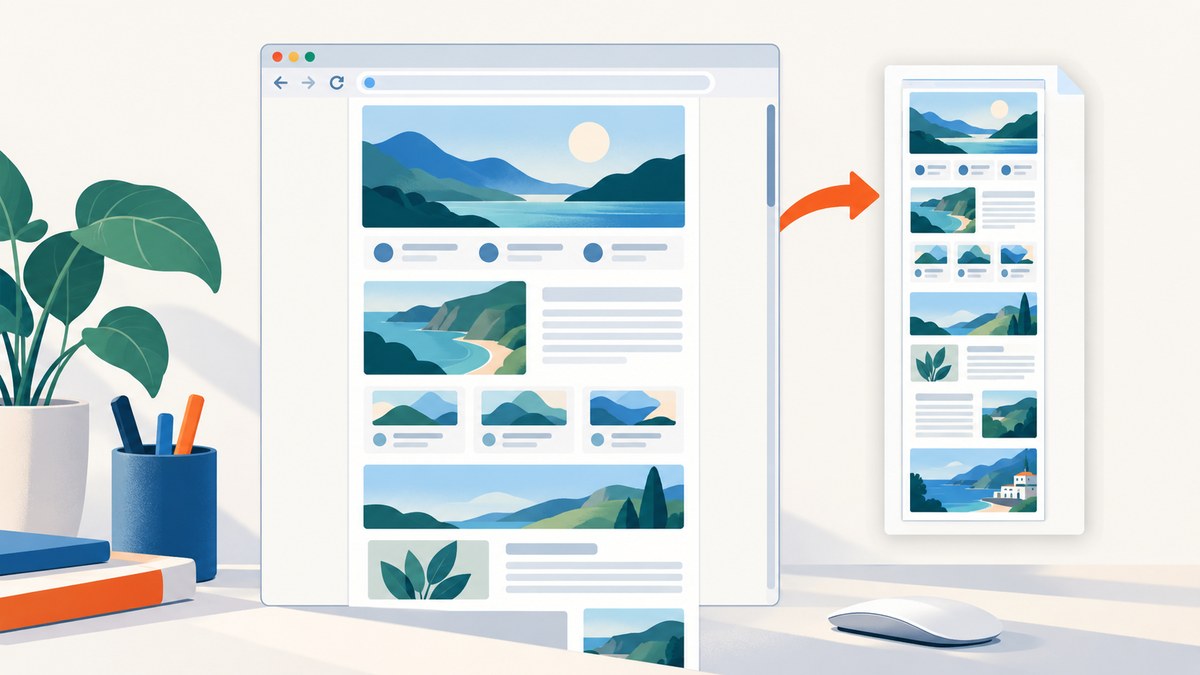
Direct answer: Open the page in Microsoft Edge, open the Settings and more menu, choose Screenshot (the feature previously called Web Capture), select Capture full page, then use the save control. If you only need part of the page, choose the area capture mode and drag over the region. Microsoft describes Screenshot as a way to capture a webpage and copy or save the image. Microsoft Edge Screenshot and the Edge support documentation use the same full-page workflow.
When PNG matters, check the save dialog. Microsoft’s feature description confirms that the image can be saved, but it does not promise that every Edge release exposes a PNG format selector. If PNG is offered, choose it. If the dialog saves another format, export the image as PNG with an image editor or use an Edge add-on that explicitly supports PNG export.
Save a full webpage as PNG in Edge
- Open the webpage in Microsoft Edge and wait for the content you need to appear.
- Open the Settings and more menu with the three dots in the upper-right corner.
- Select Screenshot. Older Edge documentation and policies may call this feature Web Capture.
- Choose Capture full page. Edge captures content below the visible viewport, rather than only the part currently on screen.
- Review the result, then select the save control.
- In the save dialog, choose PNG if a file-type option is available, select a folder, and save the file.
Menu labels can vary between Edge releases. If you do not see Screenshot, open the menu and search for “Screenshot,” or right-click the page and look for the capture command when it is available in your build. Microsoft identifies Screenshot as the feature previously named Web Capture, so older instructions may use that name.
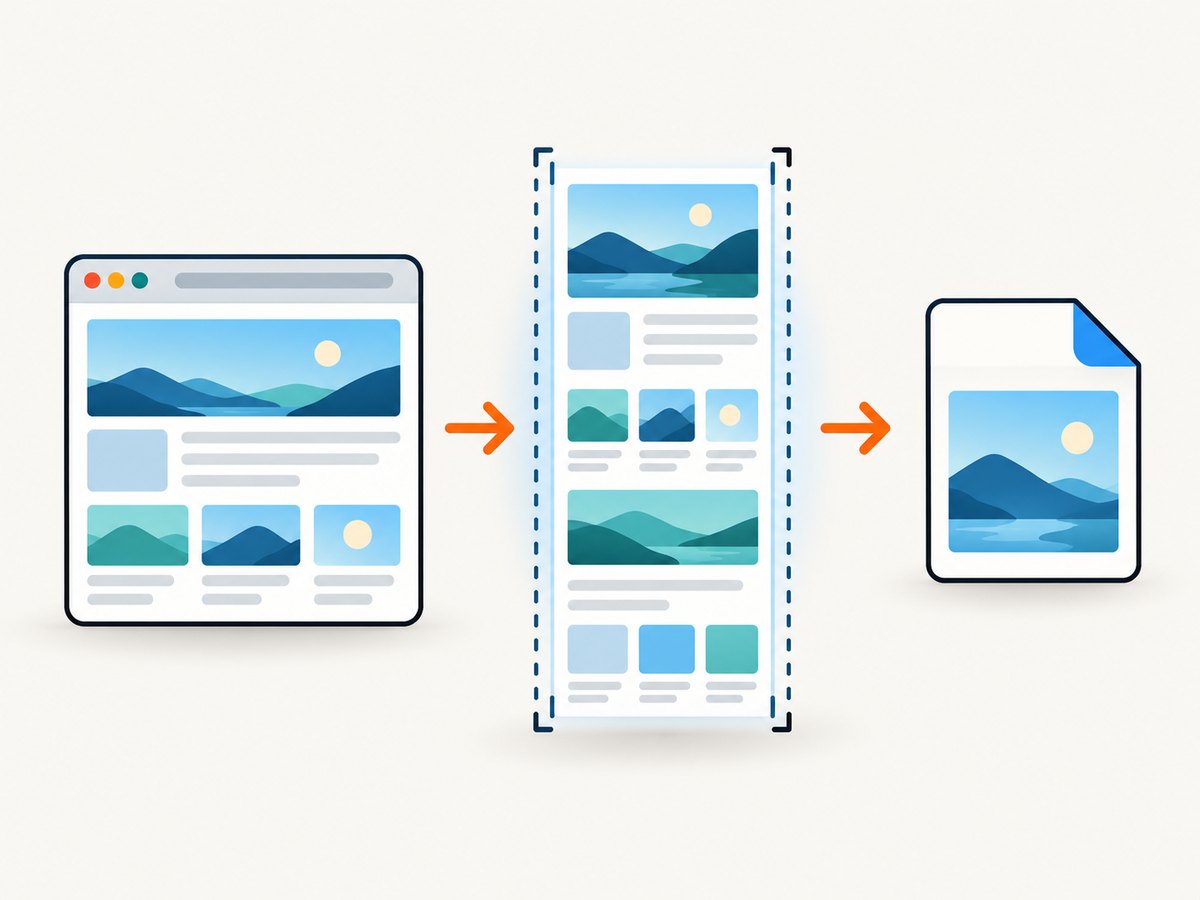
Capture only a selected area
Use Screenshot’s area mode when you need a chart, product panel, article section, or other region rather than the entire document. Start Screenshot, choose the area option, and drag around the content. This is useful for a quick image that excludes navigation, sidebars, and unrelated page sections.
Choose PNG in the save dialog
PNG is a lossless format and is usually the best choice for interface screenshots, diagrams, and text-heavy pages. Some Edge versions may save directly without asking for a format. Inspect the filename and extension after saving. If the result is JPEG or another format, open it in an image editor and export as PNG. An Edge add-on such as PageSaver advertises full-page capture with PNG, JPG, GIF, and ICO export; check its current listing and permissions before installing any extension.
What full-page capture includes
Capture full page is designed for a webpage longer than the visible browser window. It is different from a normal screen grab, which records only pixels currently displayed. Edge’s full-page mode is therefore the right built-in choice for documentation, receipts, long articles, and pages that continue below the fold.
Dynamic pages need a quick review after saving. A page may contain lazy-loaded images, embedded frames, infinite scrolling, animations, or content that appears only after interaction. Edge can capture the rendered document, but the result depends on what the page loaded before and during capture. Scroll through the saved image and compare it with the source page before sharing it.
Lazy-loaded images and long pages
Some sites request images only as they approach the viewport. If the capture does not contain images farther down the page, scroll through the page once first, wait for images to load, and run Capture full page again. For an endlessly scrolling feed, there may be no stable “entire page”; capture a defined section or use a browser automation workflow with a known stopping point.
Frames, animations, and interactive content
Embedded frames can have their own loading rules and may not capture exactly like the parent document. Video, carousels, blinking ads, and animated canvases can also produce a frame that differs from what you expected. Pause media, wait for the desired slide, or use a static export when visual consistency matters.
Make the capture cleaner before saving
- Close cookie dialogs, newsletter prompts, chat bubbles, and account popups that obscure the page.
- Wait for fonts and images to finish loading.
- Set the browser zoom to 100% if text appears unexpectedly large or small.
- Use Reader mode or a print-friendly page when the site provides one.
- For a reproducible result, record the page URL, capture date, Edge version, zoom level, and whether the page required a login.
Private or authenticated pages can contain personal information. Confirm that the saved file is going to the intended folder and remove sensitive screenshots when they are no longer needed.
Windows alternatives and developer workflows
Snipping Tool
Windows Snipping Tool can capture a region or the visible screen and includes a Save as Image action. It is a useful fallback when you need an annotated screen region, but it does not replace Edge’s full-page capture for content below the fold. A screen snip records what is visible at that moment.
Edge Developer Tools
For advanced users, Edge Developer Tools includes a command to capture a full-size screenshot. Open DevTools, open the command menu, search for the full-size screenshot command, and run it. This is a separate workflow from the normal Screenshot menu and can be useful when you are inspecting layout or testing a page at a specific viewport.
Automate a browser when you need repeatability
A scripted browser can set the viewport, wait for a selector, dismiss a known dialog, and save a predictable file. The general sequence is:
- Launch a browser context with the desired viewport and device scale factor.
- Navigate to the URL and wait for a reliable readiness condition.
- Apply any required cookies, authentication, clicks, or CSS.
- Capture the page or a CSS-selected element.
- Verify the output exists and has the expected dimensions and format.
Browser automation gives you control, but it also means maintaining a browser runtime, handling bot checks, waiting for network activity, and deciding how failed loads should be retried.
Or skip the browser setup
ScreenshotNeo provides a website screenshot API. One GET request returns a PNG, JPEG, WebP, or PDF. The API can capture a full page, load lazy images, select one element by CSS selector, set a viewport or device preset, use dark mode, apply custom CSS and JavaScript, click an element, hide selectors, wait for a selector, delay, or network idle, and set headers, cookies, user agent, authorization, timezone, and geolocation. It can also block ads, trackers, requests, or resource types, resize images, cache captures with a chosen TTL, create signed image links, run asynchronous jobs with signed webhooks, capture up to 100 URLs per bulk call, and expose usage data.
Before capture, ScreenshotNeo accepts cookie and consent banners and removes more than 60 known consent platforms, newsletter popups, and chat widgets. Each cleanup step can be turned off. Bot checks or CAPTCHAs, blank pages, timeouts, failed loads, and cache hits are not billed; response headers identify the page verdict and whether the request was billed.
cURL
See the ScreenshotNeo documentation for authentication, parameters, and response headers.
curl -G "https://api.screenshotneo.com/v1/shot" -d access_key=YOUR_API_KEY --data-urlencode url=https://stripe.com -o shot.webpPython
import requests

r = requests.get("https://api.screenshotneo.com/v1/shot", params={"access_key": "YOUR_API_KEY", "url": "https://stripe.com"}, timeout=90)
r.raise_for_status()
open("shot.webp", "wb").write(r.content)
Node.js
const q = new URLSearchParams({ access_key: 'YOUR_API_KEY', url: 'https://stripe.com' });
const res = await fetch(`https://api.screenshotneo.com/v1/shot?${q}`);
if (!res.ok) throw new Error(`Screenshot failed: ${res.status}`);
const fs = await import('node:fs/promises');
await fs.writeFile('shot.webp', Buffer.from(await res.arrayBuffer()));
To request PNG output, pass the API’s image-format option described in the documentation. The same endpoint supports the parameter names used by other screenshot APIs, which can simplify migration. For PDF output, use the PDF options for paper size, margins, orientation, and page ranges.
Edge PNG troubleshooting
| Symptom | Likely cause | Fix |
|---|---|---|
| No Screenshot command | Menu naming or Edge version differs | Search the Settings and more menu for Screenshot; look for the older Web Capture name or update Edge. |
| Only the visible screen was saved | Area capture or Snipping Tool was used | Run Screenshot and choose Capture full page. |
| PNG is unavailable | The save dialog does not expose a format selector | Save the image, inspect its extension, then export it as PNG in an editor or use a PNG-capable add-on. |
| Images are missing lower down | Lazy loading had not completed | Scroll through the page, wait for images, then capture again. |
| Popup covers content | Consent, newsletter, or chat overlay remained open | Dismiss it before capture, or use a capture service that removes known overlays. |
| Page looks different each time | Animation, rotating content, personalization, or timing | Pause motion, wait for a stable state, and document the capture conditions. |
| Capture stops or is incomplete | Very long page, embedded frame, infinite scroll, or load failure | Capture a defined section, use DevTools or automation, and verify the saved image. |
Performance, reliability, and cost considerations
For an occasional manual screenshot, Edge is free and requires no setup beyond the browser. The tradeoff is manual review and limited control over dynamic pages. Full-page images can be large, especially at high display scale; store PNG only when lossless quality is needed and consider JPEG or WebP for photographs and smaller transfers.

For repeated captures, reliability comes from explicit readiness rules, stable viewports, and post-capture checks. A service or automation script should distinguish a successful page from a blank page, bot challenge, timeout, or failed load instead of treating every HTTP response as a valid image. Cache stable pages when appropriate, and use a content hash or dimensions check to detect unexpected output.
ScreenshotNeo’s plans include 1,000 shots per month free with no card. Paid plans are Starter at $5 for 3,000 shots, Growth at $15 for 15,000, Pro at $39 for 60,000, Scale at $99 for 250,000, and Business at $249 for 1,000,000; yearly billing gives two months free. Every feature is on every plan. Clean shots are billed, while bot checks, blank pages, timeouts, failed loads, and cache hits cost nothing.
FAQ
Is Web Capture still in Microsoft Edge?
Microsoft’s current name is Screenshot. Microsoft policy documentation identifies Screenshot as the feature previously named Web Capture, so older guides may still use Web Capture.
Can Edge save a whole webpage directly as PNG?
Edge can save the Screenshot result, but the cited Microsoft feature text does not guarantee a PNG selector in every release. Check the save dialog and convert the file if PNG is required.
What is the fastest way to capture only one section?
Use Screenshot’s area mode and drag over the section. This avoids capturing unrelated page content.
Why is a full-page screenshot different from a print-to-PDF file?
A screenshot preserves the rendered page as pixels. A PDF uses a document layout and can paginate, apply paper size and margins, and remain selectable depending on how it was generated.
Can I capture pages automatically without installing a browser?
Yes. ScreenshotNeo exposes an HTTP API and an MCP server with take_screenshot, get_page_info, and capture_pdf tools for Claude, Cursor, and other MCP clients. Create a free ScreenshotNeo account for 1,000 screenshots a month with no card, then start with the API call above.
Final checklist
- Open the page in Edge.
- Choose Screenshot, formerly Web Capture.
- Select Capture full page for below-the-fold content.
- Use area capture for a region.
- Check the saved extension and convert to PNG when necessary.
- Review lazy images, frames, overlays, and dynamic sections.
- For repeatable or automated work, use explicit waits and verify the output.
For a one-off capture, Edge’s built-in Screenshot is the simplest path. For clean, repeatable captures without maintaining browser setup, use ScreenshotNeo and start with the free plan.


