How to Save a Webpage with CasperJS and PhantomJS
Use CasperJS or PhantomJS to save a rendered image, PDF, or HTML markup. Learn the capture controls, output choices, and limits of this legacy workflow.

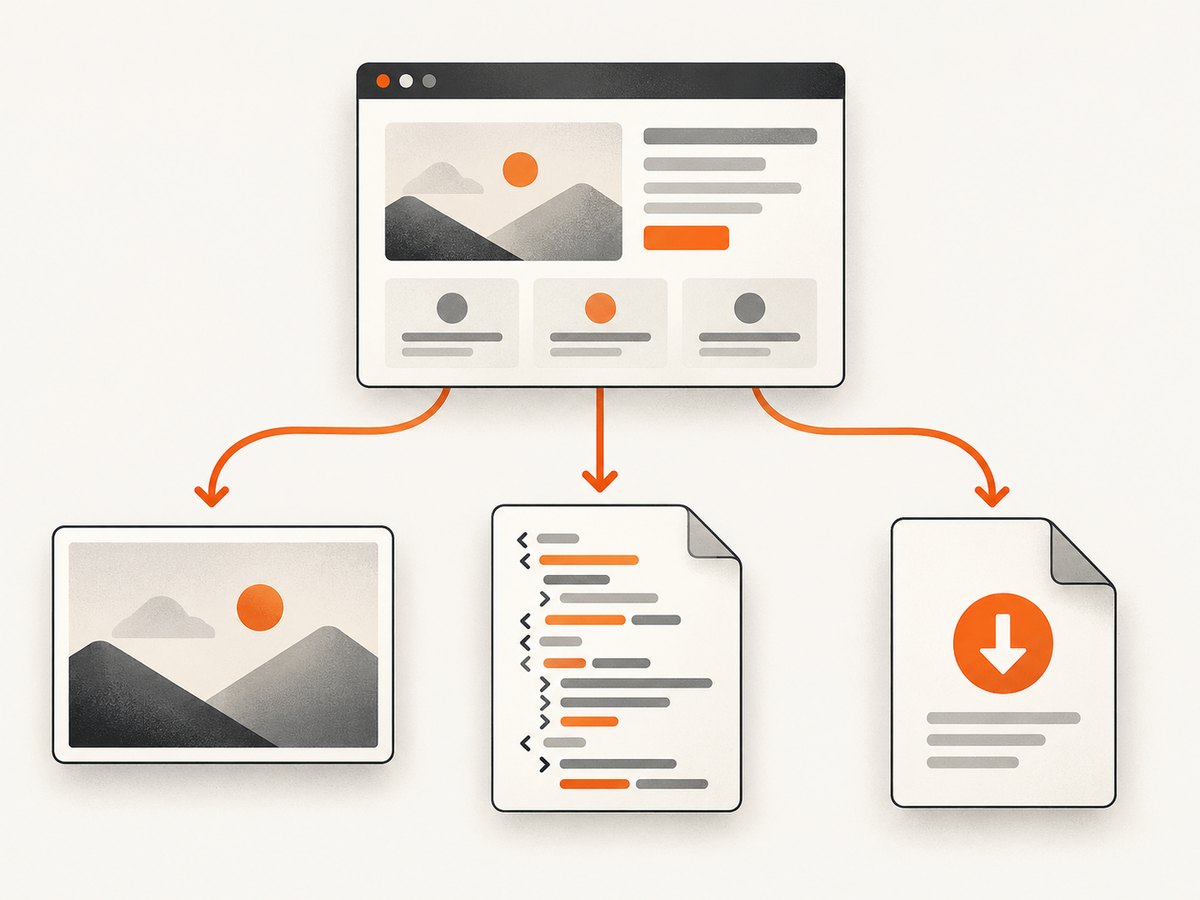
To save a rendered webpage as an image with CasperJS, call capture() after navigation finishes. To capture only one element, use captureSelector(). With PhantomJS directly, call page.render() after a successful page.open(). If you need the page’s JavaScript-rendered markup instead of a picture, use CasperJS getHTML(). A downloaded resource is a different task: CasperJS download() retrieves a remote file, not the rendered DOM.
First decide what “save a webpage” means for your task:
- Visual snapshot: PNG, JPEG, GIF, or PDF through PhantomJS rendering; CasperJS wraps the rendering API for page or selector captures.
- HTML markup: a string from
getHTML(), optionally scoped to a selector. - Remote resource: a file retrieved by
download(), such as a static asset.
This is a legacy workflow. The PhantomJS project says development is suspended, and the CasperJS repository says the project is no longer actively maintained. Treat these examples as guidance for maintaining an existing environment, not as a guarantee of compatibility with current sites or systems. See the PhantomJS project homepage and CasperJS repository.
1. Save a rendered page with CasperJS
The basic sequence is: create a Casper instance, navigate, capture inside the page step, then call run() to execute the queued steps.
var casper = require('casper').create();

casper.start('https://example.com/', function() {
    this.capture('page.png');
});

casper.run();
Run this in an environment where CasperJS and its PhantomJS runtime are installed and available to the command line. The example demonstrates the API shape; it does not assert present-day compatibility with the target site. Capture after the relevant content has loaded. If the page renders important content asynchronously, wait for a relevant selector or use the waiting features supported by your installed CasperJS version before capturing.
Capture a selected element
Use captureSelector(filepath, selector, imgOptions) to save the visual region matched by a CSS selector:
var casper = require('casper').create();

casper.start('https://example.com/', function() {
    this.captureSelector('main.png', 'main');
});

casper.run();
This is useful when a full viewport includes unrelated navigation or when you need a component rather than the whole page. The selector must match an element after the page has loaded; a missing or late-created target can produce a failed or empty capture.
Control the capture area and image options
CasperJS capture(filepath, clipRect, imgOptions) wraps PhantomJS rendering and accepts a temporary clipping rectangle. Its image options include format and quality; the documented quality setting is from 1 to 100. A clip rectangle limits the region being rendered. It does not make a browser viewport taller or guarantee that an arbitrarily long page is captured in full.
PhantomJS documents viewportSize as the browser viewport dimensions and clipRect as the captured rectangle. These settings answer different questions: viewport size affects the layout visible to the page, while clipping selects the output region. Set both deliberately when matching a particular layout or crop.
2. Save a rendered page with PhantomJS directly
When using PhantomJS without CasperJS, open a page and render only after the callback reports success:
var page = require('webpage').create();
page.open('https://example.com/', function(status) {
  if (status === 'success') {
    page.render('page.png');
  }
  phantom.exit();
});
The success check matters: rendering after a failed open can create no useful artifact. This follows the official PhantomJS screen-capture example’s basic flow. Its guide demonstrates PNG, JPEG, GIF, and PDF, along with viewport sizing and clipping controls. See the PhantomJS screen-capture guide.
To set the viewport before opening the page, assign its dimensions on the page object. For example, this changes the viewport used for layout; it is not a promise to capture the entire height of a long document:
var page = require('webpage').create();
page.viewportSize = { width: 1280, height: 900 };
page.open('https://example.com/', function(status) {
  if (status === 'success') {
    page.render('page.png');
  }
  phantom.exit();
});
3. Save the rendered HTML instead of an image
When your deliverable is markup, CasperJS getHTML() returns a string. It can retrieve the current page’s HTML, or narrow the result to a selector. The outer option includes the selected node itself.
var fs = require('fs');
var casper = require('casper').create();

casper.start('https://example.com/', function() {
    var markup = this.getHTML('main', true);
    fs.write('main.html', markup, 'w');
});

casper.run();
Here, CasperJS retrieves the markup and the filesystem write stores that returned string. Those are separate operations. Check that the selector exists and that the write path is writable in the environment where the script runs.
Do not substitute download() when you need the JavaScript-rendered DOM. CasperJS documents download(url, target, ...) for remote resources, especially static files; getHTML() is the method intended for the current rendered page markup. Consult the CasperJS API documentation for the method signatures and options.
4. Choose the right output and scope
| Goal | Use | Key detail |
|---|---|---|
| Whole rendered page | CasperJS capture() or PhantomJS page.render() |
Choose format and viewport; clipping controls the captured region. |
| One element’s appearance | CasperJS captureSelector() |
The selector needs to match a rendered element. |
| Rendered page markup | CasperJS getHTML() |
Returns a string; write it to a file separately if needed. |
| Remote file or static asset | CasperJS download() |
This fetches a resource rather than serializing the rendered DOM. |
Use an image when visual appearance is the record you need. Use HTML when you need markup to inspect or process. Use a resource download when the target itself is a file. For page rendering, PhantomJS documents PNG, JPEG, GIF, and PDF output; CasperJS capture options include format and quality. Do not assume an extension alone changes the underlying rendering mode in every legacy setup: consult the version-specific documentation for the runtime you maintain.

5. Wait for the content you need
A navigation callback tells you that the page open operation completed, but modern pages may update after that point. If the content you need is inserted asynchronously, wait for a target condition before capturing. CasperJS supports page steps and waiting patterns; use the API documentation corresponding to your installed version. Prefer a specific selector that represents the content over an arbitrary long delay when possible. A delay can be too short on a slow run and waste time on a fast one.
For lazy-loaded content, a screenshot of only the initial viewport may not trigger assets farther down the document. The supplied official references do not establish a current, universal recipe for forcing every site’s lazy content to load. Check what the maintained page actually renders, and account for the legacy browser’s behavior rather than assuming that the capture includes content that has not been loaded.
6. Or skip the browser setup
ScreenshotNeo is a website screenshot API and MCP server from Yorker Media. If you need a screenshot without maintaining CasperJS and PhantomJS, make one GET request. See the ScreenshotNeo API documentation for the request options.
curl -G "https://api.screenshotneo.com/v1/shot" -d access_key=YOUR_API_KEY --data-urlencode url=https://stripe.com -o shot.webpCookie banners are accepted like a visitor and removed, along with known newsletter popups and chat widgets, before the shot. Bot checks, blank pages, timeouts, failed loads, and cache hits cost nothing; the response identifies the page verdict and billing status in headers. Its MCP server gives AI agents tools for screenshots, page information, and PDF capture. The free plan includes 1,000 screenshots a month with no card; paid plans start at $5 for 3,000 shots. Sign up for 1,000 free screenshots a month, with no card required.
7. Troubleshooting
| Symptom | Likely cause | What to check |
|---|---|---|
| No output file | The page open failed, the script exited early, or the destination is not writable. | Check PhantomJS’s status, confirm render() runs only on success, and verify the output path. |
| Blank or incomplete image | The capture ran before relevant content appeared, or the selected region is wrong. | Wait for a page-specific selector; confirm the selector and clipping coordinates. |
| Element capture is empty | The CSS selector did not match at capture time. | Inspect the rendered page, use a selector that exists, and wait for it if it appears asynchronously. |
| Screenshot is cropped unexpectedly | The clipping rectangle and viewport were confused or have unsuitable dimensions. | Review viewportSize and clipRect independently; remove clipping to capture the default render area. |
| HTML file contains too little markup | A selector narrowed the result, or the selected node was excluded. | Call getHTML() without a selector for the page, or enable the outer-node option when appropriate. |
| Downloaded file is not the rendered page | download() retrieves a remote resource. |
Use getHTML() for rendered markup, or a capture/render method for a visual snapshot. |
| Current site behaves differently from examples | The tools are legacy and current-site compatibility is not established by the cited documentation. | Check the exact installed versions and the target site’s behavior; avoid treating old examples as a current compatibility guarantee. |
8. Performance, reliability, and cost considerations
The cited CasperJS and PhantomJS references do not provide current benchmarks, reliability figures, or a compatibility matrix. Capture time will depend on the page, the content you wait for, and the environment, so measure the pages and runtime you actually maintain instead of relying on an invented universal estimate.
For repeatable local workflows, use explicit output paths, check page-open success, wait for the content that matters, and keep capture settings consistent. A viewport change can alter responsive layout, so record the viewport alongside the output when comparing captures. If failures matter operationally, make the calling process detect missing output and failed navigation rather than assuming that a script invocation always produced a usable file.
The tools are software; the supplied documentation does not establish a service price or a cost per capture. Your practical cost is the work of maintaining the legacy runtime and handling its failures. If you use ScreenshotNeo instead, its listed plans are Free (1,000 shots/month), Starter ($5 for 3,000), Growth ($15 for 15,000), Pro ($39 for 60,000), Scale ($99 for 250,000), and Business ($249 for 1,000,000); yearly billing gives two months free, and every feature is on every plan. Only clean shots are billed, according to the product facts above.
9. Frequently asked questions
Does PhantomJS save a webpage as a PDF?
Yes. The PhantomJS screen-capture guide documents PDF rendering as well as PNG, JPEG, and GIF.
Can CasperJS save only the main content?
For a visual capture, use captureSelector(). For markup, use getHTML() with a selector.
Which tool should I choose if I need both a screenshot and the DOM?
They are separate outputs: capture or render for the visual artifact, then use getHTML() for markup.
Are these tools a safe default for a new project?
The official project pages identify both as legacy: PhantomJS development is suspended, and CasperJS is no longer actively maintained. The cited material does not establish their compatibility with current sites or operating systems.


