How to Save a Full Webpage with Chrome Headless
Use Chrome Headless to save rendered HTML, print a webpage to PDF, or capture a screenshot. Learn what each output contains and how to handle dynamic pages.
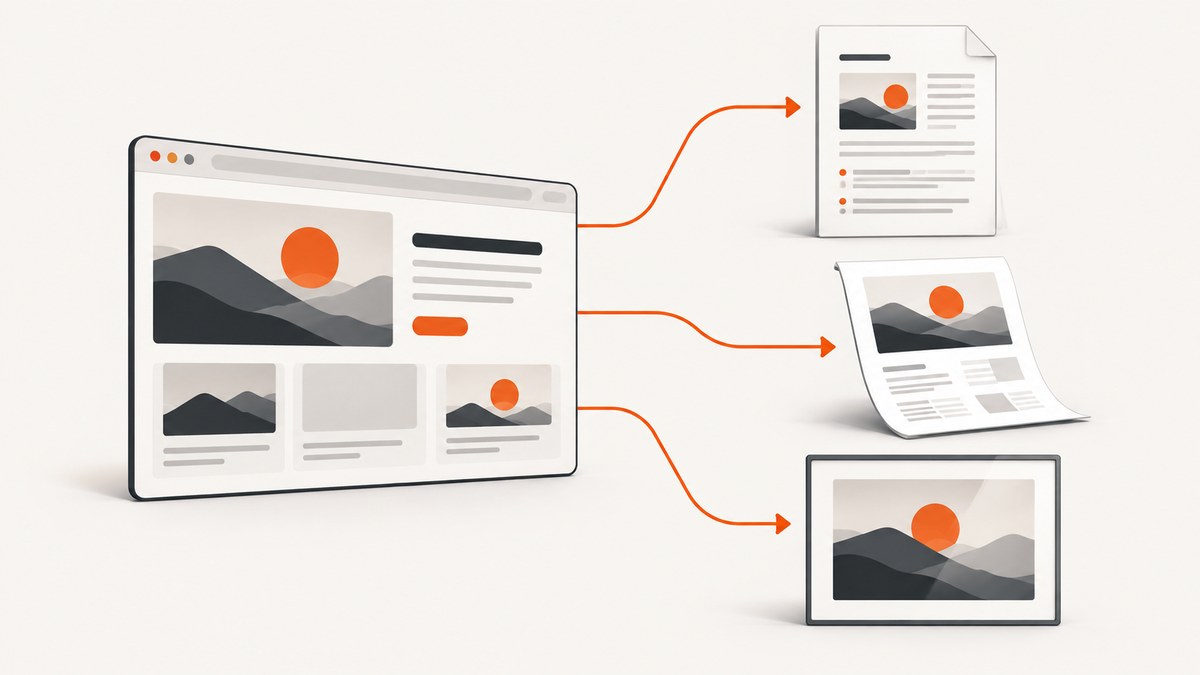
Chrome Headless can save a page in three useful ways: serialize its rendered DOM as HTML, print it to PDF, or capture a screenshot as PNG. These outputs are different: a DOM dump is useful for parsing, a PDF preserves print layout and selectable text, and a screenshot records pixels at a viewport size. The basic commands are:
chrome --headless=new --dump-dom https://example.com/ > page.html
chrome --headless=new --print-to-pdf=page.pdf https://example.com/
chrome --headless=new --screenshot=page.png --window-size=1280,2000 https://example.com/
These commands save rendered output, but they do not create a self-contained offline copy with all page resources. For that, use a separate archiving or browser automation workflow.
1. Choose the right kind of saved page
| Output | Best for | What it contains | Important limitation |
|---|---|---|---|
| Rendered DOM dump | Parsing page structure or extracting text | Serialized DOM after Chrome parses the source and runs scripts that modify the document | Not a bundle of image, font, and other resource files |
| Sharing, printing, or preserving a readable record | The page’s print rendering, usually with selectable text | Print CSS may change or omit elements compared with the screen view | |
| Screenshot | Visual evidence or a pixel capture | Pixels at the chosen viewport dimensions | A viewport screenshot does not necessarily cover the entire document |
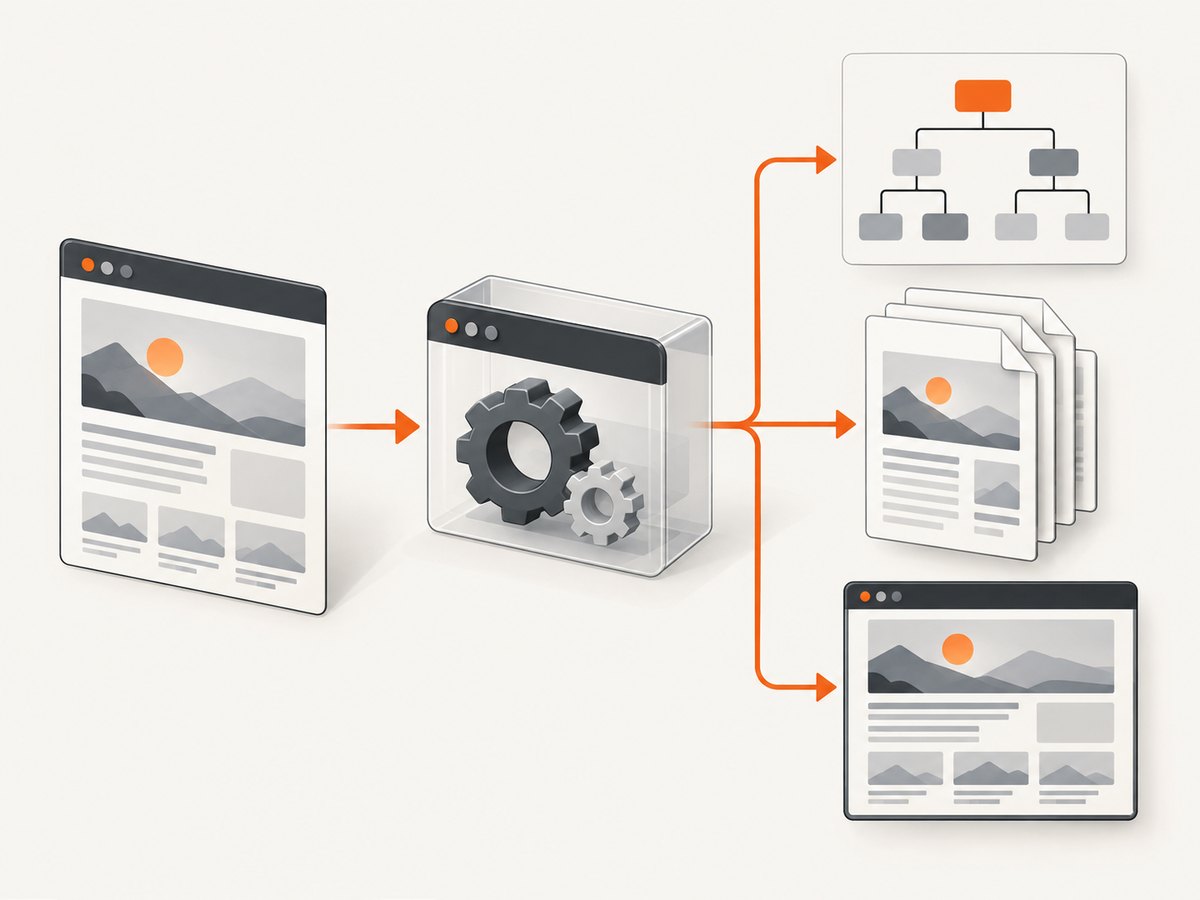
Chrome’s --dump-dom flag is not the same as downloading raw HTML with curl: Chrome parses the page, executes scripts that may alter the DOM, then serializes that DOM. See the official Chrome Headless documentation for the command-line behavior.
2. Set up Chrome Headless
Use a Chrome or Chromium executable that is available on your system. The executable may be named chrome, google-chrome, chromium, or chromium-browser, depending on how it was installed. If chrome is not found, substitute the installed executable’s name or provide its full path.
# Check whether a common executable is available
chrome --version

# Example using a different executable name
chromium --headless=new --dump-dom https://example.com/ > page.html
These are shell commands. Run them in a terminal, CI job, or server environment where Chrome is installed. When capturing a URL you do not control, consider that the page’s scripts will execute in the browser; use an appropriately isolated environment for untrusted sites.
3. Save the rendered DOM as HTML
Redirect standard output to a file to save the serialized DOM:
chrome --headless=new --dump-dom https://example.com/ > page.htmlThis is appropriate when a downstream tool needs the rendered document structure, including changes made by page scripts. It does not save the original response byte-for-byte. It also does not download linked resources into a directory, so opening the HTML later without an internet connection may leave images, stylesheets, fonts, or scripts unavailable.
To inspect the result in a terminal without saving it, omit the redirection:
chrome --headless=new --dump-dom https://example.com/4. Print a webpage to PDF
Use --print-to-pdf and choose a path for predictable output:
chrome --headless=new --print-to-pdf=page.pdf https://example.com/Chrome’s default output filename is output.pdf when no path is specified. Add --no-pdf-header-footer to omit the print header and footer:
chrome --headless=new --print-to-pdf=page.pdf --no-pdf-header-footer https://example.com/PDF output uses print rendering. A site’s print styles can hide navigation, change colors, or reflow content. If the PDF looks incomplete, inspect the page’s print stylesheet or use a screenshot when you need the visible screen layout. Chromium documents the older --print-to-pdf-no-header spelling as deprecated compatibility behavior; prefer --no-pdf-header-footer.
5. Capture a screenshot
Choose a viewport with --window-size=WIDTH,HEIGHT and provide an output path:
chrome --headless=new --screenshot=page.png --window-size=1280,2000 https://example.com/The default screenshot filename is screenshot.png if you do not supply a path. The window size determines the capture viewport; a tall value can expose more of a page, but it is not a reliable way to capture arbitrarily long documents. Very tall pages may require measuring document dimensions and using a browser automation or Chrome DevTools Protocol (CDP) workflow.
The basic screenshot command writes PNG. If you need a precise full-document image, first determine whether your installed Chrome command-line version supports the behavior you need; for consistent element-level control, wait conditions, or measured full-page capture, use browser automation or CDP.
6. Wait for dynamically loaded content
A page may render its main content after JavaScript runs or after data arrives from the network. Add --timeout to wait in real time up to the specified number of milliseconds before capture:
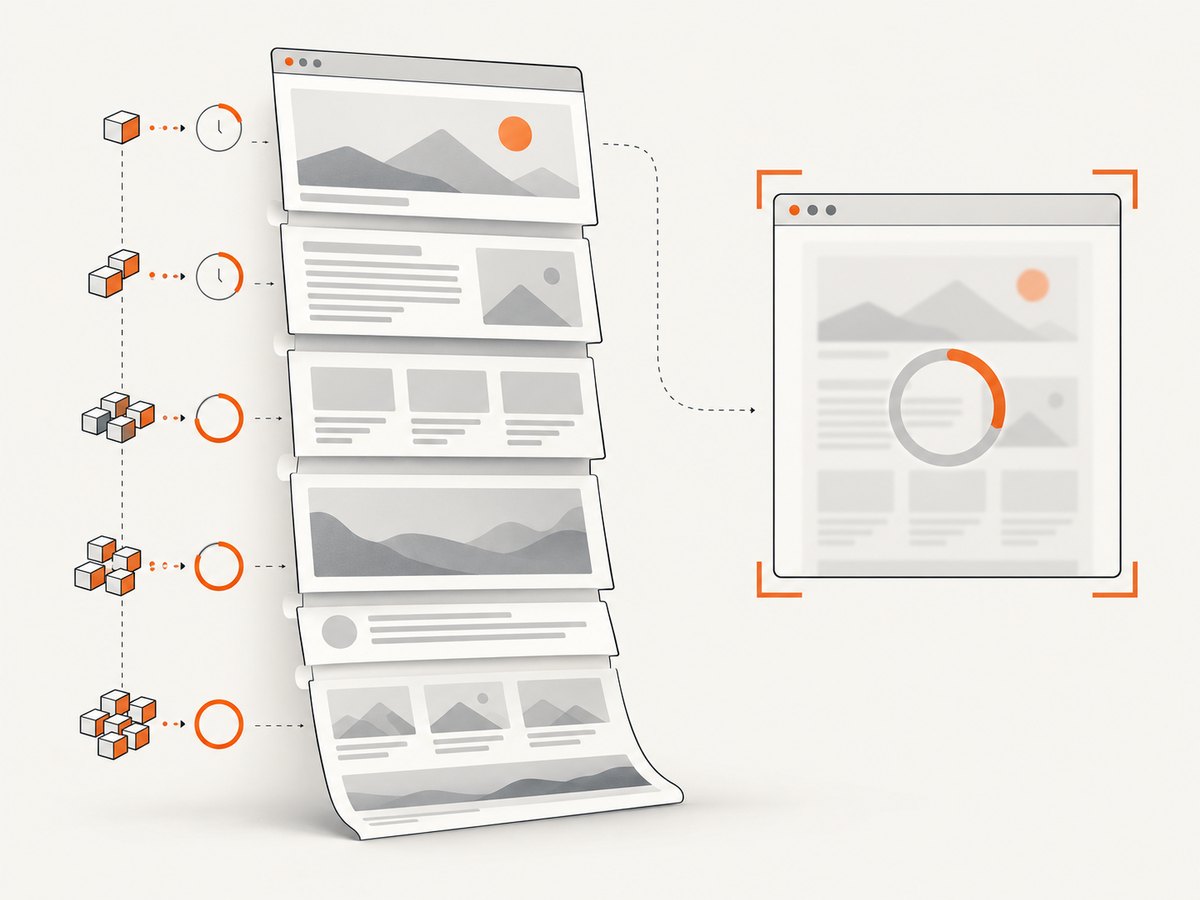
chrome --headless=new --print-to-pdf=page.pdf --timeout=5000 https://example.com/For timer-driven pages or demos, use a virtual time budget:
chrome --headless=new --print-to-pdf=page.pdf --virtual-time-budget=5000 https://example.com/--timeout waits against real elapsed time. --virtual-time-budget advances page timers quickly; network fetches can still gate the page. Neither flag guarantees that a particular application-specific element has appeared. If the page has unpredictable loading behavior, a script that waits for a selector or other explicit readiness condition is more reliable than a fixed delay.
7. Run the commands from scripts
cURL
cURL downloads a response; it does not run Chrome or execute page JavaScript. Use it only when you want the server’s raw HTTP response rather than the rendered DOM:
curl -L https://example.com/ -o source.htmlPython
This Python example starts Chrome as a subprocess and saves a PDF. It assumes the executable is available as chrome in PATH:
import subprocess

url = "https://example.com/"
subprocess.run(
    [
        "chrome",
        "--headless=new",
        "--print-to-pdf=page.pdf",
        "--no-pdf-header-footer",
        "--timeout=5000",
        url,
    ],
    check=True,
)
For a DOM dump, capture standard output instead:
import subprocess

result = subprocess.run(
    ["chrome", "--headless=new", "--dump-dom", "https://example.com/"],
    check=True,
    capture_output=True,
    text=True,
)
with open("page.html", "w", encoding="utf-8") as output:
    output.write(result.stdout)
Node.js
This Node.js example runs Chrome and writes a PDF. It assumes Chrome is available as chrome on PATH:
const { execFile } = require('node:child_process');

execFile(
  'chrome',
  [
    '--headless=new',
    '--print-to-pdf=page.pdf',
    '--no-pdf-header-footer',
    '--timeout=5000',
    'https://example.com/',
  ],
  (error, stdout, stderr) => {
    if (error) {
      console.error(stderr || error.message);
      process.exitCode = 1;
      return;
    }
    console.log('Saved page.pdf');
  }
);
Use argument arrays such as execFile instead of building a shell command from a URL. This avoids shell quoting problems when URLs contain special characters.
8. What the basic CLI does not save
A DOM dump, PDF, or screenshot is not a “Webpage, complete” archive. The basic commands do not provide an offline resource bundle containing all linked images, fonts, stylesheets, and scripts. A DOM dump refers to resources by their page URLs; a PDF embeds what the print output needs; a screenshot contains only pixels.
If you need an offline archive, treat it as a separate task: identify the required resources and use an archiving format or automation workflow that captures them. The documented basic Headless CLI commands do not provide a direct MHTML or complete-page save switch.
9. Troubleshooting
| Symptom | Likely cause | Fix |
|---|---|---|
chrome: command not found |
Chrome is absent from PATH or has another executable name. |
Install Chrome/Chromium in the environment, use the installed binary name, or call its full path. |
| Output file is missing or has an unexpected name | The output path was omitted, misspelled, or is not writable. | Set --print-to-pdf=page.pdf or --screenshot=page.png and write to a directory the process can access. |
| HTML contains a loading shell but not the expected data | The page loads content asynchronously or requires user interaction. | Try --timeout=5000 or a virtual time budget. For dependable capture, automate a wait for the actual content selector or application readiness signal. |
| PDF differs from the visible page | Print styles change the layout or hide screen-only content. | Inspect print CSS; use a screenshot if you need a visual record of the screen rendering. |
| Screenshot misses content below the fold | --window-size sets the viewport, not a general full-document capture guarantee. |
Use a larger viewport for a known page or measure document height with CDP/browser automation for long pages. |
| Saved HTML does not work offline | The DOM dump does not bundle external resources. | Use a resource archiving workflow if offline portability is required. |
| Capture exits before a site is ready | A fixed wait is shorter than the site’s loading delay, or network activity does not settle as expected. | Increase the wait for a quick check, then prefer an explicit selector or readiness condition for repeatable jobs. |
10. Performance, reliability, and cost
Each CLI capture starts a browser process, so repeated captures can add startup and memory overhead. For a small number of pages, direct commands are simple. For a steady batch, reuse a browser through an automation or CDP workflow and set explicit timeouts, concurrency limits, and output paths.
Capture reliability depends on the page as well as Chrome: network delays, client-side rendering, consent dialogs, bot checks, and print styles can all change the result. A fixed delay is easy to use but can waste time on fast pages and still be too short for slow ones. Waiting for a meaningful selector makes readiness criteria clearer.
The local Chrome workflow has no per-request ScreenshotNeo charge, but you operate the browser environment and its runtime yourself. Consider the cost of browser hosting, maintenance, and failed captures when running it at scale.
Or skip the browser setup
For a screenshot or PDF through an API, ScreenshotNeo takes one GET request with a URL. Its API documentation describes the request options.
curl -G "https://api.screenshotneo.com/v1/shot" -d access_key=YOUR_API_KEY --data-urlencode url=https://stripe.com -o shot.webpScreenshotNeo accepts cookie and consent banners like a visitor, then removes 60+ known consent platforms, newsletter popups, and chat widgets before capture; each cleanup step can be turned off. Bot checks and CAPTCHAs, blank pages, timeouts, failed loads, and cache hits are not billed, and response headers report the page verdict and billing status. Its MCP server provides take_screenshot, get_page_info, and capture_pdf for Claude, Cursor, and other MCP clients. The free plan includes 1,000 shots a month with no card; paid plans start at $5 for 3,000 shots, and every feature is on every plan. Sign up for 1,000 free screenshots a month, with no card required.
Frequently asked questions
Does --dump-dom save the original source HTML?
No. It serializes the DOM after Chrome parses the page and runs scripts that may modify it. Use an HTTP client such as cURL if you specifically need the raw response body.
Can Chrome Headless save a complete webpage for offline use?
Not with these basic commands. They save the DOM, print output, or pixels; they do not create a bundled copy of all linked resources.
Which output preserves selectable text?
A PDF generally preserves text from the print rendering as selectable text. A screenshot is pixels, and a DOM dump is text and markup rather than a paginated document.
How do I capture a page that requires login?
The basic examples do not pass credentials or manage a login session. Use a controlled browser automation workflow that establishes the session and handles credentials securely before capture.


