How to Save a Webpage as a High-Resolution Image
Save a whole webpage as an image in Firefox, increase its capture scale, and choose the right settings when you need a larger or automated screenshot.
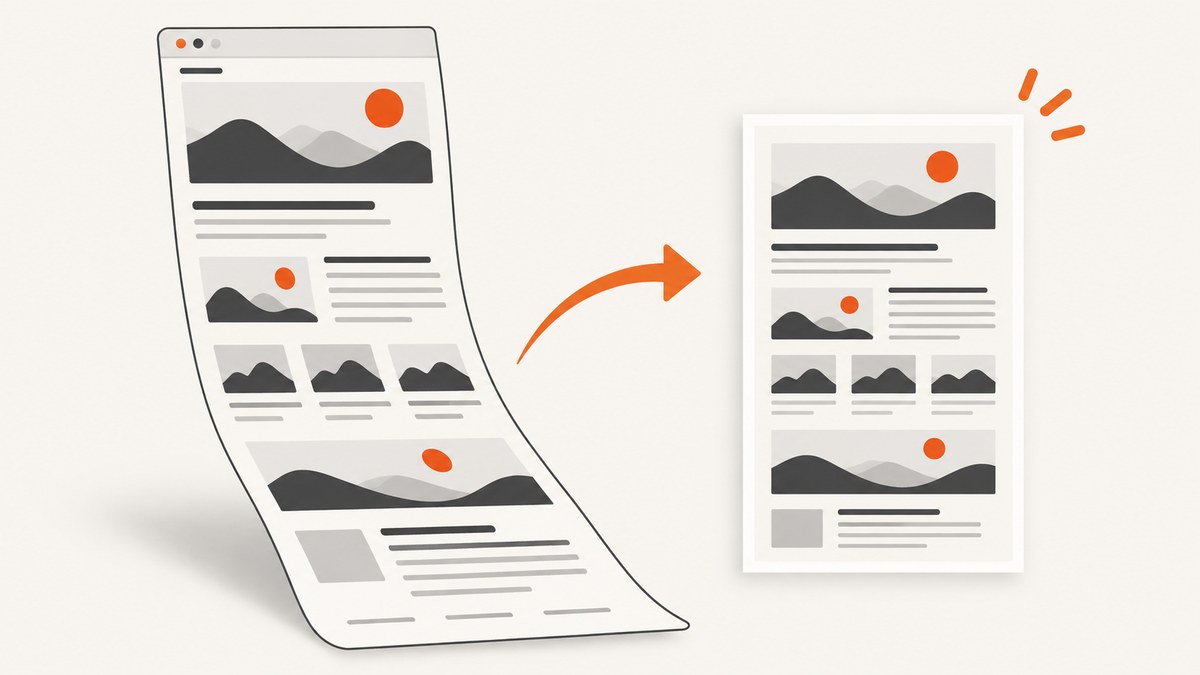
To save a webpage as a full-page image, open it in Firefox, right-click an empty part of the page, choose Take Screenshot, then choose Save full page. Firefox saves the capture as a PNG. If you need a larger raster image, use Firefox’s Web Console screenshot helper with a device-pixel ratio (DPR) above 1, for example :screenshot --fullpage --dpr 2. A larger DPR creates more output pixels; it cannot add detail that the page’s source images and fonts do not contain.
This guide covers the built-in Firefox workflow, the DPR command, choosing between page, viewport, region, and element captures, and practical limits such as very tall pages and lazy-loaded content. If you need repeatable captures from code or an API, there is also a one-request option below.
1. Choose the capture you actually need
Before saving, decide what the image needs to show. A whole document, a visible screen, a selected region, and one page element are different outputs. Capturing more than you need can make a file needlessly large; capturing less can omit the context you want to share or archive.
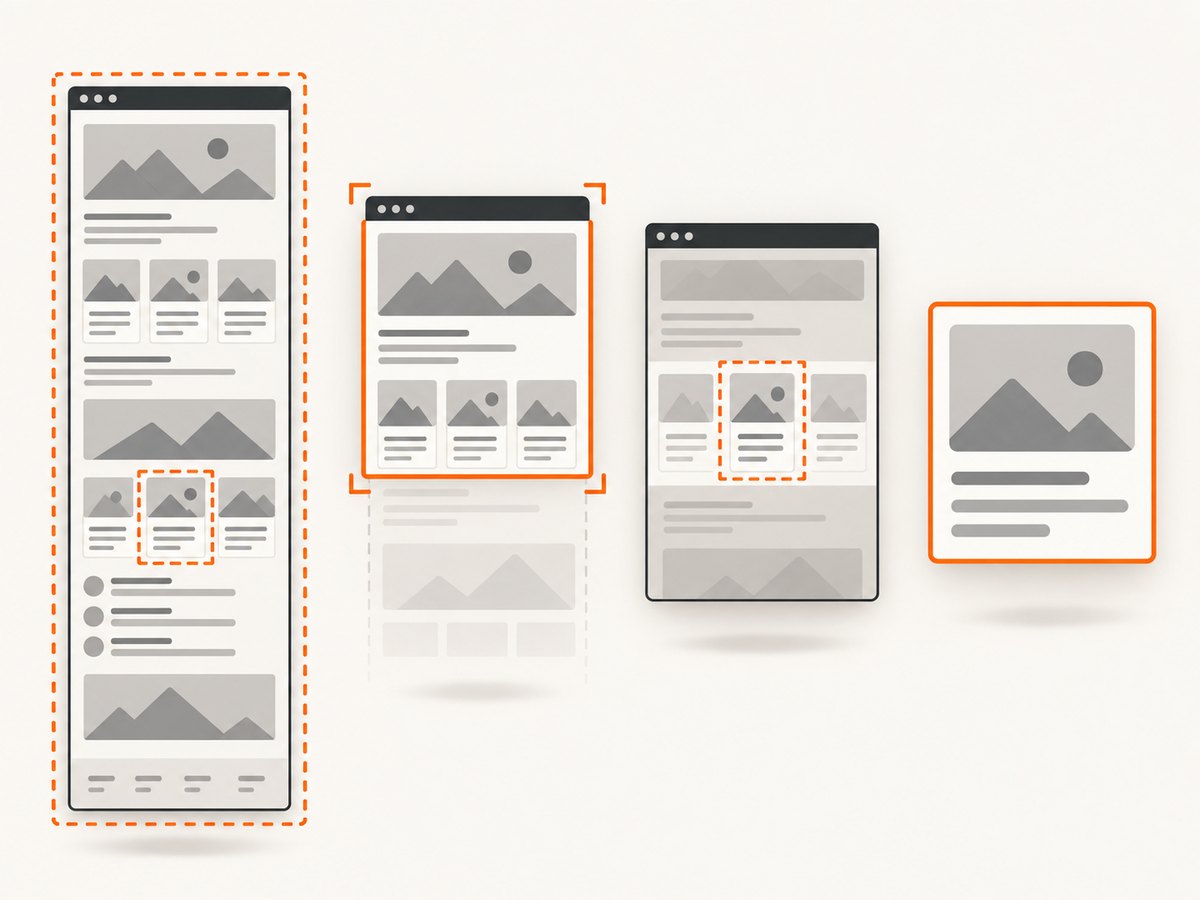
| Capture | Use it when | Firefox route |
|---|---|---|
| Full page | You need the complete document, including content below the fold. | Take Screenshot → Save full page, or use --fullpage. |
| Visible area | You need only what is currently on screen. | Take Screenshot → Save visible. |
| Region | You want a selected portion of the page. | Choose a region in Firefox’s screenshot interface. |
| Element | You want one card, chart, table, or other page component. | Select the highlighted element in the screenshot interface, or use Developer Tools’ Screenshot Node command on an inspected node. |
For a long article or landing page, use full page. For a bug report about a visible menu, use the visible area or a region. For a component review, an element capture avoids including unrelated page content.
2. Save a full-page image in Firefox
- Open the webpage in Firefox and wait for the content you need to appear.
- Right-click an empty area of the page. If the page blocks the context menu, use
Ctrl+Shift+Son Windows or Linux, orCommand+Shift+Son macOS. - Choose Take Screenshot.
- Select Save full page to capture the complete document. Choose Save visible for the current viewport, or select a region or highlighted element if that is your intended scope.
- Save the resulting PNG and check that it contains the expected top, bottom, and any important dynamic content.
Mozilla documents this built-in flow and the PNG output. If a menu label or shortcut differs in your installation, consult the current Firefox screenshot instructions; browser interfaces can change.
3. Increase the capture scale with the Web Console
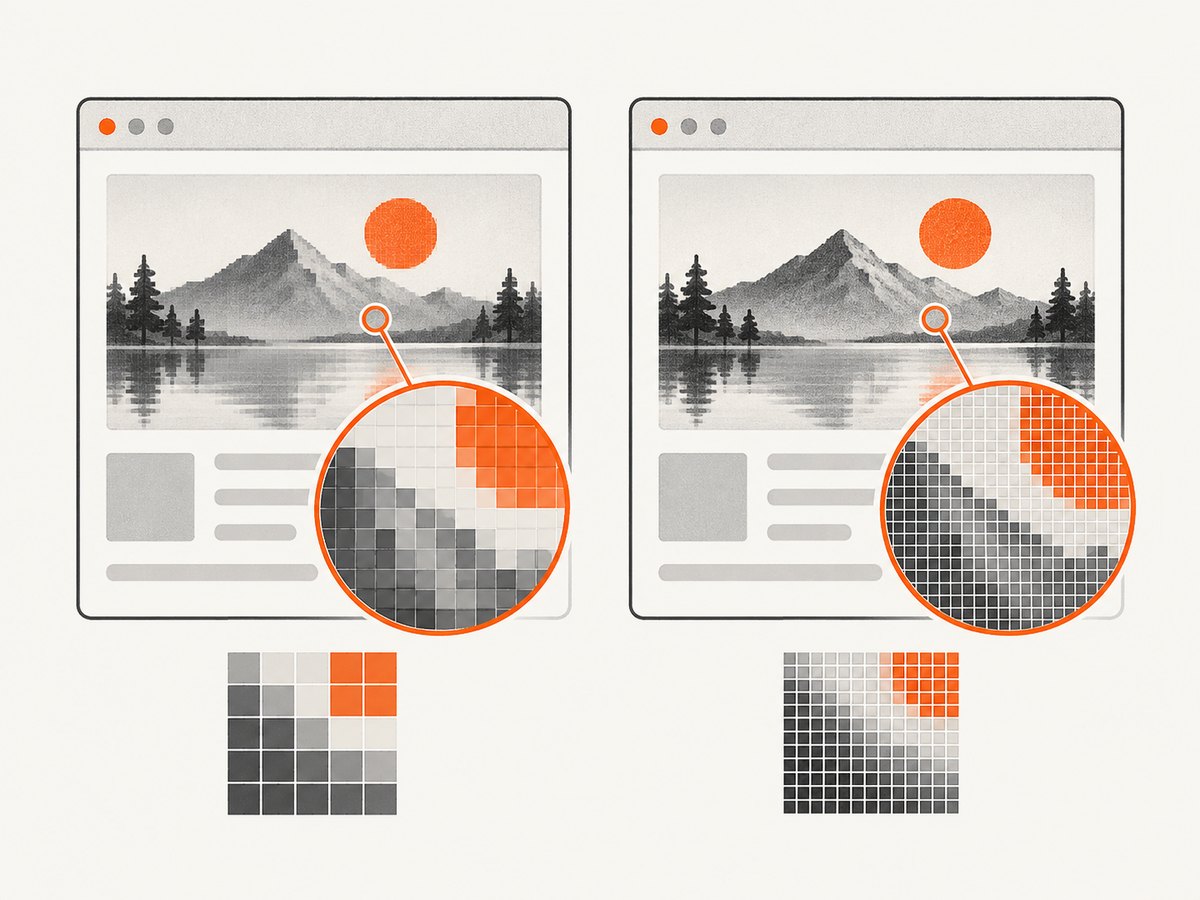
When you need a higher-pixel raster, Firefox’s Web Console screenshot helper accepts --dpr. DPR means device-pixel ratio: it controls the relationship between the page’s logical rendering size and the pixel dimensions of the capture. Mozilla documents --fullpage for the whole page and --dpr for setting the ratio.
:screenshot --fullpage --dpr 2To use it:
- Open the target page and let its layout settle.
- Open Firefox Developer Tools and select the Web Console.
- Enter the screenshot command and press Enter.
- Save the generated image when prompted, then inspect its pixel dimensions and visual quality.
A DPR of 2 requests a capture at twice the device-pixel scale relative to DPR 1. The resulting file can be substantially larger, especially for a tall page. Do not assume a fixed output width or height: page dimensions, browser behavior, and the chosen scale all affect the result. Mozilla notes that values above 1 yield “zoomed-in” images, while values below 1 yield “zoomed-out” images. The command also supports a delay, filename, selector, and forcing file output; see the Firefox Web Console command-line helpers reference for current syntax. The screenshot icon in Developer Tools may need to be enabled in toolbox settings.
What a larger DPR improves—and what it cannot
A higher DPR can increase the number of pixels in the saved raster, which can help when inspecting fine edges or placing the image at a larger display size. It does not recreate details that the original page never supplied. If a page uses a small, blurry source image, capturing that image at a higher DPR only makes a larger raster of the same limited source detail.
Websites can supply different image resources for different pixel ratios. For critical image quality, check whether the page loads an appropriate high-density asset and whether fonts and charts render sharply at the chosen size. Apple’s responsive-design documentation describes how viewport and pixel-ratio conditions relate to web content, while MDN describes screen pixel ratio in capture contexts: Apple Responsive Design Mode documentation and MDN screenPixelRatio.
If you need text to remain selectable or legible at arbitrary zoom for print, investigate whether a PDF suits the task. A PDF is a different output format and may not preserve the page’s on-screen appearance; it is not automatically an equivalent high-resolution screenshot.
4. Capture a page element in Developer Tools
For a single inspected node, Firefox Developer Tools provides Screenshot Node. This is useful for a chart, product card, or isolated component whose boundaries are defined by the page’s markup.
- Open Developer Tools and use the Inspector to select the element.
- Open the node’s context menu.
- Choose Screenshot Node and save the image.
Use a region capture instead if the desired crop crosses several elements or includes visual spacing outside one node. A node capture follows the selected element’s rendered bounds, so verify that shadows, overflow, or neighboring labels are not clipped.
5. Automate a screenshot with an API
For one-off manual work, Firefox is a straightforward built-in choice. For recurring captures, scheduled jobs, or an application that needs screenshots from URLs, an API avoids opening a browser and saving each file by hand. ScreenshotNeo is a website screenshot API and MCP server from Yorker Media. One GET request can return PNG, JPEG, WebP, or a PDF. Its capture options include full-page output, element selection, viewport and device presets, retina scale, and waits for a selector, delay, or network idle. See ScreenshotNeo and the API documentation for the request options and current parameter details.
cURL
curl -G "https://api.screenshotneo.com/v1/shot" \
  -d access_key=YOUR_API_KEY \
  --data-urlencode url=https://stripe.com \
  -o shot.webp
Python
import requests

r = requests.get(
    "https://api.screenshotneo.com/v1/shot",
    params={"access_key": "YOUR_API_KEY", "url": "https://stripe.com"},
    timeout=90,
)
r.raise_for_status()
with open("shot.webp", "wb") as f:
    f.write(r.content)
Node.js
const q = new URLSearchParams({
  access_key: 'YOUR_API_KEY',
  url: 'https://stripe.com'
});
const res = await fetch(`https://api.screenshotneo.com/v1/shot?${q}`);
if (!res.ok) throw new Error(`Screenshot request failed: ${res.status}`);
const bytes = Buffer.from(await res.arrayBuffer());
await import('node:fs/promises').then(fs => fs.writeFile('shot.webp', bytes));
The snippets request a screenshot of the example URL. Replace it with the page you are authorized to capture. For a high-resolution result, consult the docs for the retina scale parameter and output format. The response is an image or PDF payload; check its content type and response headers in your application if you need to distinguish output types or page outcomes.
6. Or skip the browser setup
ScreenshotNeo can capture a URL with one request. Its capture process accepts cookie and consent banners like a visitor, then removes more than 60 known consent platforms, newsletter popups, and chat widgets; each step can be turned off. Bot checks and CAPTCHAs, blank pages, timeouts, failed loads, and cache hits cost nothing, and response headers report the page verdict and billing status. An MCP server provides take_screenshot, get_page_info, and capture_pdf tools for Claude, Cursor, and other MCP clients. The free plan includes 1,000 screenshots per month with no card; paid plans start at $5 for 3,000, and every feature is on every plan.
curl -G "https://api.screenshotneo.com/v1/shot" \
  -d access_key=YOUR_API_KEY \
  --data-urlencode url=https://stripe.com \
  -o shot.webp
See the ScreenshotNeo docs for API parameters, then create a free account to get 1,000 screenshots a month with no card.
7. Browser coverage and alternatives
The Firefox workflow above is the full-page image path documented in the research for this guide. Avoid assuming that other browser archive features produce image files:
- Chrome: The cited
pageCaptureextension API saves a tab as MHTML, an archive format rather than a raster screenshot. The reviewed sources did not verify exact Chrome DevTools steps for full-page image export, so check current Chrome documentation before relying on a particular menu path. See Chrome pageCapture API. - Safari: The reviewed Apple source explains Responsive Design Mode and pixel-ratio context, but does not establish a full-page image-export workflow. Exact Safari export steps remain unresolved in the sources used here. See Apple’s documentation.
- Chrome extension: The Chrome Web Store listing describes GoFullPage as a full-page capture extension. Check its current listing for compatibility and details before installing; extension capabilities and browser compatibility can change. See the GoFullPage listing.
8. Troubleshooting common capture problems
| Problem | Likely cause | What to try |
|---|---|---|
| The saved image only shows the viewport. | The visible-area option was selected. | Repeat the capture and choose Save full page, or use --fullpage in the Web Console. |
| The file is large or slow to open. | A high DPR multiplied the pixel count; a long document can create a very large raster. | Use the lowest DPR that meets your inspection or sharing needs. Capture a region or element if the full page is unnecessary. |
| The screenshot is large but still blurry. | The page may use a low-resolution source asset, or the content itself may be rendered with limited detail. | Check the page at its intended size and verify the source image quality. Increasing DPR cannot restore detail absent from the source. |
| Images or sections are missing near the bottom. | The page may load content lazily as it enters view, or content may depend on interaction or time. | Wait for the page to settle and inspect the output. For automated capture, use an appropriate wait condition or delay; confirm that the site actually loads the content during the capture. |
| The screenshot command is unavailable. | You may be in the wrong Developer Tools panel, or the screenshot tool icon may be disabled. | Open the Web Console, check toolbox settings for the screenshot icon, and consult Mozilla’s current helper reference for command syntax. |
| A selected element is clipped or missing context. | The node bounds do not include neighboring labels, overflow, or shadows. | Try a larger region capture or select a parent element whose rendered bounds include the needed content. |
| A Chrome save action creates an archive rather than an image. | The selected API or feature saves MHTML. | Check the output format before using it as a screenshot. MHTML is an archive, not PNG or another raster image. |
9. Performance, reliability, and cost considerations
Pixel count drives file size. Increasing DPR in both page width and height can multiply total pixels quickly. A full-page capture has the document’s full rendered height, so a long page at a high DPR may produce a large file and take longer to save or transmit. Start with the built-in scale, inspect the result, and increase only when the extra detail is useful.
Page behavior affects what gets captured. Animated content, delayed rendering, lazy-loaded images, consent overlays, and content behind interactions can make two captures of the same URL differ. Wait for the intended state and use an explicit selector, delay, or network-idle condition in automated workflows when appropriate. Network idle alone may not mean every visual element is ready, so verify important content in the output.
Keep a repeatable capture setup. For archival or comparison work, record the URL, capture date, viewport, scale, and whether the result is full-page or cropped. This makes later differences easier to interpret. If you capture sensitive or authenticated pages, consider what account data and cookies the browser or service can access, and only capture pages you have permission to process.
Choose cost based on volume. A built-in browser capture has no per-request API charge, but it requires a person or an automation setup. ScreenshotNeo’s stated plans are Free: 1,000 shots/month, Starter: $5 for 3,000, Growth: $15 for 15,000, Pro: $39 for 60,000, Scale: $99 for 250,000, and Business: $249 for 1,000,000; yearly billing gives two months free. Only clean shots are billed, and the response includes X-Page-Verdict and X-Billed headers. Review the current docs and plan details before building a budget around a particular volume.
Frequently asked questions
How do I save a webpage as an image?
In Firefox, right-click the page, choose Take Screenshot, then choose Save full page or Save visible. The saved screenshot is a PNG.
How do I take a full-page screenshot in Firefox?
Use Take Screenshot → Save full page, or enter :screenshot --fullpage in the Web Console.
How can I increase screenshot resolution?
Use Firefox’s Web Console helper with a DPR above 1, such as :screenshot --fullpage --dpr 2, then inspect the saved dimensions and file size.
Does a higher DPR make a screenshot sharper?
It can create a larger raster capture, but it cannot add original detail missing from the page’s image assets or rendered content.
Is a PDF the same as a high-resolution screenshot?
No. A PDF is a different format and may not preserve the page’s on-screen appearance. Choose based on whether you need a visual snapshot or a document suited to print and zoom.


