How to Save a Webpage Image as JPG
Save an image from a webpage, check what format you got, and convert it to JPG when needed. Renaming a file does not convert it.
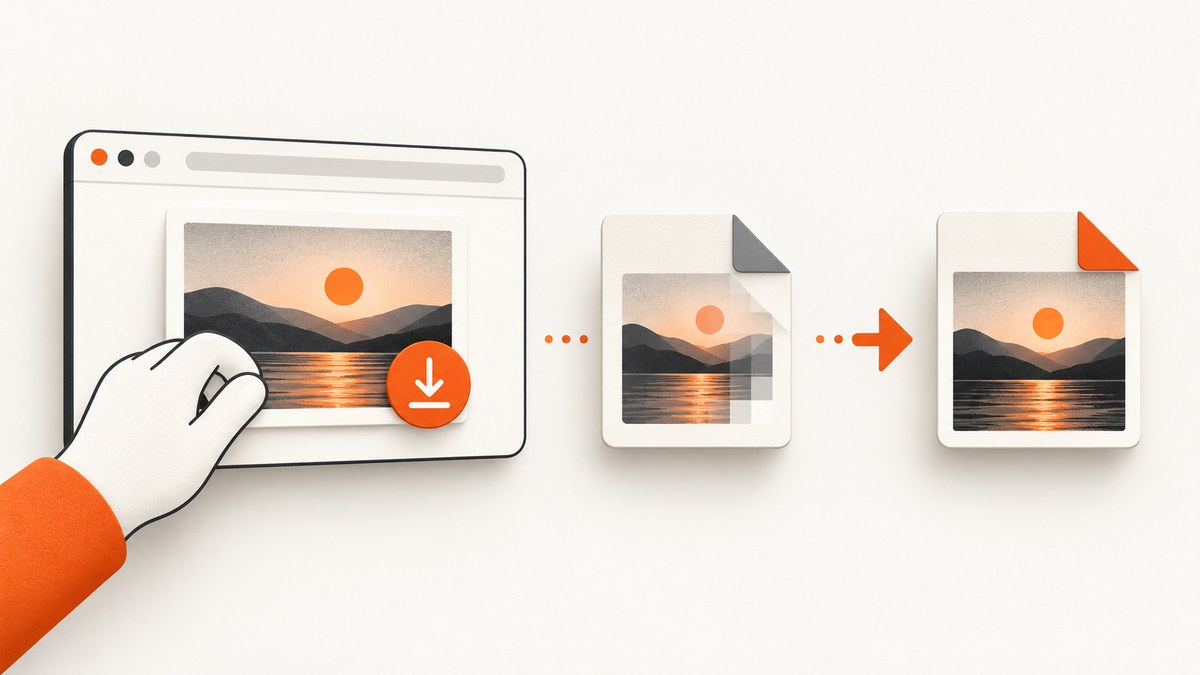
To save a webpage image as JPG, use the browser’s image menu to download it, check the file you saved, and convert it to JPEG if it arrived in another format. A file ending in .webp or .png does not become a JPEG when you rename it to .jpg: the image data has to be decoded and encoded again.
JPEG files commonly use the extensions .jpg and .jpeg. Webpages may deliver images as WebP, which is supported by current major browsers, so the saved file may not be the format you expected. Check the downloaded file instead of assuming its format from how it appeared on the page. MDN’s image format guide describes common image types and extensions, and Google’s WebP documentation covers WebP and conversion tools.
1. Save the image from the webpage
- Open the webpage and locate the image you want.
- Right-click the image, or open the equivalent image menu on your device.
- Choose the browser option to save or download the image. The label and available options vary by browser, device, and site.
- Choose a folder and filename, then save it.
- Find the saved file and check its extension or open it in an image viewer to inspect its file type.
If the saved file is already a JPEG, you are done. If it is WebP, PNG, or another format, use an image editor or conversion tool to export a JPEG copy. Keep the original if you might need its full quality or transparency later.
Browser menus differ, and a site can affect what the browser offers. Chrome Help describes downloading files through Chrome, while Mozilla explains that Firefox’s actions can depend on configured file types and what it can decode: Chrome Help: Download a file and Mozilla Support: Manage file types and download actions.
2. Check the actual image format
Start with the filename extension, such as .jpg, .jpeg, .png, or .webp. An image viewer or file information panel may also display the format. If the file has no extension, or you suspect its extension is misleading, open it in an image editor that identifies the decoded format.
| What you see | What it usually means | What to do |
|---|---|---|
.jpg or .jpeg |
JPEG file | Use it as is if JPEG is what you need. |
.webp |
WebP file | Open it in a converter or editor and export JPEG. |
.png |
PNG file | Export a JPEG copy if you need JPEG. |
| No familiar extension | Format is unclear | Inspect it with an image viewer or editor before converting. |
The extension is a useful clue, but it is not a conversion instruction. Renaming photo.webp to photo.jpg changes only the filename. Software must read the WebP data and write new JPEG data for the file to become a JPEG.
3. Convert the image to JPEG
Open the downloaded image in an image editor or image conversion tool that supports the source format. Choose an export, save-as, or convert option, select JPEG/JPG as the output format, and save a new file. Keep the source file until you have confirmed that the new JPEG opens correctly.

- Open the original image in your chosen editor or converter.
- Choose its export or save-as command.
- Select JPEG or JPG as the output format.
- Choose a destination and a new filename, such as
photo-converted.jpg. - Save, then open the new file to confirm it is readable and looks acceptable.
JPEG is a lossy format, so exporting may change image data. If the export dialog offers a quality setting, use a suitable quality for your purpose and review the result. If you need transparency, keep the original too: JPEG does not preserve transparent areas as transparency.
4. Choose a method that fits the job
| Method | Good fit when | Check before using |
|---|---|---|
| Browser save, then convert | You need one image and already have an editor or converter. | Check the saved format and export JPEG rather than renaming. |
| Browser extension with a format option | You often want a format choice from the image menu. | Review the publisher, current availability, and requested permissions before installing. |
| Screenshot API | You need a rendered capture of a webpage, rather than the original image file. | Confirm the result you need is a page screenshot and select the desired output format. |
An extension can add format choices to an image context menu. For example, a Chrome Web Store listing for Save Image As Type – PNG JPG WebP describes such an option. A store listing is a description of the extension, not independent testing. Check its current publisher, permissions, and availability before installing. You do not need an extension if your normal browser download followed by a converter works for you.
5. When you need a screenshot of the webpage
Saving an image downloads an image resource from the page. A screenshot captures the page as it is rendered in a browser. Those results can differ: use the browser’s image save action when you want the image itself; use a screenshot when you want the surrounding page layout or a rendered view.
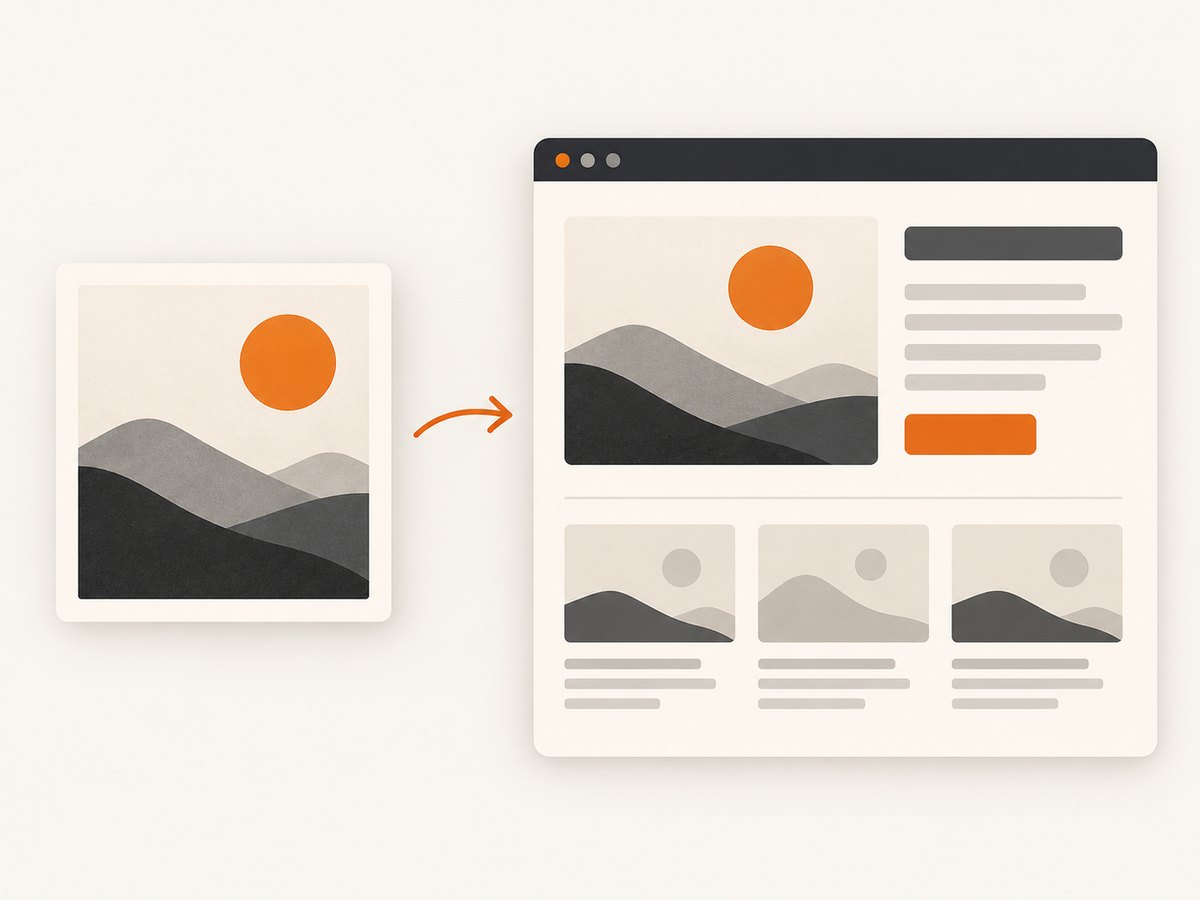
For a manual screenshot, use your browser or operating system’s screenshot feature, then export or convert the resulting image to JPEG if necessary. The exact controls depend on your browser and device, so check the relevant help for your setup. If the goal is to capture the whole page, a page screenshot tool can handle rendering and output format in one workflow.
Or skip the browser setup
ScreenshotNeo is a website screenshot API and MCP server from Yorker Media. A single GET request can return a PNG, JPEG, WebP, or PDF capture. Its clean-shot steps can accept cookie or consent banners and remove more than 60 known consent platforms, newsletter popups, and chat widgets; each step can be turned off. Bot checks and CAPTCHAs, blank pages, timeouts, failed loads, and cache hits cost nothing, and response headers say the page verdict and whether it was billed. AI agents using Claude, Cursor, or another MCP client can use its take_screenshot, get_page_info, and capture_pdf tools.
For a JPG page capture, request JPEG output using the API’s documented parameters. See the ScreenshotNeo documentation for the current request options. This cURL example saves the API response to a file; use the documented JPEG format parameter for the request:
curl -G "https://api.screenshotneo.com/v1/shot" \
  -d access_key=YOUR_API_KEY \
  --data-urlencode url=https://stripe.com \
  -o shot.jpg
Setting the output filename to shot.jpg alone does not convert the response. Confirm the documented format parameter is set to JPEG, then check the resulting file. These equivalent request patterns show the basic GET call in Python and Node.js; consult the docs to add the JPEG format option:
import requests

r = requests.get(
    "https://api.screenshotneo.com/v1/shot",
    params={"access_key": "YOUR_API_KEY", "url": "https://stripe.com"},
    timeout=90,
)
r.raise_for_status()
open("shot.jpg", "wb").write(r.content)
const q = new URLSearchParams({
access_key: 'YOUR_API_KEY',
url: 'https://stripe.com'
});
const res = await fetch(`https://api.screenshotneo.com/v1/shot?${q}`);
if (!res.ok) throw new Error(`Screenshot request failed: ${res.status}`);
const bytes = new Uint8Array(await res.arrayBuffer());
await import('node:fs/promises').then(fs => fs.writeFile('shot.jpg', bytes));Free includes 1,000 shots per month with no card. Paid plans start at $5 for 3,000 shots; every feature is on every plan. Sign up for ScreenshotNeo’s free plan and try a page capture.
6. Common problems and fixes
| Problem | Likely cause | Fix |
|---|---|---|
The saved file ends in .webp. |
The page supplied WebP and the browser saved that resource. | Open it in an editor or converter and export a JPEG copy. |
| Renaming the file makes it unreadable. | The extension changed, but the encoded image data did not. | Restore a suitable extension or reopen the original, then convert and export JPEG. |
| The image menu has no save option. | The site or browser does not expose the same menu action for that content. | Try the browser’s available download action or an authorized screenshot workflow. Menu options vary by browser and site. |
| The downloaded image is not the full page view. | You saved an image resource, not a rendered page capture. | Take a page screenshot if you need the surrounding layout and content. |
| The converted JPEG looks different. | JPEG export can change image data; the source may also contain transparency that JPEG cannot retain. | Review export settings and keep the original when quality or transparency matters. |
| A converter cannot open the file. | The source format may not be supported, or the download may be incomplete. | Check the file in another viewer, download it again if appropriate, and use a converter that supports its actual format. |
| A screenshot file named JPG is not recognized as JPEG. | The request may have returned another format despite the filename. | Set the API output format according to its documentation and inspect the response/file format. |
7. Quality, reliability, and cost considerations
For an image already available on a page, downloading and converting avoids capturing unrelated page content. A screenshot is useful when the rendered page itself is the deliverable. Decide which object you need before choosing a method.
Conversion introduces a new file and can involve lossy encoding. Keep the original if you may need to retry with different settings or retain transparency. For repeated manual downloads, an extension may reduce steps, but installing software brings publisher and permission checks. A screenshot API can automate rendered captures; check its output format and response before treating a saved filename as proof of format.
For ScreenshotNeo, the listed monthly plans are Free: 1,000 shots; Starter: $5 for 3,000; Growth: $15 for 15,000; Pro: $39 for 60,000; Scale: $99 for 250,000; and Business: $249 for 1,000,000. Yearly billing gives two months free. Choose based on the number of page captures you need; a single downloaded image may not call for an API at all.
Frequently asked questions
Is JPG different from JPEG?
The extensions .jpg and .jpeg commonly identify the JPEG format. The shorter extension is often used for compatibility with older naming conventions.
Can I save a webpage image directly as JPG?
Sometimes the browser saves a JPEG directly. If it saves WebP or another type, convert the file with an image editor or converter.
Will converting WebP to JPEG preserve transparency?
No. JPEG does not retain transparent areas. Keep the source if transparency matters, or choose an output format that supports it.
Should I use a screenshot or download the image?
Download the image when you need the image asset. Capture a screenshot when you need the way the page is rendered, including surrounding content.
Does changing the extension convert the file?
No. A real conversion reads the existing image and writes a new file encoded as JPEG.


