How to Save a Webpage Image as a PNG
Save an individual image or an entire webpage as a real PNG, preserve transparency, convert WebP correctly, and automate captures with an API.
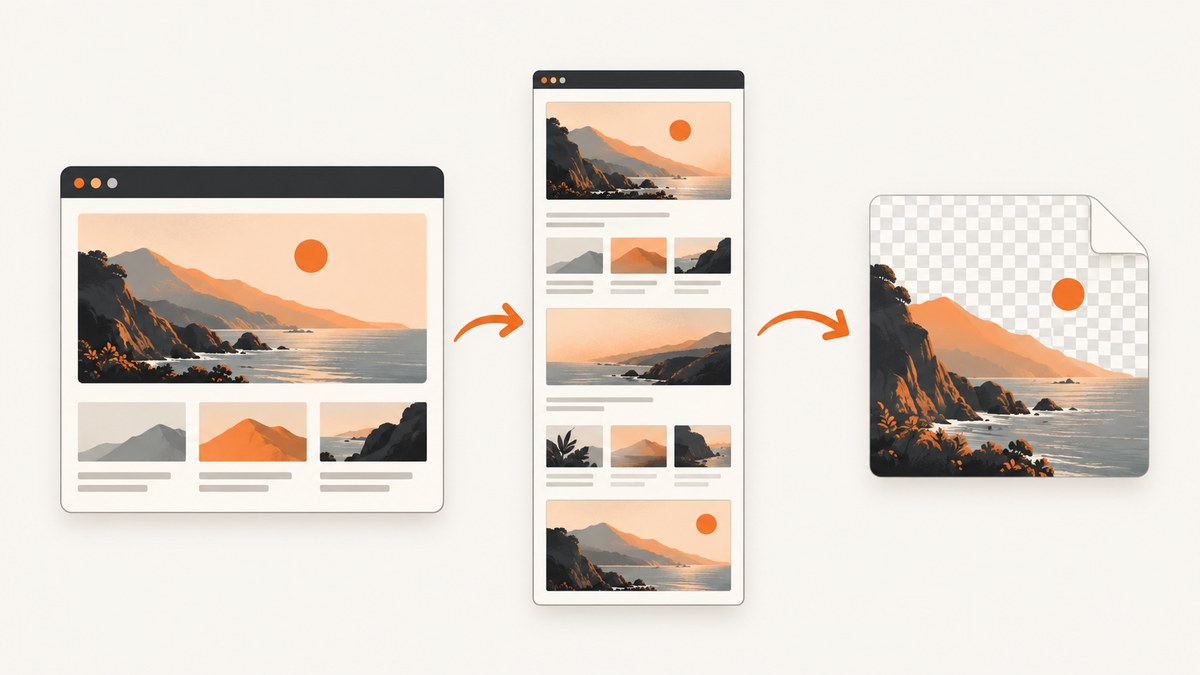
Direct answer: For one image, right-click it and choose Save image as. For the visible page or the entire page, use a screenshot tool that exports PNG. If the download is WebP or JPEG, convert it with an editor or image converter; renaming .webp to .png does not change the encoding.
The right method depends on what you need:
- Original asset: downloads the exact image resource supplied by the site, at its available resolution and format.
- Rendered pixels: captures what the browser displays, including layout, text, overlays, and dynamic content.
- Whole page: captures content beyond the viewport, but can be affected by lazy loading, sticky headers, and very tall pages.
1. Save an individual image from a webpage
Chrome on Windows, Linux, or macOS
- Open the page containing the image.
- Right-click the image.
- Choose Save image as.
- Select a folder, enter a filename, and click Save.
Chrome downloads the resource provided by the site. The result might be PNG, JPEG, WebP, SVG, AVIF, or another supported type. Check the filename and file properties after downloading.
Safari on Mac
- Control-click the image.
- Choose Save Image to “Downloads”, Save Image As, or Add Image to Photos.
- If Safari asks for a destination, choose the folder and confirm.
Some images are CSS backgrounds or other page decorations and cannot be saved directly. Dragging the image to a document or the desktop can work in cases where the context menu does not offer a save command.
When the image is a CSS background
A background image may not respond to right-click saving because it is attached to an element’s CSS rather than an <img> element. You can inspect the element in browser developer tools and look for a background-image URL, or capture the rendered element as a screenshot. A screenshot is preferable when you need the image as it appears with overlays, text, or a particular crop.
2. Save a visible page or full webpage as PNG
Firefox built-in screenshot
- Right-click an empty part of the page and choose Take Screenshot, or press Ctrl+Shift+S on Windows/Linux or Command+Shift+S on macOS.
- Choose a custom region, an automatically detected page part, Save full page, or Save visible.
- Click Download.
Firefox saves the capture as a PNG in the folder used for its normal downloads. Use Save visible for the current viewport and Save full page for content that extends below the fold.
Chrome and Safari
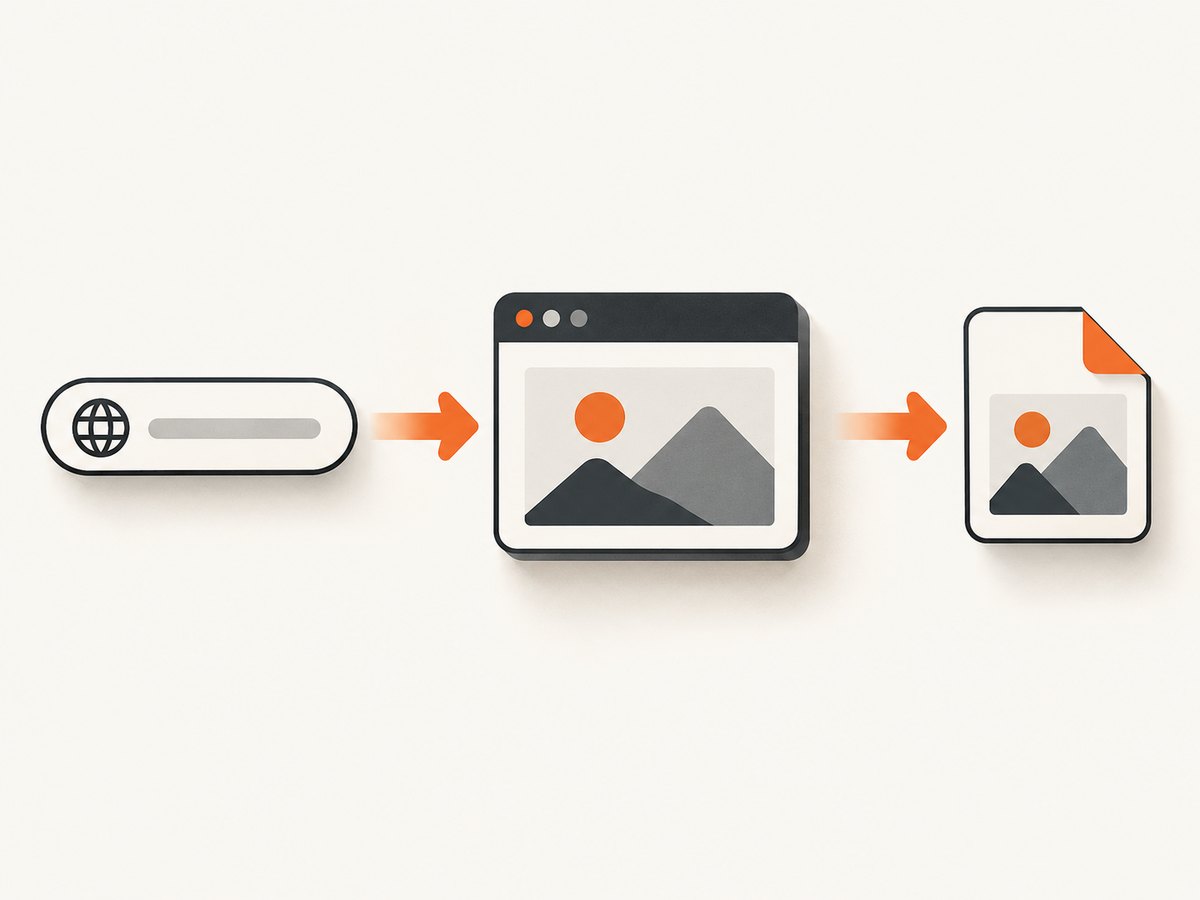
For a quick viewport capture, use the operating system screenshot shortcut or the browser’s developer tools. For a repeatable full-page PNG, a dedicated screenshot tool is more dependable because it can set the viewport, wait for content, and export a known format. Browser menus and extensions vary by version, so verify that the output is actually PNG after saving.
3. Decide between the original image and a screenshot
| Need | Use | What you receive |
|---|---|---|
| Highest available source resolution | Save image as | The site’s original asset, if it is accessible |
| Transparent pixels from a PNG asset | Save image as or export as PNG | Transparency can be preserved when the source has an alpha channel |
| Page layout, surrounding text, or controls | Screenshot | Rendered pixels, not the original file |
| Content below the fold | Full-page screenshot | A tall image containing the rendered page |
| A background image or blocked context menu | Screenshot or inspect CSS | The visible result or the underlying resource URL |
PNG is useful when you need precise reproduction or transparency. JPEG and newer formats can be smaller, but converting to PNG will not restore detail that was already lost through compression or resizing.
4. Convert WebP or JPEG to a real PNG
First confirm the input type from the filename or image properties. Then use an explicit PNG export command. Do not change only the extension.
ImageMagick
magick input.webp output.png
magick input.jpg output.png
To preserve transparency, make sure the source actually contains an alpha channel. JPEG cannot contain transparency, so converting a JPEG produces an opaque PNG.
Python with Pillow
from PIL import Image

image = Image.open('input.webp')
# RGBA keeps an existing alpha channel when the source has one.
if image.mode in ('RGBA', 'LA'):
    image.save('output.png')
else:
    image.convert('RGB').save('output.png')
Install Pillow with python -m pip install Pillow. For a batch conversion:
from pathlib import Path
from PIL import Image

for source in Path('images').glob('*'):
    try:
        with Image.open(source) as image:
            target = source.with_suffix('.png')
            image.save(target)
    except (OSError, Image.UnidentifiedImageError):
        pass
Node.js with Sharp
import sharp from 'sharp';

await sharp('input.webp').png().toFile('output.png');
Install it with npm install sharp. Sharp reads the actual file format and writes PNG bytes; the output extension is not doing the conversion by itself.
5. Capture a full webpage as PNG with ScreenshotNeo
If you need a repeatable capture from a script, CI job, documentation pipeline, or backend, ScreenshotNeo returns a PNG, JPEG, WebP, or PDF from one GET request. It can load lazy images for full-page captures, wait for a selector, delay, or network idle, and capture one CSS-selected element instead of the entire page.
cURL
curl -G 'https://api.screenshotneo.com/v1/shot' \
  -d access_key=YOUR_API_KEY \
  --data-urlencode url=https://stripe.com \
  -d format=png \
  -d full_page=true \
  -o shot.png
Python
import requests

r = requests.get(
    'https://api.screenshotneo.com/v1/shot',
    params={
        'access_key': 'YOUR_API_KEY',
        'url': 'https://stripe.com',
        'format': 'png',
        'full_page': 'true',
    },
    timeout=90,
)
r.raise_for_status()
open('shot.png', 'wb').write(r.content)
Node.js
const q = new URLSearchParams({
  access_key: 'YOUR_API_KEY',
  url: 'https://stripe.com',
  format: 'png',
  full_page: 'true',
});
const res = await fetch(`https://api.screenshotneo.com/v1/shot?${q}`);
if (!res.ok) throw new Error(`HTTP ${res.status}`);
const buffer = Buffer.from(await res.arrayBuffer());
await import('node:fs/promises').then(fs => fs.writeFile('shot.png', buffer));
See the ScreenshotNeo documentation for the complete parameter list and OpenAPI specification. The API accepts familiar parameter names used by other screenshot services, which helps when migrating.
Useful capture options
- Output: PNG, JPEG, WebP, or PDF.
- Size: any viewport, 12 device presets, retina scale, and image resizing.
- Scope: full page or one element selected by CSS.
- Appearance: dark mode, transparent background, custom CSS, and JavaScript.
- Timing: wait for a selector, fixed delay, or network idle; lazy images can be loaded for full-page shots.
- Interaction: click an element before capture and hide selectors.
- Network: block ads, trackers, requests, or resource types; send custom headers, cookies, user agents, and Authorization.
- Location: set timezone and geolocation.
- Delivery: choose a cache TTL, create signed links for public
<img>tags, submit asynchronous jobs with signed webhooks, capture up to 100 URLs per bulk call, and read usage through the usage API.
6. Clean captures, billing, and reliability
ScreenshotNeo accepts cookie and consent banners before capture and removes more than 60 known consent platforms, newsletter popups, and chat widgets. Each cleanup step can be turned off. This matters when the PNG is intended for documentation, visual regression, or a public thumbnail.

Only clean shots are billed. Bot checks or CAPTCHAs, blank pages, timeouts, failed loads, and cache hits cost nothing. Every response identifies the result with X-Page-Verdict and X-Billed headers, so a pipeline can record what happened instead of guessing.
For intermittent sites, use a selector wait or network-idle wait rather than an arbitrary short delay. Set a cache TTL when the page changes infrequently. Use asynchronous jobs and signed webhooks for long pages or large batches, and retry only failures that are safe to repeat.
7. Troubleshooting
The saved file says PNG but will not open as PNG
The extension was probably renamed without conversion. Inspect the file type and export it with ImageMagick, Pillow, Sharp, or an image editor.
The downloaded image is WebP
The site supplied WebP. Keep it if size matters, or convert it with one of the commands above. A screenshot produces the rendered appearance rather than the original WebP bytes.
Right-click saving does not work
The image may be a CSS background, inside a canvas, protected by a script, or covered by an overlay. Inspect the element, temporarily disable the overlay, or capture the rendered region.
The full-page PNG is missing images
Images may be lazy-loaded only after scrolling. Use a capture tool that explicitly loads lazy images, wait for a selector or network idle, and check whether the source requires authentication or custom headers.
The screenshot contains a cookie banner or chat bubble
Dismiss the banner before a manual capture. With ScreenshotNeo, consent handling and removal of known newsletter and chat widgets happen before the shot, and each step can be disabled when you need the untouched page.
The API returns a blank page, timeout, or bot check
Read X-Page-Verdict and X-Billed. Confirm the URL is reachable, increase the wait strategy, provide required headers or cookies, and treat bot checks, blank pages, timeouts, and failed loads as non-billable results.
The PNG is too large
Reduce the viewport or retina scale, capture a specific element, resize after capture, or use WebP when PNG is not required. Very tall pages can also exceed downstream upload or memory limits.
8. Performance and cost considerations
Original image downloads are usually fastest because they transfer one resource. Full-page screenshots take longer because the browser must render the page, execute scripts, wait for content, and stitch or encode a tall image. Network-idle waits improve completeness but increase latency. Caching can reduce repeated work, and bulk capture is useful for a list of URLs.
ScreenshotNeo includes 1,000 shots per month on the Free plan with no card. Paid plans are Starter $5 for 3,000 shots, Growth $15 for 15,000, Pro $39 for 60,000, Scale $99 for 250,000, and Business $249 for 1,000,000. Yearly billing gives two months free, and every feature is available on every plan. Failed loads and cache hits are not billed, which makes retries and cache use easier to budget.
9. Choosing the shortest reliable workflow
- Need the site’s original photo or icon? Use Save image as.
- Need the complete rendered page once? Use Firefox’s Save full page.
- Need PNG from WebP or JPEG? Convert with an explicit PNG export.
- Need repeatable captures, cleanup, authentication, batching, or webhooks? Use an API.
Or skip the browser setup
Use one ScreenshotNeo request when you want an automated PNG:
curl -G 'https://api.screenshotneo.com/v1/shot' -d access_key=YOUR_API_KEY --data-urlencode url=https://stripe.com -d format=png -o shot.pngCookie banners, newsletter popups, and chat widgets are removed before the shot. Bot checks, blank pages, timeouts, and failed loads are never billed. An MCP server lets AI agents such as Claude and Cursor take screenshots with take_screenshot, inspect pages with get_page_info, and create PDFs with capture_pdf. You get 1,000 screenshots a month free with no card, and paid plans start at $5 for 3,000. Create a free ScreenshotNeo account.
FAQ
Does changing .jpg to .png convert the image?
No. It changes only the filename. Use an image editor or a converter that writes PNG bytes.
Can I save a webpage as one PNG instead of downloading its images?
Yes. Use a full-page screenshot workflow. It captures the rendered layout as one image.
Will PNG always look better than WebP?
Not necessarily. PNG is useful for exact reproduction and transparency. WebP is often smaller. Choose based on whether editing, transparency, or file size matters.
Why is my full-page image extremely tall?
A full-page capture includes content below the viewport. Capture a selected element or resize the result when a complete page is not needed.
Can I automate PNG captures for many URLs?
Yes. ScreenshotNeo supports bulk capture for up to 100 URLs per call, asynchronous jobs with signed webhooks, caching, and a usage API.


