How to Save a Webpage as an Image in Google Chrome
Save the visible viewport or an entire webpage as an image with Chrome DevTools, extensions, or ScreenshotNeo’s screenshot API.
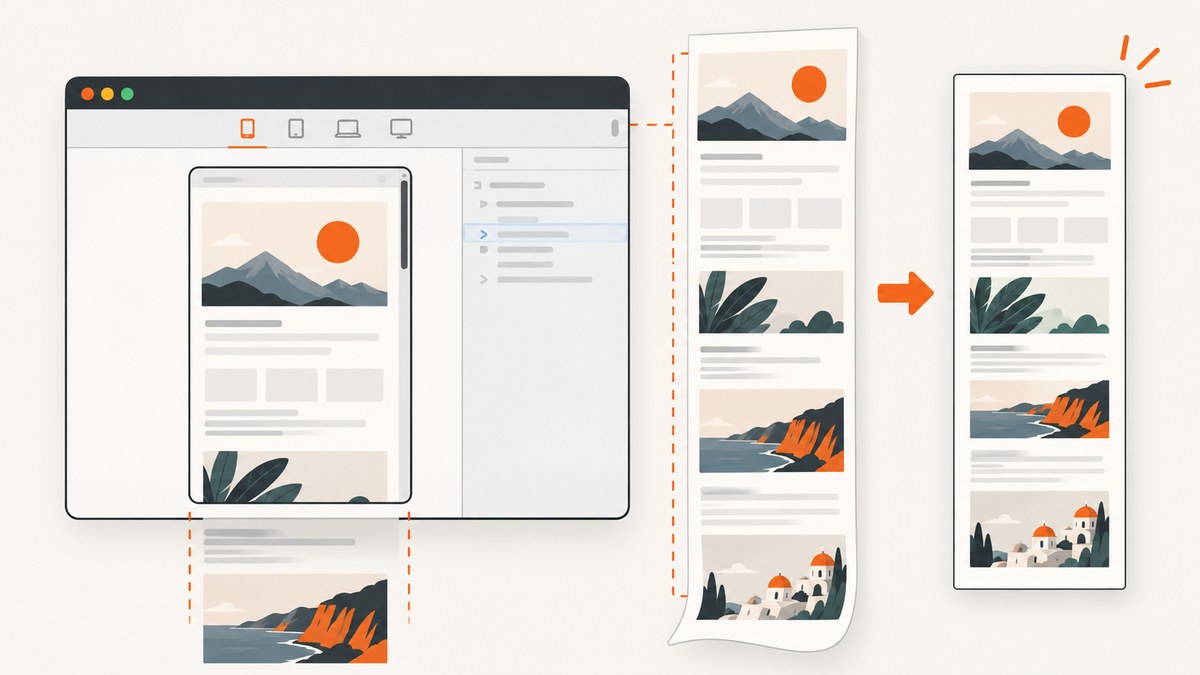
Use Chrome DevTools when you need a quick image from a page. Open the page, open DevTools, turn on Device Mode, select More options → Capture a full size screenshot, and Chrome saves an image of the entire page, including content outside the visible viewport. Choose Capture screenshot from the same menu when you only need the current viewport. Chrome documents these as separate commands in its Device Mode guide.
This guide explains the built-in workflow, how to capture responsive layouts, what to do when a page is lazy-loaded or blocked, when an extension or MHTML archive is more appropriate, and how to automate the job with ScreenshotNeo.
1. Save the whole webpage with Chrome DevTools
- Open the webpage in Google Chrome and wait for the content you want to preserve to load.
- Open DevTools. You can use the browser menu, right-click and choose Inspect, or use your operating system’s DevTools shortcut.
- Enable Device Mode by selecting the device toolbar icon in DevTools. Chrome’s screenshot commands are available from this responsive emulation toolbar.
- Open the More options menu in the Device Mode toolbar.
- Select Capture a full size screenshot. Chrome captures the entire document, including content that is not currently visible in the viewport.
- Find the downloaded image in Chrome’s normal download location. The exact filename, format, and location can vary by Chrome version and operating system, so do not build a workflow that depends on a particular name.
Chrome’s official instructions cover both commands: Capture screenshot captures what is currently visible, while Capture a full size screenshot captures the whole page. The full-size command is the correct choice for long articles, landing pages, documentation, and web receipts.
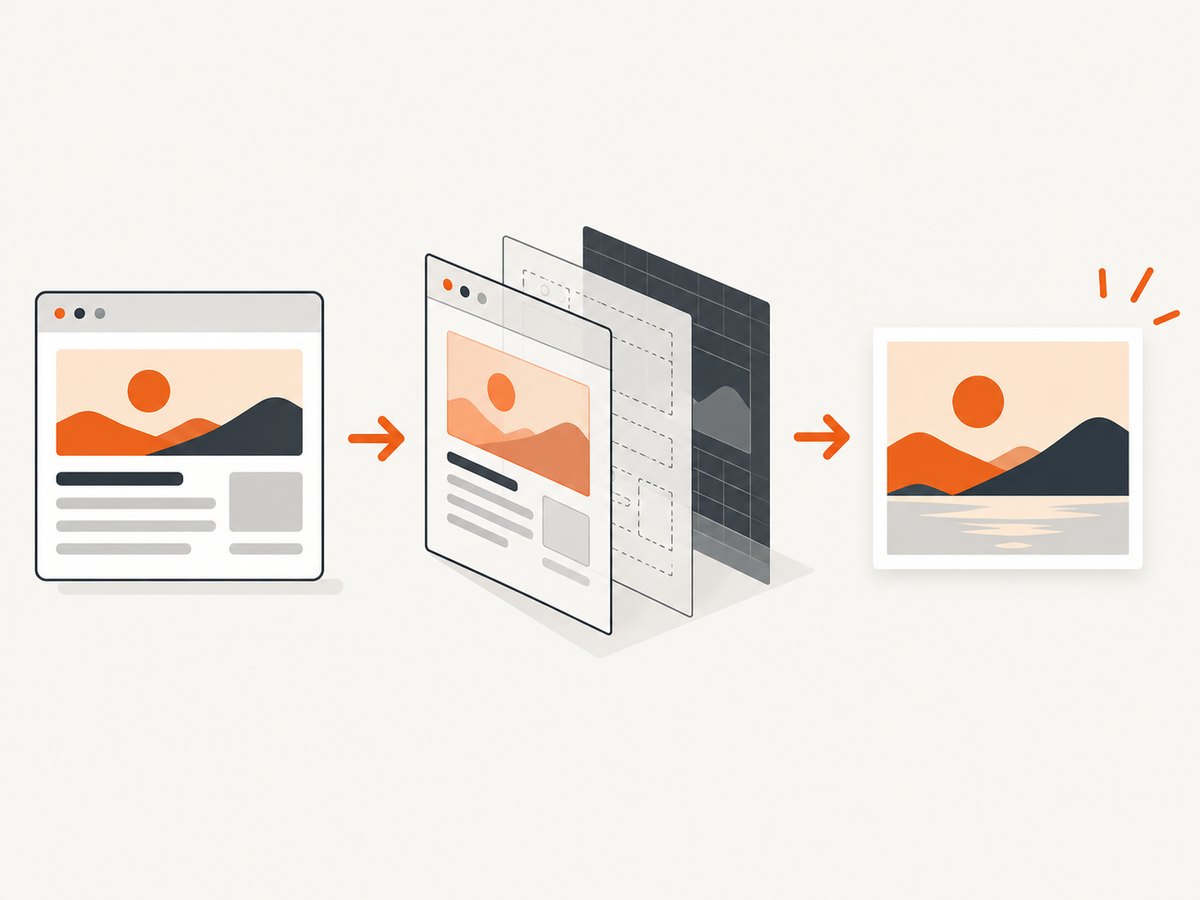
2. Viewport screenshot versus full-page screenshot
| Need | Chrome command | Result |
|---|---|---|
| Save only what is visible now | More options → Capture screenshot | The current emulated viewport |
| Save the complete document | More options → Capture a full size screenshot | The page beyond the viewport |
| Preserve HTML and resources | Use an MHTML capture workflow | An archive, not an image |
A full-page image can be extremely tall. It is useful for visual review and sharing, but it may be awkward to print or display. A viewport shot is better for bug reports that concern a specific screen state. Decide which output you need before capturing so you do not mistake a cropped viewport for a complete page.
3. Set the viewport before capturing
Device Mode lets you emulate a device size before taking either screenshot. Select a preset device or enter a custom width and height. The page will reflow at that width, so the image records the responsive layout rather than the width of your physical monitor.
- Desktop review: use a wide custom viewport to inspect navigation, tables, or desktop-only controls.
- Mobile review: choose a phone preset or enter the target CSS viewport width.
- Responsive testing: drag the viewport handles, then capture separate images at the breakpoints you support.
- Pixel density: remember that emulation changes CSS dimensions and device scale behavior. Compare images at their actual output dimensions when reviewing visual regressions.
Before capture, scroll through the page once when possible. This can trigger lazy-loaded content, although individual sites implement lazy loading differently. If images still appear blank, wait for them, interact with the page, or use a capture tool that can explicitly wait for selectors or network idle.
4. Make the page capture-ready
Dismiss overlays and consent banners
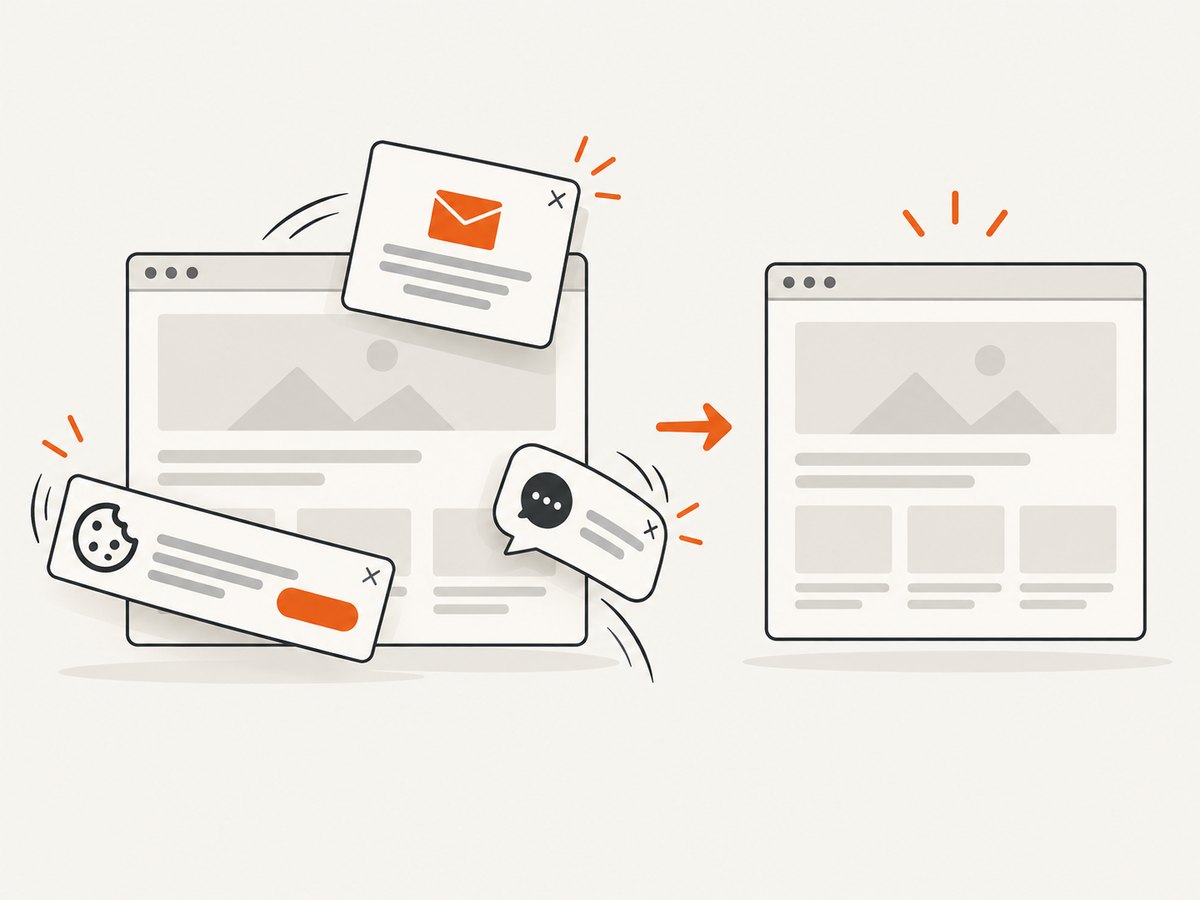
Cookie dialogs, newsletter forms, chat bubbles, and sticky bars can cover content. Close them manually before capture. If a banner returns on every load, use the site’s preferences or a clean browser profile. Do not assume that a screenshot reflects the page’s normal state if an overlay remains visible.
Wait for dynamic content
Single-page applications may render after the initial navigation completes. Wait until the main content, charts, fonts, and images appear. For reproducible work, record the URL, viewport, login state, and approximate wait time alongside each image.
Check fixed and sticky elements
A fixed header may appear repeatedly or cover content in a stitched full-page result. If that happens, temporarily hide it through DevTools or capture the viewport you need. Altering the page with CSS is appropriate for a review image, but document the change if the image is evidence of the unmodified page.
5. Capture a specific element
Chrome’s built-in full-size command targets the document. For a single chart, card, or component, inspect the element and use the DevTools command available for node screenshots in your Chrome version, or temporarily isolate the element in a minimal page. Element capture is preferable when a full-page image would include unrelated navigation and legal content.
When the element is inside a scrollable container, decide whether you need the visible portion or the container’s complete scroll height. A normal screenshot records pixels currently rendered in the viewport; it does not automatically turn every nested scroll region into one image.
6. Extensions: a convenient optional route
Chrome extensions can put a full-page capture button in the toolbar and add export or annotation controls. For example, the GoFullPage Chrome Web Store listing describes toolbar or keyboard activation and image or PDF downloads; its listing also contains version-specific details that can change. Another listing describes one-click scrolling capture, annotation, and PNG or JPEG export. Treat those capabilities and privacy statements as claims in the current store listings, and review permissions before installing.
An extension is useful when you capture pages often and want a repeatable toolbar workflow. It is not required for Chrome’s built-in full-size screenshot. Store listings, shortcuts, formats, and permissions can change, so avoid documenting them as permanent browser behavior.
7. Screenshot versus saving the webpage
An image is a visual snapshot. Chrome’s pageCapture extension API saves a page as MHTML, a single archive containing the page and its resources. The API reference says it requires the pageCapture permission and is available from Chrome 116. MHTML is useful when someone needs to inspect or preserve HTML, styles, and resources; it is not a PNG, JPEG, or WebP screenshot. See the Chrome pageCapture API reference when building an archive workflow.
8. Common problems and fixes
| Problem | Likely cause | Fix |
|---|---|---|
| The image contains only the visible area | The viewport command was selected | Enable Device Mode and choose Capture a full size screenshot. |
| Images or charts are missing | Lazy loading or asynchronous rendering has not finished | Scroll through the page, wait for the content, and capture again. |
| A cookie banner covers the page | The consent UI is still active | Accept, reject, or close it before capture; use a clean profile if it reappears. |
| The page is blank | Navigation failed, JavaScript crashed, authentication expired, or a bot check appeared | Reload, inspect the Console and Network panels, sign in again, and confirm the URL works in a normal tab. |
| The screenshot is too narrow or wide | The emulated viewport is incorrect | Set the target CSS width in Device Mode and capture again. |
| A sticky header repeats or hides content | Fixed positioning during full-page capture | Hide the header temporarily or capture the relevant viewport and document the adjustment. |
| The download is hard to find | Chrome’s download directory or filename differs by system | Open Chrome’s downloads page and use the file’s location; do not rely on a universal filename. |
| The output is an archive instead of an image | An MHTML workflow was used | Use DevTools screenshot commands for PNG-style image output. |
9. Reliability, performance, and cost considerations
DevTools is a manual, local workflow. It is reliable for occasional captures because it runs in the same browser session you can inspect, but it is difficult to reproduce at scale. Results depend on your login state, cookies, extensions, network, viewport, and page timing. Record those inputs when screenshots are used in QA or documentation.
Long pages take more time and memory to render than a viewport. Large images, animated content, web fonts, and third-party scripts can increase capture time or produce different pixels from one run to another. Disable unnecessary extensions, wait for fonts and images, and capture at a consistent viewport when comparing revisions.
The built-in Chrome method has no API charge. Your costs are the browser, compute, storage, and engineering time needed to repeat the job. If you need hundreds of URLs, scheduled captures, signed links, webhooks, or consistent cleanup of overlays, an API is usually easier to operate.
10. Or skip the browser setup
ScreenshotNeo provides a website screenshot API and MCP server. One GET request returns a PNG, JPEG, WebP, or PDF. It accepts the same kinds of URL and screenshot parameters used by other screenshot APIs, which makes switching straightforward. See the ScreenshotNeo documentation for the complete parameter reference.
Here is a minimal WebP capture:
cURL
curl -G "https://api.screenshotneo.com/v1/shot" -d access_key=YOUR_API_KEY --data-urlencode url=https://stripe.com -o shot.webpPython
import requests
r = requests.get("https://api.screenshotneo.com/v1/shot", params={"access_key": "YOUR_API_KEY", "url": "https://stripe.com"}, timeout=90)
open("shot.webp", "wb").write(r.content)
Node.js
const q = new URLSearchParams({ access_key: 'YOUR_API_KEY', url: 'https://stripe.com' });
const res = await fetch(`https://api.screenshotneo.com/v1/shot?${q}`);
ScreenshotNeo can capture a full page with lazy images loaded, one CSS-selected element, dark mode, any viewport or one of 12 device presets, and retina scale. You can supply custom CSS and JavaScript, click an element before capture, hide selectors, or wait for a selector, delay, or network idle. Request blocking can target ads, trackers, individual requests, or resource types. Custom headers, cookies, user agents, Authorization, timezone, and geolocation support authenticated and location-sensitive pages.
For output control, it supports transparent backgrounds, image resizing, caching with a TTL you choose, signed links for public <img> tags, PDFs with paper size, margins, landscape mode, and page ranges, HTML/CSS to image, asynchronous jobs with signed webhooks, bulk capture of up to 100 URLs per call, a usage API, and an OpenAPI specification.
It also cleans the capture before rendering: it accepts cookie or consent banners like a visitor and removes more than 60 known consent platforms, newsletter popups, and chat widgets. Each cleanup step can be turned off. Bot checks or CAPTCHAs, blank pages, timeouts, failed loads, and cache hits cost nothing. Response headers identify the page verdict and whether the shot was billed through X-Page-Verdict and X-Billed.
For AI workflows, its MCP server exposes take_screenshot, get_page_info, and capture_pdf to Claude, Cursor, and other MCP clients. Plans include 1,000 screenshots per month free with no card; paid plans start at $5 for 3,000 shots. Yearly billing gives two months free, and every feature is available on every plan. Create a free ScreenshotNeo account to get started.
11. A repeatable capture checklist
- Confirm whether you need the viewport or the entire document.
- Set the intended device preset or custom viewport.
- Sign in and verify that private content is visible.
- Dismiss consent banners, popups, and chat controls.
- Wait for fonts, images, charts, and lazy content.
- Check fixed headers and nested scroll containers.
- Capture and open the resulting file to verify its dimensions and content.
- Record the URL, viewport, browser version, and capture time for QA work.
FAQ
Can Chrome save a full webpage as one image?
Yes. In DevTools Device Mode, choose More options → Capture a full size screenshot. It includes content outside the visible viewport.
Can I save only the part currently on screen?
Yes. Choose More options → Capture screenshot instead.
Does a screenshot save the webpage for offline use?
No. An image contains rendered pixels. Use an MHTML page-capture workflow when you need the page and its resources in an archive.
Why is my full-page image different from what I see while scrolling?
Lazy loading, animations, sticky elements, fonts, and network timing can change the rendered result. Wait for content and use consistent capture conditions.
What is the simplest automated option?
Use ScreenshotNeo’s GET endpoint for a one-call capture, or its MCP tools when an AI agent needs to inspect pages and create screenshots or PDFs.


