How to Save a Webpage as an Image on iOS
Capture an entire Safari webpage on iPhone and save it as an image in Photos, with PDF alternatives, troubleshooting, and an API workflow.

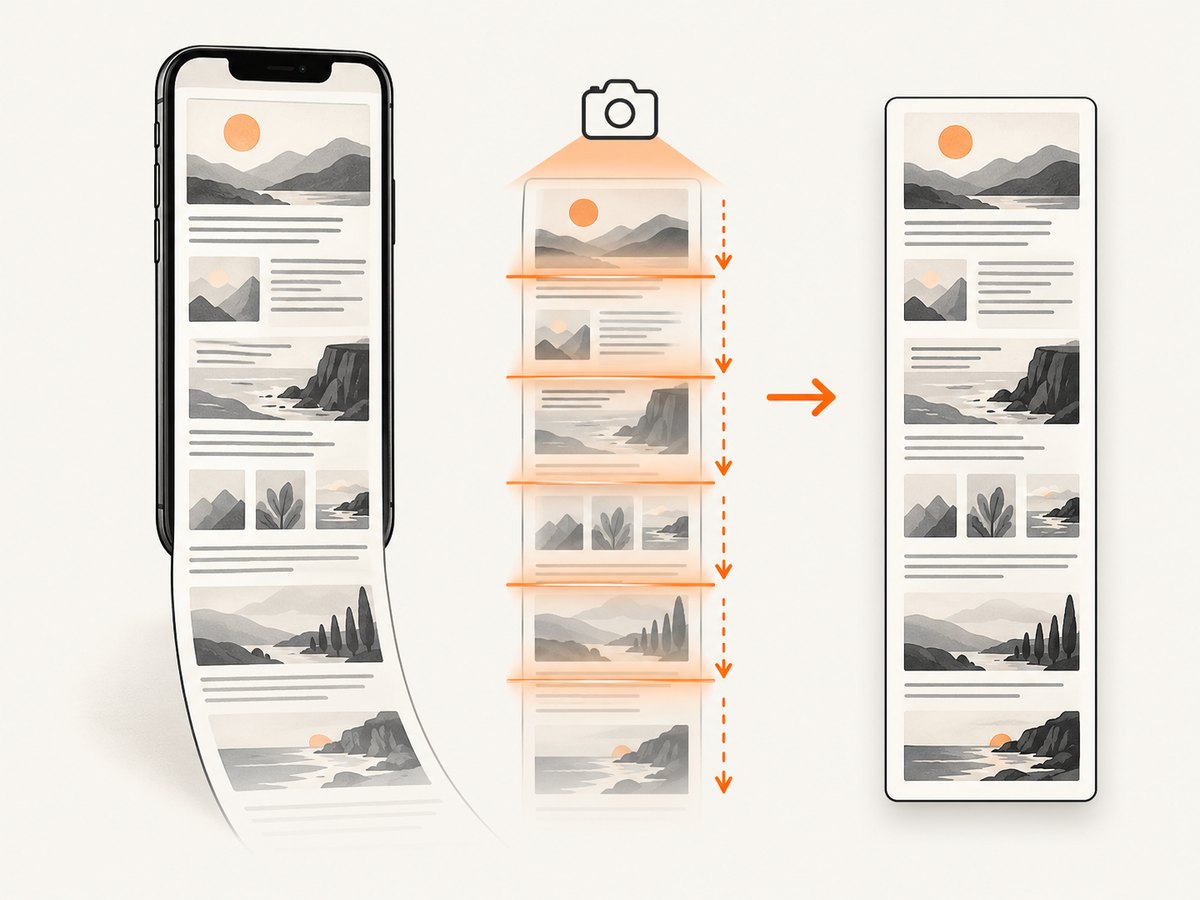
To save a whole webpage as an image on an iPhone: open the page in Safari, take a screenshot, tap the screenshot preview, choose Full Page, then use the save options and select Save to Photos. The Full Page view captures content below the visible screen. Apple documents this workflow as a way to capture a full page beyond the edge of the iPhone screen. Apple’s iPhone screenshot guide is the primary reference.
This guide explains the exact taps, what to do when Full Page is missing, how image and PDF output differ, and how to automate webpage captures when you need repeatable files or server-side rendering.
Save a full Safari webpage as an image
- Open the webpage in Safari. Wait for the text, images, and sections you need to finish loading. If the page uses a “load more” control, expand it first; Full Page captures the page as it exists when the screenshot is taken.
- Take a screenshot. On an iPhone with Face ID, quickly press and release the side button and volume-up button together. On an iPhone with a Home button, quickly press and release the Home button and the side button together.
- Open the preview. Tap the thumbnail that briefly appears in the lower-left corner. If it disappears, open Photos and edit the most recent screenshot, although the Full Page control is easiest to reach immediately from the preview.
- Tap Full Page. The preview changes from the visible screen to a tall capture of the Safari document. Drag or scroll through the preview to inspect the captured page.
- Crop if needed. Use the crop controls to remove browser-only areas or sections you do not want to share. Cropping changes the image boundaries; it does not reload the webpage.
- Open the save options and choose Save to Photos. This stores the full-page capture as an image in Photos. Choose this option when the requested result is a picture rather than a document.
Full-page captures can be very tall. If the page contains animated content, lazy-loaded images, or personalized sections, the result reflects the state Safari rendered during capture. Let the page settle and scroll through it once before taking the screenshot when completeness matters.
What Full Page captures, and what it does not
Safari’s Full Page mode is designed for a webpage document, so it can include content below the visible viewport. It is different from taking several ordinary screenshots and stitching them together: iOS creates one continuous capture from the page shown in Safari.
- Included: content that Safari has rendered in the page, including sections below the first screen.
- Potentially incomplete: content that requires a tap, login, scrolling-triggered request, or an explicit “load more” action before it appears.
- State-dependent: cookie banners, popups, chat widgets, ads, and personalized content appear if they are visible when the capture is made.
- Not a webpage archive: links and interactive behavior are not preserved in a Photos image.
If you need a page that is longer than the available Full Page preview, crop it into several images after saving, or use a PDF when a document format is more suitable.
Image versus PDF: choose the correct save option
The title of this guide calls for an image, so Save to Photos is the primary path. iOS also offers a PDF route in the same general workflow. Save PDF to Files creates a PDF, not a PNG or JPEG, and stores it in the Files app.
For a webpage document, Safari also provides a separate PDF workflow: open the page’s Page Menu, tap Share, choose Markup, tap Done, then choose Save File To. Apple documents this in its guide to annotating and saving a webpage as a PDF in Safari. The Share control’s position can vary with Safari’s tab layout.
| Goal | Use | Where it goes |
|---|---|---|
| Picture of the full webpage | Full Page → Save to Photos | Photos |
| Document for filing or printing | Save PDF to Files, or Safari’s Markup PDF flow | Files |
| Only the visible screen | Take a normal screenshot and save it | Photos |
Alternative ways to trigger an iPhone screenshot
Hardware buttons are the quickest method, but Apple also lists Siri, AssistiveTouch, and Back Tap as alternatives. The exact setup for those features depends on your iOS version and accessibility settings. If you already use one of them, trigger the screenshot, tap the preview, and continue with Full Page and Save to Photos as above. Apple’s screenshot guide links the relevant iPhone settings and explains the available methods.
Checklist for a clean, complete capture
- Confirm Safari, rather than an in-app browser, is displaying the page.
- Dismiss or accept a consent dialog if it blocks the page content you need.
- Expand accordions and “read more” sections before capturing.
- Wait for images, fonts, and embedded content to finish loading.
- Scroll through the page once if images load only when they approach the viewport.
- Close transient menus and text-selection handles before taking the screenshot.
- Review the Full Page preview from top to bottom before saving.
- Use Photos for an image; use Files for a PDF.
When Full Page is missing
Full Page is associated with a webpage document in Safari. If you do not see it, check these common causes:
| Symptom | Likely cause | Fix |
|---|---|---|
| No Full Page tab | The screenshot was taken outside Safari, or the preview was dismissed | Return to Safari, take a new screenshot, and tap its thumbnail immediately |
| Only the visible screen is captured | Screen capture is being treated as a standard screenshot | Tap the preview and select Full Page before saving |
| Page content stops early | Sections require scrolling, interaction, or “load more” | Load those sections first, then retake the screenshot |
| Images are blank | Images have not loaded or are blocked by the page | Wait, check the connection, reload, and capture again |
| Unexpected banner or popup appears | It was visible at capture time | Dismiss it and retake the screenshot; Safari preserves the page’s visible state |
| The saved file is a PDF | Save PDF to Files was selected | Repeat the capture and choose Save to Photos |
| The image is too large to share | A full webpage can be very tall | Crop it, split it into several images, or export a PDF instead |
Privacy, login, and dynamic-page edge cases
A screenshot is a visual copy of whatever Safari displays, including account names, order details, private messages, and tokens accidentally rendered in a page. Review the preview before sharing and crop sensitive regions. Do not treat a screenshot as a redaction method: cropping removes pixels outside the crop, but text left inside remains visible.
Pages behind a login, paywall, or consent gate capture only after Safari has access to them. If a site redirects to a login page, sign in first and verify the destination before capturing. A page that changes while you scroll may produce a capture whose sections come from different moments. For an audit or support report, record the page URL and capture time separately.
Or skip the browser setup
For one-off captures, Safari is enough. For a product catalog, regression job, documentation pipeline, or AI workflow, a screenshot API can produce the image without manual taps. ScreenshotNeo accepts one GET request and returns PNG, JPEG, WebP, or PDF. Its capture options include full-page rendering with lazy images loaded, an exact viewport or device preset, retina scale, custom CSS and JavaScript, selector-based element capture, dark mode, waits, request blocking, cookies, headers, timezone, geolocation, caching, and signed links.

Use the ScreenshotNeo API documentation for the complete parameter list. This is a minimal call that saves a WebP response:
cURL
curl -G "https://api.screenshotneo.com/v1/shot" -d access_key=YOUR_API_KEY --data-urlencode url=https://stripe.com -o shot.webpPython
import requests

r = requests.get(
    "https://api.screenshotneo.com/v1/shot",
    params={"access_key": "YOUR_API_KEY", "url": "https://stripe.com"},
    timeout=90,
)
r.raise_for_status()
open("shot.webp", "wb").write(r.content)
Node.js
const q = new URLSearchParams({ access_key: 'YOUR_API_KEY', url: 'https://stripe.com' });
const res = await fetch(`https://api.screenshotneo.com/v1/shot?${q}`);
if (!res.ok) throw new Error(`Screenshot failed: ${res.status}`);
const buffer = Buffer.from(await res.arrayBuffer());
await import('node:fs/promises').then(fs => fs.writeFile('shot.webp', buffer));
ScreenshotNeo is useful when the page contains distracting consent banners, newsletter popups, or chat widgets: it accepts the consent banner like a visitor and removes more than 60 known consent platforms, newsletter popups, and chat widgets before the capture. Each cleanup step can be turned off. Bot checks or CAPTCHAs, blank pages, timeouts, failed loads, and cache hits are not billed as clean shots; the response identifies the result with X-Page-Verdict and X-Billed headers.
For automation, you can submit asynchronous jobs with signed webhooks, capture up to 100 URLs per bulk call, use the usage API, and connect through the MCP server. The MCP tools take_screenshot, get_page_info, and capture_pdf work with Claude, Cursor, and other MCP clients, so an AI agent can request a capture as part of a task.
Performance depends on the target site’s load time, page length, resources, and options such as network-idle waits or full-page lazy-image loading. Use a chosen cache TTL for repeated URLs, block unnecessary ads or trackers when appropriate, and set a client timeout long enough for dynamic pages. Keep API keys on the server and use signed links when a public image tag needs temporary access.
The Free plan includes 1,000 shots per month with no card. Paid plans start at $5 for 3,000 shots; Growth is $15 for 15,000, Pro is $39 for 60,000, Scale is $99 for 250,000, and Business is $249 for 1,000,000. Yearly billing gives two months free, and every feature is available on every plan. Create a free ScreenshotNeo account to start with 1,000 screenshots a month and no card.
FAQ
Can I save a full webpage as a JPEG on iPhone?
Safari’s Full Page workflow saves the capture to Photos, while the exact image encoding and sharing conversion can depend on iOS. If you specifically need JPEG, open the saved image in an editor or conversion workflow after saving.
Does Full Page work in every iPhone browser?
The documented Full Page workflow is for Safari webpages. Other browsers may expose different screenshot controls, so use Safari when you need the Apple-documented path.
Can I capture a page that requires scrolling?
Yes. Full Page is intended to capture content beyond the visible screen, but content that appears only after interaction must be loaded before the screenshot.
Why is my full-page capture not one continuous image?
Check that you selected Full Page before saving. A normal screenshot captures only the visible viewport; a PDF saved to Files is a different output format.
Is a screenshot suitable as a permanent record?
It records the rendered appearance, not the original HTML, links, or later changes. Keep the URL, date, and any relevant account or page context with the image when using it as evidence.


