How to Save a Whole Webpage as an Image on iPhone
Capture a full webpage in Safari and save it to Photos. Learn when to choose PDF and how developers can capture pages with ScreenshotNeo.

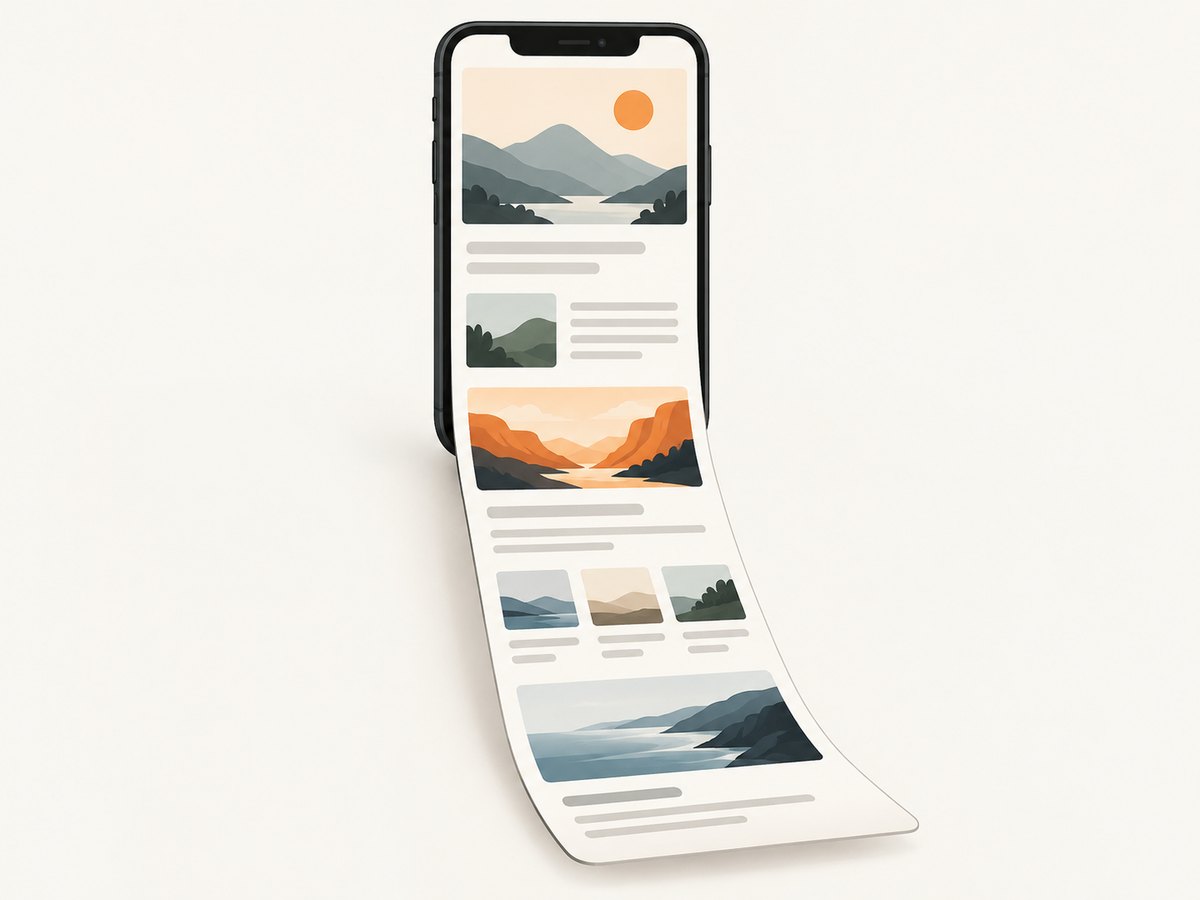
To save a whole webpage as an image on iPhone, open it in Safari, take a screenshot, tap the preview, choose Full Page, then open the save options and choose Save to Photos. Apple’s full-page screenshot can capture webpage content beyond the screen; the same preview also offers a PDF option if you need a document instead. Apple’s iPhone screenshot guide documents this workflow.
1. Capture and save the full page
- Open the page in Safari. Navigate to the webpage you want to preserve. The full-page option is especially useful for pages that scroll beyond the visible screen.
- Take a screenshot. On an iPhone with Face ID, press and quickly release the Side button and Volume Up together. On an iPhone with a Home button, press and quickly release the Side button and Home button together.
- Open the screenshot preview. Tap the thumbnail that appears after the screenshot. If it disappears before you tap, take another screenshot.
- Choose Full Page. In the screenshot editor, select Full Page to view the longer capture. Apple gives an entire webpage in Safari as an example of content that extends beyond the screen.
- Inspect the capture. Drag through the preview to check how much of the page was captured. Crop or annotate if needed.
- Save the image. Open the save options and choose Save to Photos. This is the image destination for the full-page screenshot workflow.
Apple says screenshots with thumbnails save automatically to Photos. Still, check that you selected the full-page view and the image save option when you need the long image. A regular screenshot of the screen only captures what was visible at that moment.
2. Choose an image or a PDF
The right save choice depends on what you plan to do with the page. Use an image when you want a picture in Photos that is easy to view or share. Choose PDF when you want a document-style file in Files or expect to mark up the page.
| Goal | Workflow | Saved result |
|---|---|---|
| Keep the full page as a picture | Screenshot preview → Full Page → save options → Save to Photos | Image in Photos |
| Keep the page as a document | Screenshot preview → Full Page → Save PDF to Files | PDF in Files |
| Mark up a Safari page as a PDF | Safari Share controls → Markup → Done/save controls → Save File To | PDF saved to Files |
The PDF markup route is separate from saving the full-page screenshot as an image. Apple explains that alternative in its Safari webpage PDF guide.
3. What to check before you save
- Confirm that Full Page is selected. If the preview only shows the screen-sized shot, switch to Full Page before saving.
- Review the whole capture. Use the preview to inspect the beginning and end of the page. Long pages may need cropping or annotation for easier reading.
- Pick the intended format. Save to Photos for an image; Save PDF to Files for a PDF. The file destination is part of the choice, not just a different way to name the same output.
- Keep the page open while capturing. Start with the page loaded in Safari, then take the screenshot. If content is still appearing, give it time before taking the shot.
- Take another shot if the preview is gone. Apple’s documented path starts from the screenshot preview, so capturing again is the straightforward way to reopen the editor.
4. Troubleshooting
| Problem | Likely cause | What to do |
|---|---|---|
| I only see the visible screen | The screenshot was saved as a regular screen capture, or Full Page was not chosen in the preview. | Take another screenshot in Safari, tap its preview, and select Full Page before saving. |
| I cannot find the screenshot preview | The thumbnail disappeared before it was opened. | Take a new screenshot and tap the thumbnail as soon as it appears. |
| I wanted an image but got a PDF | The PDF save option was selected. | Repeat the screenshot workflow and choose Save to Photos in the full-page save options. |
| I wanted a PDF but saved an image | Save to Photos was selected for the full-page screenshot. | Repeat and choose Save PDF to Files, or use Safari’s Share and Markup PDF workflow. |
| The page appears incomplete | The page may not have finished loading, or the capture may need review and cropping. | Wait for the page to settle, capture again, and inspect the full-page preview before saving. |
Apple’s guide is the source for the supported screenshot buttons and the Full Page, Save to Photos, and Save PDF to Files choices. Interface labels can change with software updates, so if your screen differs, consult the current guide for your iOS version.
5. If you are capturing pages as a developer
The iPhone workflow is convenient for an occasional page. Developers who need repeatable screenshots across URLs may prefer a browser automation setup or an API. A server-side capture can also be useful when a screenshot needs to be generated as part of a script or application rather than saved manually on a phone.

With a browser automation library, the general steps are: launch a browser, open the URL, wait for the page state you need, capture the full page, then save the returned image bytes. The exact API and setup vary by library, so use its official documentation for installation, browser requirements, and screenshot options. For production captures, decide how to handle timeouts, dynamic content, cookies, viewport size, and output format before automating a large batch.
Or skip the browser setup: ScreenshotNeo is a website screenshot API and MCP server for developers. One GET request can return a screenshot as PNG, JPEG, or WebP, or a PDF. See the ScreenshotNeo documentation for request options.
curl -G "https://api.screenshotneo.com/v1/shot" -d access_key=YOUR_API_KEY --data-urlencode url=https://stripe.com -o shot.webpimport requests
r = requests.get(
"https://api.screenshotneo.com/v1/shot",
params={"access_key": "YOUR_API_KEY", "url": "https://stripe.com"},
timeout=90,
)
open("shot.webp", "wb").write(r.content)const q = new URLSearchParams({ access_key: 'YOUR_API_KEY', url: 'https://stripe.com' });
const res = await fetch(`https://api.screenshotneo.com/v1/shot?${q}`);ScreenshotNeo removes cookie banners, newsletter popups, and chat widgets before the shot; each cleanup step can be turned off. Bot checks, blank pages, timeouts, failed loads, and cache hits cost nothing, and response headers say whether a page was clean and billed. Its MCP server provides take_screenshot, get_page_info, and capture_pdf tools for AI agents. The free plan includes 1,000 screenshots a month with no card; paid plans start at $5 for 3,000. Every feature is on every plan.
Sign up free for 1,000 screenshots a month, with no card required.
6. Developer options, reliability, and cost
When capturing pages programmatically, choose settings based on the page and the purpose of the image. ScreenshotNeo supports full-page capture with lazy images loaded, CSS selector element capture, dark mode, 12 device presets and custom viewports, retina scale, PDF paper size and margins, landscape and page ranges, HTML/CSS to image, custom CSS and JavaScript, clicking an element before capture, hiding selectors, and waits for a selector, a delay, or network idle.
For pages behind access controls or served differently by location, it supports custom headers, cookies, user agent, Authorization, timezone, and geolocation. Other options include transparent backgrounds, image resizing, request or resource-type blocking, ad and tracker blocking, caching with a chosen TTL, signed links for public <img> tags, async jobs with signed webhooks, bulk capture of up to 100 URLs per call, a usage API, and an OpenAPI spec. Parameter names used by other screenshot APIs also work, which can make a switch easier.
Reliability checklist
- Use a wait condition that matches the page. A selector wait is useful when a specific element must appear; network idle can be unsuitable for pages with continuous background requests.
- Set a timeout that fits the page. Slow pages may need longer; ScreenshotNeo’s example request uses a 90-second client timeout.
- For dynamic pages, use custom JavaScript, a selector wait, or a delay as appropriate, then verify the captured output.
- Use cookies, headers, or Authorization only when the page requires them, and keep credentials out of public links and logs.
- For repeated captures, consider a cache TTL. For large sets, bulk capture or asynchronous jobs can fit the workload better than making each request manually.
- Check
X-Page-VerdictandX-Billedin responses to understand whether the result was a clean capture and whether it was billed.
Performance and cost notes
Full-page captures and high retina scale produce larger images than a small viewport shot. Element capture can limit output to a component; resizing can reduce the final image dimensions. Blocking unnecessary resource types can reduce page work, while cache TTLs can avoid repeating identical captures. These settings trade fidelity, detail, and response size, so choose them for the actual use case.
ScreenshotNeo’s published monthly tiers are Free: 1,000 shots, Starter: $5 for 3,000, Growth: $15 for 15,000, Pro: $39 for 60,000, Scale: $99 for 250,000, and Business: $249 for 1,000,000. Yearly billing gives two months free. Only clean shots are billed; the response headers report verdict and billing information. No uptime or speed claim is implied here.
7. Frequently asked questions
Does Full Page work for a webpage longer than my screen?
Yes. Apple describes the full-page option as capturing content beyond the screen and specifically gives an entire Safari webpage as an example.
Can I save the result to Files instead of Photos?
Yes. Choose Save PDF to Files in the full-page screenshot save options if a PDF is suitable, or use Safari’s separate Share and Markup PDF route.
Do I need an app to make a full-page Safari screenshot?
The documented workflow uses the iPhone screenshot preview and its Full Page option. It does not require a separate screenshot app.
Can developers capture a single section instead of the whole site?
ScreenshotNeo supports capturing an element by CSS selector. That can produce a focused image of a component rather than a full-page result.


