How to Save a Webpage as an Image in Python
Use Playwright to save a webpage as a PNG, JPEG, or WebP in Python. Choose viewport, full-page, element, or clipped captures and control output quality.

Use Playwright for Python: open a browser page, navigate to the URL, then call page.screenshot(path="page.png"). Add full_page=True to capture the page’s full scrollable height instead of just the visible viewport. For a specific element, use page.locator(".selector").screenshot(path="element.png"). Playwright supports PNG, JPEG, and WebP output, and can return image bytes when you omit the path. See the Playwright screenshot guide and its Page API reference for version-specific details.
This guide walks through installation, runnable scripts, capture scope, output options, dynamic pages, troubleshooting, and practical reliability and cost considerations.
1. Install Playwright and its browser
Playwright is a browser automation library. Installing the Python package and installing a browser are separate steps. In a new project, create and activate a virtual environment, then install the package and Chromium:
python -m venv .venv
# macOS/Linux
source .venv/bin/activate
# Windows PowerShell
# .venv\Scripts\Activate.ps1

python -m pip install playwright
python -m playwright install chromium
Run the browser installation command for each browser engine you plan to use. Playwright documents Chromium, Firefox, and WebKit support; the examples below use Chromium. If your environment requires system dependencies for browsers, follow the installation guidance for your operating system in the official Playwright Python introduction.
2. Save a full webpage as a PNG
Save this as save_page.py and run it with python save_page.py. It writes the whole scrollable page to page.png, not just the portion initially visible in the browser viewport.
from playwright.sync_api import sync_playwright

url = "https://example.com"

with sync_playwright() as p:
    browser = p.chromium.launch()
    page = browser.new_page()
    page.goto(url)
    page.screenshot(path="page.png", full_page=True)
    browser.close()
The basic flow is: start Playwright, launch a browser, create a page, navigate, capture, and close the browser. A screenshot saved to a path does not need an additional Python image-writing step. The file extension determines the image type; choose .png, .jpg or .jpeg, or .webp as appropriate.
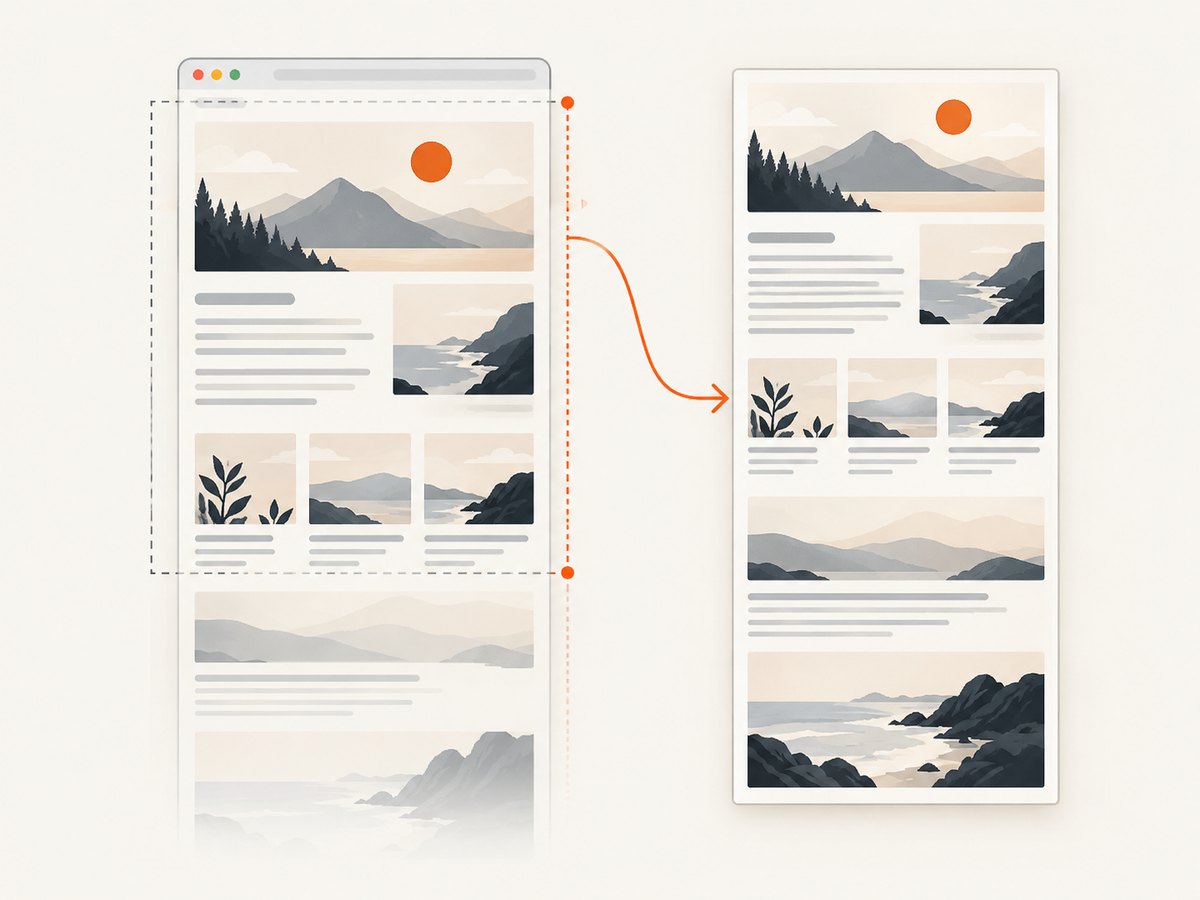
For a quick viewport capture, remove full_page=True. It defaults to false, so the screenshot contains the currently visible page area. A full-page screenshot expands the capture to the scrollable page height; it is not a picture of the browser window, desktop, or browser controls. The official guide demonstrates both approaches and describes full-page capture as fitting a scrollable page onto a very tall screen: Playwright screenshots.
3. Capture a viewport, element, or region
Pick the capture scope that matches the image you need. A full-page capture can be extremely tall; a viewport, element, or clip is often more useful for previews, visual checks, and documents.
| What to capture | How | Useful when |
|---|---|---|
| Visible viewport | page.screenshot(path="view.png") |
You need the initial screen at a chosen viewport size. |
| Full scrollable page | page.screenshot(path="full.png", full_page=True) |
You need the page’s full vertical content in one image. |
| One element | page.locator(".card").screenshot(path="card.png") |
You need a component such as a chart, card, or header. |
| Rectangular region | page.screenshot(path="region.png", clip={...}) |
You know the coordinates and dimensions to capture. |
Capture one element
Use a locator to capture a specific element. Replace .header with a selector that matches the element on your page:
from playwright.sync_api import sync_playwright

with sync_playwright() as p:
    browser = p.chromium.launch()
    page = browser.new_page()
    page.goto("https://example.com")
    page.locator(".header").screenshot(path="header.png")
    browser.close()
The element must be present and visible for the capture to succeed. If the selector matches multiple elements, choose a more specific locator or select the intended match. For a page area defined by coordinates, pass a clip rectangle:
page.screenshot(
    path="region.png",
    clip={"x": 20, "y": 80, "width": 640, "height": 360},
)
Coordinates describe a rectangle in the page screenshot coordinate space. Make sure the requested dimensions are positive and the region falls within the rendered page. The Page API documents screenshot parameters including clip: Playwright Page API.
4. Choose format, quality, scale, and background
Playwright infers image format from the output path extension. PNG is useful when you want lossless output or transparency; JPEG and WebP support a quality setting from 0 to 100. Quality applies to JPEG and WebP, not PNG. For example:
page.screenshot(path="page.webp", quality=80, full_page=True)
page.screenshot(path="page.jpg", quality=85)
Choose a lower quality when file size matters more than fine detail, and compare the result for text, gradients, and thin lines before adopting a setting. PNG does not accept a quality value because it is not a lossy quality control.
The scale option controls the relationship between CSS pixels and image pixels. CSS scale produces one image pixel per CSS pixel. Device scale uses device pixels, which can produce a larger, sharper image for high-DPI output. Consider the target use: a small web preview may not need device scale, while a high-resolution asset may.
Other documented controls include omit_background, animations, style, timeout, and clip. omit_background can preserve transparency where supported, but does not apply to JPEG. Check the API reference for the Playwright version installed in your project rather than relying on defaults from another version. The documented default screenshot timeout is 30,000 ms; the reference describes the available arguments and behavior: Page.screenshot API.
5. Set the viewport and wait for the page
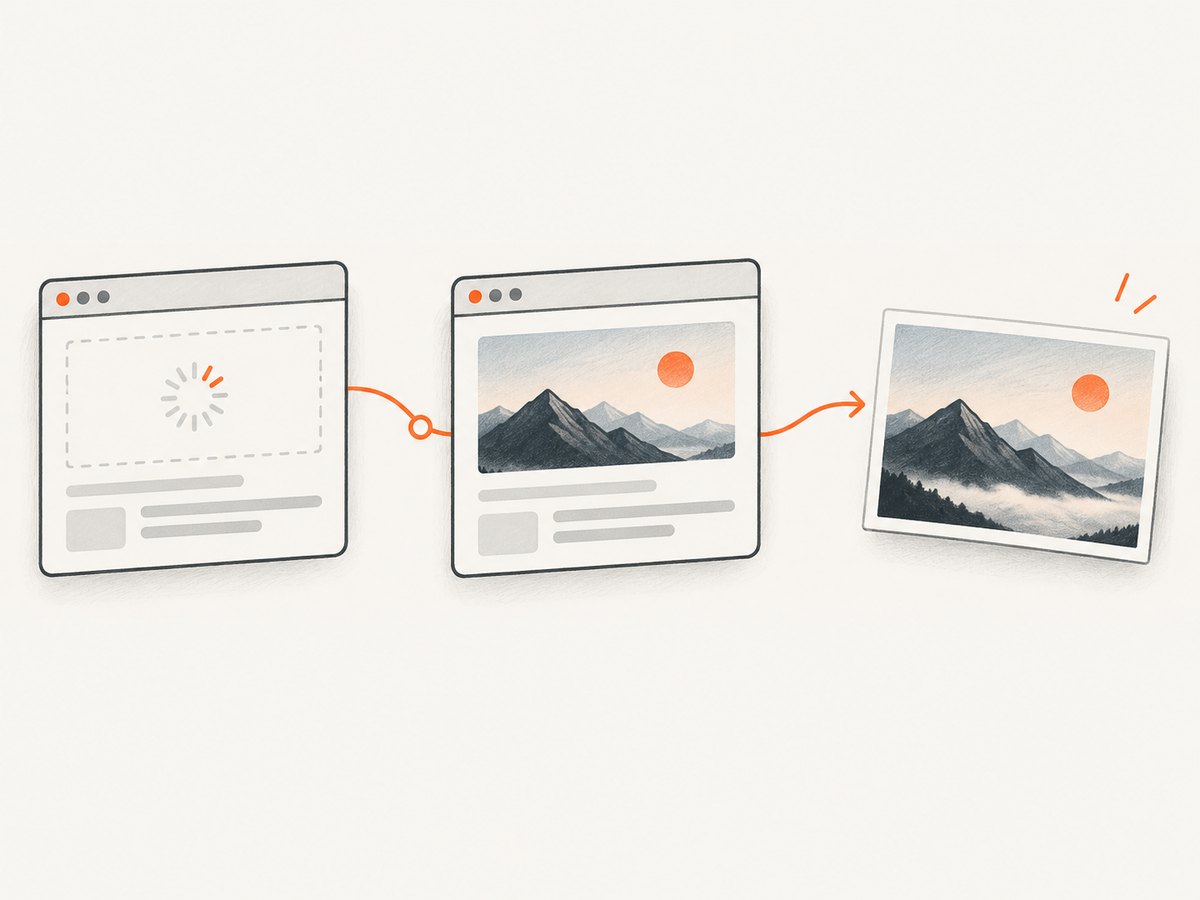
A screenshot reflects the page state at capture time. Set the viewport before navigation when layout matters, and wait for a page-specific signal if the content loads asynchronously. For example, wait for a selector that indicates the main content is ready:
from playwright.sync_api import sync_playwright

with sync_playwright() as p:
    browser = p.chromium.launch()
    page = browser.new_page(viewport={"width": 1440, "height": 900})
    page.goto("https://example.com", wait_until="domcontentloaded")
    page.locator("main").wait_for(state="visible", timeout=15_000)
    page.screenshot(path="desktop.png", full_page=True)
    browser.close()
The viewport controls responsive layout, so a phone-sized viewport can produce a different page than a desktop-sized one. Navigation completion does not guarantee that every image, font, animation, or application request has finished. A stable selector is usually more meaningful than an arbitrary sleep, though a short delay can help with known delayed rendering. Do not assume that every website exposes the same readiness signal or that waiting for network activity guarantees all visual content is ready.
For lazy-loaded images, scrolling through the page before a full-page capture may be necessary on some sites to trigger loading. The exact behavior depends on how the page implements lazy loading. If the output has empty image areas, inspect the page’s loading behavior and wait or scroll intentionally before capture.
6. Use an asynchronous Python script
For async applications, Playwright provides an asynchronous API. This example saves a full-page screenshot without blocking the event loop with the synchronous interface:
import asyncio
from playwright.async_api import async_playwright

async def main():
    async with async_playwright() as p:
        browser = await p.chromium.launch()
        page = await browser.new_page()
        await page.goto("https://example.com")
        await page.screenshot(path="page.png", full_page=True)
        await browser.close()

asyncio.run(main())
Use the synchronous API for a straightforward command-line script. Use async when the surrounding program already uses asyncio or needs to coordinate multiple asynchronous operations. Avoid mixing a synchronous Playwright call into an active async event loop.
7. Get image bytes instead of writing a file
Calling page.screenshot() without path returns image bytes. You can pass them to another library, store them in a database or object store, or write them yourself:
from pathlib import Path
from playwright.sync_api import sync_playwright

with sync_playwright() as p:
    browser = p.chromium.launch()
    page = browser.new_page()
    page.goto("https://example.com")
    image_bytes = page.screenshot(full_page=True, type="png")
    Path("page.png").write_bytes(image_bytes)
    browser.close()
This pattern is useful when a downstream step needs bytes rather than a local filename. Keep memory use in mind: a large full-page image can require substantial memory, and holding several screenshots at once increases that use. The screenshot guide covers file output, bytes, full-page images, and element screenshots: Playwright Python screenshots.
8. Troubleshooting common problems
| Symptom | Likely cause | What to try |
|---|---|---|
| Browser executable is missing | The Python package is installed, but its browser was not installed. | Run python -m playwright install chromium, or install the engine used by your script. |
| Navigation or screenshot times out | The page is slow, waiting on a resource, or using a timeout shorter than its load behavior. | Inspect the failure stage, set an appropriate navigation wait condition, and increase the relevant timeout if the page legitimately needs more time. |
| Element screenshot fails | The selector is wrong, the element is absent, or it is not visible. | Check the selector in the page, wait for the locator to become visible, and handle pages where the element is conditional. |
| Full-page image is unexpectedly blank in places | Content may load only after scrolling or after an application-specific event. | Wait for a meaningful ready selector; scroll to trigger lazy loading where needed; capture after the relevant content appears. |
| Image is too large | The page is long, the viewport is wide, device scale is used, or lossless output is large. | Capture a viewport or element, use CSS scale where appropriate, or choose JPEG/WebP with a suitable quality setting. |
| Image is clipped or layout differs | The viewport or clip dimensions do not match the intended output. | Set the viewport deliberately and verify clip coordinates and dimensions against the rendered page. |
| Transparent background is missing | The output format is JPEG, which does not support transparency. | Use PNG or another suitable format and consult the API behavior for omit_background. |
When debugging, first separate browser installation errors from navigation errors and capture errors. Save a viewport screenshot before adjusting full-page behavior; it can show whether the page rendered at all. Check the installed Playwright version and consult its matching API documentation when an option behaves differently than expected.
9. Performance, reliability, and cost
A local Playwright screenshot has no per-image API fee, but it uses your machine or server resources. Browser startup, page scripts, image decoding, and full-page rasterization all take time and memory. Reusing a browser process for a batch can avoid repeated startup work, while creating a fresh browser context per job can help isolate cookies and storage. Close pages, contexts, and browsers when their work is finished.
For throughput, limit parallel captures to what the host can support. Each page consumes browser resources, and very tall pages or high device scale can increase memory use. Use a bounded worker pool rather than launching an unbounded number of pages. If you need reproducible visual output, keep the browser engine, viewport, device scale, page state, and wait condition consistent; personalized content, rotating banners, timestamps, and third-party resources can still change between captures.
Reliability depends on both the browser environment and the target site. A page may fail because of network access, authentication, a bot check, a timeout, or client-side rendering. Capture errors should be handled explicitly in production scripts, and browser cleanup should happen even if navigation or screenshot creation raises an exception. Do not treat a successful file write as proof that the page content was complete; validate the output or the page state when completeness matters.
Cost is mainly infrastructure and engineering time for a self-hosted workflow: compute, memory, browser dependencies, and maintenance. If you need to capture many URLs, run captures from a service, or avoid managing browsers, a screenshot API can shift that operational work to a provider. Compare the required capture features, billing rules, and failure handling before choosing one.
Or skip the browser setup
If you want a screenshot without installing or managing a browser, ScreenshotNeo is a website screenshot API and MCP server. One GET request can return a PNG, JPEG, WebP, or PDF. See the ScreenshotNeo API documentation for the request options.
curl -G "https://api.screenshotneo.com/v1/shot" \
  -d access_key=YOUR_API_KEY \
  --data-urlencode url=https://stripe.com \
  -o shot.webp
import requests
r = requests.get(
"https://api.screenshotneo.com/v1/shot",
params={"access_key": "YOUR_API_KEY", "url": "https://stripe.com"},
timeout=90,
)
open("shot.webp", "wb").write(r.content)const q = new URLSearchParams({
access_key: 'YOUR_API_KEY',
url: 'https://stripe.com'
});
const res = await fetch(`https://api.screenshotneo.com/v1/shot?${q}`);ScreenshotNeo accepts cookie and consent banners as a visitor and removes more than 60 known consent platforms, newsletter popups, and chat widgets before the shot; each step can be turned off. Bot checks and CAPTCHAs, blank pages, timeouts, failed loads, and cache hits cost nothing, and response headers identify the page verdict and billing status. Its MCP server gives AI agents tools to take screenshots, get page information, and capture PDFs. The free plan includes 1,000 screenshots a month with no card; paid plans start at $5 for 3,000 shots. Sign up for 1,000 free screenshots a month, with no card.
10. FAQ
Can Python save a webpage directly as a PNG?
Yes. With Playwright, call page.screenshot(path="page.png"). Add full_page=True when you need the full scrollable page.
Can I screenshot a page without saving it to disk?
Yes. Call page.screenshot() without a path to receive image bytes, then process, upload, or store them.
Can I save only a chart or other page component?
Yes. Use page.locator("selector").screenshot(path="element.png") with a selector for the target element.
Does full-page mode capture the browser toolbar?
No. It captures the scrollable webpage, not the surrounding browser window or desktop.
Which format should I use?
Use PNG for lossless output or transparency, and JPEG or WebP when you want to tune lossy image quality. Check the Page API for the options supported by your installed Playwright version.


