How to Save a Webpage as an Image in Safari
Save a visible or full Safari webpage on iPhone, understand Mac’s limits, export PDFs correctly, and automate clean captures with ScreenshotNeo.
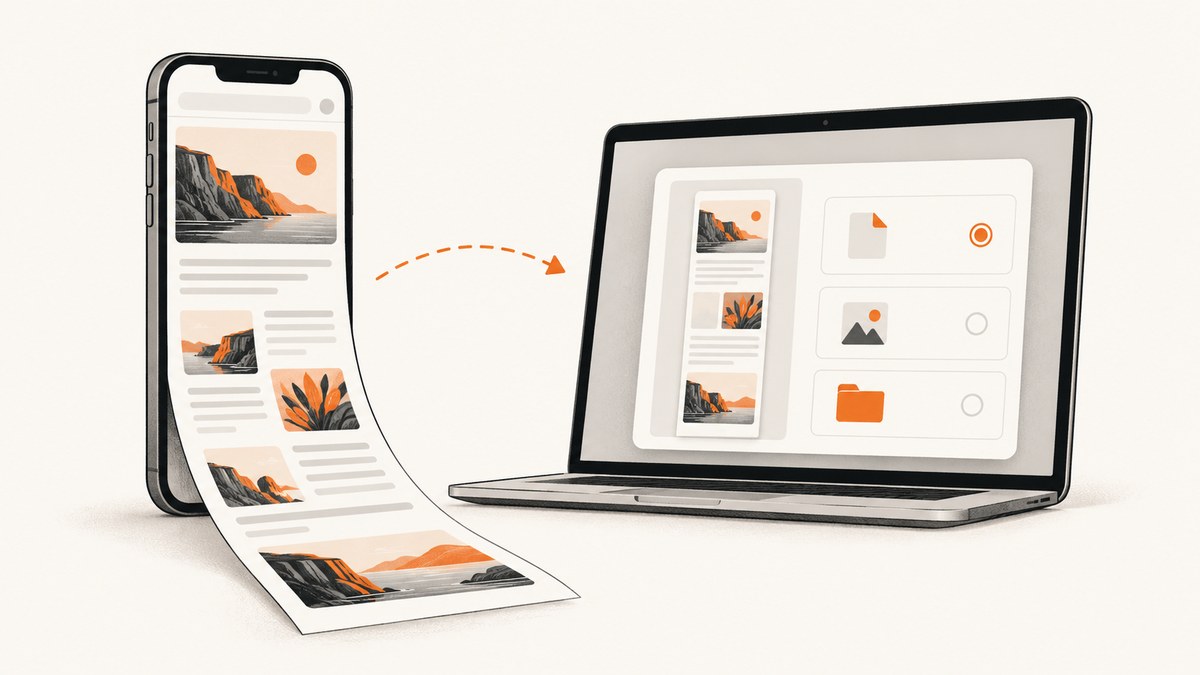
Safari gives you several different ways to save what you see, and they produce different files. On iPhone, a screenshot can be expanded to Full Page to capture an entire webpage. Safari’s documented PDF workflow is separate. On Mac, Safari’s built-in Save As command creates a Web Archive or Page Source file, not a whole-page image.
Choose the method by the result you need:
| Goal | Best Safari method | Output |
|---|---|---|
| Capture what is visible | Take a normal screenshot | Image in Photos or on the Desktop |
| Capture a long page on iPhone | Screenshot, then Full Page | Long page capture; available options depend on iOS |
| Save the page as a document | Page Menu → Share → Markup → Done → Save File To | |
| Save one image already on a page (Mac) | Control-click the image → Save Image | That individual image |
| Preserve a page on Mac | File → Save As | Web Archive or Page Source |
Save a full webpage as an image on iPhone
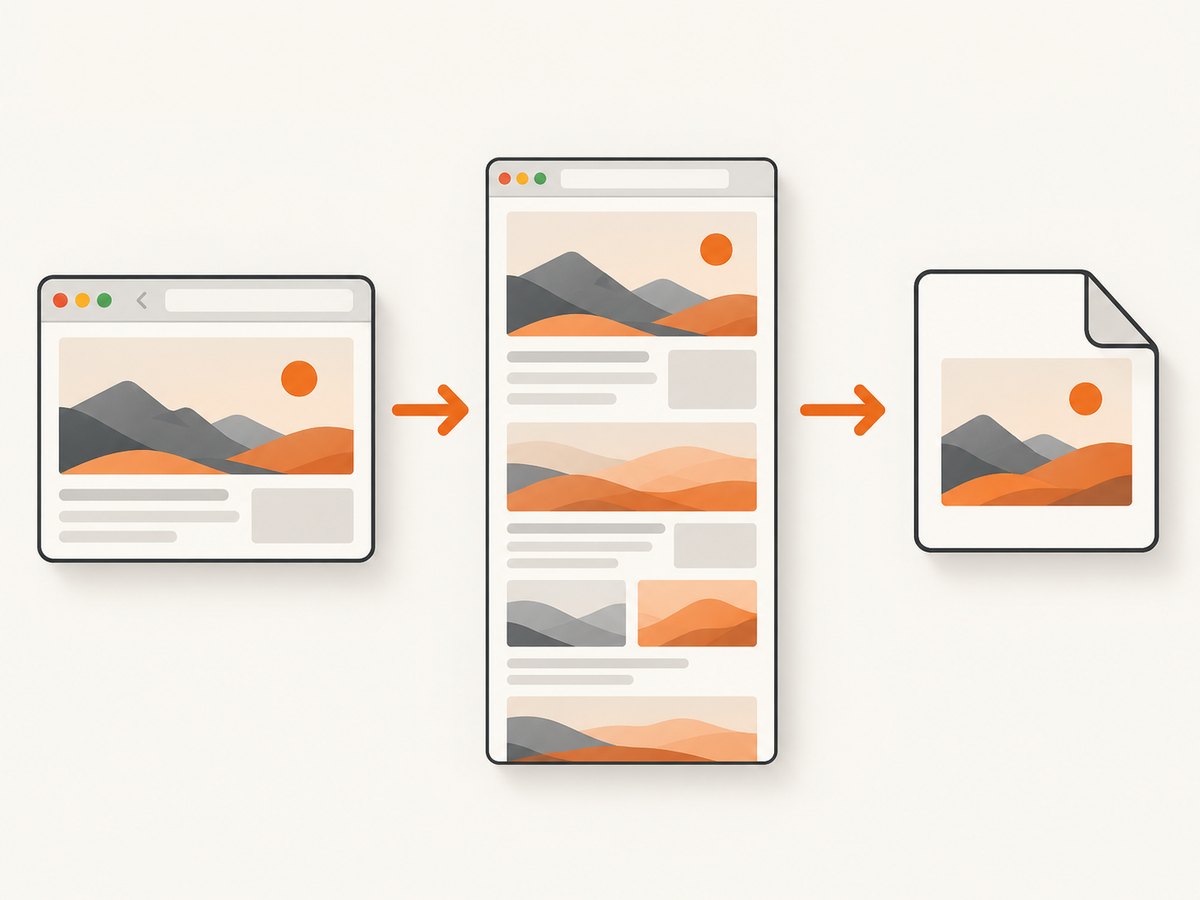
Safari on iPhone can capture content beyond the visible screen. Apple’s screenshot guide describes the Full Page option for capturing an entire Safari webpage. Apple’s iPhone screenshot instructions also cover cropping and Markup tools.
- Open the webpage in Safari.
- Take a screenshot. On Face ID iPhones, press the side button and volume-up button together. On iPhones with a Home button, press the side or top button and Home together.
- Tap the screenshot thumbnail before it disappears.
- At the top of the editor, tap Full Page.
- Review the page preview. Use the crop handles if you need only part of the page.
- Use Markup if you need arrows, highlights, a signature or other annotations.
- Save using the option shown by your iOS version. Apple’s guide documents the capture and editing flow, but the exact image-save format for every Full Page option can vary by OS version. Confirm the resulting file in Photos or Files before building a workflow around a particular extension.
What Full Page includes
The capture follows the webpage as Safari lays it out, including content below the fold. Pages that load content only after scrolling can behave differently from static pages: images may appear late, an infinite feed may stop at a finite point, and sticky headers can repeat or overlap. If the page is still changing when you capture it, wait for the content to settle first.
Visible screenshot versus Full Page
A normal screenshot records the viewport currently on screen. Full Page records a scrollable document when Safari offers that option. Full Page is therefore the right choice for an article, receipt or documentation page that is longer than the display. If the Full Page tab does not appear, Safari or the current page is not exposing a supported full-page document capture; use the PDF route or a dedicated capture tool instead.
Save a Safari webpage as a PDF on iPhone
Use this route when you need a document that can be searched, shared or printed. It is not an image-export workflow.
- Open the webpage in Safari.
- Tap the Page Menu button in the address bar.
- Tap Share.
- Choose Markup.
- Tap Done.
- Choose Save File To, select a location and save the named PDF.
This distinction matters when a downstream system expects PNG, JPEG or WebP. A PDF can contain selectable text and vector content, while an image is a raster snapshot. Apple documents the Safari PDF flow separately from screenshots.
Save one image from a webpage on Mac
If you need an image that is already embedded in a page, Safari can often save it directly:
- Move the pointer over the image.
- Control-click (or right-click) it.
- Choose Save Image As or the equivalent save command.
- Pick a folder and confirm the filename.
This extracts the source image; it does not create a screenshot of the entire webpage. Some visual content cannot be saved this way. CSS background images, canvas-rendered graphics, images inside protected viewers and content generated after interaction may not expose a Save Image command. In those cases, use a screenshot or capture the relevant element with a browser tool.
What Safari on Mac can save
Safari’s documented Mac command is File → Save As. The available webpage formats are:
- Web Archive: preserves webpage graphics and links in an archive. Linked destinations still depend on those pages remaining available.
- Page Source: saves the HTML source rather than a visual rendering.
Neither option is a whole-page PNG or JPEG export. Apple’s Safari guide also explains that Web Inspector is for examining resources and activity. It is not documented there as an ordinary, Apple-supported full-page image-export workflow.
Use browser tools when Safari’s built-in capture is not enough
For repeatable captures, you may need a controlled viewport, a fixed device scale, a selector-only capture, or a script that runs without a person. A browser automation workflow generally follows these steps:
- Launch a browser engine such as WebKit or Chromium.
- Set the viewport width, height and device scale factor.
- Navigate to the URL and wait for the page load condition you need.
- Optionally set cookies, headers, authentication, timezone or geolocation.
- Wait for a selector, a delay or network idle so lazy content appears.
- Hide banners, chat widgets or other selectors with CSS.
- Capture the viewport, a selected element or the full page.
- Write PNG, JPEG or WebP bytes to disk.
Automation has edge cases: cross-origin frames can restrict script access; bot checks can return an interstitial instead of the page; animations can make two captures differ; and pages that never become idle can cause a wait to hang. Set explicit timeouts, record the final URL and page status, and treat a bot challenge or blank document as a failed capture rather than a valid screenshot.
Or skip the browser setup
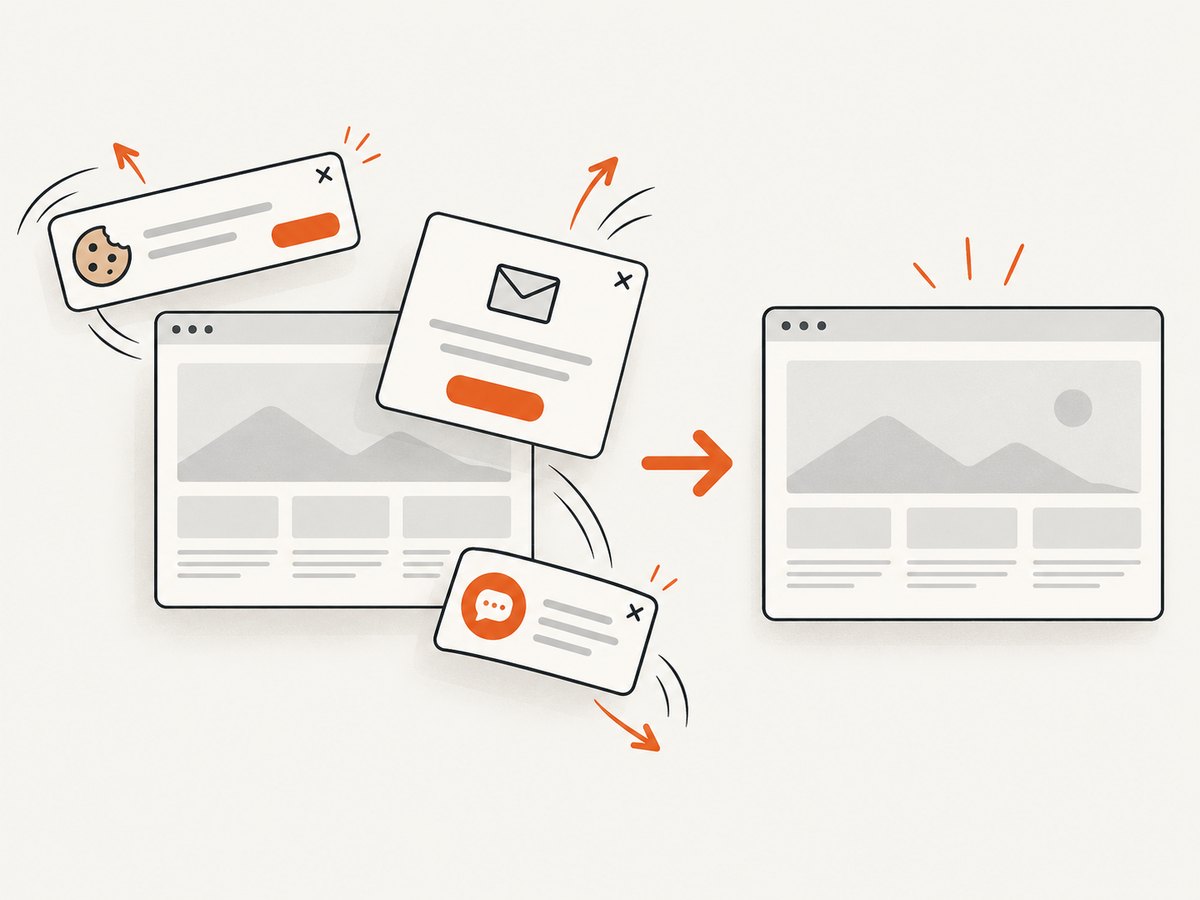
ScreenshotNeo is a website screenshot API and MCP server. One GET request returns a PNG, JPEG, WebP or PDF. Before capture, it accepts cookie and consent banners and removes more than 60 known consent platforms, newsletter popups and chat widgets; each step can be turned off. Bot checks, blank pages, timeouts, failed loads and cache hits cost nothing, and the response identifies the result with X-Page-Verdict and X-Billed headers.
Read the complete parameter reference in the ScreenshotNeo API documentation. The following calls are runnable; replace the key and target URL.
cURL
curl -G "https://api.screenshotneo.com/v1/shot" \
  -d access_key=YOUR_API_KEY \
  --data-urlencode url=https://stripe.com \
  -o shot.webp
Python
import requests

r = requests.get(
    "https://api.screenshotneo.com/v1/shot",
    params={"access_key": "YOUR_API_KEY", "url": "https://stripe.com"},
    timeout=90,
)
r.raise_for_status()
open("shot.webp", "wb").write(r.content)
Node.js
const q = new URLSearchParams({
  access_key: 'YOUR_API_KEY',
  url: 'https://stripe.com'
});
const res = await fetch(`https://api.screenshotneo.com/v1/shot?${q}`);
if (!res.ok) throw new Error(`HTTP ${res.status}`);
const bytes = new Uint8Array(await res.arrayBuffer());
await Bun.write('shot.webp', bytes);
Useful capture options
| Need | ScreenshotNeo capability |
|---|---|
| Long page | Full-page capture with lazy images loaded |
| One region | Capture one element by CSS selector |
| Consistent appearance | Dark mode, 12 device presets, any viewport and retina scale |
| Page interaction | Custom CSS and JavaScript; click an element before capture |
| Timing | Wait for a selector, delay or network idle |
| Noise removal | Hide selectors; block ads, trackers, requests or resource types |
| Authenticated pages | Custom headers, cookies, user agent and Authorization |
| Location-sensitive pages | Timezone and geolocation |
| Output control | Transparent background and image resizing |
| Repeat requests | Caching with a TTL you choose |
| Delivery | Signed links, asynchronous jobs with signed webhooks and bulk capture for 100 URLs per call |
| Documents | PDF paper size, margins, landscape mode and page ranges |
An MCP server provides take_screenshot, get_page_info and capture_pdf tools for Claude, Cursor and other MCP clients. An OpenAPI specification and a usage API are available, and parameter names used by other screenshot APIs also work, which can simplify migration.
Troubleshooting Safari captures
Full Page is missing
Safari only shows Full Page when the current document supports the extended screenshot flow. Try the page’s main document rather than a nested viewer, wait for navigation to finish, and update iOS if the control is unexpectedly absent. For a guaranteed long image, use an automated capture service.
The result stops before the bottom
Lazy-loaded or infinite-scroll content may not exist until you scroll. Scroll through the page first, wait for images to render, then capture. A feed with no fixed end cannot produce a meaningful “entire page”; choose a defined range.
Images are blank or low quality
Wait for the image to load before taking the screenshot. Check your connection and disable reader or content-blocking modes that remove required assets. For scripted captures, set a device scale or retina factor and wait for the image selector.
The Mac file is not an image
Web Archive and Page Source are Safari save formats, not screenshots. Use a visible screenshot, an element capture, or a capture API when you need PNG, JPEG or WebP.
A script captures a CAPTCHA or blank page
Detect the page verdict and response status. Do not publish the bytes as a successful screenshot. Slow down navigation, provide required authentication, or use a service that reports bot checks and failed loads separately.
Performance, reliability and cost notes
- Keep captures deterministic: fix viewport, device scale, timezone, geolocation and color scheme when comparing versions.
- Control waiting: a selector wait is usually more predictable than an arbitrary long delay; use a maximum timeout for pages that never settle.
- Reduce page weight: block ads, trackers and unneeded resource types when they are not part of the visual requirement.
- Cache deliberately: a chosen TTL can avoid repeated work for unchanged pages, while a zero or short TTL is safer for frequently changing content.
- Batch work: bulk capture supports up to 100 URLs per call; asynchronous jobs and signed webhooks keep long batches out of request timeouts.
- Budget for valid output: ScreenshotNeo bills only clean shots. Bot checks, blank pages, timeouts, failed loads and cache hits are not billed.
ScreenshotNeo has a free tier of 1,000 shots per month with no card. Paid plans are Starter $5 for 3,000 shots, Growth $15 for 15,000, Pro $39 for 60,000, Scale $99 for 250,000 and Business $249 for 1,000,000; yearly billing gives two months free, and every feature is on every plan.
FAQ
Can Safari save a complete webpage directly as a PNG on Mac?
Safari’s documented Mac Save As formats are Web Archive and Page Source. Use a screenshot tool or capture API for a full-page PNG.
Does iPhone Full Page capture work for every website?
No. Safari offers Full Page when the current document supports it. Embedded viewers, unusual scrolling containers and dynamic feeds may not expose the option or may produce a partial result.
Is a Safari PDF the same as an image?
No. The Share → Markup → Save File To route creates a PDF. Choose a screenshot or image capture when another system requires raster image bytes.
Can I save a CSS background image from Safari?
Not reliably with Save Image. Backgrounds and canvas-rendered visuals may require developer tools or a rendered screenshot.
Can an AI agent capture Safari pages?
ScreenshotNeo’s MCP server exposes take_screenshot, get_page_info and capture_pdf for Claude, Cursor and other MCP clients.
When you need occasional captures, Safari’s iPhone Full Page workflow is the quickest route. When you need repeatable image files, controlled rendering, clean pages and automation, sign up for ScreenshotNeo: 1,000 screenshots a month are free with no card, and paid plans start at $5 for 3,000.


