Save a Webpage as a Long Image
Learn how to save an entire webpage as one long image in Firefox, Chrome, iPhone, or with a screenshot API.
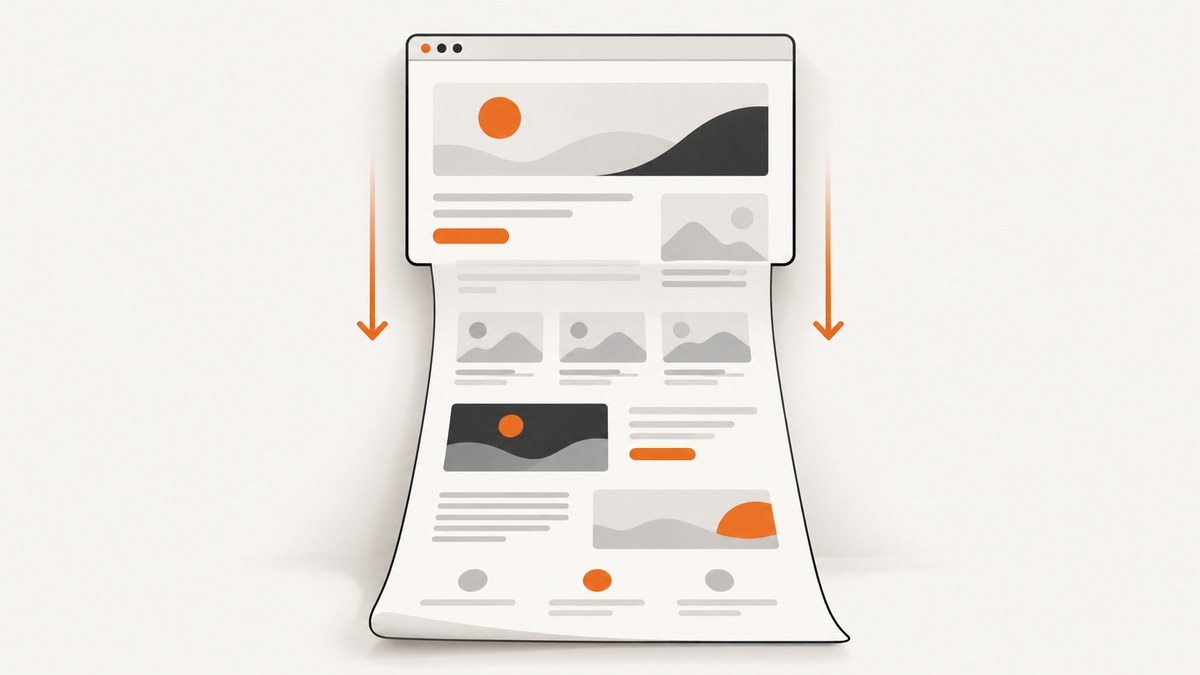
To save a webpage as one long image, use Firefox desktop’s built-in screenshot tool: right-click the page, choose Take Screenshot, select Save full page, then click Download. Mozilla says the downloaded file is a PNG. You can also press Ctrl+Shift+S on Windows or Linux, or Command+Shift+S on macOS. Firefox can copy the result to your clipboard as well. Mozilla’s screenshot instructions document both visible-area and full-page captures.
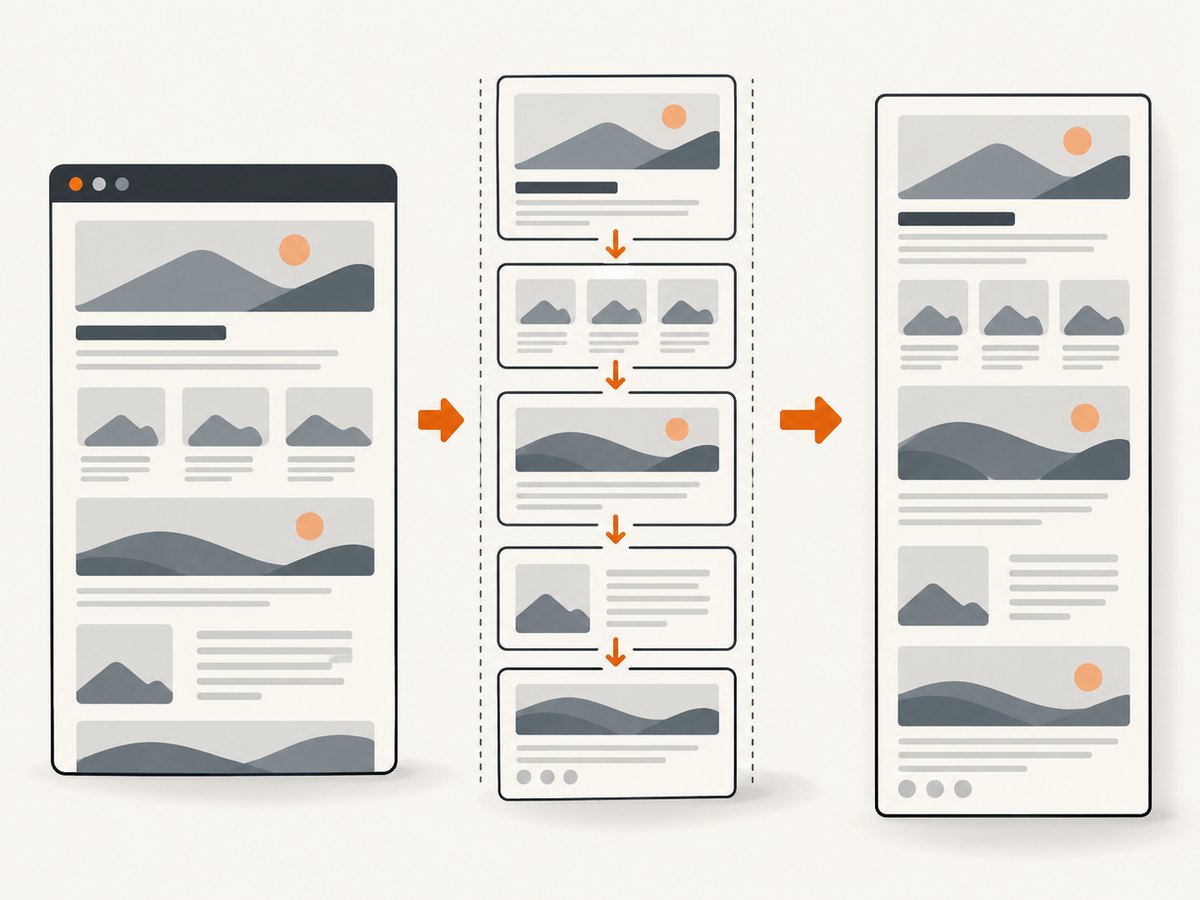
On an iPhone, Firefox’s documented full-page workflow saves a PDF rather than a long PNG or JPEG. In Chrome, a Web Store extension can scroll through a page and stitch the sections into one image. For repeatable developer workflows, an API such as ScreenshotNeo can create a full-page PNG, JPEG, WebP, or PDF without setting up a browser.
1. Save a full-page image in Firefox desktop
Firefox is the simplest option when you need a long image once and can use a desktop browser.
- Open the webpage you want to capture.
- Right-click an empty area of the page and choose Take Screenshot. If the menu item is not visible, press Ctrl+Shift+S on Windows or Linux, or Command+Shift+S on macOS.
- Choose Save full page in the screenshot toolbar.
- Review the preview. Use Download to save the image, or choose Copy to place it on the clipboard.
The result is a single image containing the page from its top edge to its bottom edge. Mozilla identifies the downloaded screenshot as a PNG. The capture includes content that must be scrolled into view, but the browser still has to be able to render that content. A page that loads data only after an interaction, uses an internal scrolling panel, or blocks automation may need additional steps.
Firefox shortcut and menu differences
| Goal | Action |
|---|---|
| Open screenshot tool | Right-click and choose Take Screenshot, or use Ctrl+Shift+S / Command+Shift+S |
| Capture everything | Choose Save full page |
| Capture only what is visible | Choose the visible-area option in the screenshot toolbar |
| Save a file | Click Download |
| Send to another app | Click Copy and paste from the clipboard |
2. Create a long image in Chrome
Chrome’s Web Store has extensions that scroll through a webpage, capture sections, and stitch them into one long screenshot. For example, the FullPage Capture listing describes PNG and JPEG downloads plus PDF export. The GoFullPage listing describes full-page capture as an extension feature.
- Open the Chrome Web Store and review the extension’s publisher, permissions, privacy information, and current listing.
- Install the extension and pin its toolbar icon if you want quick access.
- Open the page at the URL and wait for its visible content to finish loading.
- Click the extension icon and start a full-page capture.
- Let the extension scroll and stitch the sections. Do not interact with the page while it is capturing.
- Export as PNG or JPEG when you need an image, or PDF when a document is more useful.
These capabilities come from the Web Store listings, not an independent compatibility test. A scroll-and-stitch extension cannot guarantee a perfect result for every page. Check the output for duplicated fixed headers, missing lazy-loaded images, sticky controls, animations, cookie banners, and pages that scroll inside a nested panel.
When Chrome captures look wrong
- Repeated navigation bars: a fixed element may be included in every stitched section.
- Blank image areas: images may not have loaded before the extension reached them.
- Overlapping sections: animated content or a changing layout can make stitching boundaries visible.
- Only one panel is needed: the extension may capture the document viewport rather than a nested element. Look for an element-capture feature or use an API that accepts a CSS selector.
3. Save a full webpage on an iPhone
Firefox for iOS documents a full-page workflow that produces a PDF. It is useful when you need an archival document or a file that can be printed, but it does not create a long PNG or JPEG.
- Open the page in Firefox for iOS.
- Take a normal iPhone screenshot.
- Tap the screenshot thumbnail before it disappears.
- Select Full Page.
- Tap Done, then choose Save as PDF.
See Mozilla’s Save web pages as PDFs in Firefox for iOS guide for the documented sequence. If you specifically require a single image file, use a desktop browser, a Chrome extension that exports PNG/JPEG, or an image-producing API.
4. Choose the right method
| Situation | Best starting point | Output |
|---|---|---|
| One occasional capture on a computer | Firefox desktop screenshot | PNG or clipboard image |
| Chrome is required and PNG/JPEG is needed | Reviewed full-page extension | PNG or JPEG, depending on listing |
| iPhone capture for records | Firefox for iOS Full Page | |
| Automated, repeatable captures | Screenshot API | PNG, JPEG, WebP, or PDF |
| Only one page element | Element selector capture | Image of the selected element |
A browser feature is convenient for a human capture. An API is easier to monitor, retry, cache, and run from a build job, crawler, CMS, or scheduled task.
5. Improve long-image quality
Wait for the page to settle
Modern pages often load content after the initial HTML. Wait for images, charts, fonts, and client-rendered sections before capturing. If the page has a “load more” control, activate it first. For API captures, use a selector wait, a delay, or network-idle waiting when available.
Handle lazy-loaded images
Lazy images may not exist until they approach the viewport. A full-page browser capture can trigger them while scrolling, but output still depends on the site’s implementation. Check the bottom and middle of the image for placeholders. An API with explicit full-page lazy-image loading is useful for automated jobs.
Control sticky and animated elements
Pause carousels and videos when possible. Hide chat launchers, floating banners, and sticky controls before capture. If you own the page, add a capture-only stylesheet that disables transitions and hides elements that do not belong in the final image.
Choose image dimensions carefully
A very wide viewport can make text small in the final long image. A narrow viewport produces a taller file and may trigger mobile layouts. Pick a viewport that matches the reader or device you are documenting. Retina or device-scale settings increase sharpness and file size together.
6. Or skip the browser setup
ScreenshotNeo is a website screenshot API and MCP server. One GET request returns a clean PNG, JPEG, WebP, or PDF. Its full-page mode loads lazy images, and you can also capture one element by CSS selector.
Here is a complete cURL example. See the ScreenshotNeo documentation for the full parameter list.
curl -G "https://api.screenshotneo.com/v1/shot" \
  -d access_key=YOUR_API_KEY \
  --data-urlencode url=https://stripe.com \
  -o shot.webp
Python:
import requests

r = requests.get(
    "https://api.screenshotneo.com/v1/shot",
    params={"access_key": "YOUR_API_KEY", "url": "https://stripe.com"},
    timeout=90,
)
r.raise_for_status()
open("shot.webp", "wb").write(r.content)
Node.js:
const q = new URLSearchParams({
  access_key: 'YOUR_API_KEY',
  url: 'https://stripe.com'
});
const res = await fetch(`https://api.screenshotneo.com/v1/shot?${q}`);
if (!res.ok) throw new Error(`Screenshot failed: ${res.status}`);
const buffer = Buffer.from(await res.arrayBuffer());
await import('node:fs/promises').then(fs => fs.writeFile('shot.webp', buffer));
For a long image, add the API’s full-page option. Other useful controls include output format, viewport or one of 12 device presets, retina scale, dark mode, custom CSS and JavaScript, click-before-capture, selector waits, delay, network-idle waiting, hidden selectors, ad and tracker blocking, custom headers, cookies, user agent, Authorization, timezone, geolocation, transparent backgrounds, resizing, and a cache TTL you choose. You can also capture PDFs with paper size, margins, landscape mode, and page ranges; submit up to 100 URLs in a bulk call; run asynchronous jobs with signed webhooks; generate signed links for public <img> tags; and read usage through the usage API.
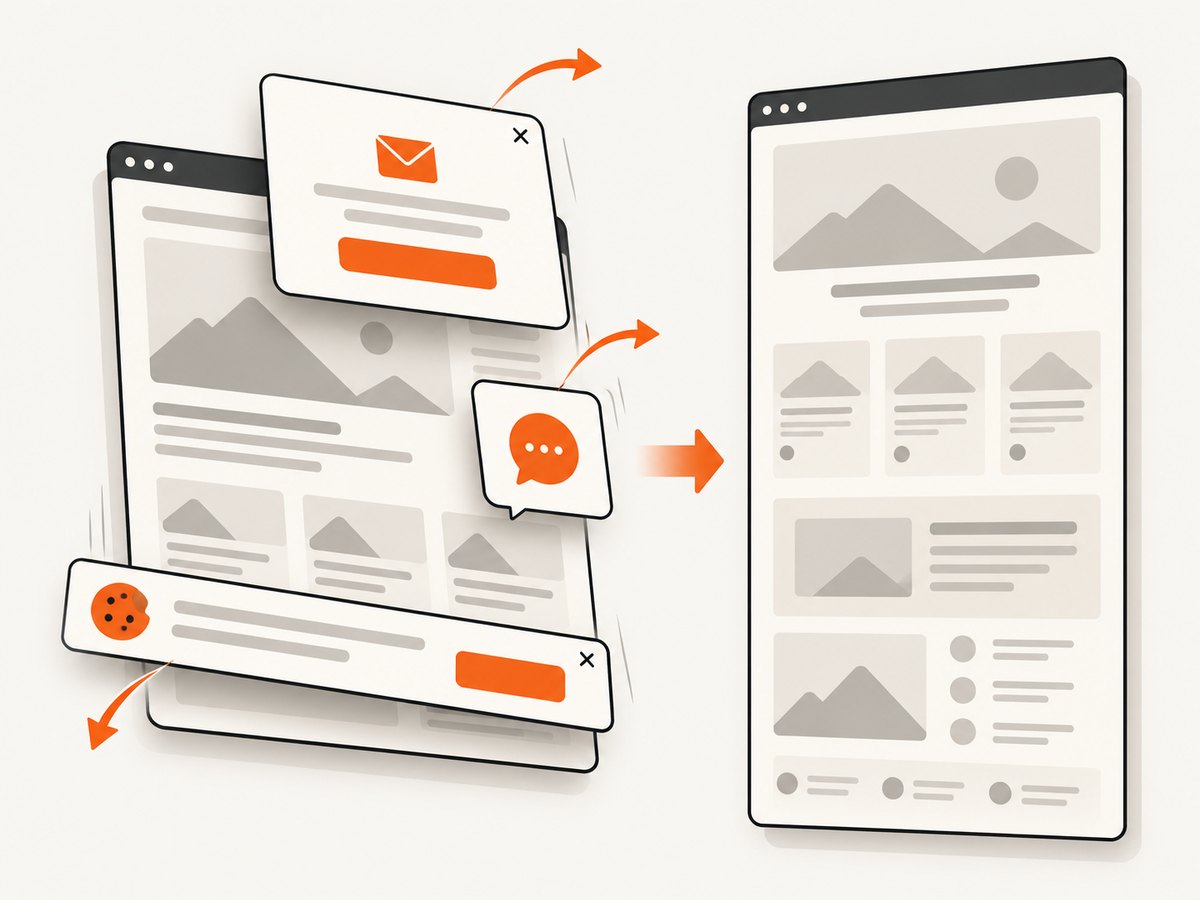
ScreenshotNeo removes cookie and consent banners, newsletter popups, and chat widgets from more than 60 known consent platforms before the capture. Each cleanup step can be disabled. Bot checks or CAPTCHAs, blank pages, timeouts, failed loads, and cache hits cost nothing, and response headers report the page verdict and whether the request was billed. An MCP server provides take_screenshot, get_page_info, and capture_pdf tools for Claude, Cursor, and other MCP clients.
Free accounts include 1,000 screenshots per month with no card. Paid plans start at $5 for 3,000 shots; every feature is available on every plan, and yearly billing gives two months free. Create a free ScreenshotNeo account to get started.
7. Troubleshooting checklist
| Symptom | Likely cause | Fix |
|---|---|---|
| The full-page option is missing in Firefox | The screenshot tool was not opened from the page, or the browser UI changed | Right-click an empty page area or use the platform shortcut, then look for Save full page |
| iPhone saves only a normal screenshot | The screenshot thumbnail was closed before editing | Take another screenshot, tap its thumbnail, choose Full Page, then Save as PDF |
| The image ends before the page bottom | Content loads only after scrolling or interaction | Scroll manually, activate load-more controls, wait for content, or use selector/delay/network-idle options in an API |
| Images are blank or low quality | Lazy loading, blocked resources, or capture before fonts/images finish | Wait longer, allow required resources, disable conflicting blockers, and inspect the page at the target viewport |
| Sticky headers repeat down the image | The capture method stitches viewport sections while the header remains fixed | Hide the header for capture, use custom CSS, or crop the repeated regions |
| A cookie banner covers content | The banner was not dismissed before capture | Accept or close it manually; ScreenshotNeo can accept consent and remove known consent platforms before capture |
| A protected page is blank or blocked | Bot checks, CAPTCHA, authentication, or network restrictions | Use permitted credentials and headers, capture an accessible route, or expect the capture to fail; do not attempt to bypass access controls |
| ScreenshotNeo returns an error | Invalid key, URL, timeout, or page verdict | Check the key and URL, inspect the HTTP status and X-Page-Verdict/X-Billed headers, increase waiting controls, and retry transient failures |
8. Performance, reliability, and cost
Long screenshots are larger than viewport shots. Reduce file size by choosing WebP or JPEG when transparency is unnecessary, setting a sensible viewport, and resizing after capture when a fixed delivery width is enough. PNG is useful for sharp text, diagrams, and transparency but can be substantially larger.
For repeated jobs, cache stable pages with a TTL, use bulk capture for up to 100 URLs per call, and use asynchronous jobs with signed webhooks when a request should not stay open. Add retries with backoff for temporary network failures, but do not retry an invalid URL or authentication error indefinitely. Store the page URL, capture parameters, timestamp, response status, page verdict, and billed status so a failed or free response is distinguishable from a successful paid shot.
Browser extensions are generally best for manual work. Automated browser farms require browser processes, fonts, network access, cookie handling, concurrency limits, and cleanup of temporary files. An API moves those operational tasks into a request model and gives you explicit capture controls. ScreenshotNeo bills only clean shots; bot checks, blank pages, timeouts, failed loads, and cache hits are not billed, and the response identifies which case occurred.
9. FAQ
Can I save a webpage as one JPEG in Firefox?
Mozilla’s documented Firefox desktop workflow identifies the downloaded screenshot as a PNG. Use a conversion tool afterward if JPEG is required, or use a capture service that supports JPEG output.
Does a full-page screenshot include content below the fold?
Yes, when the browser or capture tool can render the page while scrolling. Lazy content, nested scrolling areas, authentication, and interaction-dependent sections can still require preparation.
What is the difference between a long image and a PDF?
A long image is one raster file suited to image viewers, documentation, and social sharing. A PDF is paginated or document-oriented and is often better for printing, archiving, and selectable text workflows.
Can I capture just a chart or article element?
Yes. Use an element selector feature in an extension or an API that accepts a CSS selector. ScreenshotNeo supports capture of one element by selector.
Why is my screenshot very tall but unreadable?
The viewport may be too wide, the page may contain unusually long sections, or the image may be displayed scaled down. Capture at a reader-appropriate width and provide the original file for zooming.


