How to Save a Webpage as MHT with Puppeteer
Save a webpage as an MHTML archive with Puppeteer and Chrome DevTools Protocol. Get runnable code, readiness tips, troubleshooting, and format caveats.
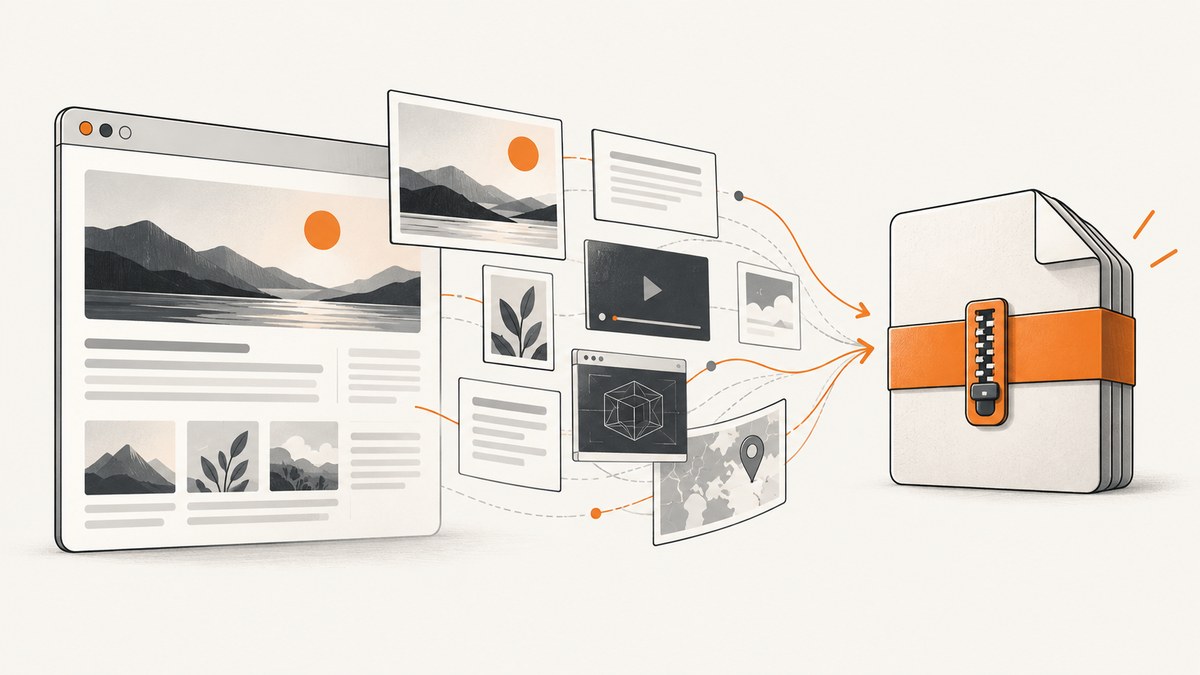
To save a webpage as an MHT archive with Puppeteer, attach a Chrome DevTools Protocol (CDP) session to the page, call Page.captureSnapshot with format: 'mhtml', then write the returned string to a file. Puppeteer’s page.content() returns HTML, and page.pdf() creates a PDF; neither creates an MHTML archive. [Puppeteer Page API] [Chrome DevTools Protocol Page reference]
import puppeteer from 'puppeteer';
import { writeFile } from 'node:fs/promises';

const url = 'https://example.com';
const browser = await puppeteer.launch();

try {
  const page = await browser.newPage();
  await page.goto(url, { waitUntil: 'networkidle2', timeout: 60000 });

  const cdp = await page.createCDPSession();
  const { data } = await cdp.send('Page.captureSnapshot', {
    format: 'mhtml',
  });

  await writeFile('page.mhtml', data, 'utf8');
  await cdp.detach();
} finally {
  await browser.close();
}
The result is a serialized page snapshot saved as page.mhtml. Use a Chromium version supported by your Puppeteer installation, and check that the paired browser supports the protocol command: the DevTools Protocol reference describes Page.captureSnapshot as experimental. [Protocol reference]
1. Install Puppeteer and run the capture
Use a Node.js project with Puppeteer installed. Its standard package installation downloads a compatible browser unless you have configured Puppeteer to use a separately installed Chrome or Chromium.
npm install puppeteerSave the first example as save-page.mjs and run:
node save-page.mjsThe networkidle2 navigation condition waits for a period with no more than two active network connections. It is a practical default for many pages, not a guarantee that every application has finished rendering. Choose readiness based on the target: a page can load content after navigation, and some sites keep requests open indefinitely. The next section shows how to wait for a known page element instead.
2. Choose when the page is ready
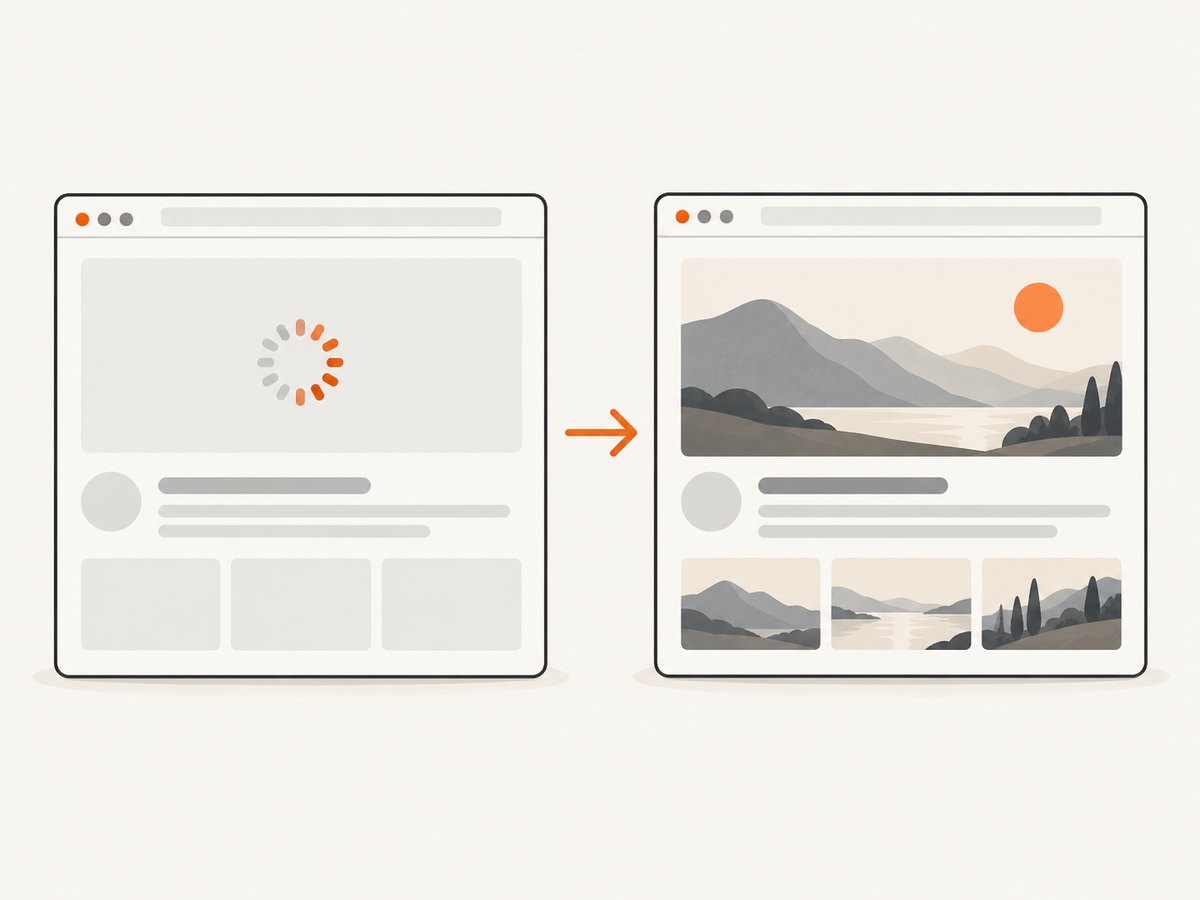
The archive contains the page state available when Page.captureSnapshot runs. If you capture too early, client-rendered content or lazy-loaded sections might not yet be present. If you wait for total network quiet on a page with long-lived requests, navigation may time out. Use a wait condition that matches the page’s behavior.
Wait for a page-specific selector
For an application that renders a known main element, wait for it explicitly. This example uses domcontentloaded for navigation and then waits for a selector. Replace the selector with one meaningful for your target.
import puppeteer from 'puppeteer';
import { writeFile } from 'node:fs/promises';

const browser = await puppeteer.launch();
try {
  const page = await browser.newPage();
  await page.goto('https://example.com/dashboard', {
    waitUntil: 'domcontentloaded',
    timeout: 60000,
  });
  await page.waitForSelector('[data-page-ready="true"]', {
    timeout: 30000,
  });

  const cdp = await page.createCDPSession();
  const { data } = await cdp.send('Page.captureSnapshot', { format: 'mhtml' });
  await writeFile('dashboard.mhtml', data, 'utf8');
  await cdp.detach();
} finally {
  await browser.close();
}
If you do not control the page and cannot identify a reliable selector, choose an appropriate navigation condition and add a short explicit delay only when the site needs time for a known asynchronous render. A delay is not proof that the page is ready; verify the saved archive in the reader you plan to use.
Navigation readiness options
| Condition | Use when | Watch for |
|---|---|---|
domcontentloaded |
You want the initial document parsed promptly, then will wait for a selector or other condition. | Images, scripts, and client-rendered content can still be loading. |
load |
The page’s load event is a useful signal for the content you need. | Some content appears after this event; it does not guarantee application readiness. |
networkidle2 |
Most resources settle and the page does not keep many requests open. | Long-lived requests can prevent the condition from being reached. |
networkidle0 |
You need a quieter network and the site eventually has no active connections. | Analytics, polling, streaming, or other persistent connections can make it hang. |
These are Puppeteer navigation signals, not MHTML-specific settings. Make the timeout long enough for the target page and your runtime, but keep it finite so a stuck navigation does not occupy a worker forever.
3. What the MHTML snapshot includes
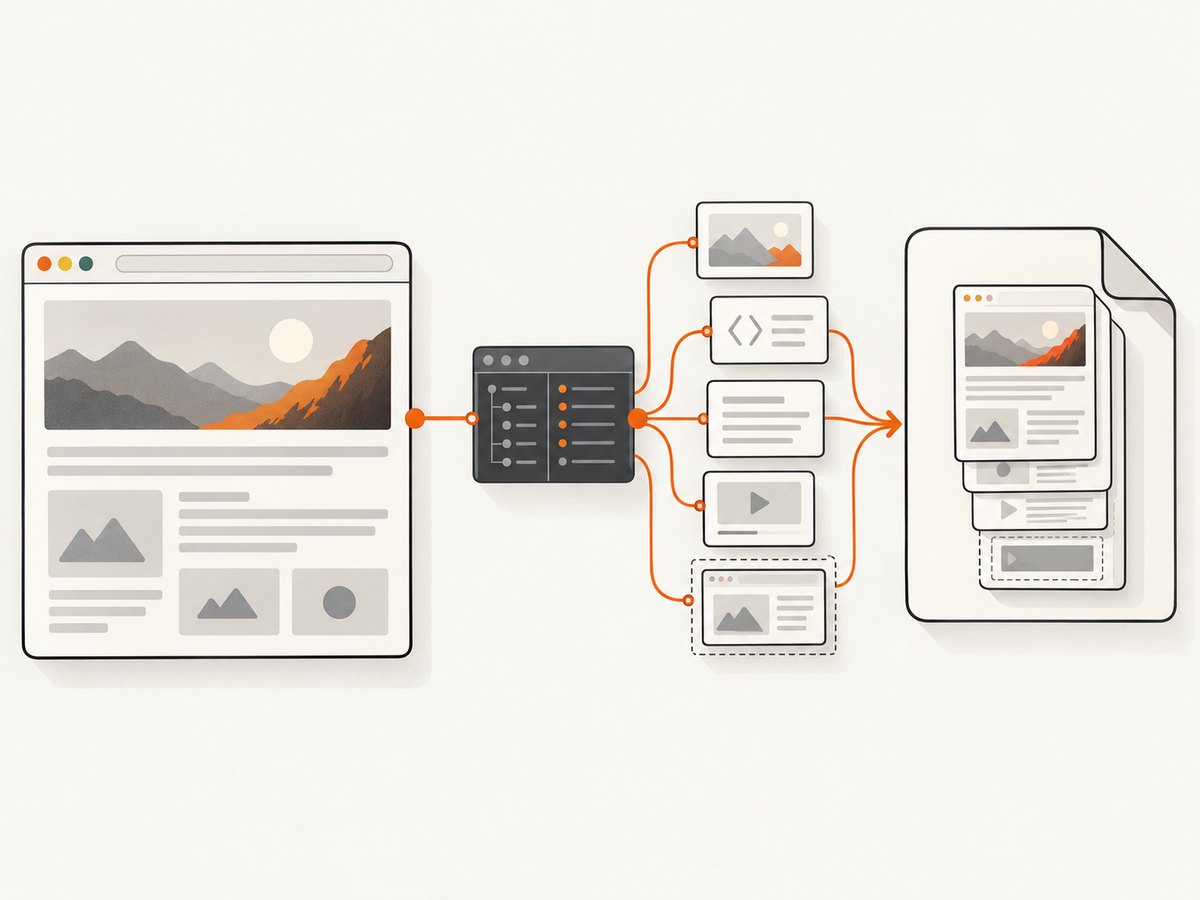
The DevTools Protocol says that MHTML serialization includes iframes, shadow DOM, external resources, and element-inline styles. That is why this protocol command is the relevant capture path when you need an archive rather than just the current document’s markup. [Chrome DevTools Protocol Page reference]
It is not a promise that every web application will reproduce perfectly offline. Dynamic state can depend on JavaScript, server responses, authentication, browser storage, or resources that the snapshot cannot make behave like a live application. Treat MHTML as an archive of a captured page state, then open the file in the intended reader and check the content that matters.
Save under an MHT or MHTML filename
The documented format name is mhtml. The examples use the .mhtml extension because it names that format explicitly. Some programs also use .mht, but extension handling varies; the cited documentation does not promise that every MHT or MHTML reader accepts either extension. If a downstream tool requires .mht, you can choose that filename, but verify its compatibility there.
4. Reusable function with URL and output arguments
This version accepts the target URL and output path from the command line, reports failures, detaches the CDP session, and closes the browser even if navigation or capture fails.
import puppeteer from 'puppeteer';
import { writeFile } from 'node:fs/promises';

const [url, outputPath = 'page.mhtml'] = process.argv.slice(2);
if (!url) {
  throw new Error('Usage: node save-page.mjs <url> [output.mhtml]');
}

const browser = await puppeteer.launch();
let cdp;
try {
  const page = await browser.newPage();
  await page.goto(url, { waitUntil: 'networkidle2', timeout: 60000 });
  cdp = await page.createCDPSession();
  const { data } = await cdp.send('Page.captureSnapshot', { format: 'mhtml' });
  await writeFile(outputPath, data, 'utf8');
  console.log(`Saved ${outputPath}`);
} finally {
  if (cdp) await cdp.detach().catch(() => {});
  await browser.close();
}
Run it with:
node save-page.mjs https://example.com archive.mhtmlFor a service that captures many pages, create and close browser resources deliberately. Reusing a browser process can avoid repeated startup overhead, but each page still needs its own navigation and capture lifecycle. Isolate concurrent jobs with separate pages and sensible concurrency limits; excessive parallel tabs consume memory and can slow captures or cause browser crashes.
5. Related capture methods and output formats
| Method | Output | Execution context |
|---|---|---|
Puppeteer plus Page.captureSnapshot |
MHTML snapshot string | Browser automation via a page’s CDP session |
page.content() |
HTML string | Puppeteer page API |
page.pdf() |
PDF document | Puppeteer page API |
chrome.pageCapture.saveAsMHTML() |
MHTML blob | Chrome extension with the documented permission and tab context |
Puppeteer’s Page API documents createCDPSession(), content(), and pdf() as distinct page operations. Chrome’s pageCapture.saveAsMHTML() is a separate extension API, not a Puppeteer method. Chrome documents restrictions on loading MHTML: it can be loaded from the file system and only in the main frame. [Puppeteer Page API] [Chrome pageCapture API]
6. Troubleshooting
| Symptom | Likely cause | Fix |
|---|---|---|
Protocol error: 'Page.captureSnapshot' wasn't found or similar unknown-command error |
The browser’s DevTools Protocol does not expose the command, or the browser version is incompatible. | Use the Chromium version installed for your Puppeteer version. Check that version’s protocol support; the current protocol reference labels this command experimental. |
Navigation times out at networkidle0 or networkidle2 |
The page keeps requests open, polls, or streams data. | Navigate with domcontentloaded or load, then wait for a selector that signals the required content. |
| The archive is missing a section | Capture ran before client-side rendering, lazy loading, or an asynchronous update completed. | Wait for a relevant selector or known application state before calling the snapshot command. |
| The output file is empty, truncated, or unreadable | The command failed before data was written, the process was interrupted, or the chosen reader does not accept the file or extension. | Check that the CDP call completed and returned data; write the complete string as UTF-8 and open it in the intended reader. Try the documented .mhtml extension. |
| Images or styling do not appear offline | The page may rely on dynamic resources or behavior that the archive does not recreate. | Inspect the live page’s readiness and verify the saved file in the target reader. Do not assume every site has a perfect offline reconstruction. |
| Capture fails on a logged-in page | The automated browser may not have the required session or authentication state. | Set up the browser context and navigate as an authorized user before capture. Avoid putting credentials in logs or source code. |
| Browser process stays open after an error | Cleanup was skipped when an exception occurred. | Put browser shutdown in a finally block, as in the examples, and detach any CDP session you created. |
7. Reliability, performance, and cost
MHTML capture requires launching or connecting to a Chromium browser, navigating to the page, waiting for useful readiness, serializing the snapshot, and writing its contents. Browser launch and page loading are usually the variable parts; the protocol call itself is one step in that pipeline. Actual runtime depends on the page, network, browser environment, and chosen wait condition. No universal timing or fidelity guarantee follows from the protocol documentation.
- Bound work: Set navigation and selector timeouts. A single stalled site should not hold a worker without limit.
- Limit concurrency: Browser tabs need memory and CPU. Start with a small number of concurrent pages and adjust to your environment.
- Keep artifacts manageable: MHTML packages page resources, so size can vary considerably with the page. Plan for disk, transfer, and retention needs.
- Handle partial failures: Write only after the capture returns, use a temporary path if downstream readers must never see incomplete files, and record the URL and failure stage in logs.
- Respect access controls: Capture pages you are authorized to access. Authentication and browser state are part of the setup for protected pages.
There is no MHTML-specific Puppeteer service fee in this workflow; costs come from the machine, browser runtime, network, and storage you operate. A hosted capture service has its own billing rules and may return an image or PDF rather than an MHTML archive. Match the output to the job before choosing a route.
Or skip the browser setup
If your goal is a rendered screenshot or PDF rather than an MHTML archive, ScreenshotNeo is a website screenshot API and MCP server from Yorker Media. One GET request can return a PNG, JPEG, WebP, or PDF. It does not return MHTML.
Here is the cURL call:
curl -G "https://api.screenshotneo.com/v1/shot" -d access_key=YOUR_API_KEY --data-urlencode url=https://stripe.com -o shot.webpPython:
import requests

r = requests.get(
    "https://api.screenshotneo.com/v1/shot",
    params={"access_key": "YOUR_API_KEY", "url": "https://stripe.com"},
    timeout=90,
)
open("shot.webp", "wb").write(r.content)
Node.js:
const q = new URLSearchParams({ access_key: 'YOUR_API_KEY', url: 'https://stripe.com' });
const res = await fetch(`https://api.screenshotneo.com/v1/shot?${q}`);
See the ScreenshotNeo API documentation for request options. Cookie banners, popups, and chat widgets are removed before the shot; bot checks, blank pages, and failed loads are never billed. An MCP server lets AI agents take screenshots. The free plan includes 1,000 screenshots a month with no card, and paid plans start at $5 for 3,000. Those are screenshot and PDF capabilities; use Puppeteer’s CDP method when you specifically need MHTML.
Sign up for 1,000 free screenshots a month, no card required.
FAQ
Does Puppeteer have a built-in page.mhtml() method?
The documented route here is to create a CDP session and send Page.captureSnapshot with the MHTML format. Puppeteer’s page.content() and page.pdf() return different formats.
Can I use the result as a standalone web application?
Do not assume so. MHTML is an archive of a captured page state; scripts, server-dependent behavior, authentication, and other dynamic features may not work offline as they do on the live site.
Should I use MHTML or PDF for long-term sharing?
Use the format your recipient and archive workflow support. MHTML packages webpage content for a browser-oriented archive; PDF is a different document output generated by Puppeteer’s PDF API. Verify the output in its intended reader.
Can I save the file with a .mht extension?
You can choose that filename when writing the returned string, but the format documentation does not establish compatibility for every reader and extension combination. The examples use .mhtml; test the required target application.


