Save a Webpage as a Single Image
Save a whole webpage as one image with Firefox, Developer Tools, or a browser extension. Learn which method fits and how to check the result.

To save an entire webpage as one image, use Firefox’s built-in screenshot tool: open the page, choose Take Screenshot, select Save full page, then choose Download. That captures content below the visible screen in a single image. Choose Save visible if you only need the current viewport. You can also copy the image to the clipboard. Mozilla documents both options.
The main decision is whether you need a quick image of a page you are viewing, more control over the capture, or repeatable screenshots from code. Start with Firefox for a one-off capture; use Developer Tools when you need options such as a delay or CSS selector; use an extension or an API when that better fits your workflow. Whichever method you choose, inspect long or dynamic pages for missing, repeated, or misplaced content.
1. Choose the right kind of screenshot
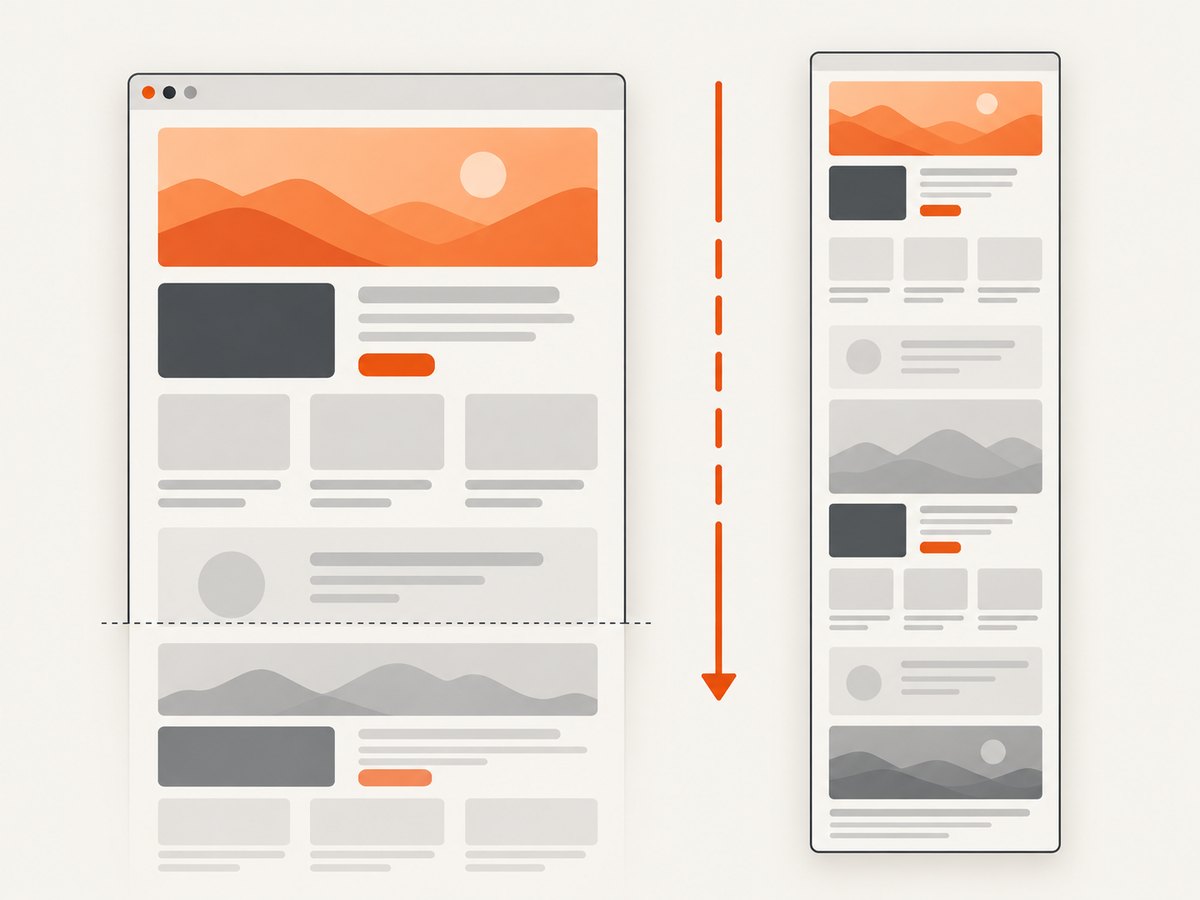
A visible screenshot records only the portion of the page currently inside the browser window. A full-page screenshot extends beyond that viewport to include the rest of the document, typically as one tall image. An element screenshot captures a selected part of a page, such as a chart or article card. These outputs solve different problems: decide what must appear in the final image before you capture.
| Need | Use | Keep in mind |
|---|---|---|
| Show what is on screen now | Visible screenshot | Content below the fold is not included. |
| Share or archive a long page as one image | Full-page screenshot | Check sticky elements, dynamic sections, and nested scrollers. |
| Save one component | Element screenshot | Choose the element carefully; surrounding context may be excluded. |
| Preserve text selection, links, or print layout | Consider a PDF or the original page | These are different outputs from a single image. |
For a single page you can open in Firefox, its built-in capture is the simplest starting point. It needs no extension or script. Developer Tools provide additional controls. Extensions offer another browser-based route, but their exact behavior and compatibility depend on the extension and browser version.
2. Save a full webpage image in Firefox
- Open the webpage in Firefox and wait until the content you want is visible.
- Right-click an empty part of the page and choose Take Screenshot. You can also use Ctrl + Shift + S on Windows or Linux, or Command + Shift + S on macOS.
- In the capture interface, choose Save full page. Choose Save visible if you only want the current viewport.
- Choose Download to save the image, or Copy to put it on your clipboard.
Firefox saves a PNG image to its default download location when you download it. The exact suggested filename can include a date. If you choose Copy, paste the result into an application that accepts images and save it from there if you need a file.
Before you capture
- Scroll through the page once if important content loads only as you move down. Then return to the top before capturing.
- Wait for animations, charts, and other dynamic sections to reach the state you want.
- Dismiss browser dialogs or overlays that should not appear in the image.
- Check that you are signed in and viewing the intended page if the content depends on an account.
Firefox’s interface makes the full-page choice explicit, which helps avoid the common mistake of saving only the visible viewport. Mozilla’s documentation describes screenshots as images that can be copied or saved. It also notes that Firefox Screenshots collects interaction data such as whether Save or Copy was used, while it does not collect the URL or details of the captured image. Review the Mozilla support page if that distinction matters for your use.
3. Use Firefox Developer Tools for more control
Firefox Developer Tools can capture a full page or a selected element. To use the screenshot button, open the Developer Tools toolbox, enable Take a screenshot of the entire page under Available Toolbox Buttons, then select the screenshot icon. The saved file goes to the browser’s Downloads directory. See Firefox’s Developer Tools documentation for the documented screenshot workflows and options.
For a command-line style workflow inside the Web Console, Firefox provides the :screenshot helper. The examples below are commands to enter in Firefox’s Web Console, not shell commands. Replace the selector and filename as needed:
:screenshot --fullpage
:screenshot --fullpage --filename=page.png
:screenshot --fullpage --delay=2 --dpr=2 --filename=page-retina.png
:screenshot --selector="main article" --filename=article.png
:screenshot --clipboard --fullpage
The documented options include --fullpage to include page content outside the browser window, --delay to wait before capturing, --dpr to set device pixel ratio, --filename to choose a filename, --clipboard to copy the image, and --selector to capture an element. Firefox documents a PNG extension for the filename. Reusing a filename overwrites the previous image, so select a fresh name or move the earlier capture first if you need to keep both.
When the controls help
- Delay: allow a menu, hover state, or delayed page content to appear before the capture.
- Device pixel ratio: adjust pixel density when the default output is too small or too large for your intended use. A larger ratio can increase image dimensions and file size.
- Selector: capture one element instead of the full document when you only need a component.
- Full page: include content outside the current window when a viewport capture is incomplete.
Selectors depend on the page’s markup. If a selector matches nothing or matches the wrong element, inspect the page with Developer Tools and adjust the selector. A full-page capture may still need visual review, especially if the page contains embedded frames, sticky headers, animations, or inner scrolling regions.
4. Consider a browser extension
A browser extension can be convenient if you use full-page captures often and want a dedicated control in the browser. The Chrome Web Store listing for FullPage Capture says it scrolls and stitches page sections, exports PNG or JPEG, and offers PDF separately. The listing also claims support for sticky headers, iframes, and inner scrollers, and says screenshots stay on the device. Treat those as claims from the listing rather than independently verified guarantees for every website.
Compatibility can change as browsers change. For example, the GoFullPage Chrome Web Store listing included a version 8.9 changelog entry dated September 24, 2026 describing a fix related to a new URL requirement in Chromium 153 and improved dialogs. That entry is evidence that extension behavior can require updates; it does not guarantee compatibility for every browser or site. Check the listing’s current details and inspect the resulting image rather than assuming every complex layout will be captured perfectly.
For sensitive pages, check the extension’s permissions and data handling before installing or using it. If you only need a one-time image and already use Firefox, its built-in screenshot workflow avoids adding another extension.
5. Save a webpage as an image with code or an API
If you need screenshots from a script, scheduled job, or application, browser automation or a screenshot API can make the process repeatable. Browser automation gives you control over a real browser session, but you must manage browser setup, page readiness, output paths, and failures. An API can reduce that setup to a request, though you should review its options and billing behavior for your use case.
DIY with browser automation
One common approach is to use Playwright with Chromium. Install the package and browser first, then save the following as screenshot.mjs. Replace the target URL with the page you are allowed to capture:
import { chromium } from 'playwright';

const browser = await chromium.launch({ headless: true });
const page = await browser.newPage({
  viewport: { width: 1440, height: 900 },
  deviceScaleFactor: 1,
});

try {
  await page.goto('https://example.com', {
    waitUntil: 'networkidle',
    timeout: 60000,
  });
  await page.screenshot({
    path: 'page.png',
    fullPage: true,
    type: 'png',
  });
} finally {
  await browser.close();
}
Install and run it with:
npm install playwright
npx playwright install chromium
node screenshot.mjs
fullPage: true requests a full-document screenshot. path sets the output filename, and type selects the image format supported by the installed Playwright version. The example waits for network activity to settle, but some sites keep connections open or load content later; for those, wait for a specific selector or add an explicit delay after navigation. If a page requires authentication, configure the browser context with an appropriate session before navigating, and protect any credentials or saved state.
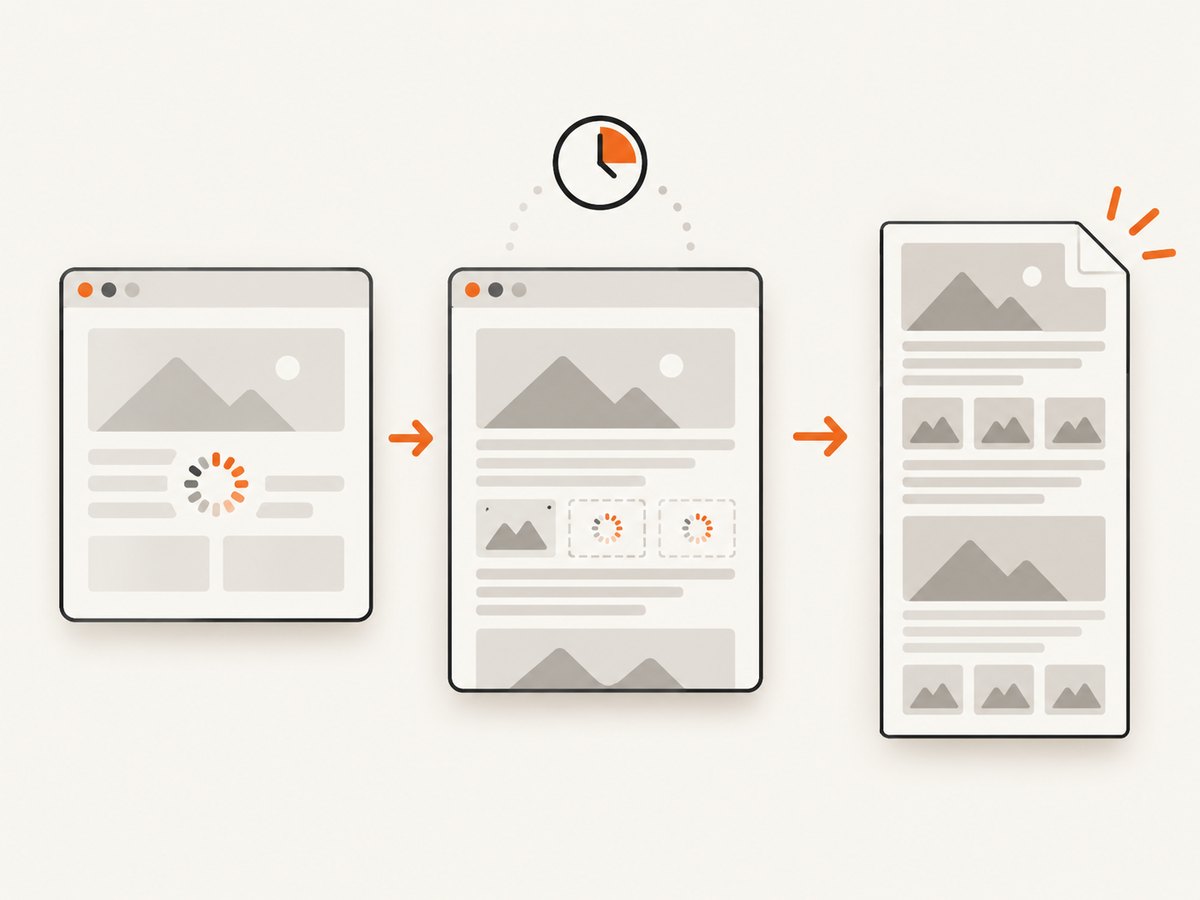
Browser automation can use more memory and maintenance than a simple API request. Long pages can create large images, and pages with lazy-loaded content may need scrolling before capture. A full-page screenshot also does not turn the image into searchable or selectable page text.
Or skip the browser setup
ScreenshotNeo is a website screenshot API and MCP server. A single GET request can return an image or PDF. Here is a cURL example that saves a WebP image:
curl -G "https://api.screenshotneo.com/v1/shot" -d access_key=YOUR_API_KEY --data-urlencode url=https://stripe.com -o shot.webpEquivalent Python:
import requests

r = requests.get(
    "https://api.screenshotneo.com/v1/shot",
    params={"access_key": "YOUR_API_KEY", "url": "https://stripe.com"},
    timeout=90,
)
open("shot.webp", "wb").write(r.content)
And Node.js:
const q = new URLSearchParams({
  access_key: 'YOUR_API_KEY',
  url: 'https://stripe.com',
});
const res = await fetch(`https://api.screenshotneo.com/v1/shot?${q}`);
const bytes = new Uint8Array(await res.arrayBuffer());
await import('node:fs/promises').then(fs => fs.writeFile('shot.webp', bytes));
See the ScreenshotNeo documentation for the API parameters and setup. Cookie banners, newsletter popups, and chat widgets are removed before the shot; each cleanup step can be turned off. Bot checks, blank pages, timeouts, failed loads, and cache hits are not billed, and response headers identify the page verdict and billing status. Its MCP server gives AI agents tools to take screenshots, get page information, and capture PDFs. The free plan includes 1,000 screenshots per month with no card; paid plans start at $5 for 3,000. Create a free ScreenshotNeo account.
6. Options to decide before capturing
For a one-off Firefox capture, the key choice is full page versus visible. For automation or an API, consider these settings before building a workflow:
- Page or element: capture the whole document or target a CSS selector.
- Wait condition: choose a delay, a selector, or a network-idle condition that matches how the page loads.
- Viewport and scale: set the viewport and pixel density to the desired dimensions. Higher density can produce larger output.
- Output: choose an image format and dimensions suited to the destination. Use PDF when the goal is a document layout rather than one image.
- Page state: account for dark mode, custom CSS, JavaScript interactions, cookies, or authentication headers when the page depends on them.
- Long-page behavior: check lazy images, sticky elements, embedded frames, and nested scrollers after capture.
- Repeatability: use deliberate filenames or an output naming scheme so captures do not silently overwrite earlier ones.
ScreenshotNeo supports full-page capture with lazy images loaded, element selection, dark mode, device presets and custom viewports, retina scale, custom CSS and JavaScript, click-before-capture, hiding selectors, and waits for a selector, delay, or network idle. It also supports PNG, JPEG, WebP, PDF settings, custom headers and cookies, user agent and authorization, timezone and geolocation, transparent backgrounds, resizing, caching with a chosen TTL, signed public image links, asynchronous jobs with signed webhooks, bulk capture of up to 100 URLs per call, a usage API, and an OpenAPI specification. Parameter names used by other screenshot APIs also work to ease migration. Consult its docs for exact parameter syntax and availability.
7. Troubleshooting common capture problems
| Symptom | Likely cause | What to try |
|---|---|---|
| Only the visible screen appears | The visible option was selected, or the capture command omitted full-page mode. | Choose Save full page in Firefox or add --fullpage / fullPage: true in the relevant workflow. |
| Images or sections are blank | Content loads on scroll, after a delay, or when a section enters view. | Scroll the page before capture; wait for the missing selector or add an appropriate delay, then capture again. |
| A menu or hover state is missing | The screenshot started before the interaction state appeared. | Trigger the state first and use a delay if needed. Confirm the pointer or focus state is still active at capture time. |
| Sticky header repeats or overlaps content | The page or capture method handles a fixed element differently during a long-page capture. | Review the result; where available, hide the sticky selector or use a method whose behavior fits the page. |
| An embedded area or nested scroller is incomplete | The content is inside an iframe or an element that scrolls independently of the document. | Inspect that region separately, target its element if supported, or use a capture method that handles the page structure. Do not assume a full-page option includes every nested region. |
| Wrong element or no element captured | The CSS selector does not match the intended markup. | Inspect the page’s DOM, use a selector that uniquely matches the target, and retry. |
| Capture times out | The page is slow, a network-idle condition never occurs, or the timeout is too short. | Increase the timeout where supported and wait for a specific element or a bounded delay instead of waiting indefinitely for all network activity. |
| Previous file disappeared | The new capture reused the same filename and replaced it. | Choose a unique filename or move the previous image before capturing again. |
| The image is unexpectedly huge | A very long page or high device-pixel ratio multiplied the output dimensions. | Use a lower scale, capture only the needed element, or resize the image for its intended use. |
8. Performance, reliability, and cost
Full-page images can be tall and large. A higher device-pixel ratio increases the number of captured pixels, which can increase file size, memory use, processing time, and upload costs in a downstream system. Capture only the content you need when a full document is unnecessary. Choose JPEG or WebP when smaller files suit the task; use PNG when its output characteristics better fit your needs. Keep in mind that a screenshot is a raster image, so text and links are not separately selectable.
Reliability depends on page state and structure. Dynamic content, lazy loading, cross-origin frames, authentication, and nested scrolling can affect what appears. Use explicit readiness checks for automation, set sensible timeouts, and inspect representative captures before relying on a workflow at scale. A successful request does not by itself prove that every desired section rendered correctly.
Firefox’s built-in screenshot has no separate API request cost. Extension pricing and behavior should be checked on the extension’s current listing. For a hosted API, compare the plan limits, output choices, and what happens when a page fails or is served from cache. ScreenshotNeo lists 1,000 free monthly shots with no card, followed by Starter at $5 for 3,000, Growth at $15 for 15,000, Pro at $39 for 60,000, Scale at $99 for 250,000, and Business at $249 for 1,000,000; yearly billing gives two months free. Its stated billing rule is that only clean shots are billed, with verdict and billing headers on each response. Confirm current plan details in its documentation before choosing a plan.
9. Frequently asked questions
Can I save a full webpage as one image without installing anything?
Yes. Firefox includes a screenshot interface with a Save full page option. You can download the result or copy it to the clipboard.
Does a full-page screenshot include everything inside an iframe?
Not necessarily. Results can vary with page structure and capture method. Inspect embedded content in the finished image, especially when it is essential.
Should I save the page as an image or a PDF?
Use an image when you need a single visual snapshot. Use a PDF or the original page when preserving document-style pages, selectable text, or links matters more.
Will a screenshot preserve animations or interactive behavior?
No. The output is an image of a moment in time. Choose the state you want before capture; the image itself does not retain the page’s interactions.
Can I capture only one part of a webpage?
Yes. Firefox Developer Tools’ screenshot helper documents a selector option, and automation or screenshot APIs may offer element capture. The selector must match the intended element in the page.


