How to Save a Webpage without Ads
Learn how to remove page clutter, save a webpage as a clean PDF or offline file, and automate ad-free captures with ScreenshotNeo.
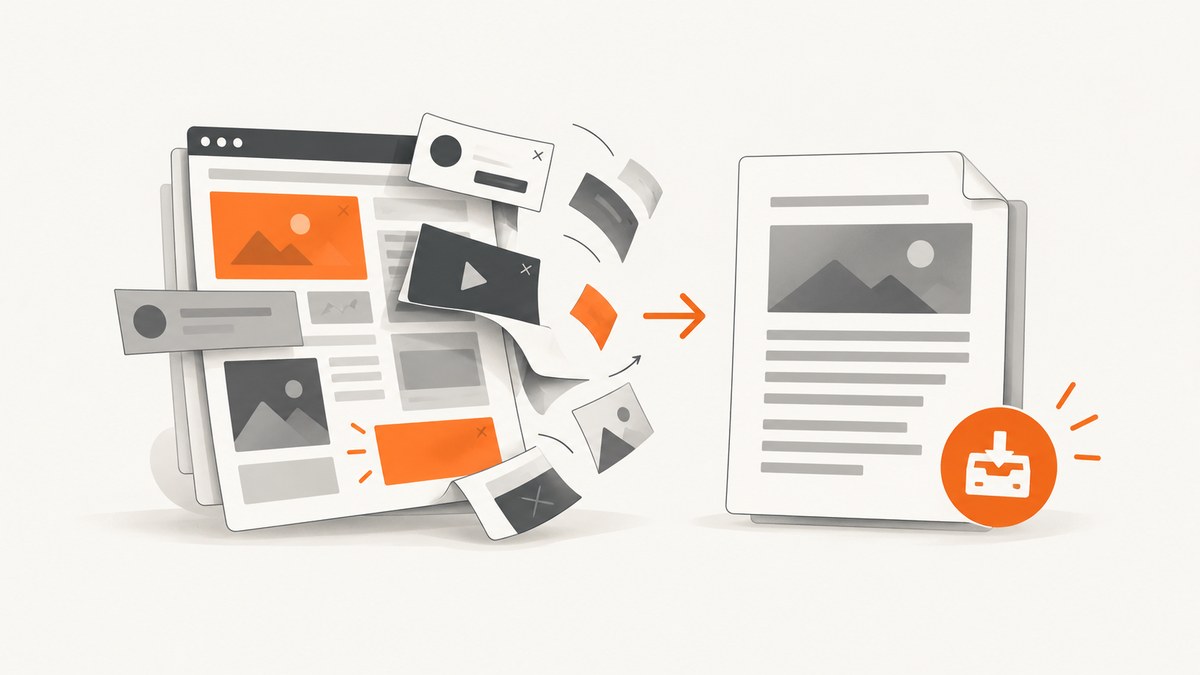
Use a reading mode to remove ads and clutter, then save the simplified result as a PDF, offline reading-list item, or local webpage file. Reading mode alone does not create an offline copy, so verify the saved result before closing the original page.
1. Choose the right ad-free format
| Goal | Best option | What to expect |
|---|---|---|
| Read with less clutter | Firefox Reader View or Chrome Reading mode | Ads, buttons, background images, and some media are removed when the page is eligible. The result is not automatically saved offline. |
| Keep a portable document | Print the simplified view to PDF | Easy to share and archive. Print layout can differ from the screen, so inspect the preview. |
| Read later in a browser | Safari Reading List offline saving or Chrome offline/Reading List features | Convenient for later reading, but controls vary by device and browser version. |
| Keep a local webpage | Firefox Save Page As | Choose complete, HTML-only, or text based on whether you need images, links, or just text. |
2. Firefox: remove ads, then save
Open Reader View
- Open the article in Firefox desktop.
- Look for the Reader View icon in the address bar. It appears only on pages Firefox can simplify.
- Open Reader View and check that the headline, body, images, and links you need are present.
Reader View is not universal. Pages such as galleries, interactive tools, forms, quizzes, payment screens, and login flows may not be eligible or may lose important content.
Save the clean view as a PDF
- With the simplified page open, choose Print.
- Select Save to PDF as the destination.
- When available, choose Simplified under Format.
- Review the print preview for missing images, clipped headings, page breaks, and unwanted blank pages.
- Save the PDF and open it once to confirm it works offline.
Save a local webpage
- Choose Save Page As.
- Select Web page, complete to save pictures and supporting files in a companion directory.
- Select Web page, HTML only to keep the HTML and original link structure without pictures.
- Select Text files when you need text only; this does not preserve the original link structure.
- Open the saved file while disconnected or with networking disabled to verify the copy.
3. Chrome: Reading mode and offline copies
Use Reading mode
- Open the page in Chrome desktop.
- Open Reading mode from the right-click menu, the address bar, or More tools, depending on your Chrome version.
- Use its controls to show or hide links and images.
Google states that Reading mode is unavailable on some sites and may not work as expected for galleries, interactive maps, forms, quizzes, payment pages, or login screens. It applies to the text shown in Reading mode, not necessarily every element on the original page.
Save for offline reading
Chrome documents page downloads and Reading List workflows for desktop. On iPhone and iPad, open the More menu and add the page to Reading List while online. Reopening a saved item while online can load the live version, so test the item with connectivity disabled if offline access matters.
4. Safari for Mac: save a Reading List item offline
- Add the page to Safari Reading List.
- Open the Reading List sidebar and use Save Offline for the item.
- In Safari settings, use the Advanced option to automatically save Reading List webpages when that suits your workflow.
- Open the item without a network connection to confirm the stored copy.
Safari’s exact controls can change with macOS versions. Save while online and verify the result before relying on it.
5. Command-line and automated saving
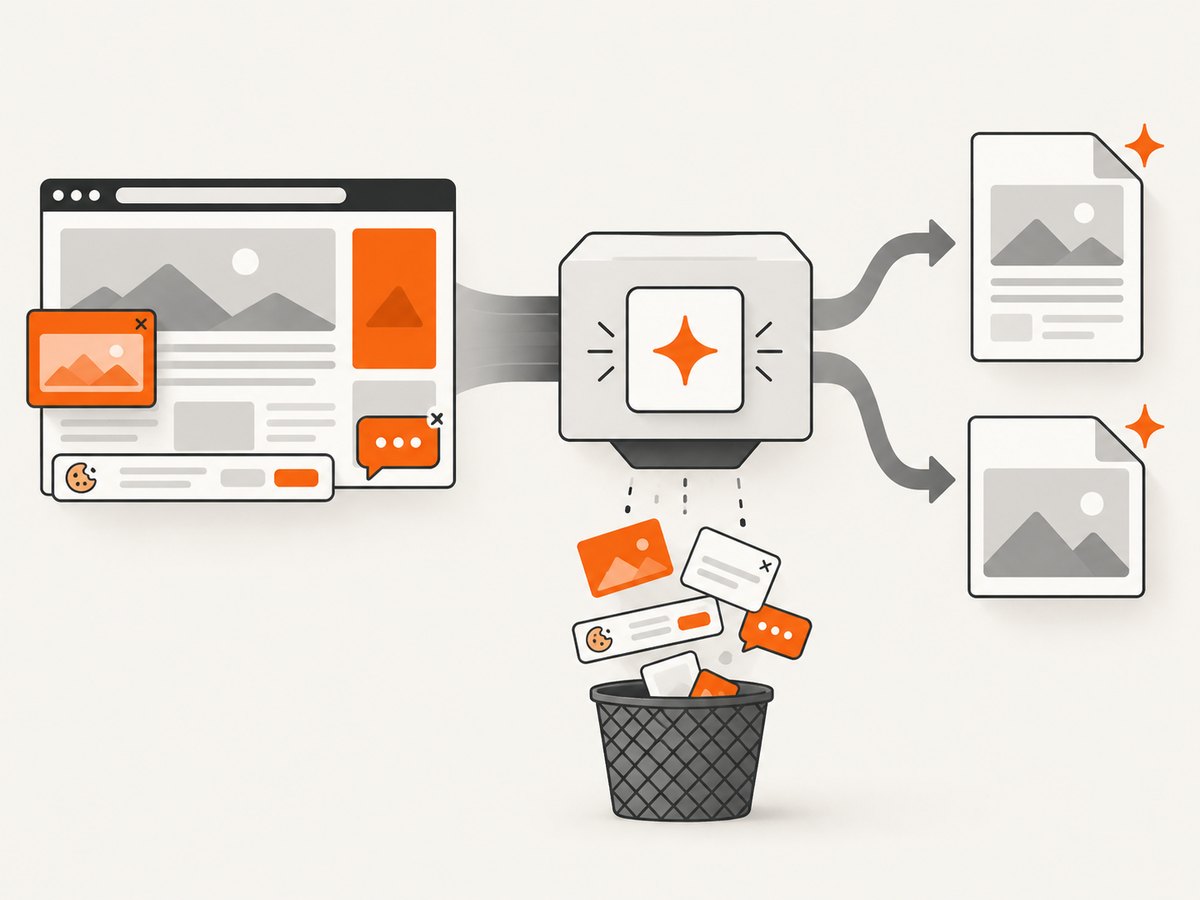
For a single page, browser tools are usually fastest. For recurring captures, reports, archives, or many URLs, an automated screenshot or PDF service avoids maintaining a browser installation and repeatable cleanup scripts. A clean capture should also handle cookie banners, newsletter popups, and chat widgets before rendering the saved file.
6. Or skip the browser setup
ScreenshotNeo is a website screenshot API and MCP server. One GET request returns a PNG, JPEG, WebP, or PDF. Before capture it accepts cookie or consent banners and removes more than 60 known consent platforms, newsletter popups, and chat widgets; each cleanup step can be turned off. It supports full-page captures with lazy images loaded, element captures by CSS selector, dark mode, device presets or custom viewports, retina scale, PDF paper size, margins, landscape mode and page ranges, custom CSS and JavaScript, clicks, selector or network-idle waits, blocked ads/trackers/requests/resource types, custom headers/cookies/user agents/Authorization, timezone and geolocation, transparent backgrounds, resizing, caching with a chosen TTL, signed links, asynchronous jobs with signed webhooks, bulk capture of up to 100 URLs per call, a usage API, and an OpenAPI specification.
See the ScreenshotNeo API documentation for the current request parameters. Basic calls:
cURL
curl -G "https://api.screenshotneo.com/v1/shot" -d access_key=YOUR_API_KEY --data-urlencode url=https://stripe.com -o shot.webpPython
import requests

r = requests.get(
    "https://api.screenshotneo.com/v1/shot",
    params={"access_key": "YOUR_API_KEY", "url": "https://stripe.com"},
    timeout=90,
)
r.raise_for_status()
open("shot.webp", "wb").write(r.content)
Node.js
const q = new URLSearchParams({ access_key: 'YOUR_API_KEY', url: 'https://stripe.com' });
const res = await fetch(`https://api.screenshotneo.com/v1/shot?${q}`);
if (!res.ok) throw new Error(`Screenshot failed: ${res.status}`);
const fs = await import('node:fs/promises');
await fs.writeFile('shot.webp', Buffer.from(await res.arrayBuffer()));
ScreenshotNeo bills only clean shots. Bot checks or CAPTCHAs, blank pages, timeouts, failed loads, and cache hits cost nothing, and each response identifies the result with X-Page-Verdict and X-Billed headers. An MCP server exposes take_screenshot, get_page_info, and capture_pdf to Claude, Cursor, and other MCP clients.
There is a Free plan with 1,000 shots per month and no card. Paid plans are Starter $5 for 3,000, Growth $15 for 15,000, Pro $39 for 60,000, Scale $99 for 250,000, and Business $249 for 1,000,000; yearly billing gives two months free, and every feature is available on every plan. Create a free ScreenshotNeo account.
7. Preserve what matters
- Text: Reading mode or a text export is usually the smallest and most durable copy.
- Images: Use PDF or Firefox’s complete webpage format, then check that images are actually bundled.
- Links: HTML-only preserves the original link structure; PDF links may depend on the browser’s print implementation.
- Interactive content: Video, maps, forms, quizzes, payment screens, login areas, and scripts may not work offline in any saved representation.
- Privacy: Saved files can contain account names, private text, tracking parameters, or personal data. Store and share them accordingly.
- Freshness: A saved file is a snapshot. Record the capture date if the source changes frequently.
8. Troubleshooting
| Problem | Likely cause | Fix |
|---|---|---|
| Reader View icon is missing | The page is not eligible or the browser cannot identify an article. | Try the site’s print view, save the page directly, or capture the visible content manually. Interactive and login pages commonly fail eligibility checks. |
| Ads still appear in the PDF | You printed the original page instead of the simplified view, or the ad was part of the article content. | Enter Reader View/Reading mode first, then print. Inspect the preview before saving. |
| PDF has clipped text or blank pages | Print CSS differs from the screen layout. | Change paper size, margins, scale, orientation, or page range; preview again. |
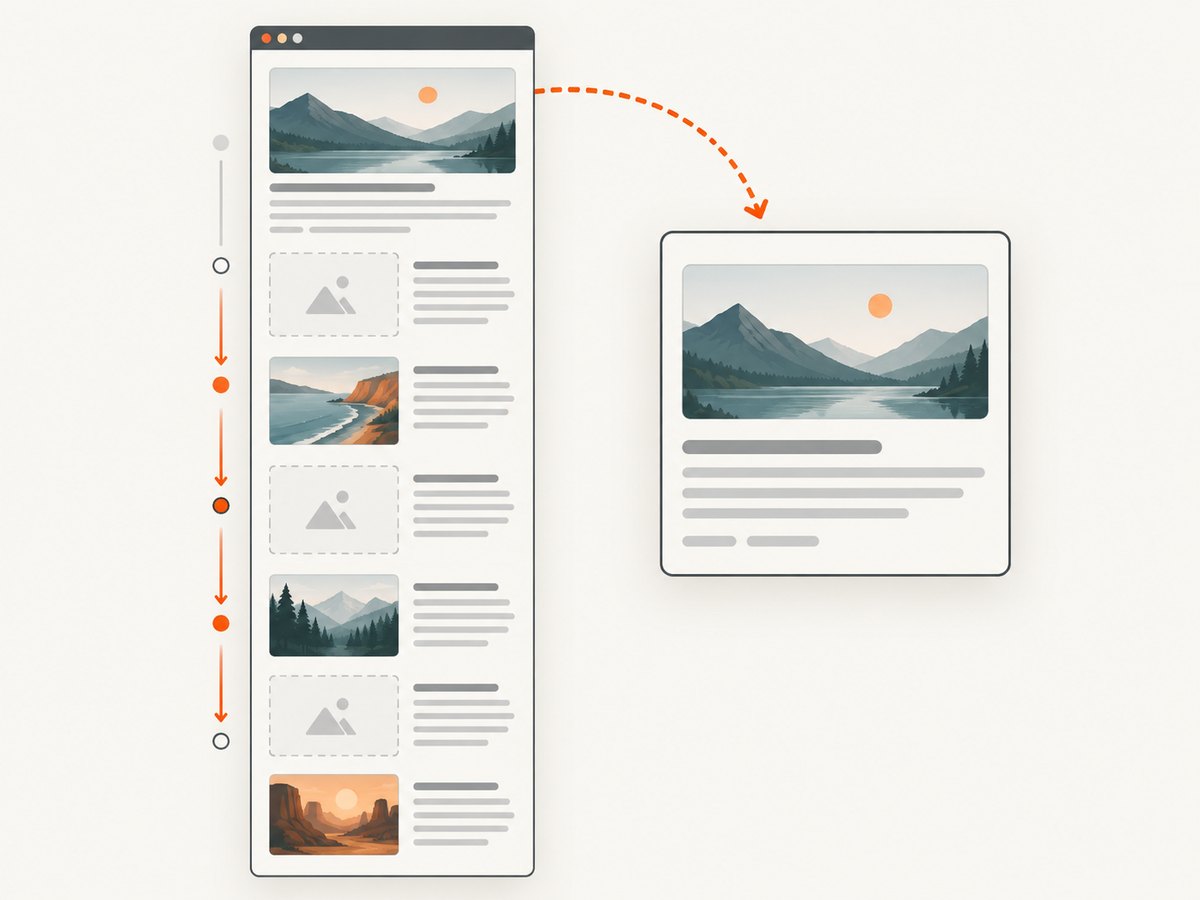
| Images are missing from a local copy | You selected HTML-only or text format, or resources were loaded lazily. | Use Web page, complete, wait for images to load, and reopen the saved file offline. |
| Offline item opens the live page | The browser refreshed the online version. | Save while online, then test with networking disabled. Use a PDF or local file when an immutable snapshot is required. |
| Automated capture shows a cookie banner | The capture ran before consent handling or the site uses an unsupported flow. | Use a wait for the relevant selector or network idle, custom JavaScript where appropriate, or ScreenshotNeo’s consent cleanup. |
| ScreenshotNeo response is not an image | The target returned a bot check, blank page, timeout, or failed load. | Inspect X-Page-Verdict and X-Billed, then adjust waits, headers, cookies, user agent, or blocking rules. |
| Request times out | The page has slow scripts, third-party resources, or never reaches the requested readiness condition. | Use a selector or delay that matches the page, block unnecessary resource types, or capture a smaller element. |
9. Performance, reliability, and cost
- Fastest manual path: Reader View followed by Print to PDF.
- Smallest files: Text or HTML-only saves, at the cost of images and visual fidelity.
- Most portable: PDF, provided you verify pagination and links.
- Repeatability: Automation benefits from explicit waits, a fixed viewport, selected resources, and a chosen cache policy.
- Dynamic pages: Wait for a selector, delay, or network idle before capture. Lazy images may need a full-page capture that allows them to load.
- Cost control: Browser saving has no API charge but consumes local time and maintenance. ScreenshotNeo’s cache hits and unsuccessful page verdicts are not billed; choose a TTL and use bulk capture for up to 100 URLs per call when appropriate.
10. Checklist before you delete the original
- Ads, consent banners, popups, and chat widgets are gone.
- The title, author, date, body, and required images are present.
- Links or citations you need are preserved.
- The PDF or local file opens without a network connection.
- Interactive content that cannot work offline is clearly understood.
- The filename includes a useful title and capture date.
- Private information is stored in an appropriate location.
FAQ
Does Reader View save the page automatically?
No. It changes the display. Save the simplified view as a PDF, reading-list item, or local file.
Which format keeps the original webpage links?
Firefox’s HTML-only option keeps the HTML and original link structure but omits pictures. Complete saves supporting files separately.
Can I save a video for offline use this way?
Usually not. PDF and local webpage saves are snapshots and do not guarantee that video, scripts, forms, or other dynamic controls will work offline.
Why is a saved page different from what I saw?
Reader modes and print styles intentionally simplify pages, while dynamic content can change during capture. Compare the preview or reopen the saved file before relying on it.
Can an API remove ads before saving?
Yes. ScreenshotNeo can block ads and trackers, remove known consent platforms, newsletter popups, and chat widgets, and return a PNG, JPEG, WebP, or PDF from one request.


